
Overview
You will learn
- How to use the new Core Data Services (CDS) tools in ABAP Development Tools for Eclipse (ADT).
- How to use the following ABAP and SQL elements in a CDS view:
- SELECT statement
- CASE statement
- WHERE clause


Prerequisites
Prerequisites
- You have a valid instance of an on-premise AS ABAP server, version 7.51 or higher (some ABAP Development Tools may not be available in earlier versions)
- You have run the transaction
SEPM_DG_OIA_NEWor transactionSTC01 -> tasklist SAP_BASIS_EPM_OIA_CONFIG. (If you do not, your CDS view will display empty.) - Tutorial: Create an ABAP Project in ABAP Development Tools (ADT)
- Tutorial: Create an ABAP Package
Steps
Intro
In this tutorial, you will create an ABAP Dictionary-based CDS view. As of ABAP AS 7.57, such views are deprecated. This tutorial is available for compatibility purposes only. For an short, up-to-date tutorial on CDS View Entities, see: Tutorial:Create an ABAP Core Data Services (CDS) View in ABAP On-Premise
CDS is an extension of the ABAP Dictionary that allows you to define semantically rich data models in the database and to use these data models in your ABAP programs. CDS is a central part of enabling code push-down in ABAP applications.
You can find more information about these deprecated CDS Views here:
You can find more information about CDS View Entities here:
- https://help.sap.com/doc/abapdocu_latest_index_htm/latest/en-US/index.htm?file=abencds_v2_views.htm
- SAP Community.
Throughout this tutorial, objects name include the suffix XXX. Always replace this with your group number or initials.
- In the context menu of your package choose New and then choose Other ABAP Repository Object.
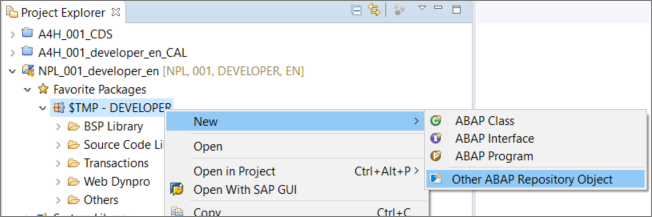
- Select Data Definition, then choose Next.

- Enter the following values, then choose Next:
Name =
Z_INVOICE_ITEMS_XXXDescription = Invoice Items
Referenced Object:
sepm_sddl_so_invoice_item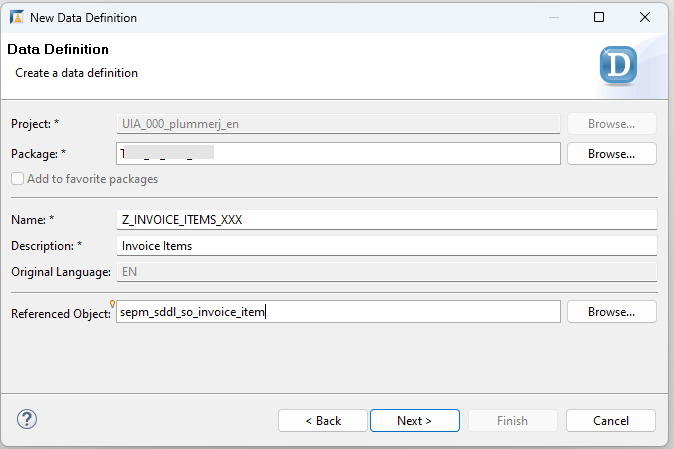
Image depicting step3-enterValues
Accept the default transport request (local) by simply choosing Next again.
Select the entry Define View, then choose Finish

The new view appears in an editor, with the fields from the referenced object, sepm_sddl_so_invoice_item. In this editor, enter the following values:
Enter
Z_ITEMS_XXXas the SQL view name.Your CDS view should now look like this:

step3a-new-cds-view The SQL view name is the internal/technical name of the view which will be created in the database.
Z_Invoice_Itemsis the name of the CDS view which provides enhanced view-building capabilities in ABAP. You should always use the CDS view name in your ABAP applications.Delete all the fields except:
key sales_order_invoice_item_key,
    currency_code,
gross_amountYou will now model the relationships between data sources by using some existing CDS associations. You can use associations in path expressions to access elements (fields and associations) in related data sources without specifying JOIN conditions. You can now display the element info by positioning the cursor on the data source name sepm_sddl_so_invoice_item and choosing F2.
To see the related data sources that can be accessed using associations, scroll down.
To see details about the target data source of the association header, choose the hyperlink sepm_sddl_so_invoice_header.

You will now add fields of related data sources to the SELECT list of Z_Invoice_Items, using the associations in path expressions. Each element in the path expression must be separated by a period.
Add the association
headerto your selection list, preferably with a comment, by adding the following the code. do not forget to add a comma after the previous item,gross_amount:ABAP// * Associations *// header
Image depicting step5-association You will get an error, “Field header must be included in the selection list together with field
SEPM_SDDL_SO_INVOICE_ITEM.SALES_ORDER_INVOICE_KEY”. Resolve this by adding the fieldsepm_sddl_so_invoice_item.sales_order_invoice_keyto the Select statement.Add the
company_nameof the business partner to the SELECT list using the associations header and buyer in a path expressionAdd the
payment_statusfrom the invoice header to the SELECT list using the association header
header.payment_status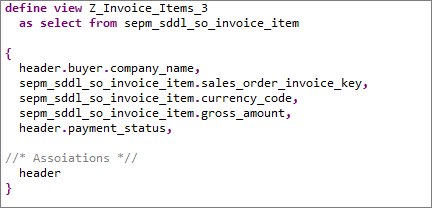
If the invoice has been paid, you want to set the payment_status to X (true). Do this by implementing a CASE expression, assigning the alias payment_status to the CASE expression.
Remove the existing declaration, header.payment_status, and replace it with the following code. Do not forget to separate the new, calculated field paid and the association header with a comma.
case header.payment_status
when 'P' then 'X'
else ' '
end as paid,
You can check your code below.
You will now filter the results so that only invoice items with currency_code = 'EUR' are retrieved.
Add a WHERE clause:
ABAPWHERE currency_code = 'EUR'
step6a-where-eur Save and activate the data definition by choosing Save (
Ctrl+S) and Activate (Ctrl+F3).
Image depicting step14-saveAndActivate
Your CDS view code should look something like this:
@AbapCatalog.sqlViewName: 'Z_ITEMS_XXX'
@AbapCatalog.compiler.compareFilter: true
@AccessControl.authorizationCheck: #NOT_REQUIRED
@EndUserText.label: 'Invoice Items'
define view Z_INVOICE_ITEMS_XXX
as select from sepm_sddl_so_invoice_item
{
key sales_order_invoice_item_key,
sepm_sddl_so_invoice_item.sales_order_invoice_key,
header.buyer.company_name,
currency_code,
gross_amount,
case header.payment_status
when 'P' then 'X'
else ' '
end as paid,
//      * Associations *//
        header
}
where
currency_code = 'EUR'Open the CDS View in the Data Preview by choosing F8. Your CDS View should look roughly like this:

Resources
Discussion
Share feedback on this tutorial or join the conversation in SAP Community.