
Create ABAPDoc Comments in Your Class (On-Premise)
Learn how to maintain ABAPDoc documentation for your class so your comments appear in the Outline view.
Overview
You will learn
- How to make your program more readable by learning how to maintain
ABAPDoccomments. - How to synchronize the documentation and to display it, both in the ABAP Development Tools (ADT) and in SAP GUI.


Prerequisites
Prerequisites
- You have a valid instance of an on-premise AS ABAP server, version 7.51 or higher (some ABAP Development Tools may not be available in earlier versions)
- You have installed ABAP Development Tools, latest version
Steps
Intro
ABAPDoc comments are used to document your code. This makes it more readable. If other developers use one of your development objects, they can find out more about it by selecting the object name in the code and choosing Element Info ( F2 )
All ABAPDoc comments begin with "!.
Always replace XXX or 001 with your initials or group number.
Time to Complete
10 Min
First, open your ABAP class.

Immediately before the method definition, add an ABAPDoc comment to the class:
"! Method reads invoice items from database .
NOTE: You must insert the ABAPDoc comment immediately before the declaration; otherwise you will get a warning from ADT.

ABAPDoc comments can be used to document APIs and are displayed in the Element Info. All ABAPDoc comments begin with "! .
You can also use ABAPDoc to document method parameters using Quick Assist. Place the cursor inside of the ABAPDoc comment. Then open the Quick Assist menu using **Ctrl+1** and double-click on Add missing parameters to documentation.

The ABAPDoc comment is extended by a @parameter ... | . You can now use this to document the method parameters: To do so, just enter the documentation after the pipe symbol (|).

We have documented our method using ABAPDoc. However, we also want to see the same short texts in the description fields of the form-based Class Builder in SAP GUI. To do this, we need to tag the required text in the ABAPDoc as “synchronized” to ensure that it is synchronized with the Class Builder.
Mark the short text for your method in ABAPDoc as “synchronized” by surrounding it with the tag
<p class="shorttext synchronized">...</p>.Do the same for the short text of your parameter
lt_result:

Save ( Ctrl+S ) and activate ( Ctrl+F3 ) the class.
Finally you will check that the synchronized short texts are also shown in the Class Builder. First we have to open the class in SAP GUI. To easily find the class in SAP GUI, first choose Link with Editor:

In the Project Explorer, select the class
ZCL_INVOICE_RETRIEVALand choose Open with SAP GUI from the context menu: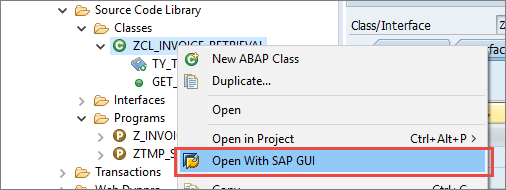
Image depicting step7a-open-w-sapgui The method description shows the text we entered in the ABAPDoc comment in the synchronized tag:
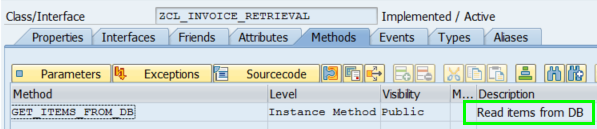
Image depicting step7b-method-text Now choose Parameters. You will see that the description of the parameter has also been synchronized:

Image depicting step7b-param-text Finally, close the class in SAP GUI and return to your ABAP program by choosing Close:

Image depicting step8-close
Back in the ABAP Program, position the cursor on the method call
GET_ITEMS_FROM_DBand display the Element Info of the method by choosing Element Info (F2). In addition to the method signature it also shows the ABAPDoc you wrote before:
Image depicting step8-final-abap-doc Close the Element Info by choosing ESC.
The code for your class should now look like this:
CLASS zcl_invoice_retrieval DEFINITION
  PUBLIC
  FINAL
  CREATE PUBLIC .

  PUBLIC SECTION.
    TYPES: ty_table_of_zso_invoice_item TYPE STANDARD TABLE OF zso_invoice_item WITH DEFAULT KEY.

"! <p class="shorttext synchronized">Read items from DB</p>
"! Method reads invoice items from the database
"! @parameter lt_result | <p class="shorttext synchronized">Table of invoice items</p>
"!
    METHODS get_items_from_db
              RETURNING
                VALUE(lt_result) type ty_table_of_zso_invoice_item.
  PROTECTED SECTION.
  PRIVATE SECTION.
ENDCLASS.

CLASS zcl_invoice_retrieval IMPLEMENTATION.

  METHOD get_items_from_db.

  SELECT
    snwd_bpa~company_name,
    snwd_so_inv_item~gross_amount,
    snwd_so_inv_item~currency_code,
    snwd_so_inv_head~payment_status

  FROM
   snwd_so_inv_item
   JOIN snwd_so_inv_head ON snwd_so_inv_item~parent_key = snwd_so_inv_head~node_key
   JOIN snwd_bpa ON snwd_so_inv_head~buyer_guid = snwd_bpa~node_key

   INTO TABLE @lt_result

  WHERE
   snwd_so_inv_item~currency_code = 'USD'

  ORDER BY
   snwd_bpa~company_name.

   LOOP AT lt_result ASSIGNING FIELD-SYMBOL(<entry>).
        CASE <entry>-payment_status.
            WHEN 'P'.
                <entry>-payment_status = abap_true.
            WHEN OTHERS.
                <entry>-payment_status = abap_false.
        ENDCASE.
    ENDLOOP.
  ENDMETHOD.
ENDCLASS.Create an ABAPDoc comment for the parameter PLANETYPE. The explanatory text should read Type of plane.
Enter the comment in the box below and choose Submit Answer.
- SAP Help Portal: Editing ABAP Doc Comments
- SAP Keyword Documentation: ABAPDoc
Resources
Discussion
Share feedback on this tutorial or join the conversation in SAP Community.