
Connect to Your On-Premise System from SAP BTP, ABAP Environment Using RFC
Call a remote function module located in an on-premise system, such as a SAP S/4HANA System, from the ABAP Environment
Overview
You will learn
- How to create a secure RFC connection between your SAP BTP, ABAP Environment and an on-premise SAP System, e.g. SAP S/4HANA
- How to test the connection using an ABAP handler class. This class will retrieve system information using a Remote Function Call (RFC),
RFC_GET_SYSTEM_INFOThis tutorial mission was written for SAP BTP ABAP Environment. However, you should also be able to use it in SAP S/4HANA Cloud Environment in the same way. Throughout this tutorial, replace###or000with your initials or group number. > This tutorial is part of a mission, Get Data from an On-Premise System Using a Remote Function Call - RFC. Make sure you have fulfilled the prerequisites in the previous tutorial and that you follow each tutorial in order.


Prerequisites
Prerequisites
- You have set up SAP Business Technology Platform (BTP), ABAP Environment, for example by using the relevant booster: Using a Booster to Automate the Setup of the ABAP Environment
- Tutorial: Set Up SAP BTP, ABAP Environment and create Your First Console Application, for a licensed user, steps 1-2
- You have a user in an ABAP on-premise system. Examples of such on-premise systems include:
- You have connected SAP Cloud Connector, to your BTP subaccount
- You have assigned the business catalog **``SAP_CORE_BC_COM in a business role assigned to your user, e.g.
SAP_BR_ADMINISTRATOR (Administrator); you will need it to create communication artifacts - You may need to define the relevant homepage structure that should be exposed to the launchpad. In Manage Launchpad Settings, set the relevant value for EXPOSURE_HOMEPAGE_STRUCTURE. See Manage Launchpad Settings
Steps
Introduction
To learn more about this scenario, see the tutorial: Get Data from a Remote System Using a Remote Function Call (RFC): Scenario
First, you need to connect your ABAP on-premise system to your BTP sub-account by means of SAP Cloud Connector.
In your browser, log on to SAP Cloud Connector:
- Address = e.g.
https://localhost:<port>(Default =8443) - User = Administrator
- Initial password = manage (You will change this when you first log in)
- Address = e.g.
Your configuration should look like this.

step1b-scc-location-id
The Location ID is optional. It enables you to connect multiple Cloud Connectors to a subaccount.
In the menu in the left pane, expand the sub-account and choose Cloud To On-Premise > Access Control.
Note down the Virtual Host, e.g.
s4h_rfc:sapgw<instance>as here. This represents an external hostname, so that you can hide the internal hostname from the outside world. You will need this external hostname and port later, when creating a destination from SAP BTP cockpit.Check that Result =
Reachable. If not, check that you chose the correct port, or whether an internal firewall is preventing communication.
step2a-scc-virtual-host Add the following resources:
RFC_GET_SYSTEM_INFO(as exact name)BAPI_EPM(as prefix)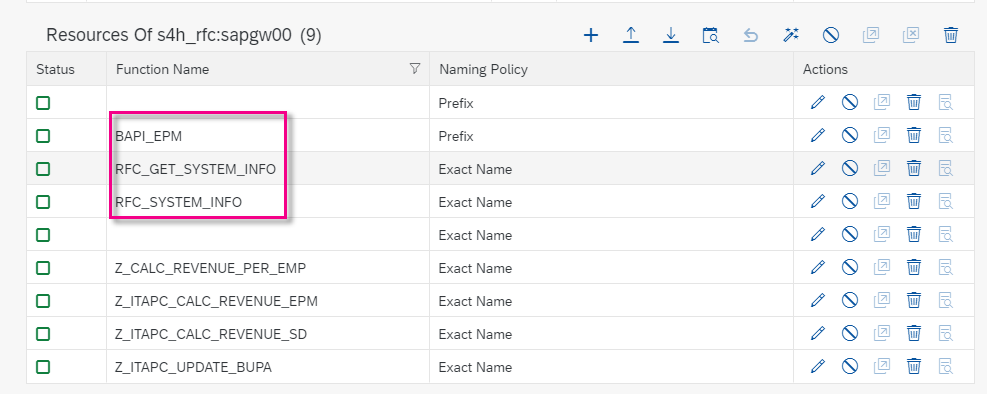
step2b-scc-resources
In the SAP BTP cockpit of your Cloud Foundry sub-account, choose Cloud Connectors:

The Virtual host points to the on-Premise connection mapped in SAP Cloud Connector. If used, The Location ID points to the correct SAP Cloud Connector (located in the on-Premise system). Later, in your Communication System in Fiori Launchpad, you will use these values, as and Target Host and (optionally) SCC Location ID respectively.
Now, in SAP BTP ABAP Environment, you need to create the necessary ABAP artifacts in ABAP Development Tools (ADT), starting with a package.
In ABAP Development Tools (ADT), select the ABAP Cloud Project and choose New > ABAP Package from the context menu.
Enter the following and choose Next:
- Name =
Z_OUTBOUND_RFC_### - Description = Get product data from S/4HANA using RFC
- Package type = Development
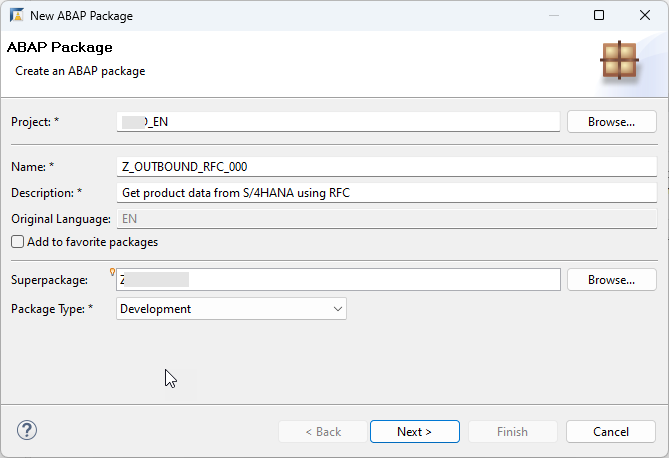
step3a-create-package - Name =
Choose Create new transport request, enter a description, such as Get product data from S/4HANA using RFC, then choose Finish.

step1b-transport-request
Next, you will establish outbound communication from the BTP instance to the S/4HANA instance.
Select your ABAP package and choose New > Other Repository Object from the context menu; then enter Outbound Service, then choose Next.

step2a-new-repo-object 
step2a-new-outbound-service Enter the following and choose Next.
- Outbound service:
Z_OUTBOUND_RFC_###. TheSRFCsuffix will be added automatically. - Description: Get product data from S/4HANA using RFC
- Service type: RFC Service

step2b-outbound-service-name - Outbound service:
Choose the transport request you just created, then choose Finish.
The outbound service appears. Optional: Add the relevant RFC, RFC_GET_SYSTEM_INFO, then choose Save from the main toolbar.
Still in ADT, choose Cloud Communication Management > New > Communication Scenario from the context menu, then choose Next.

step3a-new-comm-scen Enter the following and choose Next.
- Name:
Z_OUTBOUND_RFC_###_CSCEN - Description:
Comm Scen: Call API from S/4HANA using RFC

step3b-new-comm-scen-name - Name:
Choose the transport request you just created, then choose Finish.
The communication scenario appears in a new editor. Ensure the following have been entered:
- Communication Scenario Type: Customer Managed
- Allowed Instances: One instance per scenario and communication system
On the Outbound tab, add your service by choosing Add.
Choose Browse, select your outbound service
Z_OUTBOUND_RFC_###_SRFC, then choose Finish. The service type RFC is entered automatically.Choose Finish. Your communication scenario should look like this.
Make sure that Supported Authentication Methods > Basic is ticked, since you will use this method later.

step3d-comm-scen-finished Leave the other default settings, choose Save, then choose Publish locally.
Now, you need to create the necessary communication artifacts in Fiori Launchpad (of the BTP instance), starting with the communication system. This artifact specifies the URL of the API (minus the HTTP(S) protocol) and port.
In the Fiori Launchpad home page, choose Communication Systems, then choose New.

step4b-new-comm-system Enter the following and choose Create.
- System ID:
Z_OUTBOUND_RFC_CSYS_### - System Name:
Z_OUTBOUND_RFC_CSYS_###
- System ID:
In General and below, enter:
Field Name Value Host name the host name of your ABAP on-premise system, found in the URL of that system’s Fiori Launchpad, e.g.: myhost.s4hana.ondemand.comPort Default = 443 Destination Off Cloud Connector On SCC Location ID: SAPDEVIn RFC Settings, enter:
Load Balancing Off Target Host s4h_rfcClient Client of your ABAP on-premise system, also found in the URL e.g. 100 Instance Number Default = 00 
Under Users for Outbound Communication, enter the following, then choose Close:
- Authentication method: User Name and Password (basic authentication)
- User name: Your user name from the on-premise system
- Password: Your password from the on-premise system

step4d-comm-user-btp-s4h-cu-000 Leave the other default settings as they are and choose Save.

Next, you will create communication arrangement, pointing to the communication scenario and communication system.
Choose Communication Arrangements, then choose New.

step4a-comm-management-tiles Choose your communication scenario,
Z_OUTBOUND_RFC_###_CSCEN. This name is also entered automatically for the communication arrangement. You can accept this default.
step4a-new-comm-arr 
step4b-select-comm-scenario Choose the communication system you created,
Z_OUTBOUND_RFC_CSYS_###. The other details, e.g. Communication User, RFC Outbound Service, and RFC Function Module are entered automatically.Check the connection.
In ABAP Development Tools (ADT), in Project Explorer, open your ABAP Environment instance. For more information, see Set Up SAP BTP, ABAP Environment and create Your First Console Application.
In the project, create a new ABAP package.
Create a new ABAP class: Choose File > New > Other… > ABAP Class.
Enter the following for your class, then choose Next.
- Name:
ZCL_SYSTEM_INFO_RFC_### - Description for your class, e.g. Test RFC BTP to on-premise
- Interface:
if_oo_adt_classrun. This enables you to run the class in the console.
- Name:
Create or assign a transport request.
First, you need to create the types and variables that specify your remote connection information.
Since the structure rfcsi is not a released object in SAP BTP, ABAP Environment, or in S/4HANA, Cloud edition, you need to create appropriate types for the variable lv_result. To generate these types for other remote function modules, use the transaction ACO_PROXY.
For readability and reuse, you will create these in an interface.
Select your package and choose New > Other ABAP Object > ABAP Interface from the context menu.
Enter the following and choose Next.
- Name:
ZIF_TYPES_FOR_SYSTEM_INFO - Description:
Types for RFC_GET_SYSTEM_INFO
Choose the transport request, then choose Finish.
Add the following to the interface:
ABAPtypes: RFCPROTO TYPE C LENGTH 000003 . types: RFCCHARTYP TYPE C LENGTH 000004 . types: RFCINTTYP TYPE C LENGTH 000003 . types: RFCFLOTYP TYPE C LENGTH 000003 . types: RFCDEST TYPE C LENGTH 000032 . types: RFCCHAR8 TYPE C LENGTH 000008 . types: SYSYSID TYPE C LENGTH 000008 . types: RFCDBHOST TYPE C LENGTH 000032 . types: SYDBSYS TYPE C LENGTH 000010 . types: SYSAPRL TYPE C LENGTH 000004 . types: RFCMACH TYPE C LENGTH 000005 . types: SYOPSYS TYPE C LENGTH 000010 . types: RFCTZONE TYPE C LENGTH 000006 . types: SYDAYST TYPE C LENGTH 000001 . types: RFCIPADDR TYPE C LENGTH 000015 . types: SYKERNRL TYPE C LENGTH 000004 . types: SYHOST TYPE C LENGTH 000032 . types: RFCSI_RESV TYPE C LENGTH 000012 . types: RFCIPV6ADDR TYPE C LENGTH 000045 . types: BEGIN OF RFCSI , RFCPROTO TYPE RFCPROTO , RFCCHARTYP TYPE RFCCHARTYP , RFCINTTYP TYPE RFCINTTYP , RFCFLOTYP TYPE RFCFLOTYP , RFCDEST TYPE RFCDEST , RFCHOST TYPE RFCCHAR8 , RFCSYSID TYPE SYSYSID , RFCDATABS TYPE SYSYSID , RFCDBHOST TYPE RFCDBHOST , RFCDBSYS TYPE SYDBSYS , RFCSAPRL TYPE SYSAPRL , RFCMACH TYPE RFCMACH , RFCOPSYS TYPE SYOPSYS , RFCTZONE TYPE RFCTZONE , RFCDAYST TYPE SYDAYST , RFCIPADDR TYPE RFCIPADDR , RFCKERNRL TYPE SYKERNRL , RFCHOST2 TYPE SYHOST , RFCSI_RESV TYPE RFCSI_RESV , RFCIPV6ADDR TYPE RFCIPV6ADDR , END OF RFCSI .Format, save, and activate (
Sh+F1, Ctrl + Save, Ctrl + F3) your interface.
In the class implementation, in the method if_oo_adt_classrun~main, add the following variables.
```ABAP
DATA(lo_destination) = cl_rfc_destination_provider=>create_by_comm_arrangement(

    comm_scenario          = 'Z_OUTBOUND_RFC_###_CSCEN'   " Communication scenario
    service_id             = 'Z_OUTBOUND_RFC_###_SRFC'    " Outbound service

                      ).

DATA(lv_destination) = lo_destination->get_destination_name( ).

DATA lv_result type ZIF_TYPES_FOR_SYSTEM_INFO=>rfcsi.
DATA msg TYPE c LENGTH 255.

```
CALL function 'RFC_GET_SYSTEM_INFO'
destination lv_destination
  IMPORTING
RFCSI_EXPORT = lv_result.Output the result of the RFC call to the ABAP Console
out->write( lv_result ).Wrap the whole method in an exception using TRY…CATCH.
catch cx_root into data(lx_root).
  out->write( lx_root->get_text( ) ).
endtry.Go back to your RFC class.
In the method implementation for
if_oo_adt_classrun~main, add a DATA statement (before you call the function):ABAPDATA msg TYPE c LENGTH 255.Now, in the function call for
RFC_GET_SYSTEM_INFO, remove the period (.) after the IMPORTING parameter and add the following exception parameters to the function callRFC_GET_SYSTEM_INFO:ABAPEXCEPTIONS system_failure = 1 MESSAGE msg communication_failure = 2 MESSAGE msg OTHERS = 3.Now evaluate
sy-subrcby changingout->write( lv_result ).to include the followingCASE...ENDCASEstatement:ABAPCASE sy-subrc. WHEN 0. out->write( lv_result ). WHEN 1. out->write( | EXCEPTION SYSTEM_FAILURE | && msg ). WHEN 2. out->write( | EXCEPTION COMMUNICATION_FAILURE | && msg ). WHEN 3. out->write( | EXCEPTION OTHERS | ). ENDCASE.
Your code should look roughly like this:
CLASS ZCL_SYSTEM_INFO_RFC_### DEFINITION
public
final
create public .
public section.
interfaces if_oo_adt_classrun.
protected section.
private section.
ENDCLASS.
CLASS ZCL_SYSTEM_INFO_RFC_### IMPLEMENTATION.
METHOD IF_OO_ADT_CLASSRUN~MAIN.
TRY.
DATA(lo_destination) = cl_rfc_destination_provider=>create_by_comm_arrangement(
comm_scenario = 'Z_OUTBOUND_RFC_###_CSCEN' " Communication scenario
service_id = 'Z_OUTBOUND_RFC_###_SRFC' " Outbound service
comm_system_id = 'Z_OUTBOUND_RFC_CSYS_###' " Communication system
).
DATA(lv_destination) = lo_destination->get_destination_name( ).
DATA lv_result TYPE ZIF_TYPES_FOR_SYSTEM_INFO=>RFCSI.
DATA msg TYPE c LENGTH 255.
CALL FUNCTION 'RFC_GET_SYSTEM_INFO'
DESTINATION lv_destination
IMPORTING
rfcsi_export = lv_result
EXCEPTIONS
  system_failure        = 1 MESSAGE msg
  communication_failure = 2 MESSAGE msg
OTHERS                    = 3.
CASE sy-subrc.
   WHEN 0.
     out->write( lv_result ).
   WHEN 1.
     out->write( | EXCEPTION SYSTEM_FAILURE | && msg ).
   WHEN 2.
     out->write( | EXCEPTION COMMUNICATION_FAILURE | && msg ).
   WHEN 3.
     out->write( | EXCEPTION OTHERS | ).
ENDCASE.
CATCH cx_root INTO DATA(lx_root).
out->write( lx_root->get_text( ) ).
ENDTRY.
ENDMETHOD.
ENDCLASS.Save and activate the class, using
Ctrl+S, Ctrl+F3.Run the class by choosing
F9. The ABAP Console output should look roughly like this:
step15a-console-output-2023
Resources
Discussion
Share feedback on this tutorial or join the conversation in SAP Community.