
ABAP Development Tools for Visual Studio Code
You will learn how to set up ABAP Development Tool (ADT) in Visual Studio Code.
Overview
You will learn
- How to set up Visual Studio Code with the ADT for Visual Studio Code extension and connect to your ABAP Cloud system


Prerequisites
Prerequisites
- Visual Studio Code — Download from https://code.visualstudio.com/
- ADT for Visual Studio Code — ADT for Visual Studio Code includes the built-in ADT MCP Server. Here is the [link] (https://marketplace.visualstudio.com/items?itemName=SAPSE.adt-vscode) to download the extension
- You need to have access to an SAP BTP, ABAP environment, or SAP S/4HANA Cloud, ABAP environment or SAP S/4HANA (release 2025 or higher) system. For example, you can create a free trial user on SAP BTP, ABAP environment.
- You have downloaded and installed the [latest ABAP Development Tools (ADT)] (https://tools.hana.ondemand.com/#abap) on the latest Eclipse© platform.
- You have created an ABAP Cloud Project.
- Your system has the ABAP flight reference scenario. If your system hasn’t this scenario. You can download it here. The trial systems have the flight scenario included.
Steps
Introduction
In this tutorial, you will install Visual Studio Code, install the ADT for Visual Studio Code extension, and establish a connection to your ABAP system.
This tutorial was written for SAP BTP ABAP Environment. However, you should also be able to use it in SAP S/4HANA Cloud Environment in the same way.
Always replace ### with your initials or group number.
Download and install Visual Studio Code on your system if you have not already done so.
Open a browser and go to https://code.visualstudio.com/
Download the installer for your operating system (Windows, macOS, or Linux).
Run the installer and follow the on-screen instructions.
Launch Visual Studio Code once installation is complete.
ℹ️ Hint: Ensure you are running a recent stable version of Visual Studio Code. Go to Help > About to check your version.
Install the ABAP Development Tools (ADT) extension for Visual Studio Code from the Visual Studio Marketplace. This extension connects Visual Studio Code to your ABAP backend and includes the built-in ADT MCP Server that you will use in Exercise 1. If you are accessing it from any event like ‘We are Developers’ the Visual Studio Code and ADT Extension will already be installed in the available machines.Changes here
Install from the Visual Studio Code Marketplace
Open Visual Studio Code.
Open the Extensions view:
- Press
Ctrl+Shift+X(macOS:Cmd+Shift+X), or - Click the Extensions icon in the Activity Bar (left edge)
- Press
In the search bar, type ‘ABAP Development Tools’
Locate the “ABAP Development Tools” extension published by SAP and click Install.
Wait for the installation to complete.
✅ Success: You should see “ABAP Development Tools” listed under Installed extensions.

ADT Extension in Visual Studio Marketplace
Verify the installation
Open the Command Palette
Ctrl+Shift+Pand typeABAP. You should see ABAP-specific commands such as:ABAP: New Destination...ABAP: Open Object...ABAP: Create New ABAP Object...ABAP: Activate
✅ If you see these commands, the extension is installed correctly.
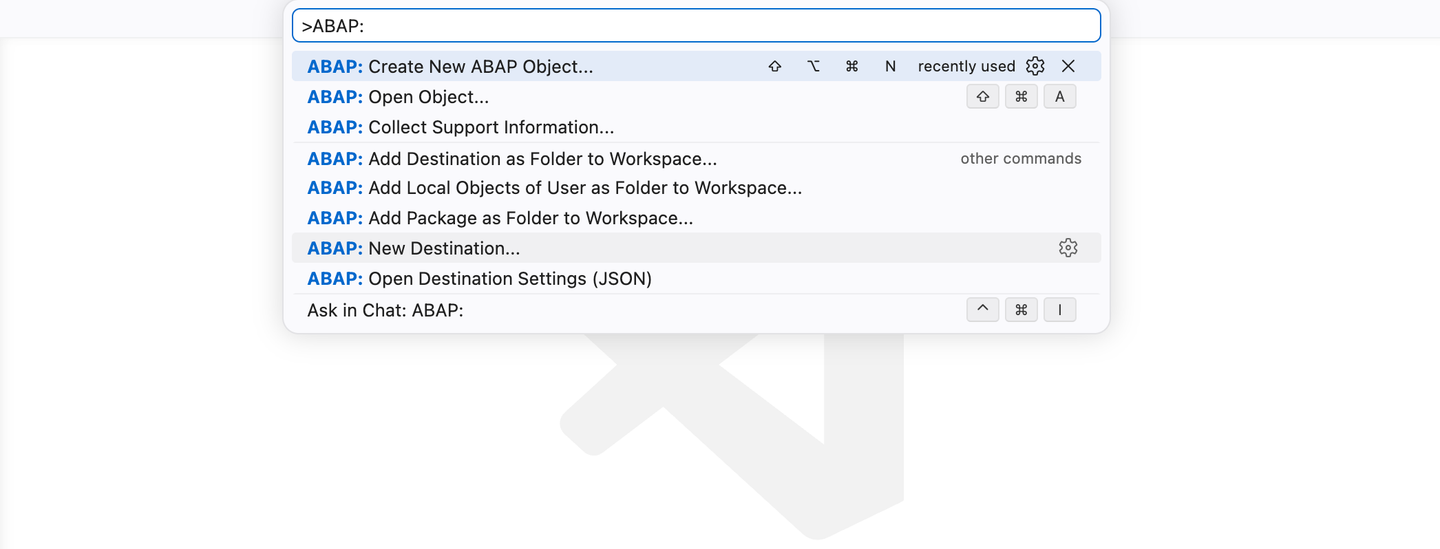
ADT Extension installed — ABAP commands visible in Command Palette
Create a destination in Visual Studio Code to connect to your ABAP system, then add it to your workspace.
Choose the connection type that matches your system:
- HTTP — SAP BTP ABAP Environment or SAP S/4HANA Cloud Public Edition
- RFC — SAP S/4HANA on-premise or SAP S/4HANA Cloud Private Edition (requires SAP Logon configured on your machine)
Option A: HTTP destination (Cloud systems)
Open the Command Palette
Ctrl+Shift+P.Type
ABAP: New Destinationand select “ABAP: New Destination…”.Select HTTP as the connection type.
Enter the system URL of your ABAP Cloud system. The URL format is:
Codehttps://<system-id>.abap.<region>.hana.ondemand.comPress Enter, then enter a short ID for this destination (e.g.,
BTP_DEV).Press Enter. The connection is established.
CodeCommand Palette → "ABAP: New Destination..." ↓ Connection Type → HTTP ↓ System URL → https://<system-id>.abap.<region>.hana.ondemand.com ↓ Destination ID → BTP_DEV ↓ ✅ Connection established!
Option B: RFC destination (On-premise systems)
ℹ️ Prerequisite: Your system must be configured in SAP Logon (SAP GUI) with RFC connectivity before proceeding.
Open the Command Palette
Ctrl+Shift+P.Type
ABAP: New Destinationand select “ABAP: New Destination…”.Select RFC as the connection type.
A list of systems from your SAP Logon configuration is displayed. Select your target system.
Enter your username and press Enter.
Enter the client number (e.g.,
100) and press Enter.Enter your login language (e.g.,
EN) and press Enter.The connection is established.
CodeCommand Palette → "ABAP: New Destination..." ↓ Connection Type → RFC ↓ System → <SID> ↓ Username → <username> ↓ Client → 100 ↓ Language → EN ↓ ✅ Connection established!As soon as the connection is established you should be able to see a visual feedback that the destination was created successfully and a notification pop-up with a button which directly adds it as a folder to your workspace.
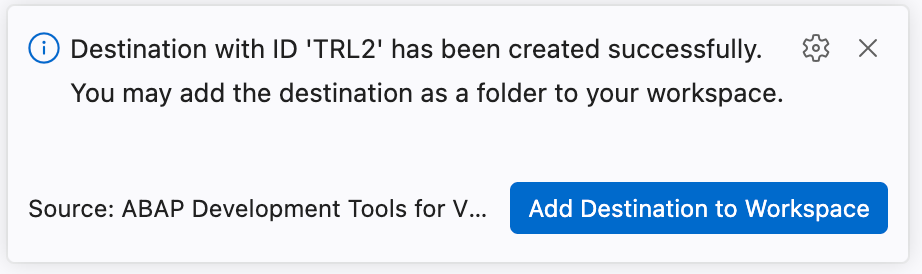
Add Destination If you missed adding the destination to the workspace using the above popup please continue with Step 4.
Open the Command Palette
Ctrl+Shift+P.
Add Destination Type
ABAP: Add Destination as Folderand select “ABAP: Add Destination as Folder to the Workspace…”.Select your newly created destination.
For HTTP systems: a browser window opens — log in with your ABAP system credentials.
For RFC systems: the connection is established immediately using your SAP Logon credentials.After login, your system connection appears as a folder in the Visual Studio Code Explorer view (left sidebar).
Open Destination settings to see the details of the added system

Destination Settings
- In the Explorer view, expand the folder for your system connection.
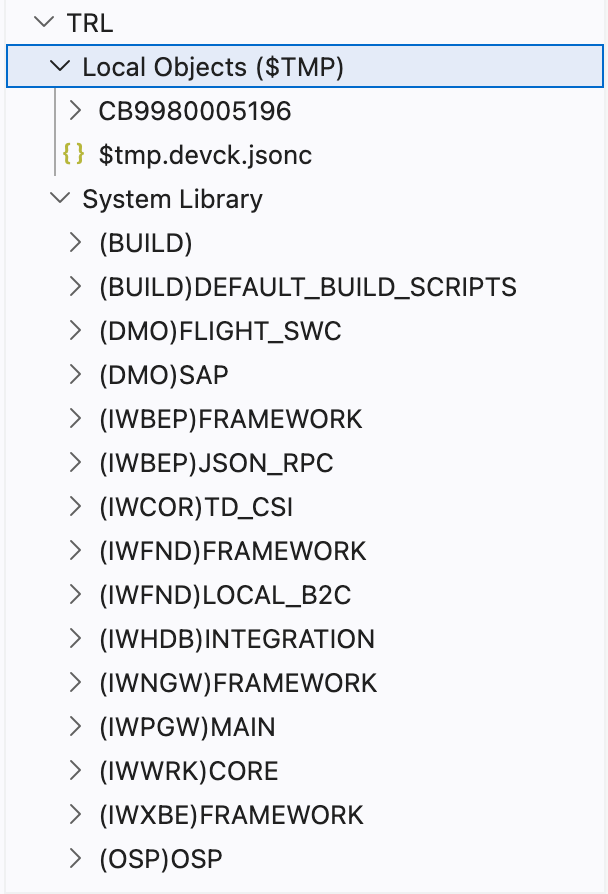
Explorer View - Navigate through the package hierarchy to find objects.
Get familiar with the key Visual Studio Code areas you will use throughout this tutorial.
Key UI areas for ABAP development
| Area | Location | Purpose |
|---|---|---|
| Activity Bar | Far left | Switch between Explorer, Search, Source Control, Run & Debug, Extensions |
| Explorer (Workspace) | Left sidebar | Navigate your ABAP system hierarchy — packages, object types, objects |
| Editor | Center | Edit ABAP source code (classes, CDS views, behavior definitions, etc.) |
| Problems Panel | Bottom | Syntax errors and warnings |
| Terminal | Bottom | Integrated shell |
| Status Bar | Very bottom | Current line/column, language, connected system |
Essential keyboard shortcuts
| Action | Windows/Linux | macOS |
|---|---|---|
| Command Palette | Ctrl+Shift+P | Cmd+Shift+P |
| Open ABAP Object | Ctrl+Shift+A | Cmd+Shift+A |
| Create ABAP Object | Ctrl+Shift+Alt+N | Cmd+Shift+Option+N |
| Activate object | Ctrl+F3 | Cmd+F3 |
| Activate all inactive | Ctrl+Shift+F3 | Cmd+Shift+F3 |
| Save | Ctrl+S | Cmd+S |
| Find/Replace | Ctrl+H | Cmd+H |
| Run ABAP Unit Tests | Ctrl+Shift+F10 | Cmd+Shift+F10 |
Resources
Discussion
Share feedback on this tutorial or join the conversation in SAP Community.