Integrate SAP BTP, ABAP environment and SAP S/4HANA Cloud, public edition using Basic Authentication
Expose the Business Partner (A2X) OData service in SAP S/4HANA Cloud, public edition and create a communication user to access this service. Consume the same service from SAP BTP ABAP environment using Basic Authentication as the authentication method.
To access communication management apps, your business user has to be assigned to a business role containing business catalog SAP_CORE_BC_COM, e.g. business role SAP_BR_ADMINISTRATOR. This must be done in the following systems:
The SAP BTP, ABAP environment system
The customizing tenant (100) of the SAP S/4 HANA Cloud, public edition development system
To access the Manage Business Partner Master Data in the SAP S/4 HANA Cloud, public edition system, your business user in the customizing tenant (100) has to be assigned to business role SAP_BR_BUPA_MASTER_SPECIALIST. Thus you are able to test the implementation.
Steps
Intro
In this tutorial, all activities on S/4HANA Cloud side will be performed in the customizing tenant (100) of your development system.
Step 1Create a Communication User in SAP S/4HANA Cloud, public edition
—
Create a communication user in SAP S/4HANA Cloud, public edition. This technical user will be used for the inbound connectivity of SAP S/4HANA Cloud, public edition and outbound connectivity of the SAP BTP, ABAP environment.
Open the SAP Fiori Launchpad of the customizing tenant (100) of your SAP S/4HANA Cloud, public edition development system.
Access the Maintain Communication Users app
Choose button New
Provide User NameZBPA2X_COM_USER and DescriptionCommunication User to create Business Partners
Choose button Propose Password
Store proposed password for later use.
Create Communication User
Choose button Create
Step 2Create a Communication System in SAP S/4HANA Cloud, public edition
+
Create a communication system in SAP S/4HANA Cloud, public edition. This is used to model the external communication partner and to specify the authentication methods and users which are allowed.
Access the Communication Systems app
Choose button New
Provide System IDZBPA2X_COM_SYS and System NameZBPA2X_COM_SYS
Create Communication System
Choose button Create
In the Section General tab provide the following information:
In the Users for Inbound Communication tab provide the following information:
Choose `+` to add an Inbound User
Choose Authentication Method: User Name and Password
Provide **User Name / Client ID**: `ZBPA2X_COM_USER`
Choose button **OK**
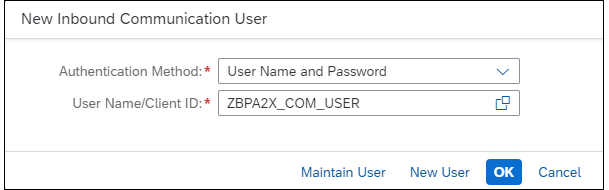
The result is that the user created in the previous step is now added as inbound communication user
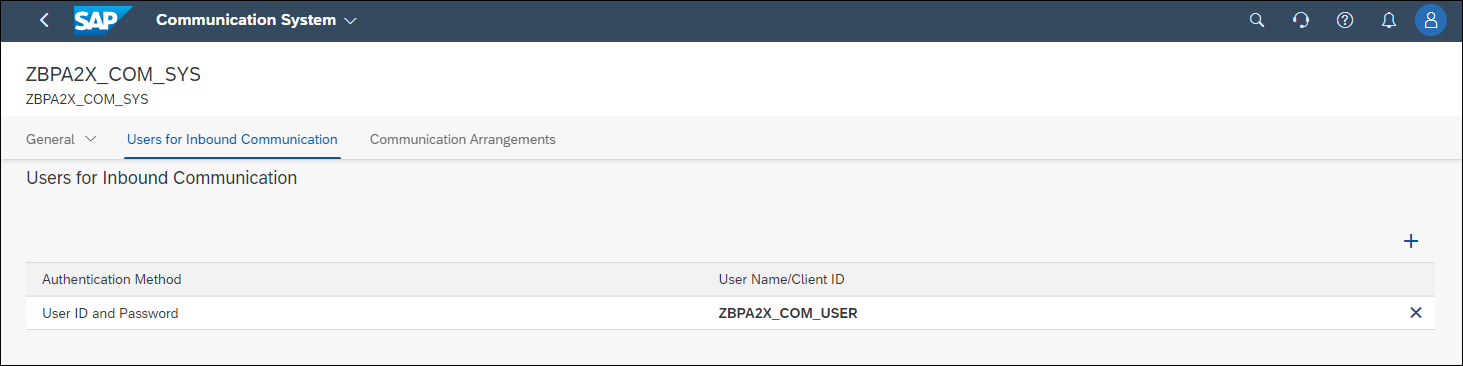
Choose Save to save the communication system.
Step 3Create the Communication Arrangement in SAP S/4HANA Cloud, public edition
+
Create a communication arrangement based on the communication scenario SAP_COM_0008 in SAP S/4HANA Cloud, public edition. The Business Partner (A2X) API is part of this standard scenario. You will use the previously created communication system and user, thus defining how to authenticate and authorize against the exposed service.
Access the Communication Arrangements app
Choose button New
Choose Scenario SAP_COM_0008
Provide Arrangement Name: ZBPA2X_CA_INBOUND
Choose button Create
Create Communication Arrangement
On the next screen provide the following information:
Communication System: `ZBPA2X_COM_SYS`. For inbound communication the User Name and Authentication Method is set automatically from the communication system.
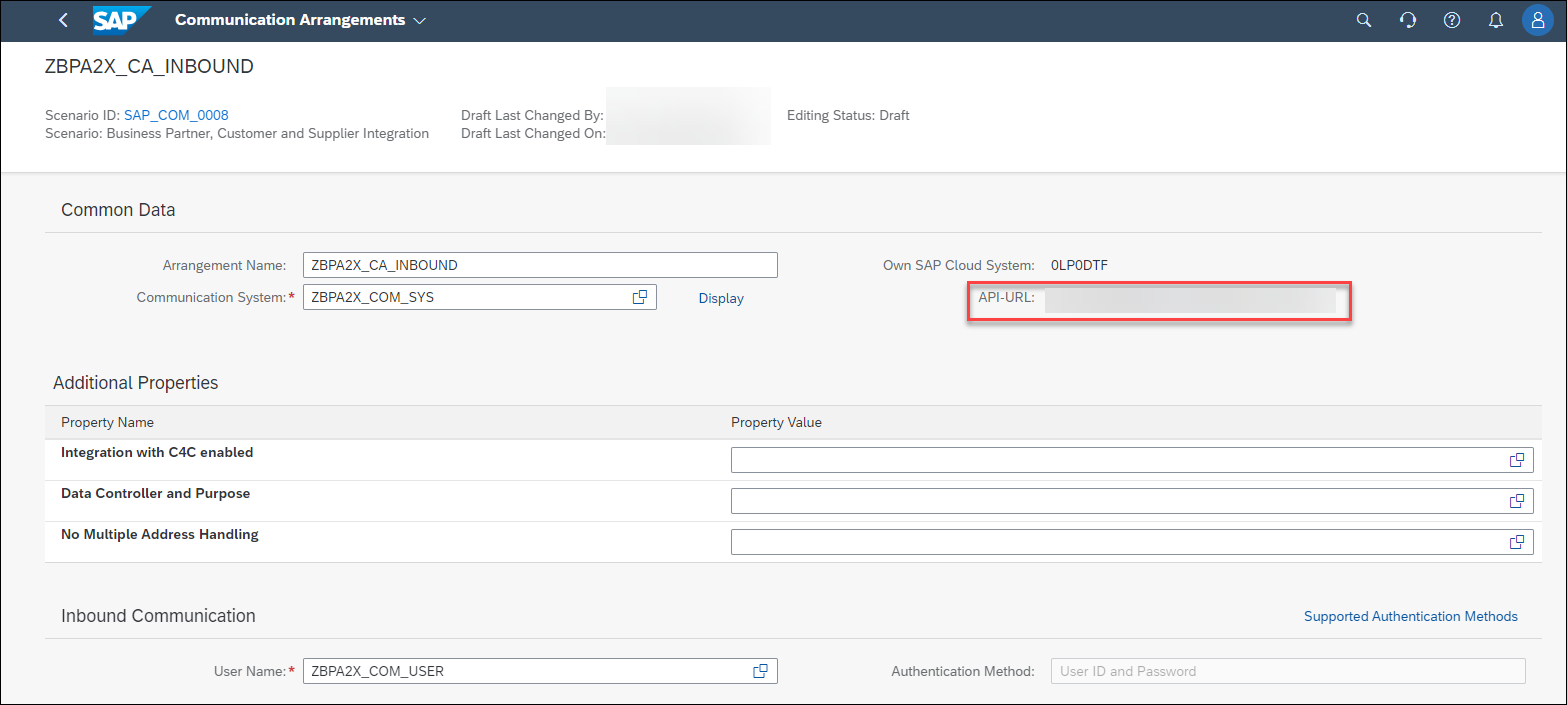
Store **API-URL** for later use
Deactivate all Outbound Services. Explanation: The outbound services are used to support a different scenario, which is to synchronize business partners between SAP S/4HANA systems via SOAP. This is not done in this tutorial. We are using the service to expose it as an API. ( **Business Partner (A2X)** ). Example for a deactivated Outbound Service:
You can download the metadata of the service also in the communication arrangement. This is helpful in case you extended the API with custom fields. To download the metadata, navigate to Inbound Services and choose Download WSDL/Service Metadata:Download Metadata Alternative
Step 4Create a Communication Arrangement and Communication System in SAP BTP, ABAP environment
+
Configure the outbound connectivity in SAP BTP, ABAP environment. Create a communication arrangement based on your custom communication scenario, as well as a communication system and an outbound communication user. The communication system will contain the target host of the SAP S/4HANA Cloud, public edition system, while the communication user will need to match the inbound user defined in the target system.
Open SAP Fiori Launchpad of your SAP BTP ABAP environment system.
Access the Communication Arrangements app
Choose button New
Choose Scenario ZBPA2X_CS_BUPA created before
Provide Arrangement Name: ZBPA2X_CA_OUTBOUND
Choose button Create
Create Communication Arrangement - ABAP system
Choose button New to create a new Communication System
Create Communication System - ABAP system
Provide:
System ID: `ZBPA2X_COM_SYS_S4H`
System Name: `ZBPA2X_COM_SYS_S4H`

In the Communication System screen, General section, provide:
Host Name: **API-URL** stored in STEP 3. Remove the `https://` from the URL.
Business System: `ZBPA2X`

In the Users for Outbound Communication section
Choose `+`
Provide **User Name / Client ID**: User created in STEP 1 (`ZBPA2X_COM_USER`)
Provide Password: Password created and stored in STEP 1
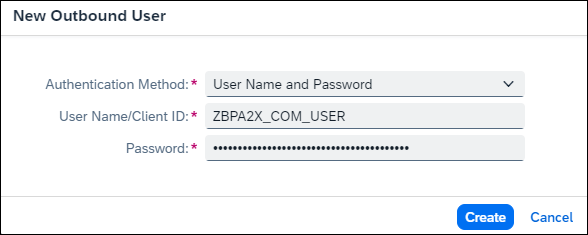
Choose button **Create**
Choose Save to save the Communication System
Verify the Authentication Method is User ID and Password
Verify Authentication Method
Choose Save to save the Communication Arrangement
You have now successfully integrated SAP BTP, ABAP Environment and your SAP S/4HANA Cloud, public edition system using Basic Authentication.
Step 5Execute Business Partner Service Call
+
As a developer in SAP BTP, ABAP environment, you can now execute the console application.
In ADT, open the project for your SAP BTP ABAP environment system.
Navigate to the Console Application ZBPA2X_CL_CLASSRUN
Right click on the class and choose Run As > ABAP Application (Console)
Note down the Business Partner number that is written to the Console for later use
Business partner number
Step 6Verify Business Partner
+
You should now verify that the business partner was successfully created in your SAP S/4HANA Cloud, public edition system.
Open the SAP Fiori Launchpad of the customizing tenant (100) of your SAP S/4HANA Cloud, public edition development system.
Access the Manage Business Partner Master Data app
Enter the previously created Business Partner number in the related field and press enter.
Verify Business partner creation
Display column Created By via the settings button.
Verify Business partner creation 2
Verify Business partner creation 3
Check the data of the created business partner. See that the user was created by the technical communication user, and not by your own business user:
Verify Business partner creation 4
You have now verified that the integration of SAP BTP, ABAP environment and your SAP S/4HANA Cloud, public edition system, which uses Basic Authentication as the authentication mechanism, indeed works.
You saw that the business partner was created by the technical communication user, and not by your own business user. In fact, you do not even require a business user in the S/4HANA Cloud system for the remote service call to succeed. The communication user receives the necessary authorization for creating business partners via the communication arrangement for scenario SAP_COM_0008.
Share feedback on this tutorial or join the conversation in SAP Community.
Submit detailed feedbackDiscuss in Community
Steps
Step 1 of 7
1. Create a Communication User in SAP S/4HANA Cloud, public edition2. Create a Communication System in SAP S/4HANA Cloud, public edition3. Create the Communication Arrangement in SAP S/4HANA Cloud, public edition4. Create a Communication Arrangement and Communication System in SAP BTP, ABAP environment5. Execute Business Partner Service Call6. Verify Business Partner7. Test yourself
Joule is an AI assistant. Generative AI may produce inaccurate, incomplete, or biased information. Always verify important details before acting on them.
Conversations are sent to SAP-hosted large language models for processing. Do not include personal data, credentials, or confidential information in your messages.
Joule's responses are based on the SAP tutorial catalog and may not reflect the latest product changes. For authoritative guidance, consult the linked tutorials and official SAP documentation.



