
Overview
You will learn
- How to checkout feature branch
- How to change your coding
- How to transport changes
- How to checkout master branch
- How to test changes


Prerequisites
Prerequisites
- SAP BTP, ABAP environment user
- ADT version 2.96 or higher
- Administrator role assigned to user
- You have finished following tutorial: Create Branches with SAP BTP, ABAP Environment.
Steps
Intro
In this tutorial, wherever XXX appears, use a number (e.g. 000).
Logon to your ABAP system in your SAP Fiori launchpad and open Manage Software Components application.

Checkout feature branch Note: If you don’t know the URL of your ABAP system, then you can open your ABAP Development Tools (ADT), right-click on your ABAP system in your project explorer, select Properties and click on your system URL.
In your manage software components application search for your software component
Z_SWCT_XXXand select it.
Checkout feature branch Select your feature branch
branch_xxxand click Checkout to be active with your master branch.
Checkout feature branch Click OK.

Checkout feature branch Refresh your recent actions to see your result.

Checkout feature branch Now you can see, that your feature branch
branch_xxxis checked out successfully.
Checkout feature branch
Switch to your ABAP Development Tools (ADT), logon to your ABAP system, right-click on your created ABAP class
Z_CL_XXXand select Refresh or PressF5to refresh your ABAP class.
Change your coding Now make changes in your ABAP class. Therefore replace your code of your ABAP class
Z_CL_XXXwith following:ABAPclass z_cl_xxx definition public final create public . public section. interfaces if_oo_adt_classrun. protected section. private section. ENDCLASS. CLASS Z_CL_XXX IMPLEMENTATION. METHOD IF_OO_ADT_CLASSRUN~MAIN. out->write('Hello world! I am on branch_xxx now!'). ENDMETHOD. ENDCLASS.
Change your coding Save and activate.

Change your coding
Select the transport organizer in your menu and refresh your workbench to transport your changes.

Transport change Right-click on your transport task and select Release.
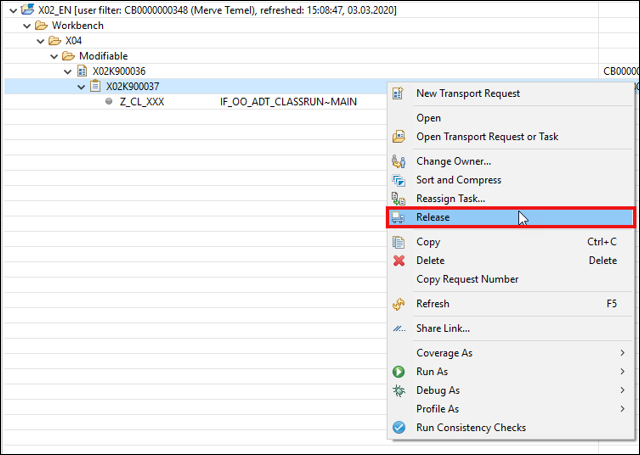
Transport change Click OK.

Transport change Right-click on your transport request and select Release.

Transport change Click OK.

Transport change
Switch to your software component
Z_SWCT_XXXin Manage Software Component. Select your master branch and click Checkout.
Checkout master branch Click
OK.
Checkout master branch Refresh your recent actions to see your result.

Checkout master branch Now the master branch is checked out successfully. Refresh your branches as well.

Checkout master branch Now you can see the result as well in the branches section. The master branch is checked out successfully.

Checkout master branch
Switch to ADT and open your ABAP class
Z_CL_XXX. As you can see, you are still on the feature version.
Create new branch Right-click on your ABAP class
Z_CL_XXXand click Refresh.
Create new branch Now you can see the coding of your master version again.

Create new branch
Resources
Discussion
Share feedback on this tutorial or join the conversation in SAP Community.