
Overview
You will learn
- How to create an ABAP cloud project in ADT
- How to create an ABAP package
- How to create an ABAP class
- How to execute the application console


Prerequisites
Prerequisites
For ABAP license:
- You have set up your ABAP environment as described in Getting Started with a Customer Account: Workflow in the ABAP Environment
- You have a user in the ABAP Environment Connect to the ABAP System
- You have downloaded the ABAP Development Tools (ADT). SAP recommends the latest version of ADT, available from ABAP Development Tools For ABAP Trial:
- You need an SAP BTP, ABAP environment trial user.
- You have downloaded the ABAP Development Tools (ADT). SAP recommends the latest version of ADT, available from ABAP Development Tools
Steps
Intro
In this tutorial, wherever XXX appears, use a number (e.g. 000) or your initials.
For more information, see:
Open the ADT and change to the ABAP perspective, using the menu.
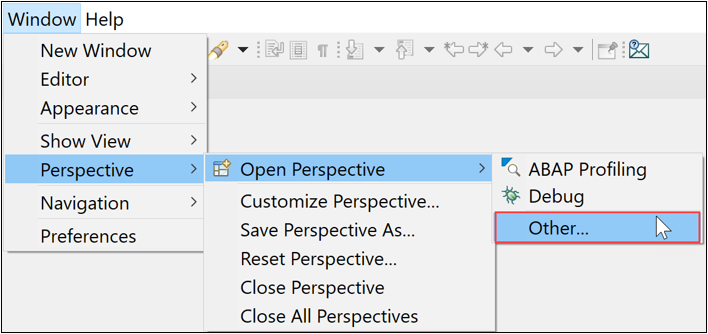
And select ABAP and choose Open.

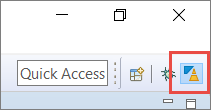
Or select the icon.
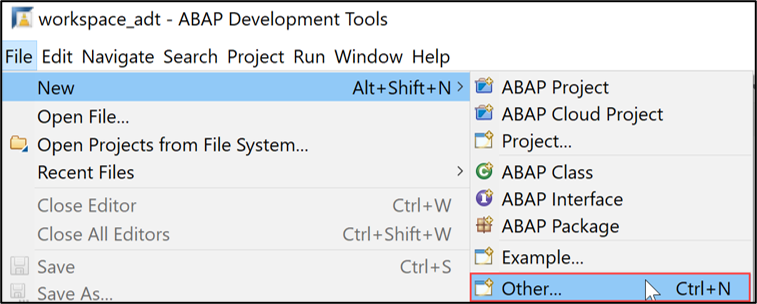
In the ADT, select the menu path File > New > Other.
Create an ABAP Cloud project in ADT Search for ABAP Cloud Project, select it and choose Next.

Select ABAP Cloud Project Paste the URL of your ABAP instance in Service URL and choose Next.

step2c-enter-URL choose Open Logon Page in Browser.

Create ABAP cloud project Now you’ve been authenticated automatically. Provide your credentials if requested. The credentials are the same you used to create your trial account on SAP BTP.
Go back to ADT and choose Finish.

Create ABAP cloud project Choose Finish.
Right-click on the package
ZLOCALand select New > ABAP Package from the context menu.
Add ABAP package Provide the required information and move on with Next.
- Name:
ZPACKAGE_XXX - Description: My Package XXX
- Check Add to favorite packages.
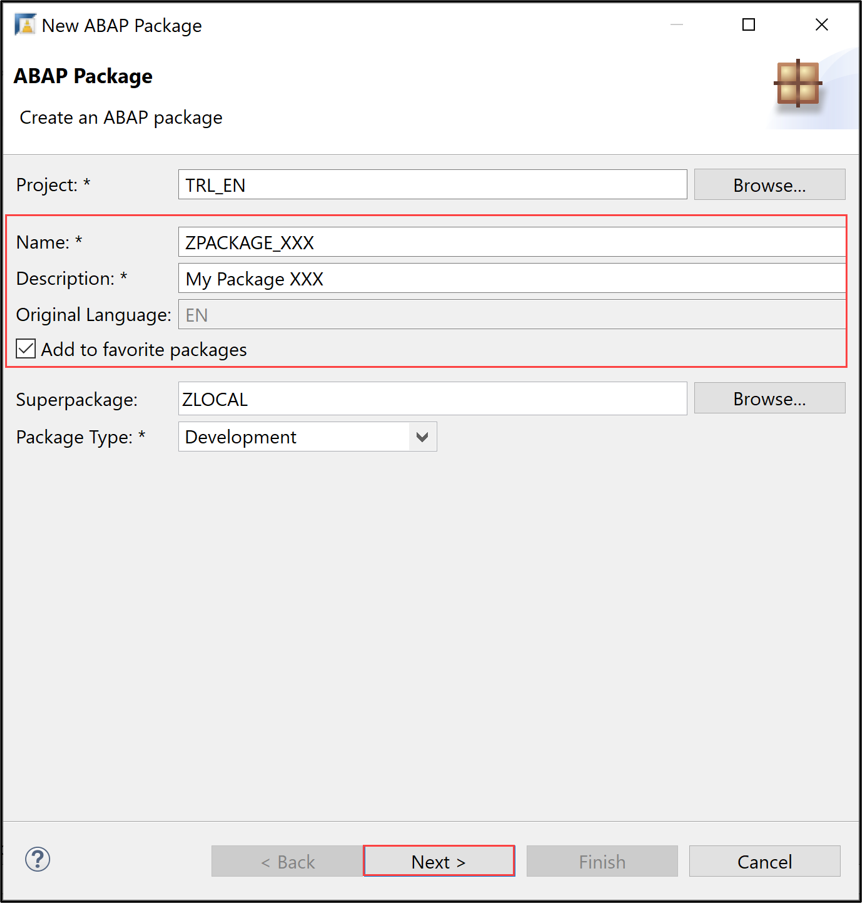
Create ABAP package Choose Next >.
- Name:
Create a new request and choose Finish.
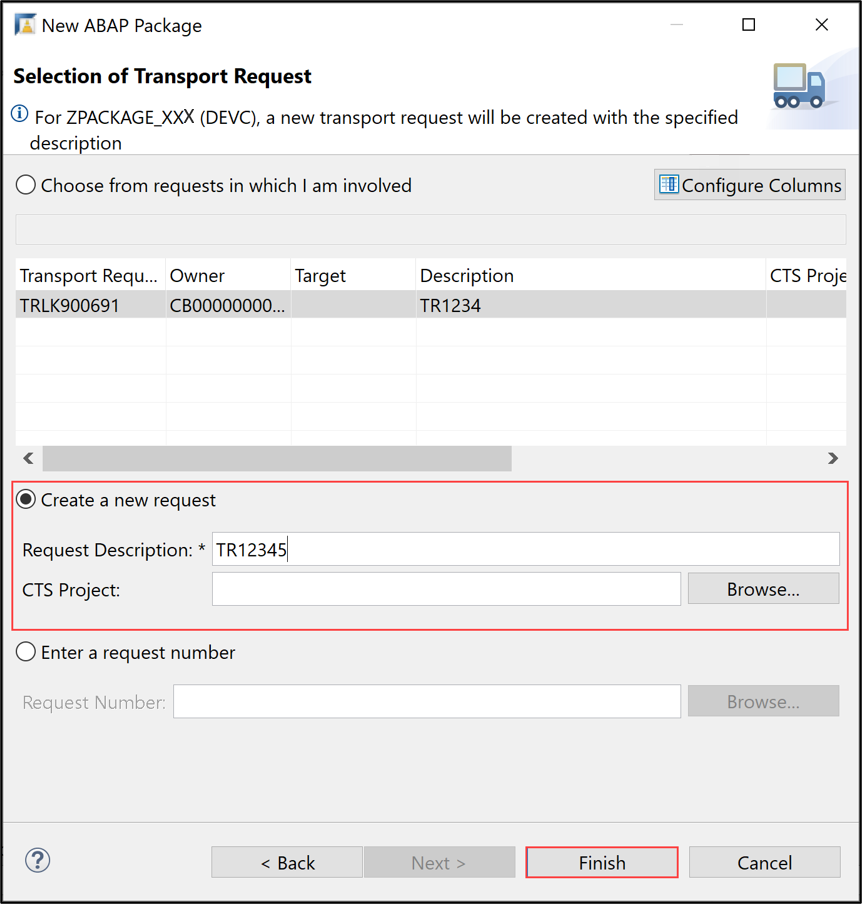
Select transport request The ABAP package is now created.
Add a new ABAP class to your package.

Add new ABAP class Maintain the required information and choose Next twice:
- Name:
Z_CLASS_XXX - Description: My class XXX

Add new ABAP class - Name:
choose Finish.

Select transport request Your class is now created.
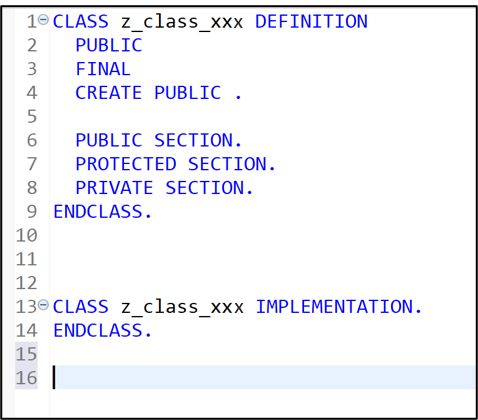
Select transport request
In the class definition, specify the interface
IF_OO_ADT_CLASSRUNin the public section as shown on the screenshot. Now go to the class implementation and provide the implementation of the methodIF_OO_ADT_CLASSRUN~MAIN. As shown on the screenshot, it should output the text Hello World! using the code line belowout->write('Hello World!').ABAPCLASS z_class_xxx DEFINITION PUBLIC FINAL CREATE PUBLIC . PUBLIC SECTION. INTERFACES if_oo_adt_classrun. PROTECTED SECTION. PRIVATE SECTION. ENDCLASS. CLASS z_class_xxx IMPLEMENTATION. METHOD if_oo_adt_classrun~main. out->write( 'Hello world!' ). ENDMETHOD. ENDCLASS.Save and activate your changes.

Implement an Interface
Right-click your class and select Run As > ABAP Application (Console) or select your class and press
F9.
Execute ABAP application Check your result.

Execute ABAP application
Resources
Discussion
Share feedback on this tutorial or join the conversation in SAP Community.