
Overview
You will learn
- How to create a Content Provider
- How to add content in the Content Explorer
- How to create a Launchpad site


Prerequisites
Prerequisites
- Authorizations: Your user needs to be a subaccount administrator with Role Collection
Launchpad_Adminassigned.
Steps
Access Launchpad Service.
Go to Provider Manager.
Create a new Content Provider.

Workflow - Add Title, Description, ID and the Destinations created in tutorial “Create destinations in SAP BTP cockpit” accordingly.

Create Content Provider - Click “Save”.
In the
Statuscolumn of the table the status will be set toCreatedas soon as the creation is finished.
Navigate to the Content Manager.
Open Tab
Content Explorer. Here all the created Content Providers are listed.Click on the Content Provider created in Step 1.
Mark the item with Title “Administrator” and click “Add to My Content”.

Add roles to own content
Navigate to the Site Directory.
Click
Create Sites.Choose a site name and click “Create”.
Click
Editand click into the box toSearch for items to assign.

Create Launchpad Site Choose the
Administratorrole (click on+).Click `SaveR.
Copy and store the URL of the Launchpad for later use.

Launchpad URL
Now you assigned the Business Role, which you exposed to the Launchpad Service, to your Launchpad Site. With it all the apps that are related to this Business Role will be available in the Launchpad Site. Also a Role Collection is created, which is named in this format:
<Content Provider name>_<Business Role name>
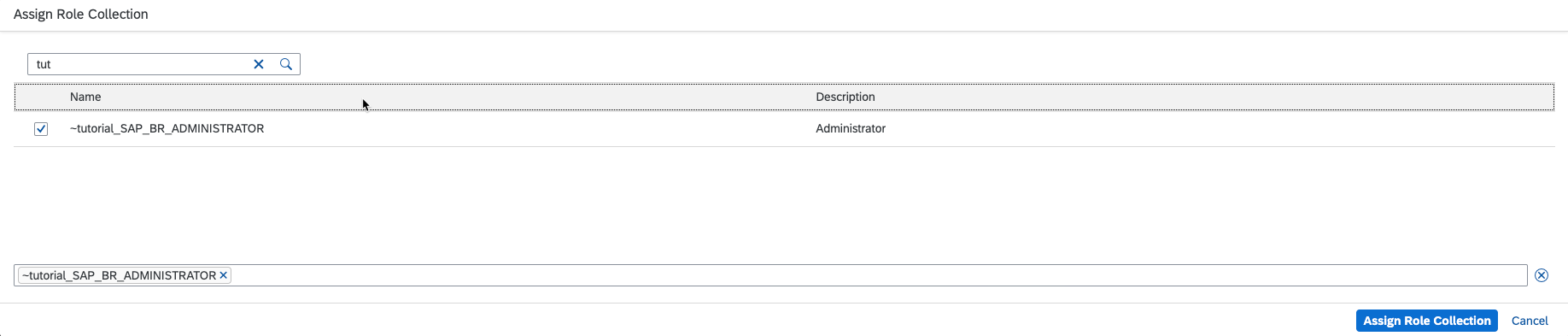
In order to be able to access the Launchpad Site you have to assign the Role Collection created in the last step, to your the ABAP system administration user in the SAP BTP cockpit.
Open the BTP Cockpit.
Go to the Subaccount, of the Launchpad Service.
Navigate to the
Usersmenu.Find the BTP user of the SAP BTP, ABAP environment user used in tutorial “Create communication between SAP BTP, ABAP environment and SAP BTP”
Assign the created authorization to the user.
Now access the Launchpad Site via the URL stored in “Step 3” with the SAP BTP user you assigned the Role Collection to in “Step 4” to.
Resources
Discussion
Share feedback on this tutorial or join the conversation in SAP Community.