
Overview
You will learn
- How do download the Eclipse IDE
- How to add the ADT plugin to Eclipse


Prerequisites
Prerequisites
- Operating System: - Windows 10, or higher - Apple macOS 14 or higher
- Microsoft VC++ Runtime: - For Windows: Microsoft Visual C++ v14 Redistributable (x64)
- Java Runtime:
- The latest Eclipse packages are bundled with
Eclipse Temurin, anOpenJDKbinary distribution provided by theEclipse Adoptiumproject. Any other JRE found on the system is not used. If you want to remove the bundled JRE and use a custom one, see SAP note 3035242.
Hint: You do not need to manually install a JRE / JDK, since it is already bundled with the latest Eclipse packages, which are downloadable as a ready-to-run zip file.
- The latest Eclipse packages are bundled with
Steps
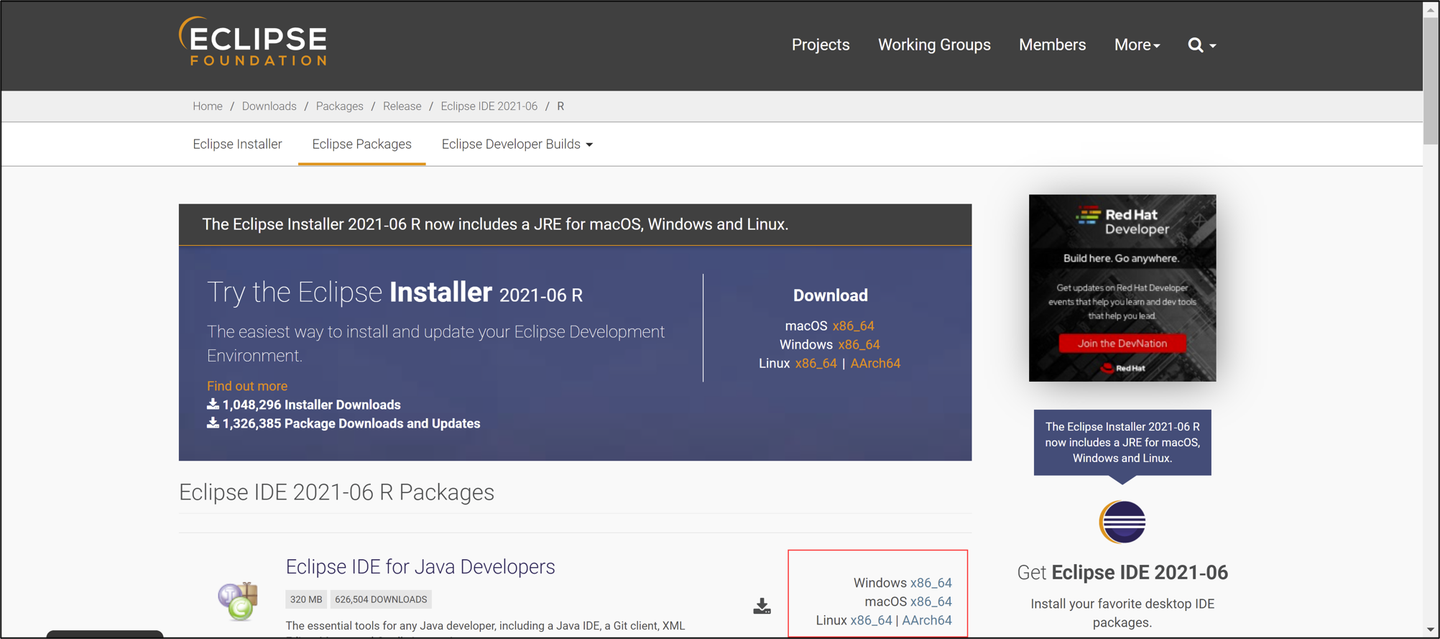
Open the Eclipse download page to download the appropriate (usually latest) Eclipse version.
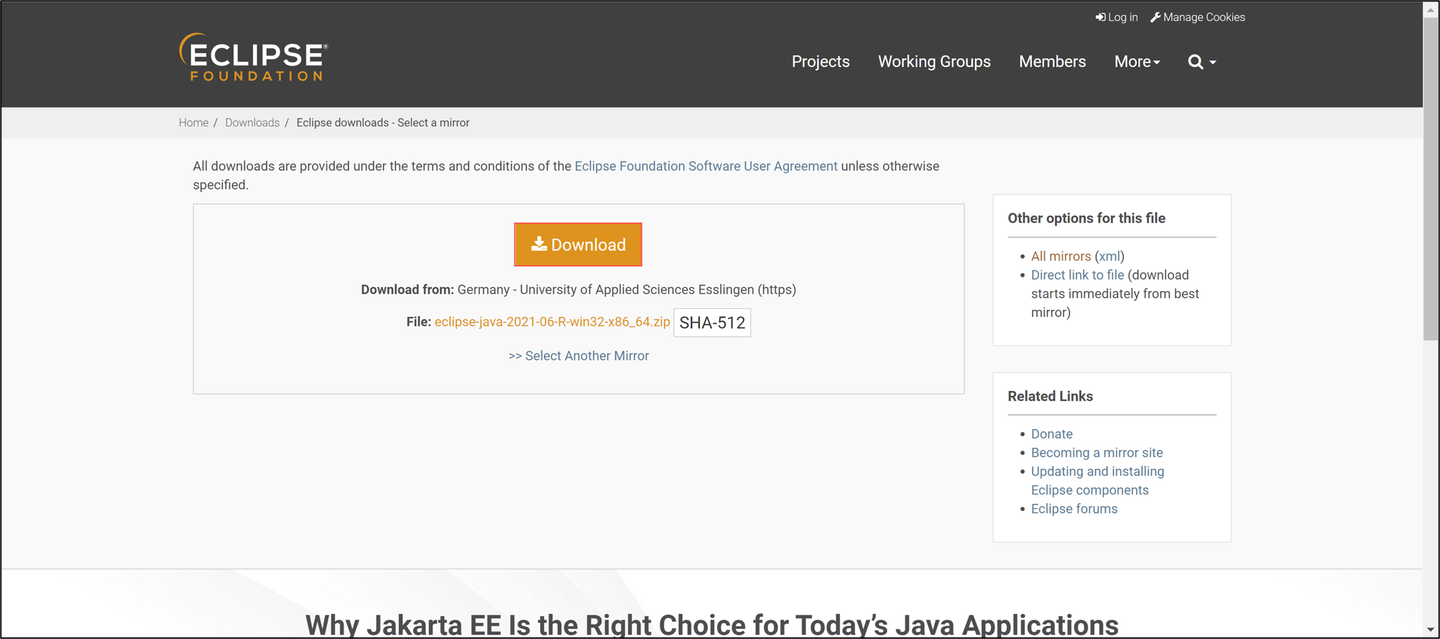
eclipse Click Download.
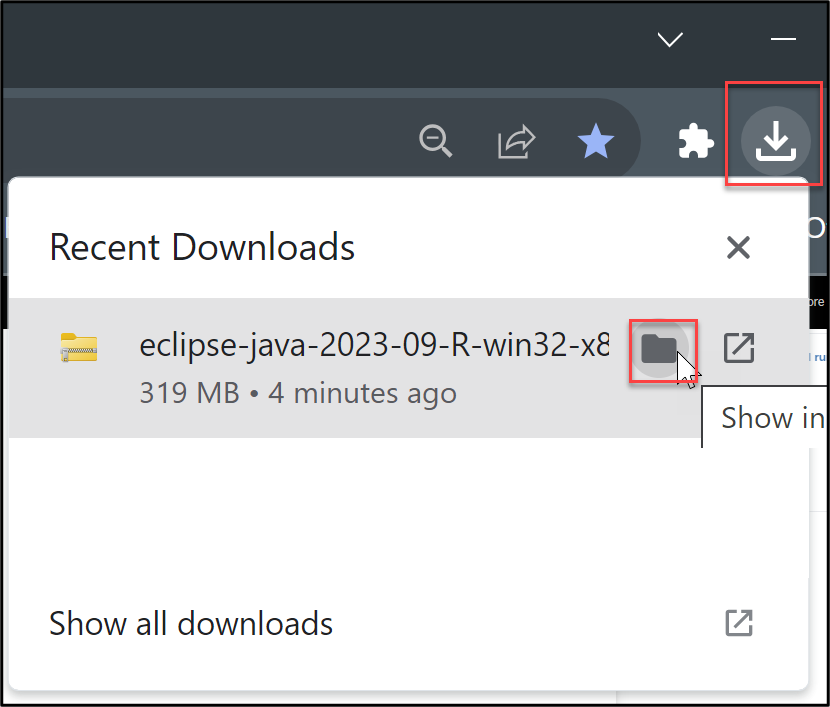
eclipse Click the Download icon of your browser and select the folder symbol.
eclipse Extract the Eclipse file with right-click.

eclipse Click Extract in the wizard.

eclipse Open the Eclipse-Java folder.
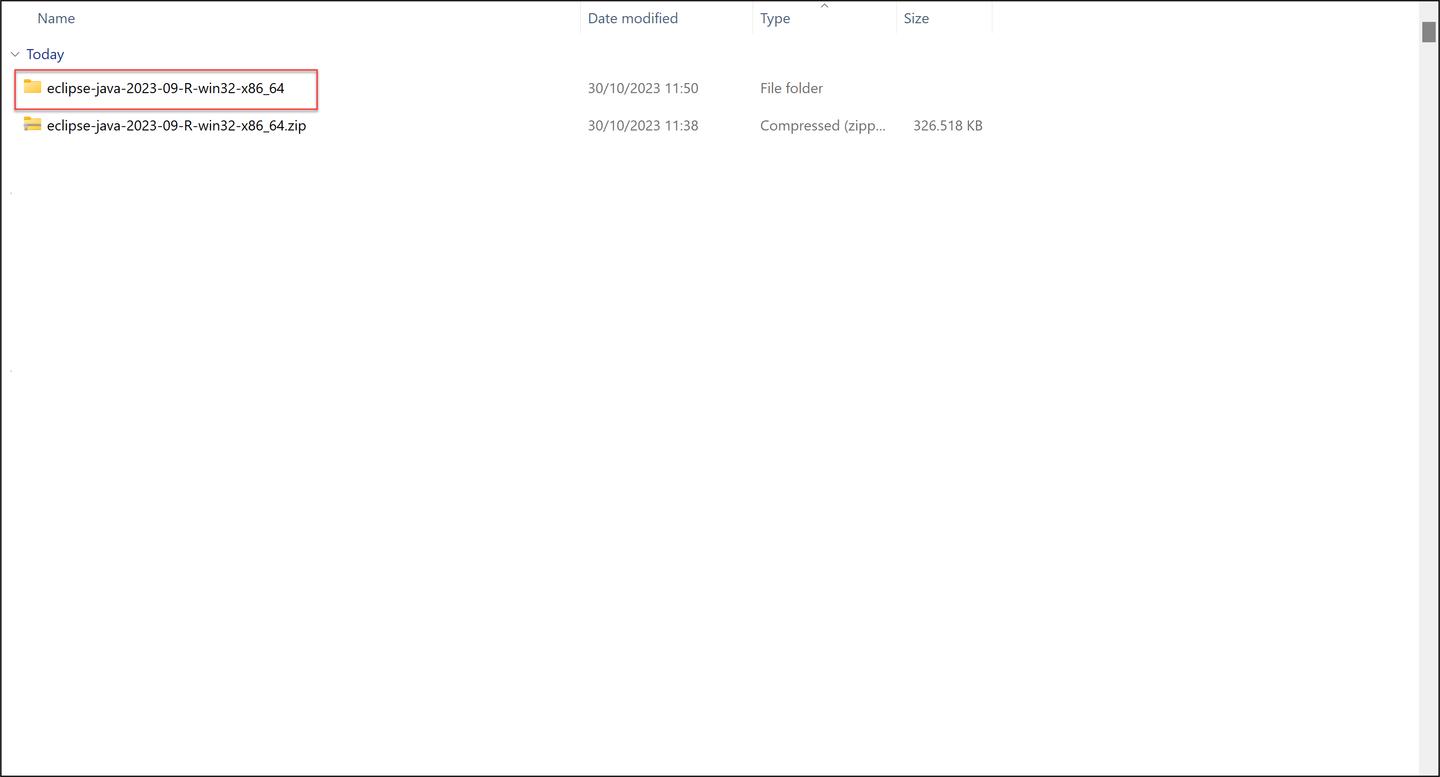
eclipse Open the Eclipse folder.

eclipse Double-click
eclipse.exeto run the application.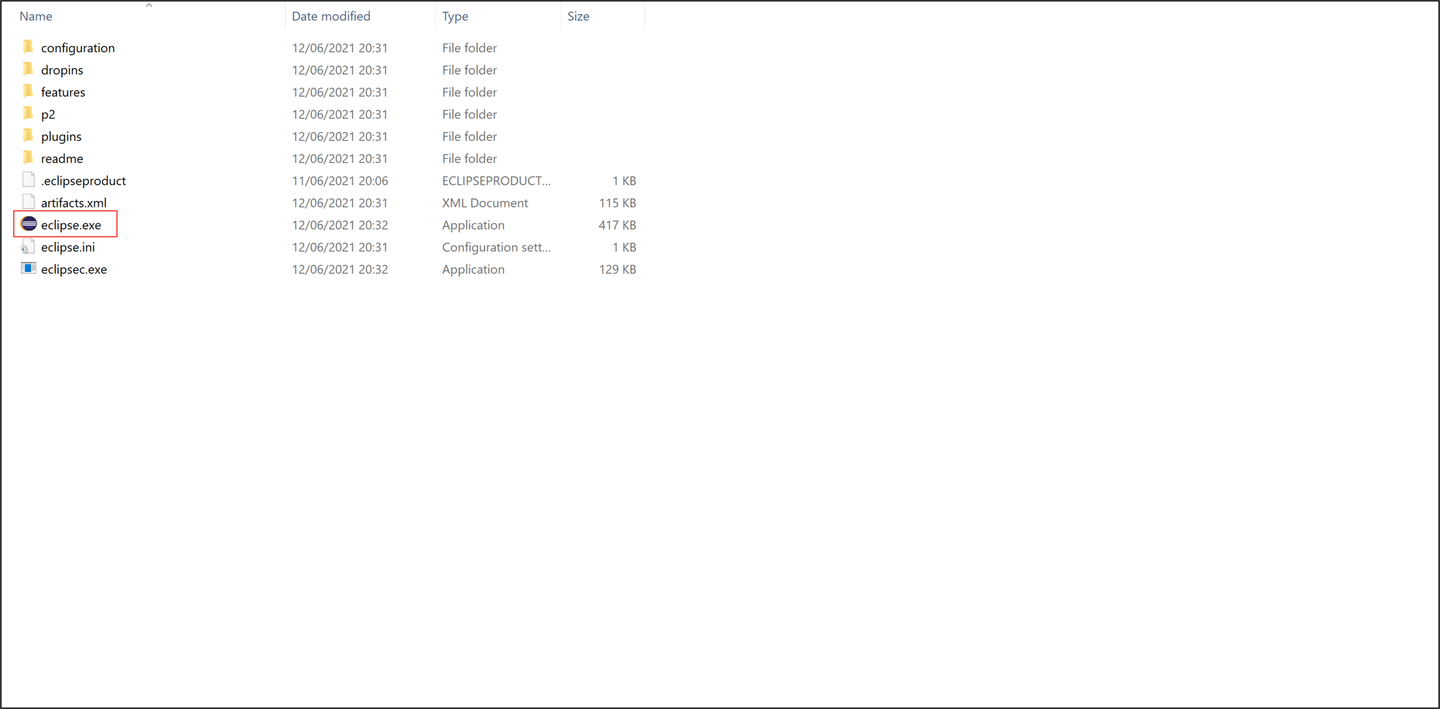
eclipse Launch your workspace.
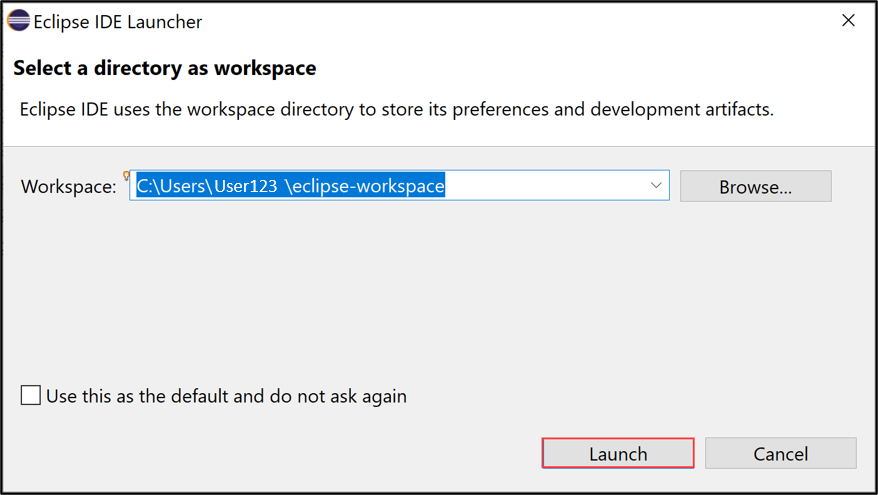
eclipse Close both pages.
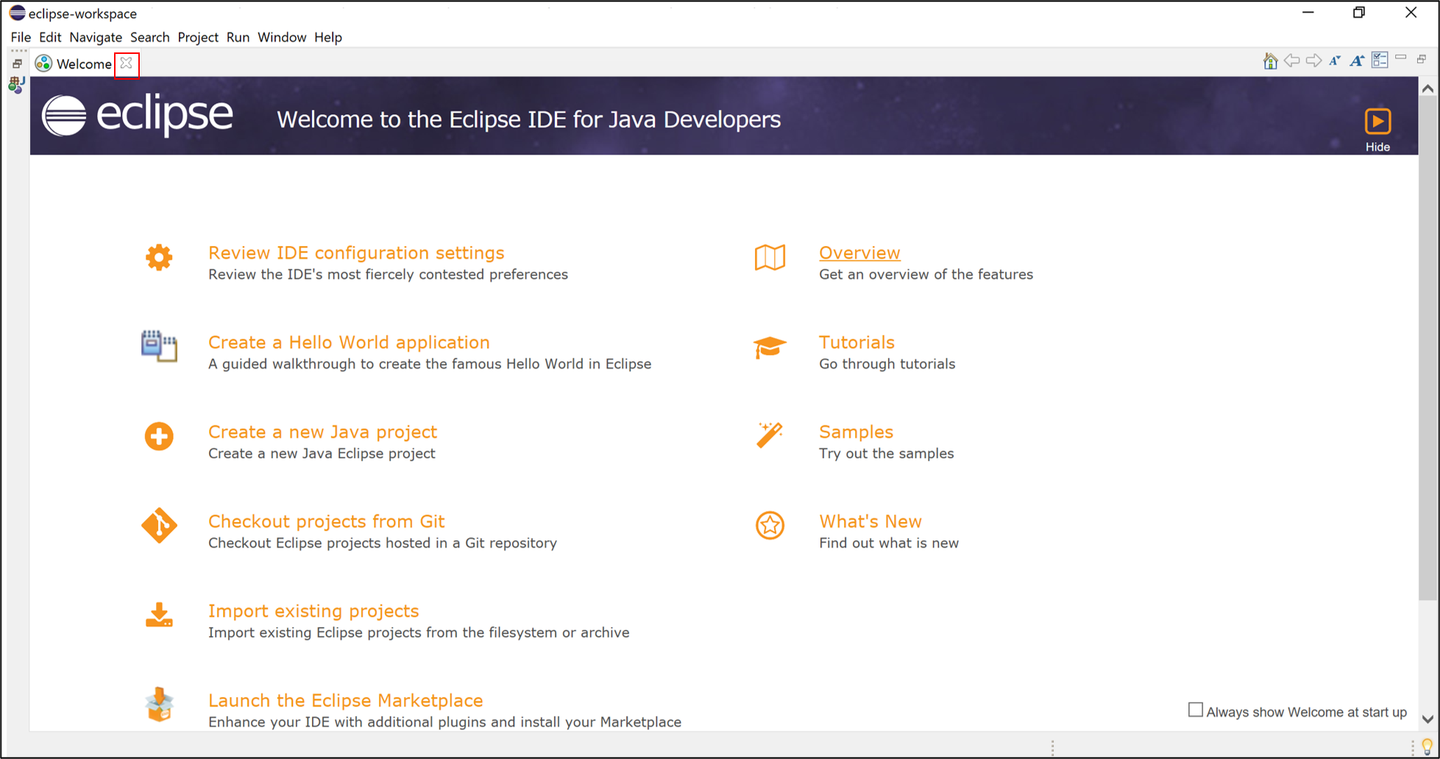
eclipse 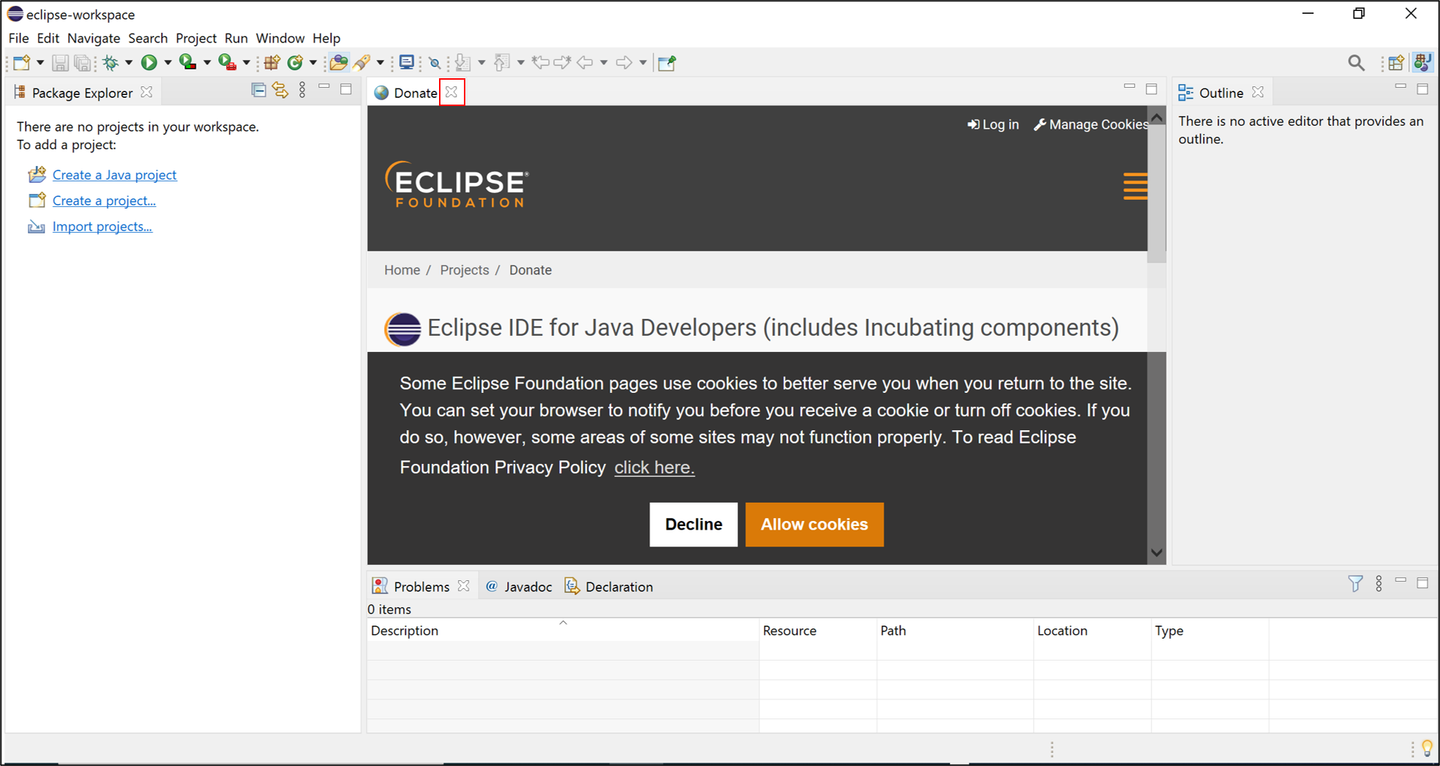
eclipse
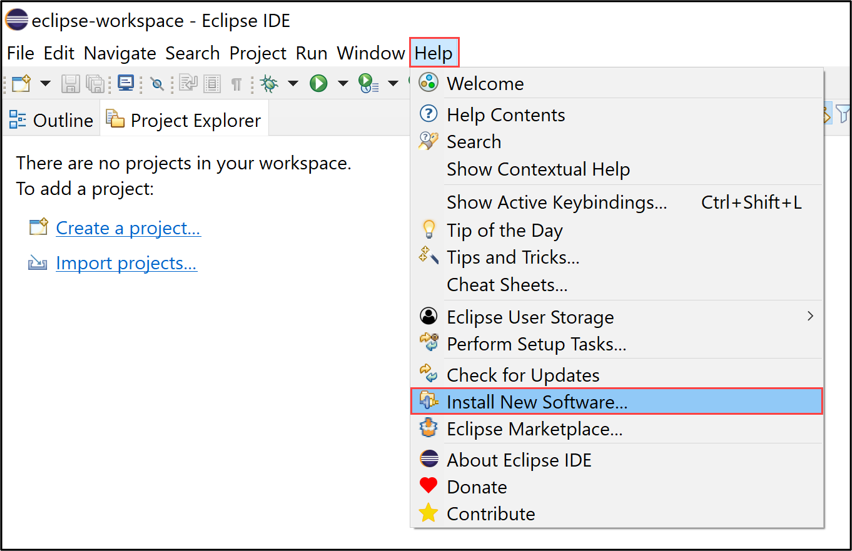
Select Help > Install New Software.
eclipse Enter the latest ADT URL
https://tools.hana.ondemand.com/latestin the Work with section, press enter, select ABAP Development Tools and click Next >.
eclipse Click Next >.

eclipse Accept the license agreement and click Finish.

eclipse Click Select All and Trust Selected.

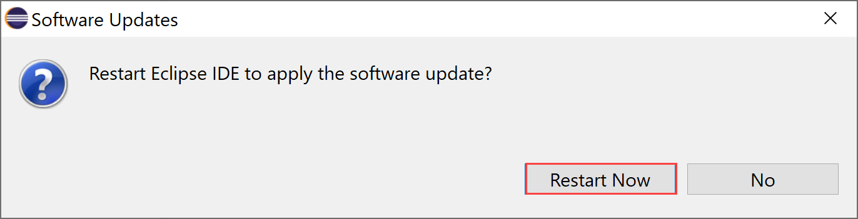
eclipse Click Restart Now.
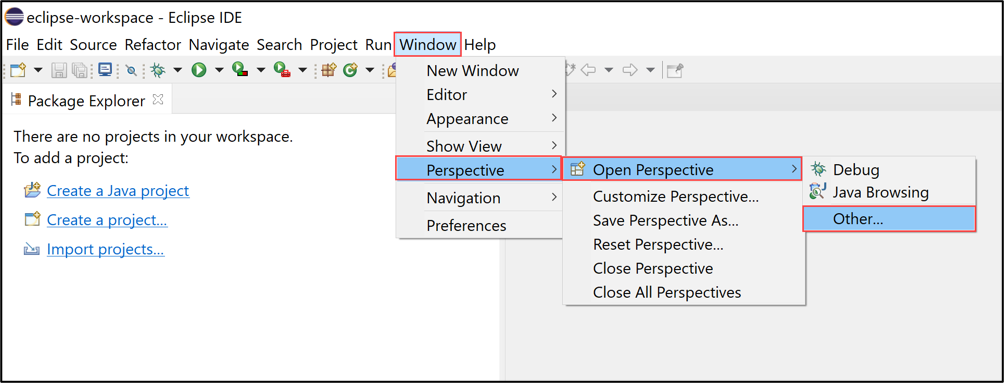
eclipse Now ADT is installed. Switch to the ABAP perspective. Therefore select Window > Perspective > Other Perspective > Other.
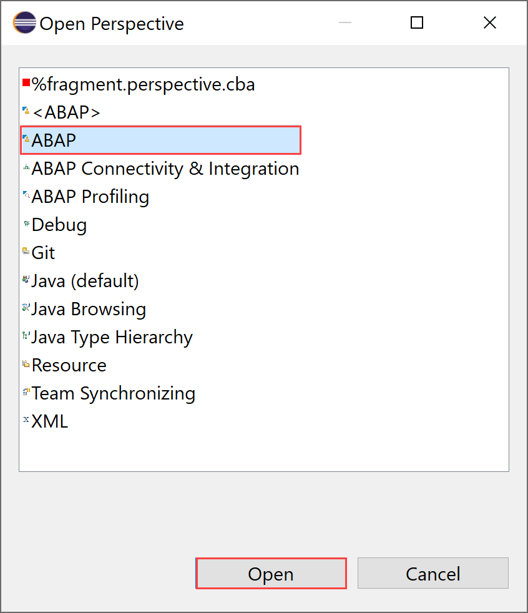
eclipse Then select ABAP and click Open.
eclipse Check your result.
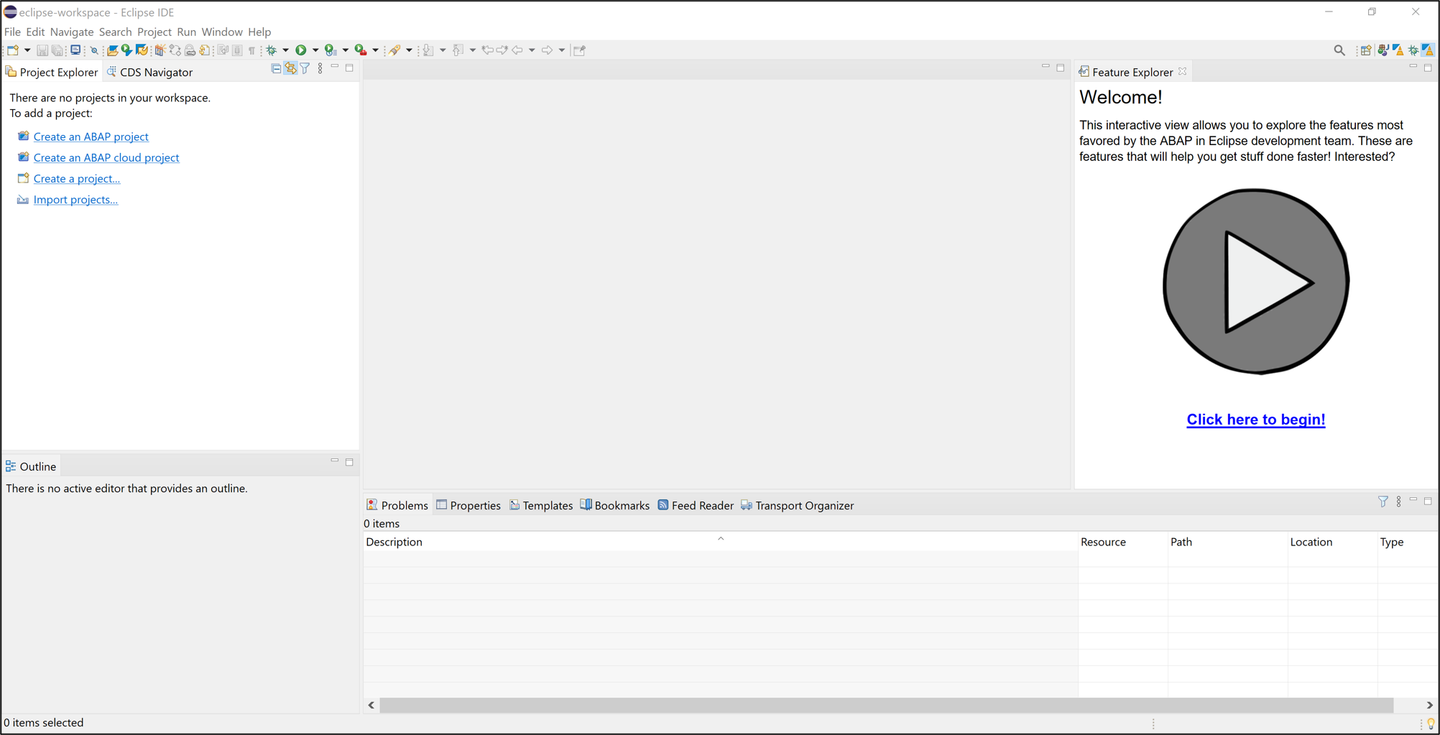
eclipse
Following this tutorial you will be able to update the latest version of Eclipse and ADT when new releases are available.
If you want to install the abapGit plugin for ADT, you can follow the Install the abapGit Plugin tutorial.
Resources
Discussion
Share feedback on this tutorial or join the conversation in SAP Community.