
Overview
You will learn
- How to execute inference using orchestration or foundation models
- How to record and retrieve inference details
- How to add feedback to improve responses
- How to use labels for filtering and analysis


Prerequisites
Prerequisites
- BTP Account
If you do not already have a commercial SAP Business Technology Platform (BTP) account, you can use BTP Advanced Trial.
Create a BTP Account - For SAP Developers or Employees
Internal SAP stakeholders should refer to the following documentation: How to create BTP Account For Internal SAP Employee, SAP AI Core Internal Documentation - For External Developers, Customers, or Partners
Follow this tutorial to set up your environment and entitlements: External Developer Setup Tutorial, SAP AI Core External Documentation - Create BTP Instance and Service Key for SAP AI Core
Follow the steps to create an instance and generate a service key for SAP AI Core. Ensure to use service plan extended:
Create Service Key and Instance - AI Core Setup Guide
Step-by-step guide to set up and get started with SAP AI Core:
AI Core Setup Tutorial - An Extended SAP AI Core service plan is required, as the Generative AI Hub is not available in the Free or Standard plans. For more details, refer to SAP AI Core Service Plans
- Bruno Tool Version
Ensure you are using Bruno version 3.1 or higher.
Versions up to 3.0 do not support.ymlfiles used in this tutorial.
You can download the latest version from: https://www.usebruno.com/
Steps
Pre-Read
In real-world AI applications, executing a model is only the first step. Once deployed, it becomes essential to monitor how the model behaves with actual user inputs, identify issues, and continuously improve the system.
Inference Observability in SAP AI Core provides this capability by recording inference requests, responses, metadata, and feedback for later analysis.
This feature works with both:
- Orchestration services
- Foundation model deployments
By enabling observability, AI systems move from being black-box models to transparent and trackable systems.
Note: Inference data is recorded only when explicitly enabled using observability headers in the request.
To simplify execution, this tutorial provides a pre-configured Bruno collection containing all required API requests.
This collection includes:
- Inference execution
- Observability APIs
- Feedback APIs
- Label management APIs
👉 Download the Bruno collection from here: Bruno_collections
Import the Bruno Collection
- Open Bruno
- Navigate to Collections
- Click on open Collection
- Upload the downloaded folder files
Configure Environment Variables
After importing the collection:
- Select any request (e.g., Get Token)
- Click on No Environment → Configure
- Provide the following values from your service key:
    - ai_auth_url
    - ai_api_url
    - client_id
    - client_secret
    - resource_group
- Save the environment
- Select the configured environment before executing requests
Generate Access Token - Open the Get Token request - Click Send to generate the access token
Note: If the token expires during execution, regenerate it using the same request.
Before working with inference observability, certain foundational components must be in place.
Setup & Authentication
You must first authenticate your API requests using an access token generated from your SAP AI Core service key. This ensures all subsequent API calls are securely authorized.
Resource & Deployment Setup
Inference execution requires an active deployment. You can use either:
- An orchestration service
- A foundation model deployment
This deployment acts as the endpoint where inference requests are sent and processed.
Object Store (S3) Setup
To store complete inference data (request, response, and feedback), an Amazon S3 object store must be configured.
- Required when using **full persistence mode**
- Not required if storing **metadata only**
Important: Only S3 object stores are supported by inference observability
In this step, you will execute an inference request and enable observability to record the interaction.
📂 Bruno File:
Call orchestration service.yml
Step 1: Open the Request
Navigate to the Call orchestration service request in the Bruno collection. This request is used to send prompts to the deployed orchestration or foundation model.
Step 2: Configure Headers
Ensure the following headers are included:
Authorization: Bearer <access_token>
ai-resource-group: <resource-group>
ai-inference-observability-persistence-mode: full
ai-object-store-secret-name: <object-store-name>
These headers enable inference recording and specify where the data should be stored.
Step 3: Update Request Body
Provide the input prompt in the request body. For example:
{
  "config": {
    "modules": {
      "prompt_templating": {
        "prompt": {
          "template": [
            {
              "role": "user",
              "content": "What is the importance of AI in today's world?"
            }
          ]
        },
        "model": {
          "name": "anthropic--claude-3-haiku",
          "version": "latest",
          "params": {
            "max_completion_tokens": 3000
          }
        }
      }
    }
  }
}
Step 4: Execute the Request
Click Send to execute the request.

Step 5: Observe the Response - The model generates a response - A response header ai-inference-id is returned
This ID uniquely identifies the inference and acts as a reference for all subsequent operations such as retrieval, feedback submission, and labeling.
Explanation
At this stage:
- The inference is executed
- Observability is enabled
- The request and response are recorded
This forms the foundation for tracking and analysis.

Important: Only inferences sent to orchestration services or foundation model deployments are recorded in Inference Observability.
Once an inference is recorded, you can retrieve its details for analysis.
📂 Bruno File
Retrieve one inference.yml
Step 1: Open the Request
Navigate to the Retrieve one inference request.
Step 2: Provide Inference ID
Replace the placeholder with the Inference ID obtained from the previous step.
Step 3: Execute the Request
Click Send to fetch the inference details.

Step 4: Analyze the Response
The response includes:
- Model details
- Input and output tokens
- Latency
- Request and response payload (in full mode)
Explanation
This step allows you to:
- Debug incorrect outputs
- Understand model behavior
- Analyze performance metrics
👉 This is the core of Inference Observability
Retrieve All Inferences
Once multiple inferences are recorded, you can retrieve them collectively to analyze overall usage and system behavior.
📂 Bruno File
Retrieve all inferences.yml

This request returns all recorded inferences within the resource group, enabling broader monitoring and analysis.
Retrieve Inferences Using Labels
You can filter inferences using labels to perform targeted analysis across specific environments or use cases.
📂 Bruno File
Retrieve all inferences with label.yml
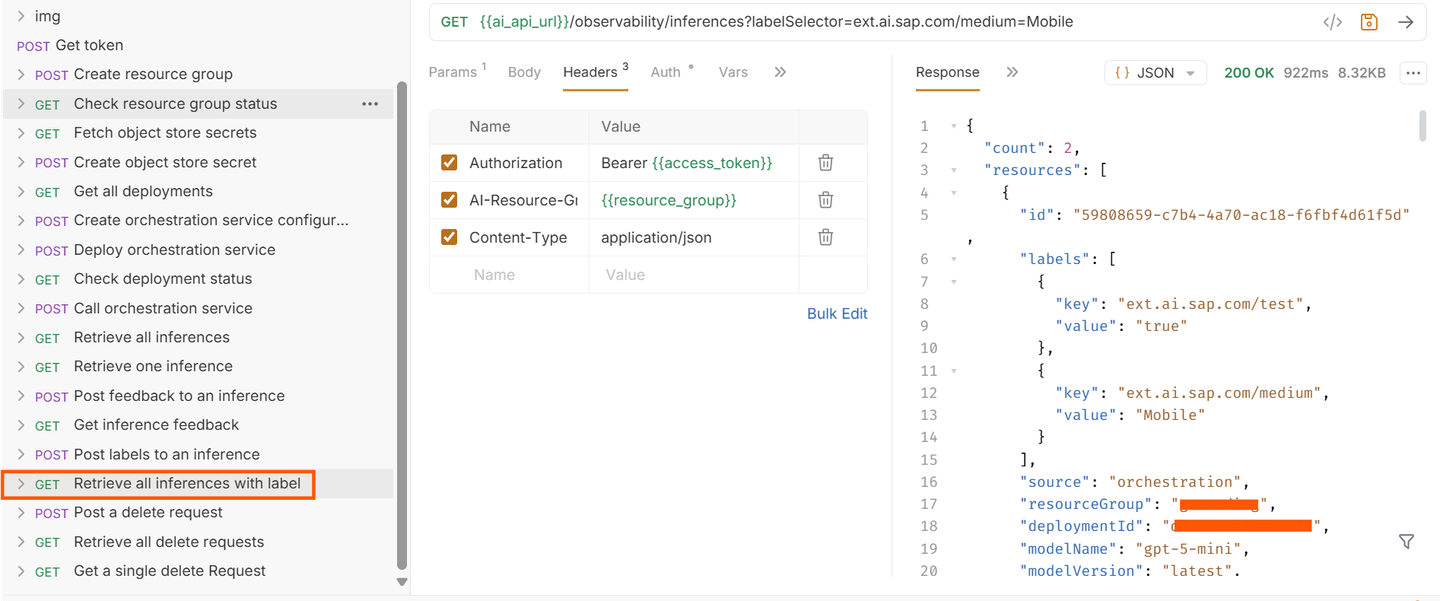
This request retrieves inferences that match the specified label criteria.
Feedback helps improve the quality of AI responses over time by capturing user evaluation of model outputs.
📂 Bruno File
Post feedback to an inference.yml
Step 1: Open the Request
Navigate to the feedback request in the Bruno collection.
Step 2: Provide Inference ID
Replace the placeholder with the required inference ID
Step 3: Update Payload
[
  {
    "content": {
      "stars": 5
    }
  }
]
Step 4: Execute the Request
Click Send to submit feedback.
Explanation - Feedback is stored along with the inference - Multiple feedback entries can be added
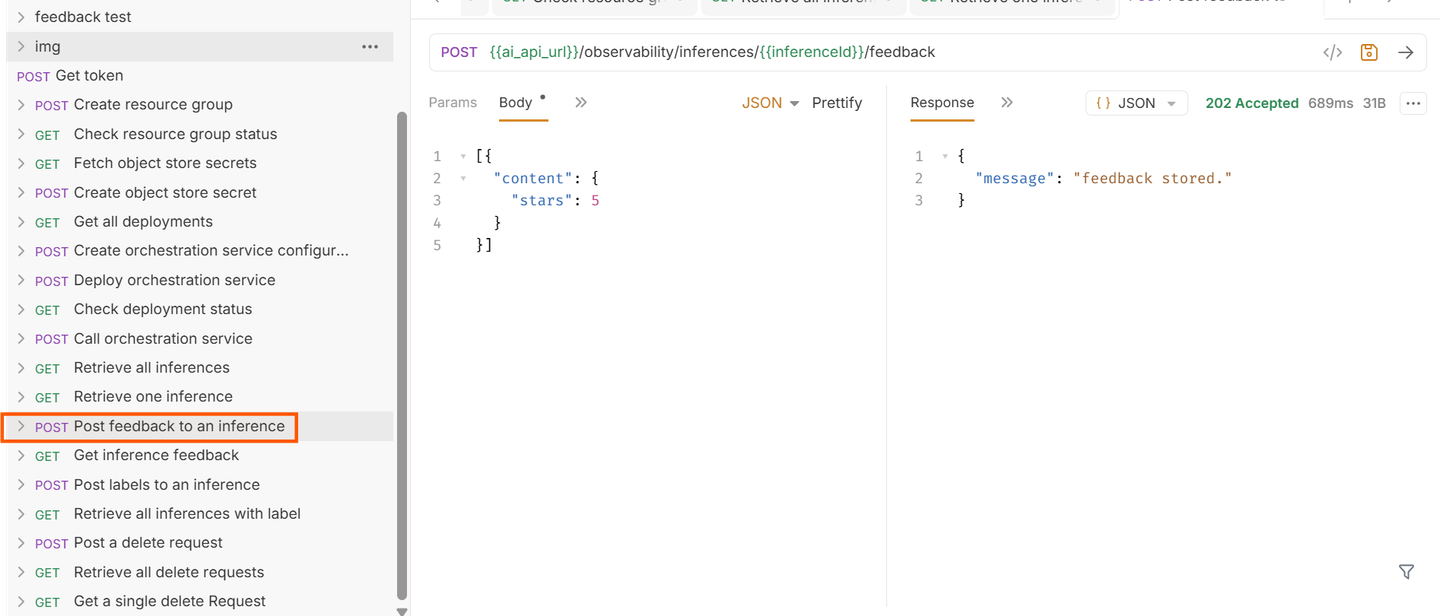
Important: Feedback is supported only when persistence mode is set to
full.
Once feedback is added, you can retrieve it to analyze response quality and user ratings.
📂 Bruno File
Get inference feedback.yml
This request retrieves all feedback associated with a specific inference, enabling evaluation of response quality.

Labels allow you to categorize and organize inference data for better monitoring and targeted analysis.
📂 Bruno File
Post labels to an inference.yml
Step 1: Open the Request
Navigate to the label request.
Step 2: Provide Payload
[
  {
    "key": "ext.ai.sap.com/medium",
    "value": "mobile"
  }
]
Step 3: Execute the Request
Click Send to attach labels.

Explanation
Labels help: - Categorize inferences - Filter results - Perform targeted analysis
Note:
- Label keys must use the prefix ext.ai.sap.com
- Maximum of 16 labels per inference
- Keys and values must not exceed 64 characters
Cleanup is performed using the delete inference API, where you can specify filters such as time range and labels.
Important: Only metadata is deleted. Request, response, and feedback stored in the object store (S3) are not removed.
Resources
Discussion
Share feedback on this tutorial or join the conversation in SAP Community.