
Overview
You will learn
- How to set up SAP Integration Suite in the target subaccount (subscribe to SAP Integration Suite, activate its capabilities, and assign roles required for SAP Integration Suite, as well as create a service instance and key for SAP Process Integration Runtime)
- How to create a service instance and a service key to access the APIs of SAP Content Agent in the target subaccount
- How to create the transport destination required for the transport scenario in the target subaccount


Prerequisites
Prerequisites
- You’ve completed tutorial Set Up the SAP Integration Suite Source Subaccount.
- You have a second SAP BTP Trial account that serves as a transport target. For example, ask a colleague to collaborate with you on this tutorial by running the following steps in their SAP BTP Trial account that serves as the transport target. Background: Since transporting always involves at least a source and a target, it’s required that you involve a second person, if you want to follow the tutorial on SAP BTP Trial.
Steps
Scenario Overview
In this tutorial, you or your colleague subscribe to SAP Integration Suite in the trial subaccount of the SAP BTP target account. You create service instances for SAP Content Agent service and Process Integration Runtime to get API access to the services. You create service keys required to connect the SAP BTP source account with the SAP BTP target account (using a destination to SAP Content Agent in the target account) and for the SAP Cloud Integration destination CloudIntegration, based on the data from the service keys.

This step assumes that you’re running the tutorial in an SAP BTP Trial target account. If you have an enterprise account, open SAP BTP Cockpit of the enterprise account that you want to use as the target account.
You or your colleague: To access the SAP BTP Cockpit of the target BTP Trial, go to the SAP BTP Trial landing page and choose Go To Your Trial Account. (The name of the button may vary.)
The default trial subaccount can be used as the SAP Integration Suite target subaccount.

Trial Subaccount in Target BTP Trial
Set up SAP Integration Suite in the trial subaccount of the target SAP BTP account the same way as you’ve done in the course of the previous tutorial Set Up the SAP Integration Suite Source Subaccount. Proceed as described in Set Up Integration Suite Trial.
Keep these points in mind:
Subscribe to SAP Integration Suite in the trial subaccount.
Make sure that you assign the
Integration_Provisionerrole to your user as mentioned in Step 2: Subscribe to the service of that tutorial.Make sure you activate the capabilities of SAP Integration Suite.
If you use the Enable Integration Suite booster to assign roles and create service instances for SAP Process Integration Runtime, you’ll only need to update the
apiinstance in step 3 of the current tutorial, and you can skip step 4 since the service key was automatically created.If you don’t use the Enable Integration Suite booster to assign roles and create service instances, additionally assign the
PI_Read_Only,PI_Integration_Developer, andPI_Administratorrole collections to your user. You’ll need them towards the end of the tutorial group when you run the test transport.
For the transport scenario, API access to SAP Process Integration Runtime is required also on the target subaccount. First create a service instance.
Creating a new instance is only required, if you haven’t used the Enable Integration Suite booster to assign roles and create service instances. If you’ve used the booster, update the
apiinstance that was created as part of the booster with theWorkspacePackagesTransport,WorkspacePackagesRead, andWorkspacePackagesEditroles.
Make sure your user has the
Integration_Provisionerrole collection assigned as mentioned in the previous step.To check this, choose Security > Users from the navigation on the left. To display the details of your user, click on it, and find the
Integration_Provisionerrole collection.To create an instance for SAP Process Integration Runtime, choose Services > Service Marketplace (1), and filter for Process Integration Runtime in the search field (2). On the SAP Process Integration Runtime tile, select the three dots …, and choose Create (3).

Create Instance 1 Select the api plan from the Plan dropdown menu of the SAP Process Integration Runtime service (1). You can leave the values for Runtime Environment and Space unchanged. Enter an Instance Name, for example
pi-prod(2), and choose Next (3).
Create Instance 2 The following roles are required for the instance:
WorkspacePackagesTransport,WorkspacePackagesRead, andWorkspacePackagesEdit. Select them from the Roles dropdown menu (1), and choose Create (2).
Create Instance 3 The SAP Process Integration Runtime instance was created.

Create Instance 4
See also on SAP Help Portal: Creating Service Instance and Service Key for Inbound Authentication
The details of the service key of the SAP Process Integration Runtime instance are required for the configuration of the SAP Cloud Integration destination. The destination is required for the communication of SAP Content Agent with SAP Process Integration Runtime.
If you’ve used the Enable Integration Suite booster to assign roles and create service instances, you can skip this step. A service key for the SAP Process Integration Runtime instance was already created.
To create a service key for the SAP Process Integration Runtime instance, in the service instance row, select the three dots …, and choose Create Service Key.
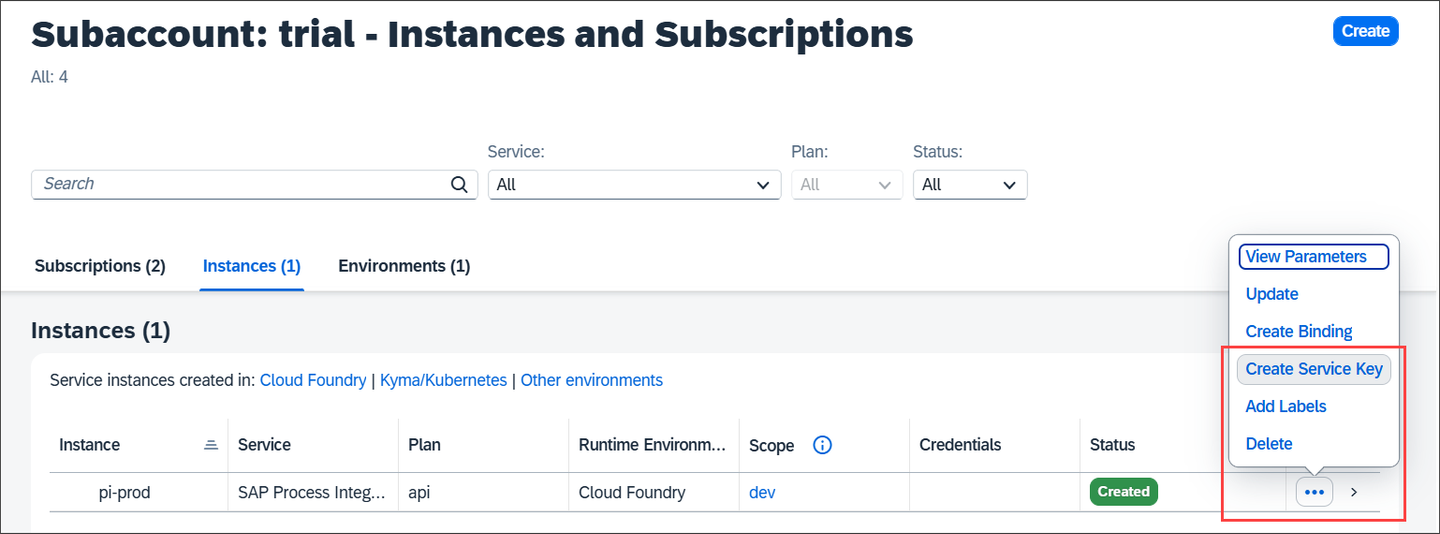
Create Service Key 1 Enter a name for the service key, here
PI-RT_SK1(1), and choose Create (2).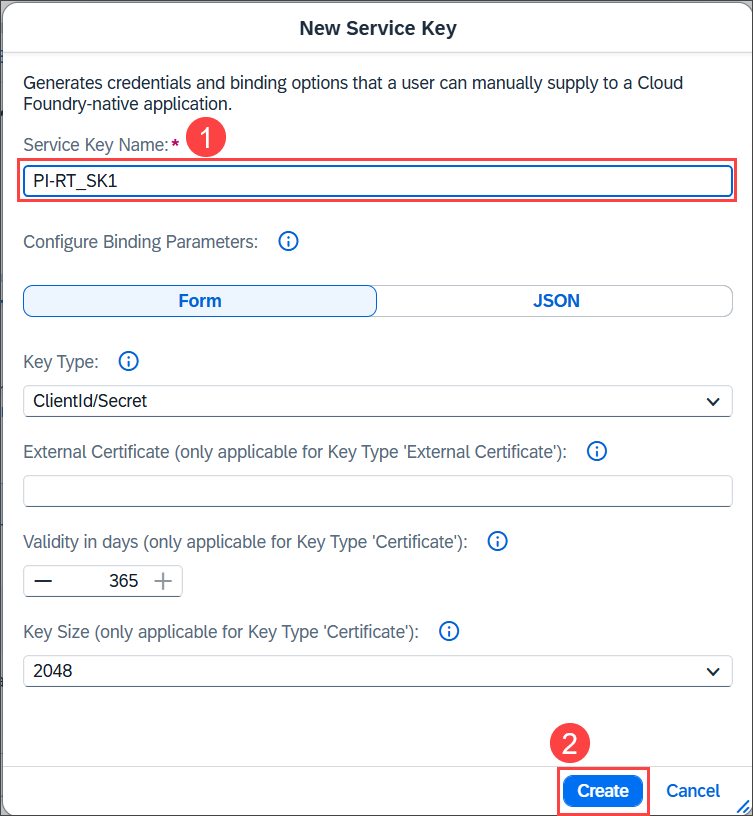
Create Service Key 2 The service key was created. Select the three dots … in the service key row, and choose View.
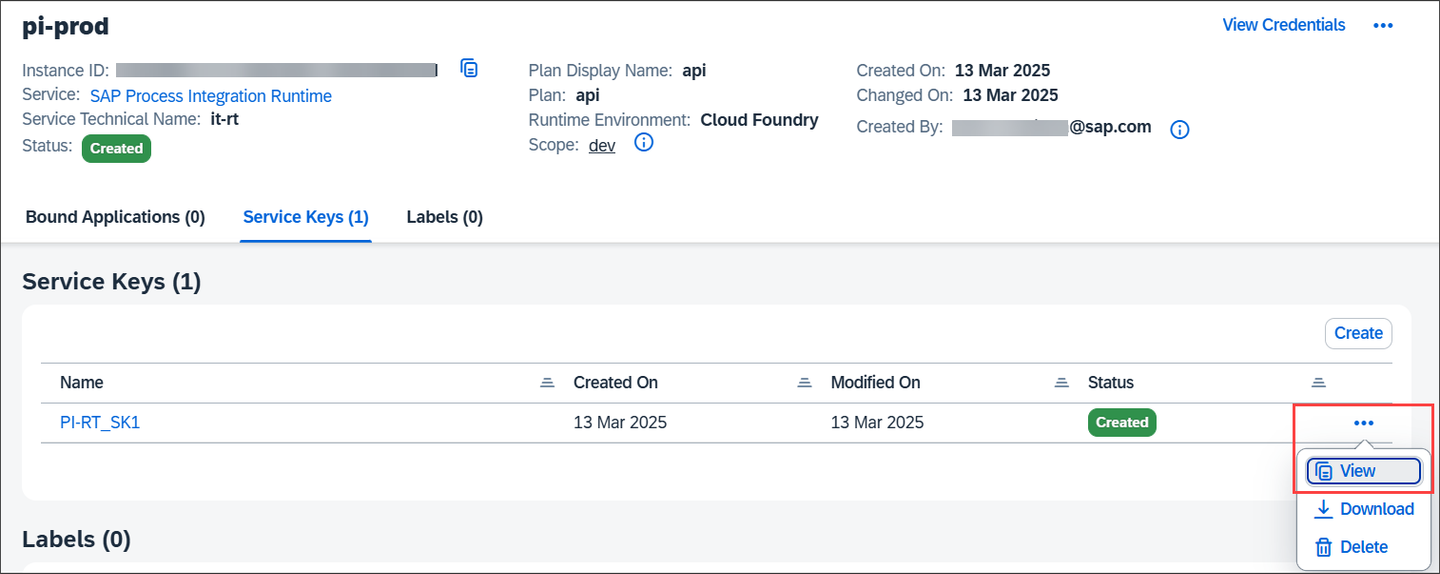
Create Service Key 3 The service key looks as follows. Leave the service key open so that you copy the required values in the next step, or note down the values of
url,clientid,clientsecret, andtokenurl.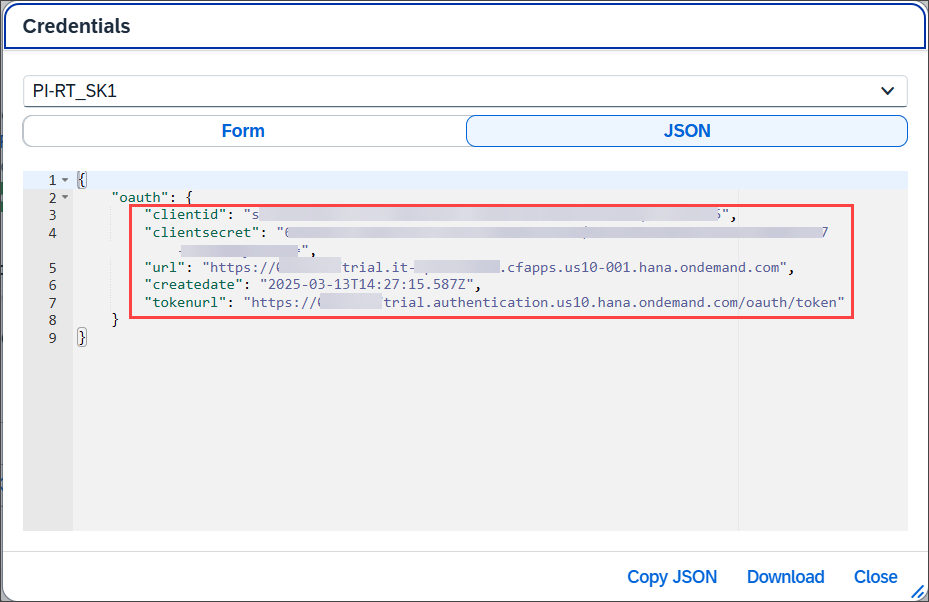
Create Service Key 4
See also on SAP Help Portal: Creating Service Instance and Service Key for Inbound Authentication
The SAP Cloud Integration destination serves as the endpoint where SAP Content Agent imports the integration content. The destination has the fixed name CloudIntegration. You need the values of the service key from the SAP Process Integration Runtime instance created in the target account during the previous step.
Choose Connectivity > Destinations (1). To create a new destination, and choose Create (2).

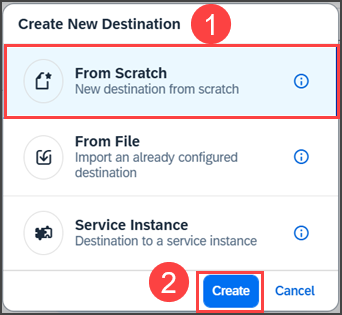
Create Cloud Integration Destination 1 In the Create New Destination dialog, choose From Scratch (1), and Create (2).
Create Cloud Integration Destination 2 In the Create Destination window, enter details for the following fields (1), and choose Create (2):
Keep the values of fields not mentioned in the table unchanged.
Field Value Name CloudIntegrationDescription For example: Destination to SAP Cloud IntegrationURL Enter the value of the urlfrom the service key details and append/api/1.0/transportmodule/Transportto the URL. For example:https://87654321trial.it-cpitrial06.cfapps.us10-001.hana.ondemand.com/api/1.0/transportmodule/TransportAuthentication Select OAuth2ClientCredentials. Client ID Enter the value of clientidfrom the service key details.Client Secret Enter the value of the clientsecretfrom the service key details.Token Service URL Enter the value of tokenurlfrom the service key details. For example:https://87654321trial.authentication.us10.hana.ondemand.com/oauth/token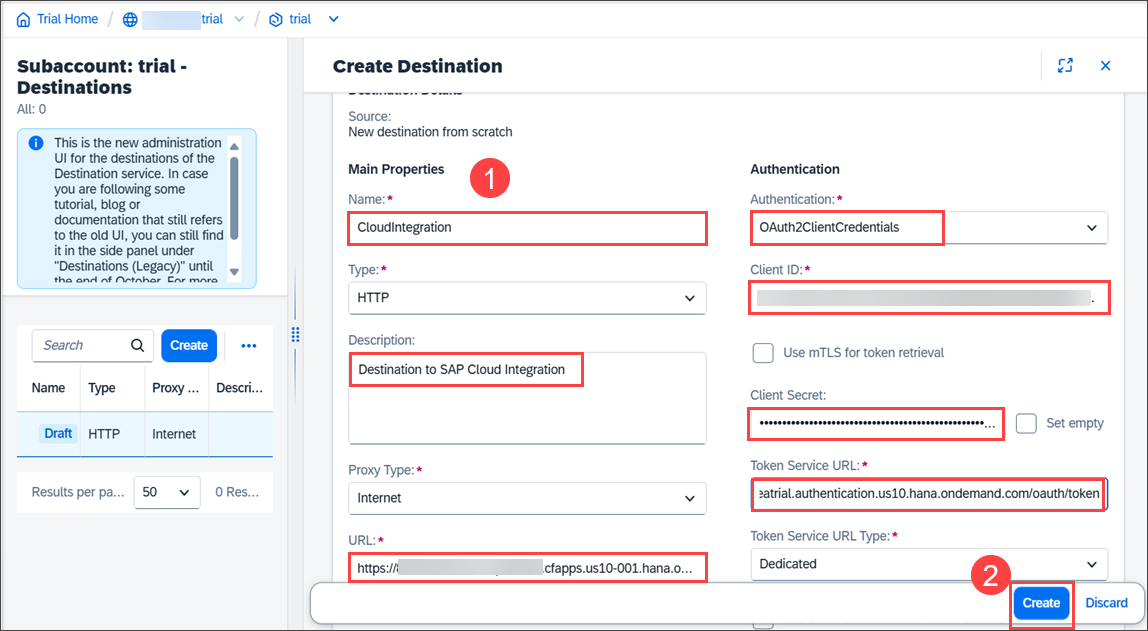
Create Cloud Integration Destination 3 The destination was created.
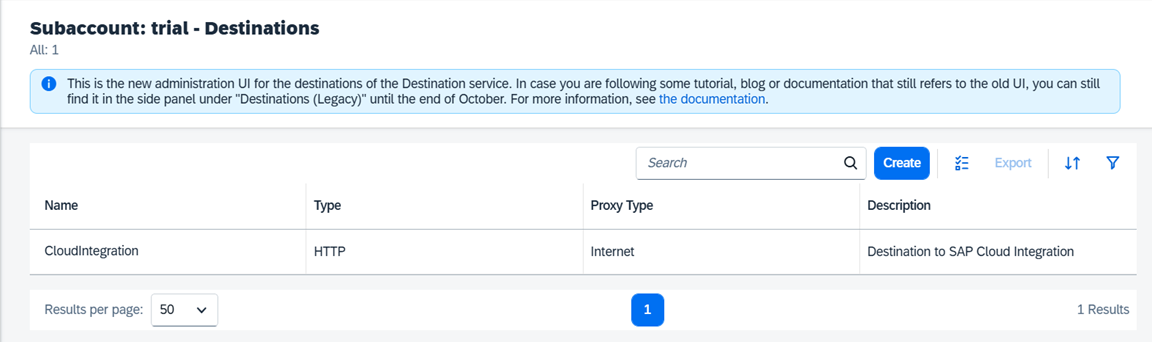
Create Destination to Target Subaccount 4 You can test the destination by displaying its details, and choosing Check Connection. However, a successful check result doesn’t guarantee successful deployment. We recommend that you run a test transport after completing the entire configuration of the transport scenario. This helps ensure that you’ve correctly completed all configuration tasks and have all necessary authorizations.
See also on SAP Help Portal: Create SAP Cloud Integration Destination
For the transport scenario, API access to SAP Content Agent is required also on the target subaccount. First create a service instance.
Choose Services > Service Marketplace (1), and filter for Content Agent Service (2). On the Content Agent Service tile, select the three dots …, and choose Create (3).

Create CAS Instance 1 Select the application instance plan (1). You can leave the values for Runtime Environment and Space unchanged. Enter an instance name, for example
CAS-deploy(2), and choose Next (3).
Create CAS Instance 2 Select the Import role (1), and choose Create (2).

Create CAS Instance 3 The SAP Content Agent instance CAS-deploy was created.

Create CAS Instance 4
See also on SAP Help Portal: Create Instance
The details of the service key of the SAP Content Agent instance are required for the configuration of the destination to SAP Content Agent in the target subaccount that you’ll configure in the SAP BTP source account as part of the next tutorial Create a Transport Destination and Configure the SAP Integration Suite Transport Landscape.
To create a service key for the SAP Content Agent instance, in the service instance row, select the three dots …, and choose Create Service Key.
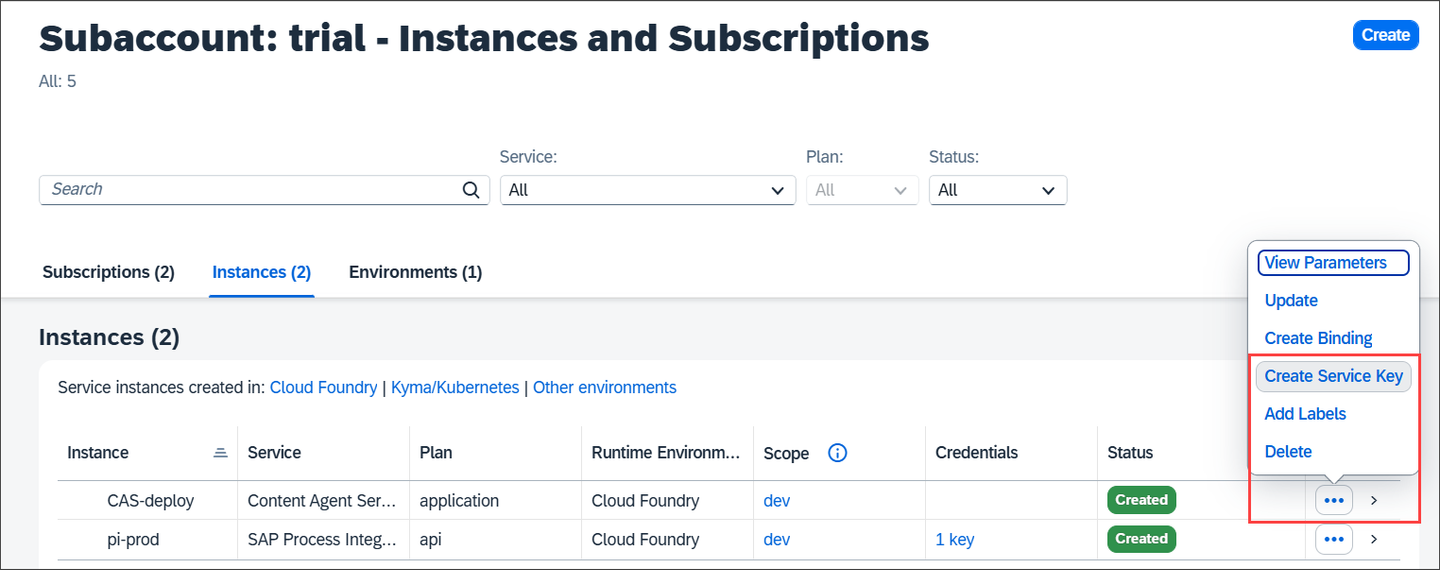
Create CAS Service Key 1 Enter a Service Key Name, here
CAS-deploy-SK(1), and choose Create (2).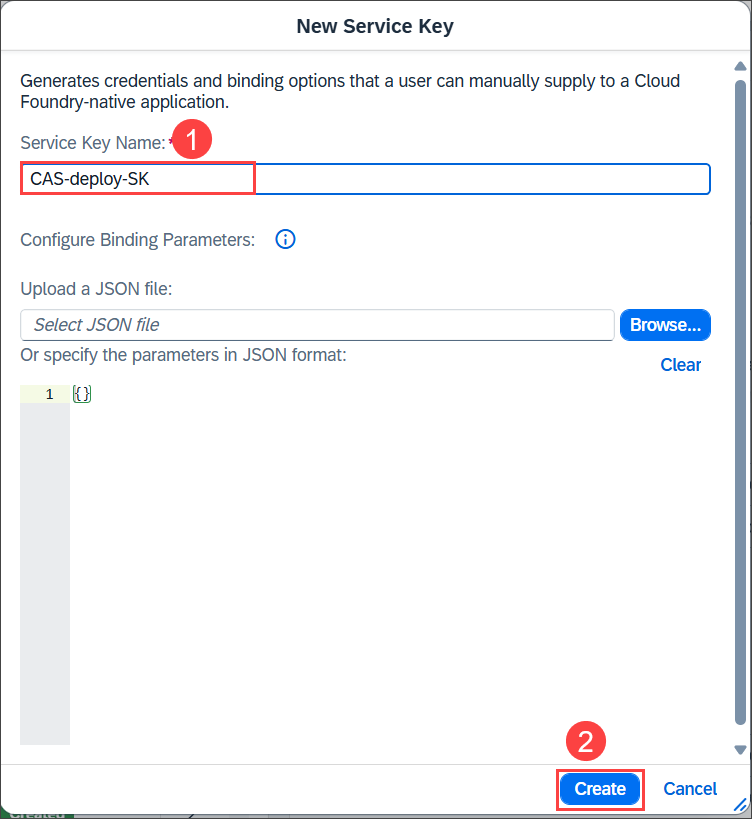
Create CAS Service Key 2 The service key was created. Select the three dots … in the service key row, and choose View.
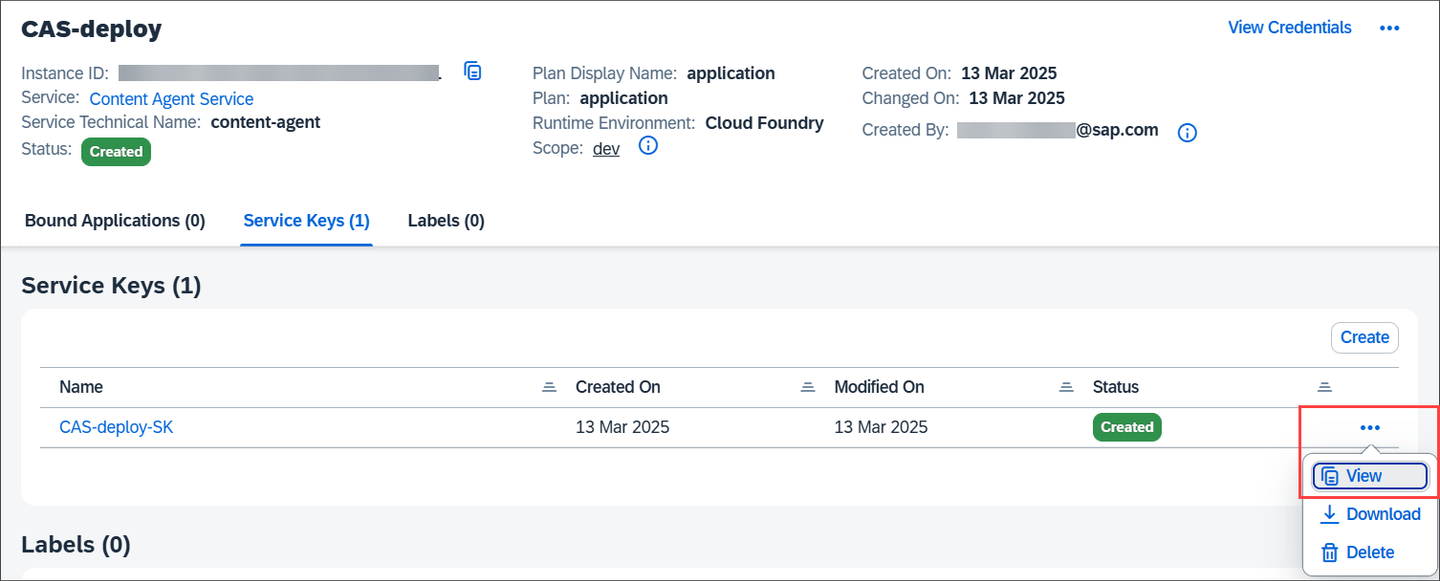
Create CAS Service Key 3 The credentials are displayed. Leave the service key open so that you copy the required values in the next tutorial, or note down the values of
url, as well asclientid,clientsecret, andurlfrom theuaasection.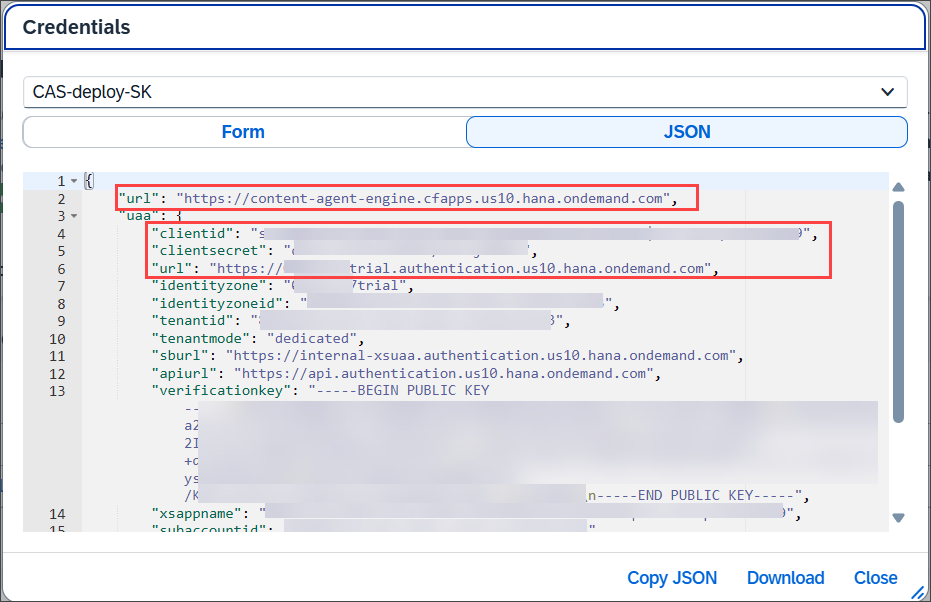
Create CAS Service Key 4 You’ll need them in the next tutorial Create a Transport Destination and Configure the SAP Integration Suite Transport Landscape to create the transport destination (called CAS_on_Target) in the central administrative subaccount that points to SAP Content Agent in the target subaccount.
See also on SAP Help Portal: Create Service Key
Resources
Discussion
Share feedback on this tutorial or join the conversation in SAP Community.