
Overview
You will learn
- How to pause process instance with “Wait for an API Call”
- How to call trigger to resume process instance


Prerequisites
Prerequisites
- You have completed the previous tutorial for the event-based processes CodeJam, Add 2nd Approval With Custom Variables, Conditions and Form Events.
Steps
Remember, our action will just describe the type of service we want to access, but we need to create a destination to indicate the actual backend service to call.
Download the destination template.
Click Destination template, and then click the download button.

Download destination Go to the SAP BTP cockpit for your subaccount.
You can always return to your trial account cockpit by going to https://account.hanatrial.ondemand.com/ and then opening your subaccount.
Click Connectivity > Destinations.

Import destination Click Import Destination, and select the file you downloaded.

Import destination Click Save.
Click Check Connection, and you should get a 200 status code.

Test destination
You created a destination, but you must let SAP Build Process Automation know that you want to allow it to be used in deployed processes.
In the main SAP Build page, click Control Tower.
Click Destinations.

Add destination to Control Tower Click Add.

Click Add Select the AccessProService destination.

Select destination Click Next.
Keep All Environments, and click Add Destination.

Destination added
The destination should now appear in the list of destinations that can be used with your processes.

In the SAP Build menu, click Actions.

Open Actions Click Create.

Create Select OData Destinations.

Odata Destinations Select AccessProService.

AccessProService You will now see a list of all the entities and all the API calls you can make, only for your information.

Available calls Click Next.
Name the action as follows:
Field Value Name Access Pro Service Description A 3rd-party service for managing the creation of employee/visitor badges. 
Name action Click Create.
You will now see the operations available for this service, and you will need to decide which ones to expose (to “your” developers).
Select the POST /Badges call, since you will want to create a new badge request during your process.

Select API Click Add.
You now get the action where you can modify the inputs and outputs, or add additional API calls to this action. We will keep the inputs and outputs as is.
Under Inputs, select ID and click Remove.
The CAP service will generate an ID automatically, so we do not want to be forced to supply that field.

Remove field Click Save.

Save action Click Release, then click Release to confirm..

Release action Click Publish, and then click Publish to confirm.

Publish action
We will want the 3rd-party system to call our process back, and we need to supply to it the process instance ID. So first we must store the value.
Go back into your process, and make sure you have the Editable version open.
With nothing selected (just click in an open space), open the side panel.
Under Variables, and then under Custom Variables, click Configure.

Configure variable Click Add Variable.
Set the name to instanceID.
The identifier is automatically generated and the type is automatically String.
Click Apply.

Add variable Above the notification step, add a script task.

New step Set the name to Get instance ID.

Rename Open the editor.
Add the following line to the editor.
JavaScript$.context.custom.instanceid = $.info.workflowInstanceId
Create script Click Apply.
Click Save (upper right).
Under the script task, click the plus sign, +, and add an action.

Add action step Click Browse All Actions.

Browse All Actions Select the Add new entity to Badges (as part of Access Pro Service project), and click Add.

Add action In the side panel, create a destination variable.
Click inside the Destination Variable field, and click Create Destination Variable.

Destination variable Name the variable AccessProDest, and click Create.

New variable Under inputs, bind the input fields:
Field Value businesspartnerId Process Inputs > data > BusinessPartner communityId Process Inputs > data > YY1_SAPCommunityDisplayName firstname Process Inputs > data > FirstName lastname Process Inputs > data > LastName processInstanceId Custom Variables > instanceID status Approved Click Save.
Under the action, click the plus sign, +.

Add step Click Controls and Events.

Controls and Events Scoll down and select Wait for an API Call.

Wait for an API Call Click Create an API Call.

Create an API Call Call the API trigger AccessProCallback, and click Create.

Wait Trigger With the new step selected, open the side panel.
Select the Outputs tab, and click Configure.

Configure wait Click Add Ouput.
Set the name to badgeId, and click Apply.

Add output Click Save.
Our 3rd-party system will call back to our process instance, and send a badge number. Let’s add that to the notification form.
Click the 3 dots next to your notification form, and select Open Editor.

Open form Add a Paragraph and set its text to:
TextYour badge number is:Add a Text field. Call it Badge Number and set to read only.

New form fields Click Save.
Back in the process, with your form selected, open the side panel.
Under Inputs, bind the badgeId from the Wait for Badge System step to the new form field.

Bind field Click Save.
In order to call an SAP Build Process Automation trigger – either a standard trigger or a wait trigger – you must send an API key with adequate permissions.
Go to the Control Tower, and click Environments.

Environments Select the Public environment.
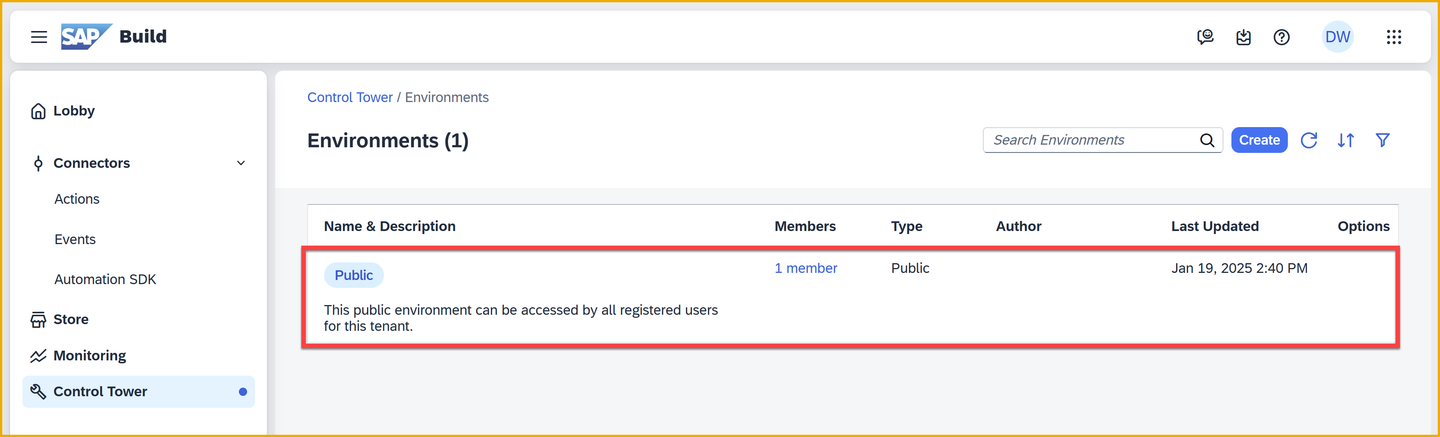
Public In the API Keys tab, click Add API Key.

Add key Call the key AccessProCallbackAPIKey, and click Next.

BadgeKey Enable the following scopes:
- trigger_read
- trigger_execute
Click Next.

Add scopes On the Review page, click Add.

Add scopes A key will be generated.
IMPORTANT: Make sure to copy and save it in a safe place.

Add scopes
Click Release.

Release Confirm by clicking Release.
Click Show project version (upper left).
This will take you to the released version of your project, so you can deploy it.

Released version Click Deploy.

Deploy Select the Public environment.
Select Upgrade.
Note that it will show you that a new trigger will be created for the Wait for an API Call step.

New trigger Click Deploy.
You will now have a new destination to select, since you created a destination variable for the action to create a new badge request.
This is in addition to the one you selected in previous deployments for the S/4HANA backend.

Destinations Select the AccessProService destination, and make sure the S4HANA_Badges destination is selected.
Click Deploy.
After deploying, go to the Control Tower > Environments, and go to the Public environment.

Check triggers Click Triggers, and you will see the trigger created for the Wait for an API Call. The trigger is called AccessProCallback.

Wait trigger Click View

View trigger You will see the connection details for the 3rd party system to call our process instances to resume them.
Copy the URL and put it in a safe place, where you put your API key. You will need these when we use the 3rd-party system.
IMPORTANT: Your URL will be different than the screenshot.

Trigger URL
Things to Ponder
How did you get the process instance ID to pass to the 3rd-party system?
What other details about your process can you get this way?
What other integrations could you imagine with the “Wait for an API Call”?
What other scopes can you specify for an API key?
Resources
Discussion
Share feedback on this tutorial or join the conversation in SAP Community.