
Overview
You will learn
- How the entire event-based scenario works together


Prerequisites
Prerequisites
- You have completed the previous tutorial for the event-based processes CodeJam, Call 3rd-Party System and Wait for Callback.
Steps
Go to the Create Business Partner app we provided to you.

Business partner app Enter the following:
Field Value First Name Anything you want Last Name Anything you want Country US SAP Community Username Your user name in the SAP Community Click Create.
Your business partner is created.
Check that the event was received into SAP Build by going to Monitoring > Acquired Events > Business Events.
You should see an event created for your new business partner, including the business partner ID that you saw when you created it.

Business events
In Monitoring, click the Processes and Workflow Instances tile.

Open Monitoring You should now see your process instance.
Click on the process instance to see its details.

Open process instance You can see the steps that have run so far (from the bottom).
The process was triggered
The flag for the local approver was set
Data from S/4HANA was retrieved
An approval task was created and is ready to be executed
Open the Inbox in the header.

Open Inbox Click on the new task.
You will see information from the event, plus data you retrieved from the S/4HANA Business Partner API.

Approval Click Approve.
The task will disappear in the Inbox.
Return to Monitoring and refresh the process instance.
You’ll see the following additional steps (from bottom to top):
The approval was completed
The condition was checked
Since the new business partner is from the US, a task was sent to the local approver

Approval completed
Again – FAST! – go into the Inbox and refresh the display.
If you were fast enough, you would have seen the form for the local approver.

Local approval completed DO NOT CLICK ANYTHING! Let a minute go by and let the form lapse. If you refresh the Inbox, it will disappear.
After a minute, check Monitoring again and refresh your instance.
The local approval was not done in time, and was canceled (2 entries)
The process instance went to the next step
The instance ID was retrieved (2 entries)
The action to create a new badge request in the 3rd-part system was executed (2 entries)
The process instance started to wait for an API call

Local approval skipped
Open the 3rd-party badge system (your instructor will provide details).
Select your new business partner. (You can filter by your community ID)

Open external app On the details page, enter the following, which you saved along the way:
Your API key
Wait Trigger URL

Key and URL Click Upload Service Key, and select your service key file. The client ID, client secret, and the authentication URL will be set.
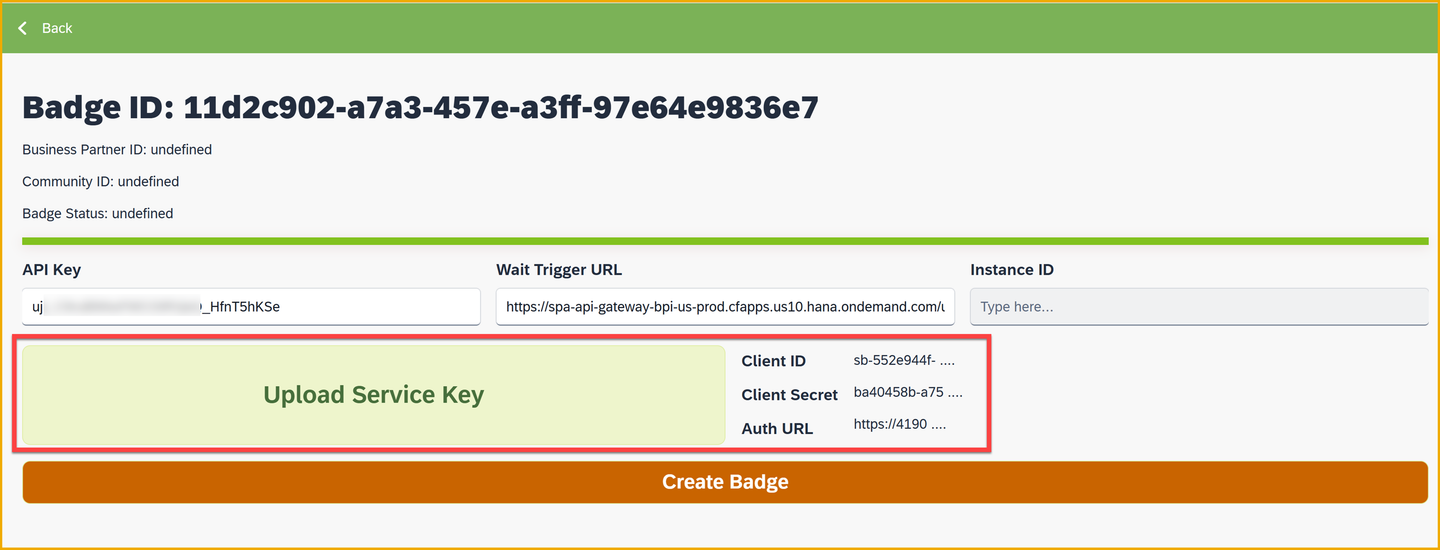
Key and URL Click Create Badge.
You should get a success message.

Success What just happened?
The app made an API call to SAP Build Process Automation, specifically, to the “wait trigger” we created to pause the process. The API call restarts the process, and injects the new badge ID in the process instance.
We also updated the CAP service so that entity’s status is updated to PRINTED and the badge ID is stored.
Go back to the Monitoring tab and refresh your process instance. You’ll see 2 more steps (from bottom to top):
The wait completed (because we called it via API)
The notification form was sent.

Wait is over If you look at the context, you will see an entry for the API we called to restart the process, along with the badge ID sent with the API call.

Badge ID returned Go to the Inbox and you will see the last notification form to acknowledge, along with the badge ID.

Last form Submit the form and the process instance will complete.
Here’s the entire flow:

The whole flow Nice job 😺
Things to Ponder
What are the advantages of using SAP Build Proceass Automation for designing and deploying processes?
- That is, what capabilities does it provide?
What other processes can you imagine creating?
Resources
Discussion
Share feedback on this tutorial or join the conversation in SAP Community.