
Use Free Tier to Create a Service Instance for SAP Document AI
Use the free tier service plan to create a service instance and the associated service key for SAP Document AI using the free tier service plan.
Overview
You will learn
- How to check your subaccount entitlements and add SAP Document AI
- How to create a service instance of SAP Document AI
- How to create a service key for your service instance


Prerequisites
Prerequisites
- You have created an account on SAP BTP to try out free tier service plans: Get an Account on SAP BTP to Try Out Free Tier Service Plans
- You are entitled to use SAP Document AI: Manage Entitlements Using the Cockpit
Steps
Open the SAP BTP cockpit.
Click the tile to access your subaccount.

To use SAP Document AI, you need to make sure that your account is properly configured.
On the navigation side bar, click Entitlements to see a list of all eligible services. You are entitled to use every service in this list according to the assigned service plan.
Search for
SAP Document AI. If you find it in the list, you are entitled to use it. Now you can set this step to Done and proceed with Step 3.

ONLY if you DO NOT find SAP Document AI in your list, proceed as follows:
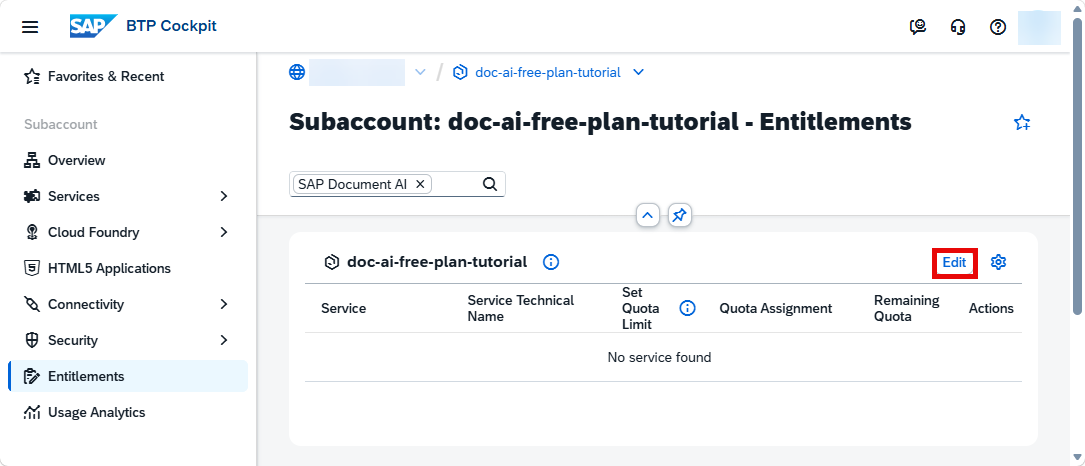
- Click Edit.
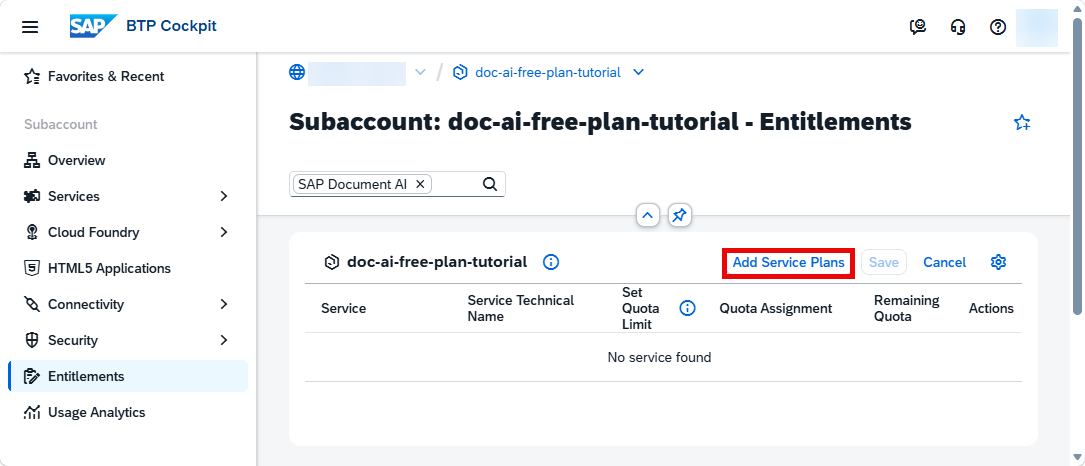
- Click Add Service Plans.
- Search for
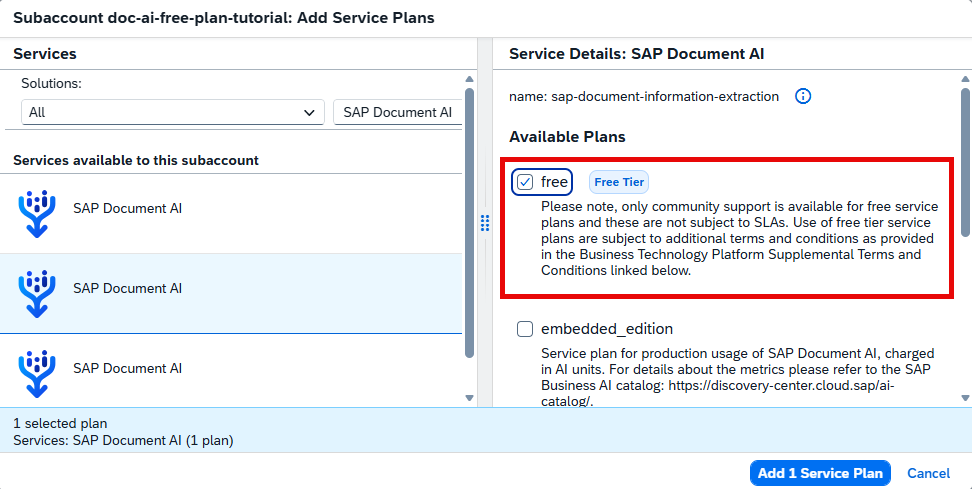
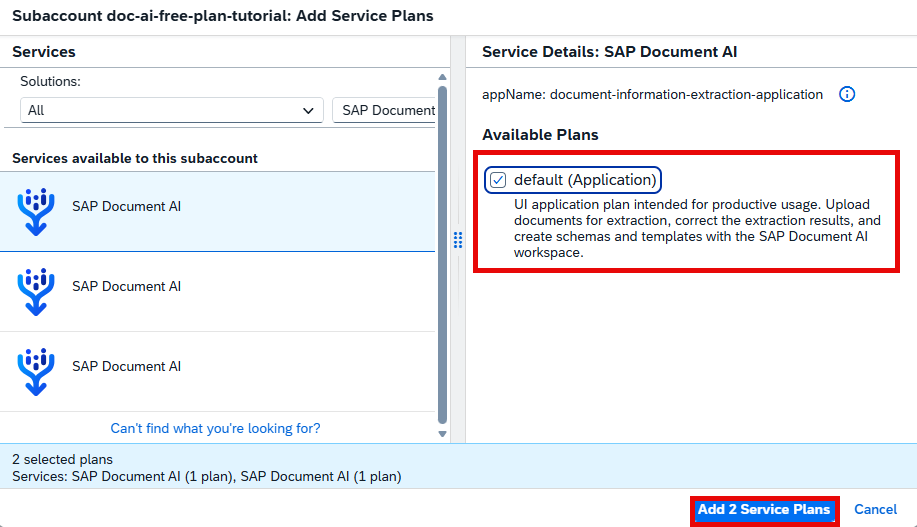
SAP Document AI. Choose thefree (Free Tier)anddefault (Application)service plans. Click Add 2 Service Plans.
>You can also perform this tutorial series using the following service plans intended for productive use: base edition (blocks_of_100), embedded edition (embedded_edition), or premium edition (premium_edition). To do so, choose either the `blocks_of_100`, `embedded_edition`, or `premium_edition` plan in this step (instead of `free`). For more information about the service plans available for SAP Document AI, see [Service Plans](https://help.sap.com/docs/document-information-extraction/document-information-extraction/service-plans).
- Click Save to save your entitlement changes.
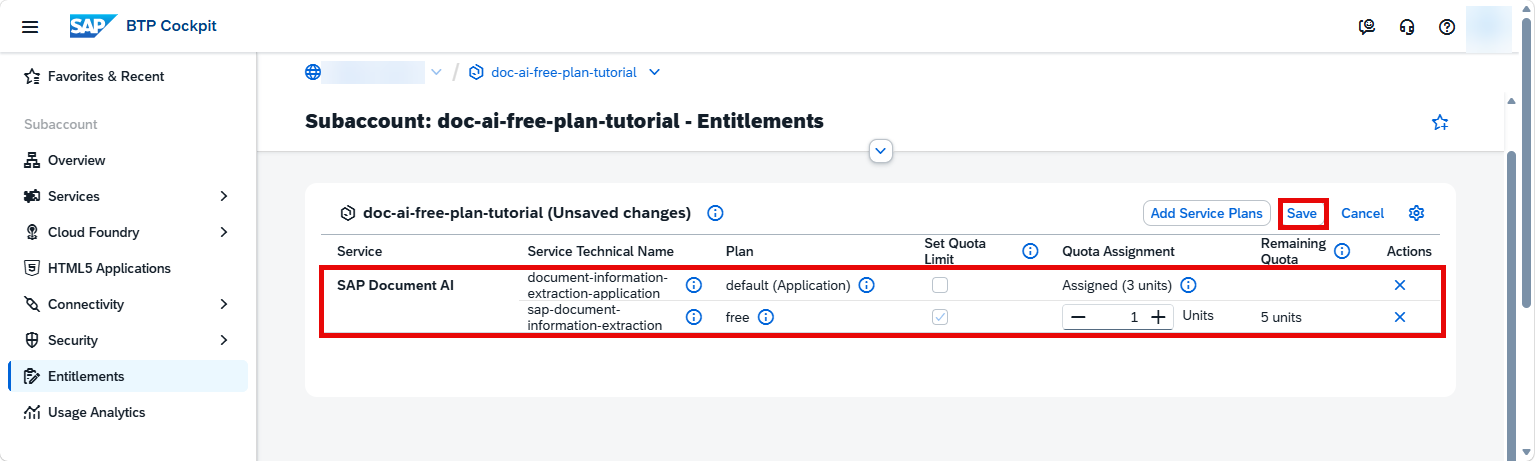
You are now entitled to use SAP Document AI and create service instances.
The Service Marketplace is where you find all the services available on SAP BTP. You’ll now create a service instance of SAP Document AI.
Click Service Marketplace on the navigation side bar. Search for SAP Document AI and click the tile to access it.

Access Service Click Create to start the service instance creation dialog.

Create Instance In the dialog, choose the
freeplan. Enter a name for your new instance, for example,doc-ai-instanceand click Create.Choose
blocks_of_100in this step (instead offree) if you’re using the base edition plan to perform this tutorial series.Choose
embedded_editionin this step (instead offree) if you’re using the embedded edition plan to perform this tutorial series.Choose
premium_editionin this step (instead offree) if you’re using the premium edition plan to perform this tutorial series.
Create Instance In the following dialog, click on View Instance to navigate to the list of your service instances.

View Instances
You have successfully created a service instance for SAP Document AI.
You are now able to create a service key for your new service instance. Service keys are used to generate credentials to enable apps to access and communicate with the service instance.
Click the dots to open the menu and select Create Service Key.

Service Key In the dialog, enter
doc-ai-keyas the name of your service key. Click Create to create the service key.
Create Service Key
You have successfully created a service key for your service instance. You can now view the service key in the browser or download it.

Resources
Discussion
Share feedback on this tutorial or join the conversation in SAP Community.