
Overview
You will learn
- How to enter Kyma dashboard
- How to add the Serverless Kyma module


Prerequisites
Prerequisites
Steps
In your subaccount go to Services > Instances and Subscriptions.
Scroll down to Environments and choose the three dots … in the Kyma Environment line. Then, choose Go to Dashboard.
If you use the pre-configured shared SAP Cloud Identity Services tenant, SAP ID service, as an identity provider in your enterprise or trial account, the Two-Factor Authentication is enabled and will be enforced.
Go to your authenticator application on your mobile device and add a new account. Once you scan the QR Code, a password to access Kyma will be created. Enter the password in the Passcode field.
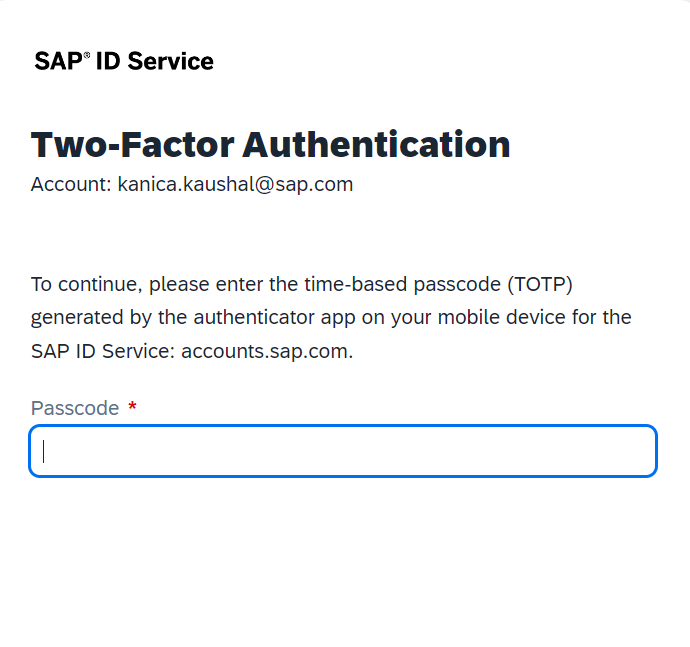
Enter your authenticator app password
Congratulations, you are in Kyma dashboard!

In Kyma dashboard choose Modify Modules. This view lists your Kyma module.
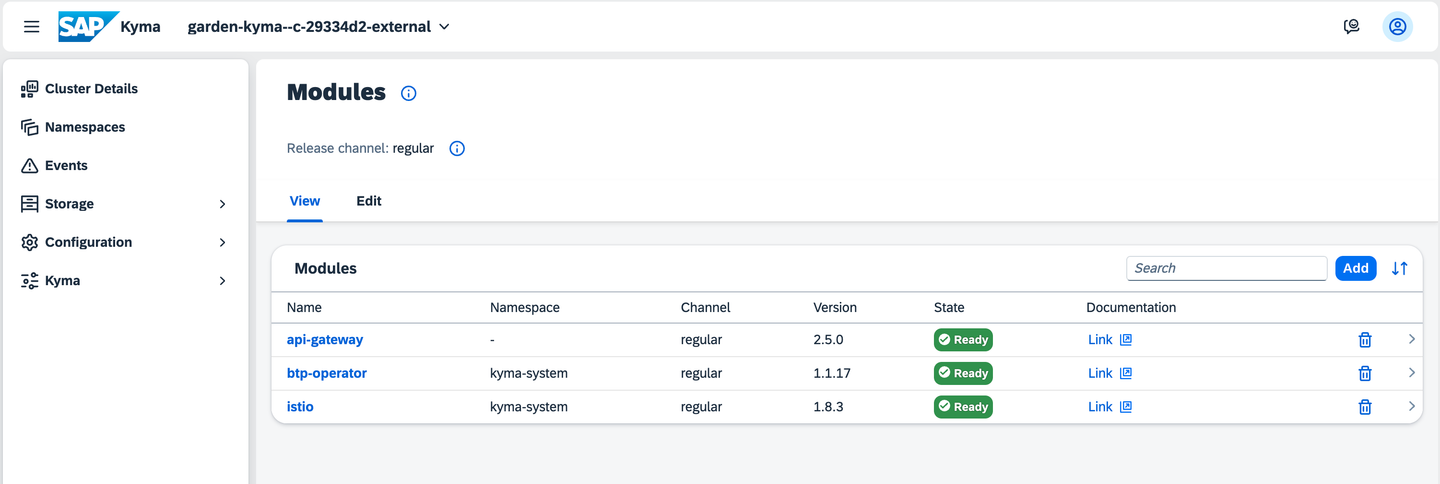
Your Kyma Dasboard, Cluster Details NOTE: When you enable Kyma, it is provisioned with the default modules added:
- The Istio module is a service mesh with Kyma-specific configuration.
- The API Gateway module provides functionalities that allow you to expose and secure APIs.
- Within the SAP BTP Operator module, BTP Manager installs the SAP BTP service operator that allows you to consume SAP BTP services from your Kubernetes cluster using Kubernetes-native tools.
- The Istio module is a service mesh with Kyma-specific configuration.
Choose Add to open the Add Modules view. Select serverless and choose Add.

Browsing modules NOTE: In this tutorial you use the Serverless module from the default release channel, namely the regular channel. You can also choose the fast channel. For more information, see Kyma Release Channels.
Once the module’s state is
Ready, go to Namespaces and choose the default namespace.
The Kyma module is ready Within the namespace, you may see new menu entries added by the module you just added, in this case go to Workloads > Functions, the newly created option that comes with the Serverless module.

Functions are now available NOTE: If your module is in the
Readystate and you still don’t see Workloads > Functions, refresh your browser.
Congratulations! You added the Serverless module to your Kyma environment. Now you can create serverless Functions in Kyma.
Resources
Discussion
Share feedback on this tutorial or join the conversation in SAP Community.