
Overview
You will learn
- How to open SAP standard app like Mobile Start from the MDK public store client
- How to open a web page


Prerequisites
Prerequisites
- Tutorial group: Set Up for the Mobile Development Kit (MDK)
- Install SAP Mobile Services Client on your Android device or iOS
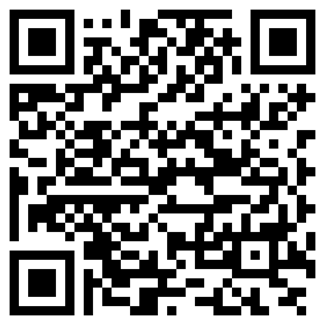 Android |  iOS |
(If you are connecting to AliCloud accounts, you will need to brand your custom MDK client by allowing custom domains.)
- Install SAP Mobile Start Application

Android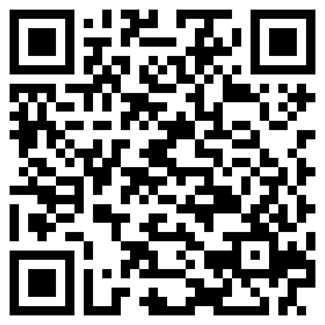
iOS
Steps
Intro
You may clone an existing metadata project from the MDK Tutorial GitHub repository and start directly with step 4 in this tutorial.
Deep links are used to send users directly to an app instead of a website or a store saving users the time and energy locating a particular page themselves – significantly improving the user experience.
If an app is already installed, you can specify a custom URL scheme or an intent URL that opens that app. Using deep link, you can also navigate to specific events or pages, which could tie into campaigns that you may want to run.

This tutorial has been executed using public store MDK client which has out of the box functionality to open the SAP standard apps like SAP Mobile Start. If you are building a custom version of Mobile development kit client, there you can implement deep links by specifying related custom URL schemes.
This step includes creating a mobile project in SAP Build Lobby.
In the SAP Build Lobby, click Create > Create to start the creation process.

SAP Build Lobby Create Button Click the Application tile and choose Next.

Application Tile Selection Select the Mobile category and choose Next.

Mobile Category Selection Select the Mobile Application to develop your mobile project in SAP Business Application Studio and choose Next.

Mobile Application Option Selection Enter the project name
mdkdeeplink(used for this tutorial) , add a description (optional), and click Review.
Project Name Entry Form SAP Build recommends the dev space it deems most suitable, and it will automatically create a new one for you if you don’t already have one. If you have other dev spaces of the Mobile Application type, you can select between them. If you want to create a different dev space, go to the Dev Space Manager. See Working in the Dev Space Manager.
Review the inputs under the Summary tab. If everything looks correct, click Create to proceed with creating your project.
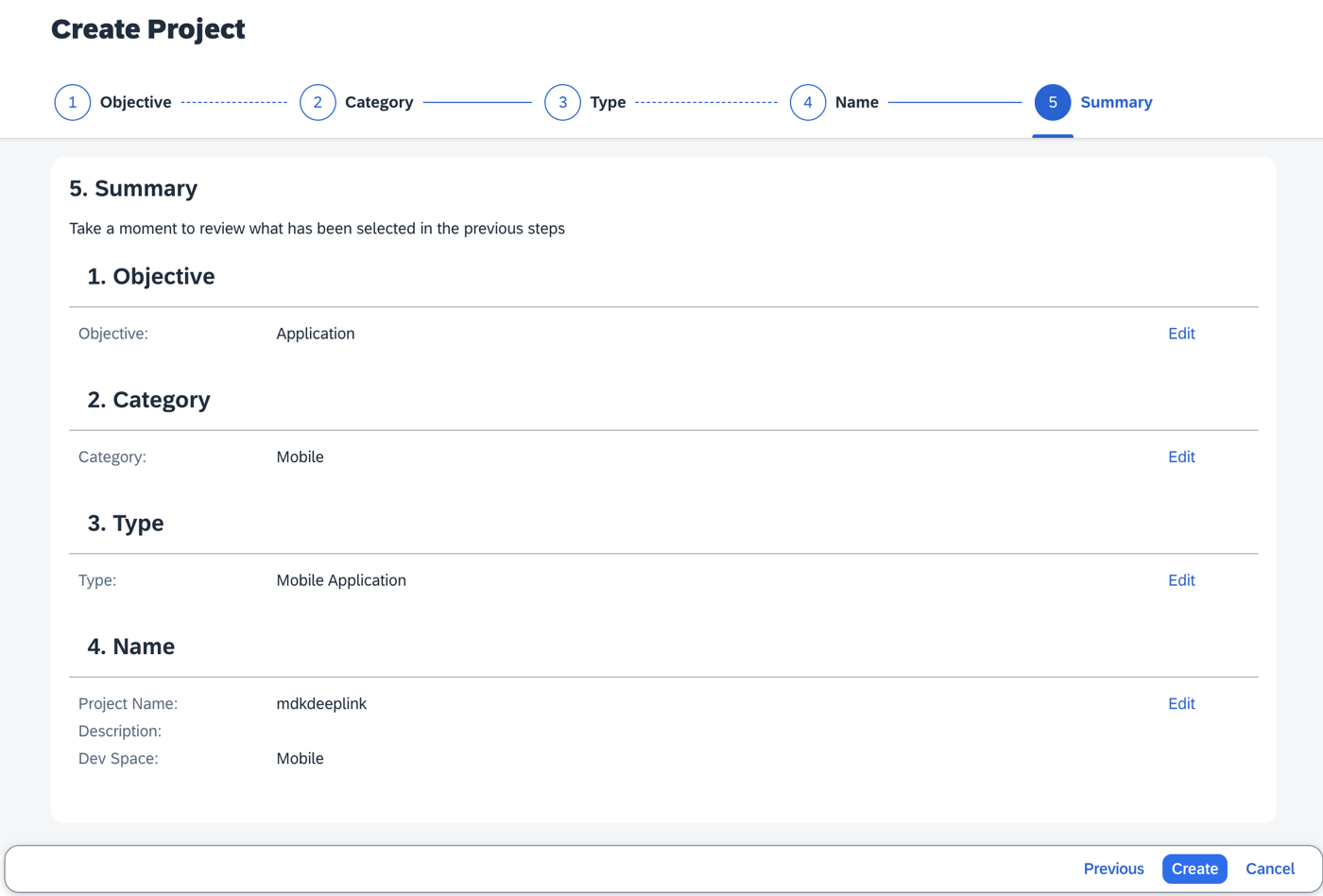
Project Summary Review Screen Your project is being created in the Project table of the lobby. The creation of the project may take a few moments. After the project has been created successfully, click the project to open it.

Project Created In Lobby Table The project opens in SAP Business Application Studio.

Project Opened In SAP BAS When you open the SAP Business Application Studio for the first time, a consent window may appear asking for permission to track your usage. Please review and provide your consent accordingly before proceeding.

SAP BAS Usage Consent Window
The Storyboard provides a graphical view of the application’s runtime resources, external resources, UI of the application, and the connections between them. This allows for a quick understanding of the application’s structure and components.
- Runtime Resources: In the Runtime Resources section, you can see the mobile services application and mobile destination used in the project, with a dotted-line connected to the External Resources.
- External Resources: In the External Resources section, you can see the external services used in the project, with a dotted-line connection to the Runtime Resource or the UI app.
- UI Application: In the UI Applications section, you can see the mobile applications.
Click on + button in the Runtime Resources column to add a mobile services app to your project.

Runtime Resources Add Button This screen will only show up when your CF login session has expired. Use either
CredentialsORSSO Passcodeoption for authentication. After successful signed in to Cloud Foundry, select your Cloud Foundry Organization and Space where you have set up the initial configuration for your MDK app and click Apply.
CF Login Credentials Dialog Choose
myapp.mdk.demofrom the applications list in the Mobile Application Services editor and click Add App to Project. You do not require to add a destination for this tutorial.
Mobile Application Services App Selection You can access the mobile services admin UI by clicking on the Mobile Services option on the right hand side.
In the storyboard window, the app will be added under the Runtime Resources column.

App Added To Storyboard Runtime Resources Click the + button in the UI application column header to add mobile UI for your project.

UI Application Column Add Button In the Basic Information step, select No for the Enable Auto-Deployment to Mobile Services After Project Creation property, and click Finish. You will modify the generated project in next step and will deploy it later.

Basic Information Auto-Deployment Disabled After clicking Finish, the storyboard is updated displaying the UI component. The MDK project is generated in the project explorer based on your selections.

Storyboard With UI Component Added
On the
Main.page, drag and drop the Button Table Static Container control onto the Page.
Button Table Container Drag And Drop The controls available in Container section includes controls that act as containers for other controls, such as container items. A container is constant for all pages. The size of a container depends on the controls and contents included inside.
You can find more details about Containers.Now, you will add items to this Container control.
Drag and drop the Button Static Item control onto the page.

Button Static Item Control Drop Repeat the above step, and drag and drop one more such Button Static Item control.

Second Button Item Added Select the first control, remove the default value for the Image property and update its title to Open SAP Mobile Start.

Button Title Set To Open SAP Mobile Start Repeat the same for the second button and update its title to Open sap.com page:

Second Button Title Set To Open SAP.com
In this step, you will bind a rule to the
OnPressevent of each button.In
Main.page, select Open SAP Mobile Start button. In the Properties pane, click the Events tab, click the dotted icon for theOnPress Handlerproperty and selectCreate a rule/actionto create a new rule.
OnPress Handler Rule Creation Dialog Choose the Rule in Object Type, keep the default path for the Folders and click OK.

Rule Object Type Selection In the Base Information step, enter the Rule Name as
OpenSAPMobileStart, click Finish.
Rule Name Entry Base Information Replace the generated snippet with below code.
JavaScript/** * @param {IClientAPI} context */ import { Application, Utils } from "@nativescript/core"; function openUrl(location) { if (Application.ios) { const url = NSURL.URLWithString(location.trim()); if (UIApplication.sharedApplication.canOpenURL(url)) { return UIApplication.sharedApplication.openURLOptionsCompletionHandler(url, null, null); } else { return false; } } else { return Utils.openUrl(location); } } export default function OpenSAPMobileStart(context) { return context.executeAction('/mdkdeeplink/Actions/Confirmation.action').then((result) => { if (result.data) { // This will open the SAP Mobile Start app const url = Application.ios ? "com.sap.mobile.start://" : "com.sap.mobile.apps.sapstart://"; return openUrl(url); } else { return Promise.reject('User Deferred'); } }); }You will see an error complaining about cannot find file reference. This is due to the action file has not created yet. You will create it in next step.
openUrlis aNativeScriptAPI to open an URL on device. You can find more details about this API.In the generated
OpenSAPMobileStart.jsrule, click on the red line. You will notice a yellow bulb icon suggesting some fixes, click on it and then selectMDK: Create action for this reference, and clickMessage Action.
Create Action For Rule Reference Provide the below information:
Property Value MessageDo you want to leave the current app?TitleConfirmOKCaptionOKOnOK--None--CancelCaptionCancelOnCancel--None--
Confirmation Action Properties Form Repeat the same for the Open sap.com page button, create a new rule
OpenSAPcombinding it’sOnPress Handlerevent. Replace the generated snippet with below code.JavaScript/** * Describe this function... * @param {IClientAPI} context */ import { Application, Utils } from "@nativescript/core"; function openUrl(location) { if (Application.ios) { const url = NSURL.URLWithString(location.trim()); if (UIApplication.sharedApplication.canOpenURL(url)) { return UIApplication.sharedApplication.openURLOptionsCompletionHandler(url, null, null); } else { return false; } } else { return Utils.openUrl(location); } } export default function OpenSAPcom(context) { return context.executeAction('/mdkdeeplink/Actions/Confirmation.action').then((result) => { if (result.data) { //This will open SAP.com website openUrl("https://www.sap.com"); } else { return Promise.reject('User Deferred'); } }); }
So far, you have learned how to build an MDK application in the SAP Business Application Studio editor. Now, you will Deploy the Project definitions to Mobile Services to use in the Mobile client.
Switch to the
Main.pagetab, click the Deploy option in the editor’s header area, and then choose the deployment target as Mobile Services.
Editor Deploy Option In Header Select deploy target as Mobile Services.

Mobile Services Deploy Target Selection Select Mobile Services Landscape.

Mobile Services Landscape Selection If you want to enable source for debugging the deployed bundle, then choose Yes.

Enable Source For Debugging Prompt You should see Deploy to Mobile Services successfully! message.

Deploy To Mobile Services Success Message
SAP Business Application Studio includes a feature that displays a QR code for onboarding in the mobile client. To view the onboarding QR code, click the Application QR Code icon in the editor’s header area.

The On-boarding QR code is now displayed.

Leave the Onboarding dialog box open for the next step.
Ensure that you choose the correct device platform tab above. Once you have scanned and onboarded using the onboarding URL, it will be remembered. If you log out and onboard again, you will be prompted to either continue using the current application or scan a new QR code.
Follow these steps to successfully on-board the MDK client on your Android device.
After you accept app update, you will see the Main page with the buttons you added in previous step 3.

Android Main Page With Deep Link Buttons Tap Open SAP Mobile Start and then tap OK.
Open SAP Mobile Start Confirmation Dialog If you have already installed SAP Mobile Start app, then MDK app will open it.

SAP Mobile Start App Opened Tapping on Open SAP.com page will open SAP website.

SAP Website Opened In Browser
Follow these steps to successfully on-board the MDK client on your iOS device.
After you accept app update, you will see the Main page with the buttons you added in previous step 3.

iOS Main Page With Deep Link Buttons Tap Open SAP Mobile Start and then tap OK.

Open SAP Mobile Start Button Tapped 
Confirmation OK Tapped If you already installed SAP Mobile Start app, then MDK app will open it.

SAP Mobile Start App Opened On iOS Tapping on Open sap.com page will open SAP website.

SAP Website Opened On iOS To run this app in your branded client, you need to add SAP Mobile Start app URL schemes (
com.sap.mobile.start) in the info.plist.
Resources
Discussion
Share feedback on this tutorial or join the conversation in SAP Community.