
Overview
You will learn
- How to register and consume an Extension control in MDK Metadata
- How to build a Mobile development kit client for iOS and Android
- How to connect to SAP Mobile application


Prerequisites
Prerequisites
- Tutorial: Set Up for the Mobile Development Kit (MDK)
- Download the latest version of mobile development kit SDK either from the SAP community trial download or SAP Software Center if you are a SAP Mobile Services customer. You will need to build your branded client using the MDK SDK when accessing the Google Maps on Android device.
- Install SAP Mobile Services Client on your iOS device.
 iOS |
(If you are connecting to AliCloud accounts, you will need to brand your custom MDK client by allowing custom domains.)
Steps
Intro
You may clone an existing metadata project from GitHub repository and start directly with step 5 in this tutorial.
To extend the functionality, or customize the look and feel, and behavior of your client app, you can create extension controls other than the already existing MDK built-in controls by writing Native Code in TypeScript via Marshalling. NativeScript provide the ability to access platform-specific objects, class, and types in TypeScript / JavaScript via marshalling. NativeScript handles the conversion between JavaScript and native data types implicitly.
In this tutorial, you will create a Map extension via NativeScript (in TypeScript language), you will view the Map in Apple Maps on iOS devices and in Google Maps on Android devices.

This step includes creating a mobile project in SAP Build Lobby.
In the SAP Build Lobby, click Create > Create to start the creation process.

SAP Build Lobby Create Button Click the Application tile and choose Next.

Application Tile Selection Select the Mobile category and choose Next.

Mobile Category Options Select the Mobile Application to develop your mobile project in SAP Business Application Studio and choose Next.

Mobile Application Option Selection Enter the project name
mdk_maps(used for this tutorial) , add a description (optional), and click Review.
Project Name And Description Entry SAP Build recommends the dev space it deems most suitable, and it will automatically create a new one for you if you don’t already have one. If you have other dev spaces of the Mobile Application type, you can select between them. If you want to create a different dev space, go to the Dev Space Manager. See Working in the Dev Space Manager.
Review the inputs under the Summary tab. If everything looks correct, click Create to proceed with creating your project.
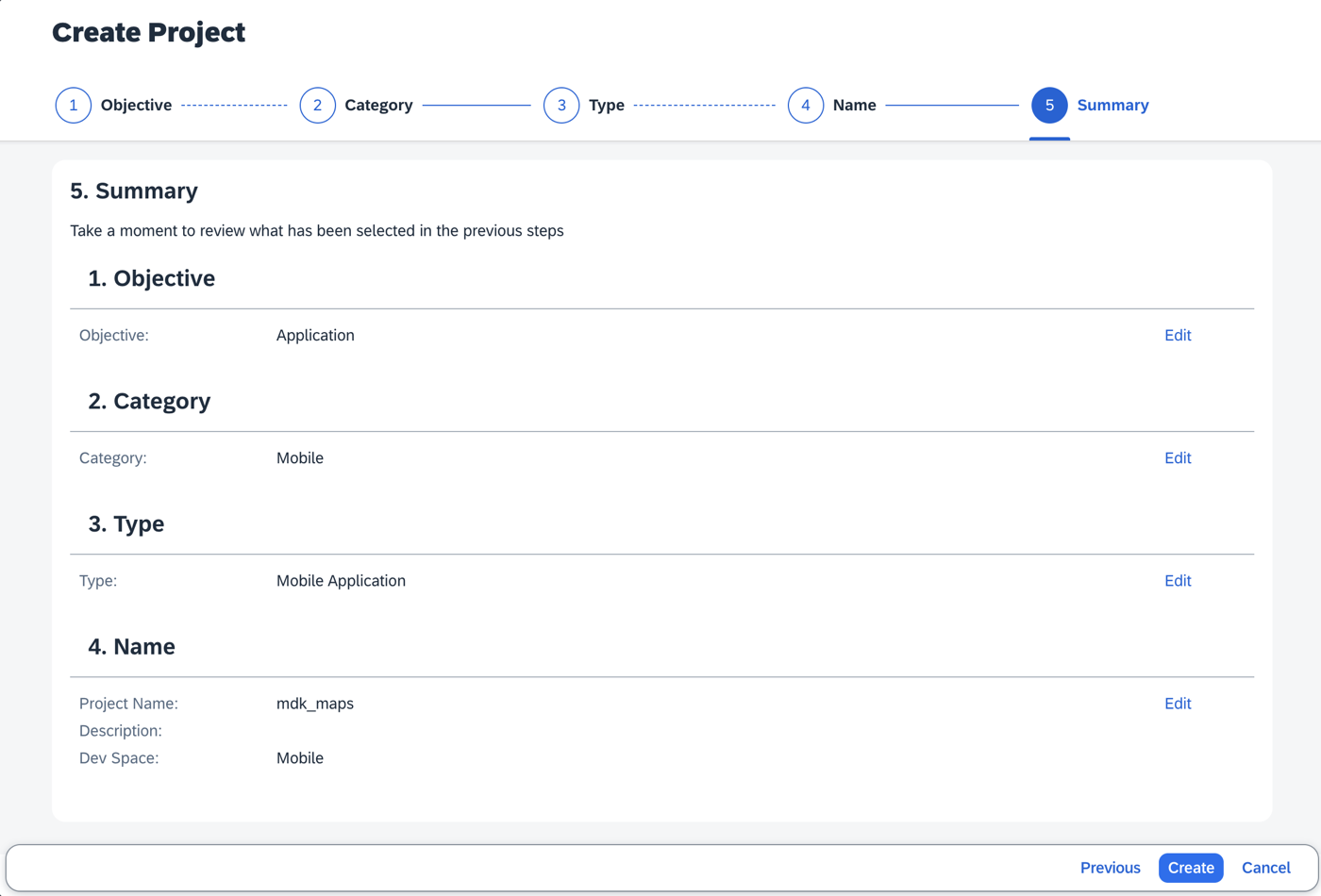
Project Summary Review Screen Your project is being created in the Project table of the lobby. The creation of the project may take a few moments. After the project has been created successfully, click the project to open it.

Project Created In Lobby Table The project opens in SAP Business Application Studio.

SAP BAS Workspace Opened When you open the SAP Business Application Studio for the first time, a consent window may appear asking for permission to track your usage. Please review and provide your consent accordingly before proceeding.

SAP BAS Usage Consent Dialog
The Storyboard provides a graphical view of the application’s runtime resources, external resources, UI of the application, and the connections between them. This allows for a quick understanding of the application’s structure and components.
- Runtime Resources: In the Runtime Resources section, you can see the mobile services application and mobile destination used in the project, with a dotted-line connected to the External Resources.
- External Resources: In the External Resources section, you can see the external services used in the project, with a dotted-line connection to the Runtime Resource or the UI app.
- UI Application: In the UI Applications section, you can see the mobile applications.
Click on + button in the Runtime Resources column to add a mobile services app to your project.

Runtime Resources Add Button This screen will only show up when your CF login session has expired. Use either
CredentialsORSSO Passcodeoption for authentication. After successful signed in to Cloud Foundry, select your Cloud Foundry Organization and Space where you have set up the initial configuration for your MDK app and click Apply.
CF Login Credentials Dialog Choose
myapp.mdk.demofrom the applications list in the Mobile Application Services editor.
Mobile Application Services App Selection Select
com.sap.edm.sampleservice.v4from the destinations list and click Add App to Project.
Destination Selection Add To Project You can access the mobile services admin UI by clicking on the Mobile Services option on the right hand side.
In the storyboard window, the app and mobile destination will be added under the Runtime Resources column. The mobile destination will also be added under the External Resources with a dotted-line connection to the Runtime Resource. The External Resource will be used to create the UI application.

Storyboard With Runtime Resources Added Click the + button in the UI application column header to add mobile UI for your project.

UI Application Column Add Button In the Basic Information step, provide the below information and click Next. You will modify the generated project in next step and will deploy it later.
Field Value MDK Template TypeList DetailEnable Auto-Deployment to Mobile Services After Project CreationSelect No
Basic Information Template Selection Step The
List Detailtemplate generates the offline or online actions, rules, messages and pages to view records. More details on MDK template is available in help documentation.In the Data Collections step, provide the below information and click Finish. Data Collections step retrieves the entity sets information for the selected destination.
Field Value Enter a path to service (e.g. /sap/opu/odata/sap/SERVICE_NAME)Leave it as it is Select the Service TypeLeave the default value as ODataEnable OfflineChoose NoSelect all data collectionsLeave it as it is What types of data will your application contain?Select Customers(if not selected by default)
Data Collections Configuration Step Regardless of whether you are creating an online or offline application, this step is needed for app to connect to an OData service. When building an MDK Mobile application, it assumes the OData service created and the destination that points to this service is set up in Mobile Services. For MDK Web application, destination is set up in SAP BTP admin UI.
Since you have Enable Offline set to Yes, the generated application will be offline enabled in the MDK Mobile client and will run as online in Web environment.
Data Collections step retrieves the entity sets information for the selected destination.
After clicking Finish, the storyboard is updated displaying the UI component. The MDK project is generated in the project explorer based on your selections.

Storyboard Updated With UI Component
The extension control that you will be creating to extend the functionality of your app can be used as base controls by registering it using the MDK editor.
Download Map image and save it locally. This image will be used as a display image on the page editor to represent the extension control.
Drag & drop
map.pngfile on Images folders.
Map PNG Dropped In Images Folder Right-click Extensions | select MDK: Register Extension Control.

Register Extension Control Context Menu In the
Template Selectionstep, select New Metadata Extension Control. Click Next.
New Metadata Extension Control Template In the Base Information step, provide the below information and click Next.
Field Value Control Namemdk_mapsModuleMyMapModuleControlMyMapExtensionClassMyMapClassDisplayclick on the link icon and bind it to map.pngfileHere is the basic definition for properties you defined above:
Module: It is used to identify the extension control. The path to the extension module under
<MetadataProject>/Extensions/.Control: The name of the file under the
<MetadataProject>/Extensions/<Module>/controlsthat contains the extension class. If not specified, module name would be used as the value for this property.Class: The class name of your custom extension class. The client will check for this class at runtime and if it’s found, your extension will be instantiated. Otherwise, a stub with an error message will be shown.
Display: This property is used for the image to be displayed on the page editor to represent the extension control.

Extension Control Base Information Step In the Extension Properties step, fill schema details in Schema column and click Finish.
JSON{ "type": "object", "BindType": "", "properties": { "Prop": { "type": "object", "BindType": "", "properties": { "City": { "type": "string", "BindType": "" }, "Country": { "type": "string", "BindType": "" }, "HouseNumber": { "type": "string", "BindType": "" }, "LastName": { "type": "string", "BindType": "" }, "PostalCode": { "type": "string", "BindType": "" }, "Street": { "type": "string", "BindType": "" } } } } }
Extension Properties Schema Configuration Above schema will add these predefined properties (
City,Country,HouseNumber,LastName,PostalCode, andStreet) in the map extension control which you will bind to Customer entity properties in next step.Some additional files and folders are added to the Extensions folder. You will learn more about it in following steps.

Extensions Folder Files Generated You can find more details about registering extension control in this guide.

You will add this registered control in the generated Customers_Detail.page.
Navigate to Pages folder |
com_sap_edm_sampleservice_v4_Customers|Customers_Detail.page.Remove the body section of the page.

- Expand Section Registered Extension Control, drag & drop the registered
mdk_mapscontrol on the page area.

You can find more details about the Section Extension in this guide.
- In the Properties section, set the Height to 600.

- Bind the registered Extension control properties to Customers properties.
Under Extension Properties section, expand
Prop, click the link icon to open the Object Browser for the City property. Double click the City property of the Customer entity to set it as the binding expression and click OK.

Repeat the above step and bind other properties.

Be careful not to bind properties from Address (ESPM.Address).
Navigate to Extensions |
MyMapModule|controls|MyMapExtension.ts, replace the generated code with the following.JavaScriptimport * as app from '@nativescript/core/application'; import { IControl } from 'mdk-core/controls/IControl'; import { BaseObservable } from 'mdk-core/observables/BaseObservable'; import { EventHandler } from 'mdk-core/EventHandler' export class MyMapClass extends IControl { private _observable: BaseObservable; private _mapView: any; private _geo: any; private _gMap: any; private _marker: any; private _customerInfo = { lastName: "", houseNumber: "", street: "", city: "", country: "", postalCode: "", latitiude: "", longitude: "" } public initialize(props: any): any { super.initialize(props); //Access the properties passed from Customers_Detail.page to the extension control. //in this tutorial, you will be accessing the customer's last name and address if (this.definition().data.ExtensionProperties.Prop) { var property = this.definition().data.ExtensionProperties.Prop; this._customerInfo.lastName = property.LastName; this._customerInfo.houseNumber = property.HouseNumber; this._customerInfo.street = property.Street; this._customerInfo.city = property.City; this._customerInfo.country = property.Country; this._customerInfo.postalCode = property.PostalCode; } if (app.android) { //You will display the Google Maps in a MapView.For more details on Google Maps API for android, visit //https://developers.google.com/android/reference/com/google/android/gms/maps/package-summary this._mapView = new com.google.android.gms.maps.MapView(this.androidContext()); var localeLanguage = java.util.Locale; //GeoCoder is required to convert a location to get latitude and longitude this._geo = new android.location.Geocoder(this.androidContext(), localeLanguage.ENGLISH); this._mapView.onCreate(null); this._mapView.onResume(); //when mapview control is used, all the lifecycle activities has to be frowaded to below methods. app.android.on(app.AndroidApplication.activityPausedEvent, this.onActivityPaused, this); app.android.on(app.AndroidApplication.activityResumedEvent, this.onActivityResumed, this); app.android.on(app.AndroidApplication.saveActivityStateEvent, this.onActivitySaveInstanceState, this); app.android.on(app.AndroidApplication.activityDestroyedEvent, this.onActivityDestroyed, this); var that = this; //A GoogleMap must be acquired using getMapAsync(OnMapReadyCallback). //The MapView automatically initializes the maps system and the view var mapReadyCallBack = new com.google.android.gms.maps.OnMapReadyCallback({ onMapReady: (gMap) => { console.log("inside onMapReady function"); that._gMap = gMap; var zoomValue = 6.0; that._gMap.setMinZoomPreference = zoomValue; var customerAddress = that._customerInfo.houseNumber + ' ' + that._customerInfo.street + ' ' + that._customerInfo.city + ' ' + that._customerInfo.country + ' ' + that._customerInfo.postalCode; var data = that._geo.getFromLocationName(customerAddress, 1); var latLng = new com.google.android.gms.maps.model.LatLng(data.get(0).getLatitude(), data.get(0).getLongitude()); that._gMap.addMarker(new com.google.android.gms.maps.model.MarkerOptions().position(latLng).title(this._customerInfo.lastName + "'s " + "location")); that._gMap.moveCamera(new com.google.android.gms.maps.CameraUpdateFactory.newLatLng(latLng)); } }); this._mapView.getMapAsync(mapReadyCallBack); } if (app.ios) { /*initiating Apple Maps For more details on the Apple Maps visit https://developer.apple.com/documentation/mapkit */ this._mapView = MKMapView.alloc().initWithFrame(CGRectMake(0, 0, 1000, 1000)); } } private onActivityPaused(args) { console.log("onActivityPaused()"); if (!this._mapView || this != args.activity) return; this._mapView.onPause(); } private onActivityResumed(args) { console.log("onActivityResumed()"); if (!this._mapView || this != args.activity) return; this._mapView.onResume(); } private onActivitySaveInstanceState(args) { console.log("onActivitySaveInstanceState()"); if (!this._mapView || this != args.activity) return; this._mapView.onSaveInstanceState(args.bundle); } private onActivityDestroyed(args) { console.log("onActivityDestroyed()"); if (!this._mapView || this != args.activity) return; this._mapView.onDestroy(); } //In case of iOS you'll use CLGeocoder API to convert an address to get latitude and longitude. //NOTE - API getlatlang is called only on ios devices private getlatlang(customerAddress) { const that = this; return new Promise((resolve, reject) => { var latLng = new CLGeocoder(); latLng.geocodeAddressStringCompletionHandler(customerAddress, function (placemarks, error) { if (error === null && placemarks && placemarks.count > 0) { var pm = placemarks[0]; var cordinates = { latitiude: "", longitude: "" } cordinates.latitiude = pm.location.coordinate.latitude; cordinates.longitude = pm.location.coordinate.longitude; resolve(cordinates); } else { reject(); } }); }); } public view() { this.valueResolver().resolveValue([this._customerInfo.houseNumber, this._customerInfo.street, this._customerInfo.city, this._customerInfo .country, this._customerInfo.postalCode, this._customerInfo.lastName ], this.context) .then((address) => { this._customerInfo.houseNumber = address[0]; this._customerInfo.street = address[1]; this._customerInfo.city = address[2]; this._customerInfo.country = address[3]; this._customerInfo.postalCode = address[4]; this._customerInfo.lastName = address[5]; var customerAddress = address[0] + ' ' + address[1] + ' ' + address[2] + ' ' + address[3] + ' ' + address[4]; console.log("customer's address = " + customerAddress); if (app.ios) { return this.getlatlang(customerAddress) .then((cordinates) => { /* below code is for the apple maps */ var latlong = CLLocationCoordinate2DMake(cordinates.latitiude, cordinates.longitude); var annotation = MKPointAnnotation.alloc().init(); annotation.coordinate = latlong; annotation.title = this._customerInfo.lastName + "'s" + " location"; this._mapView.centerCoordinate = latlong; this._mapView.addAnnotation(annotation); }); } }); if (app.android) { return this._mapView; } if (app.ios) { return this._mapView; } } public viewIsNative() { return true; } public observable() { if (!this._observable) { this._observable = new BaseObservable(this, this.definition(), this.page()); } return this._observable; } public setContainer(container: IControl) { // do nothing } public setValue(value: any, notify: boolean, isTextValue?: boolean): Promise<any> { // do nothing return Promise.resolve(); } }In your import function, if you see errors related to
@nativescript/coreormdk-core, you can ignore them. There is currently no reference of such libraries in the MDK editor.
So far, you have learned how to build an MDK application in the SAP Business Application Studio editor. Now, you will Deploy the Project definitions to Mobile Services to use in the Mobile client.
Switch to the
Customers_Detail.pagetab, click the Deploy option in the editor’s header area, and then choose the deployment target as Mobile Services.
Deploy Option In Editor Header Select deploy target as Mobile Services.

Mobile Services Deployment Target Selection If you want to enable source for debugging the deployed bundle, then choose Yes.

Enable Source For Debugging Dialog You should see Deploy to Mobile Services successfully! message.

Deploy To Mobile Services Success Message
Since you will display the customer’s address in Google Maps on Android device, you will need to provide an API key in generated MDK project (step 8).
Visit the Google Cloud Platform Console.
Click the project drop-down and select or create a new project for which you want to add an API key.

Google Cloud Project Dropdown Selection Click ENABLE APIS AND SERVICES.

Enable APIs And Services Button Click Maps SDK for Android.

Maps SDK For Android Selection Click ENABLE.

Maps SDK Enable Button Open Credentials console, click CREATE CREDENTIALS and click API Key.
Credentials Console Create API Key Copy this generated key and save it locally. This will be required in step 8.
For iOS, you can just use the App store client. Continue with next step.
For Android, you will pass the API key to the MDK client, there is no way public store client can access it, hence you will create a branded client using MDK SDK or SAP Cloud Build Service.
Follow steps 1 to 3 from this tutorial.
Create below file structure under
DemoSampleApp.mdkproject.DemoSampleApp.mdkproject ├── App_Resources_Merge └── Android ├── app.gradle └── src └── main └── AndroidManifest.xml
MDK Project File Structure View Files specified in the
.mdkproject/App_Resources_Mergefolder override a part of the files in<generated-project>/app/App_Resources. You can find more details about it in help documentation.Provide below information in the
app.gradlefile. Save the changes.Javadependencies { implementation 'com.google.android.gms:play-services-maps:17.0.0' }Provide below information in the
AndroidManifest.xmlfile. Save the changes.XML<?xml version="1.0" encoding="utf-8"?> <manifest xmlns:android="http://schemas.android.com/apk/res/android" package="__PACKAGE__" xmlns:tools="http://schemas.android.com/tools"> <!-- Always include this permission --> <!-- This permission is for "approximate" location data --> <uses-permission android:name="android.permission.ACCESS_COARSE_LOCATION" /> <!-- Include only if your app benefits from precise location access. --> <!-- This permission is for "precise" location data --> <uses-permission android:name="android.permission.ACCESS_FINE_LOCATION" /> <!-- Required only when requesting background location access on Android 10 (API level 29) and higher. --> <uses-permission android:name="android.permission.ACCESS_BACKGROUND_LOCATION" /> <application> <meta-data android:name="com.google.android.geo.API_KEY" android:value="Enter your API Key generated in step 7" /> </application> </manifest>Create your MDK client either using MDK SDK by following the step 4 from Build Your Mobile Development Kit Client Using MDK SDK tutorial OR using SAP Cloud Build Service by following Build Your mobile development kit Client Using Cloud Build Service tutorial.
Make sure you are choosing the right device platform tab above.
In this step, you will Run the Project on an Android device.
Attach the device to your Mac or Windows machine and run
tns device androidcommand to print a list of attached devices.
Android Device List Command Output Make sure Developer option and USB debugging option is enabled in android device.
Copy the Device Identifier value for your device.
In terminal or command line window, navigate to the app name folder
DemoSampleApp(inMDClient_SDKpath) and usetns run android --device <device identifier>command to run the MDK client on android device.
Run Android Client Terminal Command Once, above command gets successfully executed, you will see new MDK client up and running in Android device.
In Welcome screen, Tap Agree on End User License Agreement.

MDK Client EULA Agreement Screen Tap Start to connect MDK client to SAP Business Technology Platform (BTP).

MDK Client Start Screen Enter your BTP E-Mail, ID or Login Name to continue.

BTP Login Email Entry Screen Enter your password to login to SAP Business Technology Platform (BTP). If you see an Universal ID screen, enter your Universal ID password.
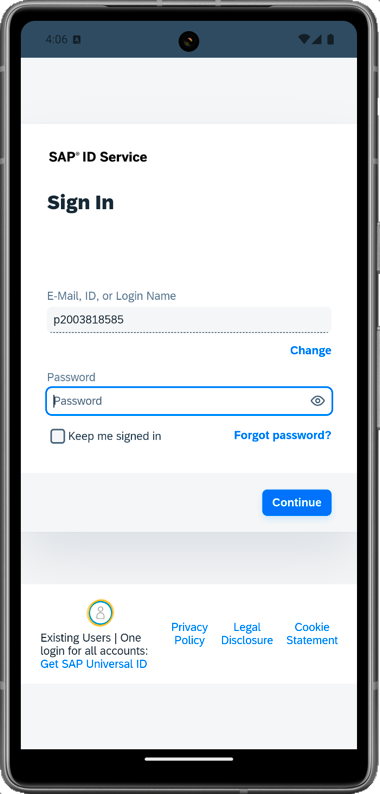
BTP Password Login Screen Choose a passcode with at least 8 characters for unlocking the app and tap Next.

App Passcode Setup Screen Confirm the passcode and tap Done.

Passcode Confirmation Screen Optionally, you can enable fingerprint to get faster access to the app data.

Fingerprint Enable Option Screen Tap Next. If you want your MDK client to send you notifications, tap Allow, otherwise, tap Don’t allow.
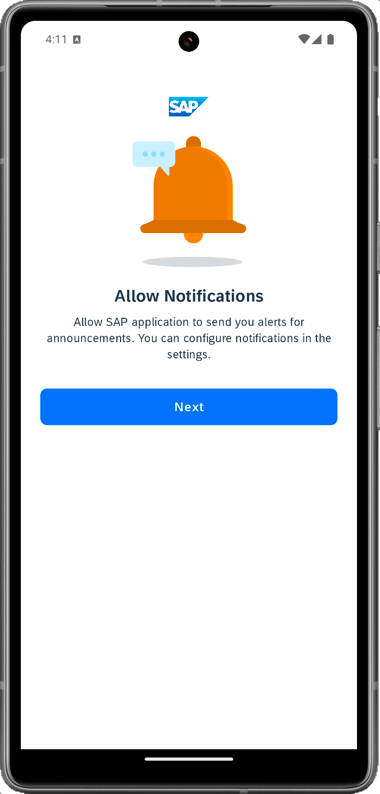
Push Notifications Permission Screen 
Push Notifications Allow Dialog Tap Now to update the client with new MDK metadata.

MDK Metadata Update Prompt Tap
Customersto navigate to customers list.
Customers Navigation Option Tap any of customer record to navigate to details page. In Customer Details page, you will see the Customer’s address loading in Google Maps.

Customer Details With Google Maps Google Maps Address View Result
SAP Business Application Studio has a feature to display the QR code for onboarding in the Mobile client.
To view the onboarding QR code, click the Application QR Code icon in the editor’s header area.

Application QR Code Icon Header The On-boarding QR code is now displayed.

Onboarding QR Code Displayed Leave the Onboarding dialog box open for the next step.
Follow these steps to successfully on-board the MDK client on your iOS device.
After you have accepted the app update, tap
Customersto navigate to customers list.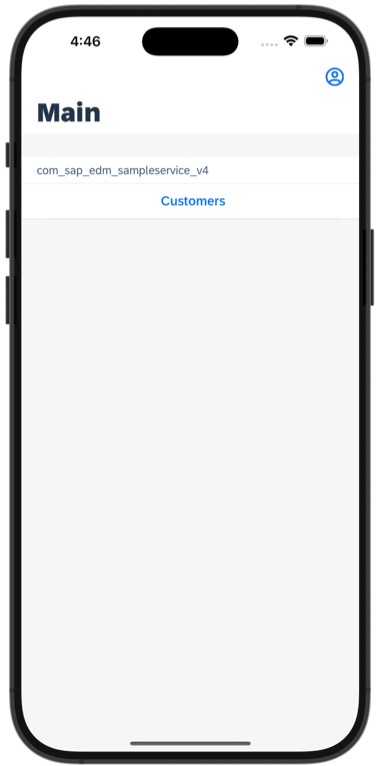
iOS Customers List Navigation Tap any of customer record to navigate to details page. In Customer Details page, you will see the Customer’s address loading in Apple Maps.

Customer Details With Apple Maps 
Apple Maps Address View Result
Resources
Discussion
Share feedback on this tutorial or join the conversation in SAP Community.