
Overview
You will learn
- How to create a URL app and add it to your site


Prerequisites
Steps
Intro
Use the Content Manager to add apps to SAP Build Work Zone.
From the Site Manager, click the Content Manager icon from the left panel to open it.

Click Create and select App from the list.

Content manager new app In the header of the app editor, enter a title
External Community.
Add title for app Under the Configuration tab, enter the following values (some of them are already there by default):
Open App: In a new tab
It’s preferable to open apps in place, but this time, we’ll open the app in a new tab.
System: No System
App UI Technology: URL
URL:
https://community.sap.com/topics/work-zone

App editor properties tab Click the Navigation tab and enter the intent of your app.
The unique combination of a semantic object and an action is called an intent. It is used to define navigation to an application.
Enter the following values:
Semantic Object:
HomeAction:
Display

App editor navigation tab Click the Visualization tab.
In this tab, specify how the app will be displayed in your site.
Enter the following values:
Subtitle:
About UsInformation:
Learn about JobCoreIcon: Click the browse icon, type
visits, and click on the displayed icon to add it to your tile.You see a preview of the tile with all the properties you entered.

App editor visualization tab
Click Save.
You have configured the URL app and in the next step you’ll go back to the Content Manager to see it in the list of content items.
Go back to the Content Manager using the breadcrumbs.
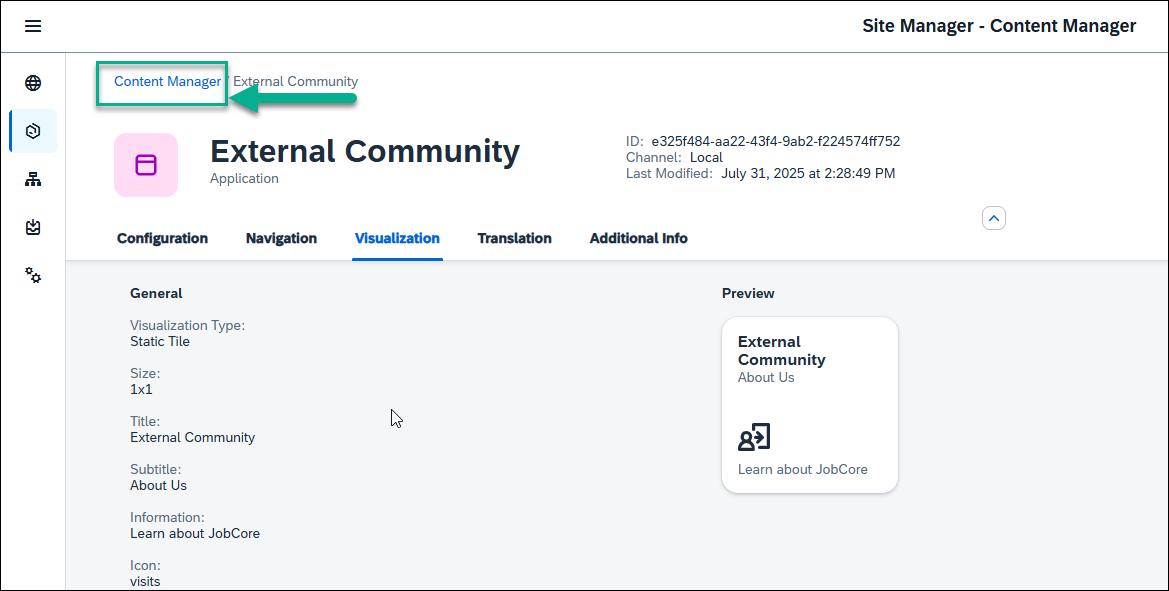
Go to content manager icon In the Content Manager, you can see your app in the list.

Content manager with app
To view the app in runtime, you must assign the app to a role.
Content assigned to the
Everyonerole is visible to all users.
In the Content Manager, click the Everyone role.
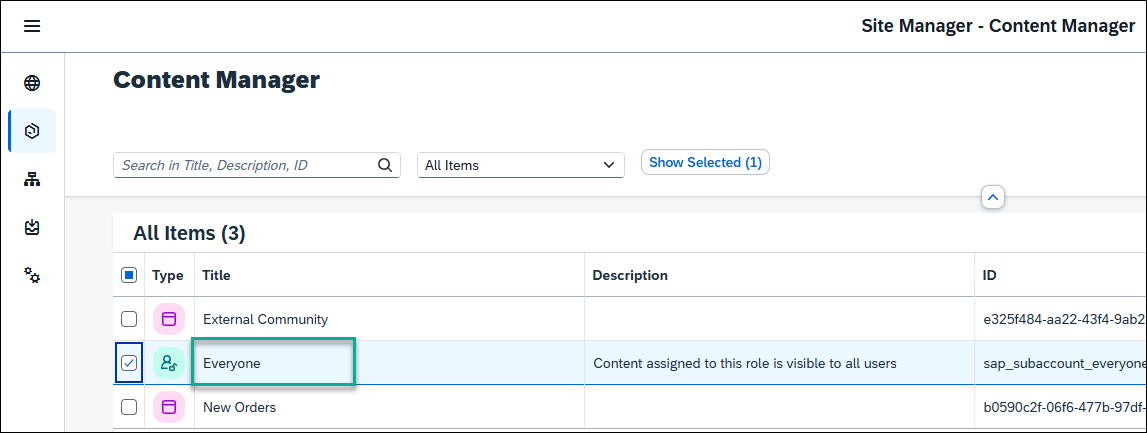
Click Everyone role Click Edit.

Edit All available apps are shown in the editor. In the Assignment Status column you can see that the
External Communityis red and is not assigned to the role. Click the toggle to change the toggle to green and click Save to assign the app to theEveryonerole.
Assign app to role
Congratulations you’ve created a site with two apps.
In the next tutorial, you’re going to add this app, and the one you created in the tutorial before to a page in your site.
Resources
Discussion
Share feedback on this tutorial or join the conversation in SAP Community.