
Overview
You will learn
- How to enable and configure workflow, business rules, process visibility and process flexibility capabilities


Prerequisites
Steps
Intro
SAP Workflow Management is a an offering that helps you:
- Digitize structured processes with workflows and decision logic.
- Flexibly extend and adapt business processes running in your packaged applications.
- Manage process variants and decision logic.
- Monitor end-to-end process metrics in real time.
By combining workflows, business rules, process visibility, live process content packages and process flexibility into a single unified offering, these capabilities help you increase enterprise efficiency and agility.
User can use Workflow, Business Rules, Process Visibility and Process Flexibility capabilities of SAP Workflow Management to accelerate automation, simplify extensions and enhance development efficiency.
In your web browser, open the SAP BTP Trial cockpit.
Navigate to the trial global account by clicking Go To Your Trial Account.

Trial global account If this is your first time accessing your trial account, you’ll have to configure your account by choosing a region (select the region closest to you). Your user profile will be set up for you automatically.
Wait till your account is set up and ready to go. Your global account, your subaccount, your organization, and your space are launched. This may take a couple of minutes.
Choose Continue.

Account setup
You will use the Boosters to automatically set up the workflow, business rules, process visibility and process flexibility capabilities in your account.
From your global account page, choose the Boosters from left-hand navigation. Among the available options, click Start of Set up account for Workflow Management.

Start Booster If you have multiple sub-accounts, then you will get a wizard to select the sub-account where you want to set up SAP Workflow Management capabilities. In the wizard, select the Subaccount, Org and Space. Click Finish to start the Booster.
Automated onboarding will be started with pre-configured steps.
It will take 4-5 minutes to complete the entire set up.

Recipe In Progress Wait until you see the success popup window once the booster completes successfully.
Click on the Go to Application to open Workflow Management Launchpad.

Recipe In Progress This is the Workflow Management Launchpad which gives you the access to all the workflow, business rules, process visibility and process flexibility applications.
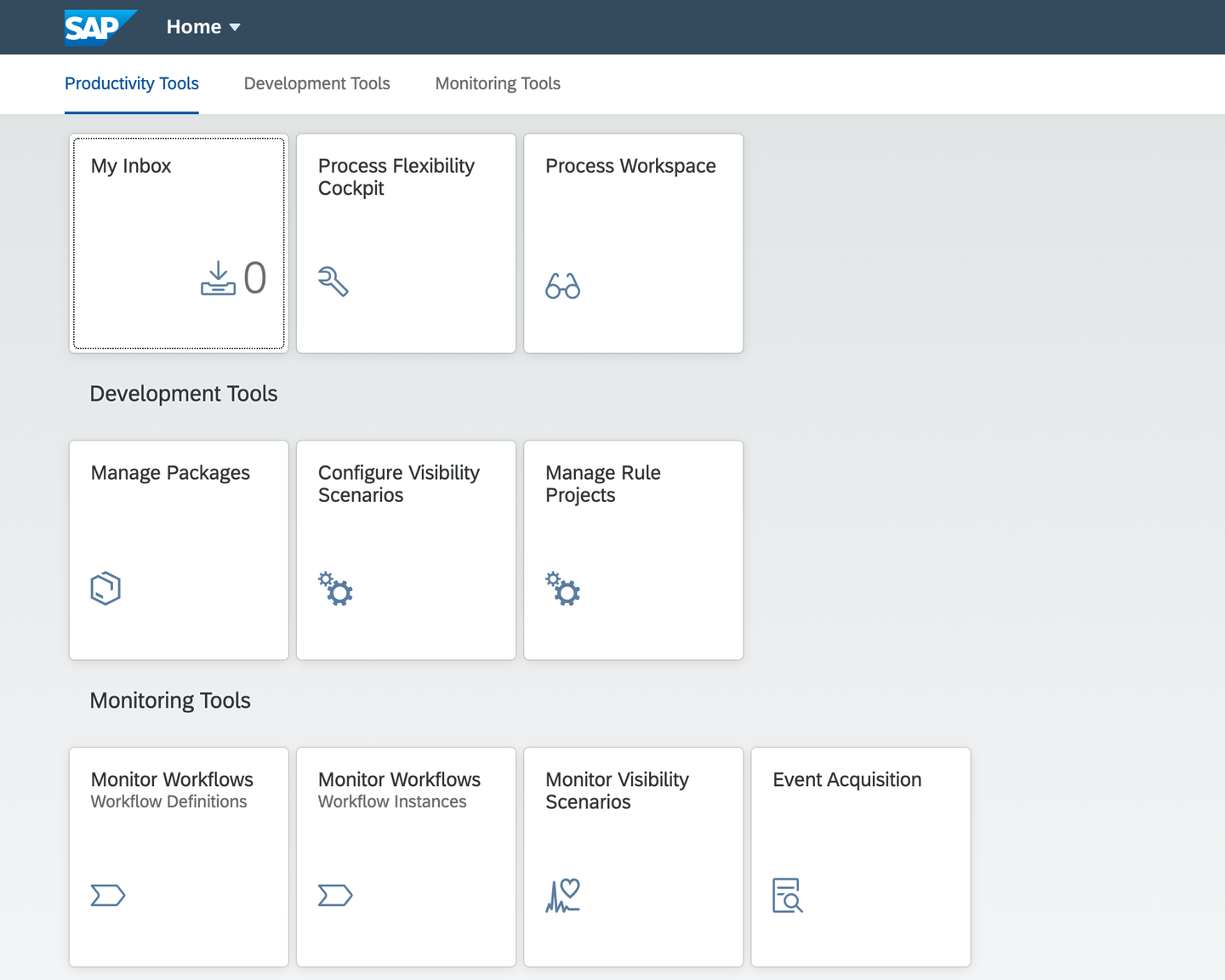
WM FLP Close the Success popup.
This automatic set up will do the following:
- Add Business Rules, Workflow, Process Visibility and Workflow Management entitlements in your account.
- Enable Workflow Management subscription.
- Create service instance for each of Business Rules, Workflow, Process Visibility and Workflow Management services with service keys.
- Create multiple destinations like
BUSINESS_RULES,BUSINESSRULES_APIHUB,WM_CF_SPACE_PROVIDERandbpmworkflowruntimeoauth. These destinations will be used while integrating business rules with workflow, importing business rules project from API Hub, importing live process content from process hub and for configuring workflow with principal propagation respectively.
- Other destinations like
bpmprocessvisibility,bpmrulesruntime,bpmworkflowmanagementandbpmworkflowruntimeare service instance based destinations that can be used while configuring SAP Launchpad for Workflow Management applications.
- Add all the needed Workflow Management roles collections to your user.
These steps complete the set up of the Workflow Management in your trial account. In the next tutorial, you will access the sample content of these different capabilities, set them up in your account and then run to get an integrated experience.
Resources
Discussion
Share feedback on this tutorial or join the conversation in SAP Community.