
Overview
You will learn
- How to start your SAP Integration Suite trial
- How to subscribe to the service and assign user roles
- How to provision and activate the capabilities


Prerequisites
Prerequisites
Steps
SAP Integration Suite
SAP Integration Suite combines the integration capabilities such as Cloud Integration (Process Integration), API Management, Integration Advisor, Trading Partner Management, Integration Assessment, and Open Connectors into a cohesive and simplified toolkit for enterprise integrations. To provide a comprehensive integration experience, these services are not available separately, but only as part of SAP Integration Suite.
SAP Integration Suite includes all integration capabilities in simple service plans. To learn more on these plans, see Integration Suite service catalog.
This part of the mission lets you experience few capabilities offered by SAP Integration Suite. For the complete mission, see Request Product Details with an Integration Scenario.
IMPORTANT: Trial accounts are not intended for productive usage or team development. If you’re using SAP Integration Suite from a production account for your proof of concepts or real-time business cases, refer to the product documentation on SAP Help Portal for step-by-step explanation of the initial set up and further information.
Remember This tutorial is applicable only if you want to set up SAP Integration Suite for the use case covered in the mission Request Product Details with an Integration Scenario. If you like to do a general set up of SAP Integration Suite or cover other use cases, then the steps mentioned here might not be exactly applicable. For general set up, refer to Subscribing and Configuring Initial Access to SAP Integration Suite and Activating and Managing Capabilities.
The Use Case
Using this scenario, you design and execute an integration flow that reads product details from a public product catalog (WebShop) for a given product identifier. Product details include data such as the product name and price, for example. To accomplish the scenario, you use the SAP Integration Suite capabilities Cloud Integration and API Management.
You use Cloud Integration to design and deploy an integration flow. Then, you use API Management to expose the integration flow endpoint as an API.
- You define how to access the API in terms of authentication by assigning a dedicated predefined policy template.
- Using this policy template, you define API access based on the OAuth client credentials grant method.
- Finally, you invoke the API and get the product details in a response.

WHERE TO START:
- Are you new to SAP BTP Trial? - skip the rest of the note and continue with this tutorial.
- You already have a SAP BTP trial account but new to SAP Integration Suite:
- If you have already activated Cloud Integration (Process Integration) or API Management services in a subaccount:
      - **Option 1**:
      Create a **`New Subaccount`** and then proceed to **Step 2** of this tutorial.
      For a new subaccount, you must assign entitlements by adding service plans and the quotas. For more information, see [Configure Entitlements and Quotas for Subaccounts](https://help.sap.com/viewer/ea72206b834e4ace9cd834feed6c0e09/Cloud/en-US/c90f3d522ee04e65bd87cdec8808e5ce.html).
      - **Option 2**:
      To continue with an existing subaccount, unsubscribe from Cloud Integration and API Management services, and then proceed to **Step 2**.
- If you’ve already subscribed to SAP Integration Suite in your existing trial account, proceed to Step 3. You can consume only oneSAP Integration Suite tenant per trial account.
In your web browser, open the SAP BTP trial cockpit. Select the Singapore - Azure region.

Trial Region selection Navigate to the trial global account by choosing Go To Your Trial Account.
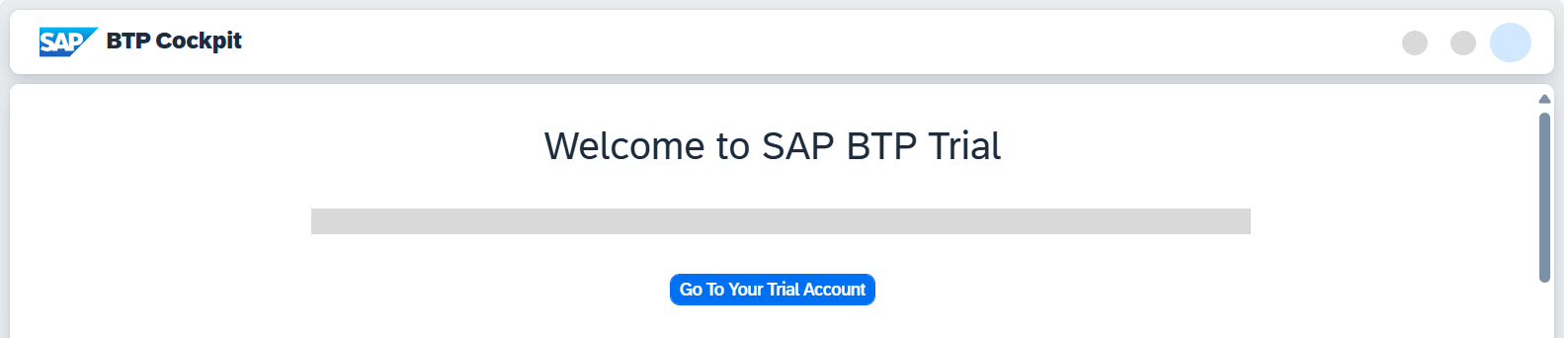
From your global account page, choose the appropriate subaccount’s tile to navigate.

Access Trial account
Select Services > Instances and Subscriptions.
Choose Create.

Instances & Subscriptions In the New Instance or Subscription dialog, choose Integration Suite from the list of services.
If SAP Integration Suite is not visible in the Services list, you need to assign SAP Integration Suite Trial entitlements. To assign entitlements, see Manage Entitlements on SAP BTP Trial.
- In the tutorial referred above, after Step 3.5, there is a list of available services on the left pane.
- Filter for SAP Integration Suite service and select the service.
- Select the service plan, add it to your subaccount, and continue with this tutorial.
Choose the default plan, trial, and then choose Create. You’re now subscribed to the service.

Create Subscription Select Security > Users. Choose the entry against your name. In the Role Collections section, select the Three-Dot-Icon and choose Assign Role Collection.

Assign Roles In the dialog that appears, select Integration_Provisioner. Choose Assign Role Collection.

Assign Role Collection Go back to Instances and Subscriptions. Select Integration Suite. Click Go to Application in the Integration Suite overview page. Now you are directed to the SAP Integration Suite home page.
If you don’t have access to the page, log out of SAP Integration Suite, then log in again.

Assign Role Collection
IMPORTANT: Ensure that you unsubscribe from the standalone services (like Cloud Integration, or API Management) if you’ve already subscribed to them in the same subaccount. If a standalone subscription exists, you’ll be unable to activate the respective capability using SAP Integration Suite.
Navigational Steps: Go to Instances and Subscriptions and delete the subscriptions.
On the SAP Integration Suite home page, choose Add Capabilities to activate the capabilities offered by SAP Integration Suite.

Integration suite launchpad For this tutorial, you must select the Build Integration Scenarios and Manage APIs capabilities. Choose Next.

Add Capabilities You do not have to select anything here. Choose Next.

Intermediate Step Select the Developer Hub checkbox. Choose Next.

API management Choose Activate to provision the selected capabilities.
For some capabilities, you can select additional functionalities that you need to choose based on your business requirement.

Activate capabilities The activation takes a while to complete.
IMPORTANT: Before you proceed, please wait for the capabilities to be activated. They’re activated once you can see the respective capability tiles on your home screen. You might need to refresh the browser.

Activation dialog To access the features of each capability, you must first assign capability-specific roles, which is explained in the next step.
NOTE: Due to technical limitations, boosters currently only work for subaccounts located in the Singapore region. Using subaccounts located in other regions can lead to errors when using Boosters. See also step 1 of this tutorial.
In this step, you execute a booster that will assign you the necessary roles to access and use the activated capabilities, and create service instance of SAP Process Integration Runtime.
A booster is a set of guided and interactive steps that enable you to select, configure, and consume services on SAP BTP to achieve a specific technical goal. In this case, the Integration Suite booster will help you with assigning roles and creating service instances.
A service instance defines how a service of SAP BTP (in our case, SAP Process Integration Runtime service) can be called from a remote component. In the context of SAP Integration Suite, a service instance is the definition of an OAuth client. The service key generated out of the service instance contains credentials and other information that is required at a later step to call the integration flow.
Navigate to the overview page of your SAP BTP global account.
Choose Boosters on the left navigation pane.
From the list of boosters, look out for the tile Enable Integration Suite under the Integration section. You can start the booster execution by choosing Start on the tile.

Booster Tile Alternatively, you can open the tile, read the information, and choose Start in the booster page.

Booster Tile In the Configure Subaccount tab, select your subaccount, organization, and space in which you have subscribed to SAP Integration Suite. Choose Next.

Configure Subaccount In the Select Activated Capabilities tab, select Design, Develop, and Operate Integration Scenarios and Design, Develop, and Manage APIs. Choose Next.

Select Capabilities IMPORTANT: Make sure that you select only the capabilities that you activated in step 3.
In the Review tab, check your selections and choose Finish. You can see that the booster is being processed.

Booster Progress Upon successful execution of the booster, choose Go to Application. Also, choose Access Service Instance(s) to view the service instance and service key.

Booster Success
You can also manually do the role assignment and service instance creation without using the booster. For more information, see Configure User Access and Create Service Instances.
Refresh the SAP Integration Suite home page to see that capability-specific menu items were added to the left navigation.

Resources
Discussion
Share feedback on this tutorial or join the conversation in SAP Community.