
Overview
You will learn
- How to use the Terraform Provider for SAP BTP
- How to create an SAP BTP subaccount that contains entitlements
- How to create a subscription to SAP HANA Cloud Central
- How to create and update one or more SAP HANA Cloud instances


Prerequisites
Prerequisites
- An SAP BTP account
Steps

When working with Terraform, a description of a target state is provided in a file named main.tf. Terraform will compare the last known state of the system to the target state and will determine the changes required. If the Terraform Provider for SAP BTP is being used to update the state of an instance, it is not recommended to also use other tools such as SAP HANA Cloud Central or the BTP CLI to make further updates. For additional details, see Drift Detection. The provider works with SAP HANA Cloud instances in a subaccount. If you wish to provision to Cloud Foundry, consider using the Cloud Foundry provider. See also https://registry.terraform.io/namespaces/SAP.

Download Terraform from Install Terraform.
Extract the download into a folder such as C:\Terraform and add that folder to your path.
Create a folder and a provider file. Replace notepad or pico with your favorite editor.
mkdir C:\HC_Terraform
cd C:\HC_Terraform
notepad provider.tfmkdir ~/HC_Terraform
cd ~/HC_Terraform
pico provider.tfTerraform provides a registry of providers, one of which is the Terraform Provider for SAP BTP.

Paste the following contents into provider.tf and save the file. This file will specify that we wish to use the Terraform Provider for SAP BTP, which version to use, and which global SAP BTP account to target. Details of what has changed between releases can be found on the Releases page.
Terraformterraform { required_providers { btp = { source = "SAP/btp" version = "~>1.3.0" } } } provider "btp" { globalaccount = "xxxxxxxx-8bb4-4df3-bd09-cc6e044fa174" }Update the value of globalaccount to match your account. This value can be obtained from the URL parameter in the SAP BTP Cockpit
Initialize the project.
Shellterraform init
initialize the provider
For additional details, see Creating SAP HANA Cloud Instances Using Terraform and Basic CLI Features.
Create a file named
main.tf.Shellnotepad main.tfShellpico main.tfPaste the following code into
main.tf.Terraform#Create a subaccount resource "btp_subaccount" "my_subaccount" { name = "Subaccount 1" subdomain = "subaccount-1" region = "ca10" } #Add an entitlement for hana to the subaccount resource "btp_subaccount_entitlement" "my_sap_hana_cloud_entitlement" { subaccount_id = btp_subaccount.my_subaccount.id service_name = "hana-cloud" plan_name = "hana" } #Add entitlement for SAP HANA Cloud Central to the subaccount resource "btp_subaccount_entitlement" "my_sap_hana_cloud_tooling_entitlement" { subaccount_id = btp_subaccount.my_subaccount.id service_name = "hana-cloud-tools" plan_name = "tools" }Additional details can be found at btp_subaccount_entitlement and btp_subaccount (Resource).
Provide credentials for Terraform to use with the SAP BTP.
Shellset BTP_USERNAME=dan@hotmail.com set BTP_PASSWORD=mypasswordShellexport BTP_USERNAME=dan@hotmail.com export BTP_PASSWORD=mypasswordApply the changes.
Shellterraform apply -auto-approveAlternatively, to view the changes that would be made run the command below.
Shellterraform plan
Provision a subaccount In the SAP BTP Cockpit, examine the subaccount and added entitlements.

Paste the following code at the end of
main.tf. Update the user_name value to match your SAP BTP user name.Terraform#Create a subscription to the tooling resource "btp_subaccount_subscription" "my_tooling_subscription" { subaccount_id = btp_subaccount.my_subaccount.id app_name = "hana-cloud-tools" plan_name = "tools" depends_on = [ btp_subaccount_entitlement.my_sap_hana_cloud_tooling_entitlement ] } #Assign role collection to user resource "btp_subaccount_role_collection_assignment" "my_role_collection_assignment" { subaccount_id = btp_subaccount.my_subaccount.id role_collection_name = "SAP HANA Cloud Administrator" user_name = "dan@hotmail.com" depends_on = [ btp_subaccount_subscription.my_tooling_subscription ] }Additional details can be found at btp_subaccount_subscription (Resource).
Apply the changes.
Shellterraform apply -auto-approve
subscribe to the tooling In the SAP BTP Cockpit, examine the subscription and assigned role collection.

subscription created 
Role collection created
Paste the following code at the end of
main.tf.Terraform#Lookup the serviceplan_id for SAP HANA database data "btp_subaccount_service_plan" "my_hana_plan" { subaccount_id = btp_subaccount.my_subaccount.id name = "hana" offering_name = "hana-cloud" depends_on = [ btp_subaccount_entitlement.my_sap_hana_cloud_tooling_entitlement ] } #Create or Update an SAP HANA Cloud database instance resource "btp_subaccount_service_instance" "my_sap_hana_cloud_instance" { subaccount_id = btp_subaccount.my_subaccount.id serviceplan_id = data.btp_subaccount_service_plan.my_hana_plan.id name = "my_hdb" #parameters = jsonencode({"data": { "memory": 32, "vcpu": 2, "systempassword": "Hana1234"}}) parameters = jsonencode({ data = { memory = 32 vcpu = 2 systempassword = "Hana1234" } }) }Additional details can be found at btp_subaccount_service_instance (Resource).
Create an SAP HANA Database Instance Using Terraform demonstrates adding the parameter generateSystemPassword and the additional creation of a service binding so that the database password does not need to be included in the parameters.
Apply the changes.
Shellterraform apply -auto-approve
create instance Open SAP HANA Cloud Central and view the created SAP HANA Cloud, SAP HANA database.

instance created
Update the parameters line in the last section of
main.tfto include the parameter below.Terraformlabels = { "Contact" = ["Dan cell: 123 456 7890", "Dan email: dan@hotmail.com" ] }
add label to main.tf Apply the changes.
Shellterraform apply -auto-approve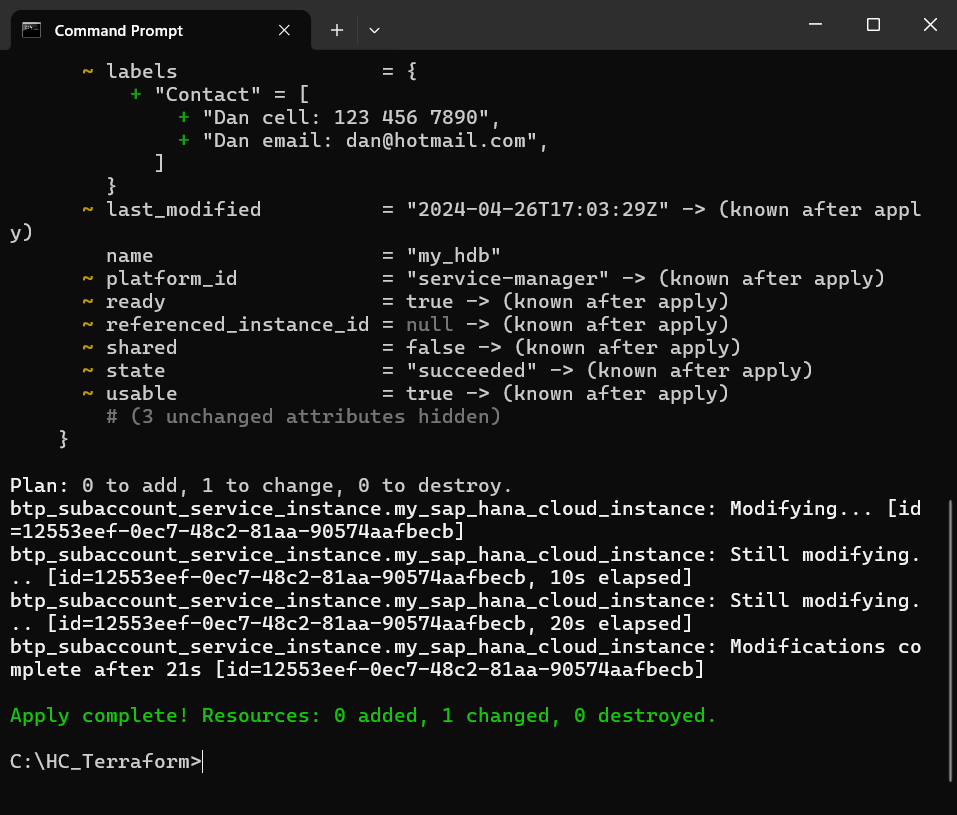
apply label View the change in the SAP BTP Cockpit.

verify add label
Update the parameters line in the last section of
main.tfto include the parameter below.TerraformwhitelistIPs = ["0.0.0.0/0"]
Update Parameters When an SAP HANA Cloud database instance is created, by default it limits the incoming connections as shown below.

connections The changes above will enable connections from any location and is equivalent to the Allow all IP addresses option.
Apply the changes.
Shellterraform apply -auto-approve
update parameters In the event you need to see more details about the changes being applied, see Accessing sensitive data in local executions.
Open SAP HANA Cloud Central and view the changed setting.

connections after update
Congratulations! You have now used the Terraform to declaratively provision and update an SAP HANA Cloud instance.
Resources
Discussion
Share feedback on this tutorial or join the conversation in SAP Community.