
Migrate to SAP HANA Cloud from SAP HANA Platform
This tutorial demonstrates a migration from an on-premise SAP HANA database to an SAP HANA Cloud database.
Overview
You will learn
- About resources available to help prepare and plan for a migration
- How the Self-Service Migration tool can be used to perform a compatibility check
- Examples of how to identify and migrate schema objects, data, and HDI projects


Prerequisites
Prerequisites
- Access to, and administrative rights on, an on-premise SAP HANA database that you wish to migrate to SAP HANA Cloud
- Access to, and administrative rights on, an SAP HANA Cloud instance such as a free-tier instance
Steps
Overview
SAP HANA Cloud is a database-as-a service and it is one of the many services of the SAP Business Technology Platform. “Database-as-a-service” means that SAP manages updates, hardware, backups, etc. One of the benefits of SAP HANA Cloud is that it that it can be easily resized, as described at Managing SAP HANA Database Instances. New features are released quarterly. For further details, see Introduction to SAP HANA Cloud.
This tutorial will illustrate steps taken to migrate a small sample dataset from an on-premise SAP HANA database to SAP HANA Cloud. It does not cover the migration of content from XS Classic, which was deprecated in July 2017 with the release of SAP HANA 2.0 SPS02. If you need to migrate XS Classic applications, please see SAP HANA XS Advanced Migration Guide.
Planning and preparation are key to a successful migration. Migration can be an iterative process done initially in a test environment. A migration should be run during a planned downtime for production databases. SAP HANA Cloud provides an SAP HANA Cloud, data lake Relational Engine that is a columnar disk-based store that can be used to store less-frequently accessed data. This may be a good time to evaluate if some of your data that is not accessed as frequently may be well suited to be stored in SAP HANA Cloud data lake, Relational Engine or SAP HANA Cloud, data lake Files.
The following topics may be of help when planning a migration to SAP HANA Cloud:
This tutorial uses an SAP HANA, on-premise instance that has been populated with the HOTELS sample schema. The steps to create the objects in the HOTELS sample schema are described in the tutorial group Get Started with the SAP HANA Database Explorer and include steps to create tables, views, functions, procedures, a scheduled job, a graph workspace, a JSON document store, remote sources, as well as steps to create an HDI container. A few of the tables are shown below.

An SAP HANA 2.0 database is part of a multi-tenant database where there is one system database and one or more tenant databases. Details can be seen when connected to the system database as shown below.
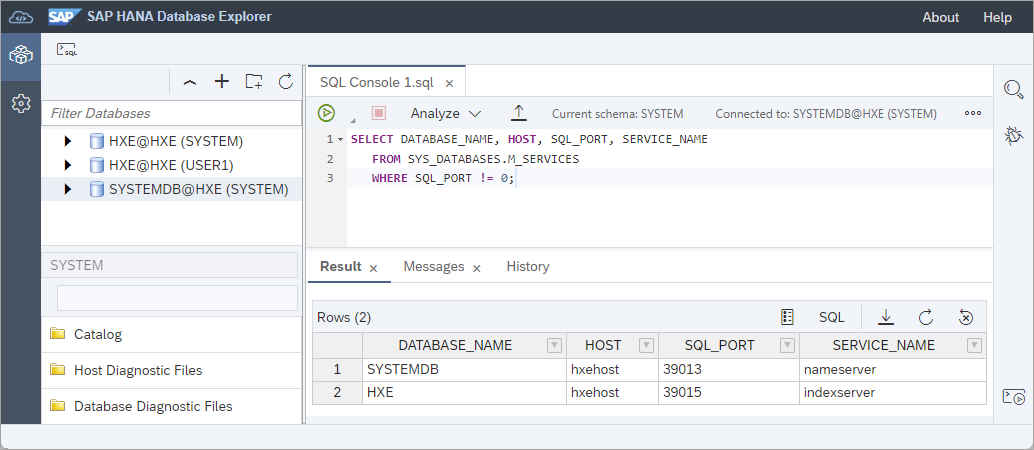
SELECT DATABASE_NAME, HOST, SQL_PORT, SERVICE_NAME
   FROM SYS_DATABASES.M_SERVICES
   WHERE SQL_PORT != 0;
In this tutorial, the content from a tenant database (HXE), will be migrated. When migrating from a multi-tenant database, each tenant database is migrated to a dedicated SAP HANA Cloud database instance.
This tutorial uses an SAP HANA Cloud free tier instance as the migration target. The following tutorials cover how to sign up for and create a free-tier SAP HANA Cloud instance.
Help Thomas Get Started with SAP HANA (Only the first 3 steps of this tutorial are needed for basic setup of SAP HANA Cloud.)
Set Up Your SAP HANA Cloud, SAP HANA Database and Understand the Basics
SAP Learning Journey - Provisioning and Administration with SAP HANA Cloud
SAP Discovery Center - Learn the fundamentals of SAP HANA Cloud, SAP HANA database
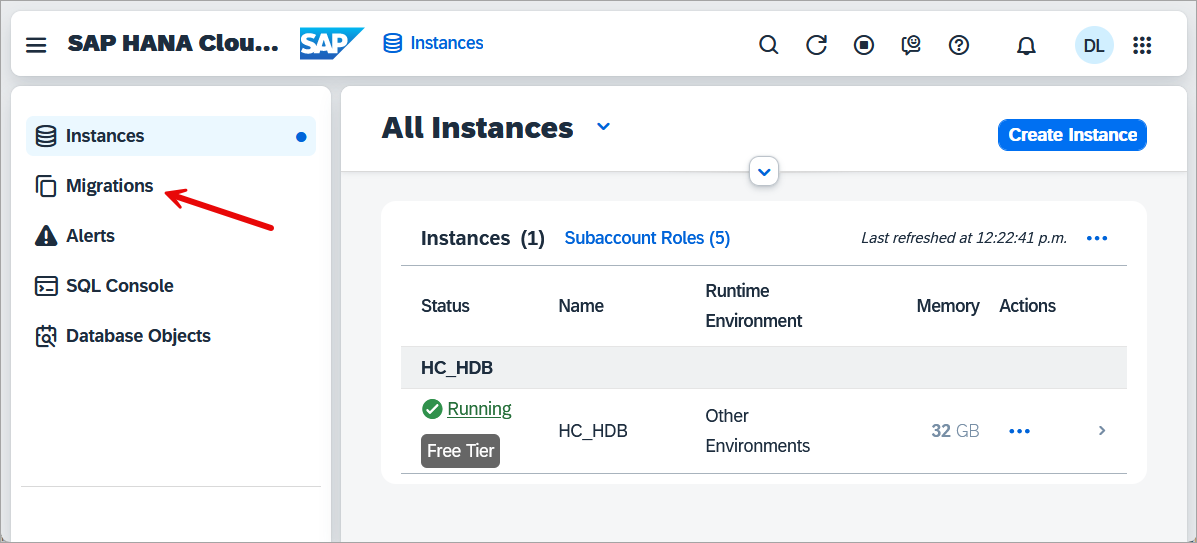
Before proceeding, ensure that you have access to a running SAP HANA Cloud instance as shown below.

The version of an SAP HANA database can be found in the Database Information card in SAP HANA cockpit, or through a SQL query against the M_DATABASE view. The version of both the source and target database should be checked. The Self-Service Migration tool requires the source database to be 2.00.053 or higher while certain features such as the ability of the EXPORT INTO statement that supports cloud storage providers requires a 2.0 SPS 06 database.
SAP HANA, on-premise 2.0 SPS06.

SAP HANA Cloud

Different versions of SAP HANA databases will have slightly different features. This topic is covered in detail at Compatibility with Other SAP HANA Versions.
The Self-Service Migration tool can be used when performing a migration. It automates the migration process and can reduce the cost and effort of a migration. It is a free service, and SAP manages the temporary storage used during the migration.
In order to connect from the Self-Service Migration tool running in the public internet to an on-premise SAP HANA database, you need to install and configure the SAP Cloud Connector.
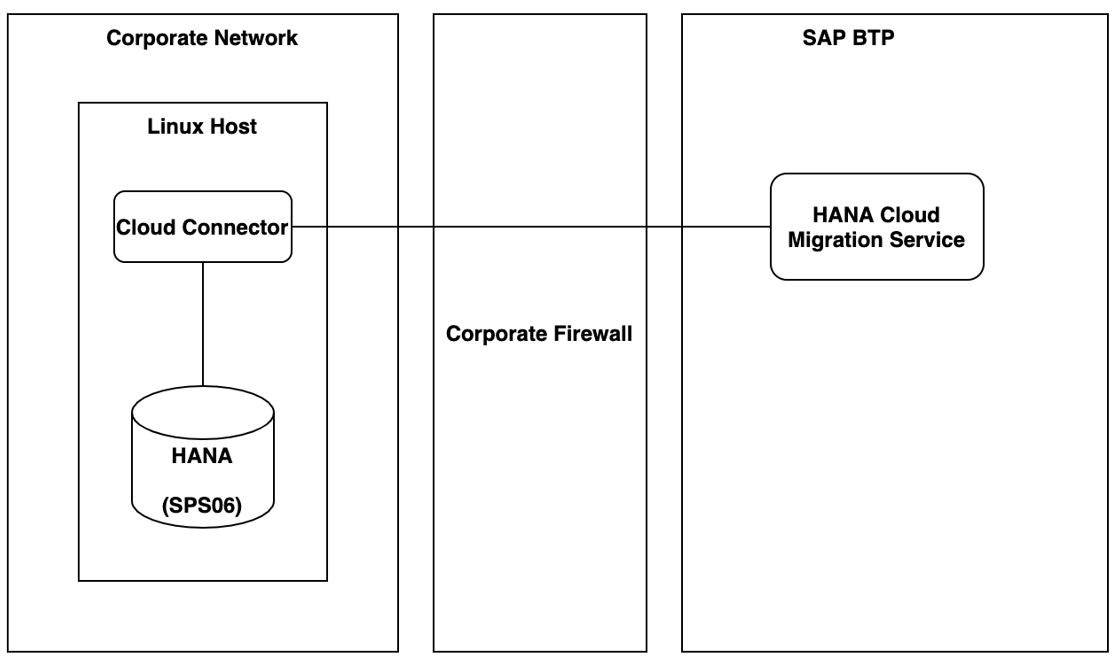
The cloud connector provides connectivity from a public internet where SAP HANA Cloud is running to an on-premise SAP HANA database. Follow steps 1-6 in Connect from SAP HANA Cloud to SAP HANA, express edition via the Cloud Connector for detailed instructions.
Once the cloud connector has been installed and configured to connect to a BTP subaccount, it will appear as shown below in the SAP BTP Cockpit.

The Self-Service Migration tool requires connectivity_proxy plan entitlement to be available. Ensure the entitlement is available as shown below.

The Self-Service Migration tool also requires the source database to have a migration user. For additional details on how to create the migration user, see Create the Migration User in the Source Database.
After the migration user has been created, it must be granted sufficient privileges to read and transfer data associated with these accounts. For this tutorial, we are migrating the users USER1 and USER2 and the schema HOTELS. You can grant the required access using statements such as the following:
CONNECT USER1 PASSWORD Password1;
SELECT CURRENT_USER FROM DUMMY;
GRANT SELECT ON SCHEMA "USER1" TO MIG;
GRANT SELECT ON SCHEMA "HOTELS" TO MIG;

CONNECT USER2 PASSWORD Password2;
SELECT CURRENT_USER FROM DUMMY;
GRANT SELECT ON SCHEMA "USER2" TO MIG;
The Self-Service Migration tool can now be used to assist with a migration such as an SAP HANA on-premise migration to SAP HANA Cloud.
To illustrate one of the checks performed during the compatibility check, create a table in the on-premise database in the SYSTEM schema.
CREATE TABLE TEST(
  myValue VARCHAR(50)
);
The Self-Service Migration tool is accessed from SAP HANA Cloud Central, the main tool for creating and configuring SAP HANA Cloud instances. For more information about SAP HANA Cloud Central, see SAP HANA Cloud Administration Guide.

The Self-Service Migration tool supports migration to SAP HANA Cloud from SAP HANA 2.0 databases, as shown below.
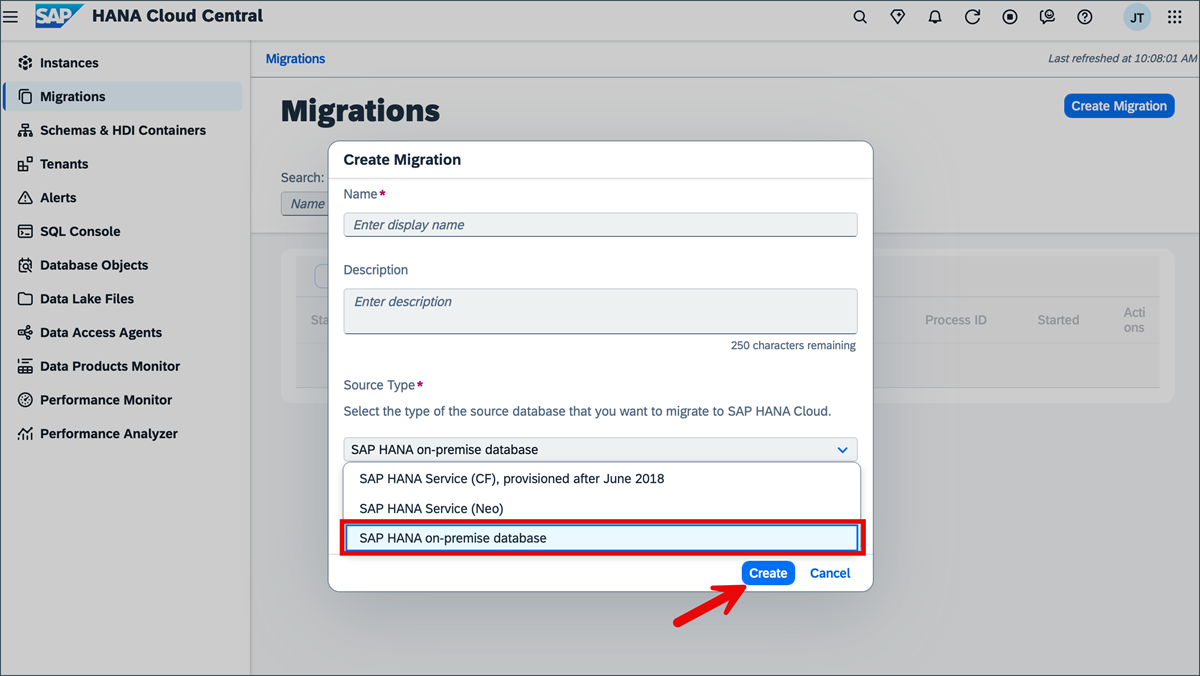

In SAP HANA Cloud Central, you can choose from multiple migration patterns depending on your requirements and how much of your source system you want to move. Each option provides a different level of control over what gets migrated:
Full Database Migration: Migrates the entire source database, including all schemas and objects. This is the recommended option for complete system moves where no filtering is required. You can optionally choose to exclude database users if you prefer to manage users separately in the target system.
Selective Migration: Allows you to migrate only specific database objects based on your needs. This helps reduce migration time and effort by excluding unnecessary data. When using this option, ensure that any required database users already exist in the target system, as they are not automatically created.
Data-only Migration: Migrates only the data for selected database objects. This option assumes that the corresponding schemas and tables already exist in the target system, so you must prepare the structure in advance before running the migration.

The presence of the previously created table is flagged during the compatibility check because the SYSTEM user is not accessible in SAP HANA Cloud.

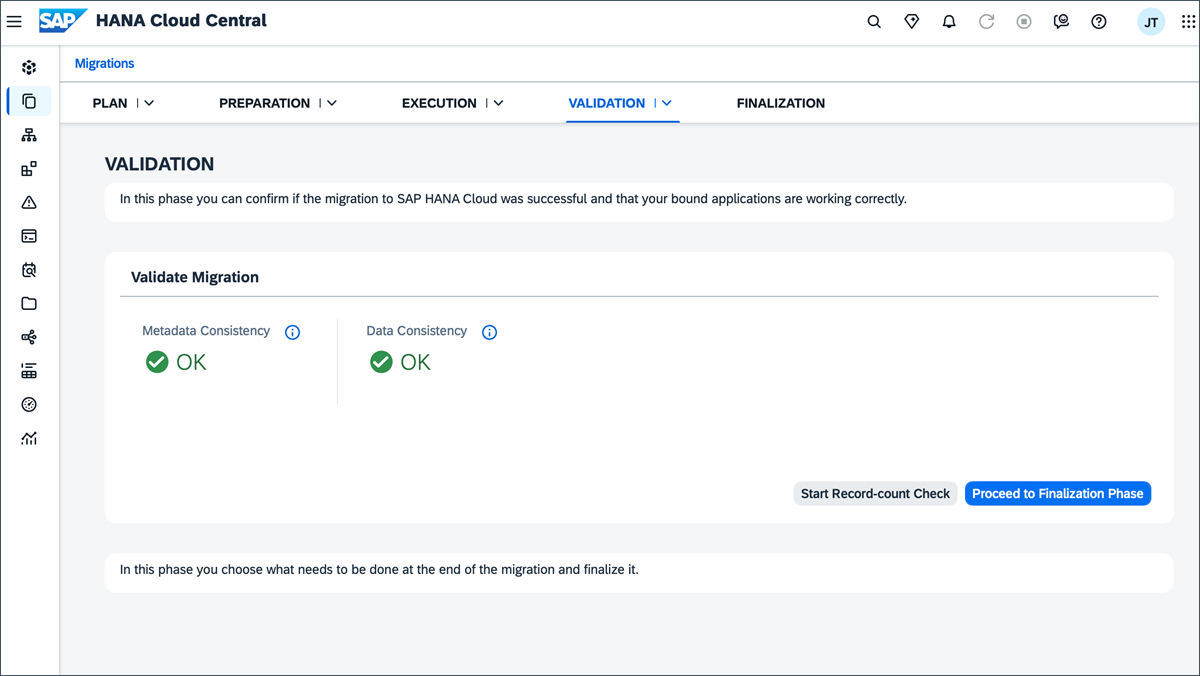
The Self-Service Migration tool provides additional steps to select the target database, to execute the migration, and to validate the migration.
A completed migration is shown below.
For further details see:
Migration Scenarios Supported by the Self-Service Migration for SAP HANA Cloud Tool
SAP HANA Cloud Migration: Setup your on-premise HANA system for the Self-Service Migration tool
If you wish to perform all or part of a migration manually rather than using the Self-Service Migration tool, the following are some steps to consider.
The following steps offer some insights into steps that could be performed should you wish to manually migrate your database.
SAP HANA databases enable configuration through a set of ini files. These files can be modified through multiple methods including the SAP HANA cockpit database configuration app and ALTER SQL statements.
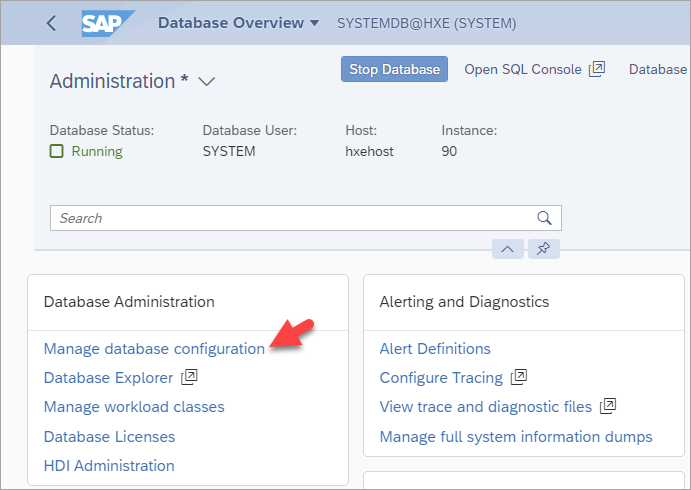
One example of an ini file setting is the usage parameter, found under the system_information section. This setting is used to specify how a database is used. If the value is set to production, this provides indications in the SAP HANA cockpit and SAP HANA database explorer that it is a production system.

The value can be set as shown below in database configuration app.

With an on-premise SAP HANA database, values can be set at the system layer which would then apply to all databases of that system or to a specific database. Below the value is set for the HXE database only.

The SQL statement ALTER SYSTEM ALTER CONFIGURATION Statement can also be used to set configuration values. After pressing the refresh button, the production pill will appear.

ALTER SYSTEM ALTER CONFIGURATION ('global.ini', 'DATABASE', 'HXE')
   SET ('system_information', 'usage') = 'production'
   WITH RECONFIGURE COMMENT 'Example of setting production pill';

--ALTER SYSTEM ALTER CONFIGURATION ('global.ini', 'DATABASE', 'HXE') UNSET ('system_information', 'usage') WITH RECONFIGURE;
A recommended practice is to use the comment field to explain why a configuration change was made.
Configuration settings can also be viewed using monitoring views, as shown below.
SELECT * FROM M_INIFILES;
SELECT * FROM M_INIFILE_CONTENTS WHERE LAYER_NAME != 'DEFAULT';
SELECT * FROM M_INIFILE_CONTENTS WHERE SECTION = 'system_information';
SELECT SECTION, KEY, DEFAULT_VALUE, INIFILE_NAMES, RESTART_REQUIRED, DESCRIPTION
    FROM CONFIGURATION_PARAMETER_PROPERTIES WHERE SECTION = 'system_information';
SELECT * FROM M_INIFILE_CONTENT_HISTORY;
--ALTER SYSTEM CLEAR INIFILE CONTENT HISTORY;
The SAP Note: 1969700 - SQL Statement Collection for SAP HANA provides multiple queries that can be used to examine configuration settings. One example is the HANA configuration parameters check shown below.
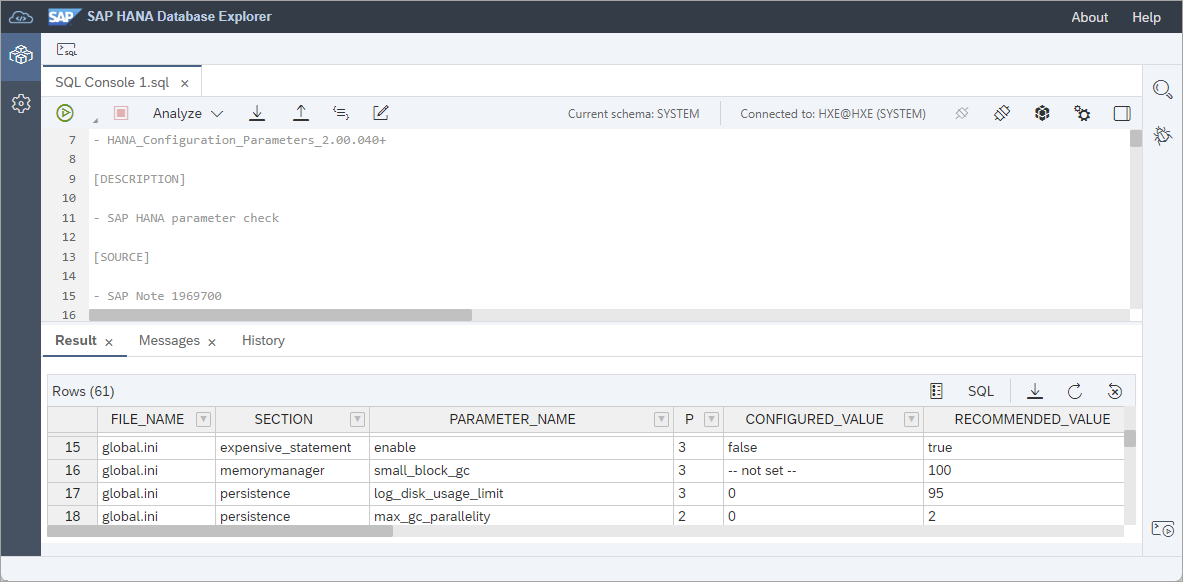
When migrating a database, it is important to review any non-default settings and consider if any of these changes should also be made to the SAP HANA Cloud database. As SAP HANA Cloud is a managed cloud service, it has fewer available configuration parameters.
Additional details on configuration parameters can be found at the links below:
In the sample HOTELS dataset used in this tutorial, two users and two roles were created.
Identify the users that have been created in the source database. Note that you can also view when a user last successfully connected. You may wish to review users that have not connected to the database in a while to decide if you want to include them in the migration.
SQLSELECT USER_NAME, LAST_SUCCESSFUL_CONNECT FROM USERS WHERE USER_NAME LIKE 'USER%';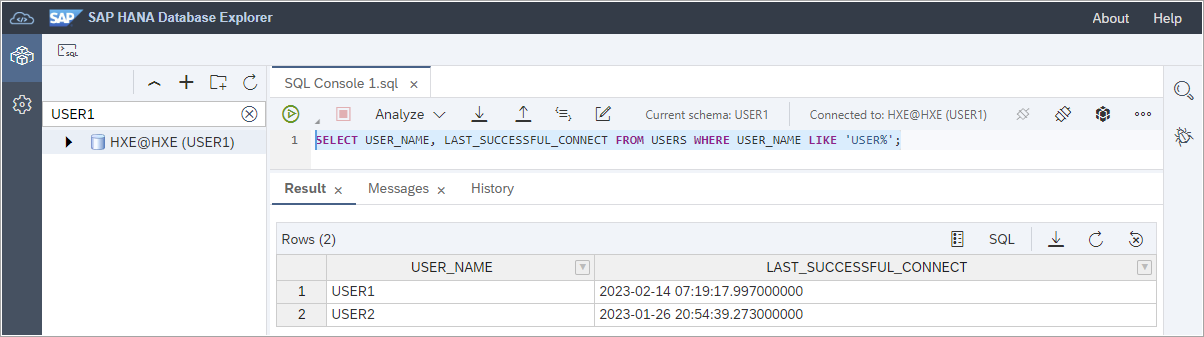
Users Review the existing roles, the privileges, and details about user groups.
SQL--View the list of roles SELECT * FROM ROLES WHERE ROLE_NAME LIKE 'HOTEL%' ORDER BY ROLE_NAME; --View the roles assigned to a user SELECT * FROM GRANTED_ROLES WHERE GRANTEE LIKE 'USER1'; -- View the users assigned to a role SELECT * FROM GRANTED_ROLES WHERE ROLE_NAME LIKE 'HOTEL_ADMIN'; --View the list of privileges assigned directly to a user SELECT PRIVILEGE, OBJECT_TYPE, OBJECT_NAME, SCHEMA_NAME, IS_GRANTABLE FROM GRANTED_PRIVILEGES WHERE GRANTEE = 'USER1' ORDER BY OBJECT_TYPE, PRIVILEGE, OBJECT_NAME; --View the list of privileges assigned to a role SELECT PRIVILEGE, IS_GRANTABLE, OBJECT_TYPE, SCHEMA_NAME FROM GRANTED_PRIVILEGES WHERE GRANTEE = 'HOTEL_ADMIN' ORDER BY OBJECT_TYPE, PRIVILEGE; --View the list of user groups SELECT * FROM USERGROUPS; --View the details of a user group SELECT * FROM USERGROUP_PARAMETERS WHERE USERGROUP_NAME = 'HOTEL_USER_GROUP'; --View the users in a user group SELECT * FROM USERS WHERE USERGROUP_NAME = 'HOTEL_USER_GROUP';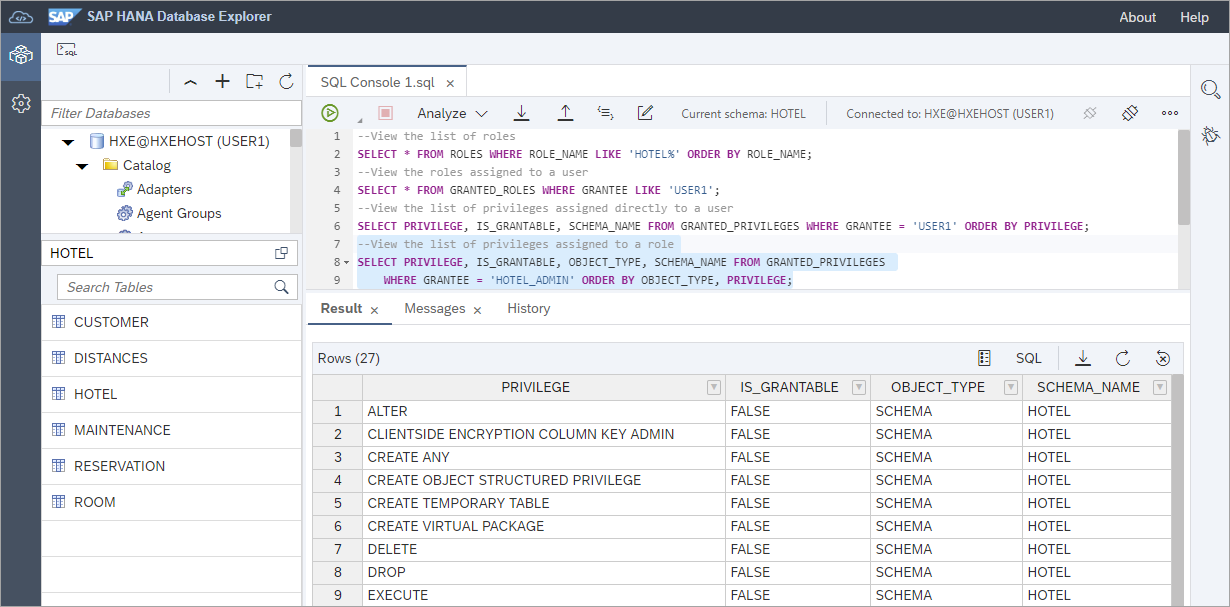
Roles The SAP HANA cockpit also provides an application that can be used to examine users and roles.

user and role management in cockpit 
Users in a role
The EXPORT INTO statement can be used to export the data from a table or view into a CSV file on the on-premise SAP HANA file system or to a cloud storage provider.
The tutorial Export and Import Data and Schema with SAP HANA Database Explorer details the required steps to configure the an SAP HANA database to be able to connect to SAP HANA Cloud, Data Lake Files, or a cloud storage provider.
The next step in this tutorial, export and import catalog objects, explains how to export and import multiple objects in one operation. The catalog export/import statements support additional output types such as binary and parquet, in addition to CSV, and would be a better choice for most migrations.
The below SQL exports the data from the HOTEL table into a CSV file in a Microsoft Azure blob container.
SQLEXPORT INTO 'azure://dansblobcont/hotel.csv' FROM HOTEL WITH CREDENTIAL 'Azure';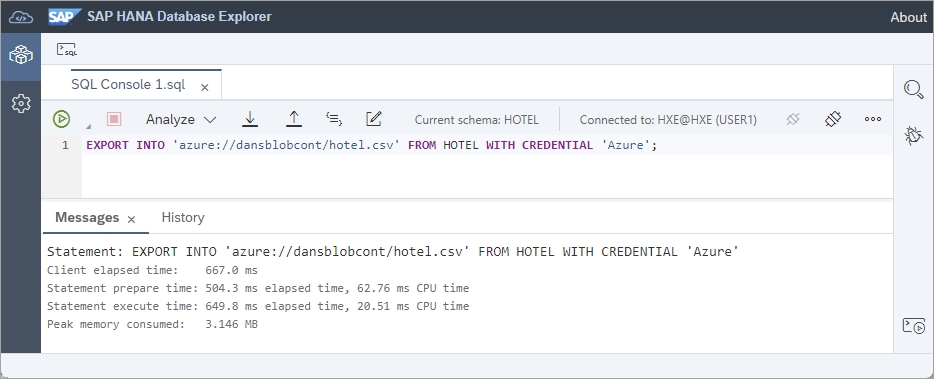
export to Microsoft Azure The resulting file appears in the cloud storage provider.
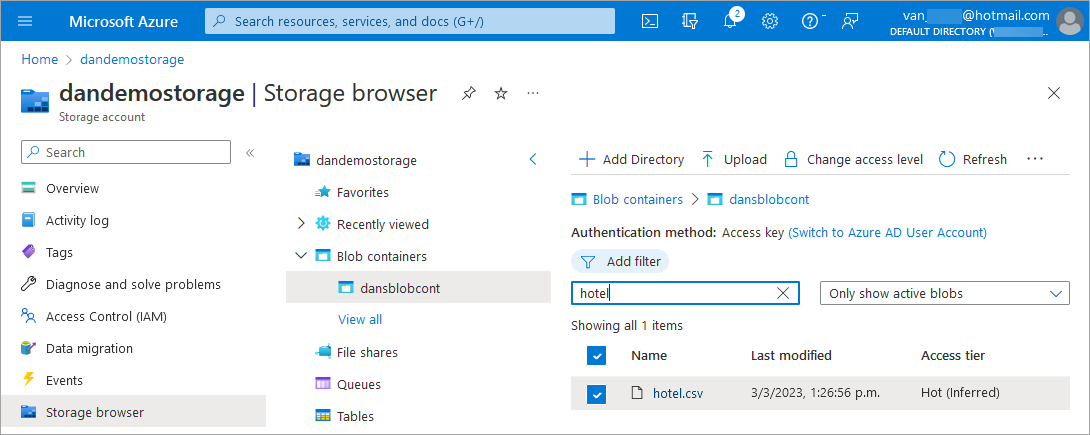
Microsoft Azure storage The SQL definition for any table or view can be obtained from the SAP HANA database explorer.

create table statement On the target SAP HANA Cloud system, the create table statement and import from statement can be run to recreate the schema and load the data.
SQLCREATE COLUMN TABLE "HOTEL" ( "HNO" INTEGER NOT NULL, "NAME" NVARCHAR(50) NOT NULL, "ADDRESS" NVARCHAR(40) NOT NULL, "CITY" NVARCHAR(30) NOT NULL, "STATE" NVARCHAR(2) NOT NULL, "ZIP" NVARCHAR(6), "LOCATION" ST_POINT(4326), PRIMARY KEY( "HNO" ) ); IMPORT FROM CSV FILE 'azure://dansblobcont/hotel.csv' INTO HOTEL WITH CREDENTIAL 'Azure';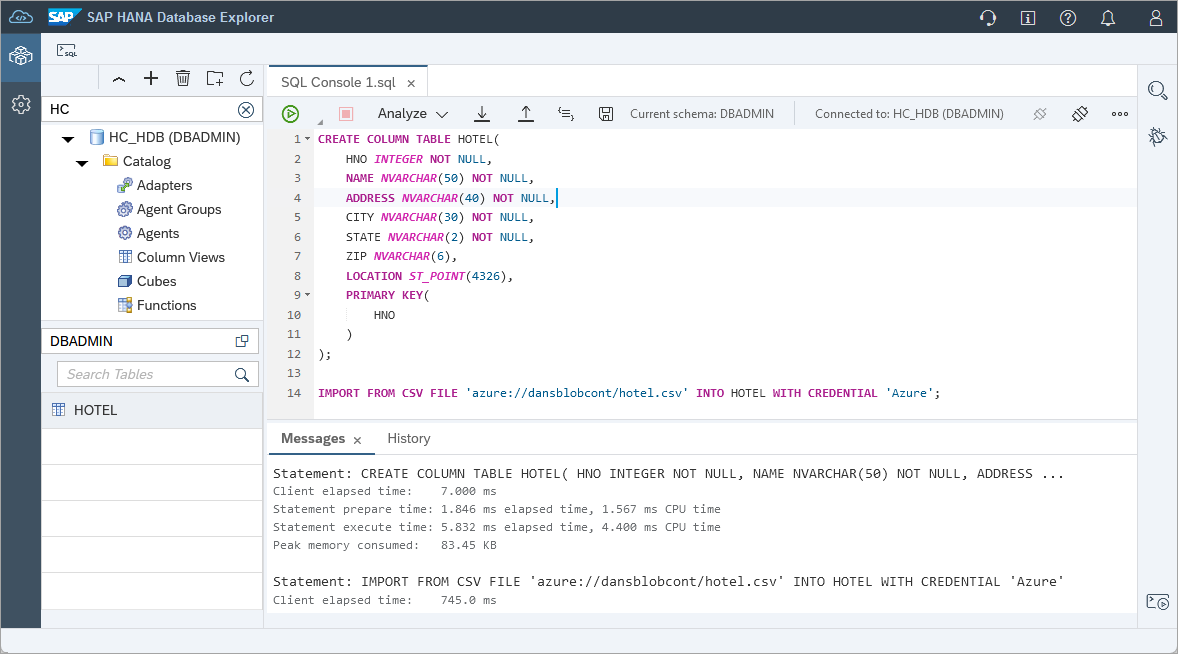
create table and import data An alternative method is to create a remote source from the SAP HANA on-premise database to the SAP HANA Cloud database and use an INSERT INTO statement. An example is given below. For additional details on creating remote source connections, see Access Remote Sources with SAP HANA Database Explorer.
SQLCREATE REMOTE SOURCE REMOTE_HC ADAPTER "hanaodbc" CONFIGURATION 'ServerNode=84b....hana.prod-ca10.hanacloud.ondemand.com:443;driver=libodbcHDB.so;dml_mode=readwrite;sslTrustStore="-----BEGIN CERTIFICATE-----MIIDrzCCApegAwIBAgIQCDvgVpBCRrGhdWrJWZHHSjANBgkqhkiG9w0BAQUFADBhMQswCQYDVQQGEwJVUzEVMBMGA1UEChMMRGlnaUNlcnQgSW5jMRkwFwYDVQQLExB3d3cuZGlnaWNlcnQuY29tMSAwHgYDVQQDExdEaWdpQ2VydCBHbG9iYWwgUm9vdCBDQTAeFw0wNjExMTAwMDAwMDBaFw0zMTExMTAwMDAwMDBaMGExCzAJBgNVBAYTAlVTMRUwEwYDVQQKEwxEaWdpQ2VydCBJbmMxGTAXBgNVBAsTEHd3dy5kaWdpY2VydC5jb20xIDAeBgNVBAMTF0RpZ2lDZXJ0IEdsb2JhbCBSb290IENBMIIBIjANBgkqhkiG9w0BAQEFAAOCAQ8AMIIBCgKCAQEA4jvhEXLeqKTTo1eqUKKPC3eQyaKl7hLOllsBCSDMAZOnTjC3U/dDxGkAV53ijSLdhwZAAIEJzs4bg7/fzTtxRuLWZscFs3YnFo97nh6Vfe63SKMI2tavegw5BmV/Sl0fvBf4q77uKNd0f3p4mVmFaG5cIzJLv07A6Fpt43C/dxC//AH2hdmoRBBYMql1GNXRor5H4idq9Joz+EkIYIvUX7Q6hL+hqkpMfT7PT19sdl6gSzeRntwi5m3OFBqOasv+zbMUZBfHWymeMr/y7vrTC0LUq7dBMtoM1O/4gdW7jVg/tRvoSSiicNoxBN33shbyTApOB6jtSj1etX+jkMOvJwIDAQABo2MwYTAOBgNVHQ8BAf8EBAMCAYYwDwYDVR0TAQH/BAUwAwEB/zAdBgNVHQ4EFgQUA95QNVbRTLtm8KPiGxvDl7I90VUwHwYDVR0jBBgwFoAUA95QNVbRTLtm8KPiGxvDl7I90VUwDQYJKoZIhvcNAQEFBQADggEBAMucN6pIExIK+t1EnE9SsPTfrgT1eXkIoyQY/EsrhMAtudXH/vTBH1jLuG2cenTnmCmrEbXjcKChzUyImZOMkXDiqw8cvpOp/2PV5Adg06O/nVsJ8dWO41P0jmP6P6fbtGbfYmbW0W5BjfIttep3Sp+dWOIrWcBAI+0tKIJFPnlUkiaY4IBIqDfv8NZ5YBberOgOzW6sRBc4L0na4UU+Krk2U886UAb3LujEV0lsYSEY1QSteDwsOoBrp+uvFRTp2InBuThs4pFsiv9kuXclVzDAGySj4dzp30d8tbQkCAUw7C29C79Fv1C5qfPrmAESrciIxpg0X40KPMbp1ZWVbd4=-----END CERTIFICATE-----"' WITH CREDENTIAL TYPE 'PASSWORD' USING 'user=USER1;password=Password1'; CALL PUBLIC.CHECK_REMOTE_SOURCE('REMOTE_HC'); CREATE VIRTUAL TABLE VT_CUSTOMER AT "REMOTE_HC"."HC_HDB".HOTELS."CUSTOMER"; INSERT INTO VT_CUSTOMER SELECT * FROM HOTELS.CUSTOMER;"There are other options to move data from one SAP HANA database to another, such as using Smart Data Integration, that may also be considered.
The EXPORT statement can be used to export one or more catalog objects, including the SQL definition required to recreate the object, and optionally the data, in the objects being exported. You can export the content to the on-premise SAP HANA file system, to SAP HANA Cloud data lake Files, or to a cloud storage provider. The tutorial Export and Import Data and Schema with SAP HANA Database Explorer provides additional details.
Export database objects: This example exports database objects from a source database (an SAP HANA, express edition database) to cloud storage (Microsoft Azure).
SQLEXPORT ALL HAVING schema_name = 'HOTELS' AS BINARY DATA INTO 'azure://dansblobcont/export/' WITH CREDENTIAL 'Azure';Notice that the data is being exported in a BINARY DATA format, which is more efficient than CSV format. It is also possible to export the schema only by adding CATALOG ONLY to the end of the above export statement.
The results of the export can be viewed with the following SQL query.
SQLSELECT * FROM #EXPORT_RESULT;Multiple object types are exported such as tables, views, functions, procedures, and graph workspaces.

export multiple catalog objects In the SAP HANA release used in this tutorial, scheduled jobs are not included in the catalog export.
Import the database objects: This example imports the previously exported schema objects and data into the target database (an SAP HANA Cloud database).
GUEST_NOTESis excluded because the JSON document store is not supported in the free tier service.SQLIMPORT ALL HAVING OBJECT_NAME != 'GUEST_NOTES' FROM 'azure://dansblobcont/export/' WITH CREDENTIAL 'Azure';SQLIMPORT ALL FROM 'azure://dansblobcont/export/' WITH CREDENTIAL 'Azure';The results of the import can be viewed with the following SQL query.
SQLSELECT * FROM #IMPORT_RESULT;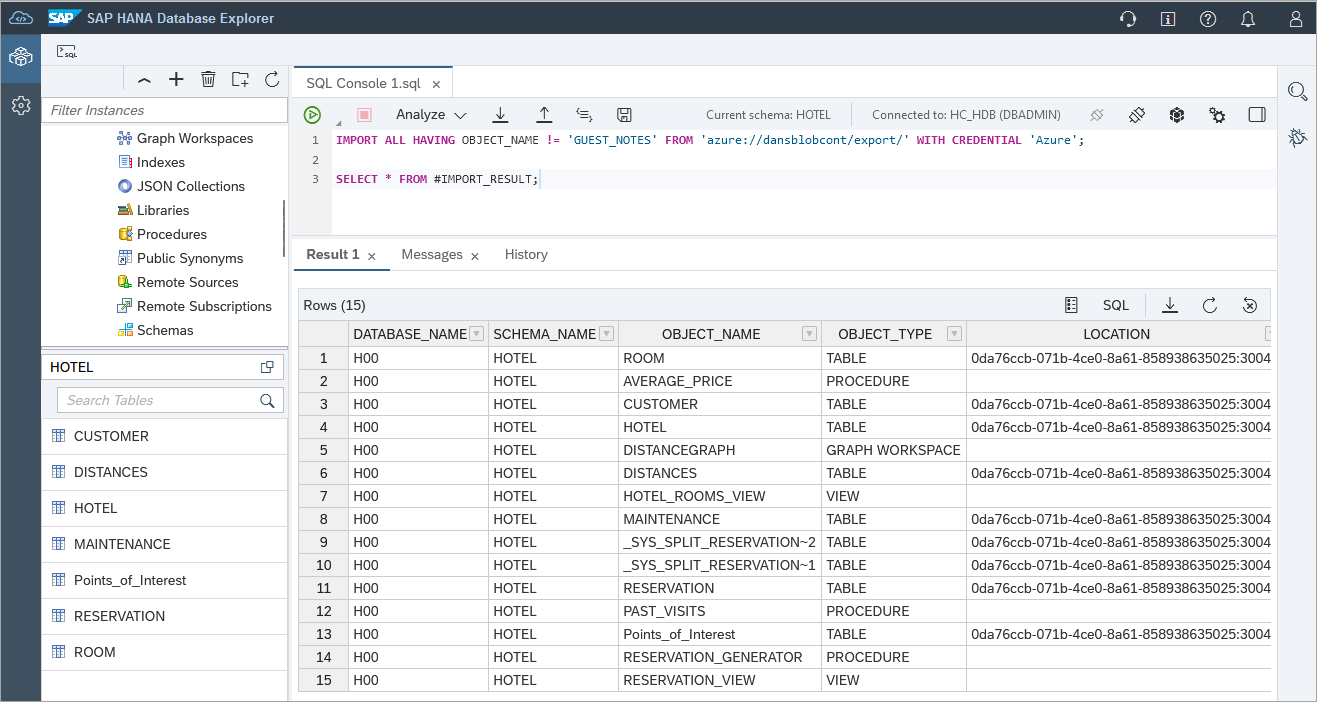
import multiple catalog objects Examine the imported objects: In this example, you will notice that all of the schema objects have been imported, including their data.

import result It is also possible to use the Export and Import Catalog wizards in the SAP HANA database explorer with zip files that are downloaded and uploaded through the browser with smaller datasets. For larger datasets it is recommended to use SAP HANA Cloud, data lake Files or a cloud storage provider such as Microsoft Azure, Amazon, or Google.
HDI containers contain both design time and runtime artifacts. In addition to objects such as tables and views, they can contain additional advanced SAP HANA artifacts such as calculation views, flow graphs, and replication tasks.
The list of HDI container groups and containers can be seen by executing the below SQL statements.
SELECT * FROM _SYS_DI.M_ALL_CONTAINER_GROUPS;
SELECT * FROM _SYS_DI.M_ALL_CONTAINERS; 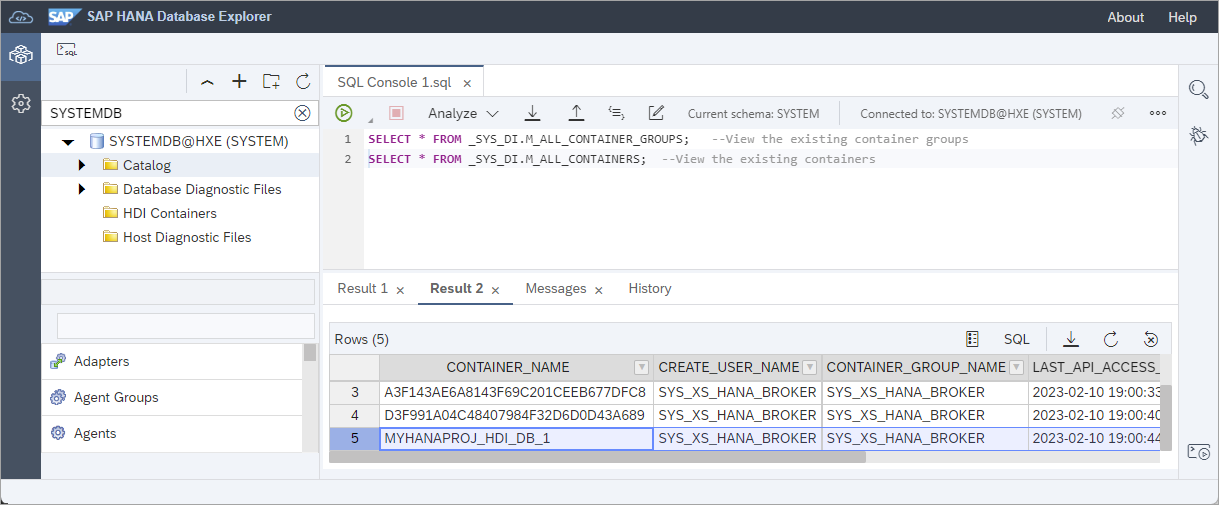
Some additional links on granting permissions to view and manage the contents of HDI containers can be found at SAP HANA Deployment Infrastructure (HDI) Administration and SAP HANA Deployment Infrastructure (HDI) SQL API.
The recommended tool for native application development with SAP HANA Cloud is the Business App Studio (BAS), which is available as a service in the SAP Business Technology Platform (BTP). An existing SAP HANA Web IDE project can be exported and then imported into BAS or, if the project is in a git repository, the git project can be opened or cloned in the BAS. Additional details can be found at Multitarget Application Development Tools (SAP Business App Studio) and Multitarget Application Development Tools (SAP Web IDE Full-Stack). The following steps demonstrate how to import an existing SAP HANA Web IDE project into the SAP Business App Studio, and how to import data into it using SQL.
Export the SAP HANA Web IDE project.

export a Web IDE project Open the SAP Business App Studio.

Business Application Studio link Create and open a new SAP HANA native application workspace.
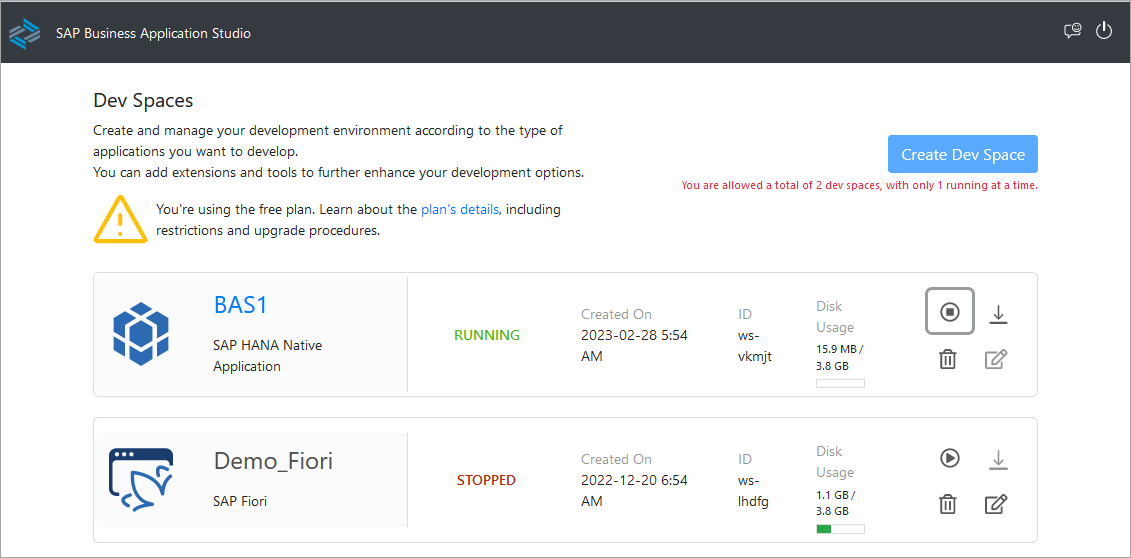
select a workspace Once the workspace opens, use the hamburger icon to cause the file menu bar to appear.
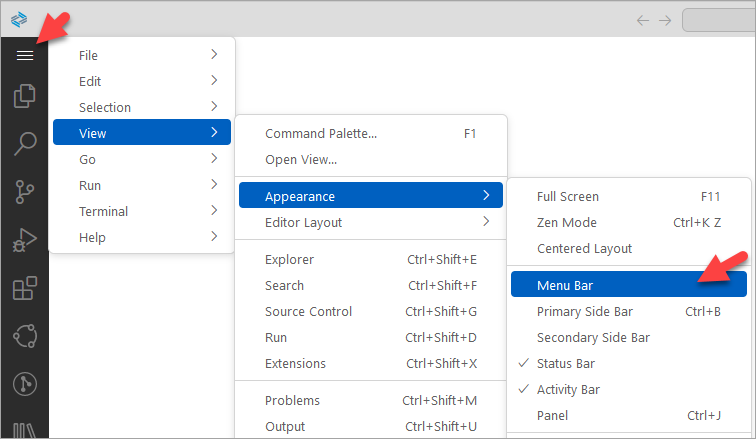
show menu bar Open the projects folder by choosing File > Open Folder.

open the projects folder Select File > Import Project and browse to the previously exported SAP HANA Web IDE project.
Open the newly imported project by selecting Open in New Workspace in the popup dialog that appears.
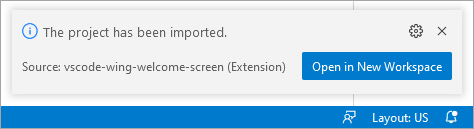
project import complete Login to Cloud Foundry by entering >Login in the command palette and selecting the option Login to Cloud Foundry.

cloud foundry login menu The Cloud Foundry sign in screen will appear.

cloud foundry login The Cloud Foundry Endpoint value (e.g. https://api.cf.ca10.hana.ondemand.com) can be obtained/confirmed by looking in the SAP BTP Cockpit under the subaccount overview.
Bind the project which specifies which Cloud Foundry space to associate the HDI container with and to optionally create an HDI container.

Bind project Click on the Bind icon.

Bind to the default instance Select “Bind to the default instance: "

progress dialog Wait for the operation to complete.

binding success The details of the binding are contained in
db/.envfile. If the.envfile does not appear, perform the bind operation a second time.If the binding fails and you are using an SAP HANA Cloud instance bound to the other environment, ensure that an instance mapping has been created as described at Exercise 1.2 Instance Mapping.
The HDI container can be viewed in the SAP BTP Cockpit.
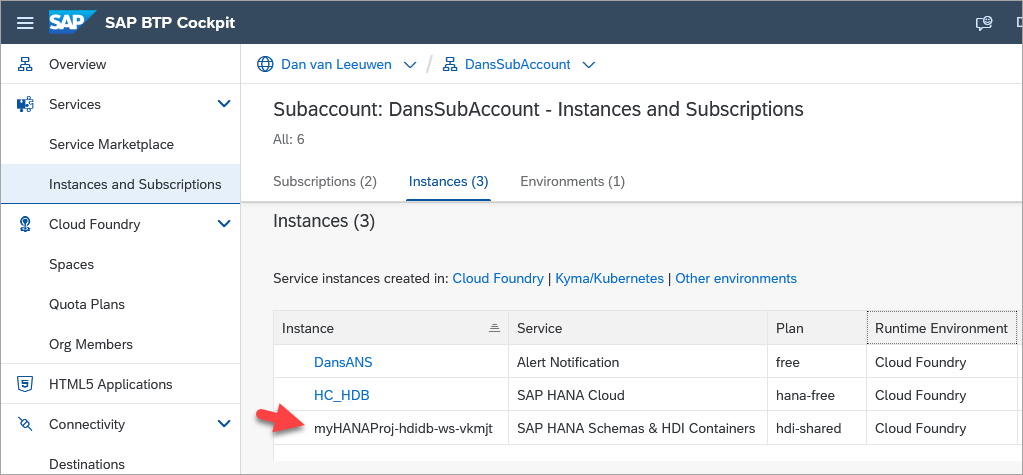
HDI container in the BTP Cockpit Deploy the project which will create the schema objects defined in the project such as the table test.
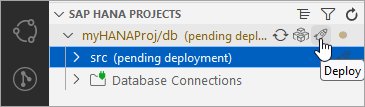
Deploy project Open the SAP HANA database explorer and notice that the table has been deployed but it does not contain any data.

open the HDI container in the SAP HANA database explorer Select Open HDI conatiner.
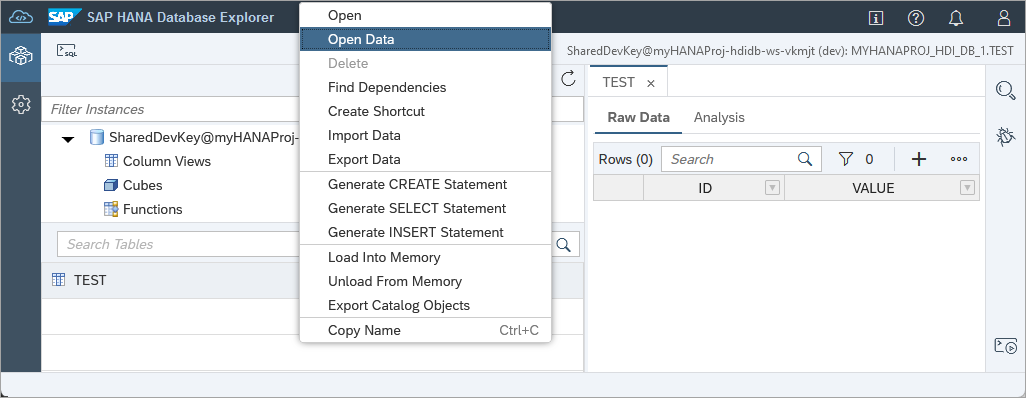
open data in the SAP HANA database explorer A similar set of steps to those followed in the export and import catalog objects steps can be followed to move the data.
In the source and destination HDI containers, the RT (runtime user) will need to be given sufficient privileges. The RT user’s name can be seen by executing the below SQL when connected to an HDI container. This user name is needed for the subsequent steps.
SQLSELECT CURRENT_USER FROM DUMMY;Execute the following SQL statement while connected to the SYSTEM database in the (on-premise) SAP HANA database.
SQLGRANT EXPORT TO MYHANAPROJ_HDI_DB_1_DA7VCTZ9GMTJHJ47F1MI4Y08N_RT; --required to enable export of dataExecute the following SQL statement while connected to the SAP HANA Cloud database.
SQLGRANT IMPORT TO MYHANAPROJ_HDI_DB_1_DWYHG0Y9G8PLSYVE4IEG4DN76_RT; --required to enable import of dataExecute the following SQL statement while connected to an HDI container being migrated. When performing the import, ensure that the option DATA ONLY is used as the objects in an HDI container should only be created when the project is deployed.
SQLEXPORT ALL HAVING SCHEMA_NAME = 'MYHANAPROJ_HDI_DB_1' AS BINARY DATA INTO 'azure://dansblobcont/export_hdi/' WITH NO STATISTICS CREDENTIAL 'Azure' ;Execute the following SQL statement while connected to an HDI container in SAP HANA Cloud.
SQLIMPORT ALL FROM 'azure://dansblobcont/export_hdi/' WITH CREDENTIAL 'Azure' DATA ONLY;
import into HDI container The data for the tables in the HDI container should now be available in the SAP HANA Cloud HDI container.
When connecting to an SAP HANA Cloud database, an encrypted connection must be used. By default, the SAP HANA Client enables encrypted connections when the port is 443. The port for SAP HANA Cloud SQL is always 443.
The host name (and port) can be obtained from SAP HANA Cloud Central as shown below.
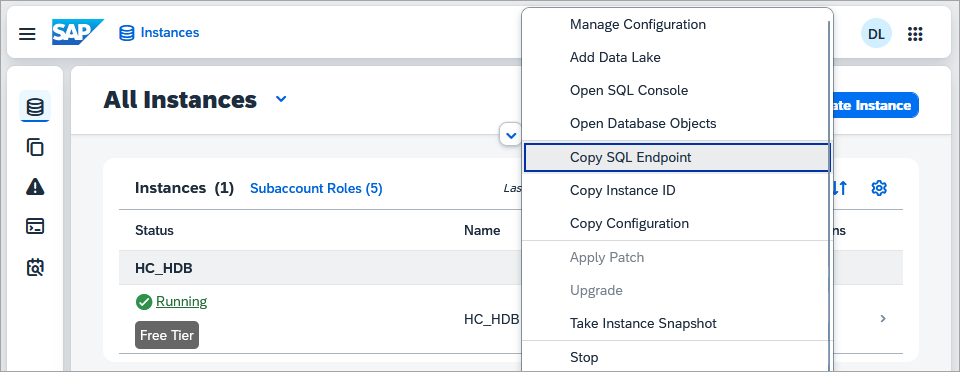
To connect to SAP HANA Cloud, the SAP HANA Client is used. The same client is used to connect to either the on-premise SAP HANA database or an SAP HANA Cloud instance as noted in the SAP Note: 2769719 - SAP HANA Client 2.0 Release and Maintenance Policy. New releases of the SAP HANA Client occur quarterly, and it is the current release that receives bug fixes. It is recommended to use the latest available version of the SAP HANA Client. Details on the releases of the SAP HANA Client can be found at 2941449 - SAP HANA Client 2.0 Releases.
A few examples of connections to an SAP HANA Cloud database are shown below. The essential parts of a connection are the host, port, user ID and password.
SAP HANA database explorer
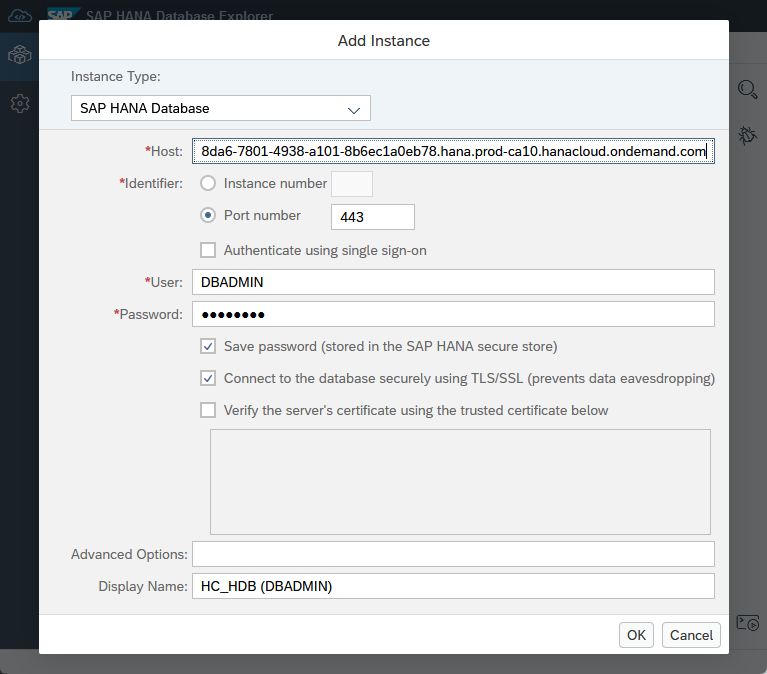
SAP HANA database explorer connection HDBSQL

HDBSQL connection For additional details see Connect to SAP HANA using HDBSQL.
ODBC

odbc connection For additional details, see Connect Using the SAP HANA ODBC Driver.
HDI
The connection details to an HDI container can be found in the service binding.

HDI shared dev key A service binding contains the user id, password, host, and port that can be used to connect to the HDI container at runtime.

shared dev key An example of connecting to the HDI container is shown below.

HDI container query
To see details of additional connections including JDBC, Node.js, Python, Go, and .NET, see Use Clients to Query an SAP HANA Database.
Congratulations! You now have an overview of some of the tasks involved with a migration from an on-premise SAP HANA database to an SAP HANA Cloud instance.
Resources
Discussion
Share feedback on this tutorial or join the conversation in SAP Community.