
Overview
You will learn
- How to use SAP HANA smart data access (SDA) to create connections (remote sources) to other databases
- How to create virtual tables from a remote source


Prerequisites
Prerequisites
- You have completed the first 3 tutorials in this group
- An SAP HANA database, an SAP HANA Cloud data lake instance, and an additional SAP HANA database to connect to
Steps
Intro
Remote sources enable connections to other databases. Virtual tables use a remote source to create a local table that points to data stored in another database. Federated queries make use of virtual and non virtual tables.
To illustrate these concepts, a table will be created in the remote database that contains fictitious review data from some of the top tourist sites near a given hotel. There is likely a correlation between hotel stays and the desire for customers to visit nearby tourist attractions or restaurants.
For additional details on SAP HANA smart data access (SDA) and SAP HANA Smart Data Integration (SDI), consult Connecting SAP HANA Cloud to Remote Data Sources and Data Access with SAP HANA Cloud.
This tutorial requires more than one database to complete. It is not necessary to complete this tutorial to continue to the next tutorial in this group.
The SAP HANA Cloud free tier is limited to creating one SAP HANA database and one data lake instance.
The example in step 1 demonstrates a connection from one SAP HANA Cloud, SAP HANA database to another. The example in step 2 demonstrates a connection from an SAP HANA Cloud, SAP HANA database to an SAP HANA Cloud, data lake Relational Engine. The example in step 3 demonstrates connecting from SAP HANA Cloud, data lake Relational Engine to an SAP HANA Cloud, SAP HANA database. The example in step 4 demonstrates connecting from one SAP HANA Cloud, data lake Relational Engine to another. It is also possible to connect from an SAP HANA on-premise database to SAP HANA Cloud or from SAP HANA Cloud to an on-premise SAP HANA database. These last two examples are covered at Access Remote Sources with SAP HANA Database Explorer.
Two SAP HANA Cloud, SAP HANA database instances can be connected so that one can query data from the other in real time using virtual tables, without copying or moving data.

In SAP HANA Cloud Central, select an SAP HANA database (HDB) instance (the one you want to connect to), and execute the following SQL statements to create the
tourist_reviewstable.If needed, first create a schema and user.
SQLCREATE SCHEMA HOTELS; CREATE USER USER1 PASSWORD Password1 no force_first_password_change; GRANT ALL PRIVILEGES ON SCHEMA HOTELS TO USER1;SQLSET SCHEMA HOTELS; CREATE COLUMN TABLE TOURIST_REVIEWS( review_id INTEGER GENERATED BY DEFAULT AS IDENTITY PRIMARY KEY, review_date DATE NOT NULL, destination_id INTEGER, destination_rating INTEGER, review VARCHAR(500) NOT NULL ); INSERT INTO TOURIST_REVIEWS(review_date, destination_id, destination_rating, review) VALUES('2019-03-14', 1, 5, 'We had a great day swimming at the beach and exploring the beach front shops. We will for sure be back next summer.'); INSERT INTO TOURIST_REVIEWS(review_date, destination_id, destination_rating, review) VALUES('2019-02-01', 1, 4, 'We had an enjoyable meal. The service and food was outstanding. Would have liked to have slightly larger portions');The result can be seen below.
SQLSELECT * FROM TOURIST_REVIEWS;
Select all To create a remote source to SAP HANA Cloud, open another SAP HANA database.
In the SQL console, enter the SQL statement below. Replace
<Target HDB Host>with the host copied from the SQL endpoint.SQLCREATE REMOTE SOURCE REMOTE_HC ADAPTER "hanaodbc" CONFIGURATION 'ServerNode=<Target HDB Host>:443;driver=libodbcHDB.so;dml_mode=readwrite;sslTrustStore="-----BEGIN CERTIFICATE-----MIIDrzCCApegAwIBAgIQCDvgVpBCRrGhdWrJWZHHSjANBgkqhkiG9w0BAQUFADBhMQswCQYDVQQGEwJVUzEVMBMGA1UEChMMRGlnaUNlcnQgSW5jMRkwFwYDVQQLExB3d3cuZGlnaWNlcnQuY29tMSAwHgYDVQQDExdEaWdpQ2VydCBHbG9iYWwgUm9vdCBDQTAeFw0wNjExMTAwMDAwMDBaFw0zMTExMTAwMDAwMDBaMGExCzAJBgNVBAYTAlVTMRUwEwYDVQQKEwxEaWdpQ2VydCBJbmMxGTAXBgNVBAsTEHd3dy5kaWdpY2VydC5jb20xIDAeBgNVBAMTF0RpZ2lDZXJ0IEdsb2JhbCBSb290IENBMIIBIjANBgkqhkiG9w0BAQEFAAOCAQ8AMIIBCgKCAQEA4jvhEXLeqKTTo1eqUKKPC3eQyaKl7hLOllsBCSDMAZOnTjC3U/dDxGkAV53ijSLdhwZAAIEJzs4bg7/fzTtxRuLWZscFs3YnFo97nh6Vfe63SKMI2tavegw5BmV/Sl0fvBf4q77uKNd0f3p4mVmFaG5cIzJLv07A6Fpt43C/dxC//AH2hdmoRBBYMql1GNXRor5H4idq9Joz+EkIYIvUX7Q6hL+hqkpMfT7PT19sdl6gSzeRntwi5m3OFBqOasv+zbMUZBfHWymeMr/y7vrTC0LUq7dBMtoM1O/4gdW7jVg/tRvoSSiicNoxBN33shbyTApOB6jtSj1etX+jkMOvJwIDAQABo2MwYTAOBgNVHQ8BAf8EBAMCAYYwDwYDVR0TAQH/BAUwAwEB/zAdBgNVHQ4EFgQUA95QNVbRTLtm8KPiGxvDl7I90VUwHwYDVR0jBBgwFoAUA95QNVbRTLtm8KPiGxvDl7I90VUwDQYJKoZIhvcNAQEFBQADggEBAMucN6pIExIK+t1EnE9SsPTfrgT1eXkIoyQY/EsrhMAtudXH/vTBH1jLuG2cenTnmCmrEbXjcKChzUyImZOMkXDiqw8cvpOp/2PV5Adg06O/nVsJ8dWO41P0jmP6P6fbtGbfYmbW0W5BjfIttep3Sp+dWOIrWcBAI+0tKIJFPnlUkiaY4IBIqDfv8NZ5YBberOgOzW6sRBc4L0na4UU+Krk2U886UAb3LujEV0lsYSEY1QSteDwsOoBrp+uvFRTp2InBuThs4pFsiv9kuXclVzDAGySj4dzp30d8tbQkCAUw7C29C79Fv1C5qfPrmAESrciIxpg0X40KPMbp1ZWVbd4=-----END CERTIFICATE-----"' WITH CREDENTIAL TYPE 'PASSWORD' USING 'user=USER1;password=Password1'; CALL PUBLIC.CHECK_REMOTE_SOURCE('REMOTE_HC');Alternatively, a remote source can be created using the UI in the Database Objects app.
Create remote source using the UI For the Database Source Type, select SAP HANA Cloud, SAP HANA Database.
Add a source name and specify the server, port, and credentials (USER1, Password1). The Extra Adapter properties can be retrieved by copying the
sslTrustStorein the SQL query above.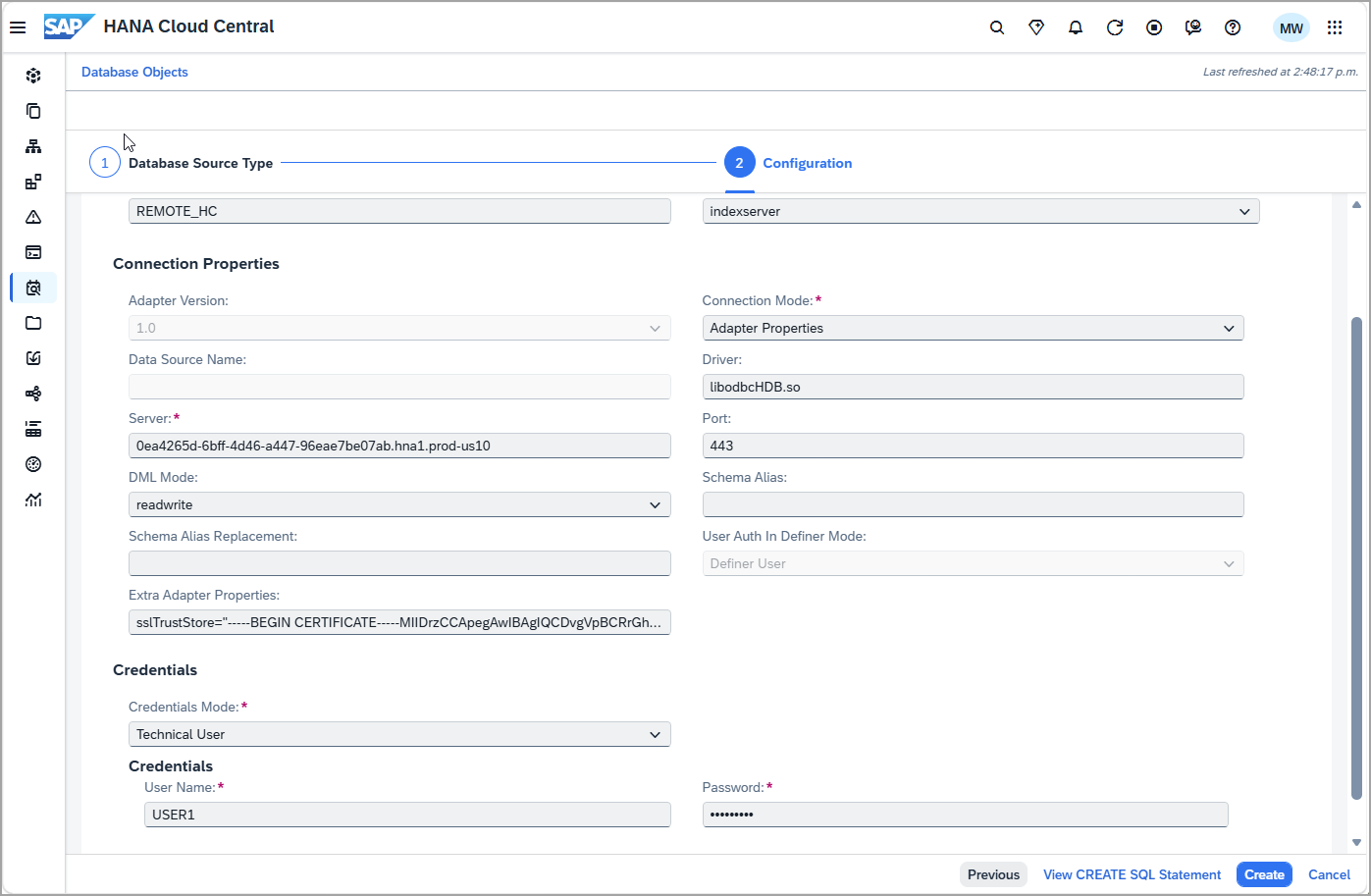
Create a remote source using the UI Additional details can be found at CREATE REMOTE SOURCE Statement
If the above command fails, one reason might be that an allowlist has been set on the SAP HANA Cloud instance. This can be seen by choosing Actions > Manage Configuration > Connections.

Allow all IP addresses The public root certificate of the certificate authority (CA) that signed the SAP HANA Cloud instance’s server certificate is required in the
sslTrustStoreparameter. For more information, see Secure Communication Between SAP HANA Cloud and JDBC/ODBC Clients.A virtual table named
vt_tourist_reviewswill be created in the SAP HANA database you are connecting from. This will enable access to thetourist_reviewstable that was created in SAP HANA Cloud. This can be visualized as follows:Open the SAP HANA database you wish to connect from.
If needed, create the HOTELS schema and a user who can access the schema.
SQLCREATE USER USER1 PASSWORD Password1 no force_first_password_change; CREATE SCHEMA HOTELS; GRANT ALL PRIVILEGES ON SCHEMA HOTELS TO USER1;Create a virtual table named
VT_TOURIST_REVIEWSin the schema HOTELS that maps to theTOURIST_REVIEWStable on the original HDB.SQLCREATE VIRTUAL TABLE VT_TOURIST_REVIEWS AT "REMOTE_HC"."HC_HDB".HOTELS."TOURIST_REVIEWS";Additional details can be found at CREATE VIRTUAL TABLE STATEMENT
Perform queries against the local tables, the remote table, and perform a federated query that contains both local and remote tables.
SQLSELECT * FROM HOTELS.RESERVATION; SELECT * FROM HOTELS.CUSTOMER; SELECT * FROM HOTELS.VT_TOURIST_REVIEWS; SELECT C.NAME, TR.REVIEW, REVIEW_DATE FROM HOTELS.RESERVATION AS R JOIN HOTELS.VT_TOURIST_REVIEWS AS TR ON TR.REVIEW_DATE = R.ARRIVAL JOIN HOTELS.CUSTOMER AS C ON C.CNO = R.CNO;In the source HDB SQL console, query the virtual table to confirm data is returned from the target HDB.
SQLSELECT * FROM VT_TOURIST_REVIEWS;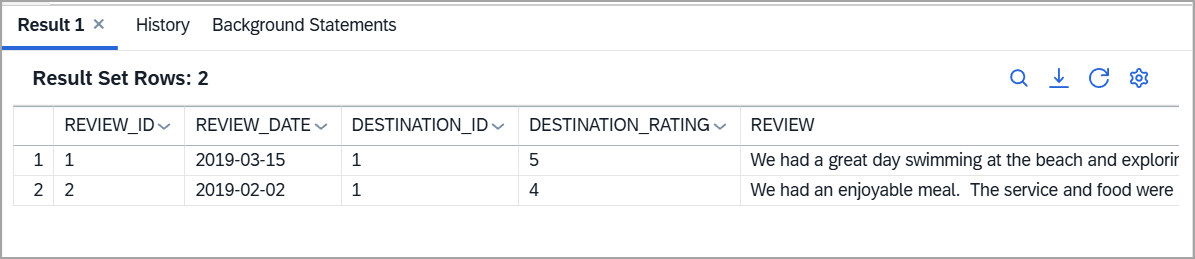
Virtual table Add a new review.
SQLINSERT INTO HOTELS.VT_TOURIST_REVIEWS(review_id, review_date, destination_id, destination_rating, review) VALUES(3, '2020-08-21', 1, 5, 'The harbour cruise was fantastic. It was great to see the city from a different viewpoint'); SELECT * FROM HOTELS.VT_TOURIST_REVIEWS;Notice that the virtual table is editable.
A benefit of a non replicated virtual table is that there is only one location where the data is persisted.
SAP HANA Cloud, data lake can be used to store large amounts of data that is not accessed and updated as frequently as data in an SAP HANA database. The following steps create the table tourist_reviews in SAP HANA Cloud, data lake Relational Engine and access the table from the associated SAP HANA database (HDB) instance.
If needed, in SAP HANA Cloud Central, add an SAP HANA Cloud, data lake (HDLRE) instance to your SAP HANA Cloud instance, by choosing Actions > Add Data Lake.

Add a SAP HANA Data Lake Open a SQL console connected to the data lake instance by selecting the instance tile and choosing Actions > Open SQL Console.
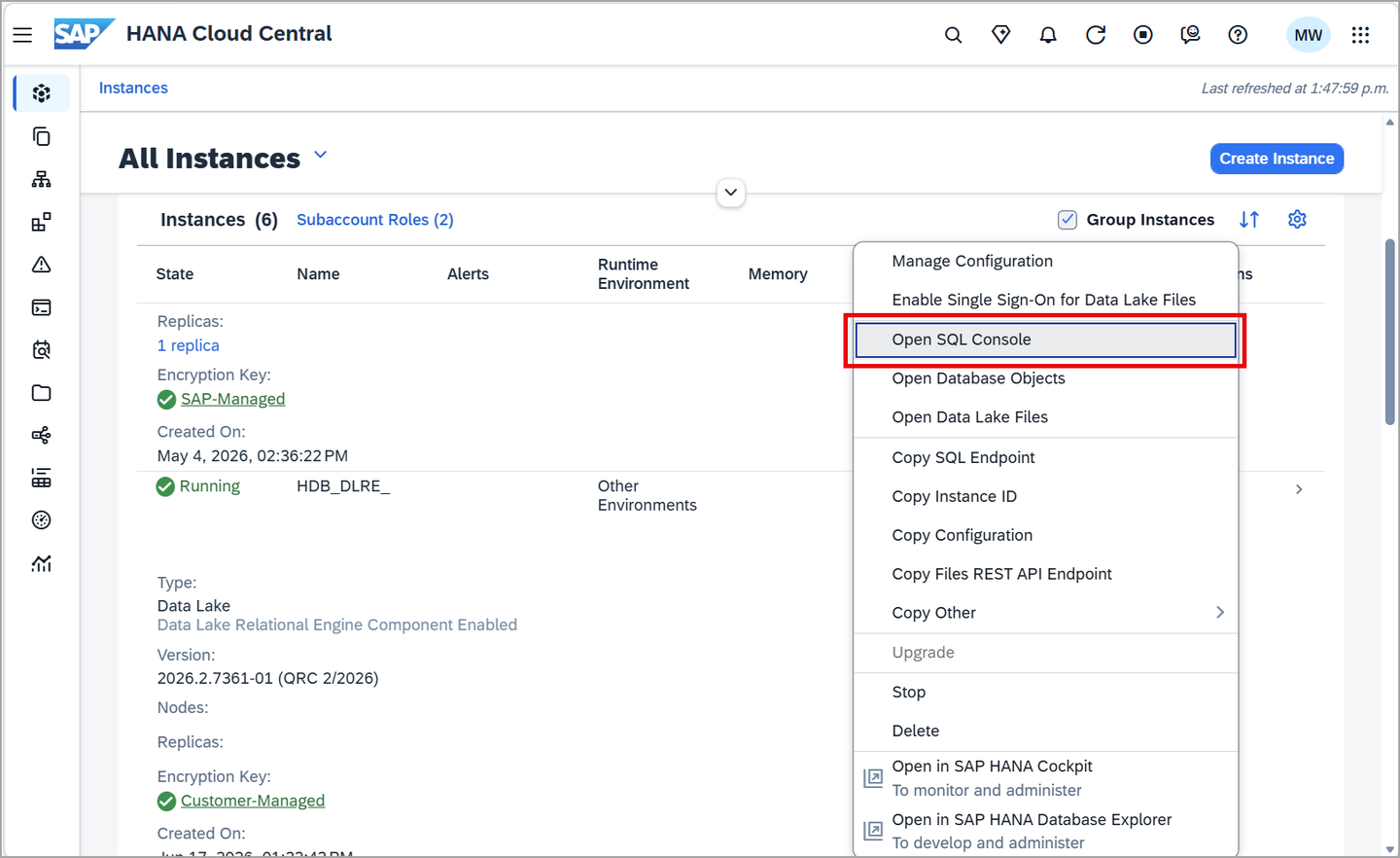
Open SQL console Execute the following SQL to create a table named
tourist_reviewsin the HDLRE.If needed, first create the required schema and role.
SQL--Create a schema for the sample hotel dataset CREATE SCHEMA HOTELS; --Create USER1 and grant privileges CREATE USER USER1 IDENTIFIED BY Password1; GRANT ALL PRIVILEGES ON SCHEMA HOTELS TO USER1; SET SCHEMA HOTELS; CREATE TABLE TOURIST_REVIEWS ( REVIEW_ID INTEGER PRIMARY KEY, REVIEW_DATE DATE NOT NULL, DESTINATION_ID INTEGER, DESTINATION_RATING INTEGER, REVIEW VARCHAR(500) NOT NULL ); INSERT INTO TOURIST_REVIEWS(REVIEW_ID, REVIEW_DATE, DESTINATION_ID, DESTINATION_RATING, REVIEW) VALUES(1, '2019-03-14', 1, 5, 'We had a great day swimming at the beach and exploring the beach front shops. We will for sure be back next summer.'); INSERT INTO TOURIST_REVIEWS(REVIEW_ID, REVIEW_DATE, DESTINATION_ID, DESTINATION_RATING, REVIEW) VALUES(2, '2019-02-01', 1, 4, 'We had an enjoyable meal. The service and food were outstanding. Would have liked to have slightly larger portions');For additional details consult CREATE TABLE Statement for Data Lake Relational Engine.
In the HDB SQL console, create a remote source from the HANA database to the HDLRE. Be sure to replace the host and password values.
SQLCREATE REMOTE SOURCE HC_DL ADAPTER "IQODBC" CONFIGURATION 'Driver=libdbodbc17_r.so;host=XXXXXXXX-XXXX-XXXX-XXXX-XXXXXXXXXXXX.iq.hdl.trial-XXXX.hanacloud.ondemand.com:443;ENC=TLS(tls_type=rsa;direct=yes)' WITH CREDENTIAL TYPE 'PASSWORD' USING 'user=USER1;password=Password1'; CALL PUBLIC.CHECK_REMOTE_SOURCE('HC_DL');Access host details under Actions > Copy SQL Endpoint
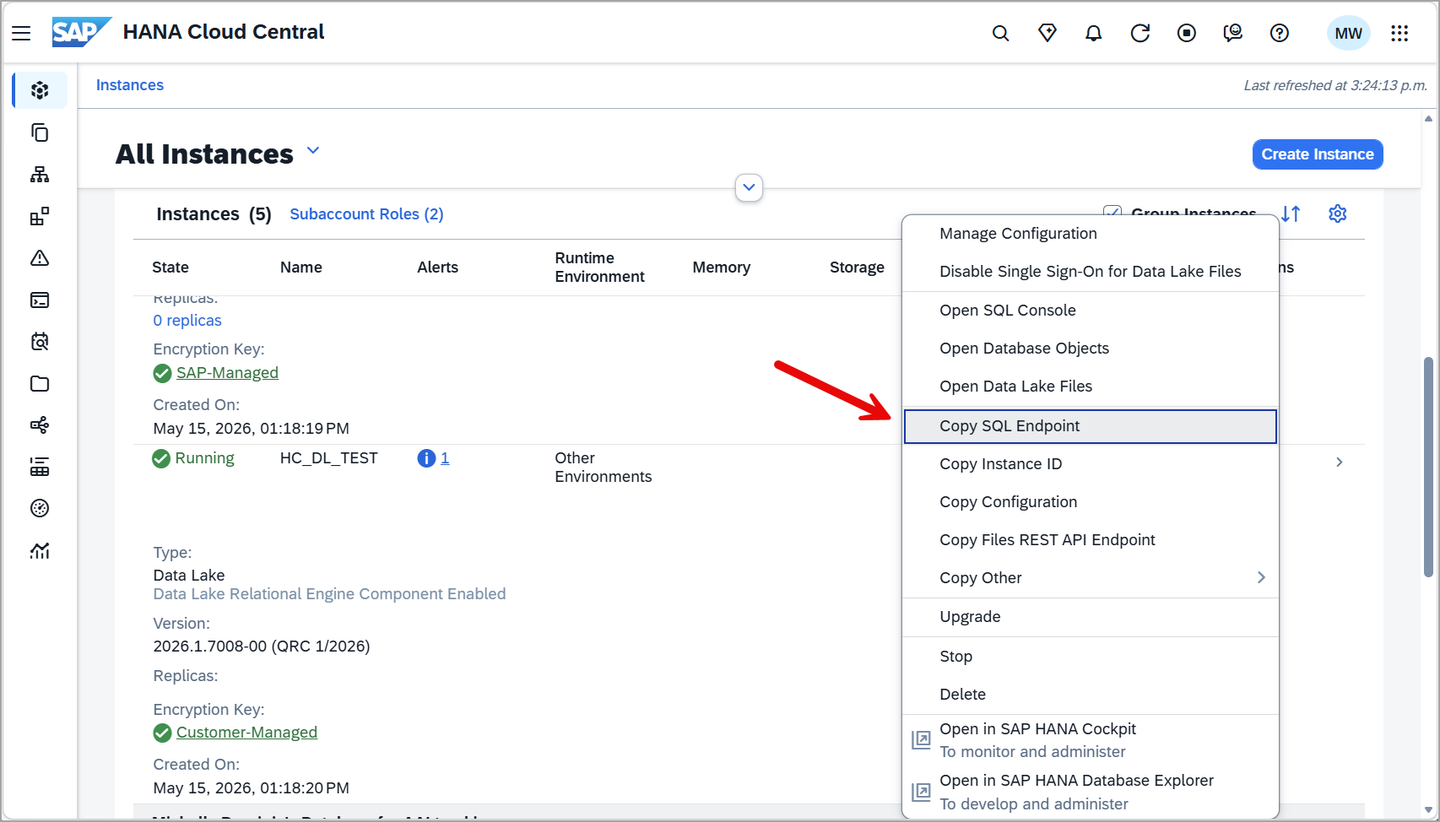
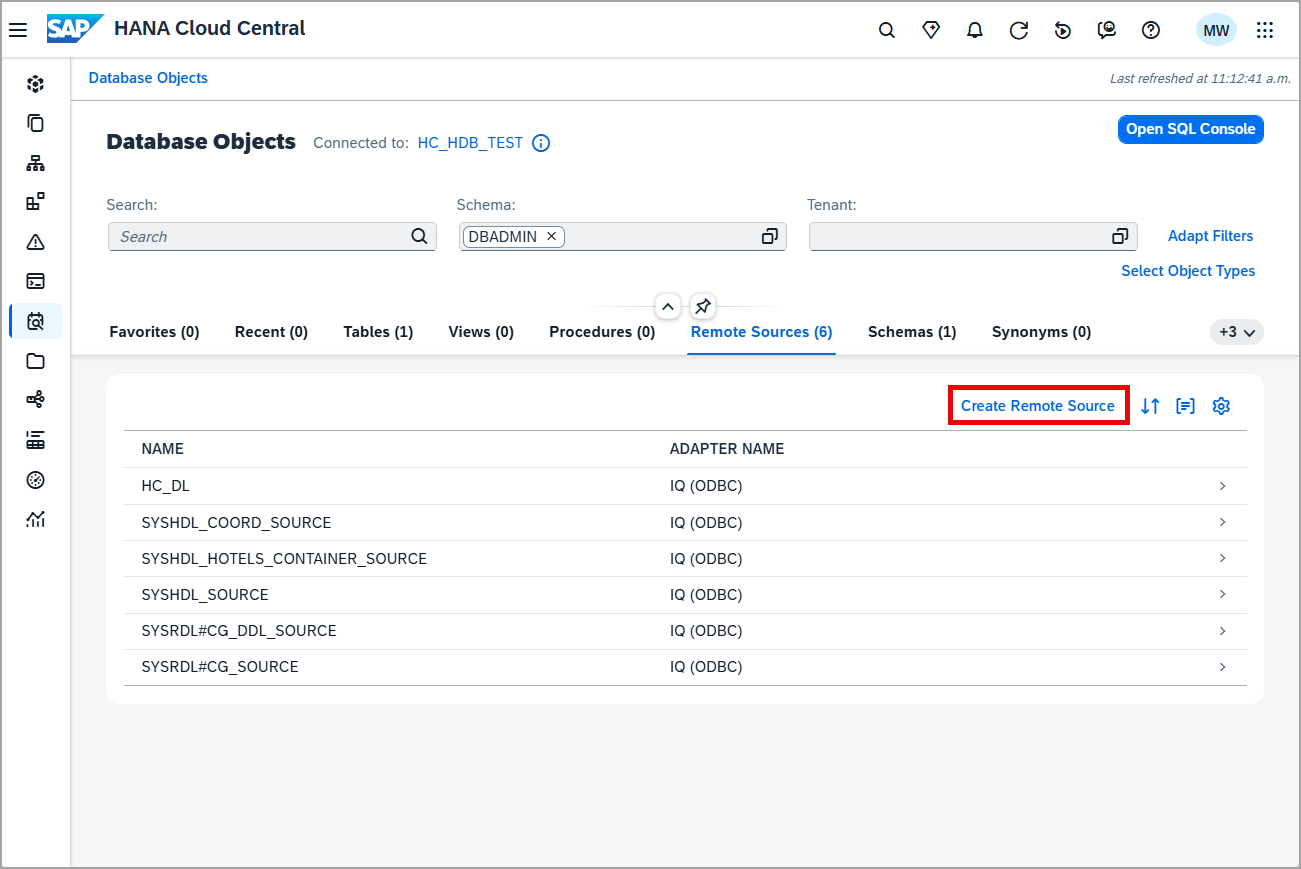
Copy SQL endpoint Navigate to Database Objects to view an instance’s remote sources. Notice that under remote sources, there is a remote source
HC_DL.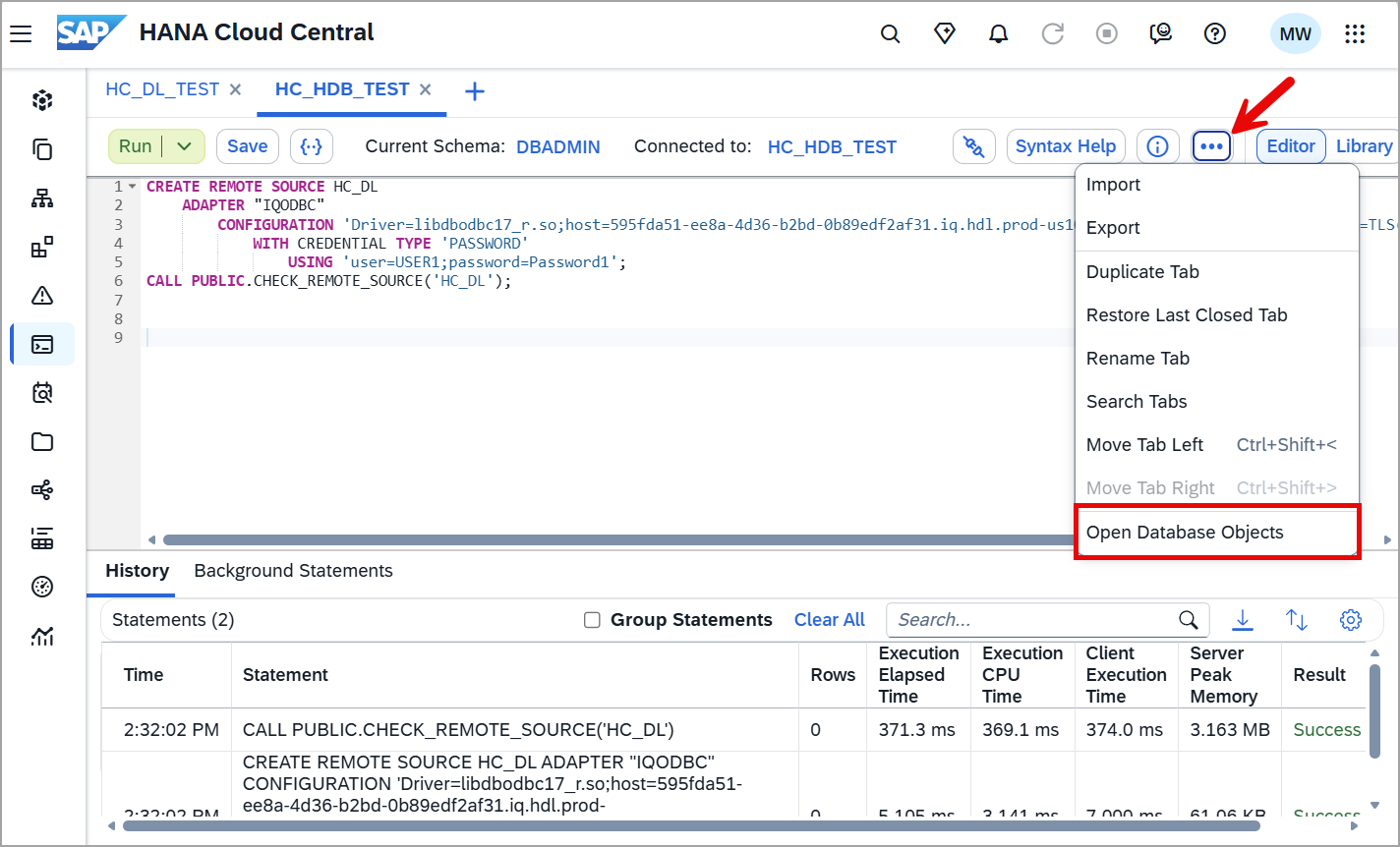
Remote sources in Database Objects If an instance’s remote sources are unavailable, go to Select Object Types to add Remote Sources.
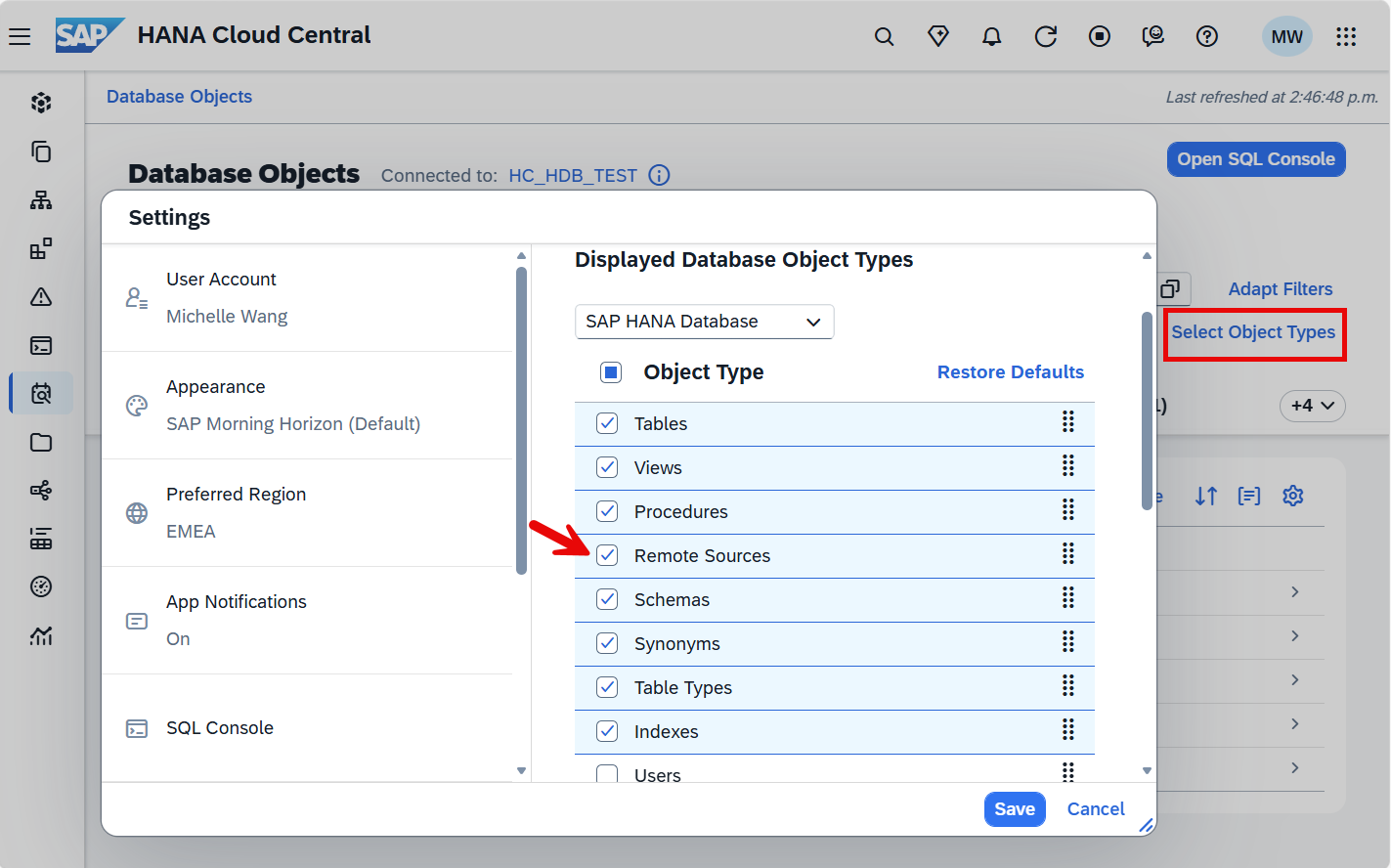
Adding remote source in Database Objects In the HDB SQL console, create a virtual table named
VT_DL_TOURIST_REVIEWSin the schema HOTELS that maps to the newly created table in the HDLRE.This can be visualized as follows:

SAP HANA database connecting to a data lake Relational Engine SQLCREATE VIRTUAL TABLE VT_DL_TOURIST_REVIEWS AT HC_DL.iqaas.HOTELS.TOURIST_REVIEWS;It is also possible to create the remote table and virtual table together in the same statement.
SQLCREATE VIRTUAL TABLE VT_DL_TOURIST_REVIEWS ( REVIEW_ID INTEGER PRIMARY KEY, REVIEW_DATE DATE NOT NULL, DESTINATION_ID INTEGER, DESTINATION_RATING INTEGER, REVIEW VARCHAR(500) NOT NULL ) AT HC_DL.iqaas.HOTELS.TOURIST_REVIEWS WITH REMOTE; INSERT INTO VT_DL_TOURIST_REVIEWS VALUES(1, '2019-03-15', 1, 5, 'We had a great day swimming at the beach and exploring the beach front shops. We will for sure be back next summer.'); INSERT INTO VT_DL_TOURIST_REVIEWS VALUES(2, '2019-02-02', 1, 4, 'We had an enjoyable meal. The service and food were outstanding. Would have liked to have slightly larger portions');In the HDB SQL console, query the local SAP HANA table and the equivalent HDLRE table.
SQLSELECT * FROM TOURIST_REVIEWS; SELECT * FROM VT_DL_TOURIST_REVIEWS;
Query SAP HANA Cloud, data lake In the HDB SQL console, add a new review.
SQLINSERT INTO VT_DL_TOURIST_REVIEWS VALUES(3, '2020-08-21', 1, 5, 'The harbour cruise was fantastic. It was great to see the city from a different viewpoint'); SELECT * FROM VT_DL_TOURIST_REVIEWS;
New review Notice that the remote data source is updatable. Data stored in an HDLRE is stored on disk, which has cost advantages compared to memory storage. HDLRE can also be used to store large amounts of data.
The first task in preparing the data lake Relational Engine instance is creating a remote server that connects to the SAP HANA database instance that contains the data you want to access.
In SAP HANA Cloud Central, locate the SAP HANA database instance tile and choose Actions > Copy SQL Endpoint to obtain the host name.
In SAP HANA Cloud Central, select the data lake instance tile and choose Actions > Open SQL Console.
In the data lake SQL console, run the following SQL using HDLADMIN. Notice, you are naming the remote server
HDB_SERVER. Replace the<HANA Host Name>with the host copied from the SQL endpoint. Additional details can be found at CREATE SERVER Statement.SQLCREATE SERVER HDB_SERVER CLASS 'HANAODBC' USING 'Driver=libodbcHDB.so; ConnectTimeout=0; CommunicationTimeout=15000; RECONNECT=0; ServerNode=<HANA Host Name>:443; ENCRYPT=TRUE;';In the data lake SQL console, create the
EXTERNLOGINthat will map your HDLRE user to the HANA user credentials and allow access to the HDB. Notice below in theCREATE EXTERNLOGINstatement you are granting your HDLRE user permission to use the HANA user for theHDB_SERVERthat was created above.SQL-- Replace `<HDL USER NAME>` with the current HDLRE user that is being used and replace `<HANA USER NAME>` and `<HANA PASSWORD>` with the target HANA database user password. -- CREATE EXTERNLOGIN <HDL USER NAME> to HDB_SERVER REMOTE LOGIN <HANA USER NAME> IDENTIFIED BY <HANA PASSWORD>; CREATE EXTERNLOGIN HDLADMIN to HDB_SERVER REMOTE LOGIN USER1 IDENTIFIED BY Password1;If you would prefer to use USER1 instead of HDLADMIN, execute the
GRANT MANAGE ANY USER TO USER1;query as described here.In the data lake SQL console, do a quick test to ensure everything has been set up successfully. You will create a temporary table that points to your TOURIST_REVIEWS table in SAP HDB. Then run a select against that table to ensure you are getting data back. Additional details can be found at CREATE EXISTING TABLE Statement.
SQLCREATE EXISTING LOCAL TEMPORARY TABLE VT_HDB_TOURIST_REVIEWS AT 'HDB_SERVER..HOTELS.TOURIST_REVIEWS'; /* --If you wish to only include specific columns, the column list can also be provided CREATE EXISTING LOCAL TEMPORARY TABLE VT_HDB_TOURIST_REVIEWS ( REVIEW_ID INTEGER NOT NULL, DESTINATION_ID INTEGER DEFAULT NULL, DESTINATION_RATING INTEGER DEFAULT NULL, REVIEW NVARCHAR(500) NOT NULL, REVIEW_DATE DATE NOT NULL, PRIMARY KEY (REVIEW_ID) ) AT 'HDB_SERVER..HOTELS.TOURIST_REVIEWS'; */ SELECT * FROM VT_HDB_TOURIST_REVIEWS; --DROP TABLE VT_HDB_TOURIST_REVIEWS;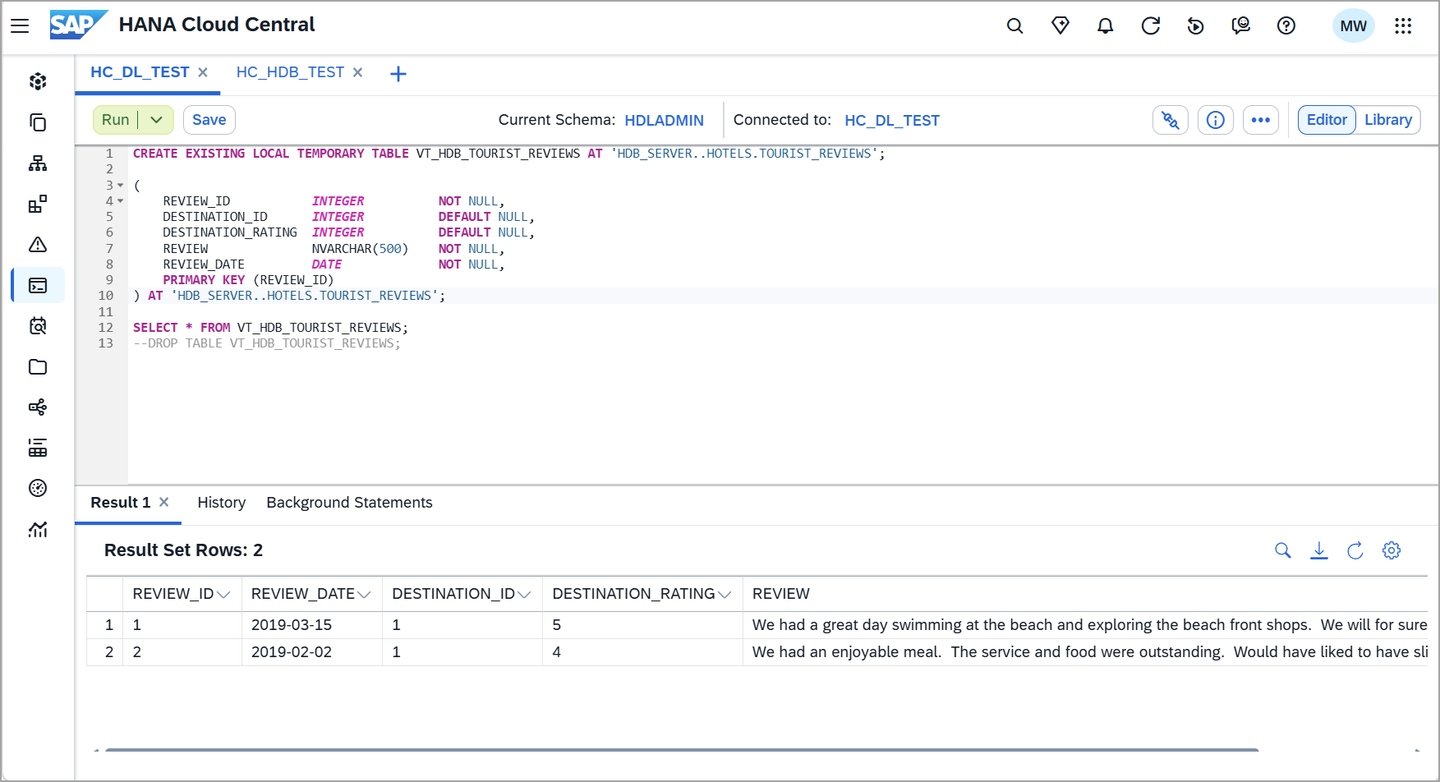
Query the virtual table
In SAP HANA Cloud Central, locate the target data lake instance tile and choose Actions > Copy SQL Endpoint to obtain the host name.
In SAP HANA Cloud Central, select the source data lake instance tile and choose Actions > Open SQL Console.
In the source data lake SQL console, run the following SQL using a user with the
MANAGE ANY REMOTE SERVERprivilege to create a remote server. Notice, you are naming the remote serverHDLRE_SERVER. Replace<remote_host>with the host copied from the SQL endpoint.SQLCREATE SERVER HDLRE_SERVER CLASS 'IQODBC' USING 'DRIVER=libodbc17_r.so; host=<remote_host>:443; UseCloudConnector=OFF; ENC=TLS(tls_type=rsa;direct=yes);'In the source data lake SQL console, use the
CREATE EXTERNLOGINstatement to assign an alternate login name and password for communications with the target server. Replace<HDLRE USER NAME>and<HDLRE PASSWORD>with the target HDLRE user credentials.SQL-- Replace `<HOST HDL USER NAME>` with the current HDLRE user that is being used and replace `<HDL USER NAME>` and `<HDL PASSWORD>` with the target HDLRE database user password. -- CREATE EXTERNLOGIN <HOST HDL USER NAME> TO HDLRE_SERVER REMOTE LOGIN <HDL USER NAME> IDENTIFIED BY <HDL PASSWORD>; CREATE EXTERNLOGIN HDLADMIN TO HDLRE_SERVER REMOTE LOGIN USER1 IDENTIFIED BY Password1;If you would prefer to use USER1 instead of HDLADMIN, execute the
GRANT MANAGE ANY USER TO USER1;query as described here.In the source data lake SQL console, do a quick test to ensure everything has been set up successfully. You will create a temporary table that points to your TOURIST_REVIEWS table in your target HDLRE. Then run a select against that table to ensure you are getting data back.
SQLCREATE EXISTING LOCAL TEMPORARY TABLE VT_HDLRE_TOURIST_REVIEWS ( REVIEW_ID INTEGER PRIMARY KEY, REVIEW_DATE DATE NOT NULL, DESTINATION_ID INTEGER, DESTINATION_RATING INTEGER, REVIEW VARCHAR(500) NOT NULL ) AT 'HDLRE_SERVER..HOTELS.TOURIST_REVIEWS'; SELECT * FROM VT_HDLRE_TOURIST_REVIEWS; --DROP TABLE VT_HDLRE_TOURIST_REVIEWS;Query the virtual table
For further information, see Data Replication and Data Virtualization, and Getting Started with SAP HANA Cloud | Remote Data Source.
Congratulations! You have now used remote sources to access data running on a different SAP HANA instance and on an SAP HANA Cloud, data lake Relational Engine.
Resources
Discussion
Share feedback on this tutorial or join the conversation in SAP Community.