This step demonstrates how a SQL console can quickly be opened from within SAP HANA Cloud Central and how to change the SQL console’s credentials and schema.
In SAP HANA Cloud Central open a SQL console by selecting SQL Console in the left pane. Notice that the SQL console is not associated with a database when opened in this way.
open SQL console
Additional SQL consoles can also be opened by selecting the + icon.
This time select Instances, select a database, and choose Open SQL Console from the actions menu.
open SQL console from an instance
Notice that it is now connected to the instance named HC_HDB as shown by the name of the tab and the connection label or through the below SQL.
SQL
SELECTCURRENT_USERFROMDUMMY;
SQL console connected to HC_HDB
If you wish to connect to the database using a different set of credentials, select the Connect to link, select the Connect … button and provide the new user name and password. Note that these credentials are not persisted.
Change credentials
The Enter Credentials dialog will then ask for the new credentials to be used.
change credentials
You can also use the following SQL for an SAP HANA database to change the connected user.
For data lake Relational Engine instances, the current schema can be set and viewed as shown below.
SQL
SETSCHEMAHOTELS;SELECTCURRENTSCHEMA,CURRENTUSER;
set the schema of a data lake RE
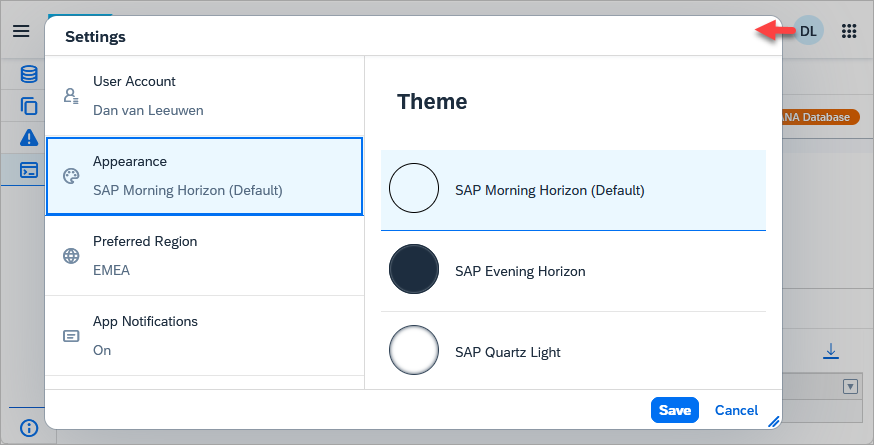
Multiple light and dark themes are available.
Click on the SAP HANA Cloud Central settings icon. Then select Settings > Appearance. The default theme is SAP Morning Horizon.
available themes
Step 2Execute SQL
+
This step demonstrates how to execute a SQL query, examine the statement help, view the query results, messages, and history tabs within a SQL console.
The following error dialog appears. Select Skip All.
SQL Execution Error dialog
Notice that there is an error marker beside the lines that could not be executed. Pressing Alt+E will display further details and advances to the next error when pressed more than once.
SQL results
Notice that two result tabs are shown, one for each SQL statement that generated a result.
Results can be downloaded as shown below.
download results
Options are provided on how to format the data.
download options
Rows can also be selected and then copied to the clipboard by pressing Ctrl+C.
Place the cursor on line four and open the Syntax Help panel.
statement help panel
Notice that for SAP HANA Cloud, SAP HANA databases, links to the related documentation and details on the objects used in the SQL statement are shown including a link which will open the database objects app where additional details of the object can be viewed.
Commonly used shortcut keys are listed below. Try a few of them out.
Action
Shortcut
Add Comment Block
Ctrl+Shift+/
Comment/Uncomment Line
Ctrl+/
To Uppercase
Ctrl+Alt+U
To Lowercase
Ctrl+Shift+U
Go to Next Error
Alt+E
Go to Previous Error
Alt+Shift+E
Go to Line
Ctrl+L
Jump to Matching Brackets
Ctrl+P
Run All
F8
Run Statement
F9
Text Completion
Ctrl+Space
Save to statement library
Ctrl+S
The shortcut keys may vary depending on the OS and browser used.
Notice details for each executed statement are displayed, including metrics such as memory consumption. Statements can be quickly located using the search functionality. Selected statements may be inserted back into the SQL console or copied for further use.
The columns can also be changed by selecting the gear icon in the right corner.
history-tab-columns tab
Examine the SQL Console Settings.
connection settings
Execute the following SQL which is used to illustrate the result behavior settings.
Notice that only the first 1024 bytes from the column STATEMENT are displayed in the results view for the Blocked Transactions row. These limits can be adjusted in the connection settings dialog.
limit for large objects
Notice that over 6000 rows are in TABLE_COLUMNS.
one thousand row limit
The first 1000 are displayed.
one thousand row limit
Execute the following SQL which is used to illustrate the result display display settings.
The below is the result when this setting is disabled.
no formatting
Enable Result Format Settings in the settings.
format settings
The below is the result when this setting is enabled.
result formatted
Execute the following SQL statements.
SQL
SELECTHEXTOBIN('48656C6C6F20776F726C64')BINARY_EXAMPLEFROMDUMMY;SELECT'{
"name":"John",
"age":30,
"cars": {
"car1":"Ford",
"car2":"BMW",
"car3":"Fiat"
}
}'ASJSON_EXAMPLEFROMDUMMY;SELECT'<?xml version="1.0" encoding="UTF-8"?>
<breakfast_menu>
<food>
<name>Strawberry Belgian Waffles</name>
<price>$7.95</price>
<description>
Light Belgian waffles covered with strawberries and whipped cream
</description>
<calories>900</calories>
</food>
<food>
<name>French Toast</name>
<price>$4.50</price>
<description>
Thick slices made from our homemade sourdough bread
</description>
<calories>600</calories>
</food>
<food>
<name>Homestyle Breakfast</name>
<price>$6.95</price>
<description>
Two eggs, bacon or sausage, toast, and our ever-popular hash browns
</description>
<calories>950</calories>
</food>
</breakfast_menu>'XML_EXAMPLEFROMDUMMY
Double tapping on a result will open a result viewer.
SQL results
The SQL in a SQL console is not persisted across browser reloads. The SQL can be downloaded and then later imported using the tools shown below.
download and import
SQL statements can also be executed in the background. This allows users to start a long-running statement, disconnect, and return later to view the results.
Execute the following statement by clicking the Run dropdown menu and selecting Run Statement in Background:
SQL
DOBEGIN--Wait for a few SECONDS
USINGSQLSCRIPT_SYNCASSYNCLIB;CALLSYNCLIB:SLEEP_SECONDS(3);--runs for longer than 3 SECONDS
--Now execute a query
SELECT*FROMM_TABLES;END
RunBackgroundStatement
The results will appear in the Background Statements tab at the bottom on the console.
Step 3Statement library
+
The statement library is a convenient location in the SQL Console to store and retrieve frequently executed SQL statements. It provides a place to store statements that are used frequently as to not type them in repeatedly.
The library is pre-populated with useful statements called ‘SYSTEM’ statements.
Statement Library System Statements
You may also define custom statements that are only available to you. These are ‘USER’ statements.
SQL
/*
[DESCRIPTION]
- Future guest check-ins across all hotels
*/SELECT*FROMRESERVATIONWHEREARRIVAL>=CURRENT_DATE;
Save your custom statement, add a name and an optional description.
Statement Library Create User Statements
Set the name to All Future Check-ins.
Statement Library Save Statements
View your custom statement in the statement library
Statement Library View User Statements
To run a statement, select one from the statement library and click the Run button.
Run Saved Statement
If you select multiple saved statements, you additionally have the option to open them together in one tab or in individual tabs.
It is also possible to export and import SQL statements directly to/from the file system
Import or Export Statements
Files can then be shared using a version control system such as git.
User-defined statements can be edited. From the Statement library, select the desired statement, click open, and make the desired changes. Select Save to overwrite the previous statement.
Modify Saved Statements
Step 4GenAI in the SQL Console
+
The SQL Console also provides GenAI tools that assist with creating, understanding, and optimizing SQL statements. To enable GenAI in the SQL Console, refer to the following Using Gen AI in SAP HANA Cloud Central.
By selecting SQL text and clicking Run Prompt from the Run dropdown menu, users can generate SQL statements from natural-language instructions. Execute the following prompt.
Code
List all the column store tables and their columns in the schema HOTELS
RunPrompt
To understand an existing query, select the SQL statement and click Explain SQL Statement using AI from the same menu. This returns a clear natural-language explanation of what the query does.
To improve a query, select the SQL statement and click Optimize SQL Statement using AI. The system will suggest a refined version of the query, often improving readability and performance.
The SQL console within SAP HANA Cloud Central appears similar to the one within the SAP HANA database explorer but there are some differences.
The SQL console that you access from within SAP HANA Cloud Central can only connect to databases that are within the same BTP subaccount as SAP HANA Cloud Central.
The SQL console in SAP HANA Cloud Central has the following additional features
Ability to format results
Support for SAP Morning and Evening Horizon themes
Additional details such as time of execution, duration, rows returned, and success or failure in the history tab
The SAP HANA database explorer has some additional functionality
SQL debugging
Viewer for spatial
Analysis tab for tables and views
Ability to search for database objects across multiple databases
Ability to run statements against multiple instances
Step 6Knowledge check
+
Congratulations! You have now used the SQL console in SAP HANA Cloud Central and have become familiar with some of the features it provides.
Share feedback on this tutorial or join the conversation in SAP Community.
Submit detailed feedbackDiscuss in Community
Steps
Step 1 of 6
1. Open a SQL console2. Execute SQL3. Statement library4. GenAI in the SQL Console5. A few things to note6. Knowledge check
Joule
AI Notice
Joule is an AI assistant. Generative AI may produce inaccurate, incomplete, or biased information. Always verify important details before acting on them.
Conversations are sent to SAP-hosted large language models for processing. Do not include personal data, credentials, or confidential information in your messages.
Joule's responses are based on the SAP tutorial catalog and may not reflect the latest product changes. For authoritative guidance, consult the linked tutorials and official SAP documentation.