
Protect Your API Proxy by Adding Application Key Verification
Protect your API Proxy with a first simple policy -- the Verify API Key policy.
Overview


Prerequisites
Prerequisites
- Tutorials: Add the API Proxy to a product
Steps
Intro
In this tutorial you will learn how to protect your API Proxy with the “Verify API Key” Policy. This policy allows you to add a simple protection via a so called API Key. Only calls which send a valid API Key along with the main request will be allowed to call the API Proxy.
It is important to understanding the API policy flow so you gain an understanding of why a policy is applied at a certain time in the flow. For instance, access policies should be verified before the API call to reduce using resources unnecessarily. The entire request/response cycle is divided up, first into segments, then within each segment, into processing stages.
When creating a policy, you will need to know how the information is available in the policy and policy editor. Understand how the Policy Designer accesses the proxy flow by reading this blog post.
Edit a policy and assign it to your proxy flow. This blog will ensure you know how to identify the proper stage to add a policy, as well as how to assign a policy to the flow.
You will look at assigning multiple policies to various processing stages, and how the outcome of one policy can be used to influence the behavior of another policy.
Open the SAP API Management API Portal (you can get the URL from Enable the SAP Integration Suite, API Management Service).

From the Hamburger Menu in the upper left corner and click on Develop.

Select the API GWSAMPLE_BASIC created in a previous step in the this tutorial series.

In the upper right corner click on Policies to open the policy information for the API.

In the Policy Editor, click on Edit.

Select the PreFlow from the ProxyEndpoint on the left hand side.
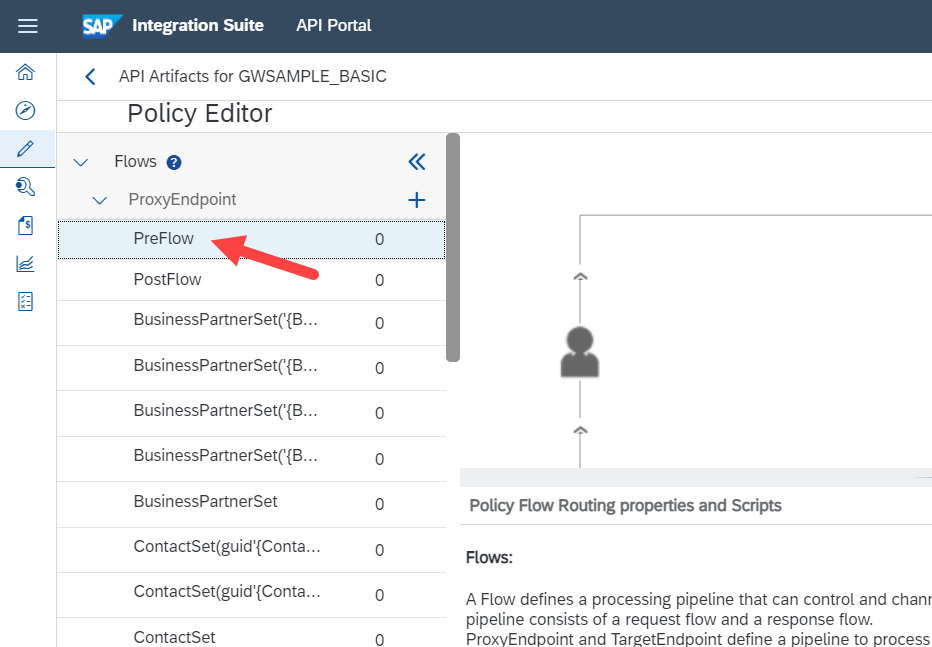
On the right hand, find the Security Policies section under the Policies pane. Find the Verify API Key policy and click the + next to the policy name.

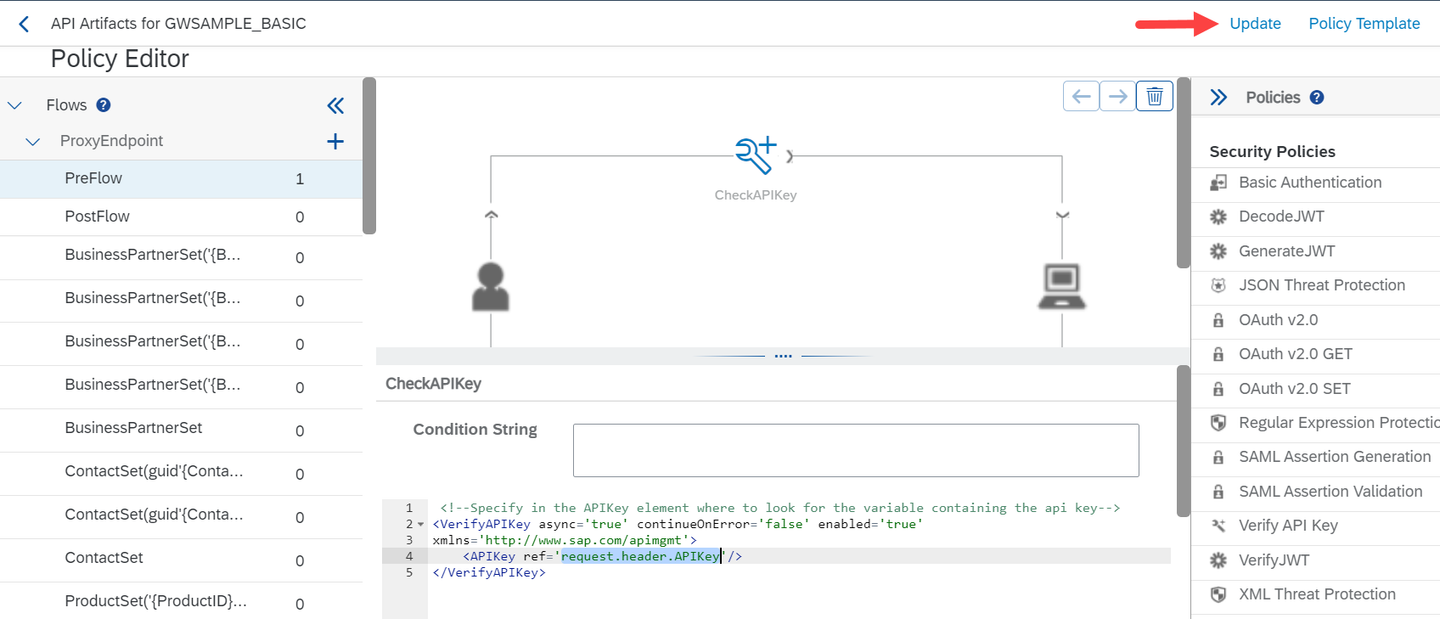
Enter the Policy Name CheckAPIKey and click on Add.

In the Code Editor found in the bottom pane, look for the <APIKey ... /> tag. Replace the string variable_containing_api_key with request.header.APIKey.

Click on Update to apply the new policies.
Click on Save to save the changes to the API and enforce the new policies.

- When you now open the API Proxy in a browser you will get an error message stating that you need to pass an API Key in the header
APIKey.
Resources
Discussion
Share feedback on this tutorial or join the conversation in SAP Community.