
Create Action Projects
Create action projects from live OData services.
Overview
You will learn
- to adjust actions to fit the needs of your Joule skill
- to release and publish the actions so that they can be consumed in Joule Studio, classic edition.


Prerequisites
Prerequisites
- Access to an SAP BTP tenant configured for Joule and Joule Studio, classic edition. See Set Up Joule Studio, classic edition or the Discovery Center mission.
- You have configured the destinations to the OData services
Steps
Intro
Actions are used in SAP Build Process Automation to connect processes with external systems, be it SAP or non-SAP systems, and to make GET, POST, PATCH and other calls. Actions created here can be consumed directly in a Joule skill created in Joule Studio, classic edition.
In this tutorial, you will create an action project for accessing business partner information from an OData service representing an SAP system. You will also create an action project for creating a badge request via an OData service representing a third-party system.
Open SAP Build Lobby.
The lobby is a central page for creating, accessing, and managing your projects in SAP Build.
Under Connectors, choose Actions, then choose Create.

Create an action project In the Choose an API Source popup, under Live API, choose OData Destinations.
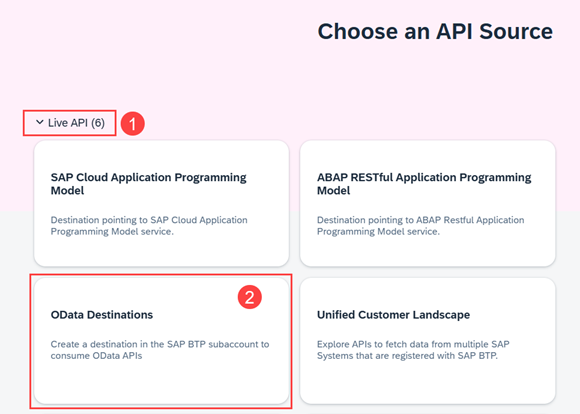
Choose an API source In Browse OData Destinations, choose the S4HANA_MOCK tile.

Choose S4HANA_MOCK 
Choose next Choose Next.
Enter a name and description, then choose Create.

Enter a name and description Select
GET /A_BusinessPartnerandGET /A_BusinessPartner('{BusinessPartner}'), and then choose Add.
Select operations Select the action Retrieves business partner data by using business partner number.

Action input Choose Output, then remove all the fields except BusinessPartner, FirstName, and LastName.

Action output Choose the Test tab and enter
1003764as the value for BusinessPartner.
Action test Make sure the correct destination has been selected, then choose Test.

Action test response Choose Save.
In an similar manner, adjust the output of the action Retrieves business partner general data.

Action output Choose the Test tab, then choose Test.
Inspect the response and then choose Save.

Action response Choose Release, then in the popup choose Release.

Action release Choose Publish, and then in the popup choose Publish.

Action publish
Open SAP Build Lobby.
Under Connectors, choose Actions, then choose Create.
In the Choose an API Source popup, under Live API, choose OData Destinations.
In the Browse OData Destinations popup, choose the Badge_Service tile.

Browse OData destinations Choose Next.
Enter a name and description, then choose Create.

Enter a name and description Select the five actions shown below, then choose Add.

Select operations Choose the action POST Invoke action createBadge and then choose the Output tab.
Change the Type of badgeId to number.

Adjust the output On the Input tab, remove the processInstanceId field by selecting it then choosing Remove.

Adjust the input Choose Save.
Choose Release.
Choose Publish, and then in the popup choose Publish.
Choose action POST Invoke action createBadge and then choose the Test tab.

Test the action Enter the following in the Test Input Values fields.
Name Value statusNEWlastnameDoefirstnameJohncommunityidjohn.doe@bestrunsap.combusinesspartnerid1003764Make sure the correct destination has been selected, then choose Test.

Action test response Inspect the response.
Resources
Discussion
Share feedback on this tutorial or join the conversation in SAP Community.