
Overview
You will learn
- How to adjust the input of an action and create a custom filter
- How to use the filter in a Joule skill
- How to get Joule to automatically generate the conversation message


Prerequisites
Prerequisites
- Access to an SAP BTP tenant configured for Joule and Joule Studio, classic edition. See Set Up Joule Studio or the Discovery Center mission.
- You have configured the destinations to the OData services
- You have created and configured the action projects
Steps
Open SAP Build Lobby.
The lobby is a central page for creating, accessing, and managing your projects in SAP Build.
Choose Connectors, then choose Actions.
Select your API_BUSINESS_PARTNER action project, then choose Versions.
Choose … by the Published to Library version, then choose Save As New Project.
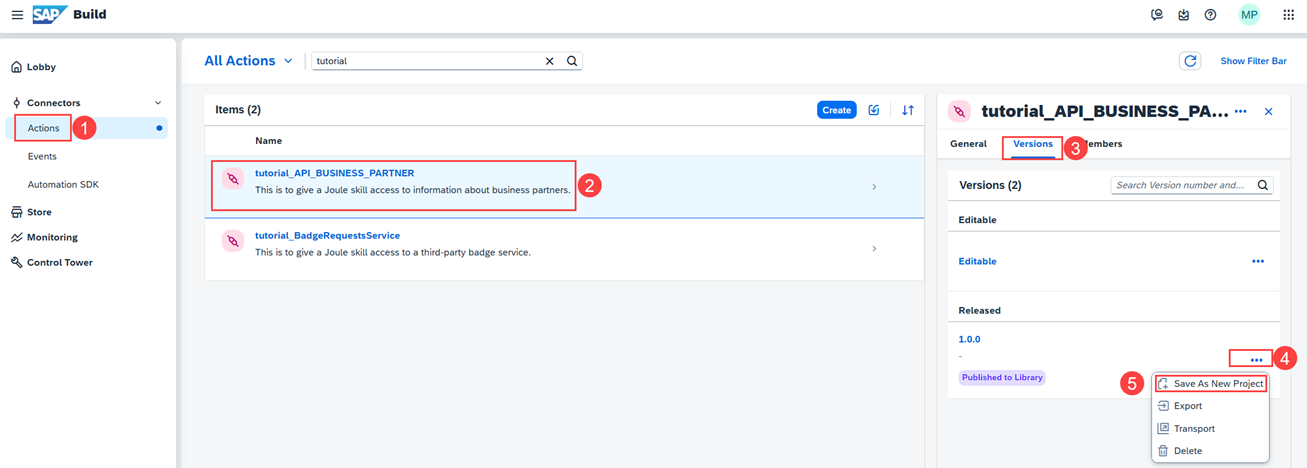
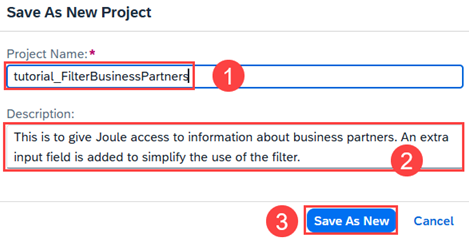
Actions save as new project Enter:
FilterBusinessPartnersfor the Project Name.This is to give Joule access to information about business partners. An extra input field is added to simplify the use of the filter.for the Description.
Choose Save As New.
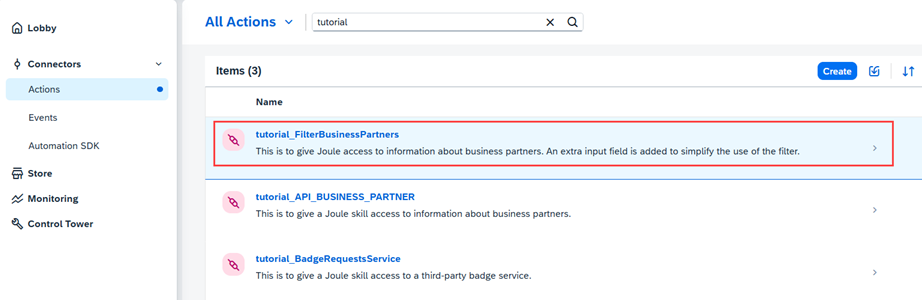
Save as new project popup Choose the new project.
Actions Choose the GET Retrieves business partner general data action.
On the Input tab, choose Add.
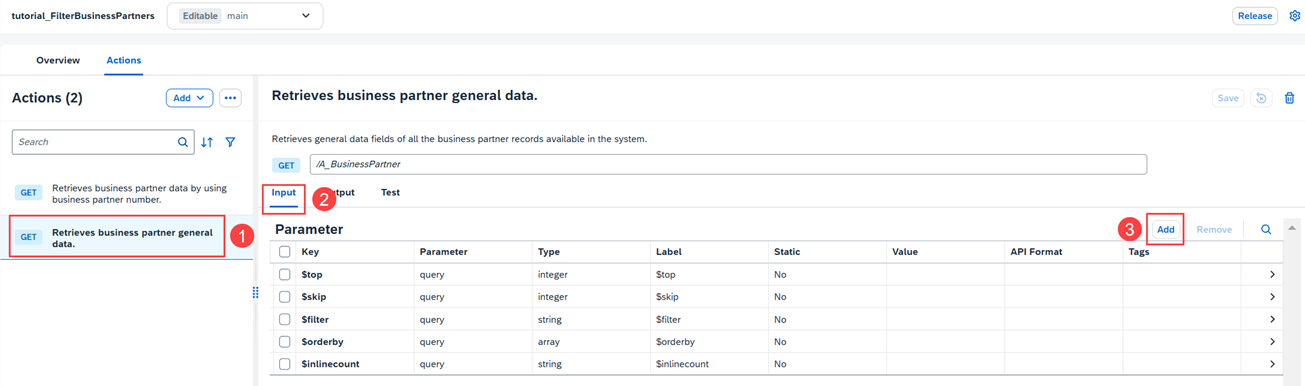
Actions add input Choose New Field.
Enter
FirstNameas the Key and the Label, then choose Add.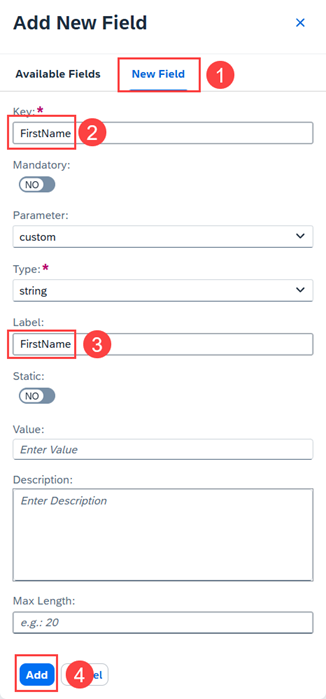
Actions add new field Choose the Value field of $filter.
In the side panel $filter, choose the Value field to open the Condition Editor.
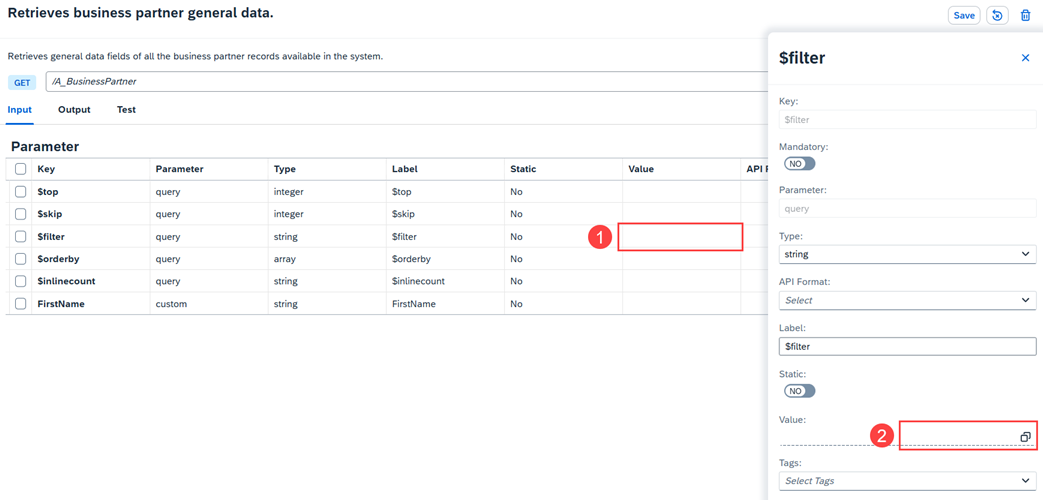
Filter popup For Column, Condition, and Criteria, select
FirstName,equal to, and${FirstName}respectively. Then choose choose OK.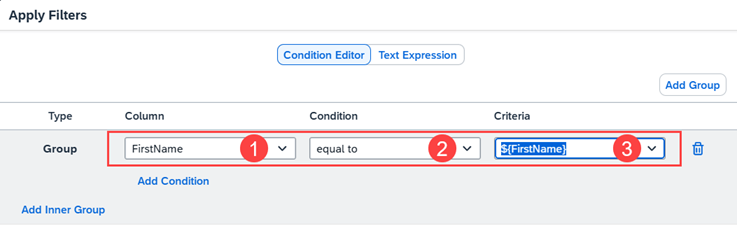
Condition Editor Choose the Test tab.
Enter
Janein the FirstName field, then choose Test.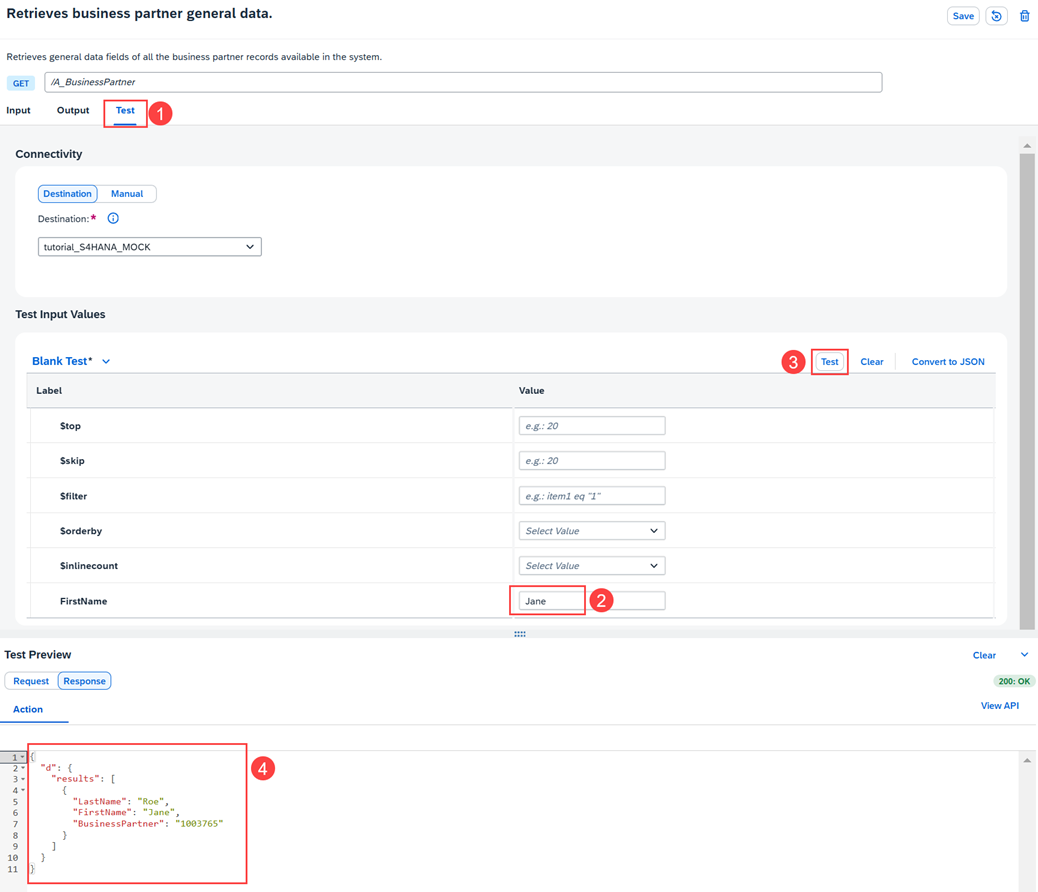
Actions test Choose Save, then Release, and finally Publish.
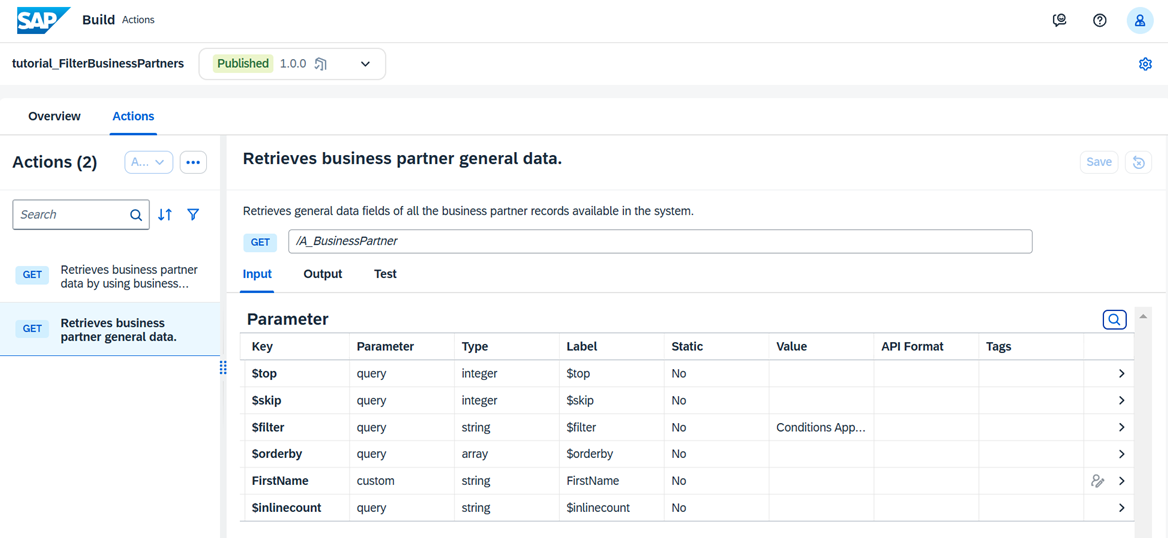
Actions published
Go to the SAP Build Lobby
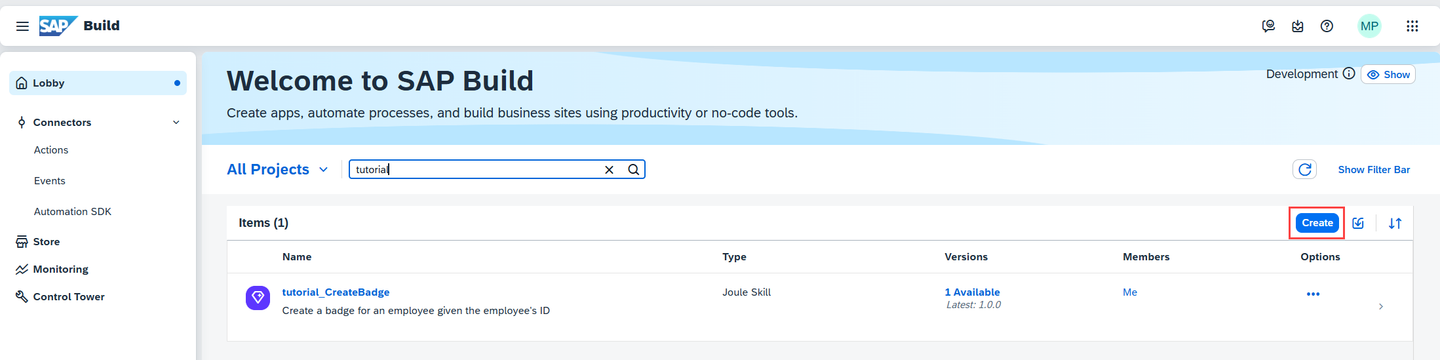
Lobby Choose Create.
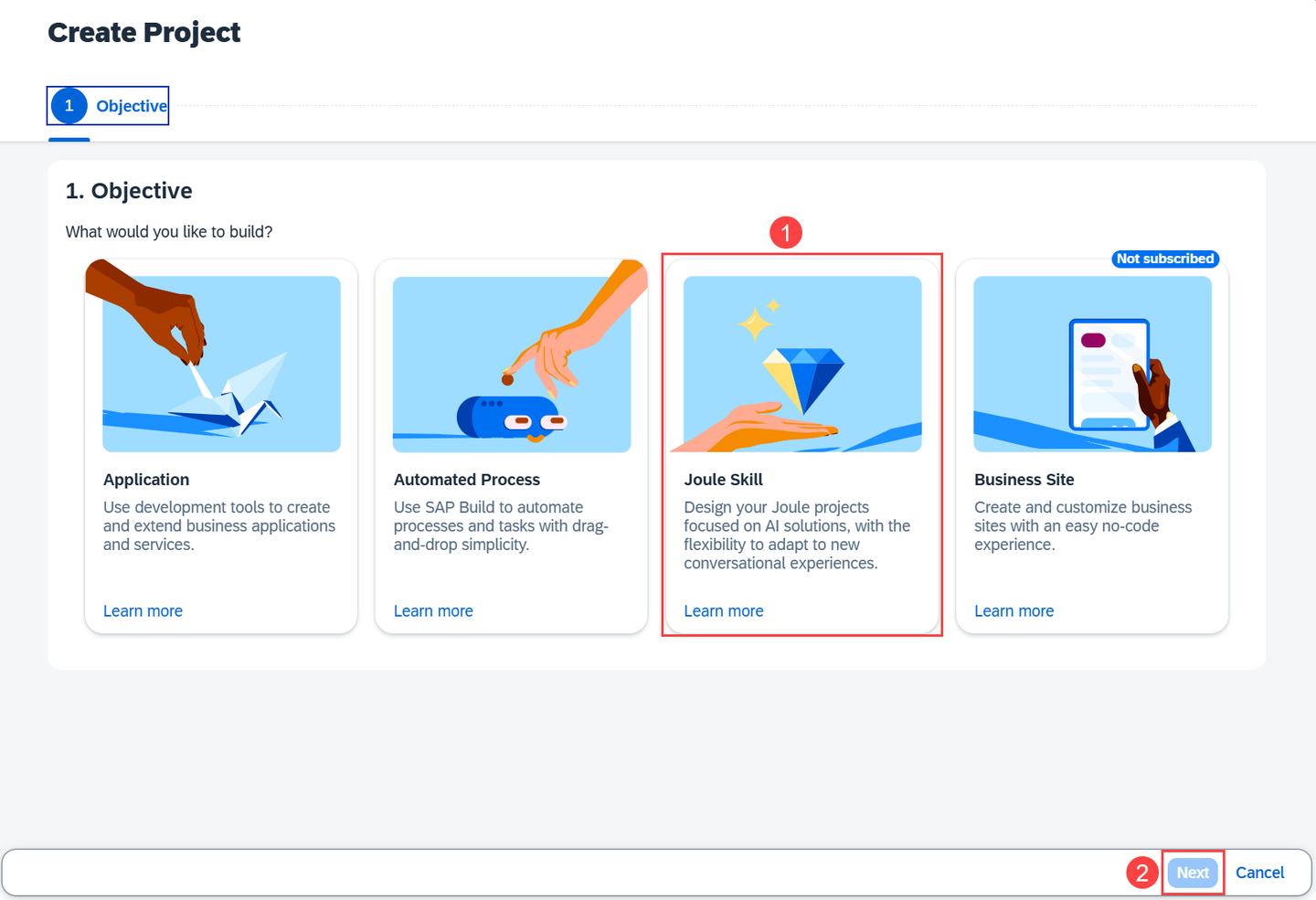
Create Project Choose Joule Skill, then choose Next.
Enter name
SearchWithNameand descriptionUses an Action containing a mapped condition to filter on the FirstName..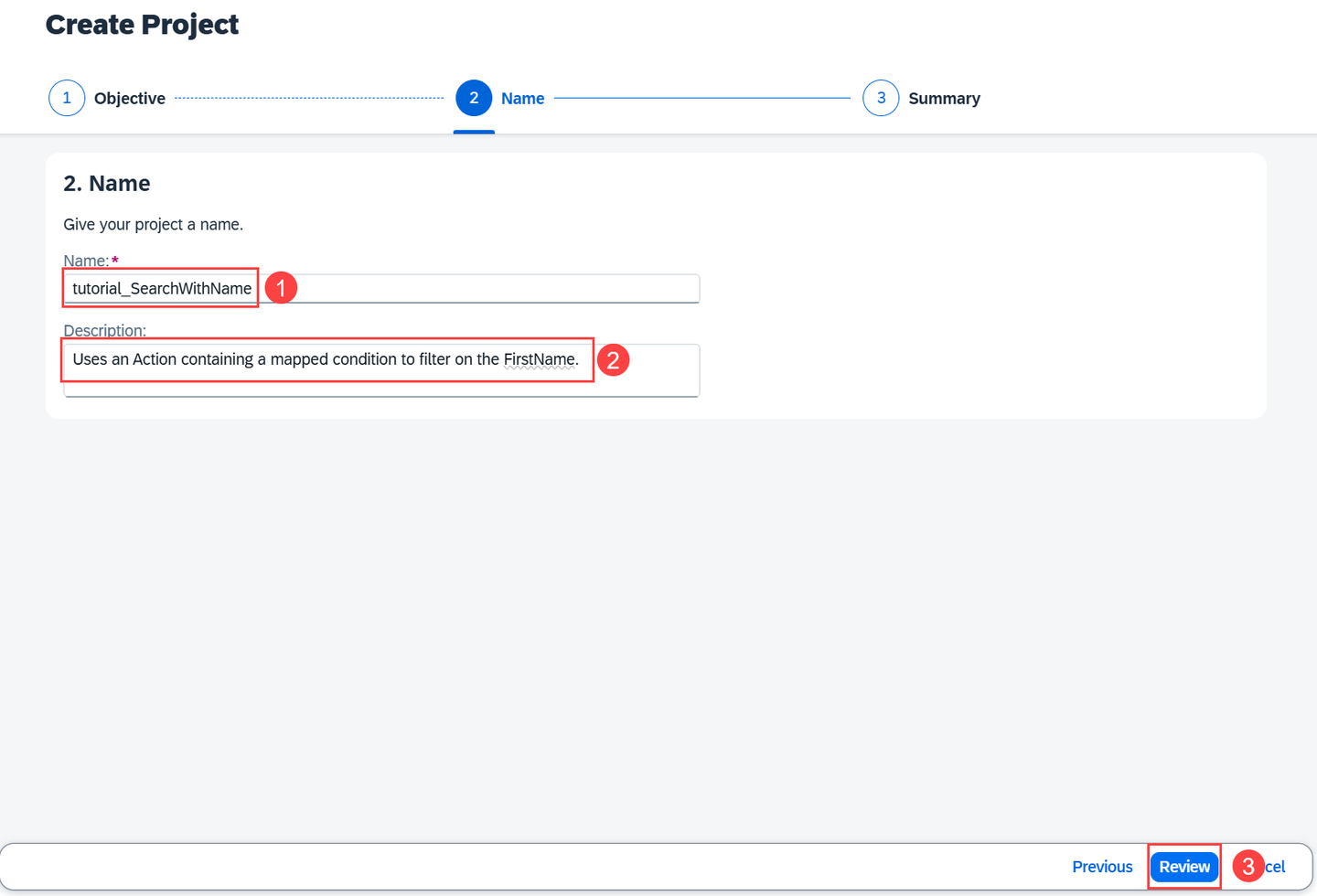
Create Project Choose Review, then choose Create.
In Joule Studio classic, choose Create > Joule Skill.
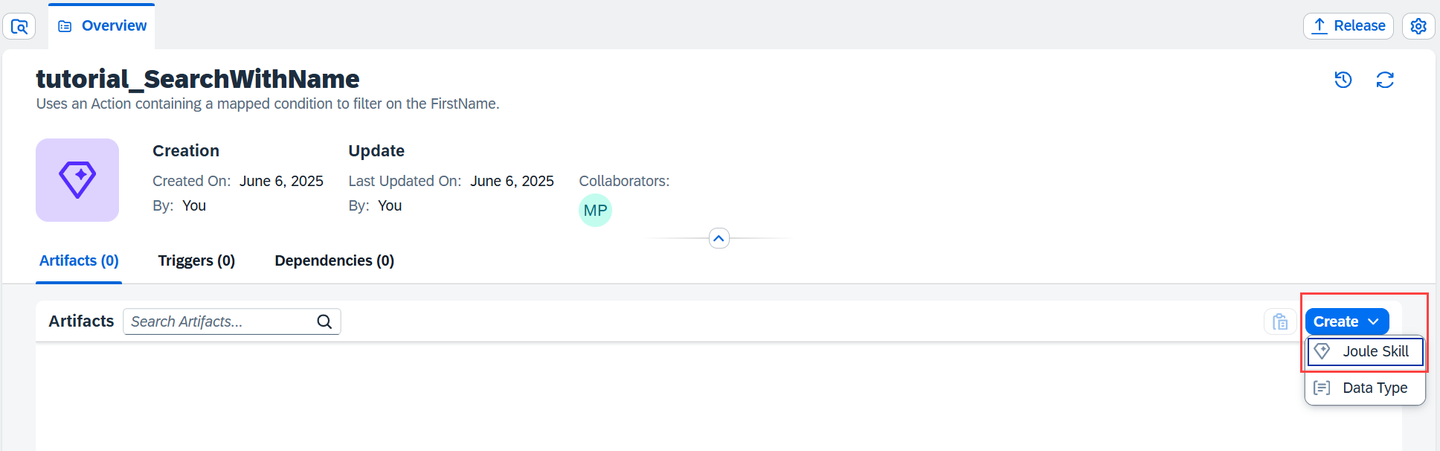
Joule Studio Enter:
SearchWithFirstNamefor Name.Retrieve information about employees with a given first name. Usually John or Jane is usedfor Description.
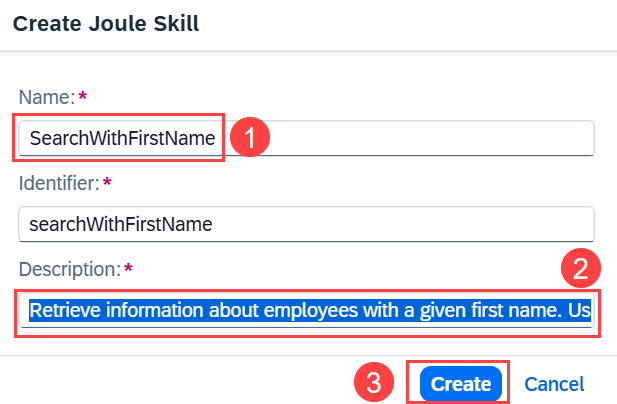
Create Joule Skill popup Choose Create.
Choose Trigger to open the side panel.
Enable Allow Joule to generate a response.
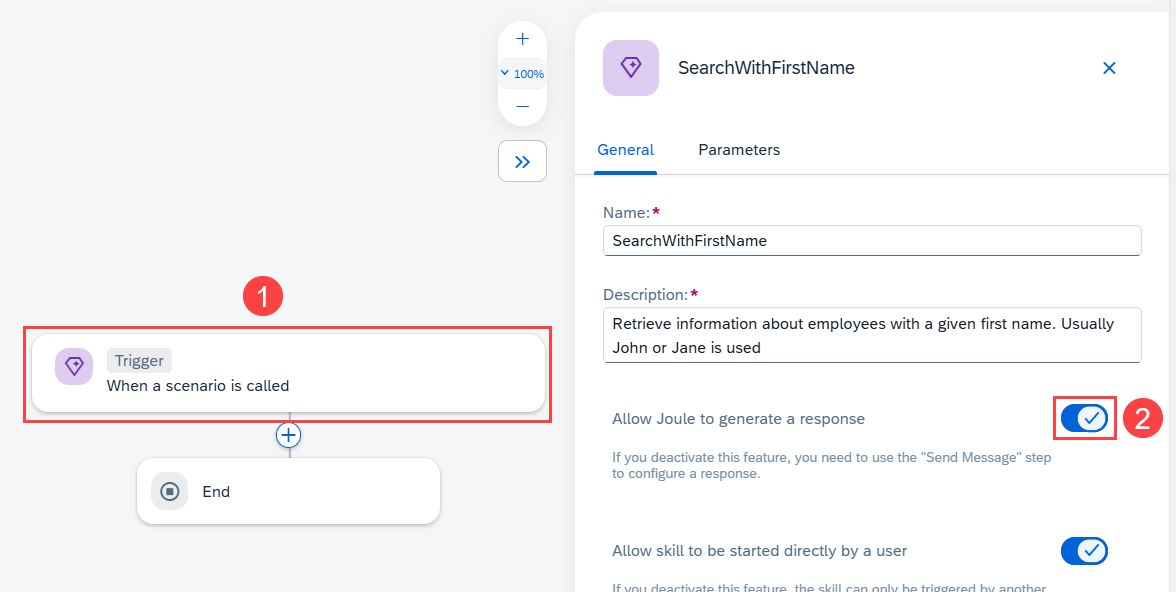
Joule Studio generate responses Choose Parameters, then choose Configure beside Skill Inputs.
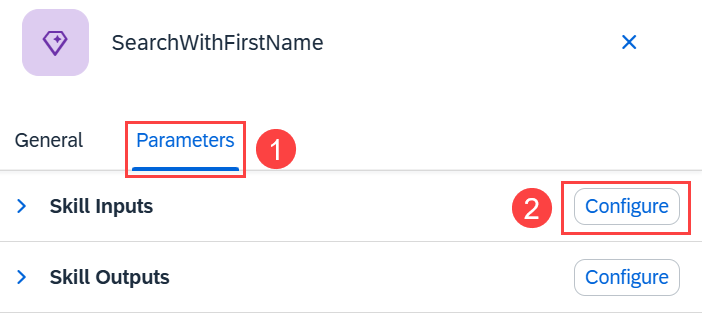
Joule Studio parameters Choose Add Input. Enter
FirstNamefor Name,First name of employeefor Description, and select Required.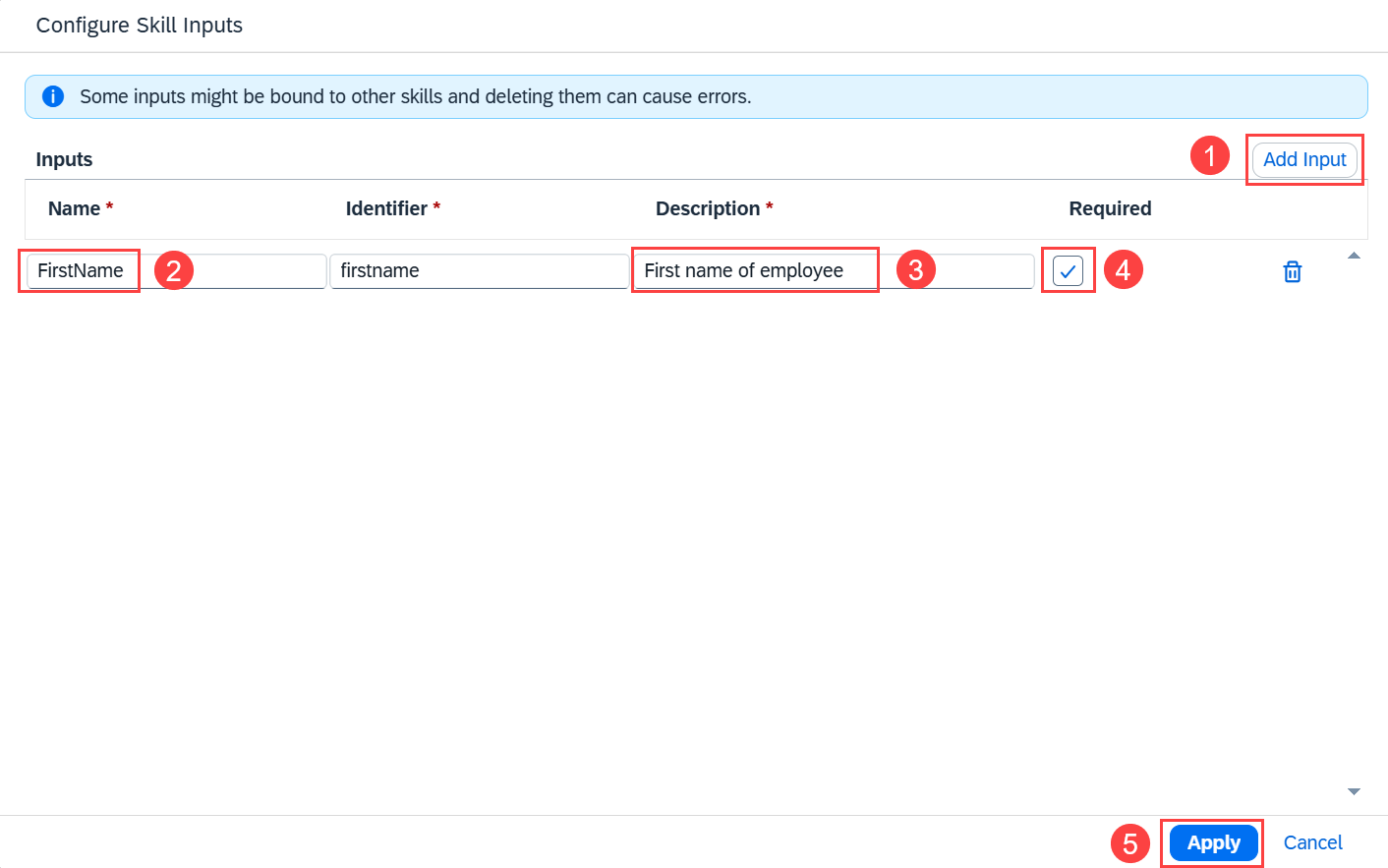
Joule Studio configure skill inputs Choose Apply
Choose Configure beside Skill Outputs.
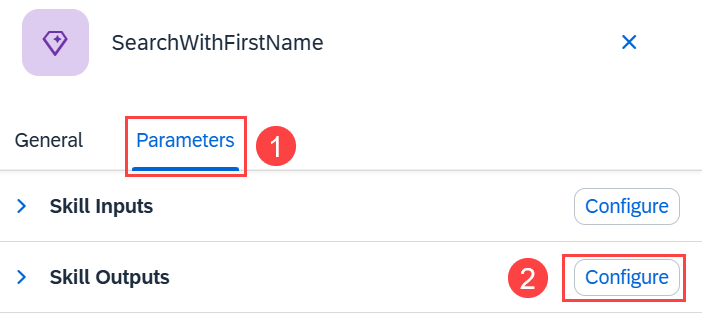
Joule Studio parameters Choose Add Output
Enter:
- Name
Employees - Description
Employees - Type
Any - List
Select
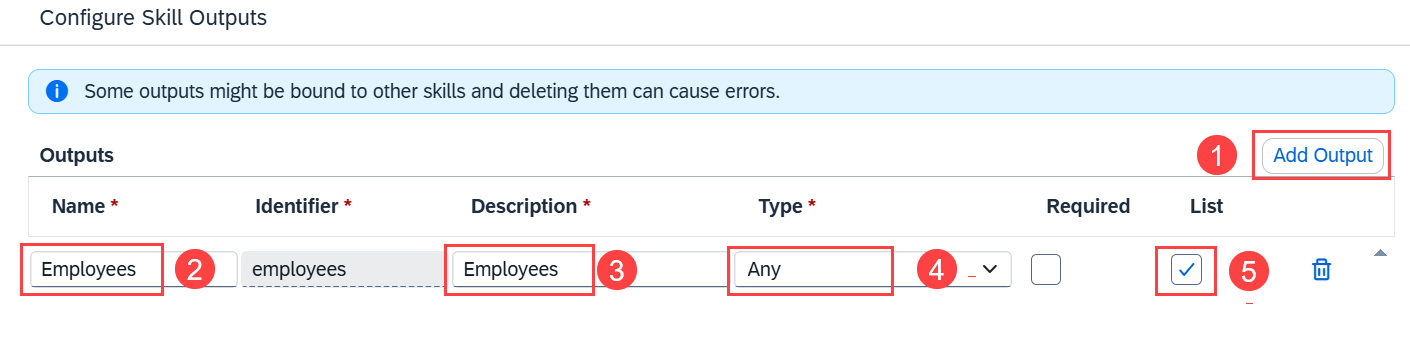
Joule Studio configure skill outputs - Name
Choose Apply.
Close the side pane and choose Save.
Choose the +.
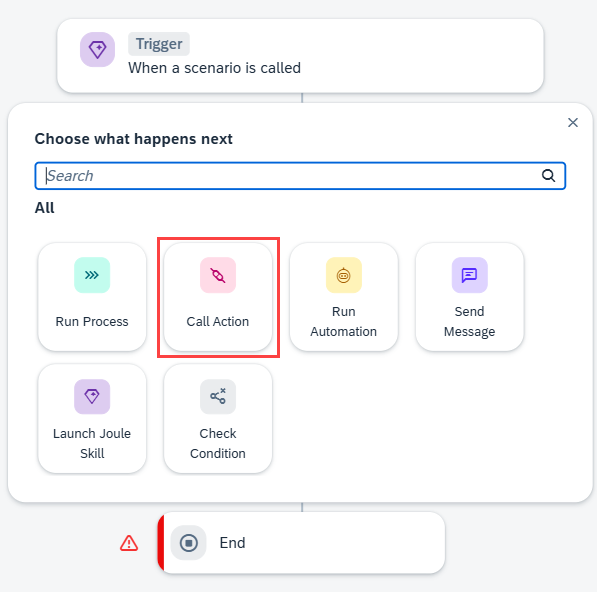
Joule Studio select action Choose Action.
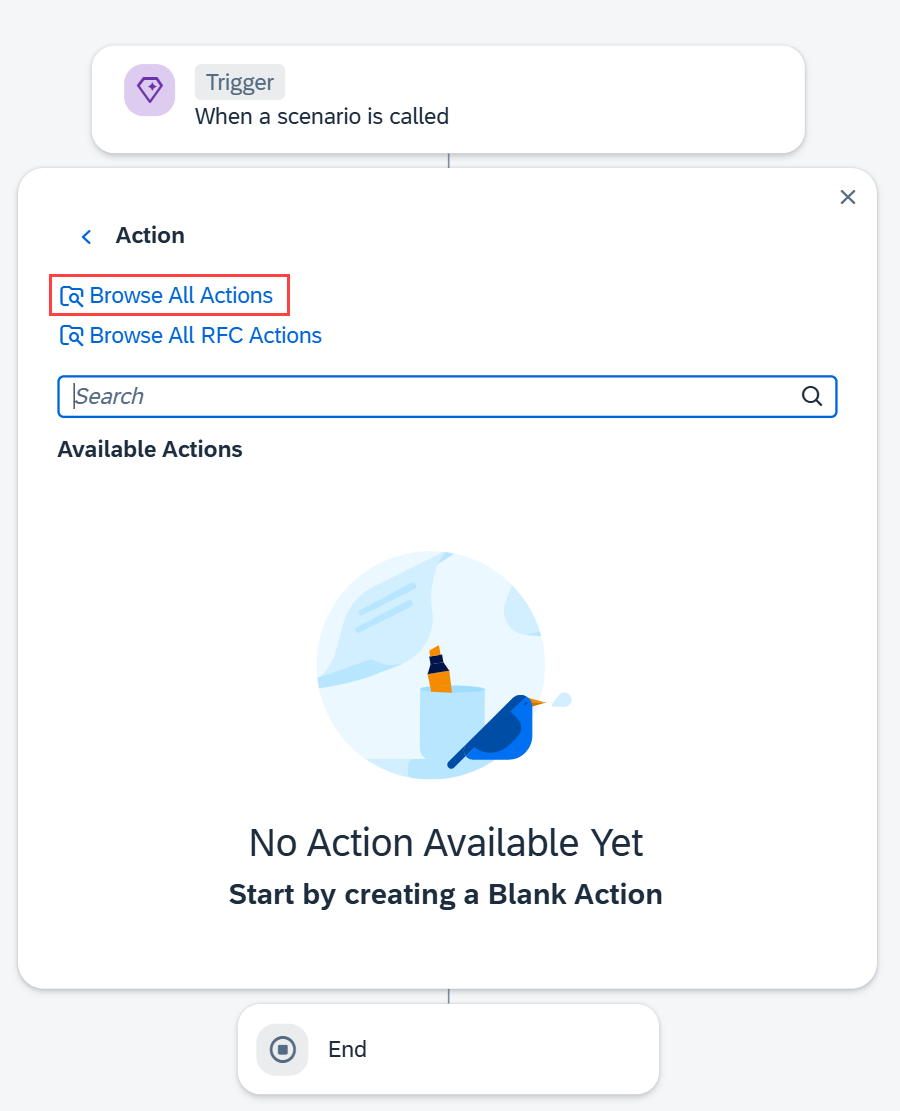
Joule Studio browse actions Choose Browse All Actions.
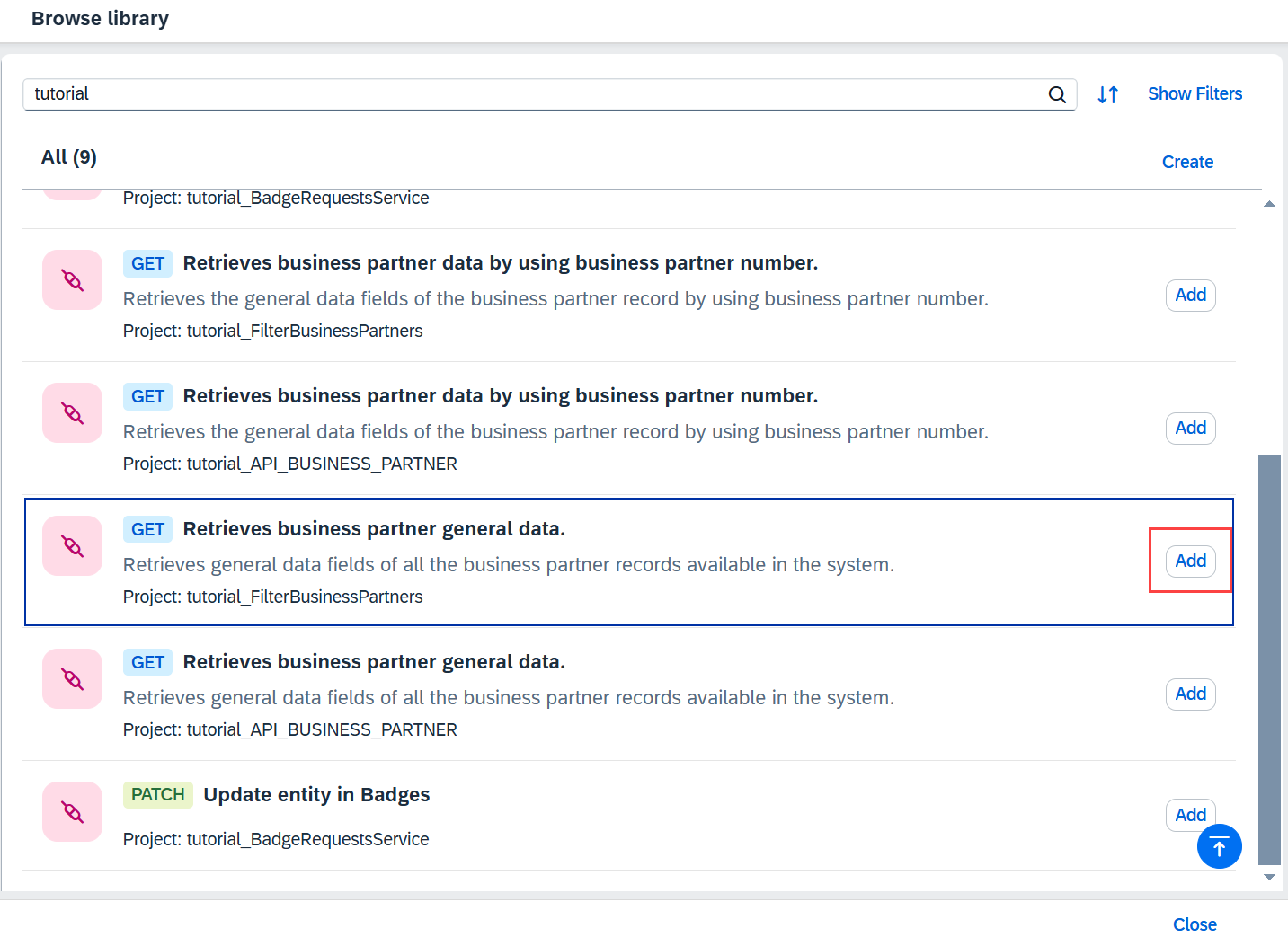
Joule Studio add action Select the GET Retrieves business partner general data action of the project FilterBusinessPartners and choose Add beside it.
Choose Select a Destination Variable, then + Create Destination Variable.
Enter
S4HANA_MOCKandBusinessPartner API, followed by Create.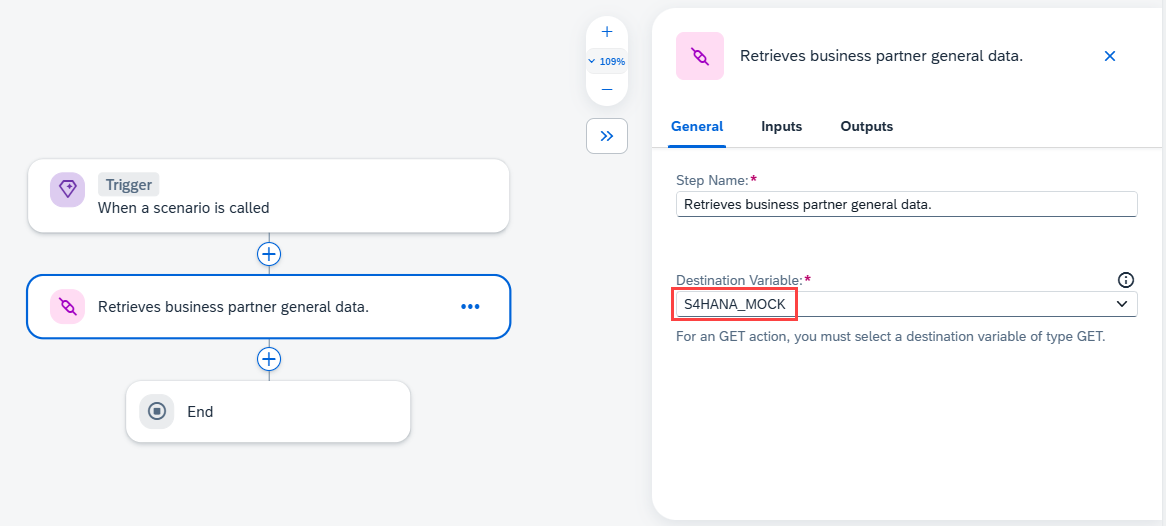
Joule Studio destination variable Select the destination variable.
Choose the Inputs tab.
Choose the FirstName field to open the Skill Content pane.
Choose FirstName in the Skill Content pane to map to the selected FirstName field.
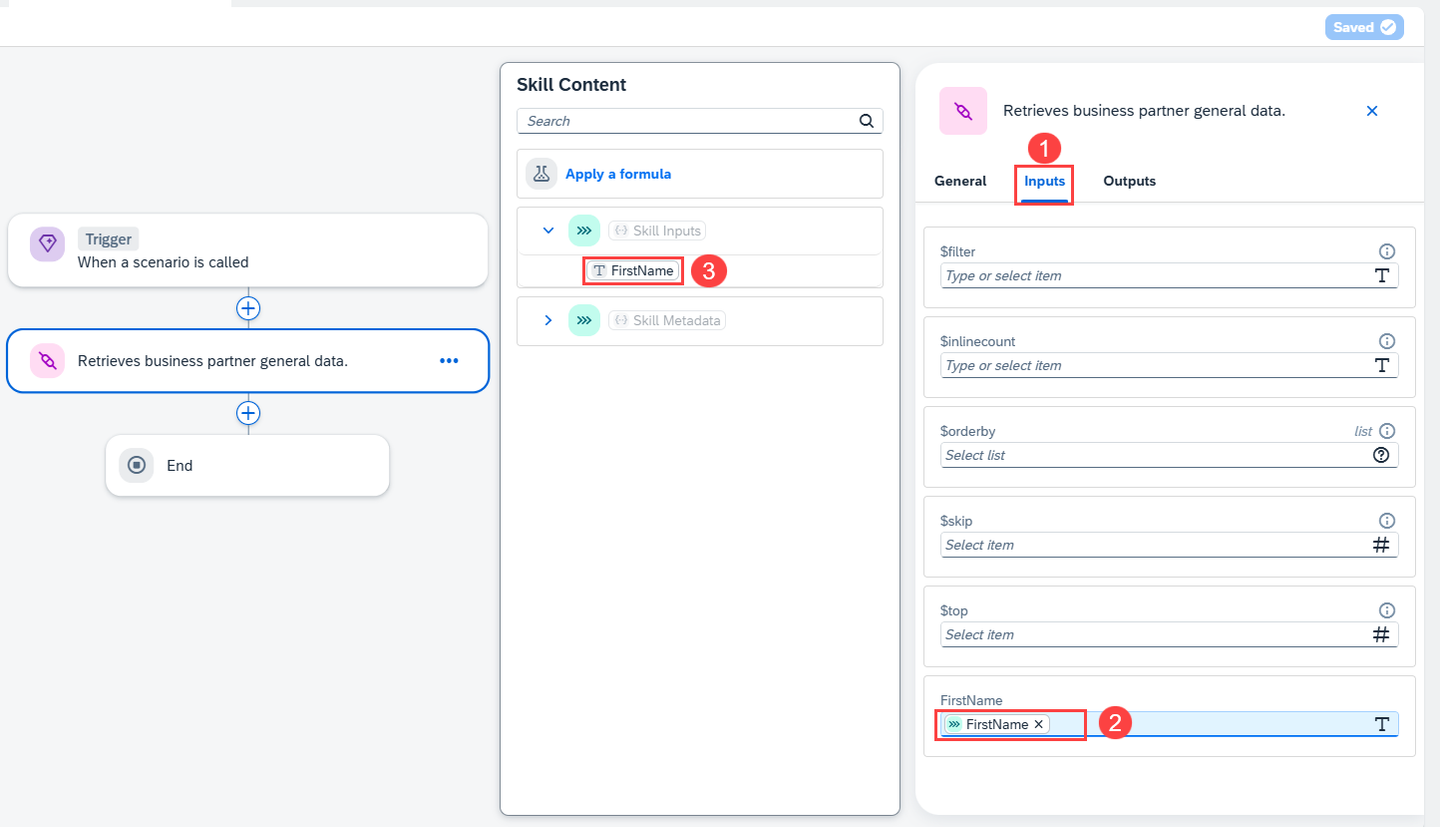
Joule Studio map input Choose the Outputs tab just to see the output.
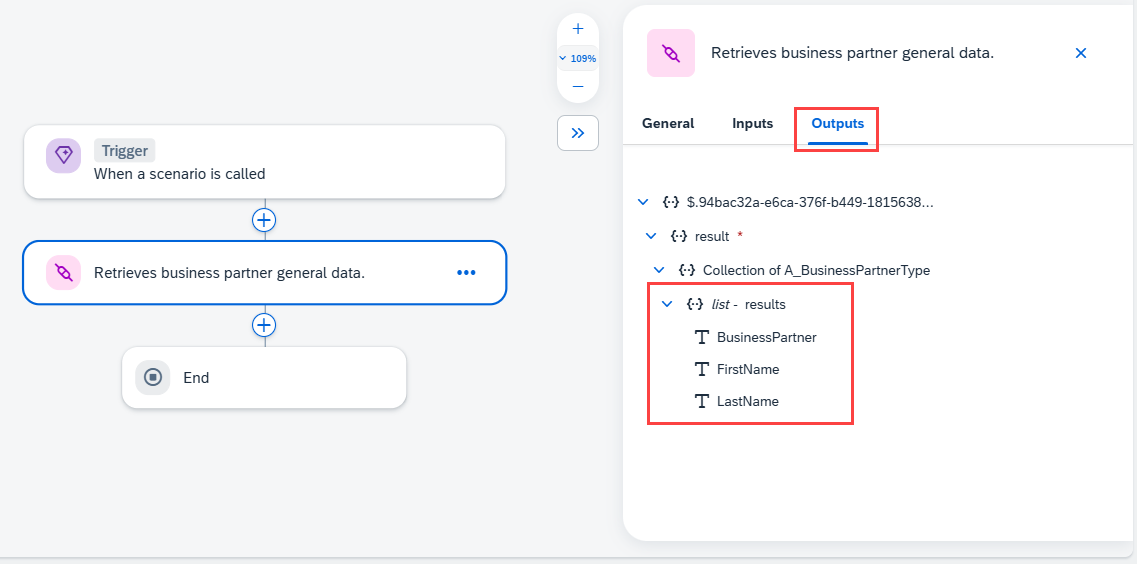
Joule Studio outputs Close the pane and choose Save.
Choose the End element.
Choose the Employees field to open the Skill Content pane.
Choose {..} list - results.
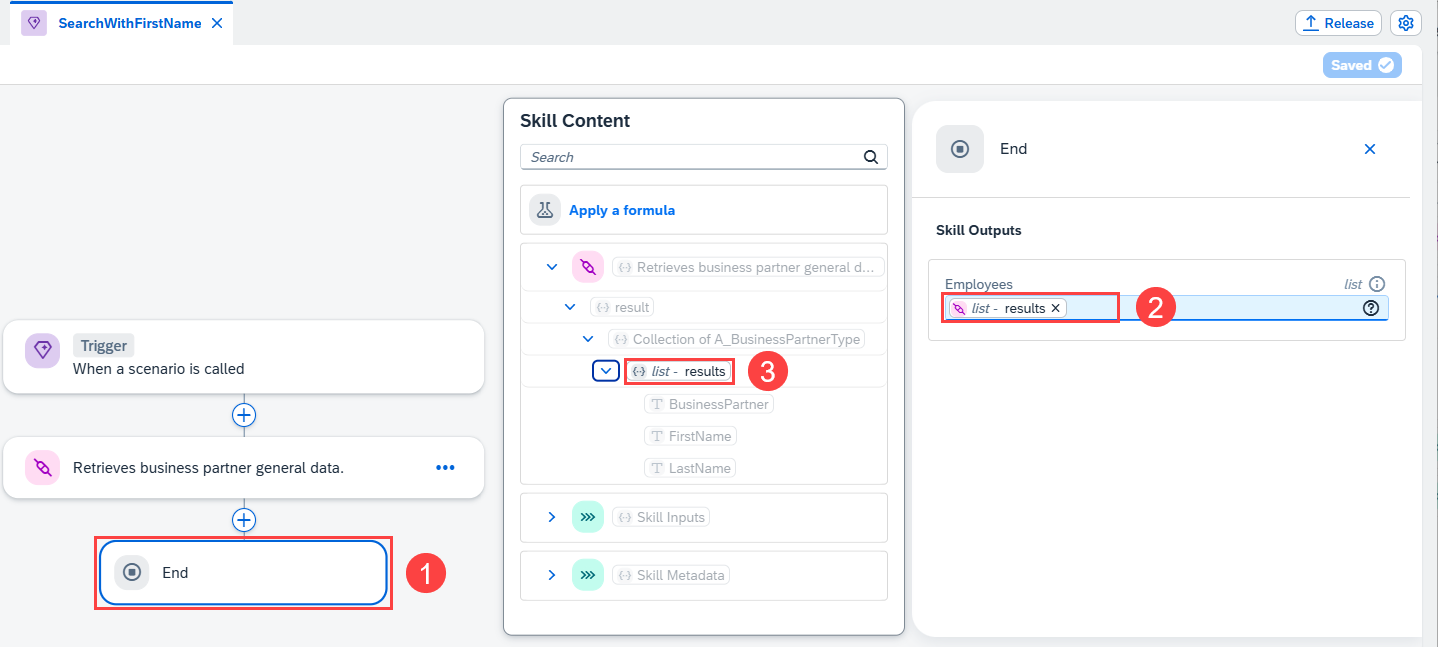
Joule Studio configure end Choose Save.
Choose Release.
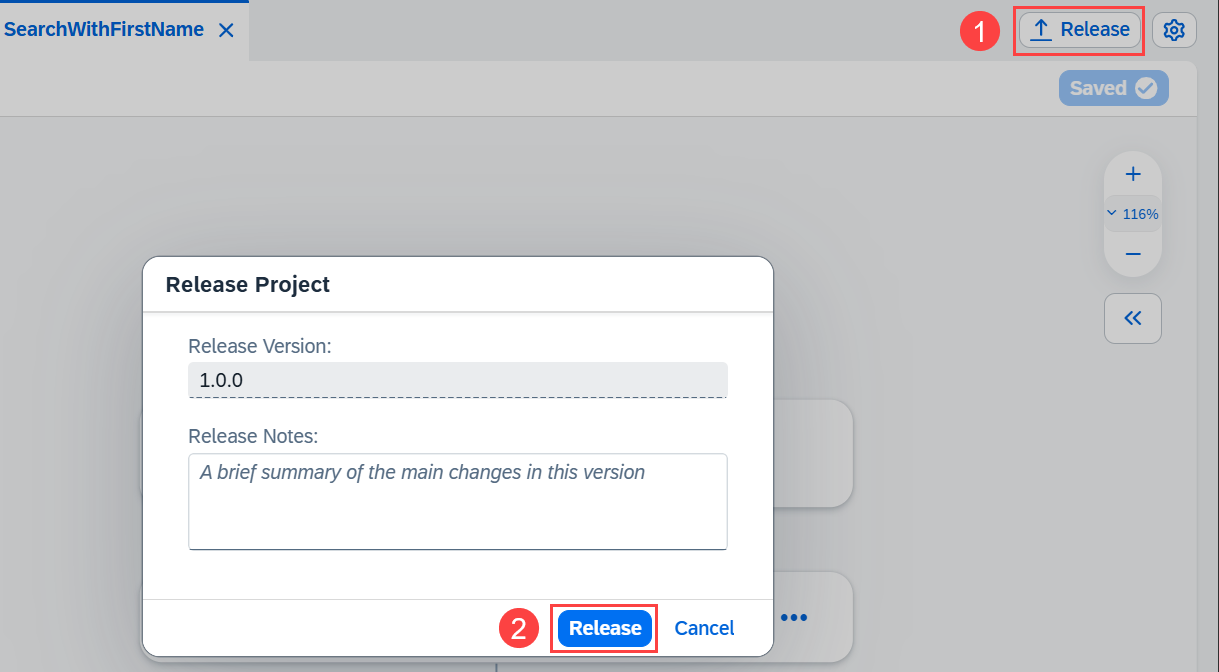
Joule Studio release Choose Release.
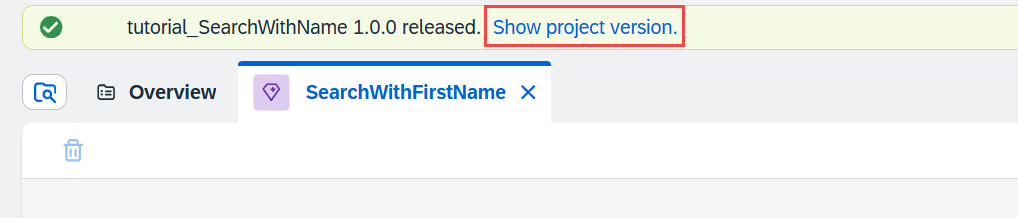
Joule Studio show project version Choose Show project version, to change to the released version.
Choose Deploy.
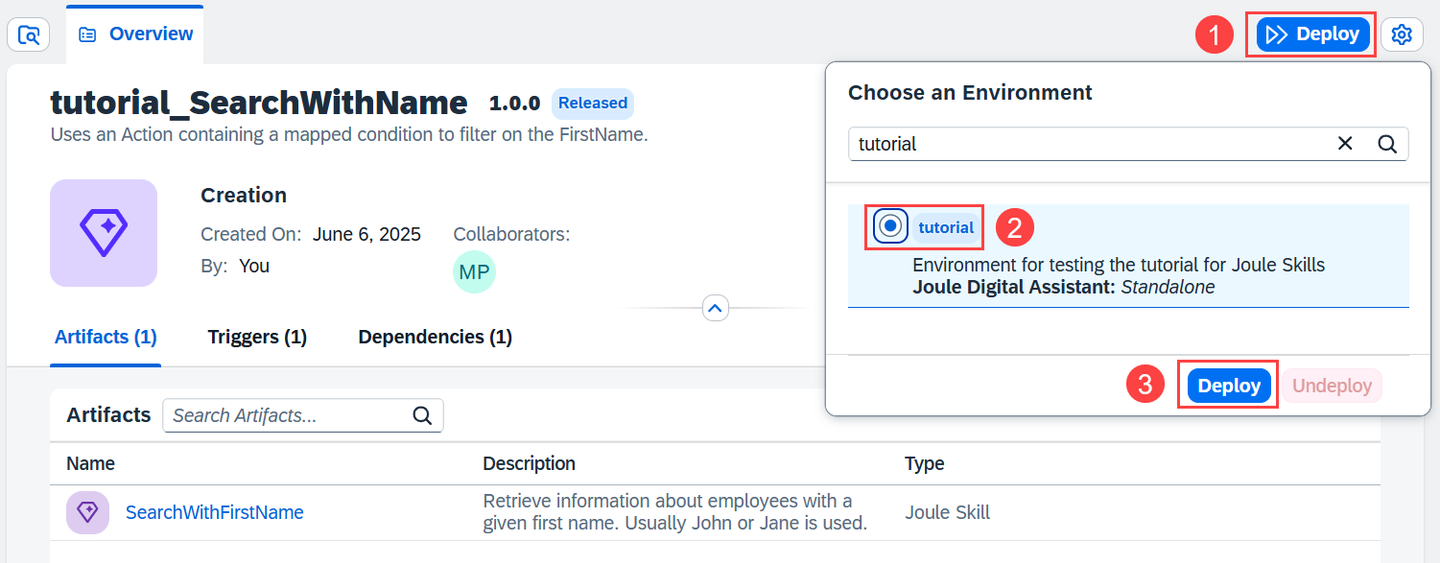
Joule Studio deploy Select your environment and choose Deploy.
Select your S4HANA_MOCK destination and choose Deploy.
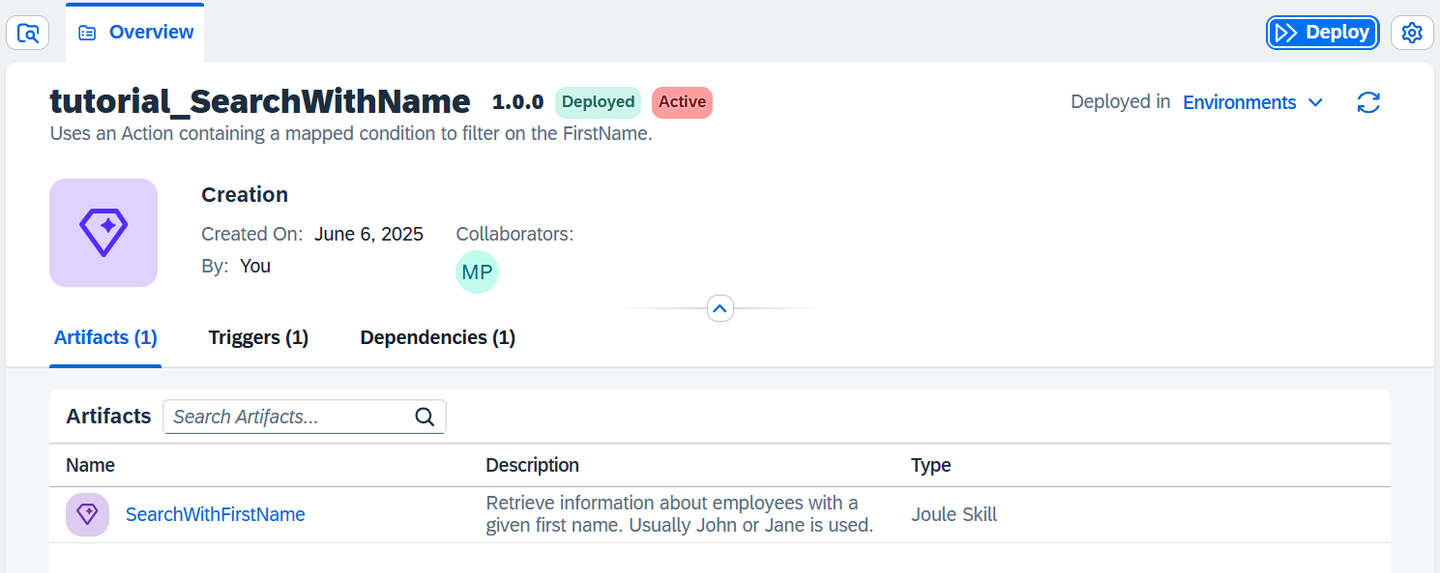
Joule Studio deployed
Open the SAP Build Lobby
Choose Control Tower, then choose the Environments tile.
Choose your environment.
Choose the Joule tab.
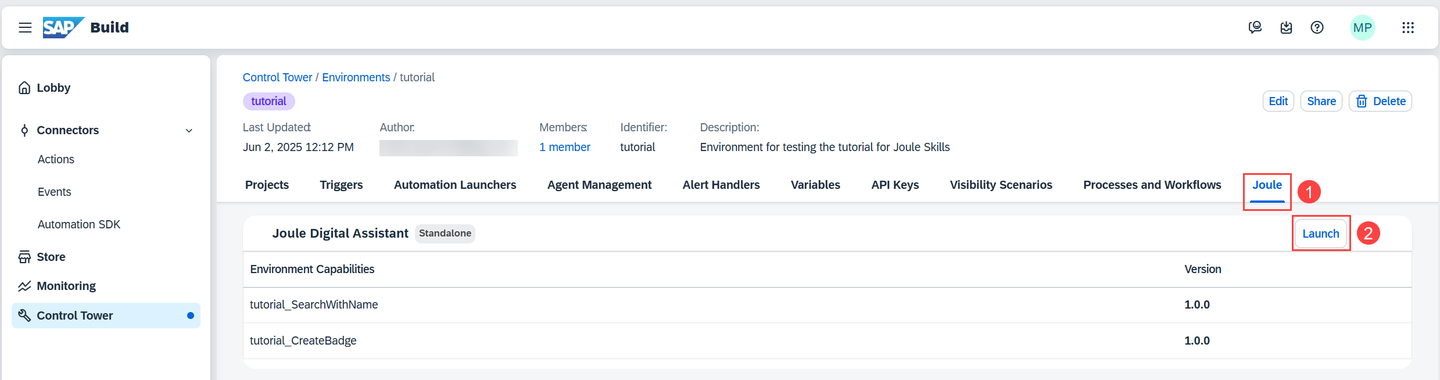
Environment Choose Launch.
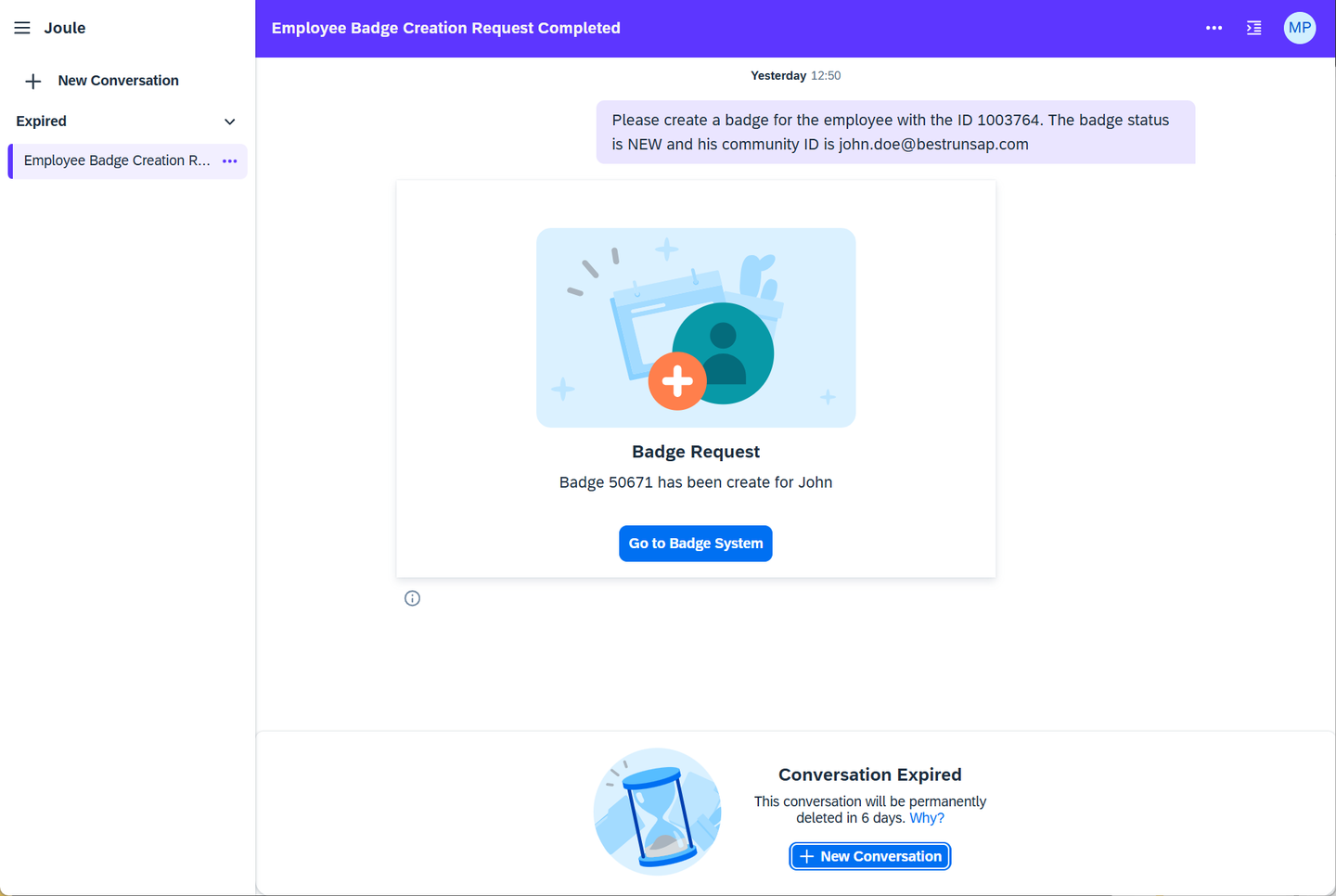
Joule conversation Choose New Conversation.
Enter
I am at the front desk in the reception area. A person claiming to be an employee is here. Can you check if Jane is in the system?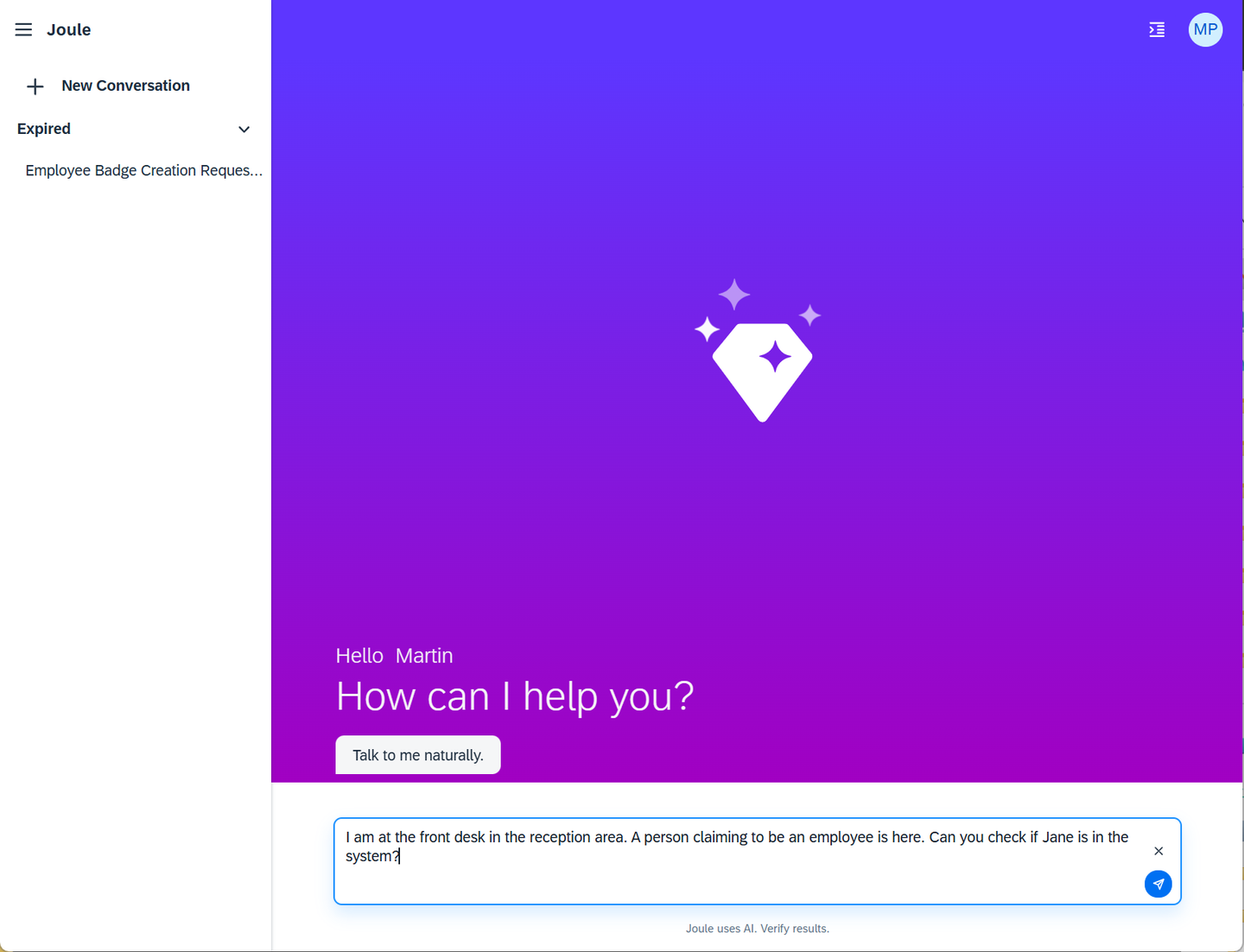
Joule conversation prompt Choose Send.
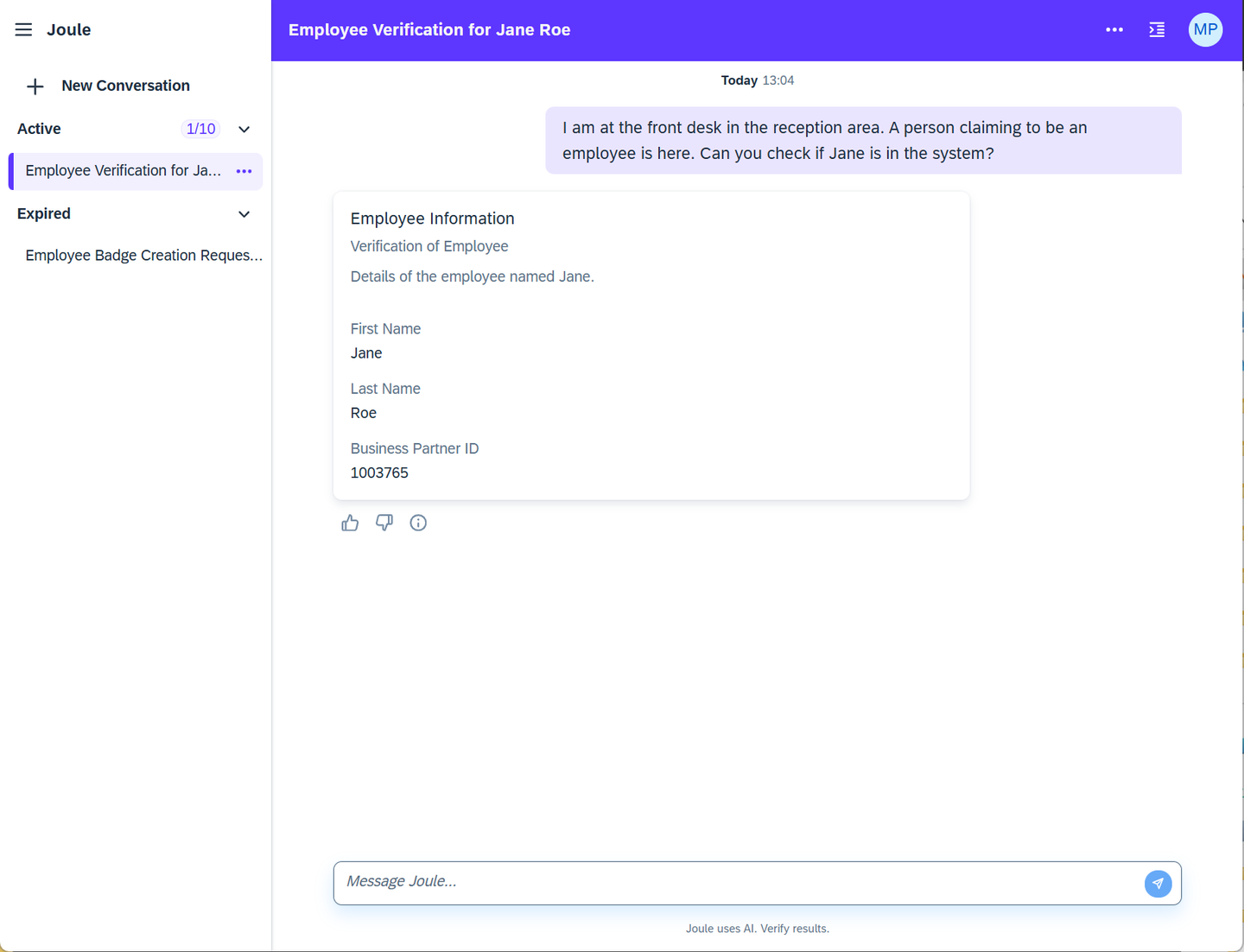
Joule conversation message Enter
Thanks, I meant you to check if John is in the system., then choose Send.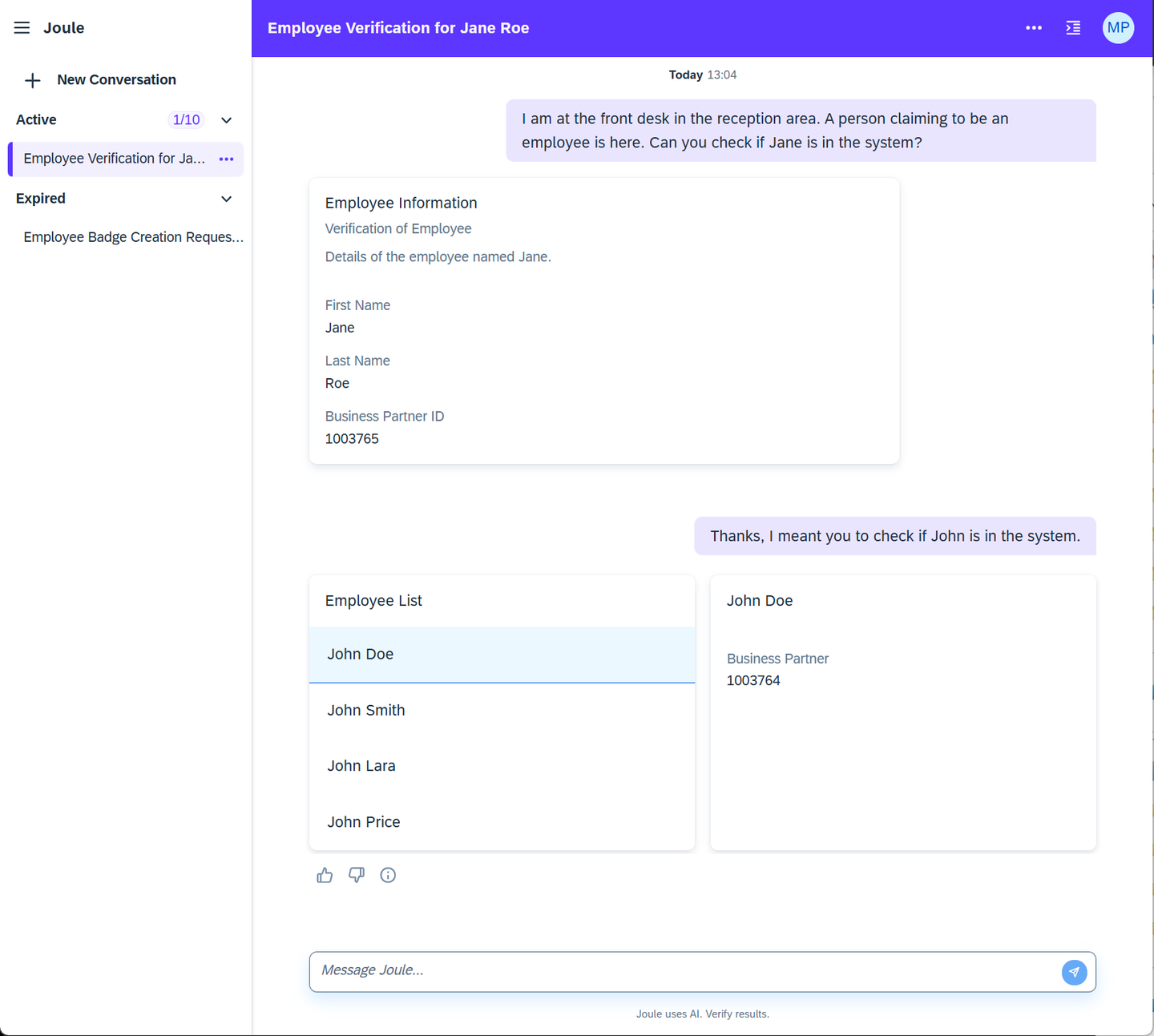
Joule conversation You can select any of the employees in the list to see their details.
Resources
Discussion
Share feedback on this tutorial or join the conversation in SAP Community.