
Overview
You will learn
- Generate SOAP Web Services from RFC Function Modules
- Test your Consumer Proxy internally in ABAP backend system. On this Tutorial, we won’t cover:
- The development of the integration flow on SAP Cloud Integration.
- ABAP techniques and best practices.


Prerequisites
Prerequisites
- ABAP backend system access with developer permissions
- Package to include the generated Web Service objects
- Integration flow with the migrated SAP Process Orchestration RFC interface.
Steps
Besides leveraging more modern monitoring capabilities, it allows you an easier migration of your scenarios from SAP Process Orchestration to SAP Integration Suite.
In this tutorial, we will simulate the process of replacing RFC Sender communication after an interface migration from SAP Process Orchestration to Cloud Integration. For more information refer to the Modernization Recommendations on the Migration Guide for SAP Process Orchestration.
A Service Consumer is created when your requirement is to communicate from an ABAP backend system to a target system. In this tutorial example, it is when you have an RFC Sender integration via SAP Process Orchestration, and after the migration to Cloud Integration, you want to switch this RFC Sender communication to the SOAP Sender protocol.
Access the transaction SE80 and create an
Enterprise Serviceobject.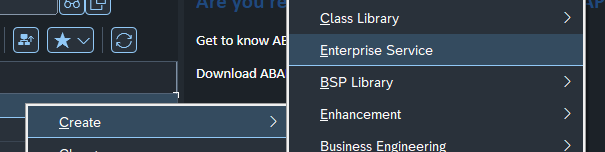
Image Select the object type
Service Consumerand selectContinueto proceed.
Image Select the option
External WSDL/Schemaand selectContinueto proceed.
Image Select the data source
URLand selectContinueto proceed.
Image Please note that you can download the WSDL to your local PC using the next step and upload it using the
Local Filedata source.Now you need to combine the Function Module name with the URL in this format:
http://<Host>:<Port>/sap/bc/soap/wsdl11?services=<Function Module Name>. In my case, it would behttp://demosystem.sap:8000/sap/bc/soap/wsdl11?services=FLIGHT_LIST.This endpoint will serve us as a dynamic generator of WSDL based on RFCs.
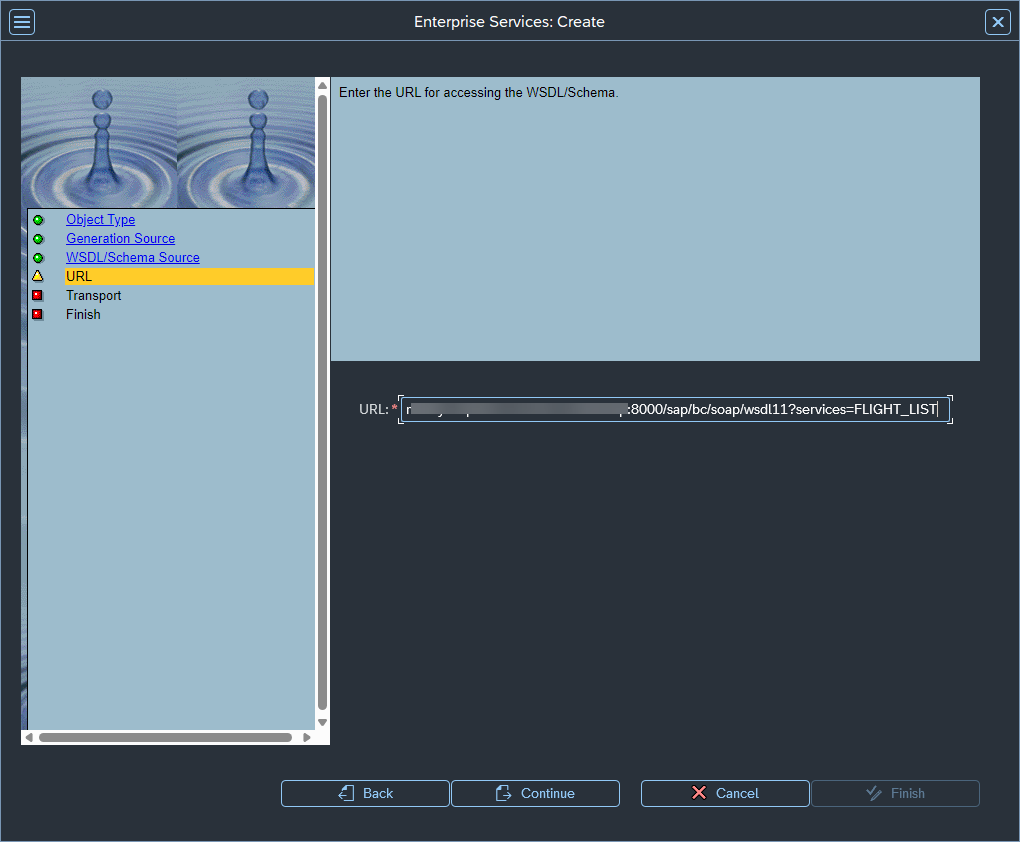
Image You can find the host and port information in transaction
SMICMunder theGoto > Servicesmenu, or alternatively, test any service in theSICFtransaction.You’ll be asked for the SAP User and Password.
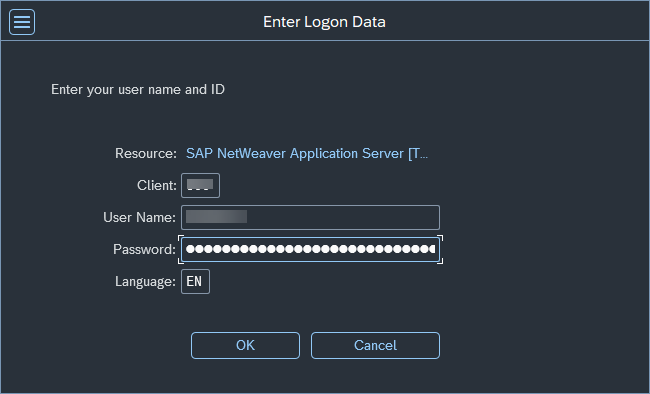
Image Select the Package, Request/Task, and Prefix. Please create a Request/task if this is not created yet.

Image Select
Completeto proceed.
Image By doing that, you will conclude the Service Consumer generation. You should be able to edit the
ABAP Nameand activate the object.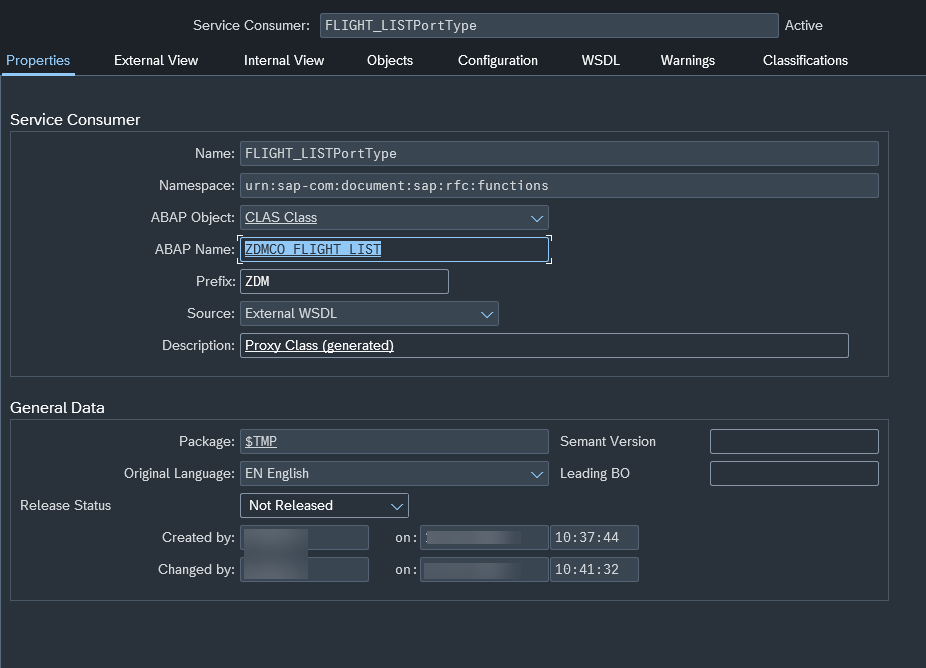
Image
With the WSDL file from your RFC Function Module, you need to import it into your integration flow.
To do this, download the WSDL file using the URL previously used to generate the Service Consumer (i.e.,
http://demosystem.sap:8000/sap/bc/soap/wsdl11?services=FLIGHT_LIST) and import the WSDL into the resources tab.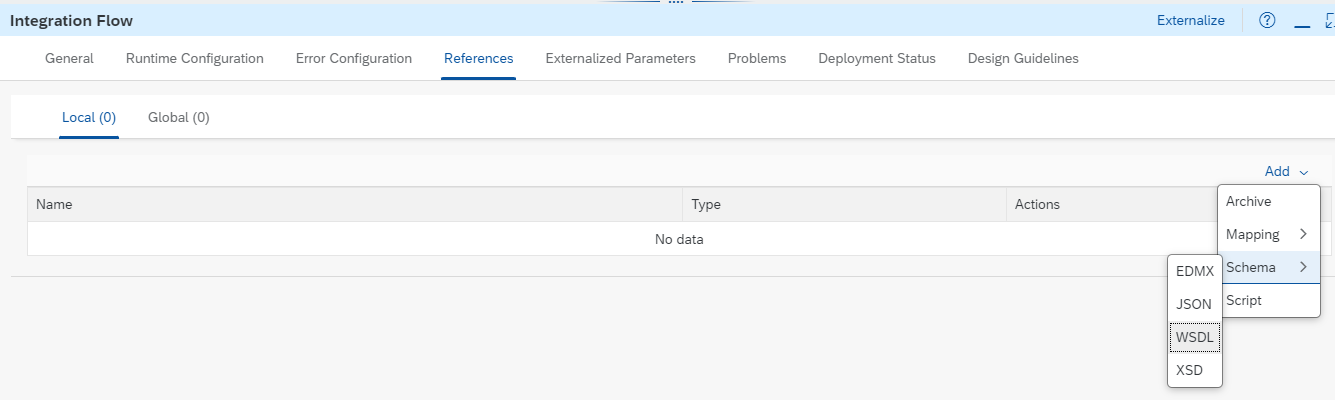
Image Select the imported WSDL on the SOAP Sender Adapter as below.
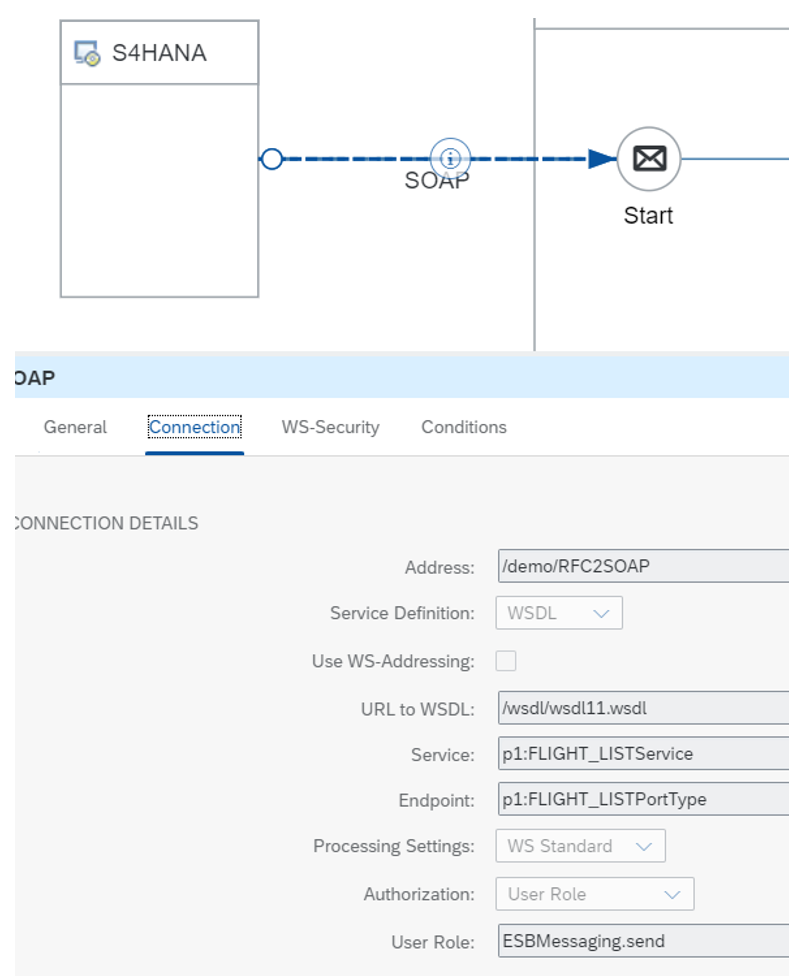
Image After replacing your RFC Sender adapter, you can
saveanddeployyour integration flow. Go to theManage Integration Contentand copy the endpoint to be used afterwards on the tutorial.
Image
To use the newly created Service Consumer as a SOAP Sender message to be consumed afterward by Cloud Integration, proceed to the transaction
SOAMANAGER. This will open a window in your browser.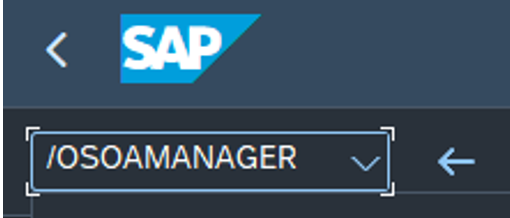
Image Go to the
Web Service ConfigurationPage.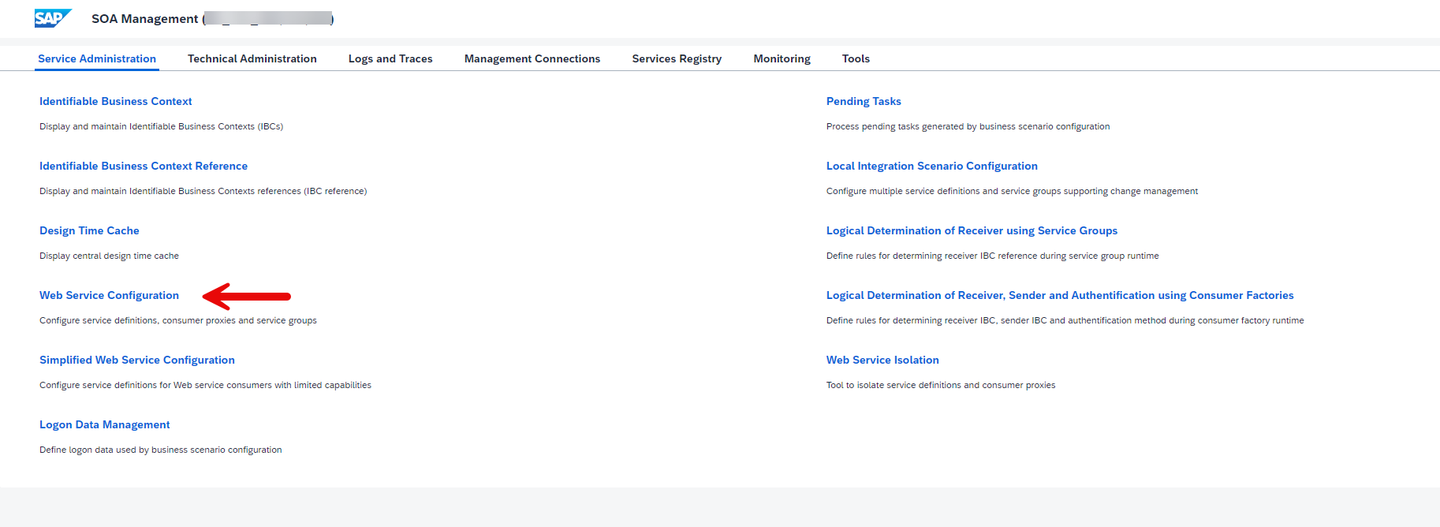
Image Search by the new Service Consumer. You can find it under the
ABAP Namefrom the created object. Click on the object to proceed to the next page.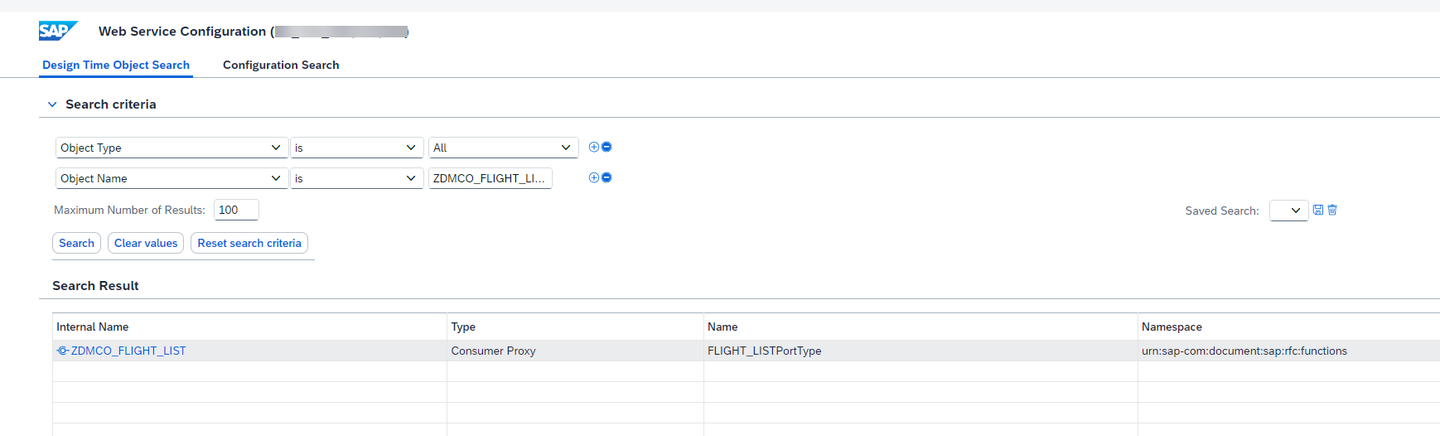
Image There are different approaches to set up the logical port. In this tutorial, we will continue with
Manual Configuration. Select the option to proceed to the next page.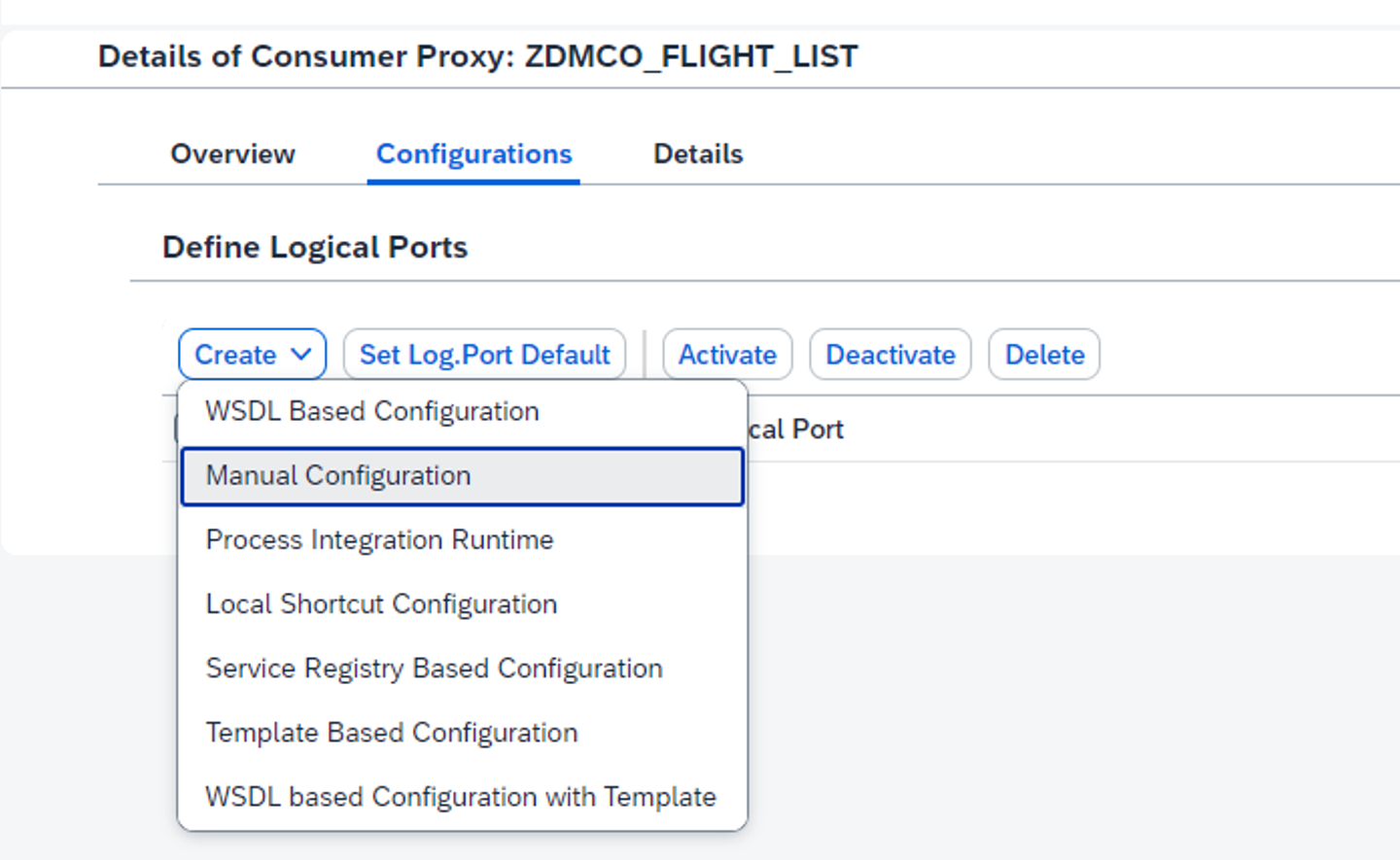
Image Enter the name of your choice and check the option
Logical Port is Default. After it, selectNextto proceed.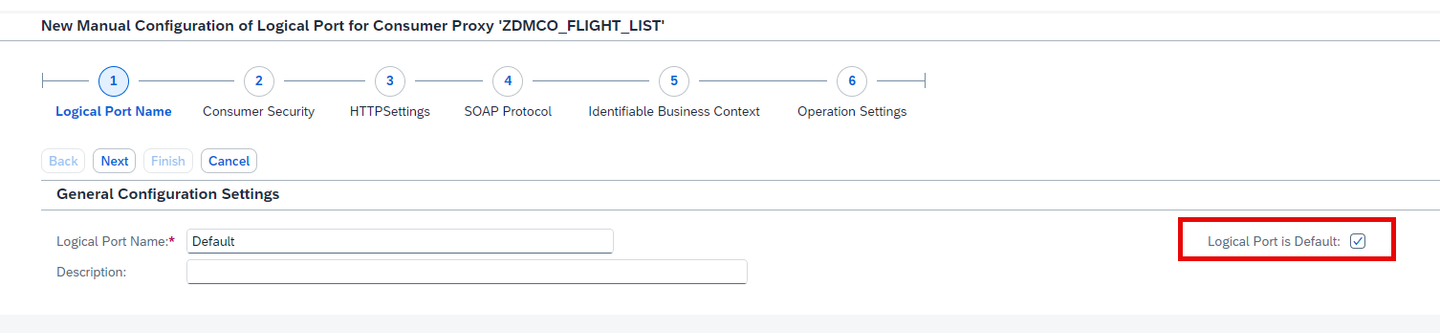
Image Enter the
Authentication Settingsaccording to your requirements. In this tutorial, we will continue withUser ID / Password. In this case, it would be the Client ID and Client Secret of myProcess Integration Runtimefrom Cloud Integration. SelectNextto proceed.For more information refer to the Creating Service Instance and Service Key for Inbound Authentication documentation.
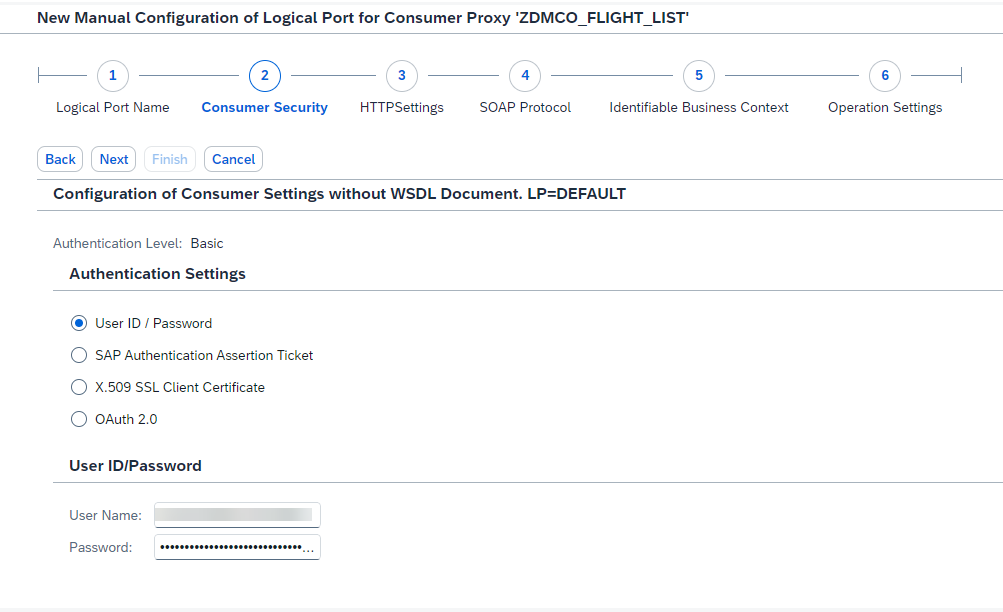
Image Enter the endpoint of your new migrated integration flow. Select
Nextto proceed.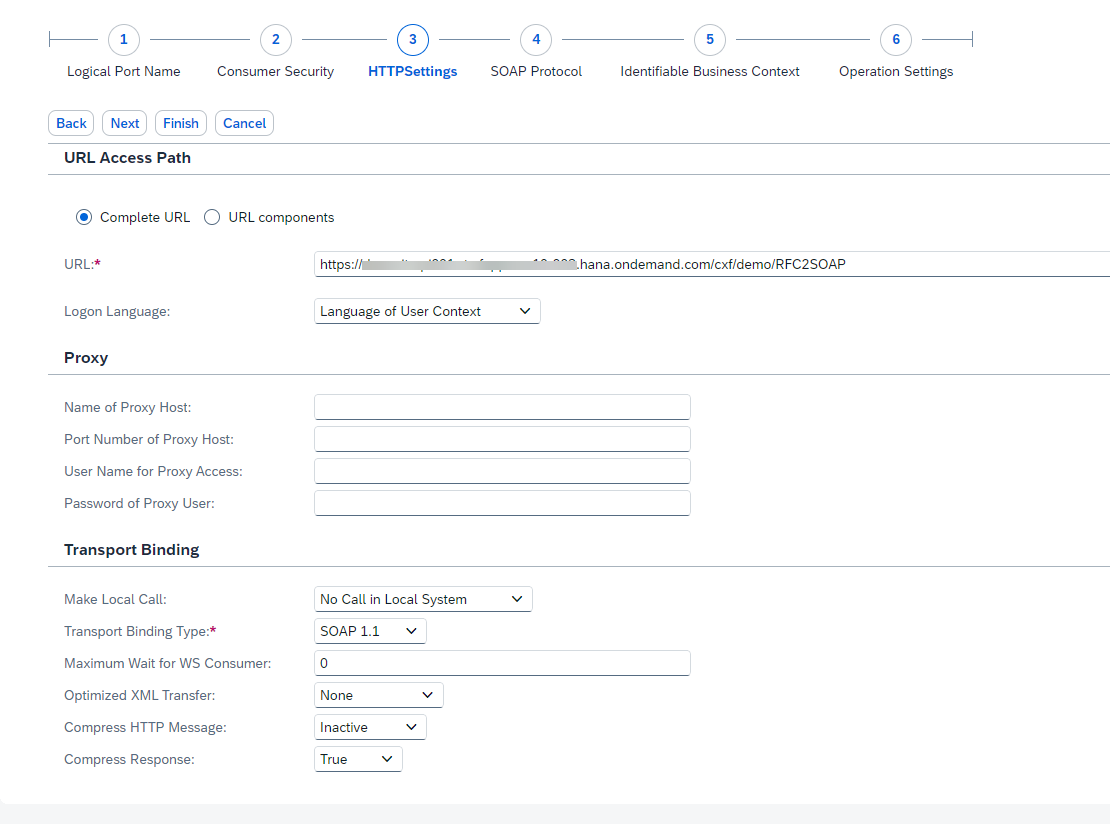
Image Set the Message ID Protocol as
Suppress ID Transfer. SelectFinishto conclude the wizard.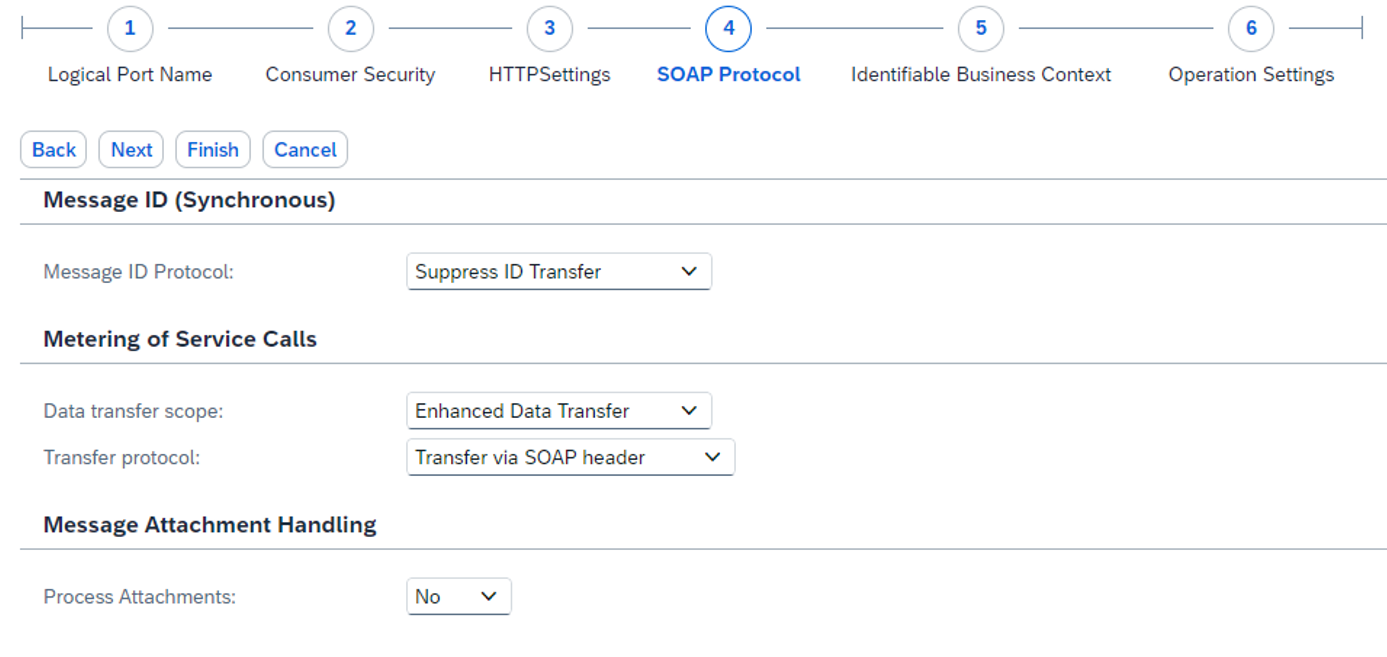
Image You will see your logical port created as following.
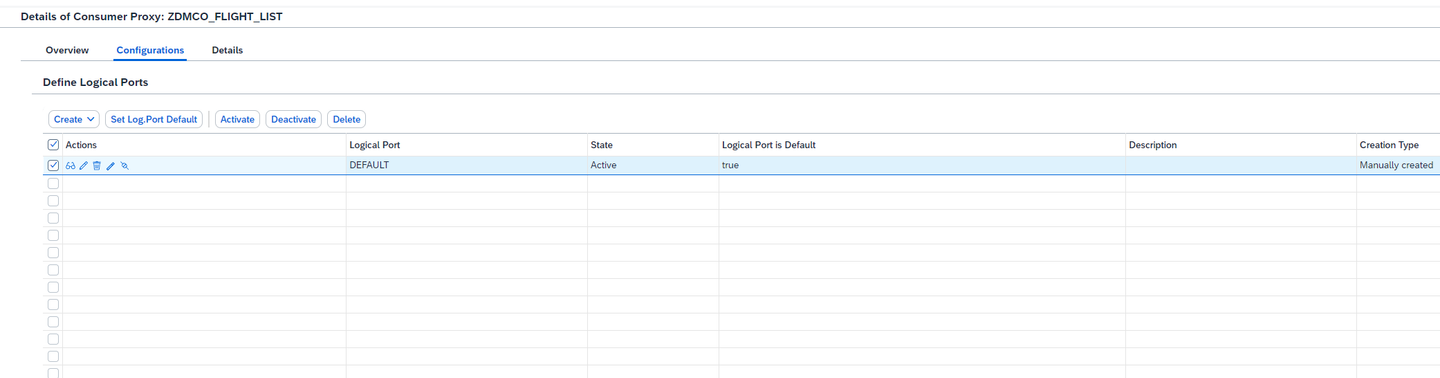
Image
In this use case, assume the following ABAP code in a test report created on SE38 transaction to call the RFC via SAP Process Orchestration:
  DATA: v_cityfrom TYPE spfli-cityfrom,
        v_cityto   TYPE spfli-cityto,
        v_datefrom TYPE sflight-fldate,
        v_dateto   TYPE sflight-fldate,
        t_flights  TYPE STANDARD TABLE OF wdr_flights.

  v_cityfrom  = 'FRANKFURT'.
  v_cityto    = 'SAN FRANCISCO'.
  v_datefrom  = '20240101'.
  v_dateto    = '20241231'.

  CALL FUNCTION 'FLIGHT_LIST'
    DESTINATION 'SAP_PO_RFC_DESTINATION'
    EXPORTING
      cityfrom    = v_cityfrom
      cityto      = v_cityto
      datefrom    = v_datefrom
      dateto      = v_dateto
    TABLES
      flight_list = t_flights.
The code above can be replaced with the following ABAP code in order to invoke the new consumer service instead:
  DATA: s_input  TYPE zdmflight_listinput,
        s_output TYPE zdmflight_listoutput.

  DATA(o_flight) = NEW zdmco_flight_list( ).

  s_input-cityfrom  = 'FRANKFURT'.
  s_input-cityto    = 'SAN FRANCISCO'.
  s_input-datefrom  = '20240101'.
  s_input-dateto    = '20241231'.

  o_flight->flight_list(
    EXPORTING
      input = s_input
    IMPORTING
      output = s_output ).
After proceeding with the changes on your ABAP code, don’t forget to Save and Activate your code.
With the logical port created, go back to the created object, and navigate to
Proxy > Testmenu.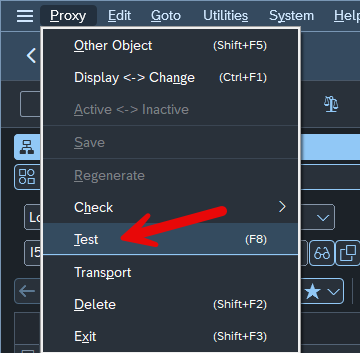
Image Select the logical port created in the previous step in SOAMANAGER. In this tutorial, it is
DEFAULT. Click on execute.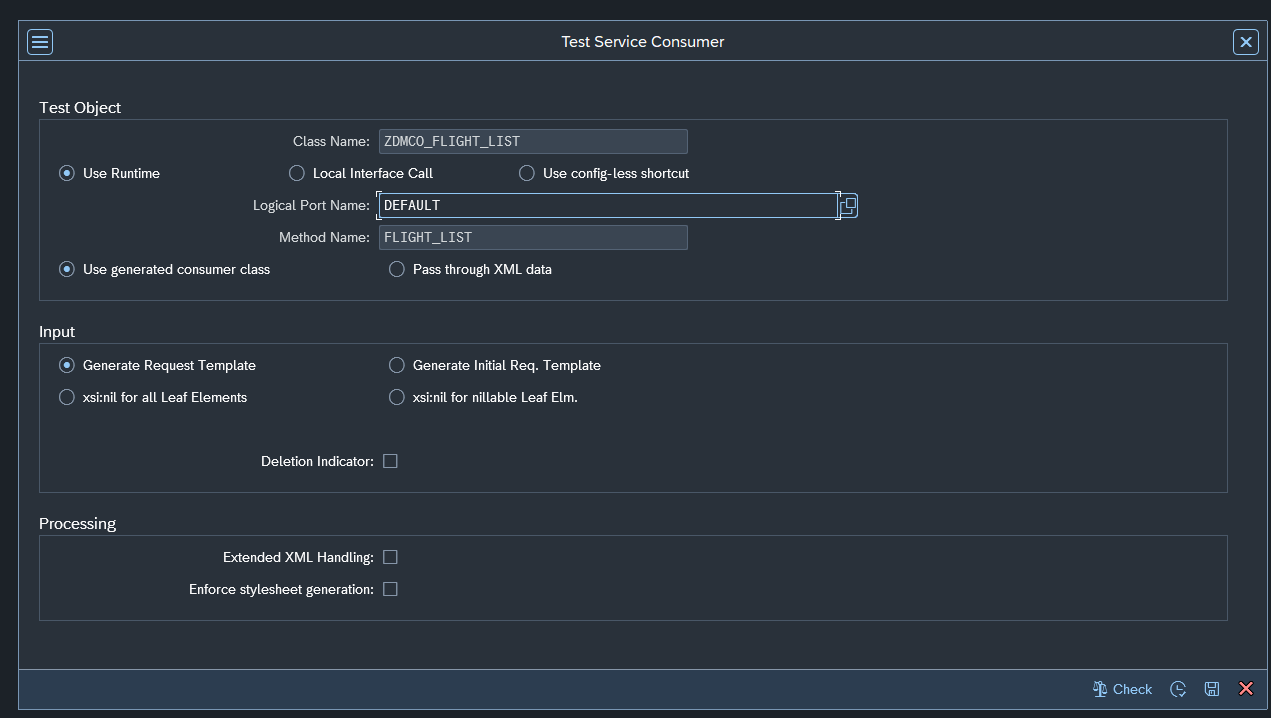
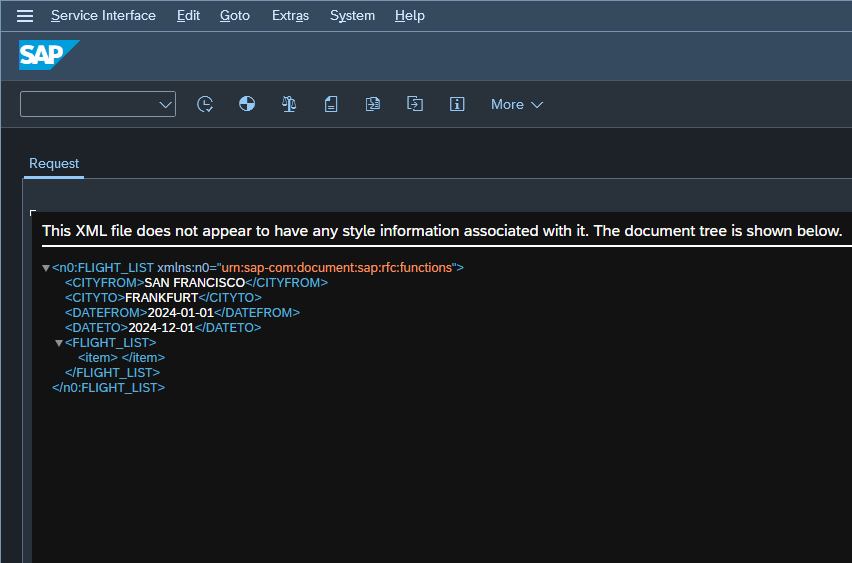
Image On the next screen, you can edit the test request payload, and after executing the interface, you should get the response message as below.
Image 
Image
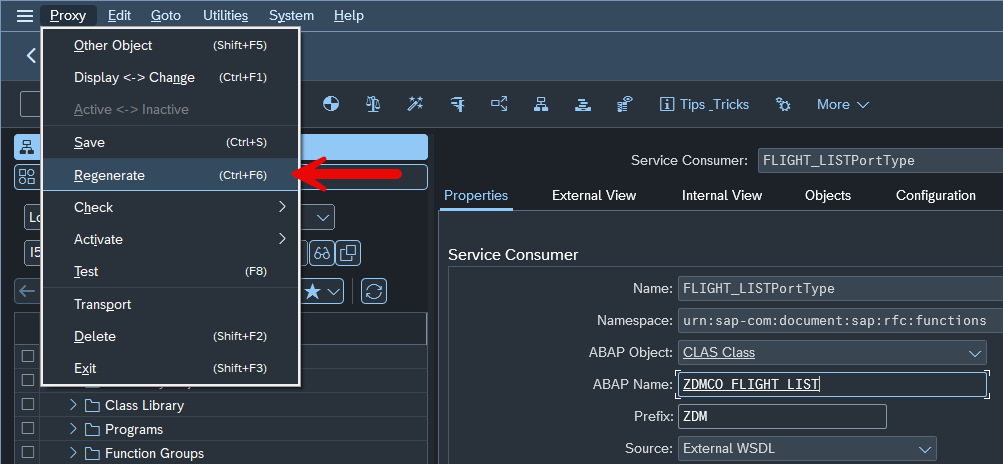
If you need to update the structures of your Web Service, you have two options:
With the generated WSDL (from the previous steps), you can edit it on the editor of your choice.
Update the RFC Function Module structures directly and get the new WSDL generated out of it.
With the WSDL or RFC Function Module updated, go to the Web Service object and click on the
Regeneratebutton.The wizard will be the same as on the creation, so you have the option of import the WSDL from PC or via URL again.
Image
Resources
Discussion
Share feedback on this tutorial or join the conversation in SAP Community.