
Prepare for Deployment in the SAP BTP, Cloud Foundry Runtime
Learn how to prepare the subaccount in SAP BTP for application deployment in the SAP BTP, Cloud Foundry runtime.
Overview
You will learn
- How to configure entitlements.
- How to enable the SAP BTP Cloud Foundry runtime in your subaccount in SAP BTP.
- How to create an SAP HANA Cloud service instance in the SAP BTP cockpit.


Prerequisites
Prerequisites
- You’ve set up the Incident Management sample application. You can choose from two alternative options:
- Follow the tutorials in the Develop a Full-Stack CAP Application Following SAP BTP Developer’s Guide group to develop the application from the start.
- Go to the Incident Management application GitHub repository directly and clone the application without going through the application development steps. See Incident Management.
- You have an enterprise global account in SAP BTP. To use services for free, you can sign up for an SAP BTPEA (SAP BTP Enterprise Agreement) or a Pay-As-You-Go for SAP BTP global account and use the free tier services only. See Using Free Service Plans.
- You have a platform user. See User and Member Management.
- You’re an administrator of the global account in SAP BTP.
- You have a subaccount in SAP BTP to deploy the services and applications.
- You have a tenant of SAP Cloud Identity Services. See Get Your Tenant for details how to get a tenant of SAP Cloud Identity Services if you don’t have one yet.
- You’ve established trust between your tenant of SAP Cloud Identity Services and your SAP BTP account. This established trust allows you to use your SAP Cloud Identity Services tenant as an identity provider or a proxy to your own identity provider hosting your business users. See Establish Trust and Federation Between SAP Authorization and Trust Management Service and SAP Cloud Identity Services.
- You have one of the following browsers that are supported for working in SAP Business Application Studio:
- Mozilla Firefox
- Google Chrome
- Microsoft Edge
OUT OF MAINTENANCE
This tutorial is no longer maintained. For an up-to-date version and support with any issues, refer to the Develop a Full-Stack CAP Application Following the SAP BTP Developer’s Guide mission in the SAP Discovery Center.
Steps
In this section, you set up the SAP BTP Cloud Foundry runtime for deploying CAP applications.
To deploy the Incident Management applications, you need the following entitlements:
| Service | Plan | Quota required |
|---|---|---|
| Cloud Foundry runtime | free (Environment) | 1 |
| SAP Build Work Zone, standard edition | free (Application) | 1 |
| SAP HANA Cloud | hana-free | 1 |
| SAP HANA Cloud | tools (Application) | 1 |
| SAP HANA Schemas & HDI Containers | hdi-shared | 1 |
| SAP Continuous Integration and Delivery | free (Application) | 1 |
If you don’t have the entitlements added already, do the following steps to add them.
Log in to the SAP BTP cockpit.
Navigate to your subaccount and choose Entitlements → Edit.

Edit entitlements Choose Add Service Plans.

Add service plans Search for Cloud Foundry Environment and select the free (Environment) plan.

Add Cloud Foundry Search for SAP Build Work Zone, standard edition and select the free (Application) plan.

Add Work Zone Search for SAP HANA Cloud and select the tools (Application) service plan and the hana-free service plan.

Add HANA Search for SAP HANA Schemas & HDI containers and select the hdi-shared service plan.

Add HANA HDI Search for Continuous Integration & Delivery, select the free (Application) plan, and choose Add 6 Service Plans.

Add CI/CD Choose Save.
Enabling the Cloud Foundry (CF) runtime creates a CF organization (org.) in your subaccount. There’s always one Cloud Foundry org. per subaccount. Later on, when you log on to Cloud Foundry, it asks you which Cloud Foundry org. you want to log on to. For any development in your subaccount, you need to choose this org. for your subaccount. If you don’t have a CF org. created in your subaccount already, do the following steps to create it.
Navigate to your subaccount and choose Enable Cloud Foundry.

enable CF In the Enable Cloud Foundry popup, change the values for Instance Name and Org Name as needed and choose Create.

enable CF popup Make sure that the instance name is CLI-friendly. CLI-friendly names make it easier to manage your instances with the SAP BTP command-line interface as well.
A CLI-friendly name is a short string (up to 32 characters) that contains only alphanumeric characters (A-Z, a-z, 0-9), periods, underscores, and hyphens. It can’t contain white spaces.
When enabling the runtime, you notice that the instance name is generated automatically for you. You can use that name or replace it with the name of your choice.
Navigate to Cloud Foundry → Spaces and choose Create Space.

Create space Enter a space name (for example, dev) and choose Create.

Create space popup
If you don’t have a subscription to SAP HANA Cloud already, do the following steps to subscribe.
Navigate to your subaccount and choose Services → Service Marketplace on the left.
Type SAP HANA Cloud in the search box and choose Create.

Create an SAP HANA Cloud tools instance In the New Instance or Subscription popup, select tools from the dropdown in the Plan field and choose Create.

SAP HANA Cloud tools instance creation popup Choose View Subscription and wait until the status changes to Subscribed.

View subscription 
Status subscribed In your SAP BTP subaccount, choose Security → Role Collections in the left-hand pane.
Choose role collection SAP HANA Cloud Administrator.
Choose Edit.

Edit role In the Users section, enter your user and select the icon to add the user.

Add user Keep the setting
Default Identity Providerunless you have a custom identity provider configured.Choose Save.
You’ve assigned the SAP HANA Cloud Administrator role collection to your user.
Log out and log back in to make sure your new role collection is considered.
SAP HANA Cloud is used as a persistence layer.
Follow these steps to create an SAP HANA Cloud service instance in the SAP BTP cockpit:
In your SAP BTP subaccount, navigate to Services → Instances and Subscriptions in the left-hand pane.
Choose SAP HANA Cloud. You’re redirected to SAP HANA Cloud Central. Sign in with your SAP BTP cockpit username/e-mail if necessary.

SAP HANA Cloud Go to application In SAP HANA Cloud Central, choose Create Instance.

SAP HANA Cloud create instance Select the Configure manually radio button, then select the Free Tier tab and make sure that the SAP HANA Database tab is selected. Choose Next Step.

Create SAP HANA DB Step 1 In the Instance Name field, enter incident-management.
In the Administrator Password and Confirm Administrator Password fields, enter a password for DBADMIN. Choose Next Step.

Create SAP HANA DB Step 2 The default settings are sufficient for the Incident Management application. Choose Next Step.
At SAP HANA Database Availability Zone and Replicas, choose again Next Step.
Select the Allow all IP addresses radio button, and choose Review and Create to review your SAP HANA Cloud instance configuration.

Create SAP HANA DB Step 3 Choose Create Instance.
The creation of the database instance can take some minutes to complete.
Your SAP HANA Cloud service instance is automatically stopped overnight, according to the time zone of the region where the server is located. That means you need to restart your instance every day before you start working with it.
Go to SAP HANA Cloud Central. If you’ve closed it, open it again by following these steps:
- In your SAP BTP subaccount, navigate to Services → Instances and Subscriptions.
- Choose SAP HANA Cloud. You’re redirected to SAP HANA Cloud multi-environment administration tools. Sign in with your SAP BTP cockpit username/e-mail if necessary.
For the incident-management instance, choose Manage Configuration.

Manage instance configuration Select the Instance Mapping tab and choose Add Mapping.
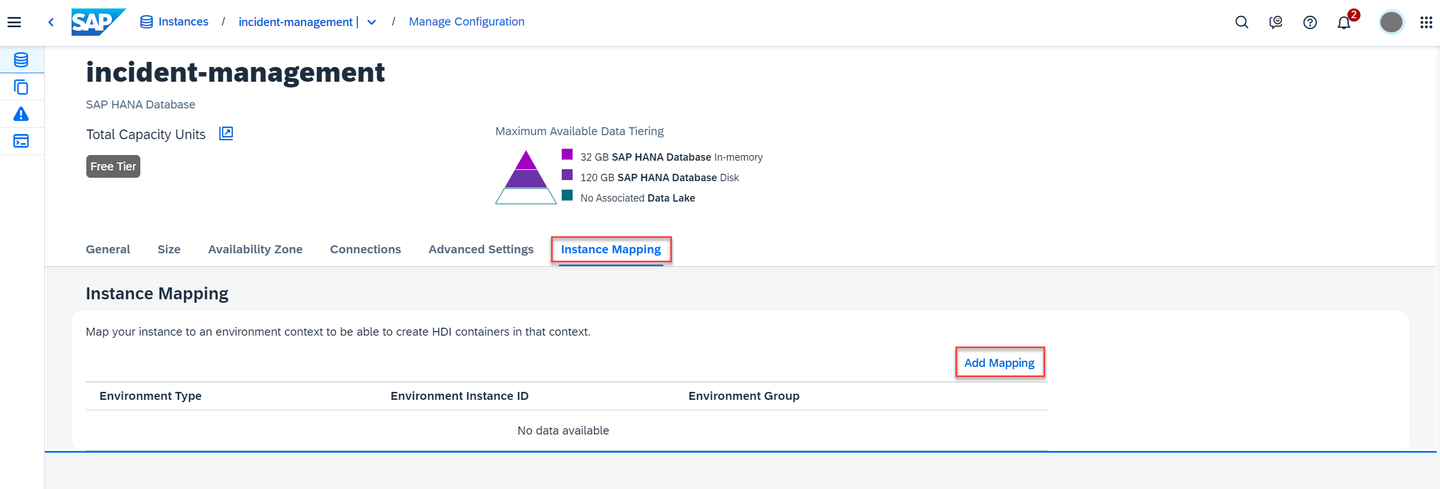
Add instance mapping Choose Cloud Foundry from the dropdown under Environment Type.
Under Environment Instance ID, paste the GUID of your Cloud Foundry organization. Here’s how to find it:
- Open a new terminal in SAP Business Application Studio and log in with
cf login. - Run the command
cf org <Your-Cloud-Foundry-Org> --guid. You get the GUID of your Cloud Foundry organization in response.

Add environment instance ID If you only specify the organization GUID, the instance is mapped to all spaces in that organization.
- Open a new terminal in SAP Business Application Studio and log in with
Choose Review and Save and then choose Save Changes in the popup.

Save changes You’ve mapped your SAP HANA Cloud service instance to your Cloud Foundry organization.
For more information, see Map an SAP HANA Database to another Environment Context to add a new Cloud foundry mapping.
Resources
Discussion
Share feedback on this tutorial or join the conversation in SAP Community.