
Add Smart Controls to the User Interface
Replace the current UI controls with more complex (smart) controls that fully leverage the OData protocol.
Overview
You will learn
- How to use smart controls like the SmartFilterBar, SmartList, or the ObjectPage.
- Why smart controls can save you much boilerplate code.


Prerequisites
Prerequisites
- You have previously created an SAPUI5 application and selected
SAP Build Work Zone, standard editionas the deployment target.- You have also completed all other tutorial as part of the mission Develop an App for SAP Build Work Zone, standard edition with Your Own Dev Tools.
Steps
Smart controls are a specific category of SAPUI5 controls that have some special super powers - the most prominent being the tight integration with the OData protocol version 2. Smart controls read the metadata of bound OData services, which allows them to easily provide features such as filtering, value help, and many more. Read more about smart controls in the documentation.
Smart controls only work with OData V2. For OData V4, the SAP Fiori Elements Flexible Programming Model provides “building blocks” with similar functionality.
Also, the “freestyle” approach shown in this tutorial is only recommended for use cases that require a lot of custom implementation. If your application fits one of the available SAP Fiori elements floorplans, you should think about using SAP Fiori elements rather than a freestyle approach. The application built as part of this tutorial should probably also be using SAP Fiori elements, for the purpose of education however, a freestyle approach is shown.
Replace the content of the myui5app/webapp/view/Products.view.xml file with the following code, which imports various smart control libraries and makes use of the smartFilterBar and smartList:
<mvc:View controllerName="myui5app.controller.Products" displayBlock="true"
    xmlns="sap.m"
    xmlns:smartFilterBar="sap.ui.comp.smartfilterbar"
    xmlns:smartList="sap.ui.comp.smartlist"
    xmlns:smartTable="sap.ui.comp.smarttable"
    xmlns:mvc="sap.ui.core.mvc">
    <Page id="Products">
        <smartFilterBar:SmartFilterBar id="smartFilterBar" persistencyKey="UniqueAndStablePersistencyKey" entitySet="Products" considerSelectionVariants="true" />
        <smartList:SmartList id="smartProductList" smartFilter="smartFilterBar" entitySet="Products" expandFields="Category" header="Products List" showRowCount="true" showFullScreenButton="true" enableAutoBinding="true">
            <smartList:listItemTemplate>
                <StandardListItem id="listTemplate" type="Navigation" press="handleListItemPress" title="{ProductName}" info="{= ${UnitPrice} + ' €' }" description="{Category/CategoryName}" />
            </smartList:listItemTemplate>
        </smartList:SmartList>
    </Page>
</mvc:View>
Your page should now display product names and contain a smart header with fully functional filter capabilities (give it a first test run if you like).
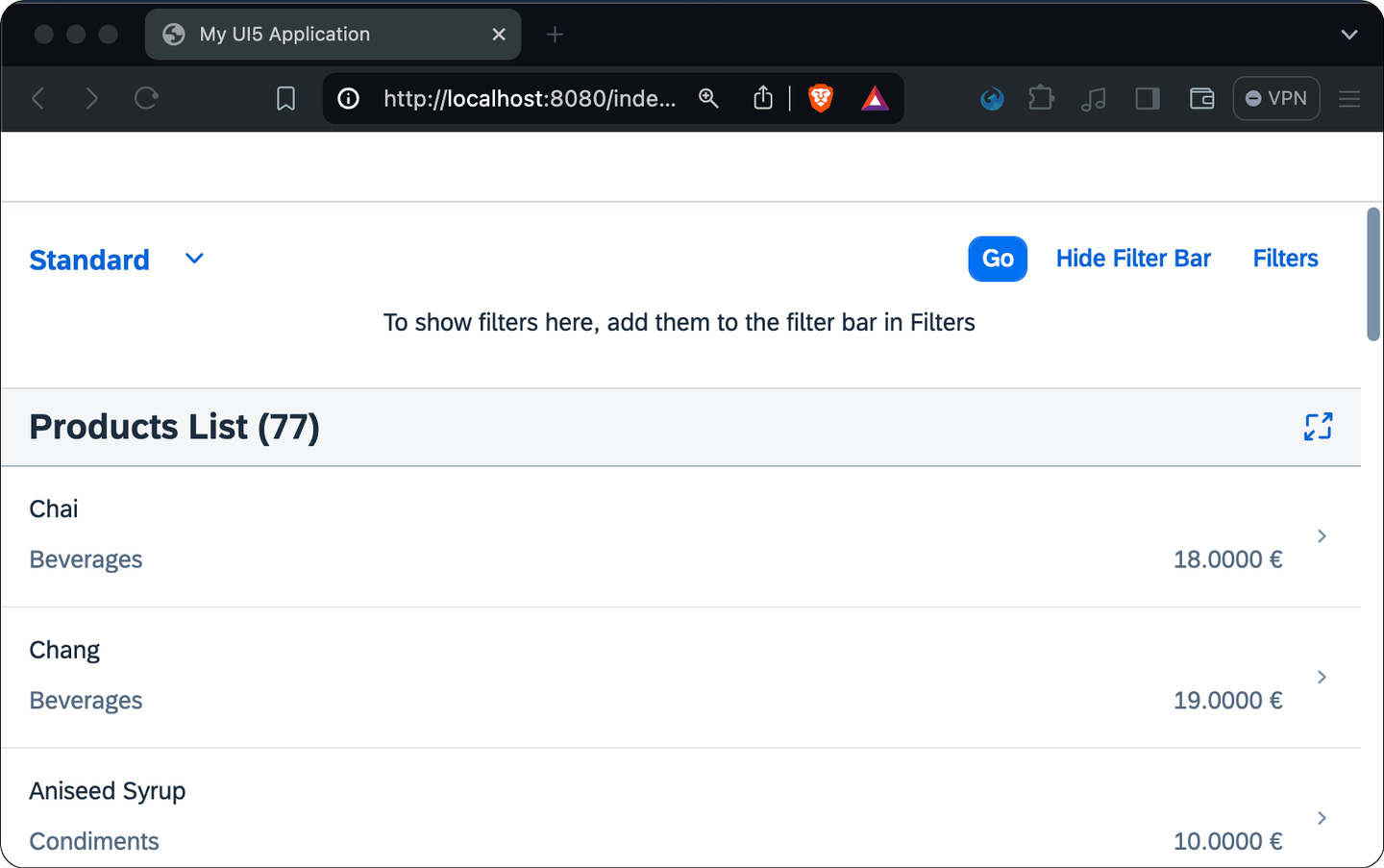
Did you notice that the list items display the category names, even though the selected entity set Products doesn’t contain these values. It does that because the property
expandFields="Category"was defined, which expands theCategoryIDto a full, nested entity. There is nothing you need to do apart from defining the field names to expand. All magic happens behind the scenes in the OData protocol. Feel free to remove this property from the view to see how the displayed data changes.
You’ve already learned about the cool expand-feature of OData in the previous step. In this step, you’ll learn about the complex filter operations OData supports out-of-the-box. For this, click on the Filters button. A dialog pops up, and you’ll be able to define filters on all properties of the displayed entities. Select the grouped view and define a filter for the following criteria:
- The
ProductIDshall be larger than 3. - The
ProductIDshall also be less than 8. - The name of the category should be
Beverages.
Close the dialog by clicking OK and apply the filter by clicking Go.

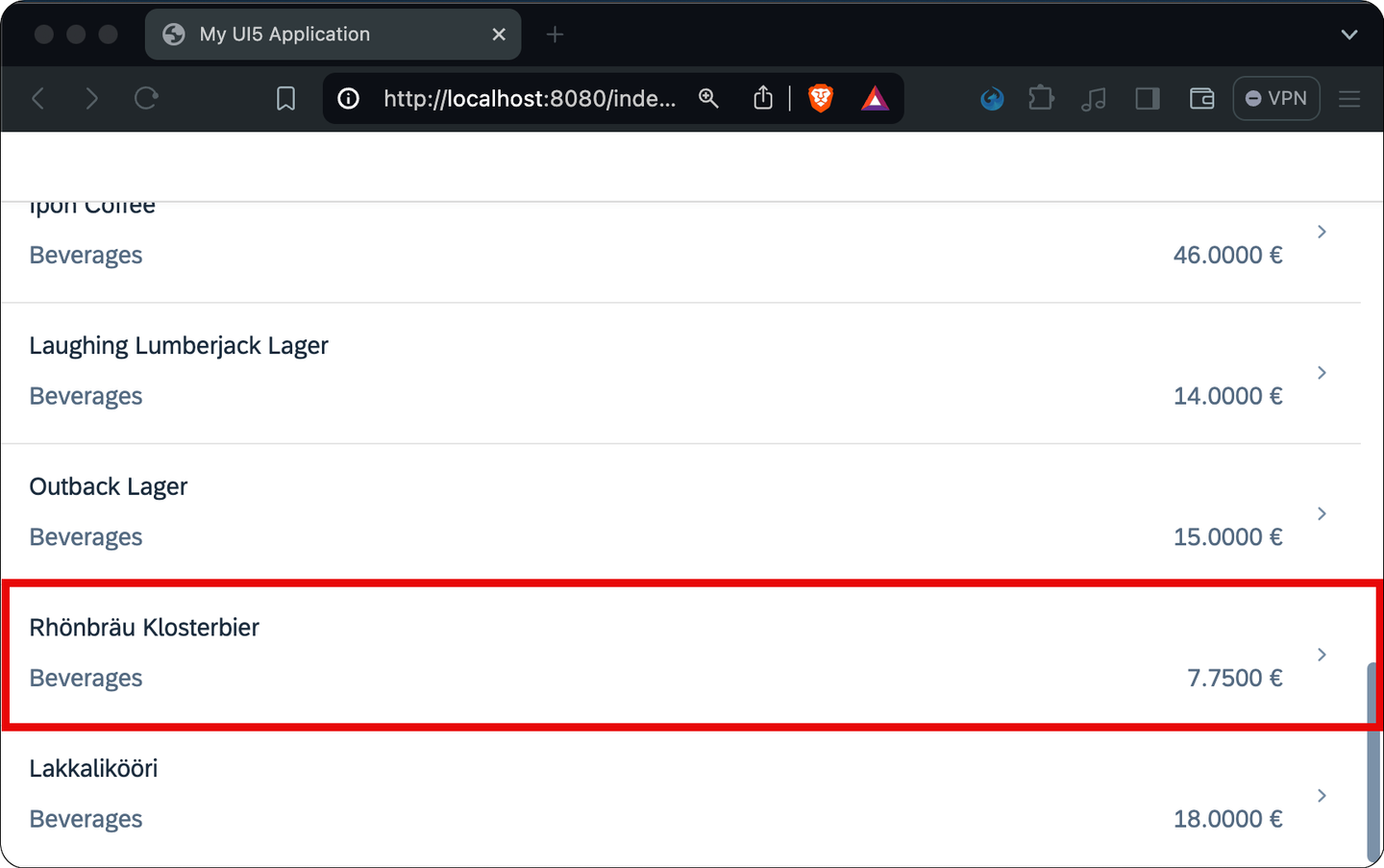
Click on item Rhönbräu Klosterbier to navigate to the detail view. You’ll upgrade this simple view to a full ObjectPage control in the next steps.
Replace the content of the current myui5app/webapp/view/ProductDetail.view.xml file with the following code:
<mvc:View controllerName="myui5app.controller.ProductDetail" displayBlock="true"
    xmlns="sap.m"
    xmlns:uxap="sap.uxap"
    xmlns:layout="sap.ui.layout"
    xmlns:form="sap.ui.layout.form"
    xmlns:mvc="sap.ui.core.mvc">
    <uxap:ObjectPageLayout id="ProductDetail">
        <uxap:headerTitle>
            <uxap:ObjectPageHeader id="headerForTest" objectTitle="{ProductName}" objectSubtitle="{ProductID}">
                <uxap:actions>
                    <uxap:ObjectPageHeaderActionButton id="addToCart" icon="sap-icon://cart-4" press="addToCart" tooltip="Add to cart" />
                    <uxap:ObjectPageHeaderActionButton id="markAsFav" icon="sap-icon://unfavorite" press="markAsFav" tooltip="Mark as favorite" />
                </uxap:actions>
            </uxap:ObjectPageHeader>
        </uxap:headerTitle>
        <uxap:headerContent>
            <layout:VerticalLayout id="_IDGenVerticalLayout1">
                <Label id="labelUnits" text="Units in Stock" />
                <ObjectAttribute id="attrUnits" text="{UnitsInStock}" />
            </layout:VerticalLayout>
            <layout:VerticalLayout id="_IDGenVerticalLayout2">
                <Label id="labelOrder" text="Units on Order" />
                <ObjectAttribute id="attrOrder" text="{UnitsOnOrder}" />
            </layout:VerticalLayout>
            <layout:VerticalLayout id="_IDGenVerticalLayout3">
                <Label id="labelState" text="Discontinued" />
                <ObjectAttribute id="attrState" text="{= ${discontinued} ? 'Yes' : 'No' }" />
            </layout:VerticalLayout>
        </uxap:headerContent>
    </uxap:ObjectPageLayout>
</mvc:View>As of now, this page only consists of a header that leverages data binding to display data. Note that the control
attrStateuses a special type of binding - so-called expression binding to display “Yes” or “No” depending on the state of the boolean variablediscontinued.
The header of the view also contains two buttons (addToCart and markAsFav). In the next sub-steps, you’ll implement the event listeners for these buttons.
- Replace the existing file header of
myui5app/webapp/controller/ProductDetail.controller.jswith the following code, which imports theMessageToastcontrol:
sap.ui.define([
    "tutorial/products/controller/BaseController",
    "sap/m/MessageToast"
  ], function (Controller, MessageToast) {
"use strict";- Add the following methods to the body of the controller file (after the
_onRouteMatchedmethod):
addToCart: function (oEvent) {
    MessageToast.show("Added to cart");
},

markAsFav: function (oEvent) {
    const oButton = oEvent.getSource();
    if (oButton.getIcon() === "sap-icon://unfavorite") {
        oButton.setIcon("sap-icon://favorite");
        MessageToast.show("Added to favorites");
        return;
    }

    oButton.setIcon("sap-icon://unfavorite");
    MessageToast.show("Removed from favorites");
},
- Mark the page as a favorite via the button in the header of the page to make sure the event handlers work as expected.
Note that the icon is not supposed to do anything apart from being a toggle button. There is no (useful) controller logic associated with it and it won’t store the state in the data model.
The following snippet defines the content of the ObjectPage. It’s mostly basic and repetitive code. Interesting sections are the usage of expression binding for the link control linkWebsite, property bindings to the navigation entities Supplier and Category, and the usage of a custom formatter for the image control imageCategory.
- Replace the content of the current
myui5app/webapp/view/ProductDetail.view.xmlfile with the following code:
<mvc:View controllerName="myui5app.controller.ProductDetail" displayBlock="true"
    xmlns="sap.m"
    xmlns:uxap="sap.uxap"
    xmlns:layout="sap.ui.layout"
    xmlns:form="sap.ui.layout.form"
    xmlns:mvc="sap.ui.core.mvc">
    <uxap:ObjectPageLayout id="ProductDetail">
        <uxap:headerTitle>
            <uxap:ObjectPageHeader id="headerForTest" objectTitle="{ProductName}" objectSubtitle="{ProductID}">
                <uxap:actions>
                    <uxap:ObjectPageHeaderActionButton id="addToCart" icon="sap-icon://cart-4" press="addToCart" tooltip="Add to cart" />
                    <uxap:ObjectPageHeaderActionButton id="markAsFav" icon="sap-icon://unfavorite" press="markAsFav" tooltip="Mark as favorite" />
                </uxap:actions>
            </uxap:ObjectPageHeader>
        </uxap:headerTitle>
        <uxap:headerContent>
            <layout:VerticalLayout id="_IDGenVerticalLayout1">
                <Label id="labelUnits" text="Units in Stock" />
                <ObjectAttribute id="attrUnits" text="{UnitsInStock}" />
            </layout:VerticalLayout>
            <layout:VerticalLayout id="_IDGenVerticalLayout2">
                <Label id="labelOrder" text="Units on Order" />
                <ObjectAttribute id="attrOrder" text="{UnitsOnOrder}" />
            </layout:VerticalLayout>
            <layout:VerticalLayout id="_IDGenVerticalLayout3">
                <Label id="labelState" text="Discontinued" />
                <ObjectAttribute id="attrState" text="{= ${discontinued} ? 'Yes' : 'No' }" />
            </layout:VerticalLayout>
        </uxap:headerContent>
        <uxap:sections>
            <uxap:ObjectPageSection id="pageSectionSupplier" title="Supplier">
                <uxap:subSections>
                    <uxap:ObjectPageSubSection id="subSectionInfo" title="">
                        <uxap:blocks>
                            <form:SimpleForm id="formInfo" title="Info" editable="false" layout="ResponsiveGridLayout">
                                <form:content>
                                    <Label id="labelCName" text="Company Name" />
                                    <Text id="textCName" text="{Supplier/CompanyName}" />
                                    <Label id="labelWebsite" text="Website" />
                                    <Link id="linkWebsite" text="{= ${Supplier/HomePage}.split('#')[0] }" href="{= ${Supplier/HomePage}.split('#')[1] }" target="_blank" />
                                </form:content>
                            </form:SimpleForm>
                            <form:SimpleForm id="formAddress" title="Address" editable="false" layout="ResponsiveGridLayout">
                                <form:content>
                                    <Label id="labelStreet" text="Street" />
                                    <Text id="textStreet" text="{Supplier/Address}" />
                                    <Label id="labelCity" text="City" />
                                    <Text id="textCity" text="{Supplier/City}" />
                                    <Label id="labelRegion" text="Region" />
                                    <Text id="textRegion" text="{Supplier/Region}" />
                                    <Label id="labelCountry" text="Country" />
                                    <Text id="textCountry" text="{Supplier/Country}" />
                                    <Label id="labelCode" text="Postal Code" />
                                    <Text id="textCode" text="{Supplier/PostalCode}" />
                                </form:content>
                            </form:SimpleForm>
                            <form:SimpleForm id="formContact" title="Contact" editable="false" layout="ResponsiveGridLayout">
                                <form:content>
                                    <Label id="labelTitle" text="Title" />
                                    <Text id="textTitle" text="{Supplier/ContactTitle}" />
                                    <Label id="labelContactName" text="Name" />
                                    <Text id="textContactName" text="{Supplier/ContactName}" />
                                    <Label id="labelPhone" text="Phone" />
                                    <Text id="textPhone" text="{Supplier/Phone}" />
                                    <Label id="labelFax" text="Fax" />
                                    <Text id="textFax" text="{Supplier/Fax}" />
                                </form:content>
                            </form:SimpleForm>
                        </uxap:blocks>
                    </uxap:ObjectPageSubSection>
                </uxap:subSections>
            </uxap:ObjectPageSection>
            <uxap:ObjectPageSection id="pageSesctionCategory" title="Category">
                <uxap:subSections>
                    <uxap:ObjectPageSubSection id="subSectionCategory" title="">
                        <uxap:blocks>
                            <form:SimpleForm id="formCategory" editable="false" layout="ResponsiveGridLayout">
                                <form:content>
                                    <Label id="labelCategoryName" text="Name" />
                                    <Text id="textCategoryName" text="{Category/CategoryName}" />
                                    <Label id="labelCategoryDescription" text="Description" />
                                    <Text id="textCategoryDescription" text="{Category/Description}" />
                                    <Label id="labelPicture" text="Picture" />
                                    <Image id="imageCategory" src="{ path : 'Category/Picture', formatter : '.trimSuperfluousBytes' }" width="150px" height="150px" />
                                </form:content>
                            </form:SimpleForm>
                        </uxap:blocks>
                    </uxap:ObjectPageSubSection>
                </uxap:subSections>
            </uxap:ObjectPageSection>
        </uxap:sections>
    </uxap:ObjectPageLayout>
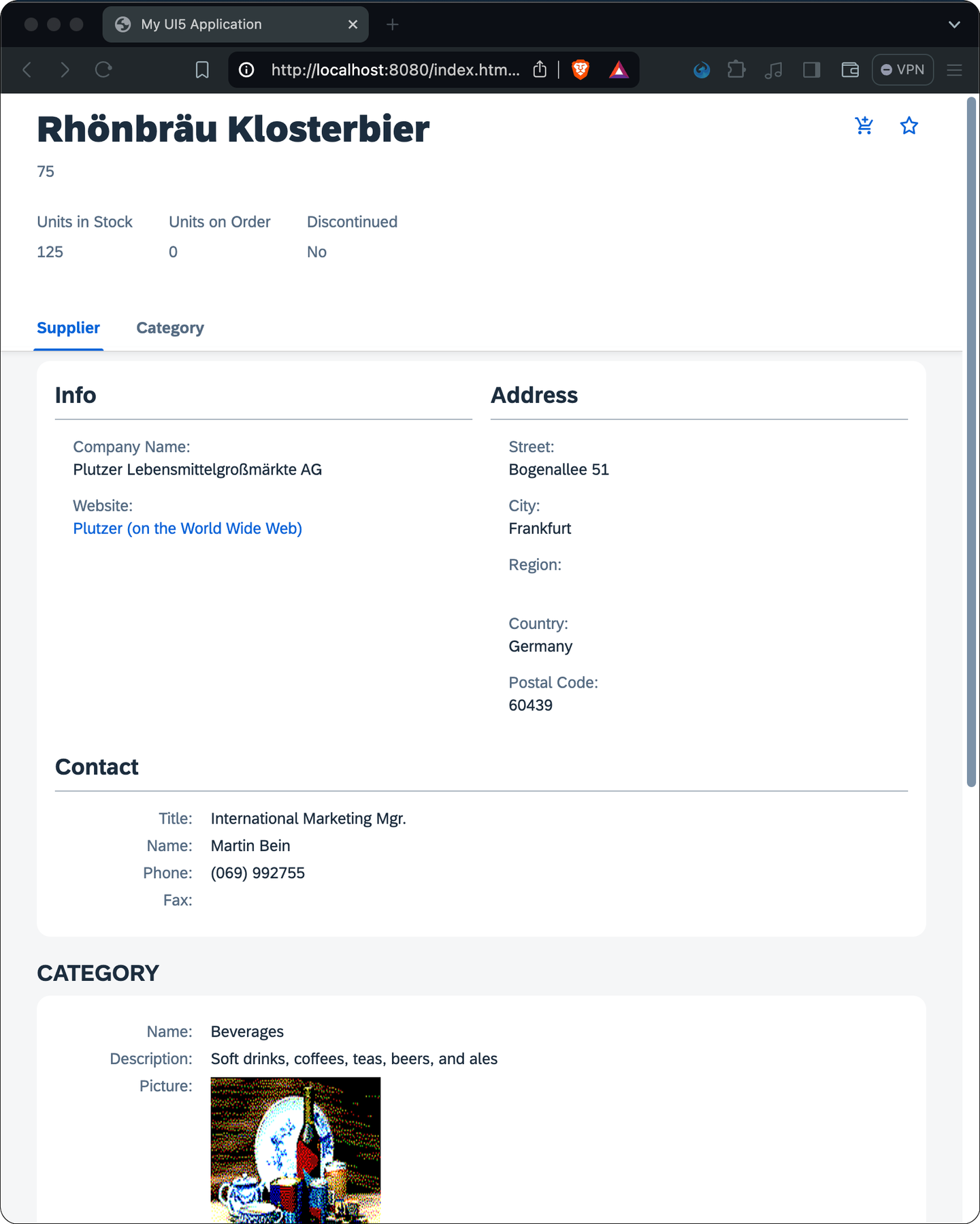
</mvc:View>You probably noticed empty fields that do not show any data yet. Most of the fields are empty because they are bound to properties of navigation entities like Supplier. The data is missing because you didn’t specify that these entities should be expanded during the programmatic binding of the view.
- Update the binding definition, to expand the suppliers and categories, in the
_onRouteMatchedmethod of the controllermyui5app/webapp/controller/ProductDetail.controller.jswith the following code:
_onRouteMatched: function (oEvent) {
    const iProductId = oEvent.getParameter("arguments").productId;
    const oView = this.getView();
    oView.bindElement({
        path: "/Products(" + iProductId + ")",
        parameters: {
            expand: "Supplier,Category"
        },
        events: {
            dataRequested: function () {
                oView.setBusy(true);
            },
            dataReceived: function () {
                oView.setBusy(false);
            }
        }
    });
},- Now the
picturefield should be the only empty one. The field is still empty, as you need to add a custom formatter to deal with a quirk of the Northwind image encoding. Add this formatter after themarkAsFavmethod to complete the controller.
trimSuperfluousBytes: function (sVal) { // background info https://blogs.sap.com/2017/02/08/displaying-images-in-sapui5-received-from-the-northwind-odata-service/
    if (typeof sVal === "string") {
        const sTrimmed = sVal.substring(104);
        return "data:image/bmp;base64," + sTrimmed;
    }
    return sVal;
}- The view should now look like this:
Resources
Discussion
Share feedback on this tutorial or join the conversation in SAP Community.