
Overview
You will learn
- How to explore content in the SAP Build Store.
- How to acquire the Orders Management using UI5 application package from the SAP Build Store.
- How to reuse a package from the Store in SAP Build Process Automation.


Prerequisites
Prerequisites
Steps
The Store offers predefined content for your automation. Packages are categorized by catalog which let you choose between Automation SDK, Business Content and Learning Content.
Navigate to the store in your SAP Build Process Automation Tenant.

Navigate Store Learning Content offers learning packages to get started with the Application Development tool. These packages allow you to learn best practices by reusing the most common flows to design your first projects.
Business Content provides pre-built automations for concrete business problems.
Automation SDK provides all the Software Developments Kits that can be acquired from the store.
Select one or more filters on the left to filter the available Store projects by Project Type (for example Process and Actions), Format Type (for example, Ready to use and Template), Catalog (for example, Business Content), Product (for example, SAP S/4HANA Cloud), Publisher, Line of Business, and Industry.

Store View
You will acquire the package titled Orders Management using UI5 application. Set the following parameters: under Catalog, check Learning Content.

Learning Catalog In the search bar, type Orders Management, hit enter and click on the project for more information.

Orders Management This sample package presents a way to deal with Excel and a web application using the SAPUI5 framework. Each sample package comes with a description, documents about the sample, artifacts, version history and dependencies.

Explore To add the package, you have two options:
- From the project information section, choose Add and select Create from Template.

Add Create Template - From the project list, choose Add and select Create from Template.

Add Create Template You will now create a Business Process Project from this template.
Name the project Orders Management Dev Tutorial and choose Create.

Create Project To see the newly created project, navigate back to the Lobby from the top menu.

Created Project
Choose the project. You will see all the artifacts that are part of the project. The project is Editable which means you can modify it.
The project can now be edited in Build Process Automation.

Application Development For instance, you can create a process artifact and add an automation to the Business Process.
Select Create and then Process.

Create Process In the Create Process window, fill in the fields as shown in the screenshot:
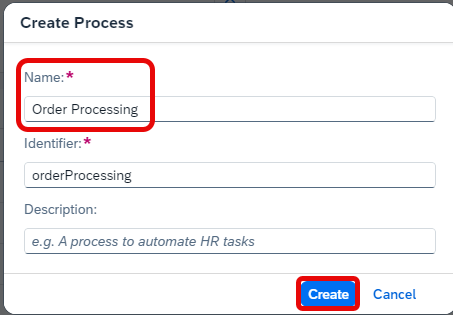
Create Process Window The Process builder opens with the just created process.
Now click on the + below Trigger.

Add Select Automation.

Automation You have a list of all the automations available in the bot you just acquired. For this tutorial, you will use the Get Processors Details automation.
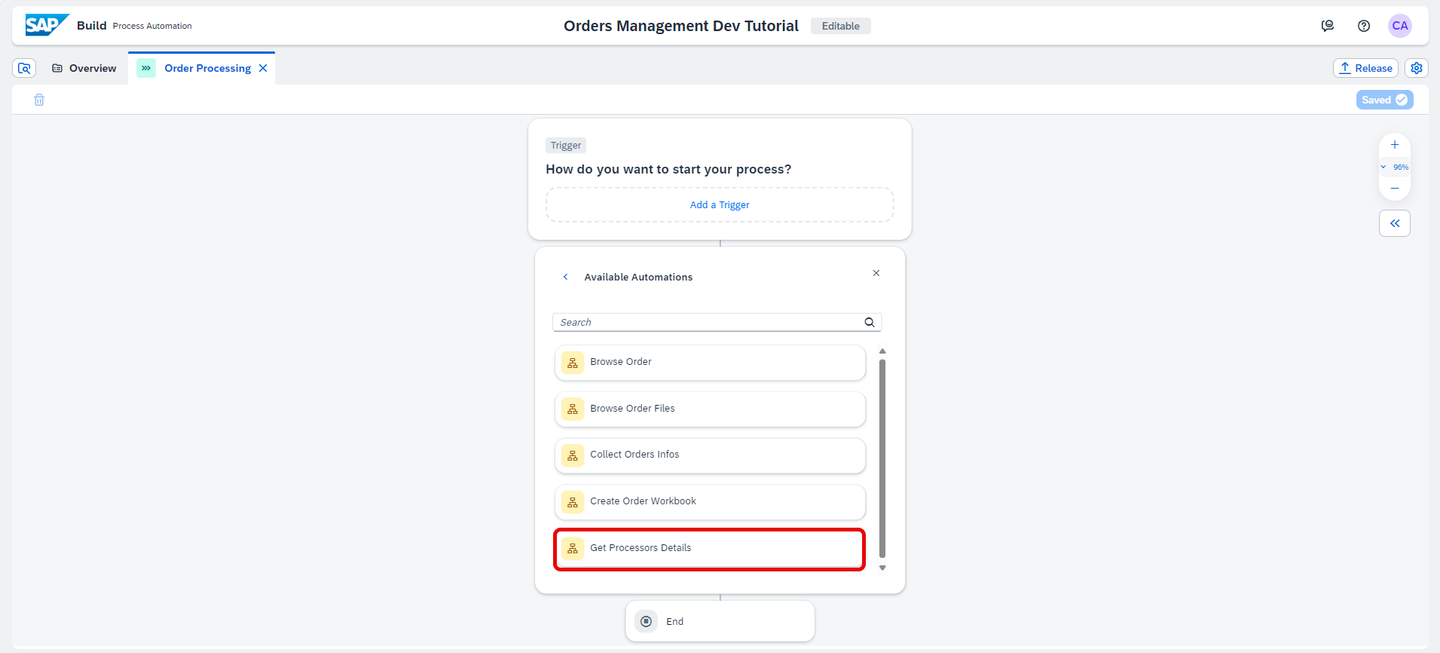
Add Automation Now your automation is successfully added to the process. You can further continue modifying your process by adding a trigger to the start event and getting rid of the errors by filling in the missing mandatory inputs.
Choose Add a Trigger.

Trigger Select Submit a Form.

Form Choose Blank Form.

Blank Form In the Create Form pop-up, choose Order Processing Form for Name.
Choose Create.

Create Form Select the three dots and choose Open Editor.

Order Processing You will be navigated to the Order Processing Form.
Drag and drop the Text input. Enter Order Number as name and check Required.
Choose Save.

Order Processing Form You will now map the Inputs of the Get Processors Details automation.
Navigate back to the Order Processing process.
Select the Get Processors Details automation. Choose
orderReferenceinput and select Order Number > Order Processing Form.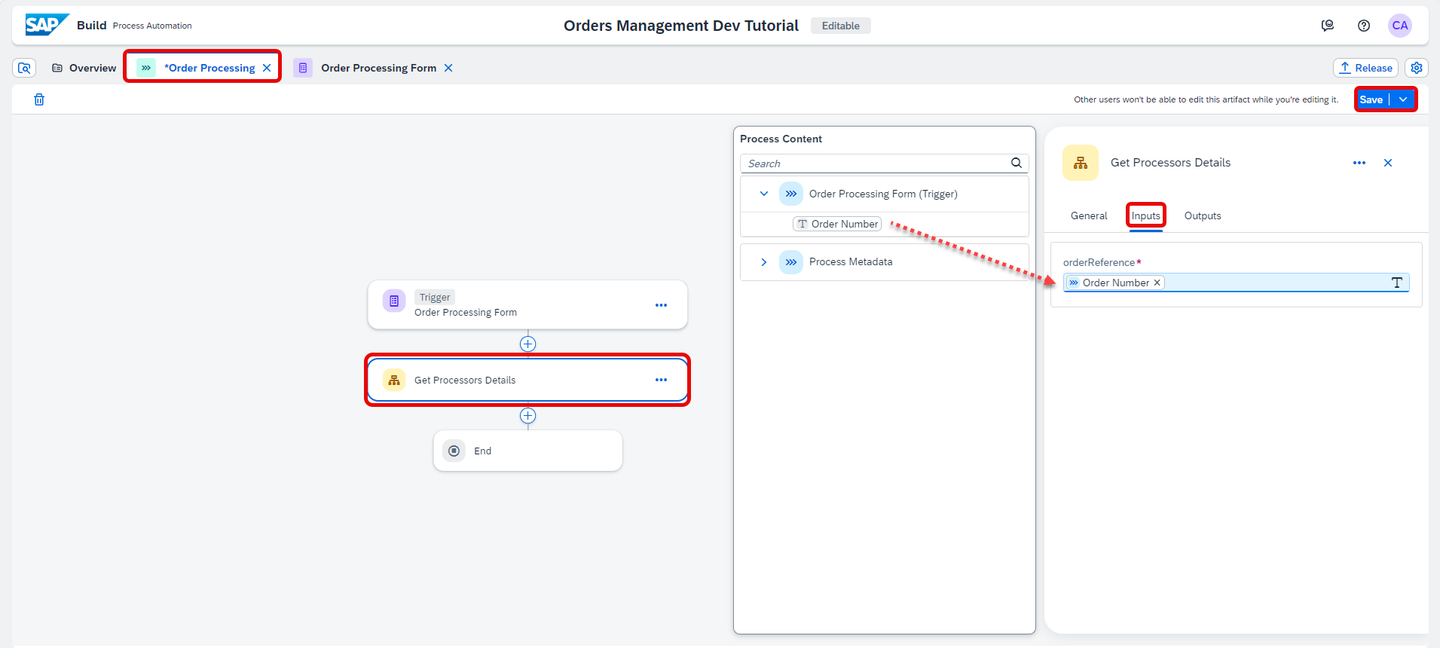
Input Mapping Choose Save.
You may now add forms, approvals, decisions, conditions, etc… to design your process based on your needs.

Process Final Let’s test the automation.
Double click on Get Processors Details automation.
The automation opens in a new tab.
Select the test icon.

Test Automation In the Test Automation window, enter order 7991 as
orderReference. No need to fill the Environment Variables.
Test Automation2 This is the final result.

Test Automation3 Once you are done designing your process, you may release and deploy your project.
You need to create a matching agent attribute at this step. Please follow these steps to create an agent attribute in the tenant to add it to your agent and project: Agent Management Settings to Execute the Process with an Automation
Now you may release and deploy it in unattended mode.
Choose Release and again Release.

Release Now your project is released and you can deploy it. You can choose Deploy.

Deploy Choose the environment and select Deploy.

Deploy No need to Define variables, choose Deploy.

Deploy To Deploy will take a couple of seconds/minutes depending upon how big your project is and how many different skills it has. Any errors during the deployment will be shown in the Design Console.
The project deployed successfully and is now ready to be executed.

Deployed Project You cannot edit released or deployed projects. To continue working on your project, you need to select the Editable option from the list of released versions.
In the Overview page, select the Order Processing process.
Make sure you select the deployed version of the project.
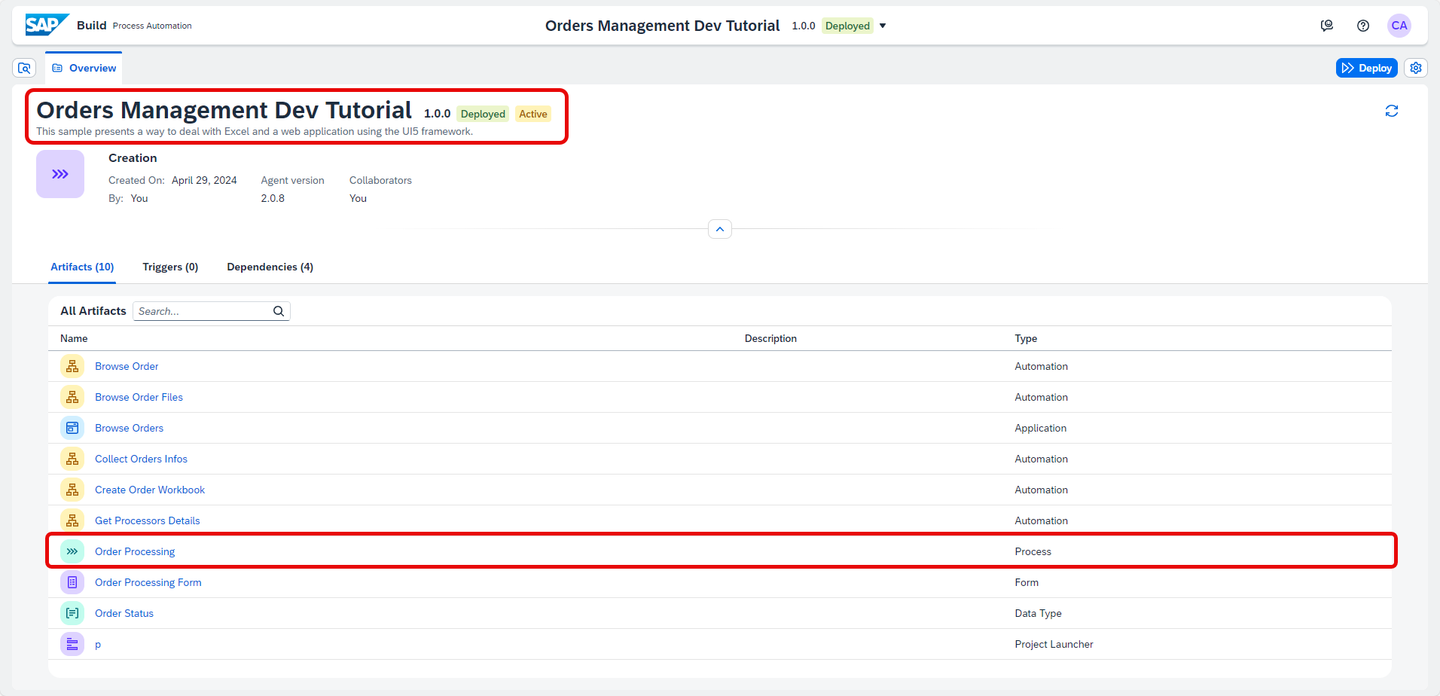
Order 7991 Select the Order Processing Form and copy the link.

Order Processing Form Paste the link in your browser.
Enter order 7991 in the Order Number field.
Choose Submit.

Link The form has been successfully submitted.

Form submitted Navigate to SAP Build > Monitoring > Process and Workflow Instances.

Monitoring Select Status as Completed and choose Order Processing.

Monitoring Check the Logs.
The process has successfully ended.

Monitoring
Resources
Discussion
Share feedback on this tutorial or join the conversation in SAP Community.