
Overview
You will learn
- How to acquire a template project from the store and customize it
- Use actions in a business process to implement changes in an external dedicated system


Prerequisites
Prerequisites
- SAP SuccessFactors
- SAP Analytics Cloud
- Configure SMTP server destination by referring to configuring-smtp-mail-destination
Steps
Intro
Action is a feature in SAP Build Process Automation to connect processes with external systems. It allows users to automate or extend their business processes for any available LoB processes like S/4HANA, Ariba, SuccessFactors, SAP Analytics Cloud etc. In this tutorial, you will create a request to approve a position in the HR Planning Process. If the request gets approved then a position is created in the dedicated system.
From the SAP Build Lobby, navigate to the store.
Search for the sample project: SAC HR Position Planning.
Choose Create from Template to retrieve the sample and save it as a new project in your lobby.

Store Choose Create.

Create Your project gets created in editable version.
Choose the process SAC HR Position Planning.

Process Choose Mail - Approved and select Open Mail Body Editor.
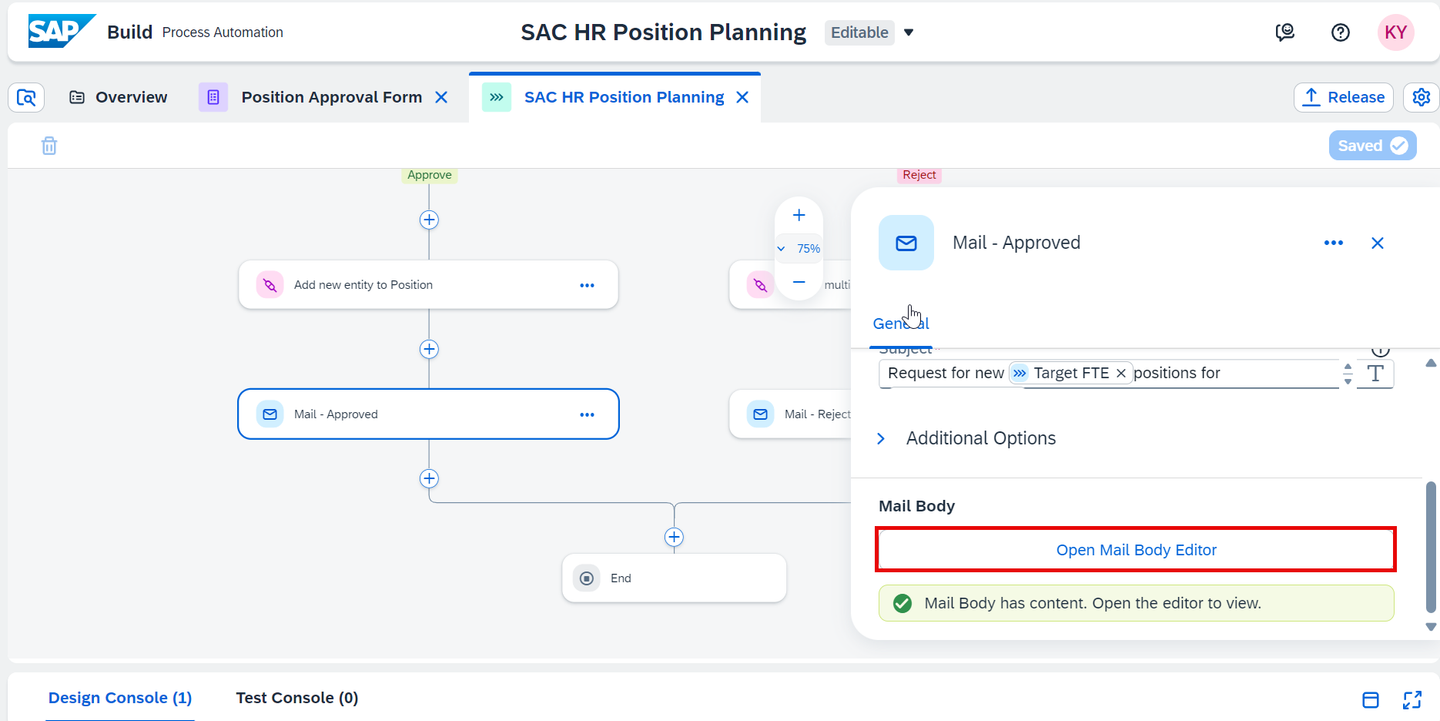
MailBody Click on SuccessFactors in the mail body and choose Edit.

Edit Replace the link and choose Save.

save Click on headcount plan in the mail body and choose Edit.

headcount Replace the link and choose Save.

save Choose Apply.

Apply Choose Mail - Rejected and select Open Mail Body Editor.

MailBody Click on headcount plan in the mail body and choose Edit.

headcount Replace the link and choose Save.

save Choose Apply.

Apply
In SAP Build, navigate to Control Tower > Destinations.

Destinations Choose Open in BTP Cockpit.
This Button is visible if you have a Process Automation Admin role.

Open BTP Cockpit You will be navigated to the Destinations page of SAP Business Technology Platform.
Choose Create Destination.

Create Destination Add details by referring to the following and choose Save.
- For SAC destination, enter the details: refer to SAC Base URL for URL of the destination.
- For Success Factor destination, enter the details: refer to Success Factor URL
- For URL of the destination: refer to documentation to add necessary additional properties.

New Destination 
New Destination In SAP Build Process Automation, navigate to Control Tower > Destinations > Add.
Destinations 
Destinations Select the name of the destinations that you created in SAP BTP Cockpit and choose OK.

New Destination 
New Destination The Destinations are successfully added to SAP Build Process Automation tenant.
Go to the project to create the environment variables of type destination.
Navigate to Manage the project properties > Environment Variables > Create.

Environment Variable 
Environment Variable Create Environment Variables of type Destination.

Environment Variable 
Environment Variable The destinations can be accessed successfully in your Business Process project.
Release the project.

Release From the released version of the Business Process project in the Process Builder, choose Deploy.

Start Deploy Choose an Environment and select Deploy.

Choose environment Choose Deploy.

Deploy Define the variables by selecting the required destinations created previously and click Deploy.

Define Variables You have successfully released and deployed the process and it is ready to consume via APIs.

Deployed version
Once you have successfully deployed the business process with an API trigger, you can view the API trigger in the Overview section under the tab Triggers.

To view the context of the workflow API, navigate to the Lobby by clicking on the SAP logo.

Lobby Choose Control Tower > Environments.

Environments Choose the environment in which the project is deployed.

Environment You can view the trigger in the Unattended Triggers tab. Click on View.

View 
View
Resources
Discussion
Share feedback on this tutorial or join the conversation in SAP Community.