
Overview
You will learn
- Which steps are required in order to add and use a new tactic
- This includes…
- adding a new tactic in the model
- adjust the planning applications


Prerequisites
Prerequisites
- You are familiar with the SAP Commercial Planning (CX) Sales Planning content from the xP&A Business Content Suite. Reference: Getting Started tutorial
- You have installed the SAP Commercial Planning (CX) Sales Planning content in an SAP Analytics Cloud tenant. Reference: Business Content Installation Guide, Content Package User Guide.
Steps
Intro
The SAP Commercial Planning (CX) Sales Planning content package comes with several pre-defined assumptions, such as the mapping between Tactic – Spend Type and GL Account, which can be used for your planning activities. Nevertheless, you might want to add more tactics according to your own business needs. In this case, you would need to adjust the planning applications as well as the dimension master data.
In this tutorial, you will learn how to add a new tactic member into the dimension and how to make it available in the planning applications of this content package.
In the first step, it is necessary to add a new member to the Tactic dimension in the Sales Planning data model.
In the SAP Analytics Cloud Menu, navigate to the Files section, search for
SAP_SD_IM_SalesPlanningand click on the data model to open it.
model Open the
SAP_SD_Tacticdimension.
model Add a new member to the tactic dimension. Use
DISCOUNTas your Member ID and useDiscountas your description.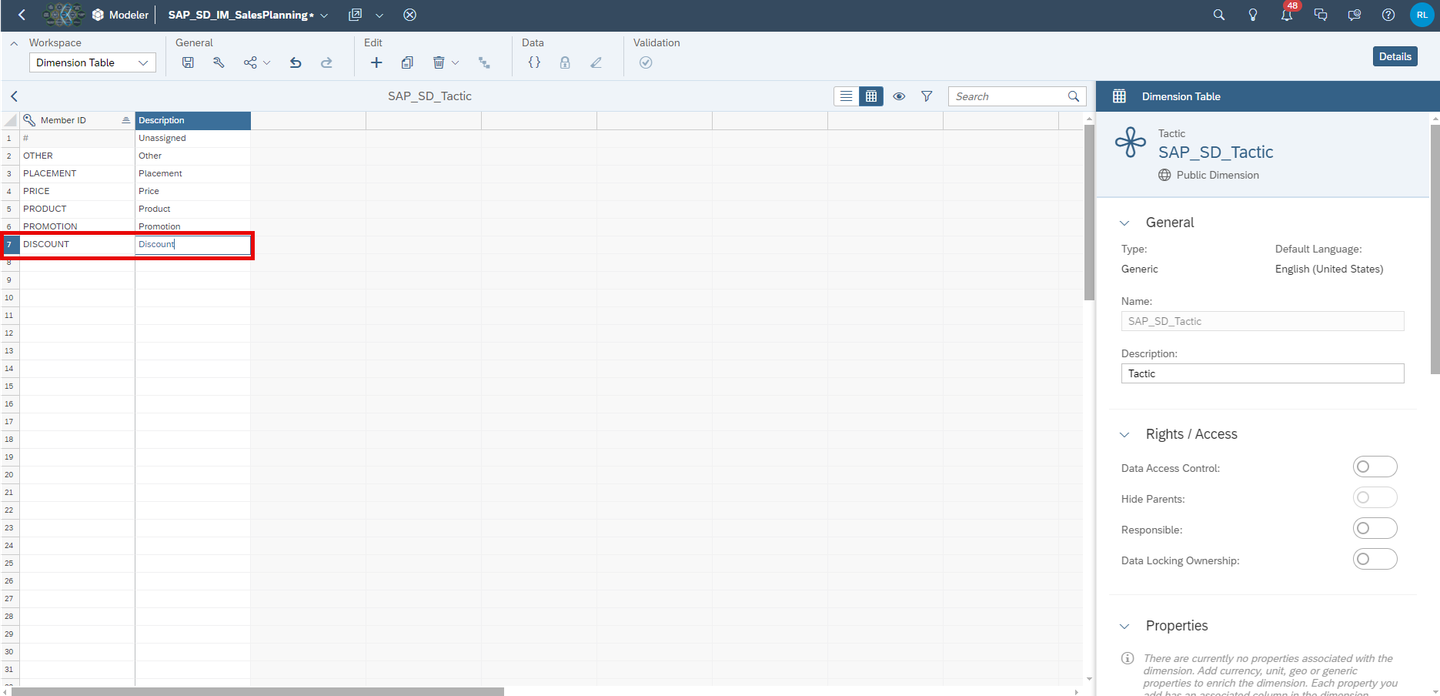
model Save your change.
In the next step the Sales Planning Admin Page (SAP_SD_SalesPlanning_AdminPage) must be modified, and a new mapping should be provided for the new Tactic member created.
In the SAP Analytics Cloud Menu, navigate to the Files section, search for
SAP_SD_SalesPlanning_AdminPageand select Open in Story Edit Mode.
canvas_story Select the Mapping page of the story. Right click on the Tactic input control or select the button More Actions. Click on Edit Filter….

canvas_story Open the Settings, go to the Member Display setting and select All Members in the Available Members drop down. Then select your newly added tactic
Discount. Click on OK.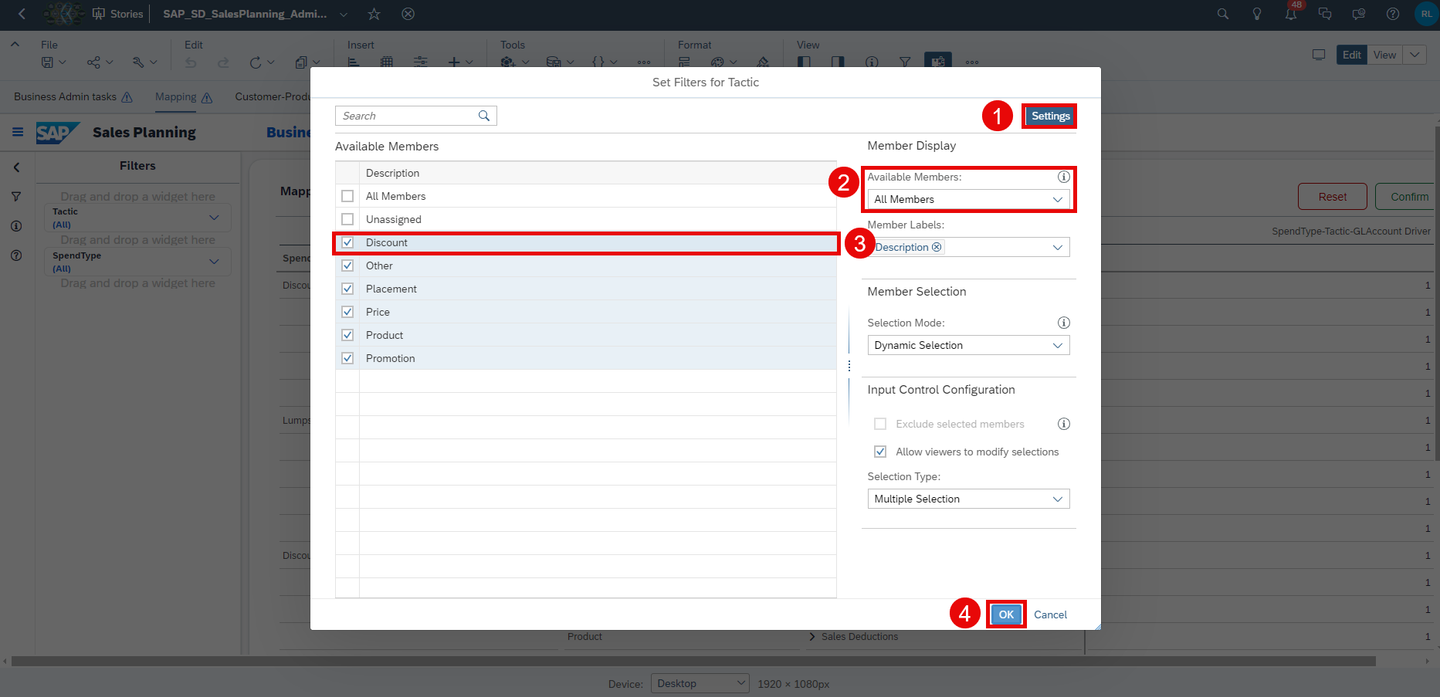
canvas_story Save your change and go to View mode.

canvas_story Select the Mapping page of the story. Right-click on the column
SpendTypein the Mapping Table. Select the Show/Hide option and select Unbooked.
canvas_story The new tactic
Discountis now visible in the table. Perform a manual input on the desired combination ofSpendType,TacticandGL Accountto create a valid driver combination to be used for the sales activity planning.
canvas_story For instance, enter
1for the following combination:Column Value SpendTypeDiscount Percentage TacticDiscount GL AccountSales Discount - Domestic Click on Confirm to publish your change.
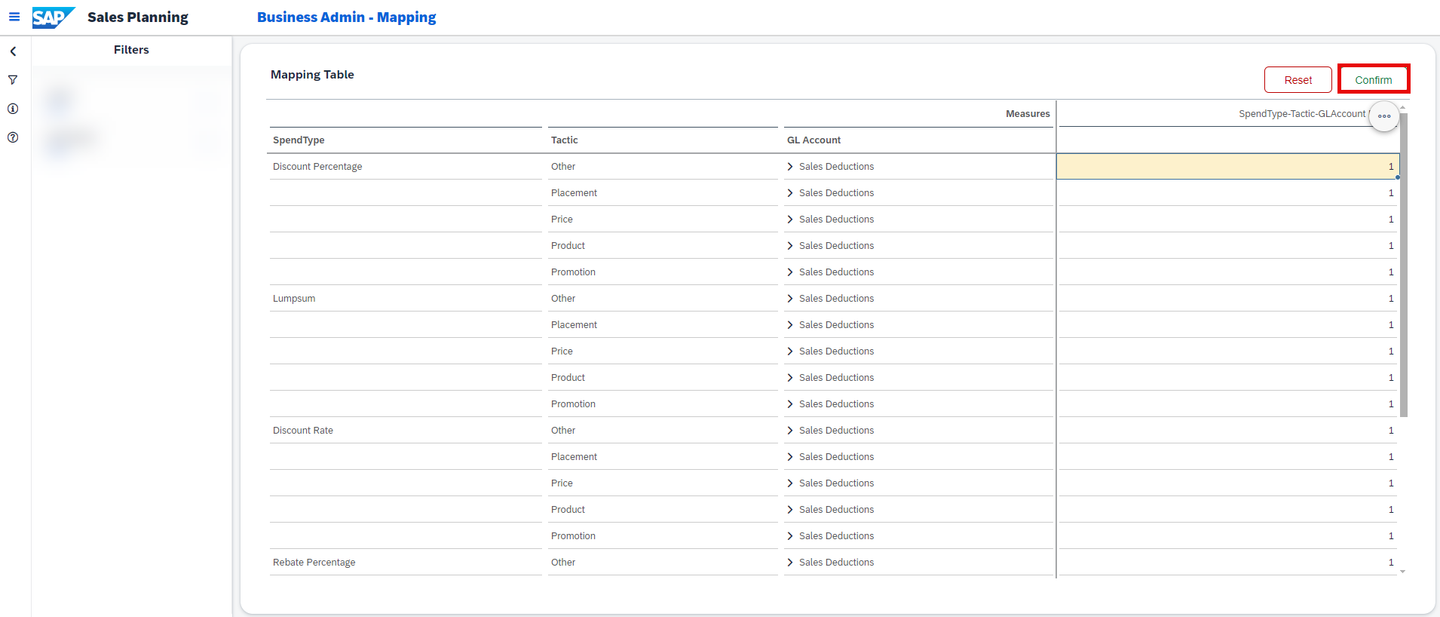
canvas_story Confirm your intention by pressing Yes.

canvas_story
Congratulations! You have now successfully created a new tactic and embedded it into the planning applications and stories!
If you want to learn more about the other modules of this content package, check out the following tutorials:
- xP&A Commercial Planning - Get to know the Marketing Planning module
- xP&A Commercial Planning - Get to know the Sales Planning module
- xP&A Commercial Planning - Get to know the Portfolio Planning module
If you want to customize the content and adjust it according to your own business requirements, the following resources might be helpful:
- xP&A Commercial Planning - Introduction to the Data Model
- xP&A Commercial Planning - Understanding the technical structure of Stories
- xP&A Commercial Planning - Data Integration
- xP&A Commercial Planning - Manage data loads
- xP&A Commercial Planning - Add additional sections to a story
- xP&A Commercial Planning - Add an additional story to the Navigation Menu
- xP&A Commercial Planning - Customize Default Settings
- xP&A Commercial Planning - Customize Table Settings Dialogue
- xP&A Commercial Planning (Marketing) - Add a new Driver
- xP&A Commercial Planning (Marketing) - Add a new Version
- xP&A Commercial Planning (Marketing) - Extend activity spend dates
- xP&A Commercial Planning (Sales) - Add a new Version
- xP&A Commercial Planning (Sales) - Add a new Spend Type
Interested in more xP&A topics and related business content packages? Visit our community page Extended Planning & Analysis Business Content.
Resources
Discussion
Share feedback on this tutorial or join the conversation in SAP Community.