
Overview
You will learn
- How to create and edit a table type for an internal table in the new, form-based Table Types editor
- How to use this table type to retrieve data from a database table


Prerequisites
Prerequisites
- You have done one of the following:
- You have a valid instance of SAP Business Technology Platform (BTP) ABAP Environment. For more information, see Tutorial: Create Your First ABAP Console Application, steps 1-2
- You have a valid instance of an on-premise AS ABAP server, version 7.52 or higher. (The text-based Table Editor is not available for earlier ABAP server versions). For a free AS ABAP server, 7.52, SP04, see SAP Developers: Trials and Downloads - 7.52
- You have installed ABAP Development Tools 3.0, latest version
- You have downloaded or pulled the ABAP Flight Reference Scenario. To pull this reference scenario from
Github, see Downloading the ABAP Flight Reference Scenario - Tutorial: Create a Database Table
Steps
Intro
Table types can also be defined in, for example, an ABAP program or class. The differences between the two approaches include:
- Table types in the ABAP Data Dictionary are maintained in a form-based editor, table types in ABAP in a text-based editor
- Reuse: Table types can only be used by other Dictionary types if they are defined in the Data Dictionary
- Modularization: Table types in the Dictionary are stand-alone objects, whereas table types in ABAP are always part of another Repository object
Throughout this tutorial, objects have the suffix XXX. Remember to always replace this with your initials or group number.
Open your ABAP Project or ABAP Cloud Project from the previous tutorial, then open the package in which you created the database table.
Select your package and choose New > Other ABAP Repository Object > Dictionary > Table Type from the context menu.

Image depicting step1-new-table-type Enter a name and description and choose Next.

Image depicting step1b-name Create or assign a transport request and choose Finish.
The table type appears in a new editor.

Choose the category Dictionary Type For the type name, choose the database table you created in a previous tutorial, for example Z_BOOKING_XXX (replacing XXX with your group number or initials).
Enter the exact name. The Browse function may not work in some environments.

In the ABAP Environment, you can only work with whitelisted objects. The majority of tables you might expect, such as
SFLIGHTare not whitelisted. For a complete list of whitelisted objects, see the folder Released Objects. To sort objects by object type, not package, use a Duplicate Tree

In ABAP on-premise systems, this is not an issue.
You cannot define your own primary key for a standard table. First, change the access type to Sorted Table.

Image depicting step3-change-access Change the Primary Key type to Key Components.
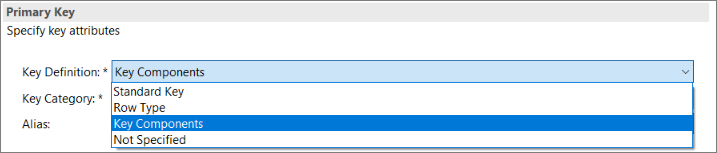
Image depicting step3b-change-key-type You can now choose the key fields from a drop-down list, by choosing Auto-complete (Ctrl+Space).
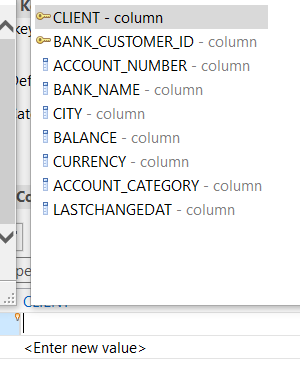
Image depicting step3c-change-key-comps Choose each key field in turn, using Auto-complete (
Ctrl+Space):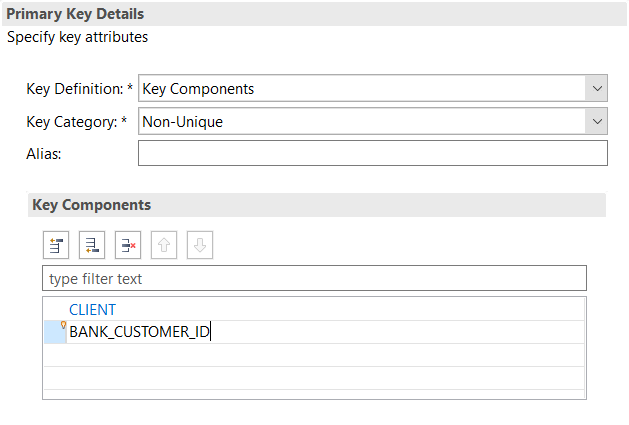
Image depicting step3d-choose-key-comps
This is for test purposes only. The access type you choose in real life affects performance. For more information, see:
Users may want to query a database table using something other than the primary key. To enable this, create a secondary key.
First, select Secondary Key and choose Create… from the context menu:
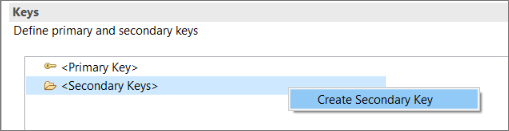
Image depicting step4-secondary-key Enter a name and choose the component(s) (or fields):
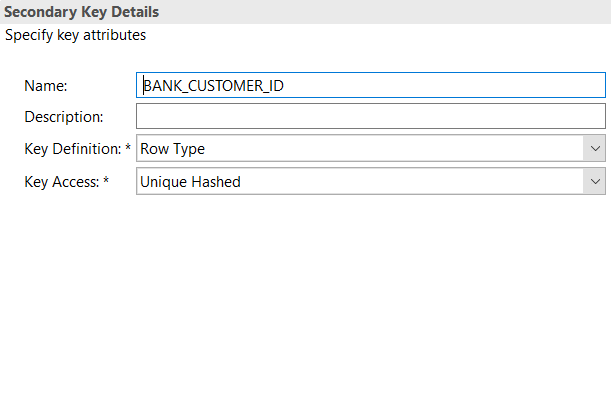
Image depicting step4b-secondary-key-comps
The keys are listed.
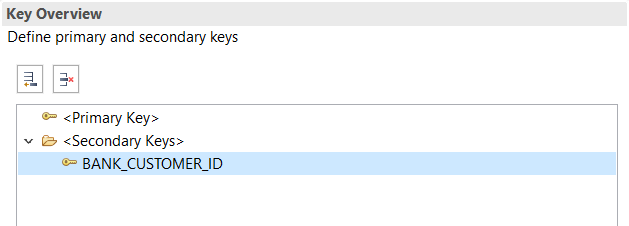
Finally, you will test your table type by using it to:
- define an internal table
- get database data into this table
- output the table content to the console
First create the ABAP Class, by selecting your package and choosing New > ABAP Class from the context menu:

Image depicting step5-create-class Enter a name
ZCL_GET_ACCOUNT_DATA_XXXand description for your class (replacingXXXwith your group number or initials).
step5-name-class Assign a transport request and choose Finish.
The class appears in a new editor.

Add the following interface to your class:
ABAPinterfaces if_oo_adt_classrun.
This interface provides a light-weight solution for executing an ABAP program without launching a full user interface. It also lets you display text or data in the Console View.
Add the implementation for the
mainmethod of this interface by selecting the interface name and choosing Add implementation… from the context menu.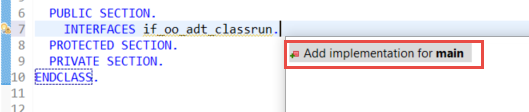
step6a-add-intf
You will now add the following code to the main method, remembering to rename the table type and database table to your own (for example, replacing XXX with your group number or initials)..
Create an internal table
lt_accountswith the table type that you just created,ZTT_ACCOUNTS_XXX.ABAPDATA: lt_accounts type ZTT_ACCOUNTS_XXX.Select data from the database table from the previous tutorial
ZTBOOKING_XXXand add it to the internal table.ABAPselect * from ZACCOUNTS_XXX into table @lt_accounts.Output the internal table to the console.
ABAPout->write( EXPORTING data = lt_accounts name = 'Accounts:' ).Then save and activate your class using
Ctrl+S, Ctrl+F3.
The complete class should look like this:
CLASS zcl_get_account_data_xxx DEFINITION
PUBLIC
FINAL
CREATE PUBLIC .
PUBLIC SECTION.
INTERFACES if_oo_adt_classrun.
PROTECTED SECTION.
PRIVATE SECTION.
ENDCLASS.
CLASS zcl_get_account_data_xxx IMPLEMENTATION.
METHOD if_oo_adt_classrun~main.
DATA: lt_accounts type ZTT_ACCOUNTS_XXX.
select * from ZACCOUNTS_XXX
into table @lt_accounts.
out->write( EXPORTING
data = lt_accounts
name = 'Accounts:' ).
ENDMETHOD.
ENDCLASS.Run your class in the console by choosing F9. Your output should look like this:

Resources
Discussion
Share feedback on this tutorial or join the conversation in SAP Community.