
Use abapGit to Transfer Your On-Premise ABAP Source Code to the Cloud
Transfer Your ABAP Source Code from your on-premise SAP system to your SAP Business Technology Platform ABAP Environment instance over a Github Repository using the abapGit report and the ADT plugin for abapGit.
Overview
You will learn
- How to create content in an on-premise system and push it to Git repository
- How to import the content from Git repository into a SAP BTP ABAP Environment instance


Prerequisites
Prerequisites
github.comor similar account- SAP BTP ABAP Environment system and user with developer role
- on-premise system with user and required root CA of Git server (STRUST)
- Download Eclipse Photon or Oxygen and install ABAP Development Tools (ADT). See https://tools.hana.ondemand.com/#abap.
- For More information see Working with
abapGit
Steps
Log in to your
github.comaccount.Create a new repository by clicking on New button.

new repository Enter a name and description and choose Private, check the checkbox Add a README file under Initialize this repository with: and click Create repository.

create repository Our repository is all set up for now.

create repository
As next you need to install abapGit on your on-premise system.
IMPORTANT Arrange with your system administrator before you install
zabapgit.
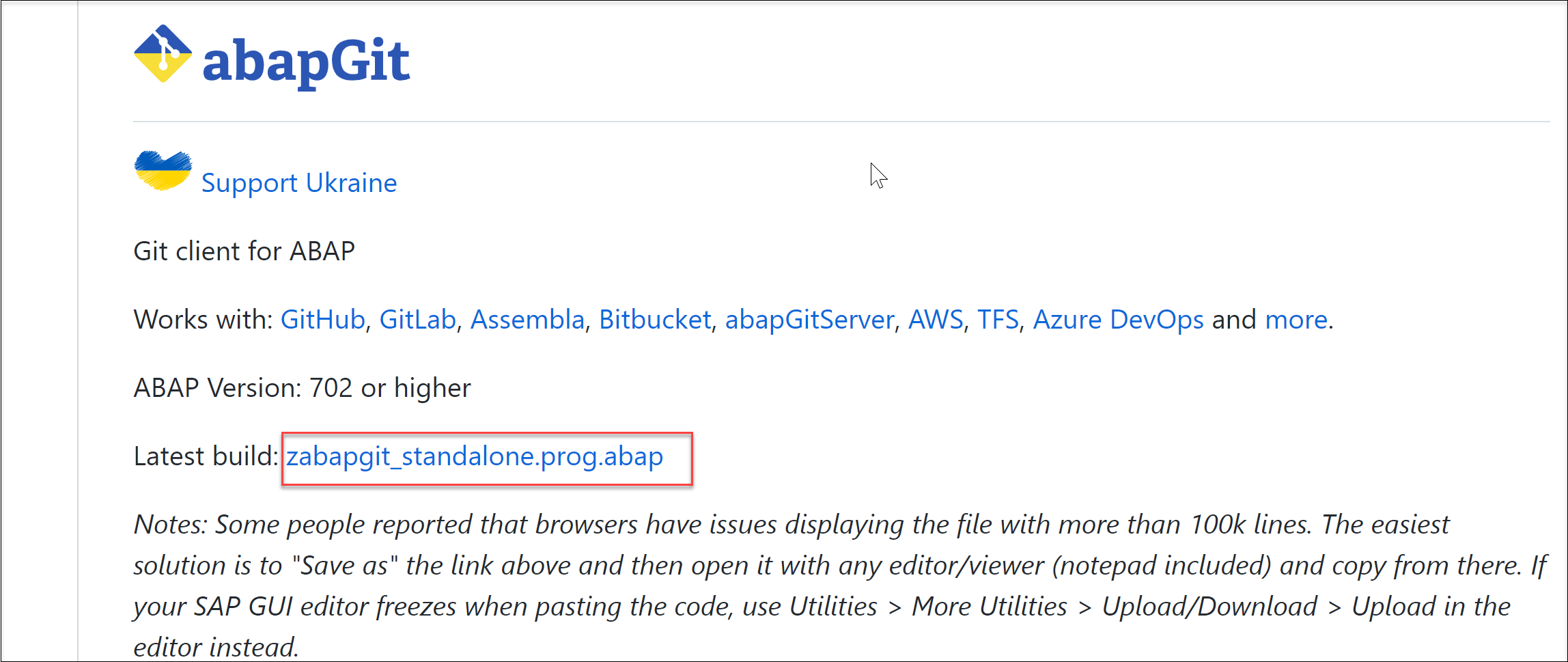
- Copy the content of the latest build from the program
zabapgit, that you will find in theabapGitrepository https://github.com/abapGit/abapGit.
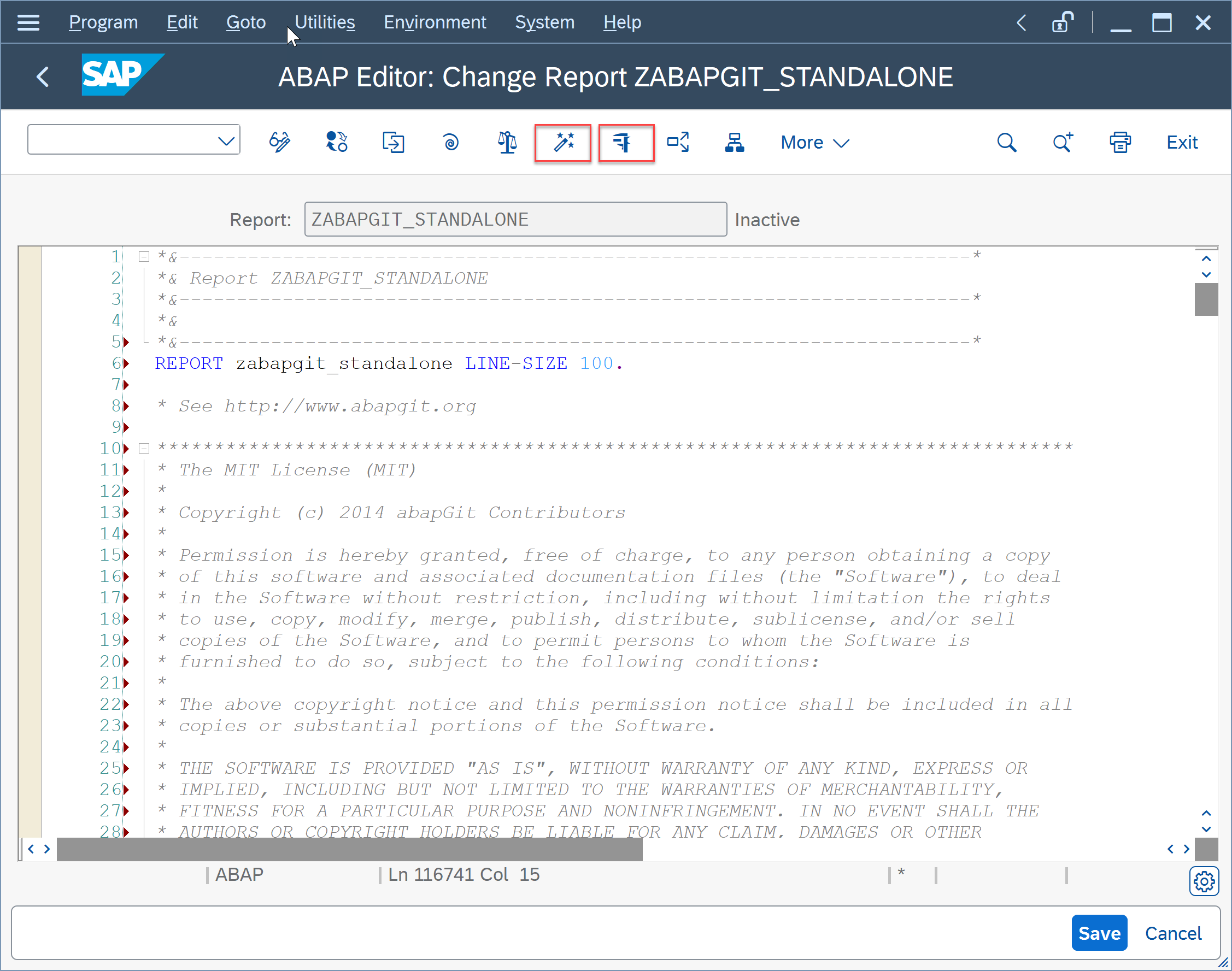
- Open your on-premise system of your choice and create a new program like
ZABAPGIT_STANDALONEvia SE38 and paste the saved content into it. Activate and execute the program.
If you have installed
abapGitbefore, you need to go to SE38, search for ZABAPGIT_STANDALONE program and press Execute.
search program Now
abapGitis installed and opened.
execute program
You can find all installation information under https://github.com/abapGit/abapGit > Documentation/Guides.
IMPORTANT Logon with language
ENto your on-premise system. SAP BTP ABAP Environment just supportsENat the moment. Otherwise you’ll get issues during import.
Back to your created repository and click Code and copy the URL of your repository.

clone Go to transaction
ZABAPGIT_STANDALONEand press the New Online.
add online Paste the repository URL and click Create Package.

repository URL Enter a name and a Short Description. The Software Component should be LOCAL. You do not need a Super package. Click Continue icon.

continue In the new popup click Create Request icon on the left hand side of Own Requests, to create a new transport request.

new request Enter a Short Description and click the Save icon.

save Click Continue icon.

create package Now you have a new package and you can see your created package. Click Clone Online Repository.

ABAPGIT You will see the cloned Git repository in Repository List.

ABAPGIT
Open your on-premise system in ADT and add your created Package in the last step by right click in the Favorite Packages.

favorite Add ABAP development objects to your package, for example an ABAP class. Save and activate your changes.

development objects
Not supported ABAP object types will be ignored during import.
Go back to the
abapGitUI and click Refresh to see all developments objects that you created in ADT.
refresh Press Stage.

stage Select single objects to add or Add all and commit.

add all Enter committer name, committer e-mail and a comment and press Commit.

commit You will be prompted with a credentials popup. Enter your Git repository server credentials and click Execute.

enter credentials After everything went well, you can see the pushed ABAP objects in your Git repository.

repository updated
In ADT choose in the menu bar Help > Install New Software.

eclipse Add the URL
http://eclipse.abapgit.org/updatesite/and press enter to display the available features. SelectabapGitfor ABAP Development Tools (ADT) and install the plugin.
enter URL
Select your cloud project system in the Project Explorer in ADT and open the
abapGitrepositories view by opening Window > Show View > Other ….
repository Expand the category ABAP and select
abapGit Repositoriesand click Open
expand ABAP
Click the clone button (green + button) in the
abapGitrepositories view.
clone button Enter your
Gitrepository URL and press Next.
enter repository Select Branch and a Package, where your Git repository should be cloned. (If you have no packages, you need to create a new one before) and click Next.

choose package Select a transport request and click Finish.

finish Open
abapGitRepositories tab, right-click your package and click pull. It takes some minutes to pull successfully.
finish Your imported sources are now available under your package.

end
Resources
Discussion
Share feedback on this tutorial or join the conversation in SAP Community.