
Overview
You will learn
- How to create a service definition
- How to create a service binding
- How to create a communication scenario


Prerequisites
Steps
Intro
Always replace XXX with your initials or group number.
Create all business services with ABAP namespace Z....
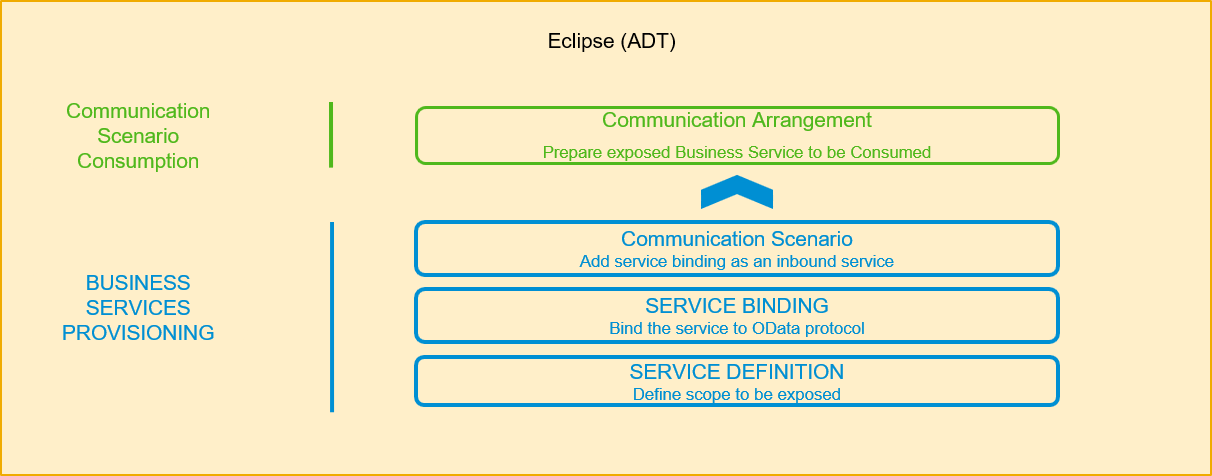
You need to create an OData service by defining and binding a service based on the corresponding CDS view. As soon as the OData service is published in the local system repository, it is ready to be consumed by an OData client, such as a SAP Fiori app. To be able to use this exposed service and its related service binding, you need to create a published Communication Scenario. This published Communication Scenario will be assigned to a Communication Arrangement.
In Eclipse, choose in the menu bar Help > Install New Software….

install new software For Eclipse Photon, add the URL
https://tools.hana.ondemand.com/photonand press enter to display available features. Select ABAP Development Tools and choose Next.
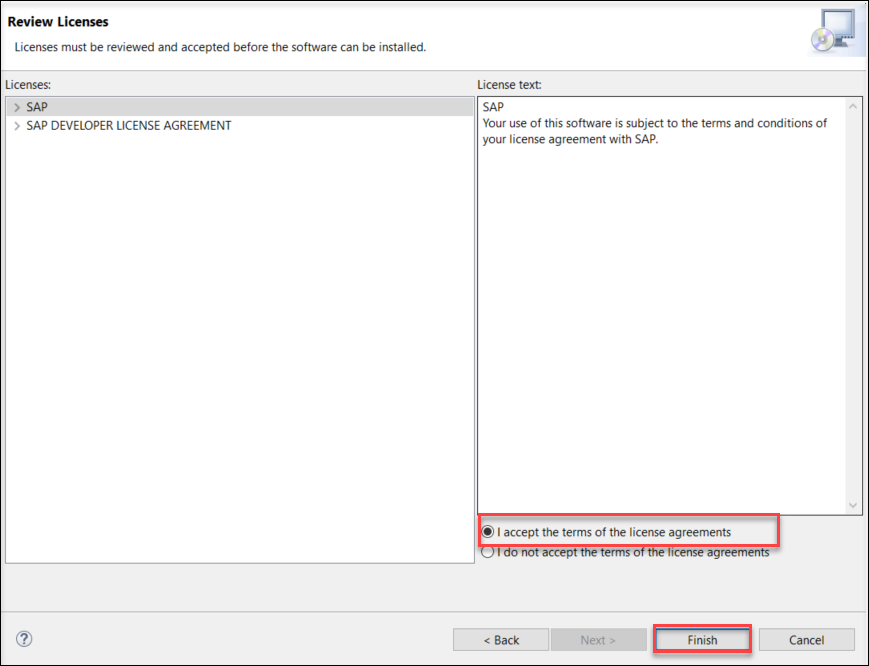
choose ADT confirm the license agreements and choose Finish to start the installation. You will need to restart your Eclipse.
license
Mark this steps as completed by pressing Done if you have already created the package Z_Package_XXX (where XXX is your group number) in the previous tutorials.
Open Eclipse and connect to your system.
Right click the main package
ZLOCALchoose New > ABAP Package.Create your own ABAP development package
Z_PACKAGE_XXXas a sub package ofZLOCAL.- Name:
Z_PACKAGE_XXX - Description:
my new package
- Name:
Click Next.
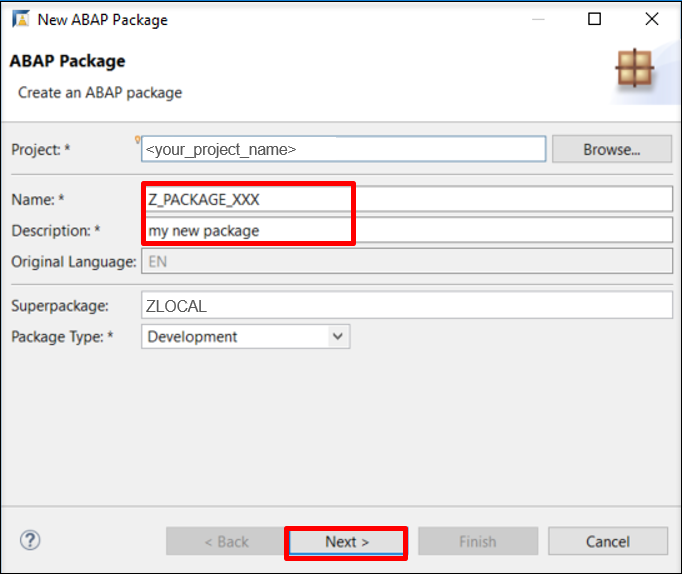
Create ABAP package Select package properties and click Next.
- Software Component:
ZLOCAL
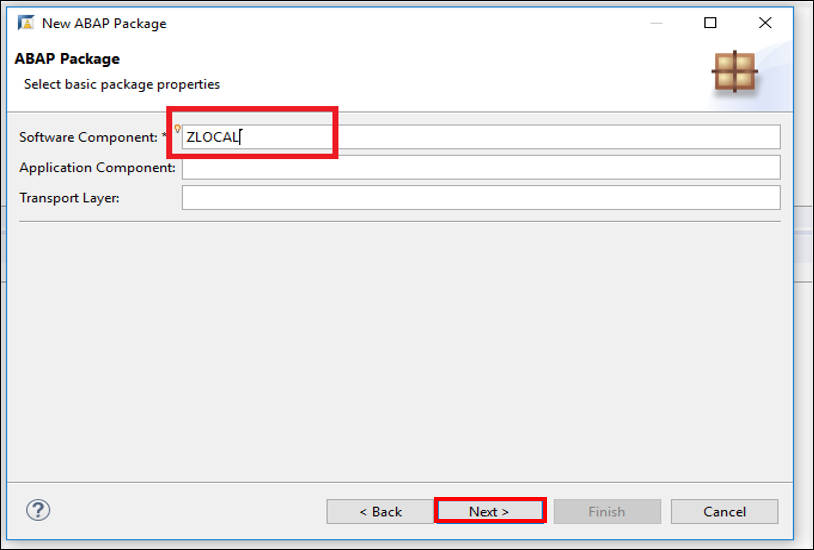
Create ABAP package - Software Component:
Select a transport request and click Finish.
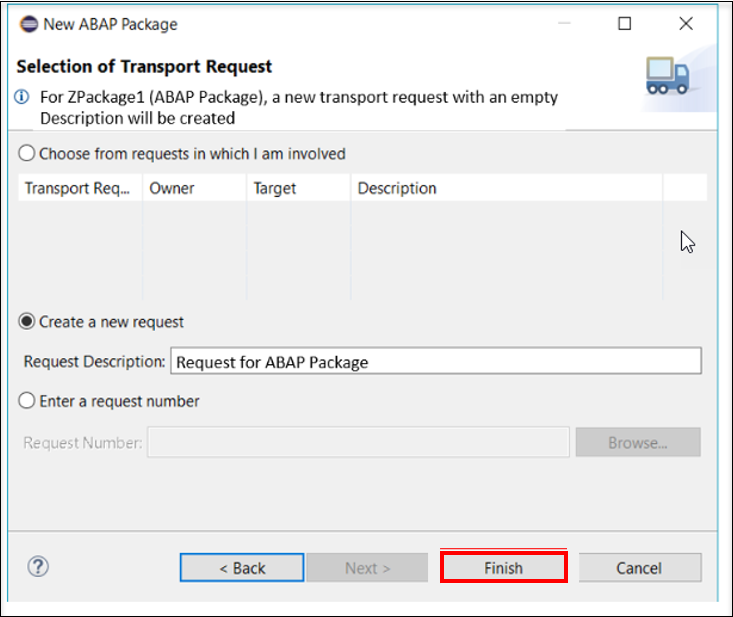
Transport request
Add your package to Favorite Packages.
We want to create service definition to expose CDS entities and their behavior.
Right click your package and choose New > Other ABAP Repository Object > Business Services > Service Definition.
Click Next.
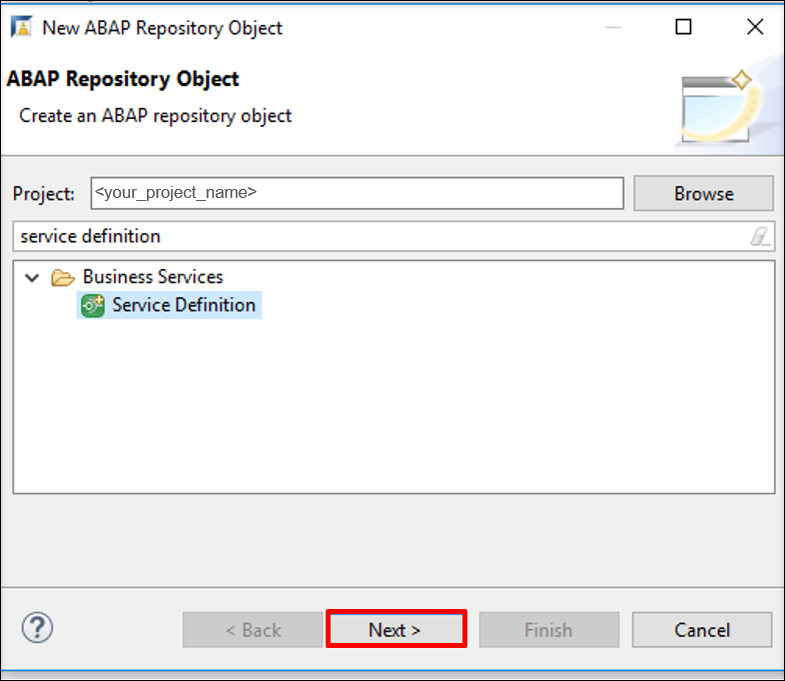
Add Service Definition Create a service definition by adding following information.
- Name:
Z_DEF_XXX - Description:
service definition
- Name:
Click Next.
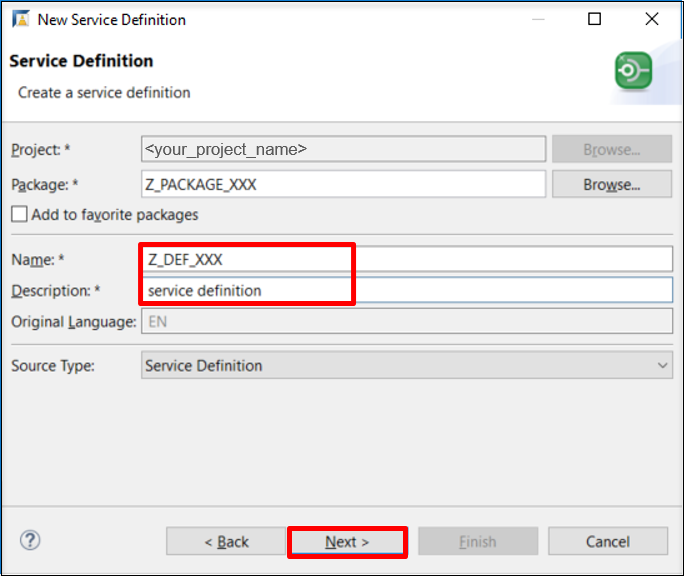
Create Service Definition
The Service definition is now created.
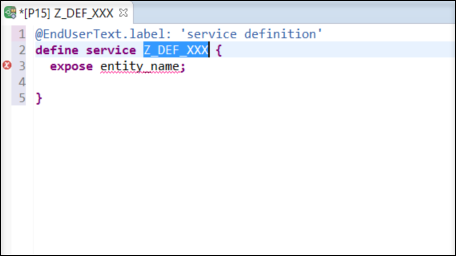
Exposition of the CDS view I_Currency and provide Currency as alias.
Do not forget to save and activate!
@EndUserText.label: 'Demo service Definition'
define service Z_DEF_XXX {
  expose I_Currency as Currency;
}We want to create service binding to bind service to a protocol and preview.
Right click your package and choose New > Other ABAP Repository Object > Business Services > Service Binding.
Click Next.
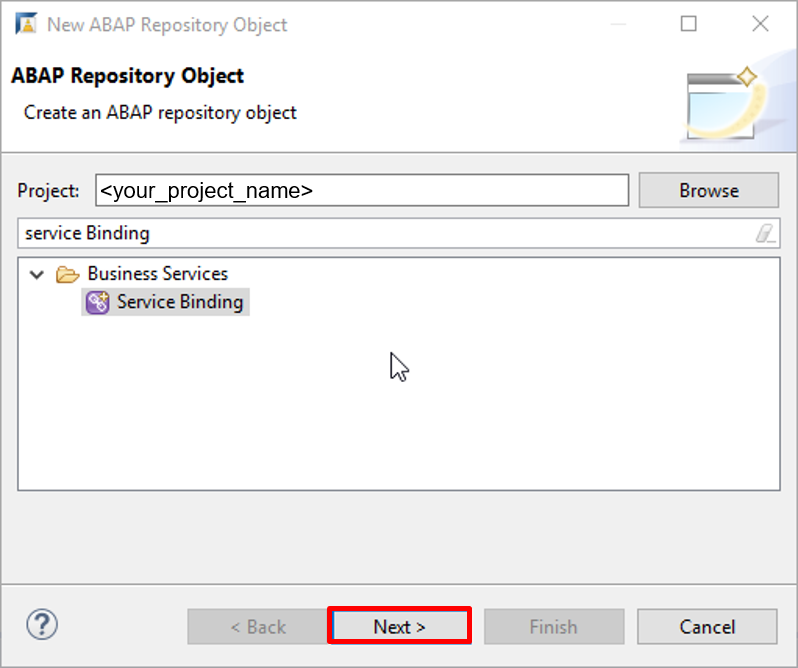
Add Service Binding Enter data for a new service binding. Use the service definition created in last step.
- Name:
Z_BIND_XXX - Description:
service binding - Binding Type: ODATA V2 (UI - User Interface: Consumed in SAPUI5 Apps)
- Name:
Click Next.
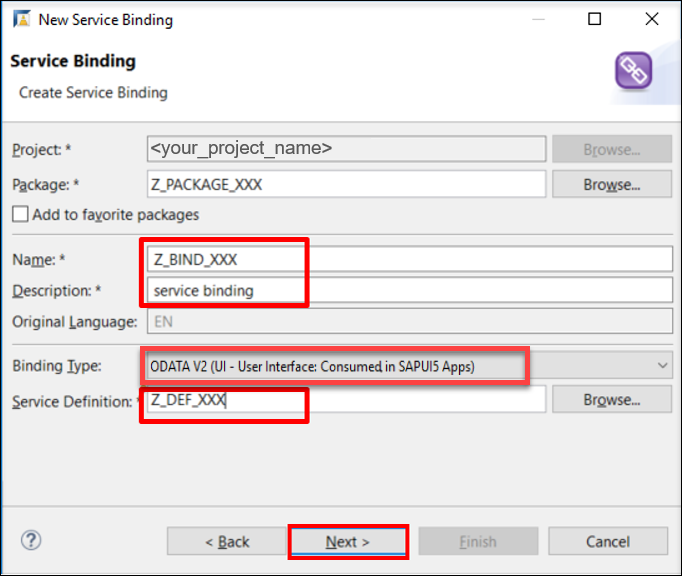
Create Service Binding
Click Activate, and then you will see the service name and service URL in the table.

After publishing the business service, you can preview the published business service as SAP Fiori Elements app in the Service Binding editor:
Go to the Service Details on the right side
Either double-clicking on the entity Currency or right-clicking on it and then selecting Open preview for Fiori Elements App.
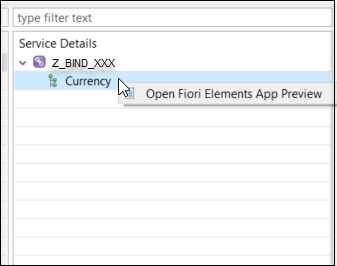
Preview Service Binding Login with your username and password.
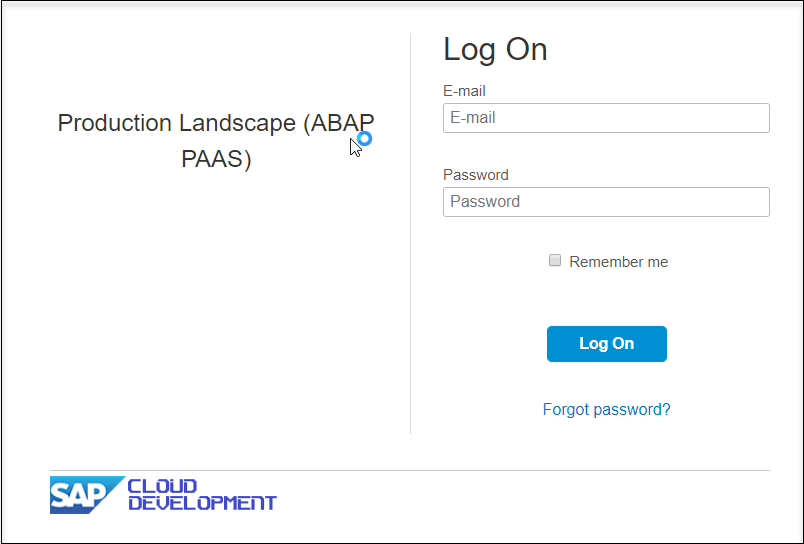
Login To set some filters click on settings icon.
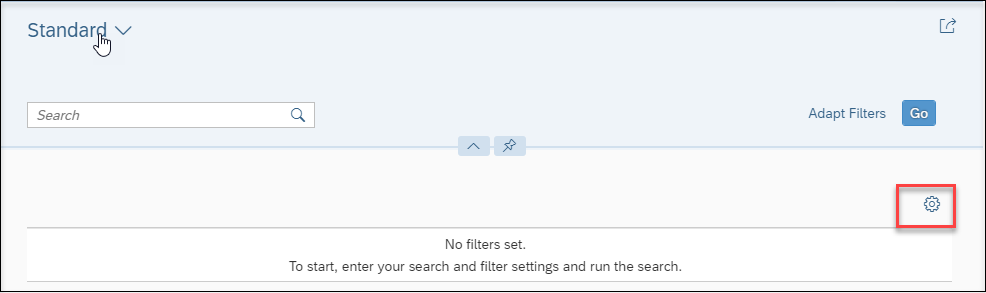
set Settings Select fields that shall be displayed or select all and click OK.
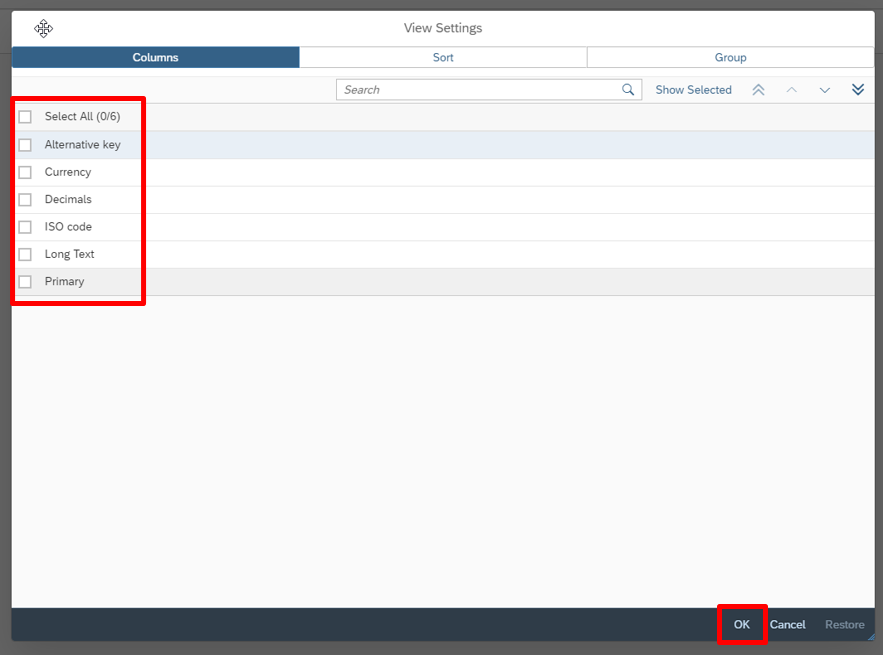
select fields Click on GO.
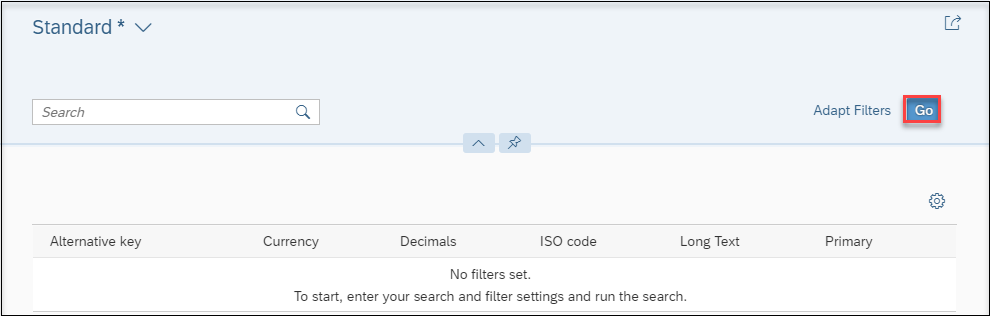
GO button You can see the filtered data on UI.
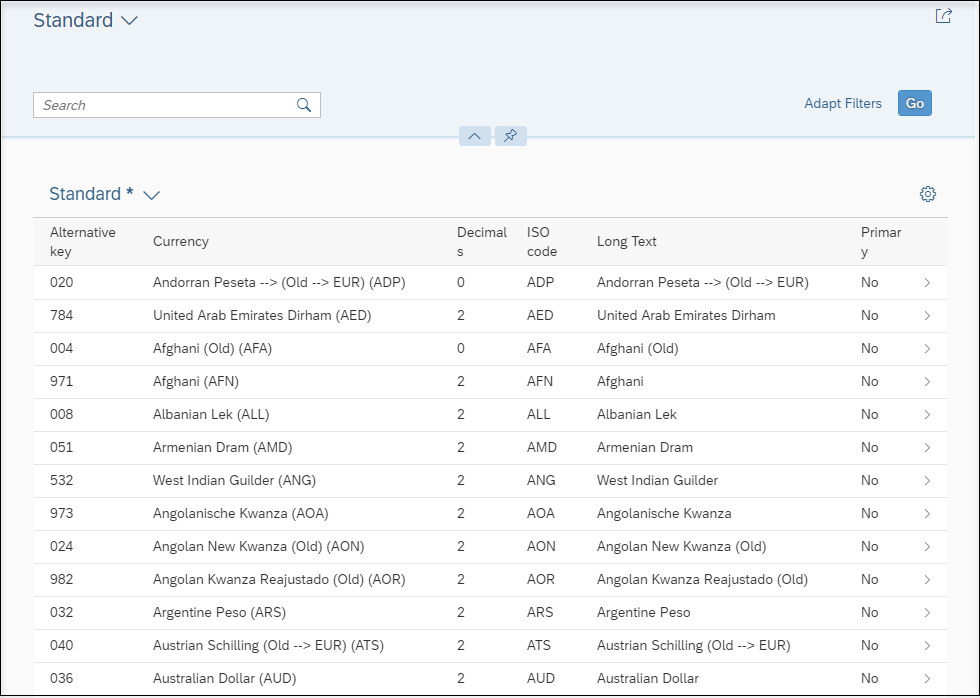
UI view
Right click your package and choose New > Other ABAP Repository Object > Communication Management > Communication Scenario.
Click Next.
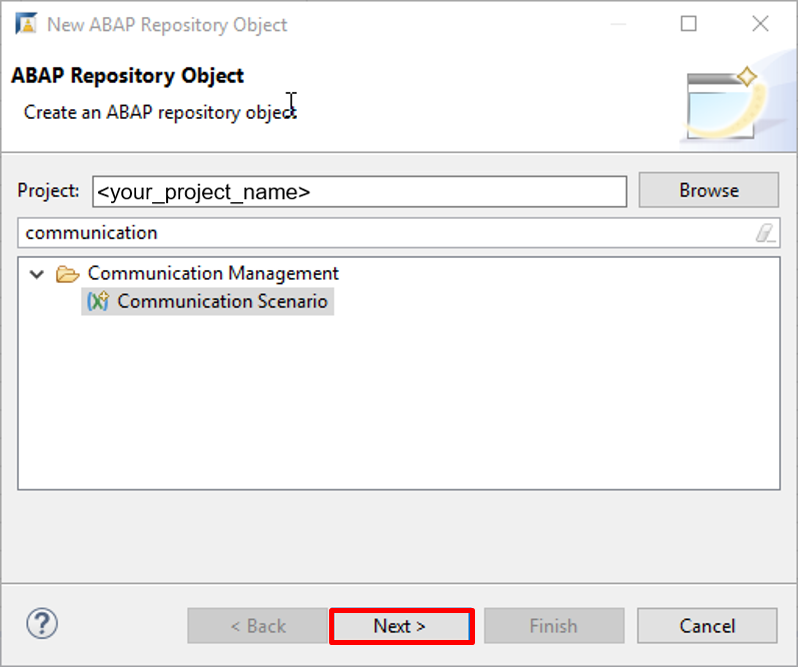
Add Communication Scenario Enter data for a communication scenario.
- Name:
Z_COMMU_XXX - Description:
communication scenario
- Name:
Click Next.
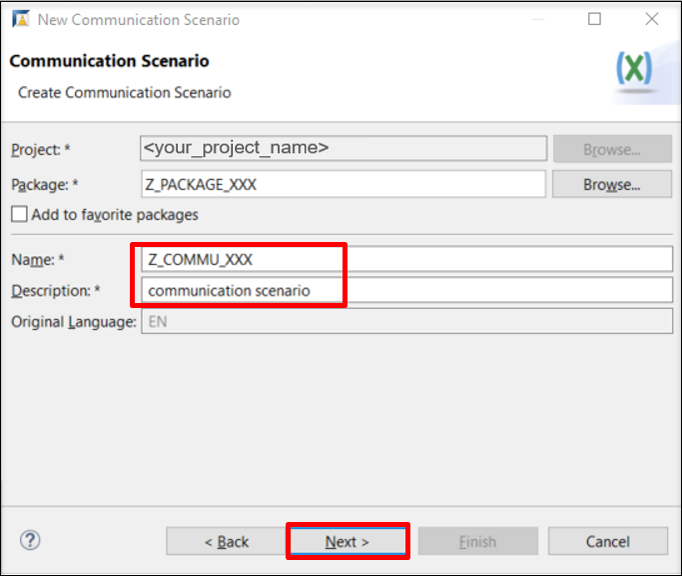
Create Communication Scenario
Open the created communication scenario and navigate to Inbound tab.
Check Basic under Supported Authentication Methods.
Click Add inbound service.
Browse the service binding created before,
Z_BIND_XXX, and select inbound service IDZ_BIND_XXX_IWSGinstead, whereXXXis your group number.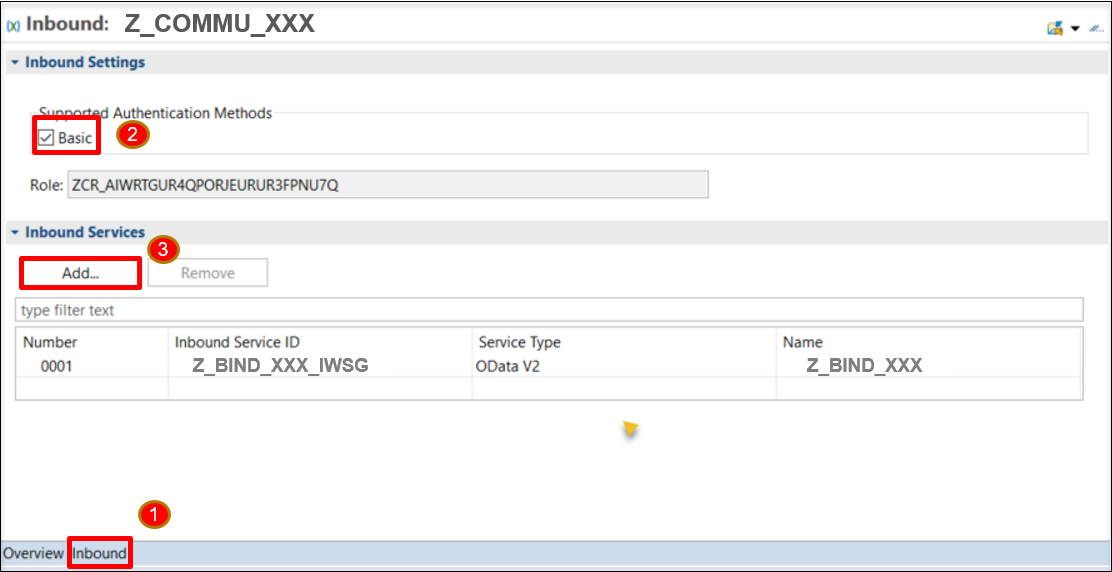
Add Inbound 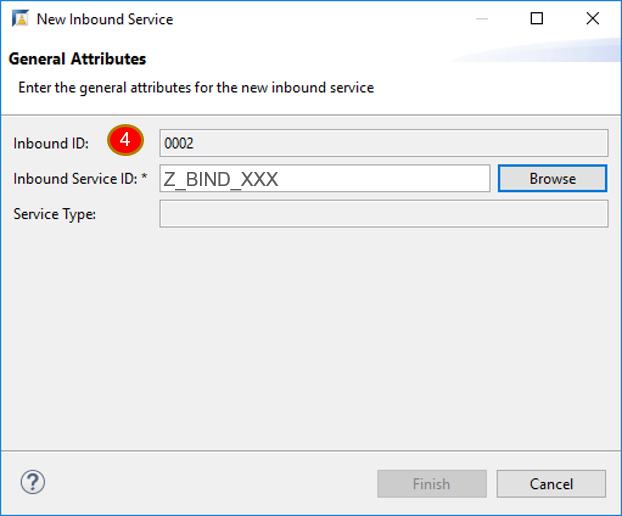
Add Inbound
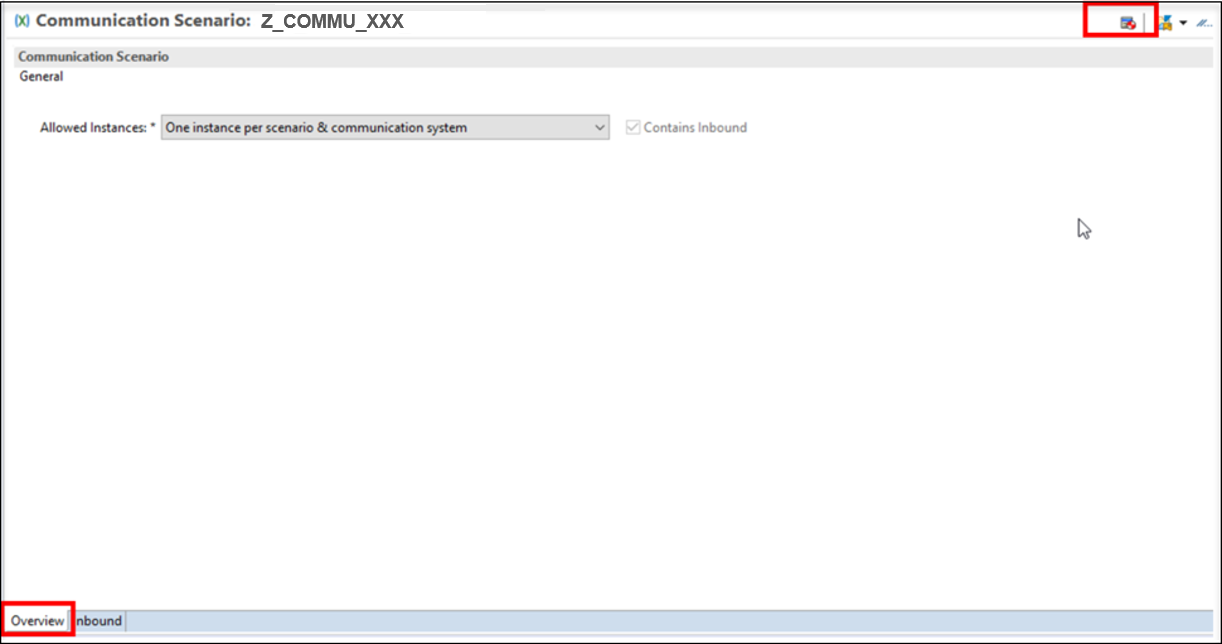
Navigate to the Overview tab and publish the scenario locally.
Resources
Discussion
Share feedback on this tutorial or join the conversation in SAP Community.