
Overview
You will learn
- How to debug an ABAP Console application in ABAP Development Tools (ADT)


Prerequisites
Prerequisites
One of the following applies:
- You have completed the Mission: Get Data from a Remote System Using a Custom Entity (option: Mission below)
- The
BAPI_EPM_PRODUCT_GET_LISTis available in your system (option: Standalone below)
Steps
Intro
This tutorial will make you familiar with the relevant tools, whether you are an ABAP newbie, experienced in SAPUI5 development, or an ABAP developer who is new to ADT / SAP Cloud Platform, ABAP Environment.
Open the class you created previously in the tutorial Call a Remote Function Module (RFC): Test the Connection to the Remote System ZCL_OUTPUT_TEST_000.
Create an ABAP class.
Add the following code:
ABAPCLASS ZCL_OUTPUT_TEST_000 DEFINITION PUBLIC FINAL CREATE PUBLIC . PUBLIC SECTION. INTERFACES if_oo_adt_classrun . PROTECTED SECTION. PRIVATE SECTION. ENDCLASS. CLASS ZCL_OUTPUT_TEST_000 IMPLEMENTATION. METHOD if_oo_adt_classrun~main. DATA lt_products TYPE standard table of bapi_epm_product_header . * DATA lv_max_rows TYPE bapi_epm_max_rows. DATA lv_max_rows TYPE int8. DATA msg TYPE c LENGTH 255. " get products CALL FUNCTION 'BAPI_EPM_PRODUCT_GET_LIST' DESTINATION 'NONE' * EXPORTING * max_rows = TABLES headerdata = lt_products * selparamproductid = lt_filter_ranges_productid * selparamsuppliernames = lt_filter_ranges_supplier * selparamcategories = lt_filter_ranges_category * return = lt_return . " output list of products or error CASE sy-subrc. WHEN 0. out->write( lt_products ). WHEN 1. out->write( |EXCEPTION SYSTEM_FAILURE | && msg ). WHEN 3. out->write( |EXCEPTION OTHERS| ). ENDCASE. ENDMETHOD. ENDCLASS.Format, save, and activate your class (
Shift + F1, Ctrl + S, Ctrl + F3).
In the Project Explorer, select your project and choose Properties from the context menu.

Image depicting step2-properties Choose ABAP Development > Debug.
Change the setting Breakpoint activation … to User and enter your logon user.

Image depicting step2a-debug-user Choose Apply and Close. Your class, which includes an RFC request, that is an external request to a different system / project. This enables you to debug the class.
Note that breakpoints in the ABAP Development Tools (ADT) are by default external user breakpoints. For more information, see: Breakpoints - Characteristics
In your class, right at the start of the method, add some simple code, e.g.
ABAPIF 0 = 1. ENDIF.At the statement
IF 0 = 1., set a breakpoint by double-clicking the ruler.
Link text step3a-add-bp Repeat this - add the same code, then add a breakpoint - right at the end of the code, just before
ENDTRY.
Run your application in the console by choosing
F9.As soon as the first breakpoint is reached, a pop-up window suggests that you switch to the Debug perspective. Choose Switch.

Image depicting step5-switch-perspective
The Debugger perspective opens.

Switch to the Variables tab (to the right of the Class Editor).
Add the system field
SY-TABIXto the list, by clicking:< Enter Variable >This field is filled by the runtime system. You can then use them in programs to query the system status.

Link text step5a-sy-tabix For a list of system variables, see: ABAP System Fields
Expand Locals.
Select the internal table
lt_productand choose Show in Table View from the context menu.
Link text step5c-table-view
The internal table appears in a new tab in the bottom panel.

Switch to the Class Editor. You have 4 options for stepping through the program.
Step Into (
F5) Execute the next single ABAP instruction in the program in the debugger. Step into a called procedure.Step Over (
F6) Execute the next ABAP statement. If the next step is a procedure call, run the entire procedure.Step Return (
F7) Run until the current procedure returns to its caller or until the program ends.Run to Line (
Shift F8) Run to the statement on which the cursor is positioned.

Link text step6a-step-functions Step through the first few lines of the program line by line using
F5- UNTIL you get to the statementDATA(lo_destination) = cl_rfc_destination_provider=>create_by_cloud_destination....Since this statement calls a system class, which you do not want to debug it. Execute these two
DATAstatements usingF6.When you get to
CALL FUNCTION, STOP. You cannot execute this remote function in the Debugger, but you cannot debug it. If you chooseF5, the Debugger will hang. You will have to terminate the Debugger session. Therefore, simply execute this usingF7.
Look at the Table View. lt_product is filled with the data from the BAPI.

However, in the Variables View, ls_product is still empty. SY-TABIX = 25, the total rows in the table imported.

Proceed until you get to the statement
LOOP AT lt_product INTO ls_product..Step through the
LOOP...ENDLOOP.usingF5. Note that the variableSY-TABIXstarts at 1, then increments by 1 for each loop pass.Exit the Debugger by choosing Terminate from the main tool bar.

Link text step7c-terminate
To jump straight from your first breakpoint to the CASE statement:
Choose Run > ABAP Breakpoints > Add Statement Breakpoint…

Link text step8-add-statement-bp Enter
CASE, keep the setting Soft Breakpoint (so that you debugCASEstatements only in your own class, not the whole stack), then choose OK.
Link text step8b-bp-for-case-statement Run the Debugger again by choosing
F9.
You may want to stop, not at a specific statement, but when a variable hits a specific value. To do this, run the Debugger again and proceed as follows:
For clarity, you may wish to deactivate your
CASEstatement breakpoint in the Breakpoints View.
Link text step9a-deactivate-case-bp In the Class Editor, select the field
ls_product-suppliernameand choose SetWatchpointfrom the context menu.
Link text step9b-select-field In the Breakpoints View, choose the
watchpointand enter the conditionLS_PRODUCT-SUPPLIERNAME = 'AVANTEL'. Do not forget the single quotation marks.
Link text step9e-watchpoint-avantel.png If you switch to the Variables View, you can monitor the values of the variable as you step through the loop.
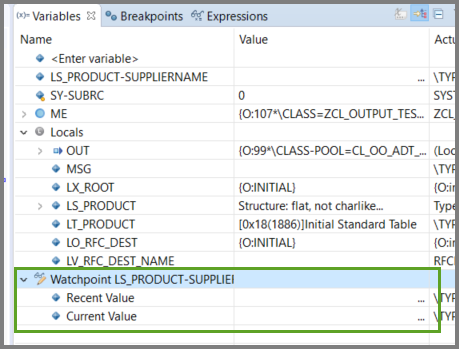
When the Debugger hits the correct row in the table, it stops.

Link text step9f-avantel-in-variables-view When you are satisfied, terminate the Debugger.
You can define a wide range of complex conditions for breakpoints and watchpoint. For more information, see SAP Help Portal: SAP Cloud Platform: ABAP Development User Guide: Adding Conditions to Breakpoints
You can also specify a specific value for a different variable.
Start the Debugger again. Unlike a breakpoint, a
watchpointlasts only for the current Debugger session.In the Class Editor, select
ls_product-suppliernameand choose SetWatchpointagain.Link text step9b-select-field In the Breakpoints View, choose the
watchpointagain. This time, enter the conditionSY-TABIX = 4.
Link text step9c-watchpoint-sy-tabix When the Debugger hits the correct row in the table, it stops.

Link text step9g-table-view-pears
Note: You can only complete this step if you have completed the mission, Get Data from a Remote System Using a Custom Entity.
You can now test the class you created in the tutorial Remote Function Module (RFC) - Get Data from an On-Premise System Using a Custom Entity, ZCL_PRODUCT_VIA_RFC_000. you can start the ABAP Debugger for it as follows:
Open your custom entity.
Open your service binding and choose Preview.

Image depicting step14-preview Log in using your ABAP Environment user and password.
The SAP Fiori elements preview then appears.
Display the data by choosing Go.

Image depicting step14b-preview-with-data
You can also debug your application, displayed in the SAP Fiori elements preview, in the browser. This is beyond the scope of this tutorial, but for more information, see:
Resources
Discussion
Share feedback on this tutorial or join the conversation in SAP Community.