🎓beginner⏱15 min.SAP BTP ABAP EnvironmentBeginnerABAP DevelopmentSAP Business Technology Platform
You will learn
✔How to enhance base business object data model
✔How to enhance projected business object data model
✔How to enhance metadata extension to adjust UI semantics
✔How to preview and test enhanced travel app In the previous exercise, you’ve created a database table for storing Travel data and generated your UI service - comprising the business object (BO) entity Travel - on top of it. In this exercise, you will enhance the base BO data model as well as the projected BO data model and its metadata extension, and test the enhanced Fiori elements Travel app. These enhancements will include the definition of new associations, elements, view annotations, and element annotations.
You need to have access to an SAP BTP, ABAP environment, or SAP S/4HANA Cloud, ABAP environment or SAP S/4HANA (release 2022 or higher) system.
For example, you can create free trial user on SAP BTP, ABAP environment.
Make sure, your system has the ABAP flight reference scenario. If your system hasn’t this scenario. You can download it here. The trial systems have the flight scenario included.
Reminder: Do not forget to replace the suffix placeholder ### with your chosen or assigned group ID in the exercise steps below.
Step 1Enhance base business object data model
—
Define and expose new associations in the base BO data model defined in the CDS view entity ZRAP100_R_TRAVELTP_###:
Associations to the business entities /DMO/I_Customer and /DMO/I_Agency
Associations to the value help views I_Currency and /DMO/I_Overall_Status_VH
Define the new associations _Agency, _Customer, _OverallStatus, and _Currency. Open your data definitiondatadefinitionZRAP100_R_TRAVELTP_### and insert the following code snippet after the select statement as shown on the screenshot below. Format the source code with Pretty Printer(Shift+F1).
Replace your code:
```ABAP
association [0..1] to /DMO/I_Agency as _Agency on $projection.AgencyID = _Agency.AgencyID
association [0..1] to /DMO/I_Customer as _Customer on $projection.CustomerID = _Customer.CustomerID
association [1..1] to /DMO/I_Overall_Status_VH as _OverallStatus on $projection.OverallStatus = _OverallStatus.OverallStatus
association [0..1] to I_Currency as _Currency on $projection.CurrencyCode = _Currency.Currency
```
Your source code should look like this:
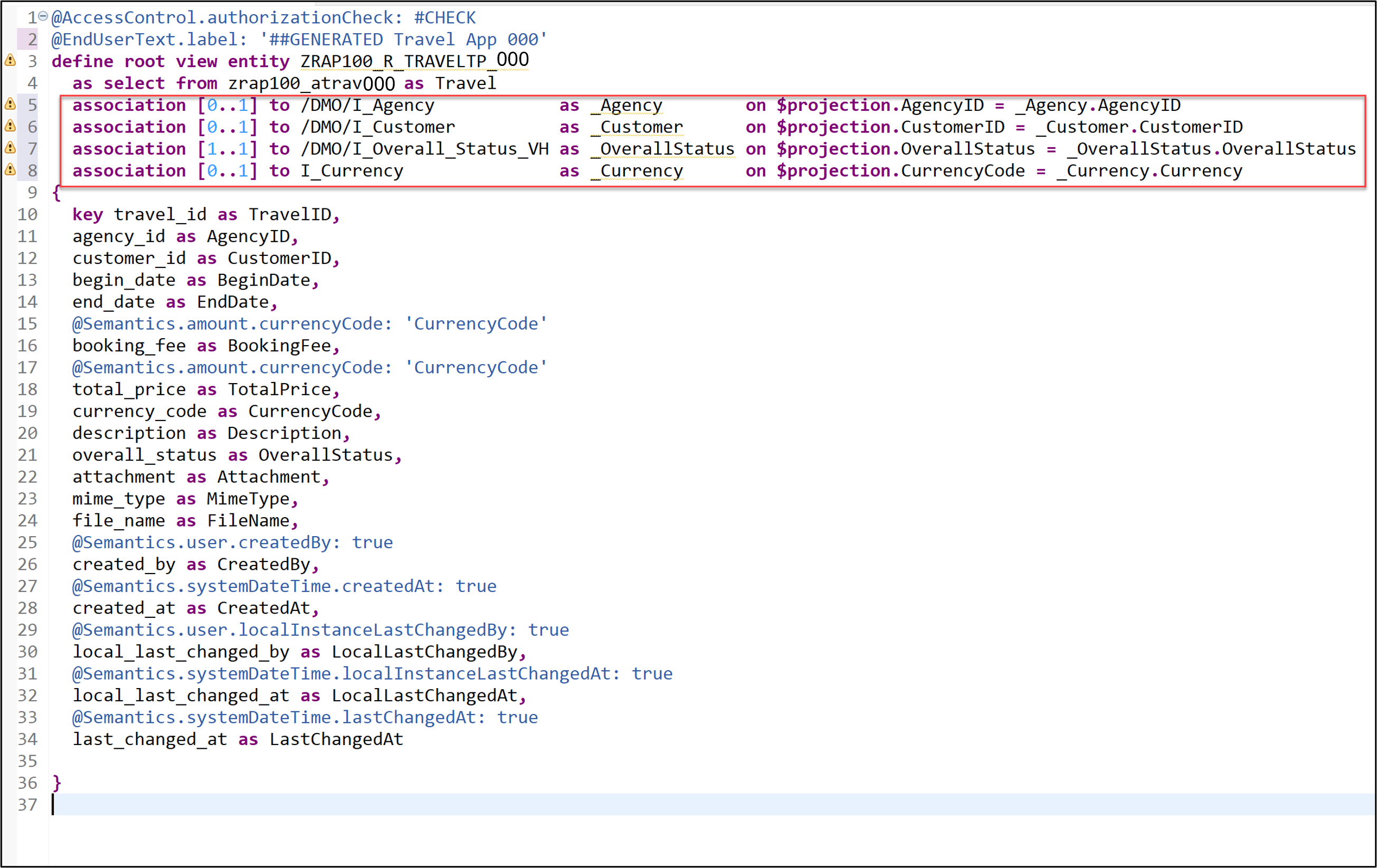
Expose the defined associations _Agency, _Customer, _OverallStatus and _Currency in the selection list. For that, insert the code snippet provided below in the selection list between the curly brackets ({...}) as shown on the screenshot.
Step 2Enable the handling of large objects (aka OData streams)
+
Adjust the data model of the base RAP BO to enable the handling large objects (aka OData stream) in your SAP Fiori elements app. By doing that, you will give end-users the option to upload and download images from your travel app.
The only things you will have to do in the RAP business object, is to specify the appropriate semantics annotations for the relevant fields: attachment, mimeType, and fileName. You will also have to adjust the UI semantics in the CDS metadata extension for the appearance in the travel app.
Remain in the CDS data definition ZRAP100_R_TRAVELTP_### and have a look at following elements in the select list:
Attachment - It will be used to store the MIME object (stream). It must be annotated appropriately using the CDS annotation @Semantics.largeObject.
MimeType - It will be used to store the MIME type of the mime object (stream) It must be tagged appropriately using the CDS annotation @Semantics.mimeType.
FileName - It will be used to store the file name of the mime object (stream). No specific annotation is needed for this element.
Use the code snippets provided below and annotate the elements as shown on the screenshot.
For element `MimeType`:
```ABAP
@Semantics.mimeType: true
```
For element `Attachment`:
```ABAP
@Semantics.largeObject: { mimeType: 'MimeType', //case-sensitive
fileName: 'FileName', //case-sensitive
acceptableMimeTypes: ['image/png', 'image/jpeg'],
contentDispositionPreference: #ATTACHMENT }
```

Short explanation: The attributes of the annotation `@Semantics.largeObject`
- `mimeType`: It indicates the name of the field containing the type of a MIME object. ⚠ The value is case sensitive.
- `fileName`: It indicates the name of the field containing the file name of a MIME object. ⚠ The value is case sensitive.
- `acceptableMimeTypes`: It provides the list of acceptable MIME types for the related stream property to restrict or verify the user entry accordingly. If any subtype is accepted, this can be indicated by *.
- `contentDispositionPreference`: It indicates whether the content is expected to be displayed inline in the browser, i.e., as a Web page or as part of a Web page, or as an attachment, i.e., downloaded and saved locally.
Step 3Enhance projected business object data model
+
Enhance the projected BO data model defined in the CDS projection viewdatadefinitionZRAP100_C_TRAVELTP_###, aka consumption view. For example, you will allow the full-text search on some elements, add new elements for language-dependent descriptive texts, and define value helps.
Open your data definitiondatadefinitionZRAP100_C_TRAVELTP_### and format the generated source code with the pretty printer (Shift+F1). Specify the projection view as searchable by adding the following view annotation as shown on the screenshot below:
```ABAP
@Search.searchable: true
```
>**Info:** In the generated data definition, the element `TravelID` is specified as the semantic key of the Travel entity with the view annotation @ObjectModel.semanticKey: [`TravelID`] and the CDS projection view is specified as business object projections with the addition provider contract `transactional_query` in the `DEFINE ROOT VIEW ENTITY` statement.
Replace the end-user label text:
```ABAP
@EndUserText.label: '##GENERATED Travel App (###)'
```
Your source code should look like this:
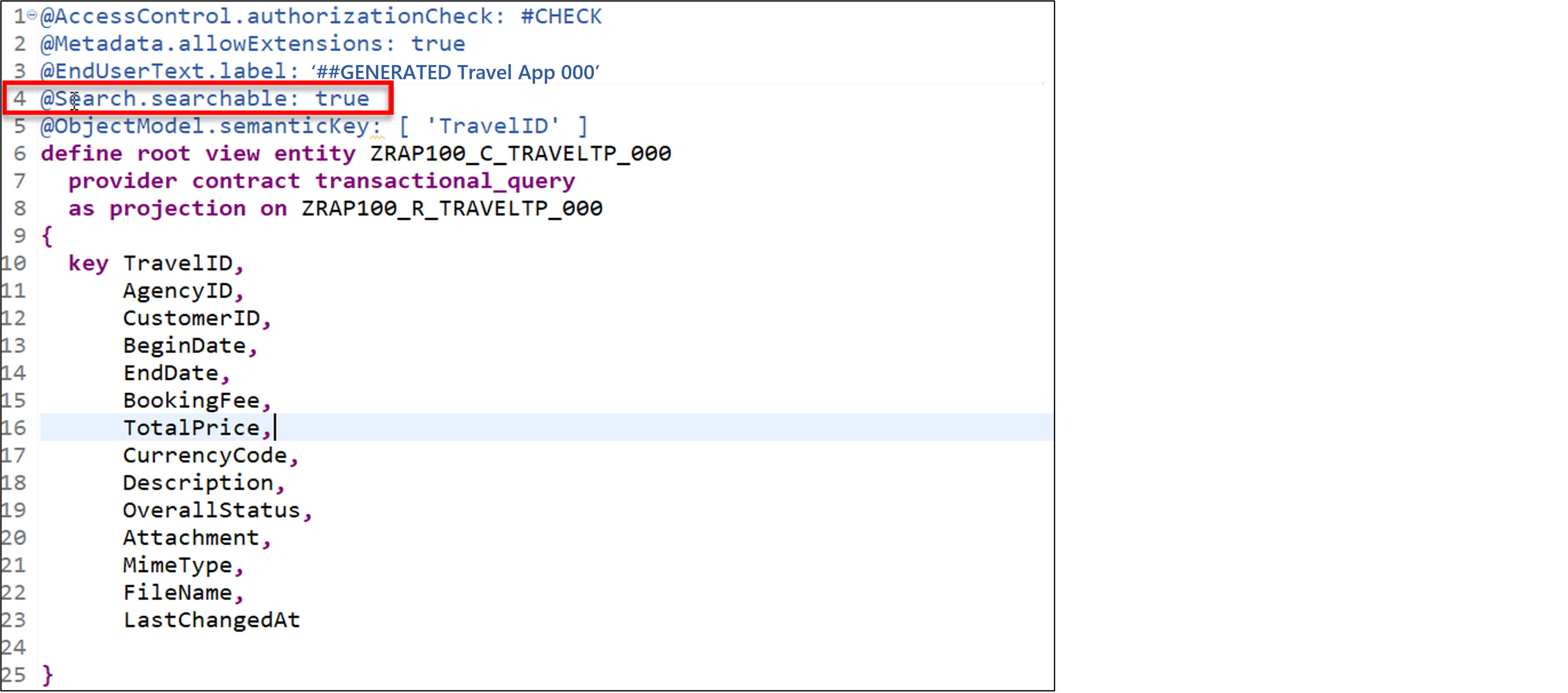
If not yet done, please format your source code with the pretty printer (Shift+F1).
Enhance the selection list between the curly brackets ({...}) with the agency name, the customer name, and the descriptive text of the overall status.
Agency Name:
```ABAP
_Agency.Name as AgencyName,
```
Customer Name:
```ABAP
_Customer.LastName as CustomerName,
```
Overall Status Text:
```ABAP
_OverallStatus._Text.Text as OverallStatusText : localized,
```
> Note: The keyword `localized` is used to display text elements in the current system language.
Your source code should look like this:
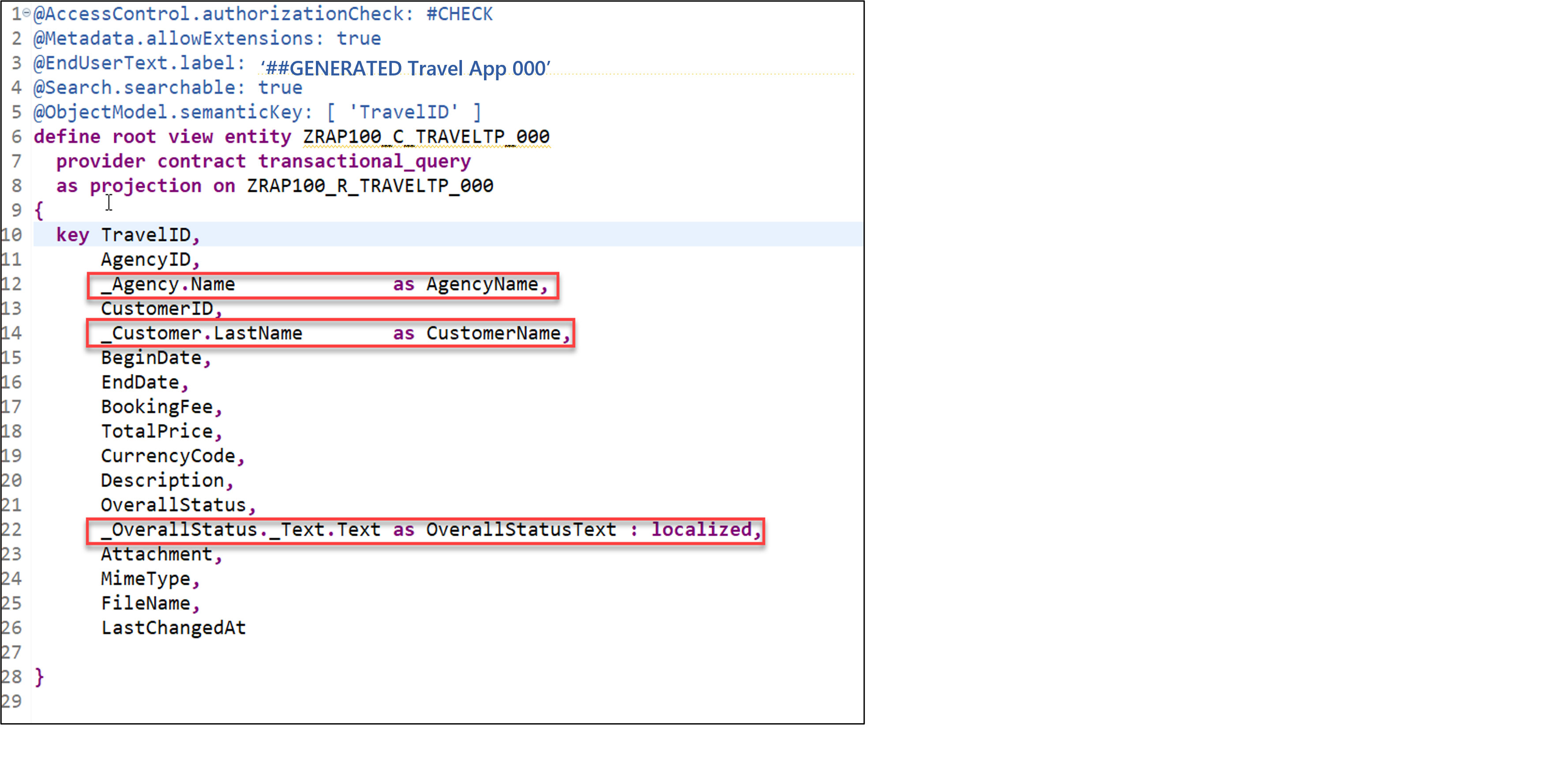
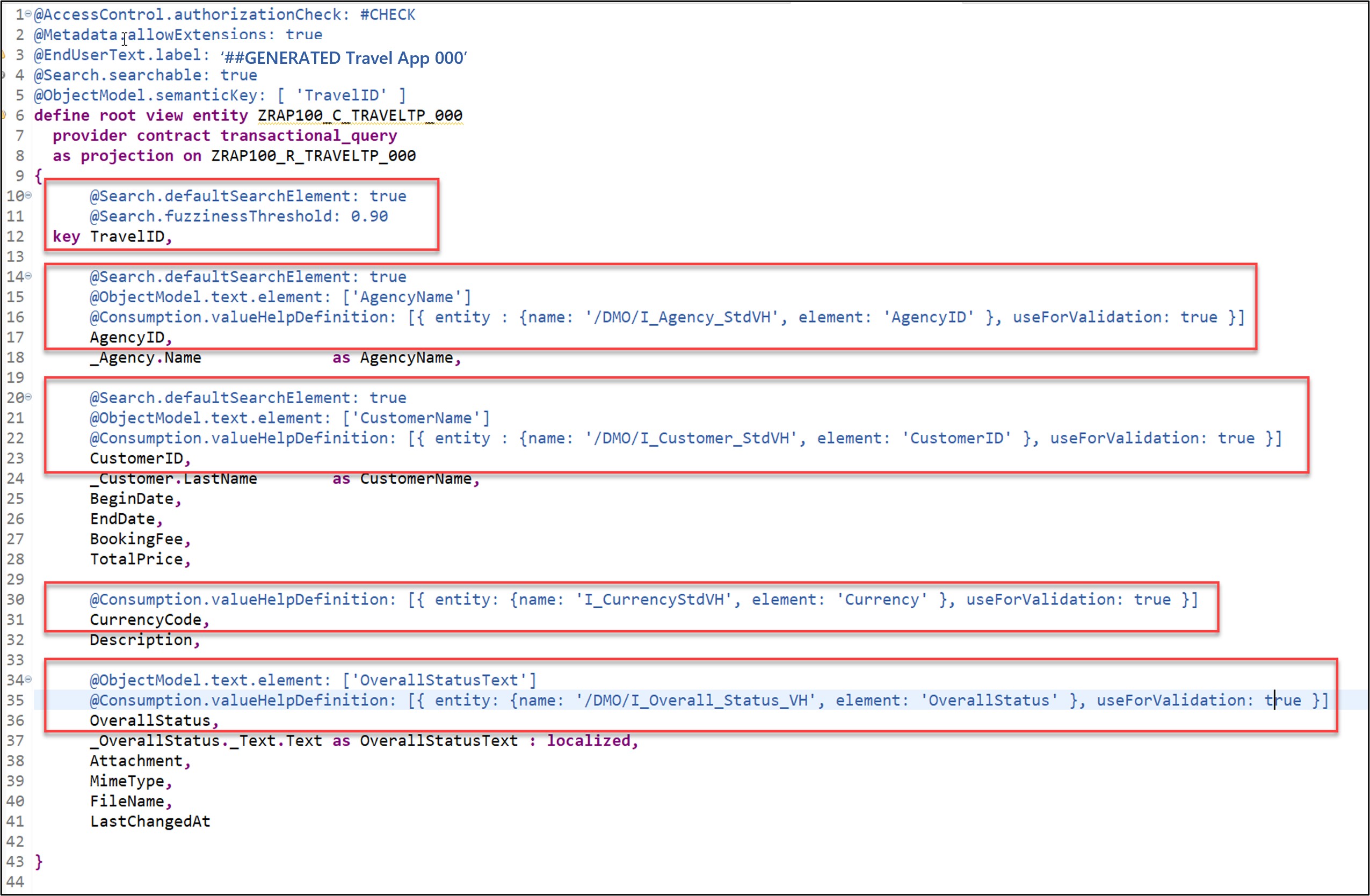
Use the provided code snippets to specify various element annotations for the elements TravelID, AgencyID, CustomerID, Currency Code, and OverallStatus between the curly brackets as shown on the screenshot below.
For the element **`TravelID`**: Enable the full-text search with a specific fuzziness (error tolerance).
```ABAP
@Search.defaultSearchElement: true
@Search.fuzzinessThreshold: 0.90
```
For element **`AgencyID`**: Enable the full-text search, define a value help, and specified **`AgencyName`** as associated text.
```ABAP
@Search.defaultSearchElement: true
@ObjectModel.text.element: ['AgencyName']
@Consumption.valueHelpDefinition: [{ entity : {name: '/DMO/I_Agency', element: 'AgencyID' }, useForValidation: true }]
```
For element **`CustomerID`**: Enable the full-text search, define a value help, and specified **`CustomerName`** as associated text.
```ABAP
@Search.defaultSearchElement: true
@ObjectModel.text.element: ['CustomerName']
@Consumption.valueHelpDefinition: [{ entity : {name: '/DMO/I_Customer', element: 'CustomerID' }, useForValidation: true }]
```
For element **`Currency Code`**: Define a value help.
```ABAP
@Consumption.valueHelpDefinition: [{ entity: {name: 'I_Currency', element: 'Currency' }, useForValidation: true }]
For element **`OverallStatus`**: Define a value help and specified **`OverallStatusText`** as associated text.
```ABAP
@ObjectModel.text.element: ['OverallStatusText']
@Consumption.valueHelpDefinition: [{ entity: {name: '/DMO/I_Overall_Status_VH', element: 'OverallStatus' }, useForValidation: true }]
```
Alternatively, you can simply replace the source code of your BO projection view  **`ZRAP100_C_TRAVELTP_###`** with the code provided in the source code document linked below and replace all occurrences of the placeholder **`###`** with your group ID using **CTRL+F**.
 **Source code document**: [CDS projection view ZRAP100_C_TRAVELTP_###](EX2_DDLS_ZRAP100_C_TRAVELTP.txt). Format your source code with the ABAP Pretty Printer (Shift+F1). Your source code should look like this:
>**Hint**: **Frontend Validations:** Validations are used to ensure the data consistency. As the name suggests, frontend validations are performed on the UI. They are used to improve the user experience by providing faster feedback and avoiding unnecessary server roundtrips. In the RAP context, front-end validations are defined using CDS annotation (e.g. `@Consumption.valueHelpDefinition.useForValidation: true`) or UI logic.
Step 4Enhance metadata extension to adjust UI semantics
+
Enhance the metadata extensionddlx iconto change the appearance of the generated UI Travel App.
Open your metadata extensionmetadataextensionZRAP100_C_TRAVELTP_### and adjust the UI annotations to achieve the following changes on the Fiori elements based UI of the Travel App.
Element TravelID - should also be a selection criteria in the filter bar and have high display importance on small windows.
Element AgencyID - should also be a selection criteria in the filter bar and have high display importance on small windows.
Element CustomerID - should also be a selection criteria in the filter bar and have high display importance on small windows.
Element BeginDate - (no changes)
Element EndDate - (no changes)
Element BookingFee - should not be displayed in the list table.
Element TotalPrice - should not be displayed in the list table.
Element CurrencyCode - should not be explicitly displayed, neither in the list table nor on the object page.
Hint: The currency code will be automatically displayed on the UI thanks to @consumption annotations specified for the element CurrencyCode in the BO projection view.
Element Description - should not be displayed in the list table.
Element OverallStatus - should have a high display importance on small windows and only its associated descriptive text should be displayed on the UI.
Element Attachment - should only be displayed on the object page - not in the list table.
Element MimeType - should be hidden.
Element FileName - should be hidden.
For that, replace the generated source code of the metadata extension with the code provided in the source code document linked below and replace all occurrence of the placeholder ### with your group ID using CTRL+F.
Open your service bindingservicebindingZRAP100_UI_TRAVEL_O4_### and double-click the Travel entity set to open the SAP Fiori elements preview.
package
Click Go on the app and check the result.
Play around in the app, e.g. filter the entries and test the defined value helps by creating a new entry or editing an existing one.
a. You will notice, that on the list report page there are nice descriptions and options to filter the result.
package
b. When you create a new entry or change an existing one you see that the values helps for the fields Agency ID and Customer ID offer an out of the box fronted validation.
package
c. In addition your application allows you to upload pictures of type jpg and png.
Share feedback on this tutorial or join the conversation in SAP Community.
Submit detailed feedbackDiscuss in Community
Steps
Step 1 of 6
1. Enhance base business object data model2. Enable the handling of large objects (aka OData streams)3. Enhance projected business object data model4. Enhance metadata extension to adjust UI semantics5. Preview and test enhanced travel app6. Test yourself
Joule
AI Notice
Joule is an AI assistant. Generative AI may produce inaccurate, incomplete, or biased information. Always verify important details before acting on them.
Conversations are sent to SAP-hosted large language models for processing. Do not include personal data, credentials, or confidential information in your messages.
Joule's responses are based on the SAP tutorial catalog and may not reflect the latest product changes. For authoritative guidance, consult the linked tutorials and official SAP documentation.



