
Get Started with the AI Skills Library
Overview
You will learn
- What the AI Skills Library is
- How to browse and find skills, plugins and MCP servers
- How to install a skill in your environment (Joule Work, Joule Work Desktop, or CLI)
- How to create your own skill and submit it to the library


Prerequisites
Prerequisites
- A browser to access skills.cloud.sap
- For Joule Work Desktop installation: Joule Work Desktop installed locally (not GA yet)
- For CLI installation: Node.js installed and a terminal (e.g. Claude Code)
- A public GitHub account (for contributing a skill)
Important note! Joule Work and Joule Work Desktop are not GA (General Availability) yet. They are currently available only to EAC (Early Adopter Care) customers.
Steps
The AI Skills Library is a public catalog of reusable AI skills and related components that you can browse, install, and contribute to. It is built on an open, bring-your-own-repository model — anyone can publish a skill, and the platform surfaces it alongside SAP’s own certified content.
The library contains four types of items:
| Type | Description |
|---|---|
| Skill | A markdown file that teaches an AI assistant how to perform a specific, repeatable task |
| Plugin | A bundle that combines multiple skills with one or more MCP servers |
| MCP Server | A tool server that gives AI assistants access to external data or actions (files, APIs, services) |
| Marketplace | A curated collection of skills and plugins grouped around a product or domain |
Each item carries a trust level that tells you who is behind it:
- SAP Certified — developed and maintained by SAP
- Partner Verified — published by a verified SAP partner
- Community — contributed by the broader developer and business-user community
Skills work across AI environments that support the installation methods described below. Including Joule Work, Joule Work Desktop, and local AI coding assistants such as Claude Code.
Open skills.cloud.sap in your browser.
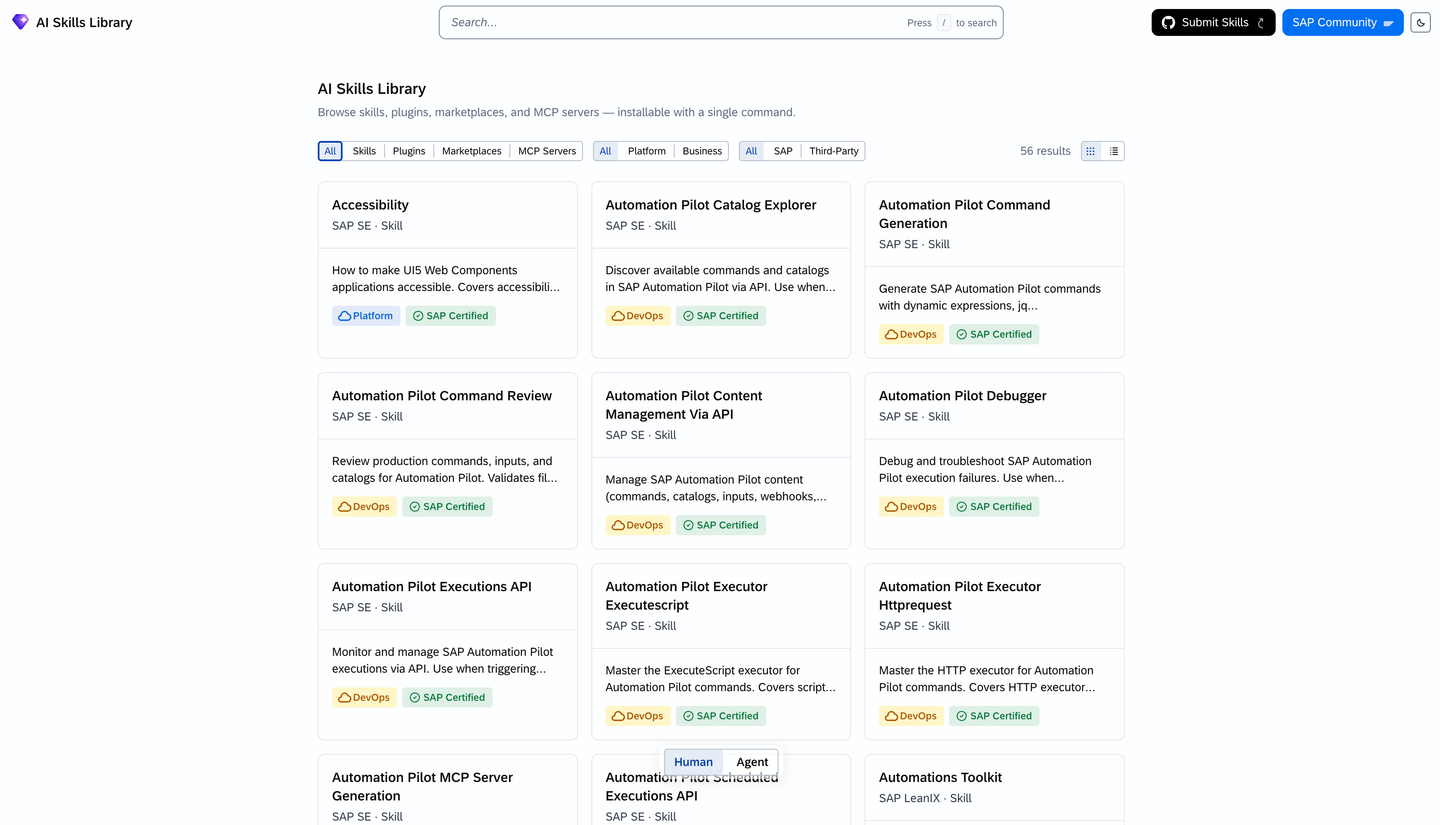
AI Skills Library homepage showing the search bar and filter buttons Use the search bar to find skills by name, description, tag, or author.
Narrow the results with the filter buttons:
- Classification — choose Platform (development, DevOps, security) or Business (finance, HR, procurement)
- Publisher — choose SAP or Third-Party

Filter buttons for Classification and Publisher Toggle between grid and list view using the icon in the toolbar.
Click any item to open its detail page. You will see:
- Author, category, trust level, tags, and license
- Links to the source repository
- Related agents, MCP servers, API resources, and packages
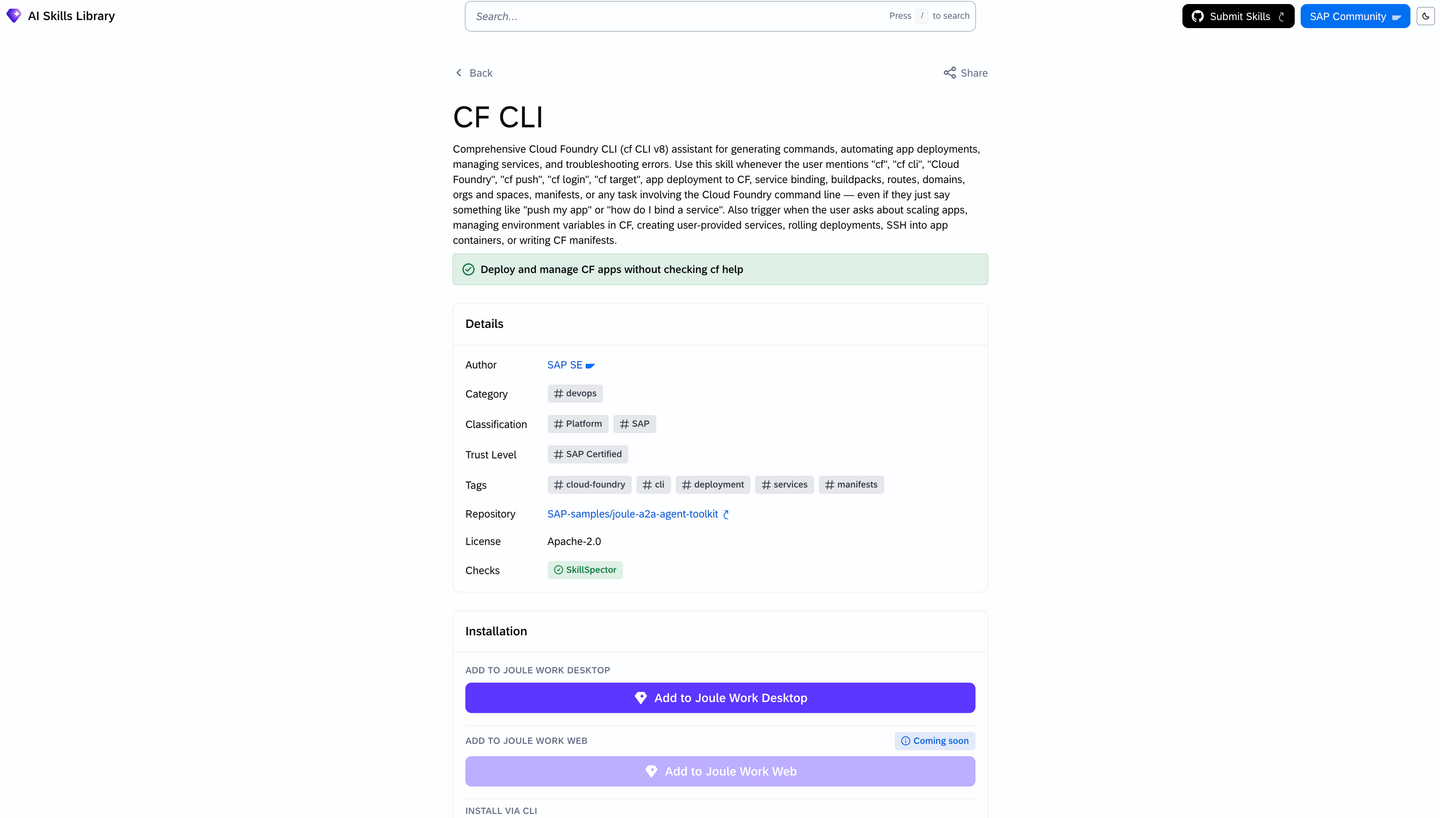
Skill detail page showing metadata, trust level, and install options
Take a moment to explore a few skills and notice how each one describes a concrete, repeatable workflow.
Installation options depend on which environment you are working in. Each skill’s detail page shows the available methods.
Option A — Joule Work Desktop
On the skill’s detail page, click Add to Joule Work Desktop.

Add to Joule Work Desktop button on the skill detail page A deep link opens Joule Work Desktop and installs the skill locally.

Add to Joule Work Desktop The skill is now available in your local Joule desktop application.
Option B - Add to Joule Work Web
- Coming soon
Option C — CLI (npx)
Use this option when working with a local AI coding assistant such as Claude Code.
On the skill’s detail page, copy the npx command. It looks similar to this:
Shellnpx -y @sap/skill-install <skill-slug>npx install command shown on the skill detail page Open your terminal and run the command.
The skill is installed into your local environment and is ready to use.
A skill lives in a public GitHub repository under a specific folder structure. The AI Skills Library does not host your code but it points to your repository.
1. Structure your repository
Create the following layout in your public GitHub repository:
your-repo/
└── skills/
    └── <skill-slug>/
        └── SKILL.md
Replace <skill-slug> with a short, lowercase, hyphenated name for your skill (for example, summarize-meeting-notes).
2. Write your SKILL.md
The SKILL.md file must include at minimum a name and description at the top:
name: Summarize Meeting Notes
description: Extracts action items, decisions, and open questions from raw meeting notes.

Instructions

Given a block of meeting notes, identify and return:
- **Action items** — who is responsible and by when
- **Decisions made** — what was agreed
- **Open questions** — what still needs to be resolved

Keep the output concise and structured.
Add author and license information somewhere in your repository — a README.md, LICENSE file, or package.json all work.
3. Test your skill locally
Before submitting, install your skill locally using the CLI method and verify it behaves as expected in your AI assistant.
The AI Skills Library uses a bring-your-own-repo model. You keep your skill in your own GitHub repository and register it with the platform.
Make sure your repository is public on github.com and follows the folder structure from the previous step.
Open a Register a New Skill issue in the AI Skills Library repository (the link is available on the documentation page).

GitHub issue template for registering a new skill A maintainer reviews your submission and onboards your repository. Once approved, your skill appears in the catalog with a Community trust level.
For updates to an existing skill, edit your own repository directly — the catalog reflects your latest published content.
What’s Next?
- Explore the catalog — skills.cloud.sap is growing. Check back regularly for new community contributions.
- Join the conversation — Ask questions and share ideas on SAP Community.
- Build a plugin — Once you have a skill working, consider bundling it with an MCP server into a plugin to share richer functionality.
- For more information: Check out this blog post!
Resources
Discussion
Share feedback on this tutorial or join the conversation in SAP Community.