
Overview
You will learn
- How to configure your subaccount to enable subscription to Application Frontend
- How to subscribe to Application Frontend and grant the needed authorizations


Prerequisites
Prerequisites
- You have an account in SAP BTP Trial landscape us10-trial. If you don’t have one yet, follow the instructions in Get a Free Account on SAP BTP Trial
Steps
To use Application Frontend you need to estublish trust with Cloud Identity Services.
To provision IAS tenant for your trial account, subscribe to the Cloud Identity Services application in your subaccount.
This step of provisioning Cloud Identity Services is only needed in the Trial landscape. In live accounts this done automatically on account creation.
- In the BTP Cockpit go to to your subaccount and navigate to Instances and Subscriptions tab.
- Click the Create button at the top right corner
- Choose
Service:
Cloud Identity ServicePlan:default - Click Next
- Chose
Service Type:
PRODUCTIVE - Click Create


Configure Trust:
- Navigate to Security > Trust Configuration.
- Click the Establish Trust button on the top right corner.
- Choose your IAS tenant and click Next. Continue the wizard with the default values and click Finish in the last step .
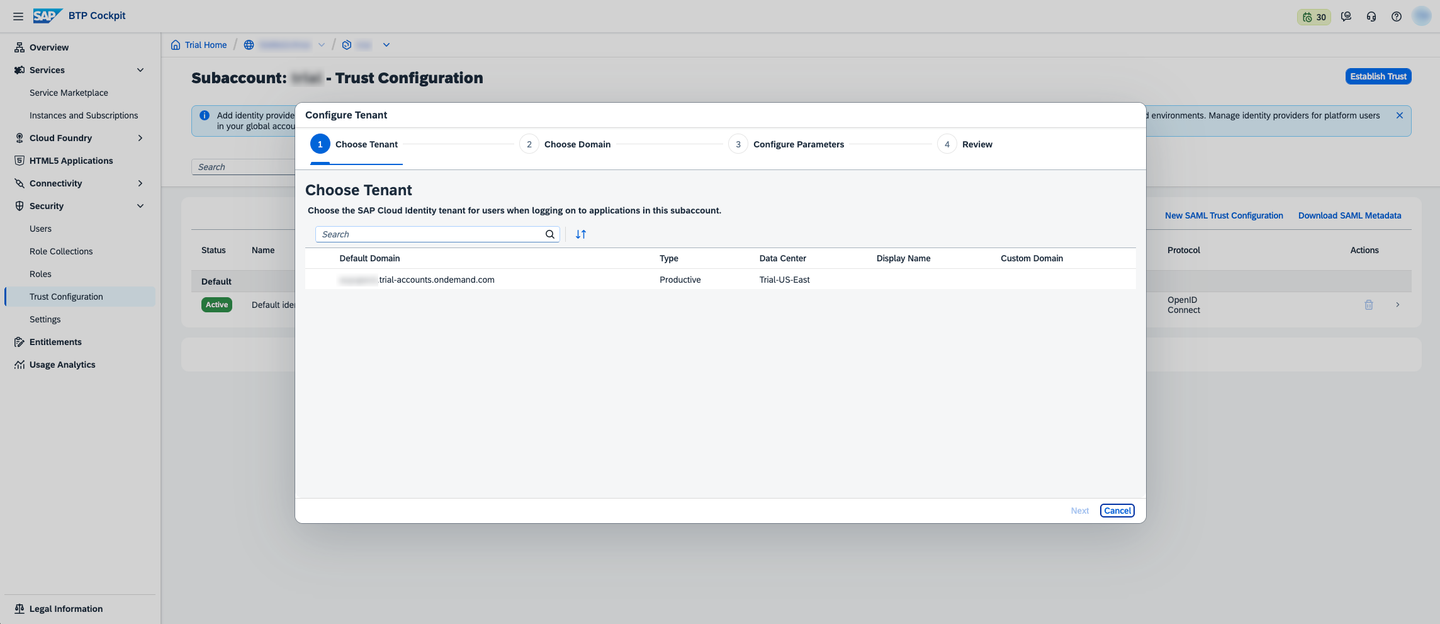
Once the wizard is completed it should look like this
After creating the Cloud Identity Services instance, you will receive an activation email with the subject “Activate Your Account for Identity Authentication Service”.
Open the email and click the Activate your account button.
Set your password to access the IAS Admin Console.
- Back in the BTP Cockpit, navigate to your trial subaccount.
- Navigate to Services > Instances and Subscriptions.
- Click the Create button.
- Choose: Service:
Application Frontend Service; Plan:trial - Click Create
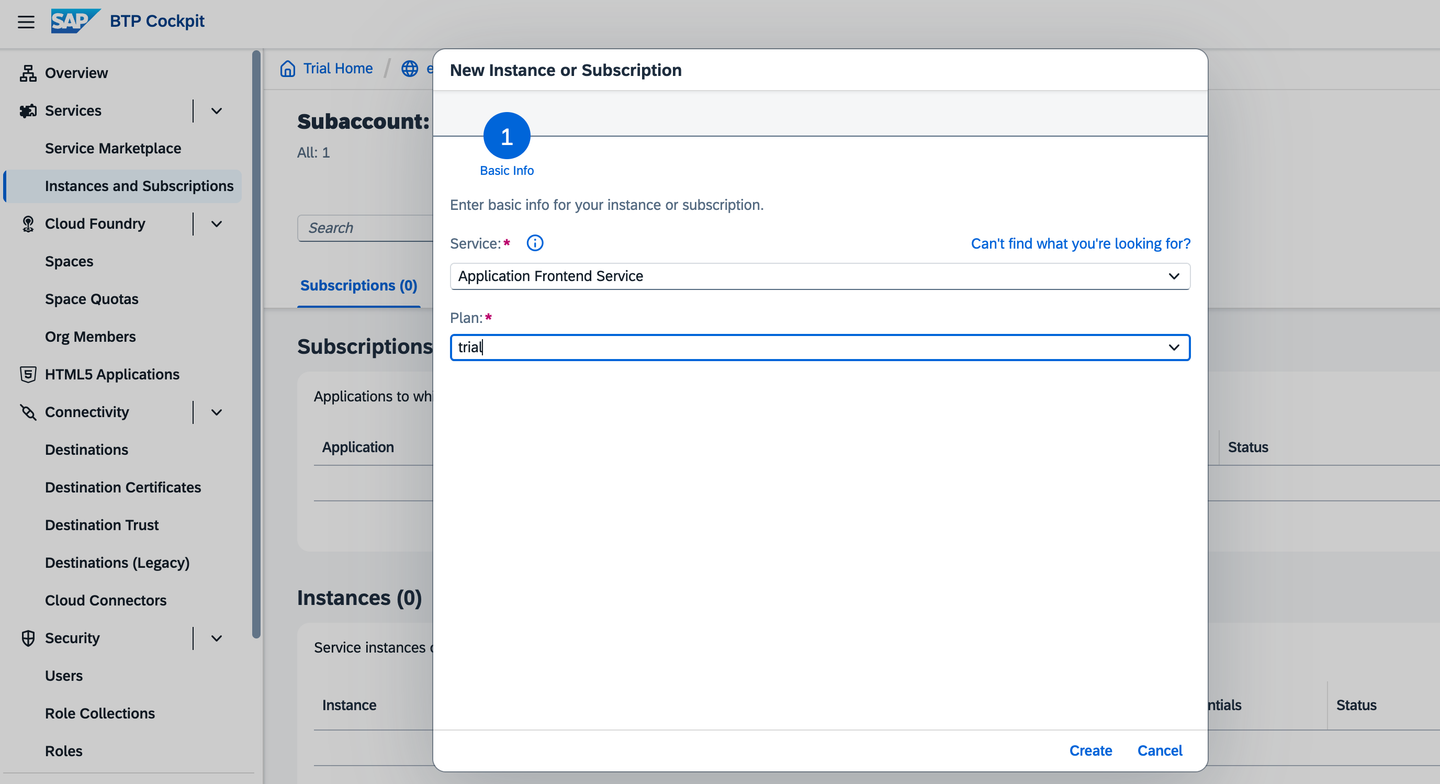
- Navigate to Security > Role Collections and click Create.
- Enter role name:
Application Frontend Developerand click Create. - Click on
Application Frontend Developerrow, a details view should expand on the right. - Click Edit.
- In the Roles table add the role:
Application_Frontend_Developer - In the Users table add 2 users.
- Your user from
Default identity provider- for managing applications in BTP Cockpit - Your user from
business usersidentity provider - for CLI and API access
- Click Save.
You should end up with something like this:

In this step you will validate that all settings are done correctly.
- Navigate to Security > Users.
- Select your user from Default identity provider.
- Verify that there is an Appication Frontend Developer role in the list of role collections.
- Sign Out from BTP Cockpit, for the new authorization to take effect for your user.
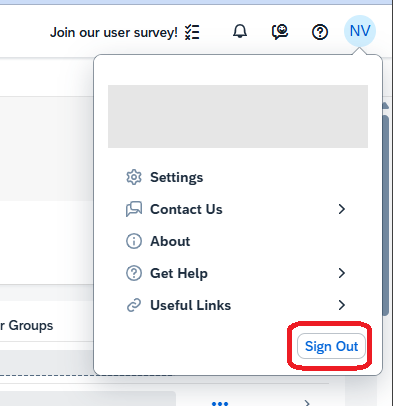
- Sign In back to BTP Cockpit.
- Navigate to your trial subaccount.
- Verify that there is a new navigation entry HTML5 > Application Frontend.
If you press this entry, you should see an empty table of applications. In the next tutorials we will fill it with applications.
Resources
Discussion
Share feedback on this tutorial or join the conversation in SAP Community.