
Get Started with an SAP Cloud Application Programming Model Project in SAP Continuous Integration and Delivery
Configure and run a basic CI/CD pipeline for your SAP Cloud Application Programming Model project.
Overview
You will learn
- How to set up SAP Continuous Integration and Delivery
- How to create and run a basic job for an SAP Cloud Application Programming Model project
- How to automate the builds of your CI/CD job through a webhook in GitHub


Prerequisites
Prerequisites
- You have an account on SAP Business Technology Platform. See Trial Accounts or Enterprise Accounts.
- You’re an Administrator of your global account and Org Manager of your subaccount on SAP BTP.
- In your GitHub repository, you have an SAP Cloud Application Programming Model project. See Getting Started.
Steps
Enable SAP Continuous Integration and Delivery, add the required permissions, and access the service.
In your subaccount in the SAP BTP cockpit, choose Services → Service Marketplace.
Search for
Continuous Integration & Deliveryand choose the appearing service tile.
Service Tile Note: If in the Service Marketplace, you can’t see the Continuous Integration & Delivery tile, you might need to add the required entitlements to your subaccount. See Configure Entitlements and Quotas from Your Global Account.
Choose Create.
In the New Instance or Subscription pop-up, select the Subscription plan and choose Create.
From the navigation pane, choose Security → Users.
Note: If you use an enterprise account, you need to be a User & Role Administrator of your subaccount to view the Security section. See Managing Subaccounts Using the Cockpit.
Choose the name of your user.
From the Role Collections section, choose … → Assign Role Collection.
From the dropdown list, select CICD Service Administrator. Confirm your choice with Assign Role Collection.

Assigning the CI/CD Roles Navigate back to your subaccount overview and from the navigation pane, choose Services → Service Marketplace.
Search for
Continuous Integration & Deliveryand choose the appearing service tile.Choose Go to Application.

Accessing the CI/CD service
As a result, the user interface of the SAP Continuous Integration and Delivery service opens.
Create credentials for deploying your application to SAP BTP, Cloud Foundry environment.
In the Credentials tab in SAP Continuous Integration and Delivery, choose + (Create Credentials).

Credentials For Name, enter a freely chosen name for your credentials, which is unique in your SAP BTP subaccount, for example
cfdeploy.As Type, select Basic Authentication.
For Username, enter your username for the SAP BTP cockpit.
For Password, use your password for the SAP BTP cockpit.
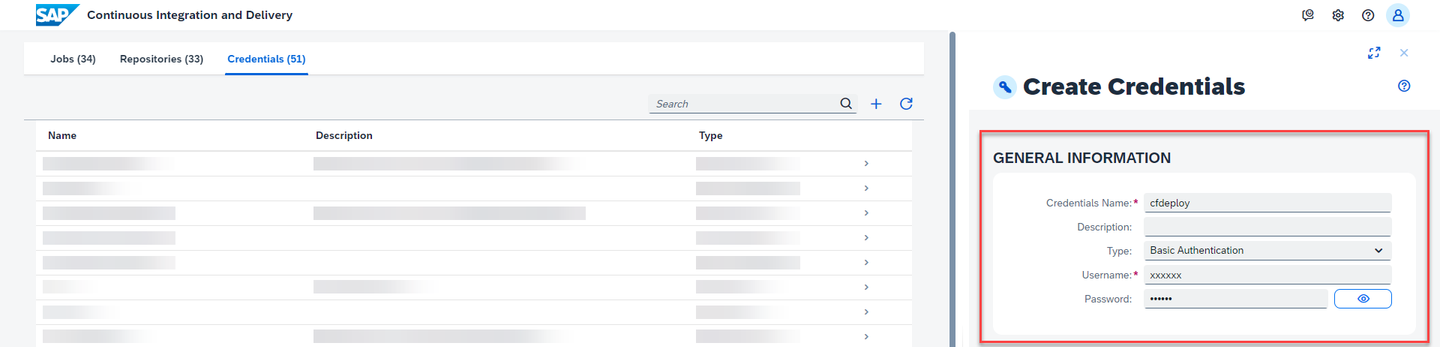
CI/CD CF Deploy Credentials Choose Create.
Note: If your GitHub repository is not private, you can skip this section.
If your GitHub repository is private, configure credentials for it, so that SAP Continuous Integration and Delivery can connect to it.
In the Credentials tab in SAP Continuous Integration and Delivery, choose + (Create Credentials).
For Name, enter a freely chosen name for your credential, which is unique in your SAP BTP subaccount, for example
github.As Type, select Basic Authentication.
For Username, enter your GitHub username.
For Password, use a personal access token.
Note: When creating the token, select repo as scope.
Choose Create.
Connect SAP Continuous Integration and Delivery to the repository in which your project sources reside.
In SAP Continuous Integration and Delivery, choose Repositories → + (Add).

Repositories In the Add Repository pane, add a name for your repository.
In GitHub, copy the HTTPS clone URL of the repository that contains your application.
Paste it into the Clone URL field in the Add Repository pane in SAP Continuous Integration and Delivery.
(Optional) If your GitHub repository is private, choose the GitHub credentials you’ve created in the previous step from the Credentials drop-down list.
Configure a webhook between your GitHub repository and SAP Continuous Integration and Delivery to automate the builds of your job.
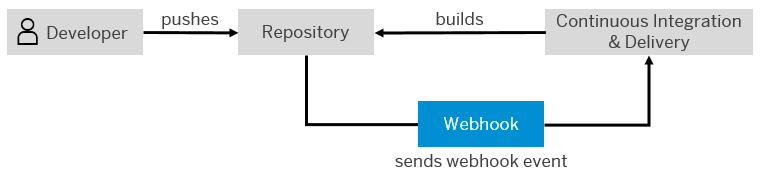
A webhook with GitHub allows you to automate SAP Continuous Integration and Delivery builds: Whenever you push changes to your GitHub repository, a webhook push event is sent to the service to trigger a build of the connected job.
The following graphic illustrates this flow:
In the WEBHOOK EVENT RECEIVER section of the Add Repository pane, choose GitHub as Type from the drop-down list.
In the Webhook Credential drop-down list, choose Create Credentials.
In the Create Credentials pop-up, enter a name for your credential, which is unique in your SAP BTP subaccount, for example
webhook.Choose Generate next to Secret to generate a random token string.
Caution: Note down the secret as you won’t be able to see it again.
Choose Create.
Choose Add.
In the Repositories tab in SAP Continuous Integration and Delivery, choose your repository.
In your repository pane, choose … → Webhook Data.

Way to access webhook data As a result, the Webhook Creation pop-up opens.
In your project in GitHub, go to the Settings tab.
From the navigation pane, choose Webhooks.
Choose Add webhook.
Enter the Payload URL, Content type, and Secret from the Webhook Creation pop-up in SAP Continuous Integration and Delivery. For all other settings, leave the default values.
Choose Add webhook.
Configure a basic job for SAP Cloud Application Model projects.
In SAP Continuous Integration and Delivery, go to the Jobs tab and choose + (Create job).
In the General Information section of the Create Job pane, enter the following values:
- Job Name: Freely choose a unique name for your job.
- Repository: From the drop-down list, choose your repository.
- Branch: Enter the branch of your repository for which you want to configure your CI/CD job, for example,
main. - Pipeline: From the drop-down list, choose SAP Cloud Application Programming Model.
- Version: If you create a new job, the latest version is selected by default.
- State: To enable your job, choose ON.
In the Build Retention section, keep the default values.
In the Stages section, choose Job Editor as Configuration Mode.
For the Build stage, keep the default values.
For the Acceptance stage, enter the following values for the Deploy to Cloud Foundry Space step:
- Application Name: Enter a unique application name.
- API Endpoint: Enter the URL of your SAP BTP, Cloud Foundry API Endpoint. You can find it in the overview of your subaccount in the SAP BTP cockpit, under the Cloud Foundry Environment: tab.
- Org Name: Enter the name of your Cloud Foundry organization. You can also find it in the overview of your subaccount.
- Space: Enter the name of the Cloud Foundry space in which you want to test your application.
- Credentials: From the drop-down list, choose the SAP BTP credentials you created.

Deploy to CF Space in the UI Switch all other stages off and choose Create.
Note: As this tutorial focuses on how to get started with SAP Continuous Integration and Delivery, we’ve decided to configure only a very basic CI/CD pipeline in it. For how to configure more elaborate ones, see Supported Pipelines.
Create and commit a code change in your GitHub project to run your CI/CD pipeline.
As a result, a build of the connected job is triggered and a new build tile appears in the Builds section of your job. If you choose it, the Build Stages view opens and you can watch the individual stages of your build run through.
Note: The pipeline run might take a few minutes.
Resources
Discussion
Share feedback on this tutorial or join the conversation in SAP Community.