
Overview
You will learn
- How to integrate the UI integration card that you created


Prerequisites
Prerequisites
- You’ve created a content pakage that includes a UI integration card with its associated role
- You’ve successfully deployed the card into a ZIP file and downloaded it on to your computer
- You have a subscription to SAP Build Work Zone, standard edition
Steps
Intro
In this tutorial, you’ll learn how to integrate the card and role from the content package that you created in SAP Business Application Studio.
From the SAP BTP cockpit, go to Instances and Subscriptions and click SAP Build Work Zone, standard edition to open the service.

The Site Directory opens.

Click the Channel Manager icon in the side navigation panel to open it.

Open Channel Manager Click + New and select Content Package.

New content package In the New Content Package dialog box, browse for and select the ZIP file that you downloaded in the previous tutorial. You’ll find the ZIP file in your Downloads folder on your computer.

Browse for ZIP file In the Runtime Destination field, select
ES5, and leave the default values in the other fields. Click Save.
Save content package Once you’ve saved the content package properties, the ZIP file is created in the Channel Manager.
Click Report to check the content of the package. It should look like this showing that your content package includes a role and an app:

Create report Ensure that the app is assigned to the
ContentPackageRoleby opening the Content Manager and searching for this role. In the role editor, under the Apps tab, you’ll see theProducts by Category Card.
View card in the role editor
In this step, you’ll add a header to your page for the card that you will add.
Go back to the Content Manager by using the breadcrumbs above.
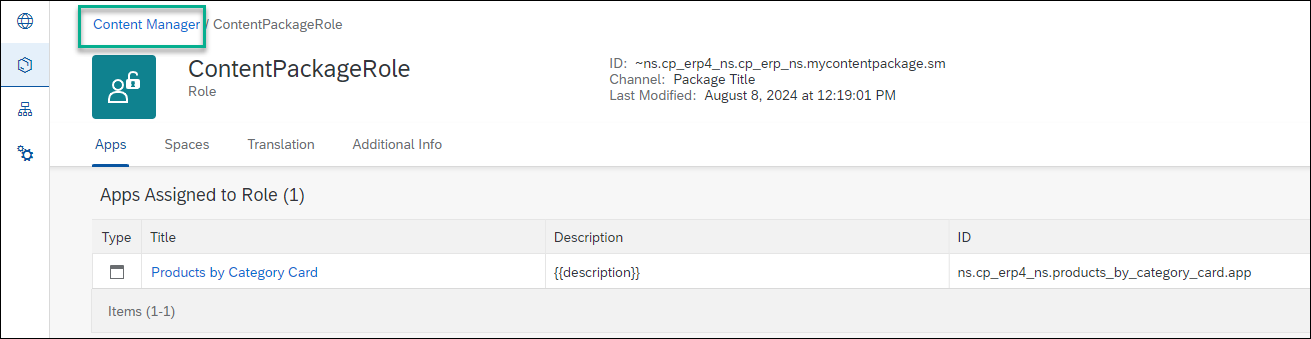
Back to Site Manager Click the
Overviewpage to open the page editor.
Open Overview page Click Edit.
Click + to add a new secion.

Name section In the Section Title field, type My Cards

Name section Click Add Widget
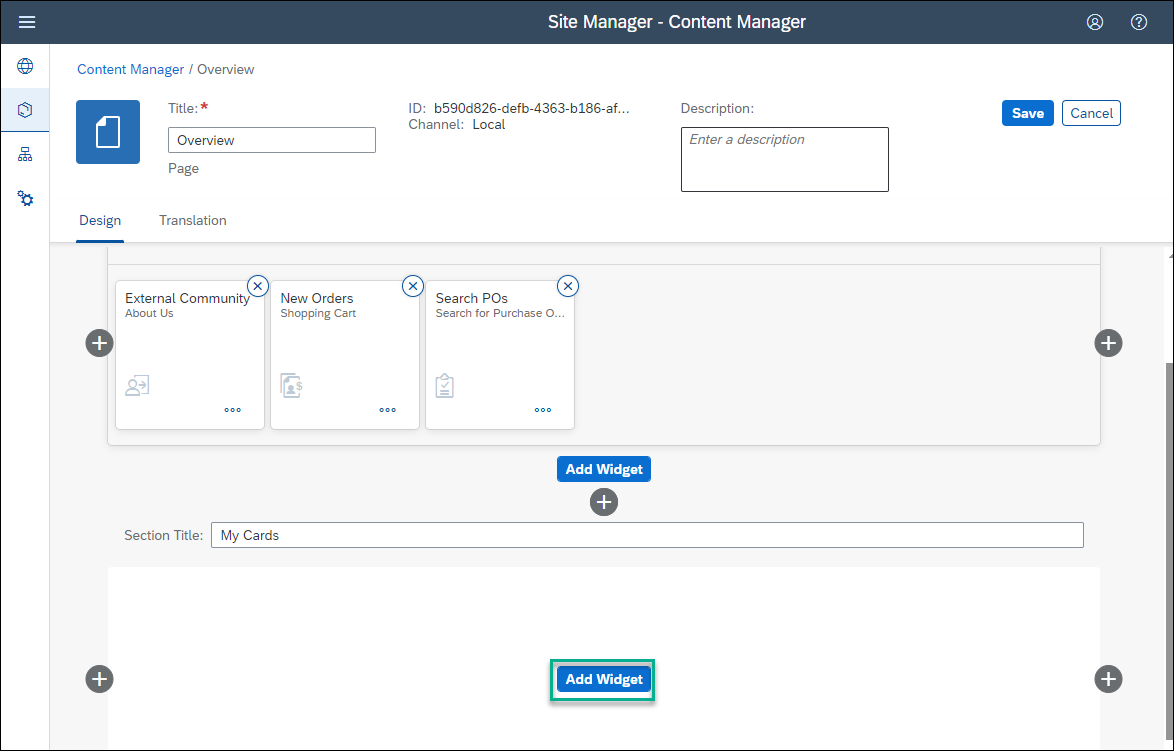
Add widget Select Cards.

Select card Select the Products by Category Card to add it to your Overview page and then click Save.

Select card Your screen will look like this. Don’t worry the content will appear on the card once you do the necessary role assignments.
!– border –>
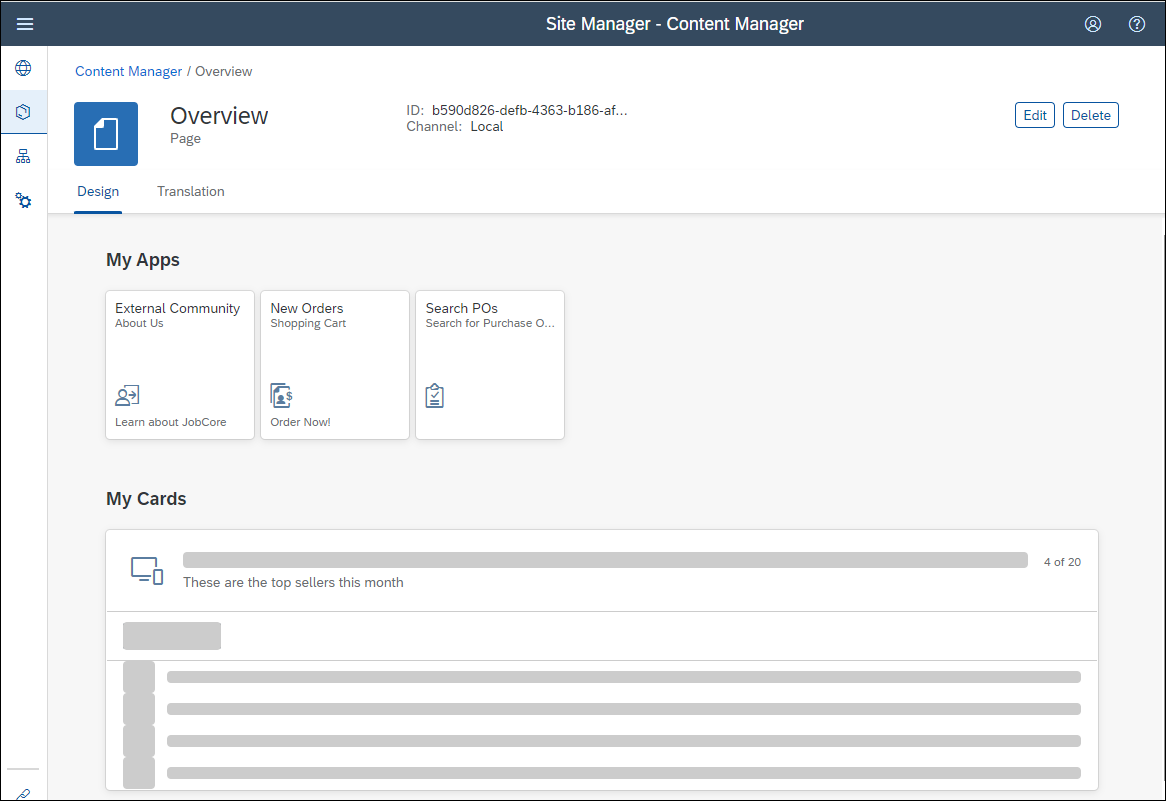
Design time view
The ContentPackageRole is part of the content in the content package ZIP file. You now have to assign the ContentPackageRole to your site and you will also need to assign your user to this role in the next step.
Open the Site Directory.

Open Site Directory Open the Site Settings screen.

Open Site Settings Click Edit.
In the Assignments panel, click inside the search box to open a list of available roles. You’ll see the
ContentPackageRole. Assign it to the site by clicking the + next to the role name and then click Save.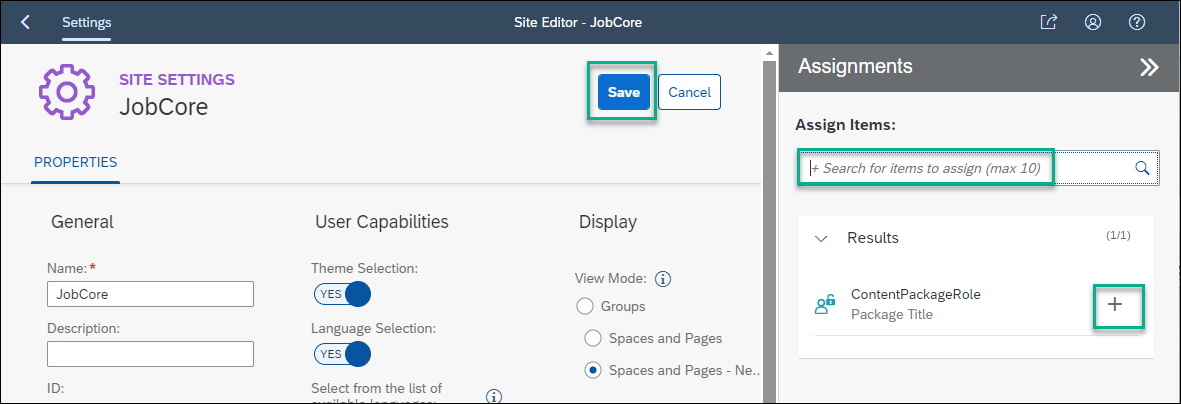
Assign role to site
Go back to the SAP BTP Cockpit using the Instances and Subscriptions tab in your browser.
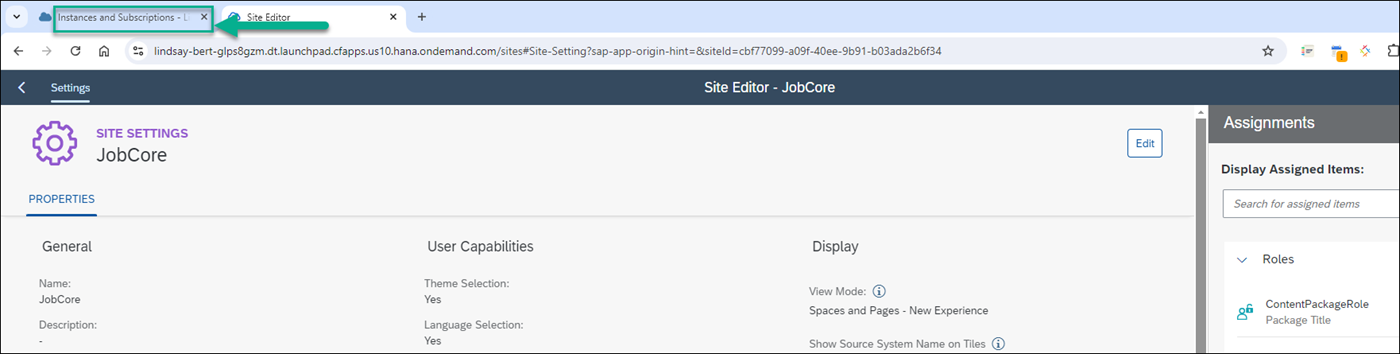
Go to BTP Cockpit From the side menu, go to Security –> Role Collections and search for the
ContentPackageRolerole.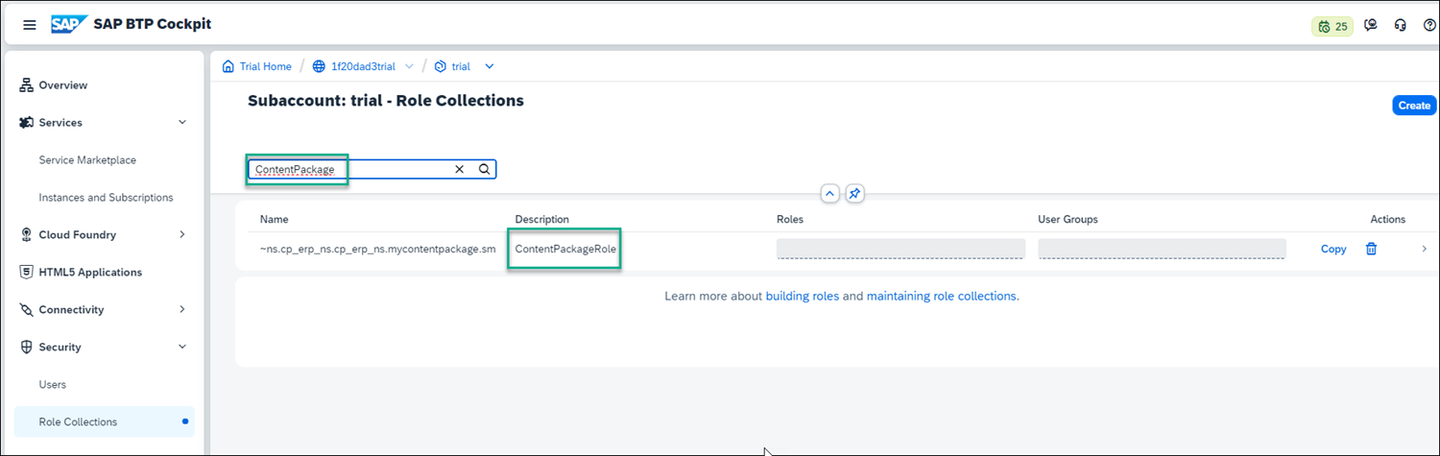
ContentPackage role Click the arrow at the far right of the row displaying the
ContentPackageRole.
Open role collection details In the screen that opens, click Edit.

Edit role collection In the Users section of the screen, add your ID (your email), and then your email again and add it to the list of users by clicking the + button. Save your changes.
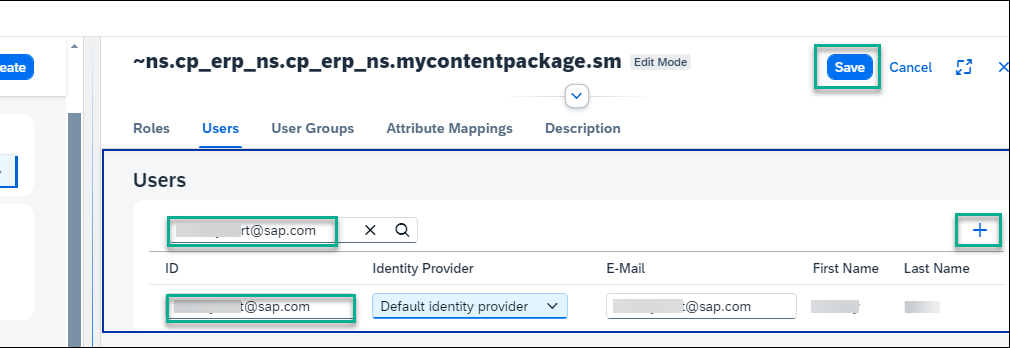
Add User Note that assignment to the role can take time. If you don’t want to wait, you can log out and log in again in order for the role assignment to take effect.
Still in the SAP BTP cockpit, click Instances and Subscriptions and go to SAP Build Work Zone, standard addition. The Site Directory is in focus.
Click the Go to site icon.

Go to site You’ll see that your card has been added to the Overview page:
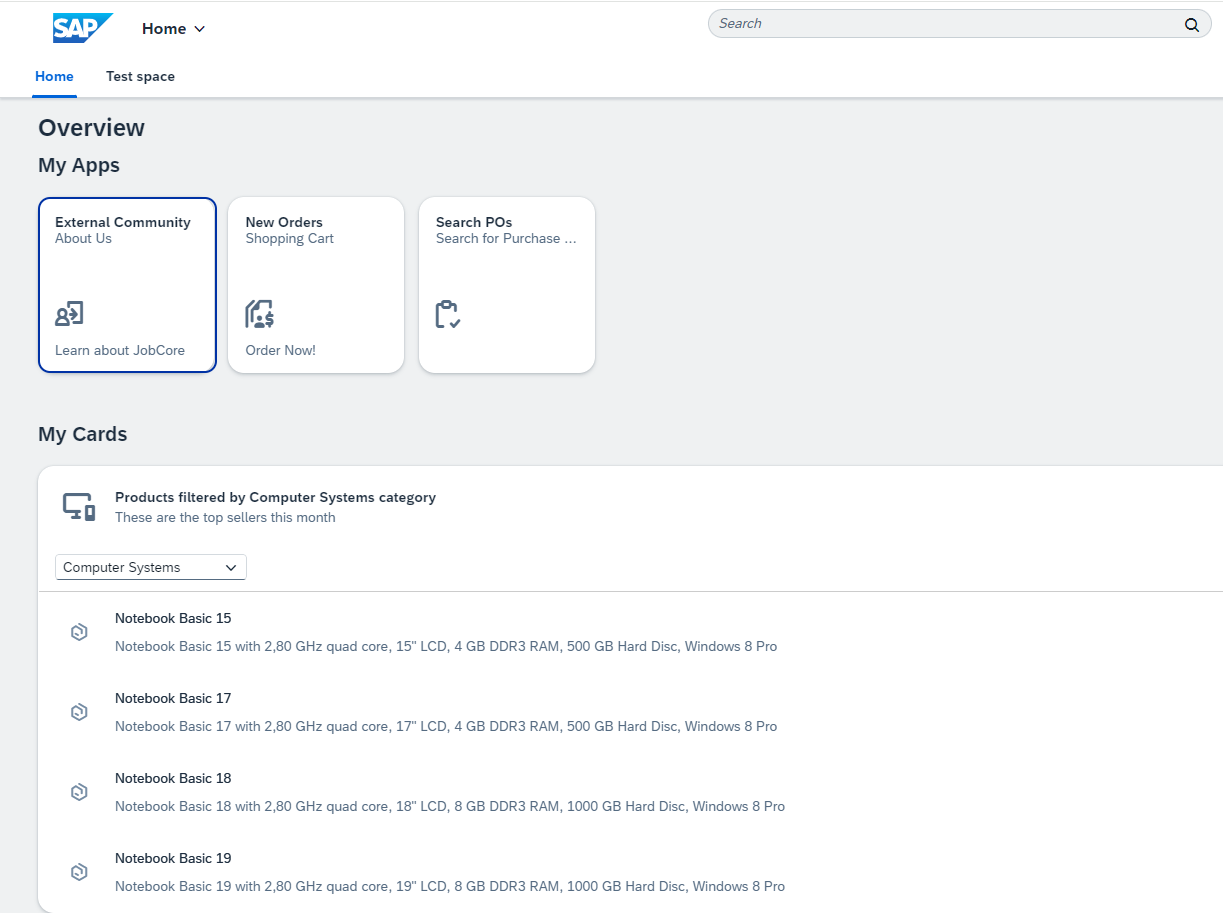
Final view
Resources
Discussion
Share feedback on this tutorial or join the conversation in SAP Community.