
Overview
You will learn
- This tutorial is designed for SAP HANA service for SAP Business Technology Platform. Consider newer tutorials designed for SAP HANA Cloud.
- How to connect to the SAP HANA cockpit for performing administrative tasks in the physical database


Prerequisites
Prerequisites
- You have created an instance of the SAP HANA service for SAP BTP in SAP BTP, Cloud Foundry environment
Steps
Intro
The SAP HANA cockpit is useful because it provides graphical tools to monitor resources and the overall health of your database.
This tutorial cannot be completed with a trial account.
Navigate back to the SAP BTP cockpit to check on the progress status of your instance.
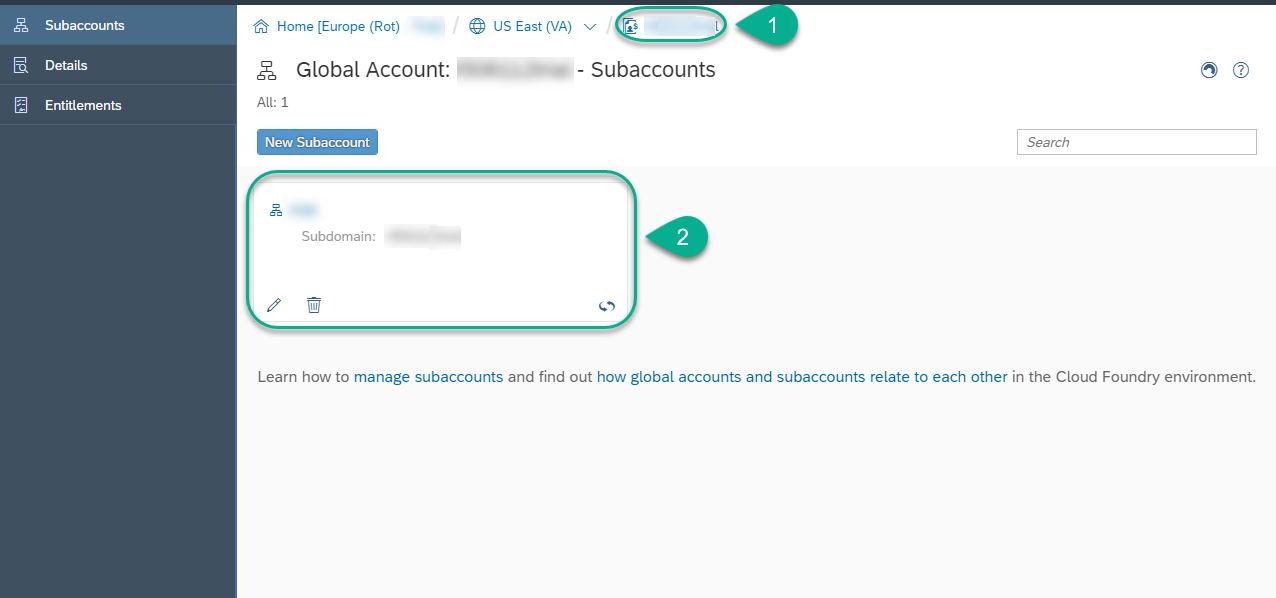
Click on the subaccount.
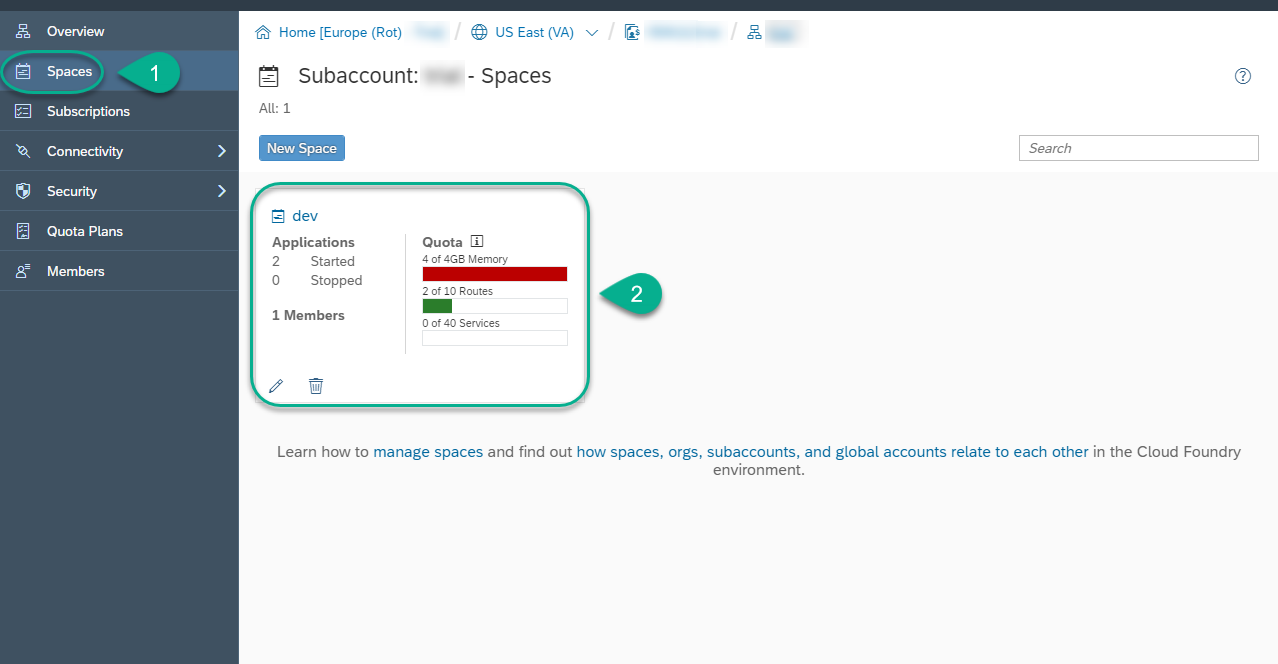
Click on Spaces and click on the dev space.
Click on Service Instances.

Ensure that you see Created under Last Operation for the HDB instance.
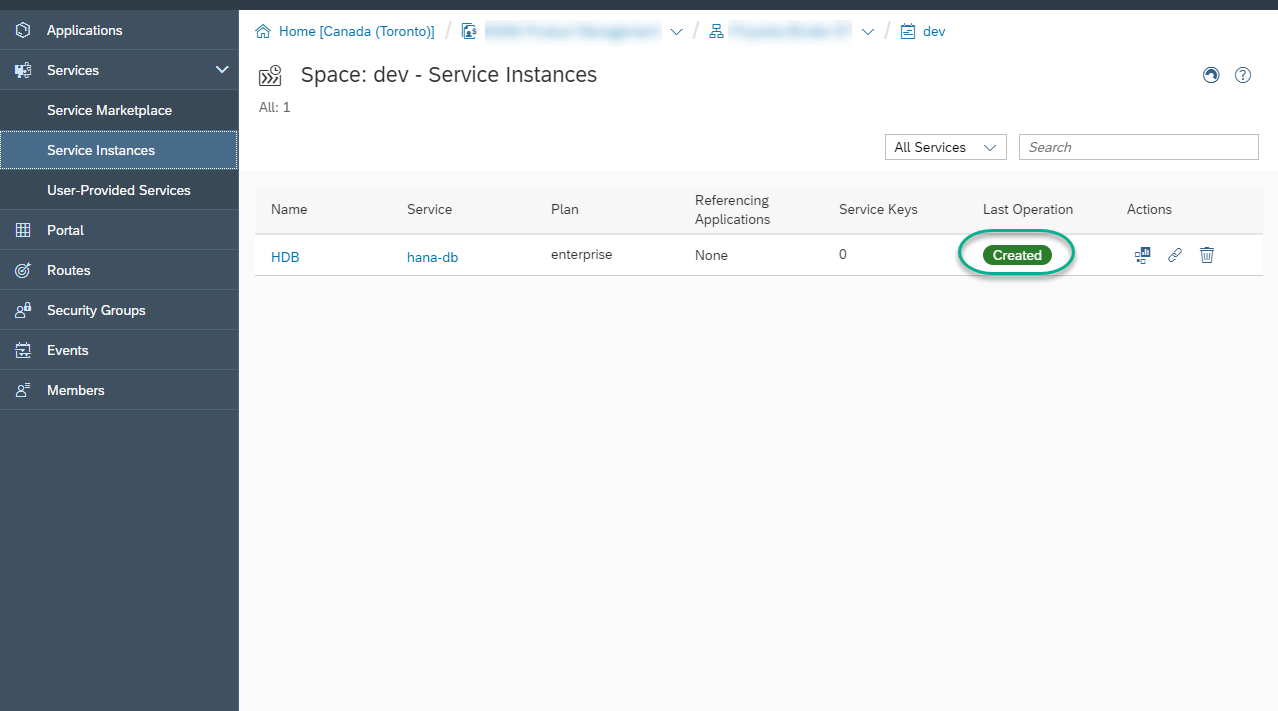
Click on the Open Dashboard icon

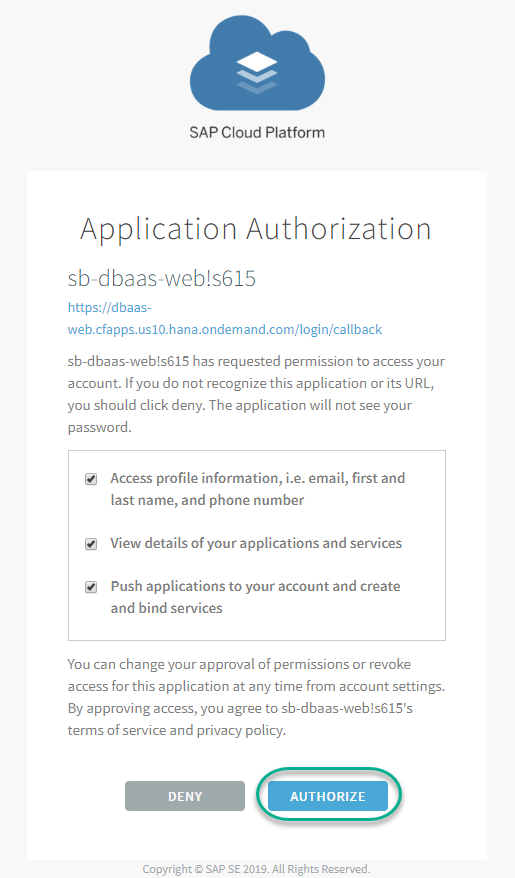
When prompted, click Authorize to authorize access for the cockpit.
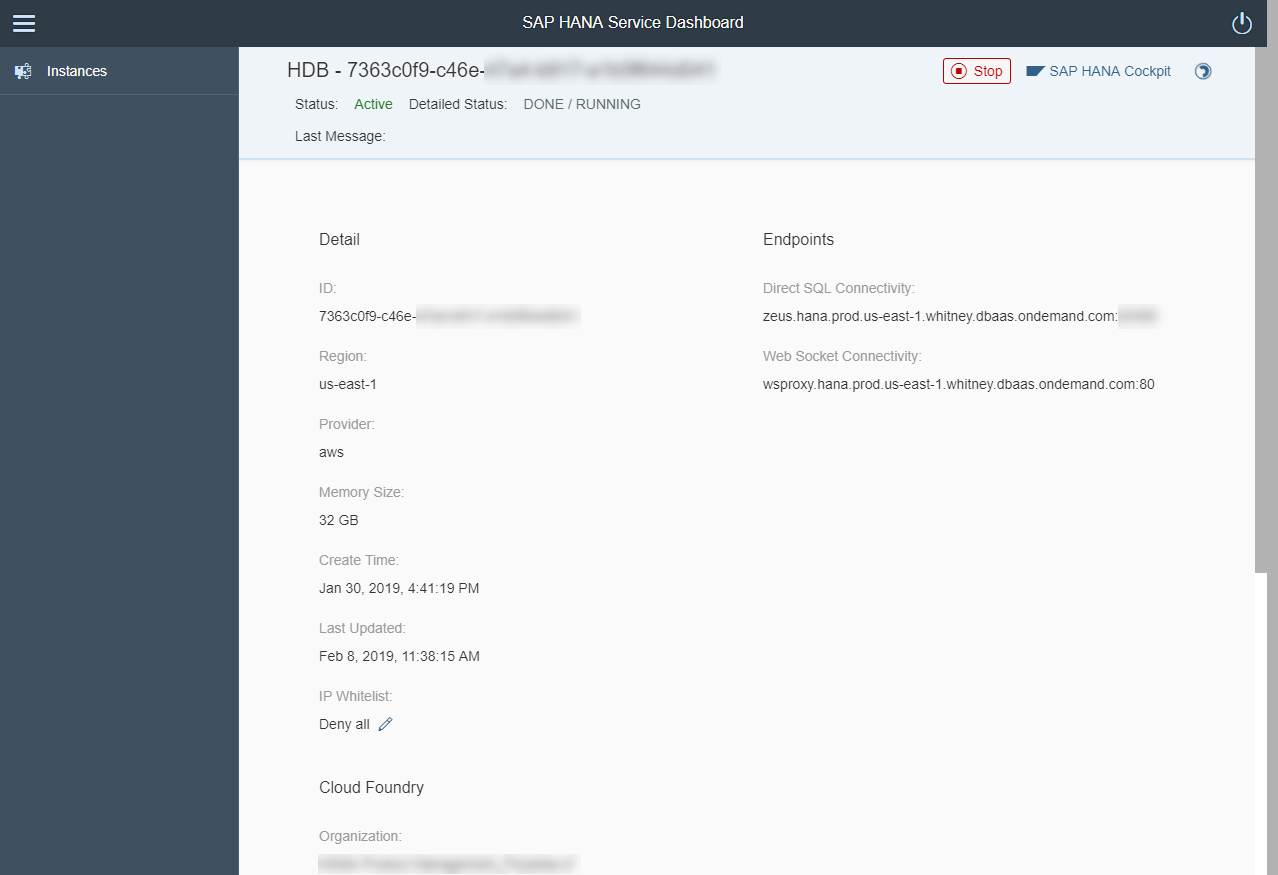
The SAP HANA service for SAP BTP dashboard will open. Notice that you can see the connectivity endpoints and the Cockpit. You are also able to see your database ID.
Note: Keep this tab open as you will use it later.
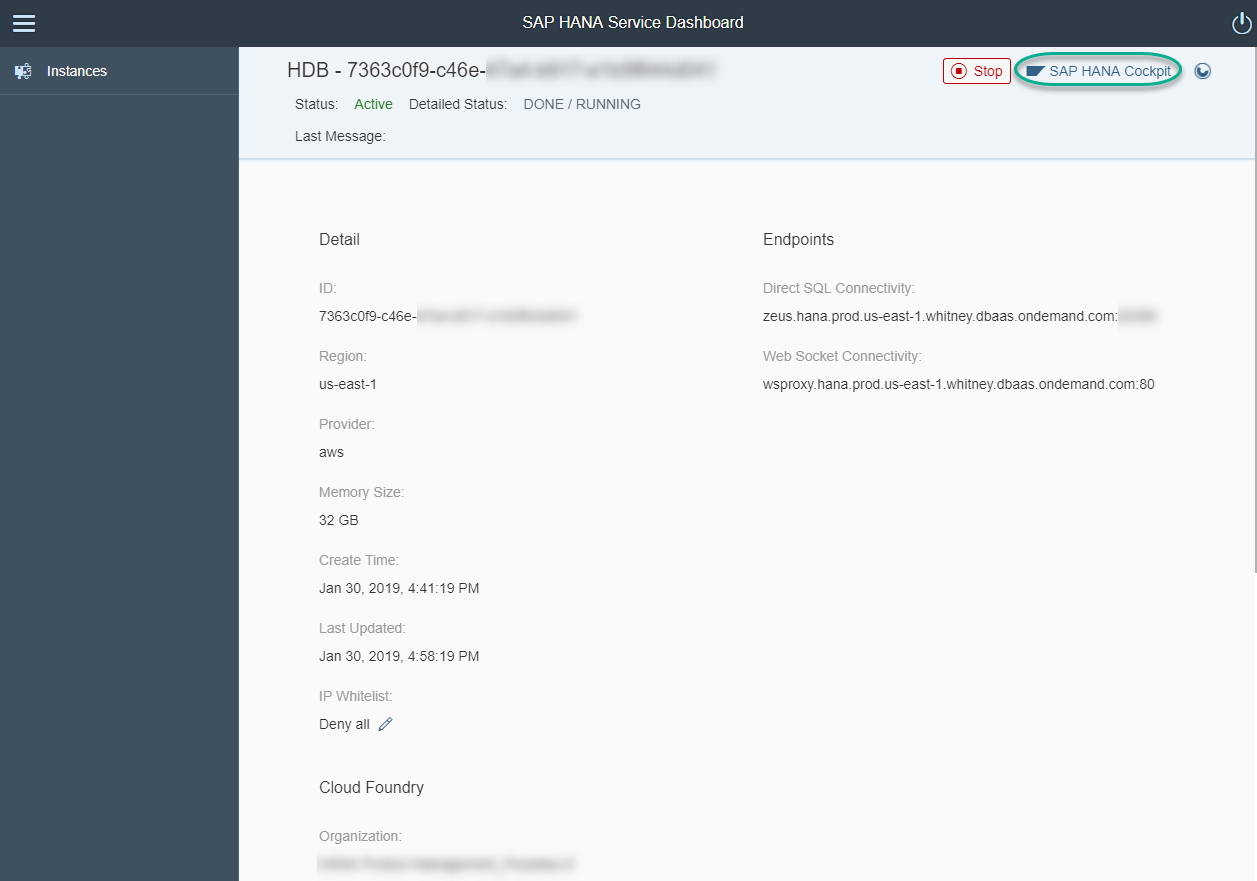
Access the SAP HANA cockpit using the button located at the top right corner.
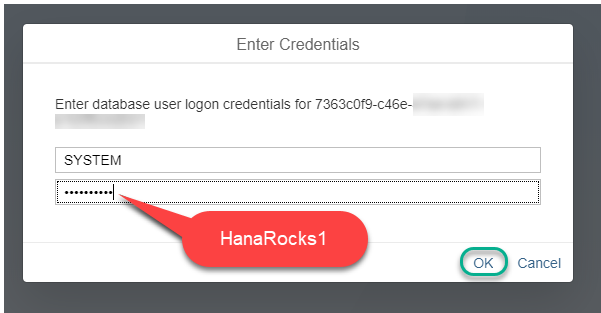
Enter the following credentials and then click OK to log in to the database:
Username: SYSTEM
Password: HanaRocks1
Adapt the password to match the one you chose during setup if you changed it.
You can now explore the SAP HANA cockpit for your database instance.
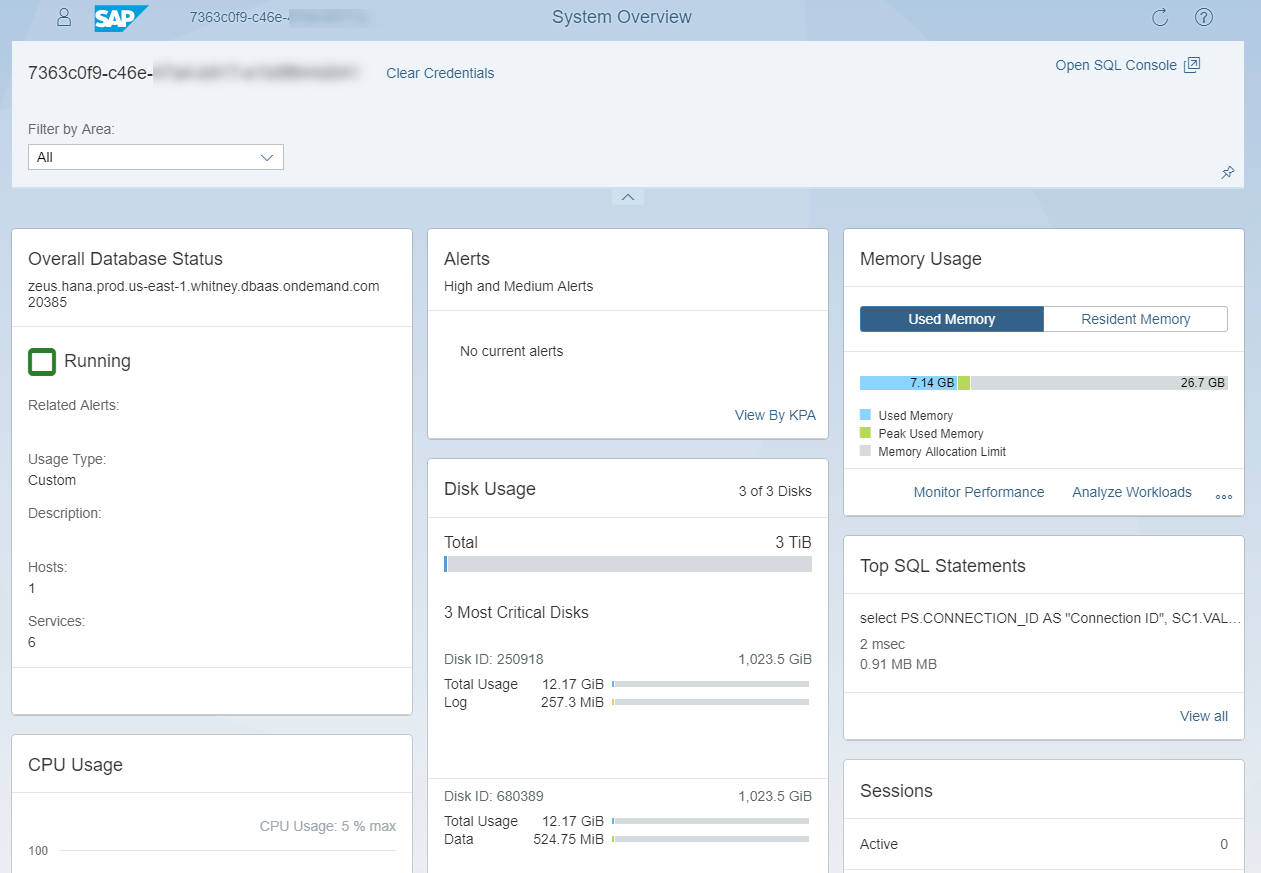
Note: Keep this tab open as you will be using it later.
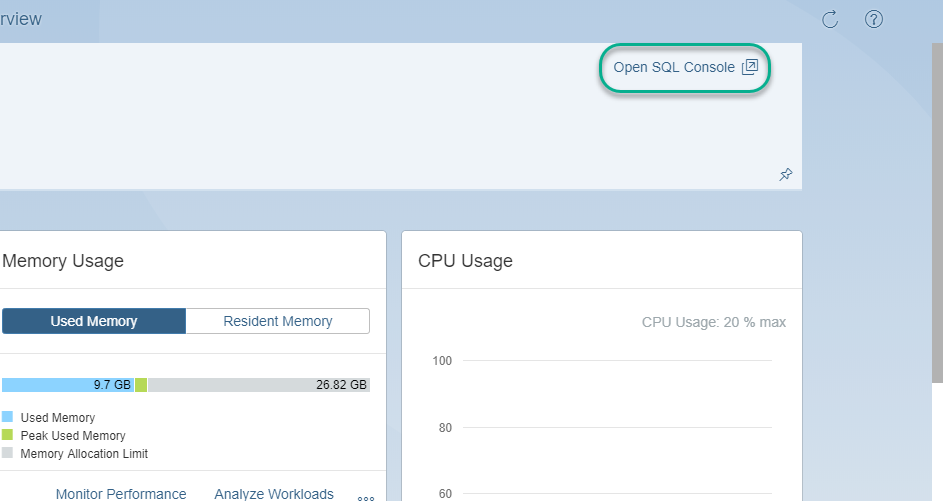
Open the SQL Console.
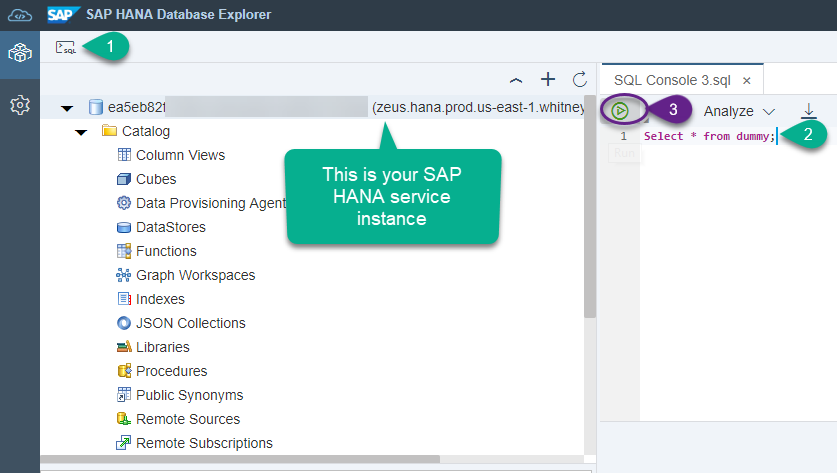
Execute the following statement to complete the validation below.
Resources
Discussion
Share feedback on this tutorial or join the conversation in SAP Community.