
Overview
You will learn
- How to configure the Data Provisioning Agent for connecting SAP Business Warehouse with SAP HANA Cloud, SAP HANA database
- How to register the Data Provisioning Adapter with SAP HANA Cloud, SAP HANA database
- How to connect SAP Business Warehouse with SAP HANA Cloud, SAP HANA database


Prerequisites
Prerequisites
- Make sure you have a running SAP HANA database instance in SAP HANA Cloud.
- You must have a running SAP BW on SAP HANA or SAP BW/4HANA system.
Steps
Intro
If your company currently uses SAP Business Warehouse (BW) and you would like to connect it as a source to SAP HANA Cloud, SAP HANA database, you can follow the steps in this tutorial to do so. This will then allow you to use your SAP BW system.
You can use the ABAP Adapter to extract the data from the SAP BW. To do so, you will need to install and configure the Data Provisioning Agent.
Prerequisites
- Before you begin installation, make sure you use the Administrator user or a user in the Administrators group.
The Data Provisioning Agent installation package is available in the component SAP HANA SDI (SAP HANA Smart Data Integration) on the SAP Software Download Center.
On the website SAP Software Download Center, the installation package is in the following location:
SAP Software Download Center > Software Downloads > Installations & Upgrades > By Alphabetical Index (A-Z) > H > SAP HANA SDI > SAP HANA SDI 2.0 > Comprised Software Component Versions > HANA DP AGENT 2.0
Select the latest release package and download it on your system and extract the zip file.
Navigate to the directory where you extracted the software and open the file.
Then right click on hdbsetup.exe and choose Run as administrator.

Install new SAP HANA Data Provisioning Agent Choose Install new SAP HANA Data Provisioning Agent and specify the installation path.
Then specify the unique agent name that identifies the agent instance and must be different from any names already used by other agent instances on the same host system.
Next, specify the username (
<domain>\<username>) and password to use for the agent service. The user that runs the agent service must have read and write access to the installation directory so configuration files can be updated.
Services running To check if you agent is running, type services on the windows search bar and select Run as Administrator.
Prerequisites
- You have allowed the IP address of the agent host system in the SAP HANA Cloud, SAP HANA database instance. In addition to this, your SAP HANA user must have the AGENT ADMIN system privilege for connecting to SAP HANA Cloud.
- Start the command prompt on your system and type the following command:
set DPA_INSTANCE=C:\usr\sap\dataprovagentThe command-line agent configuration tool requires the `DPA_INSTANCE` environment variable to be set to the installation root location.
Then navigate to the
<DPAgent_root>\binfolder.Start the command-line agent configuration tool by typing the following command:
agentcli.bat –configAgent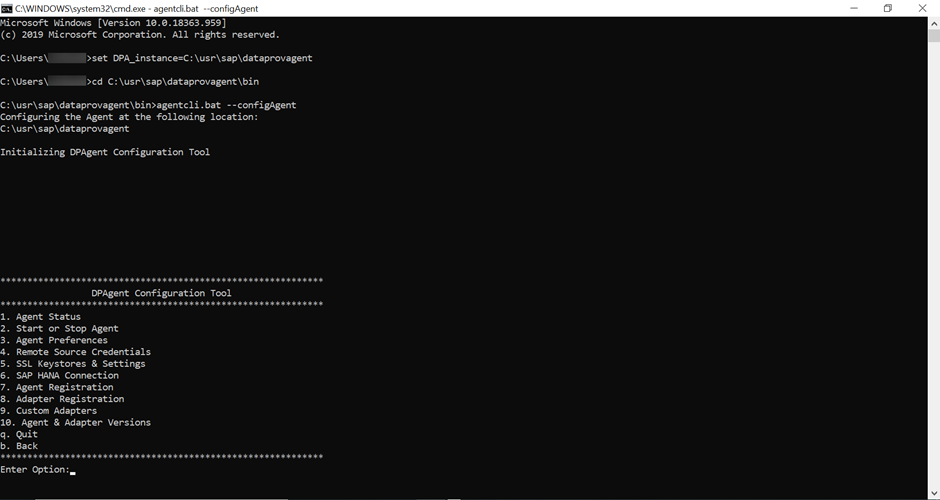
Select SAP HANA Connection.
Next, select Connect to SAP HANA Cloud via JDBC and specify true to use an encrypted connection over JDBC.

SAP HANA Connection Then specify the host name and port for the SAP HANA Cloud instance.
Specify the Agent Admin SAP HANA User credentials for SAP HANA Cloud as prompted.
If HTTPS traffic from your agent host is routed through a proxy, specify any required proxy information as prompted.
Then insert the credentials for the SAP HANA User for Agent Messaging. Also specify whether to create a new SAP HANA User for Agent Messaging.
Prerequisites
- Your SAP HANA user must have the ADAPTER ADMIN system privilege to register the
ABAPAdapterwith SAP HANA Cloud, SAP HANA database.
Start the Data Provisioning Agent Configuration tool and connect to SAP HANA (as described above).
Then go back and select Adapter Registration.
Select Display Adapters to view the list of available adapters. Then note the ABAP Adapter name and go back.

Adapter registration – Display adapter Next select Register Adapter and type in the adapter name as
ABAPAdapter.
Register Adapter
The selected adapter has been registered with SAP HANA and can be selected when creating a remote source.
Launch the SAP HANA Database Explorer.
Expand Catalog under your database and right click on Remote Sources. Select Add Remote Source.

SAP HANA Database Explorer - Catalog Under Adapter Name select the
ABAPAdapterthat you registered above.
Add Remote Source Then enter the Application Server, Client, and Instance number of your SAP BW on SAP HANA or SAP BW/4HANA system.
Click on Create.
Using this ABAP Adapter, you can now access data from SAP BW. You can also virtualise some of the data available in your SAP BW system and use it directly from SAP HANA Cloud, SAP HANA database.
You have completed the third tutorial of this tutorial group. In the next tutorial, you will learn how to connect SAP Data Intelligence Cloud to SAP HANA Cloud, SAP HANA database.
Resources
Discussion
Share feedback on this tutorial or join the conversation in SAP Community.