
Overview
You will learn
- How to download, install, and configure
unixODBCto connect from your SAP HANA, express edition host machine to a client machine


Prerequisites
Prerequisites
- Create a Backup
- A registered version of SUSE. See the SAP HANA Academy video for details.
Steps
Intro
In the following How-To, the “host machine” refers to the machine on which you will be installing and configuring unixODBC. The “client machine” refers to the machine (or machines) you will be connecting to using unixODBC.
You will need the IP address of your host and client machine(s). Have that information available while you proceed through this how-to.
Before you can connect to your client database using unixODBC, you must update the client’s hosts file with the IP address of your SAP HANA, express edition host machine. You will need to do this with each client database.
On your client machine(s), do the following:
Edit /etc/hosts on Windows
Navigate to
C:\Windows\System32\drivers\etc.In Administrator mode, open hosts in Notepad. See your operating system for information on opening applications in Administrator mode.
In a new uncommented row, add the IP address of your host machine with an alias of your choosing. Save your changes.
Tip: Spacing is important. Make sure your hosts file in Notepad looks like this image.
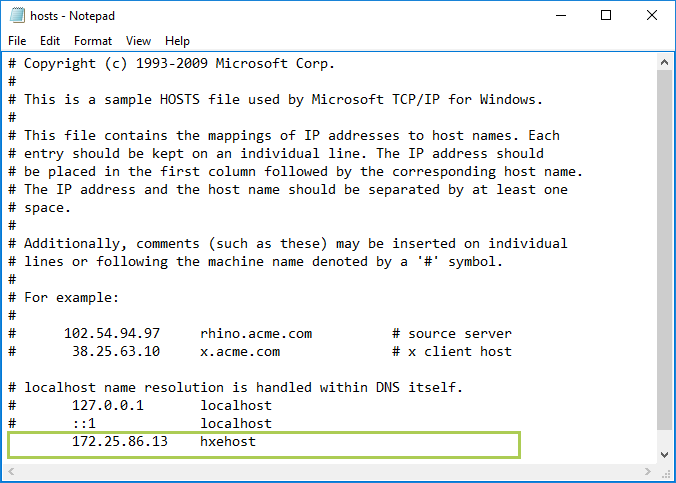
Windows Host File
Edit /etc/hosts on Mac and Linux
On your Mac or Linux machine, start the Terminal application.
Edit the
hostsfile with the following command:
sudo sh - c 'echo <ip_address_of_host> <alias> >> /etc/hosts'Note: The remaining steps are performed on your host machine.
Note: If you have not registered your version of SUSE, you will have no repositories loaded onto your machine. For more information, see the SAP HANA Academy video for details.
Open a command line to your host machine.
Open
YaSTusingsudo.Shellsudo -i yastFrom Software go to Software Management
Search for and install
unixodbc.Type “
unixodbc” in the Search Phrase section and press Enter.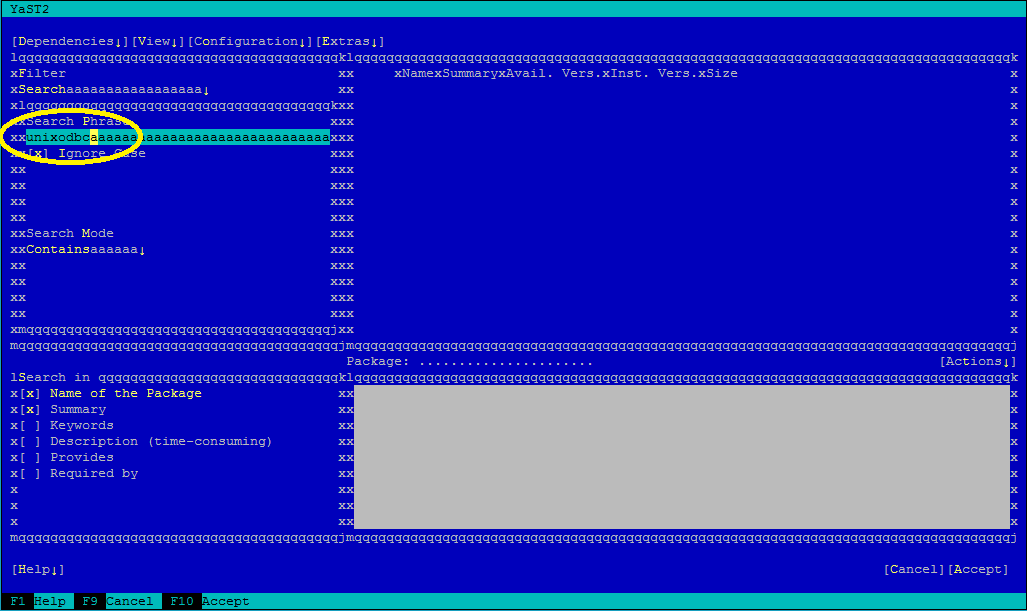
Searching Select either the 32- or 64-bit version depending on your installation.
Press Tab and press Enter to open an action menu. Highlight + and press Enter to accept.
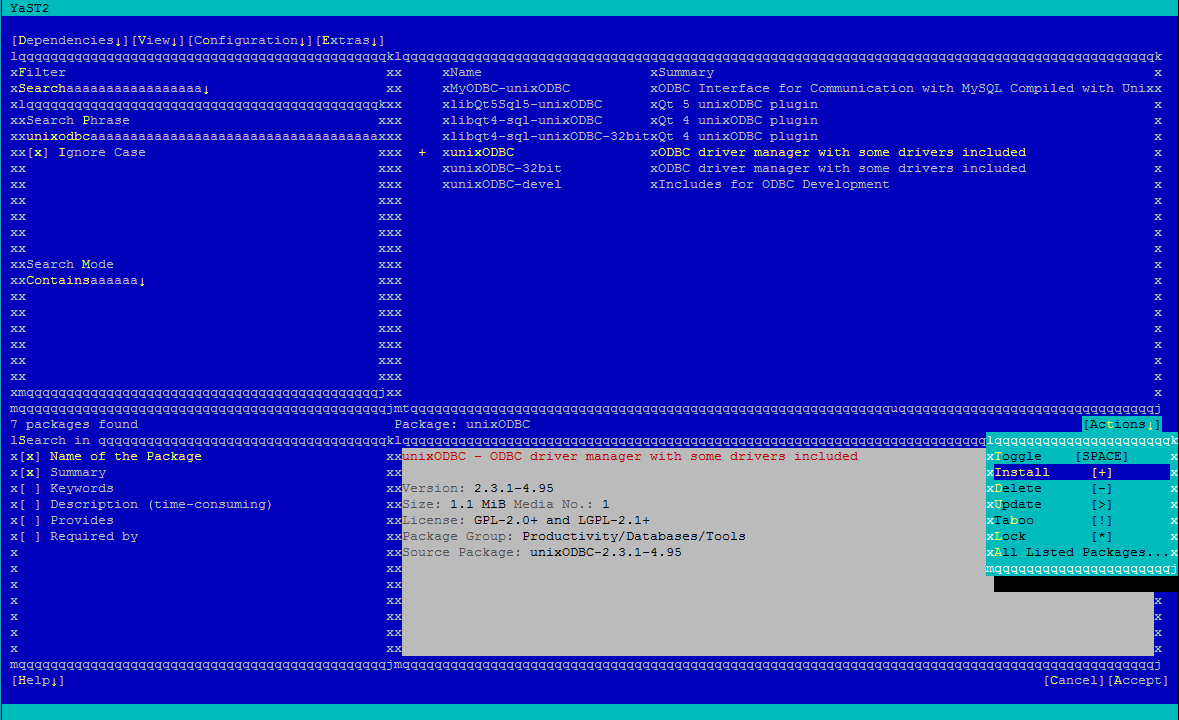
Installing Press F10 to accept. Installation will take a few moments.
Exit
YaSTby hitting F10 to finish and then F9 to quit.Check if installation was successful. Run the command
odbcinst. If you see a list of commands, installation was successful.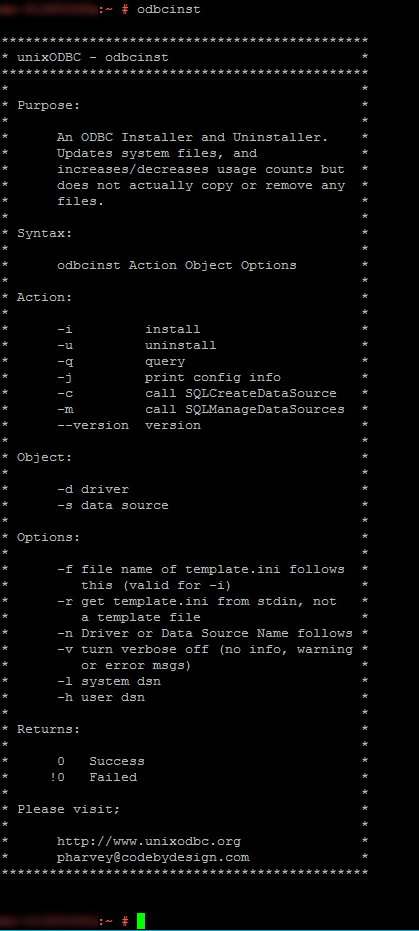
unixODBC install success
Log in as
<sid>admand move to/usr/sap/HXE/homedirectory.Example:
Shellsu -l hxeadm cd /usr/sap/HXE/homeCreate the
.odbc.inifile.Shellvi .odbc.iniAdd the following for each client machine:
Shell[<DATABASE_NAME>] servernode = <client_ip_address>:3<instance_number>13 #location of the unixODBC driver driver = /usr/sap/<sid>/HDB<instance_number>/exe/libodbcHDB.so description = <optional_description> databasename = <your_database_alias>Here is an example:
Code[HXECLIENT] servernode = 10.100.100:39013 driver = /usr/sap/HXE/HDB90/exe/libodbcHDB.so description = Test database for unixODBC databasename = client
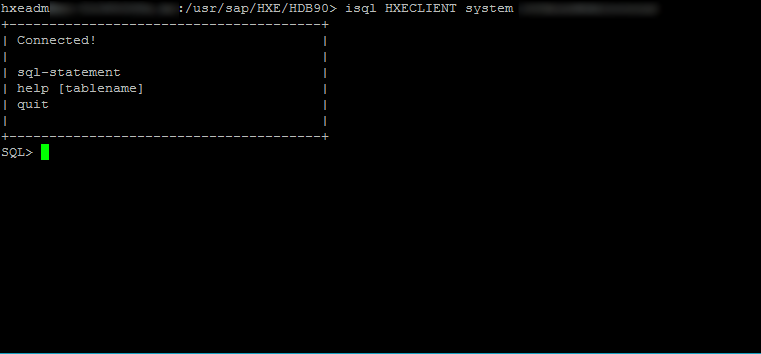
Connect to your system with the isql command.
isql <DATABASE_NAME> <user> <password>Example:
isql HXECLIENT SYSTEM Password1If successful, a list of commands displays:
Resources
Discussion
Share feedback on this tutorial or join the conversation in SAP Community.