
Overview
You will learn
- How to run the Process
- How to work on the Tasks
- How to monitor Process and Automation
- How to gain visibility into the Business Process
- How to retrieve the sample project from the Store


Prerequisites
Prerequisites
Steps
Before releasing and deploying your business process, please make sure you have completed the required Agent Management settings to execute the process with an automation.
Once you have taken care of the agent management settings, you can release and deploy the business process project to run the process.
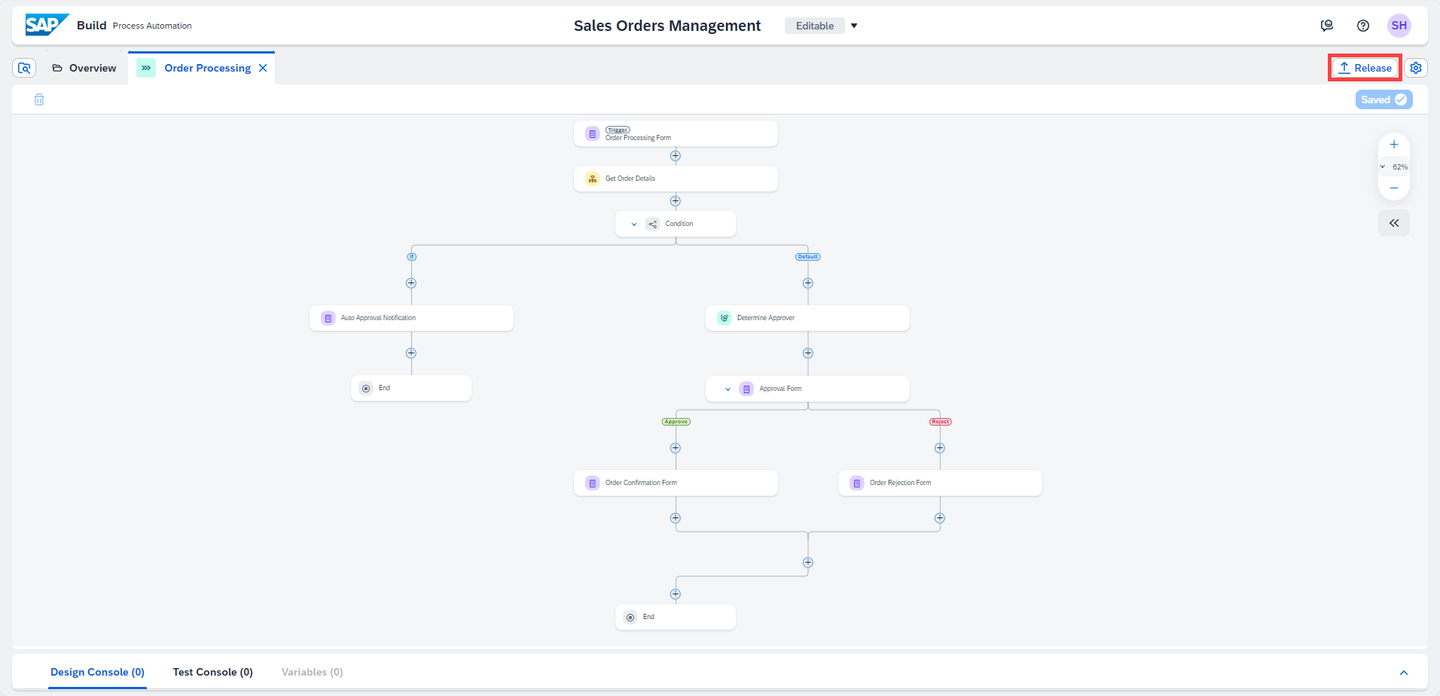
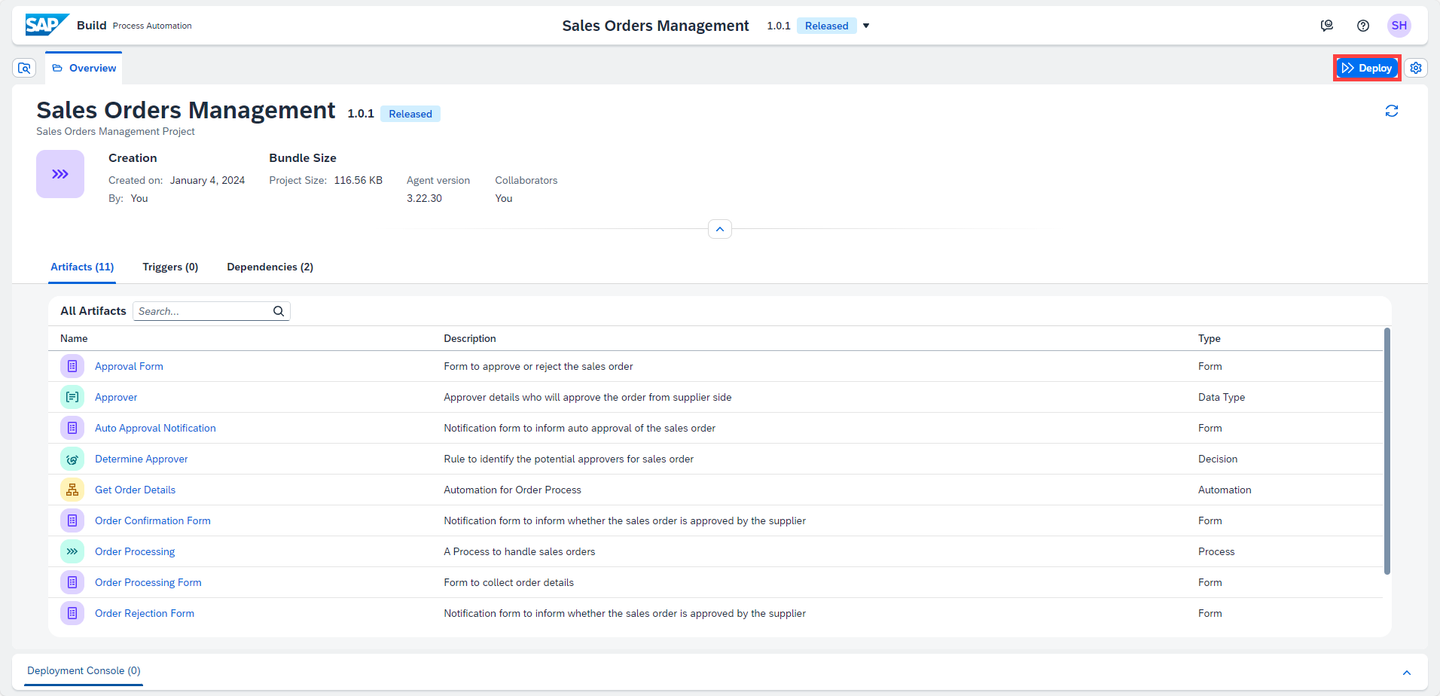
Choose an Environment and select Deploy.
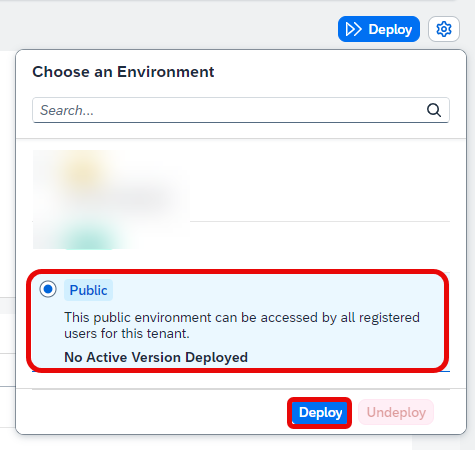
Environment While deploying, the
OrderFilePathdata type should be the path to the excel workbook saved on your machine.Choose Deploy.

OrderFilePath
You will now run the process and learn how to monitor the process and work on the tasks. You have released and deployed the business process project.
From the deployed version of the Business Process Project in the Overview section, open the process Order Processing.
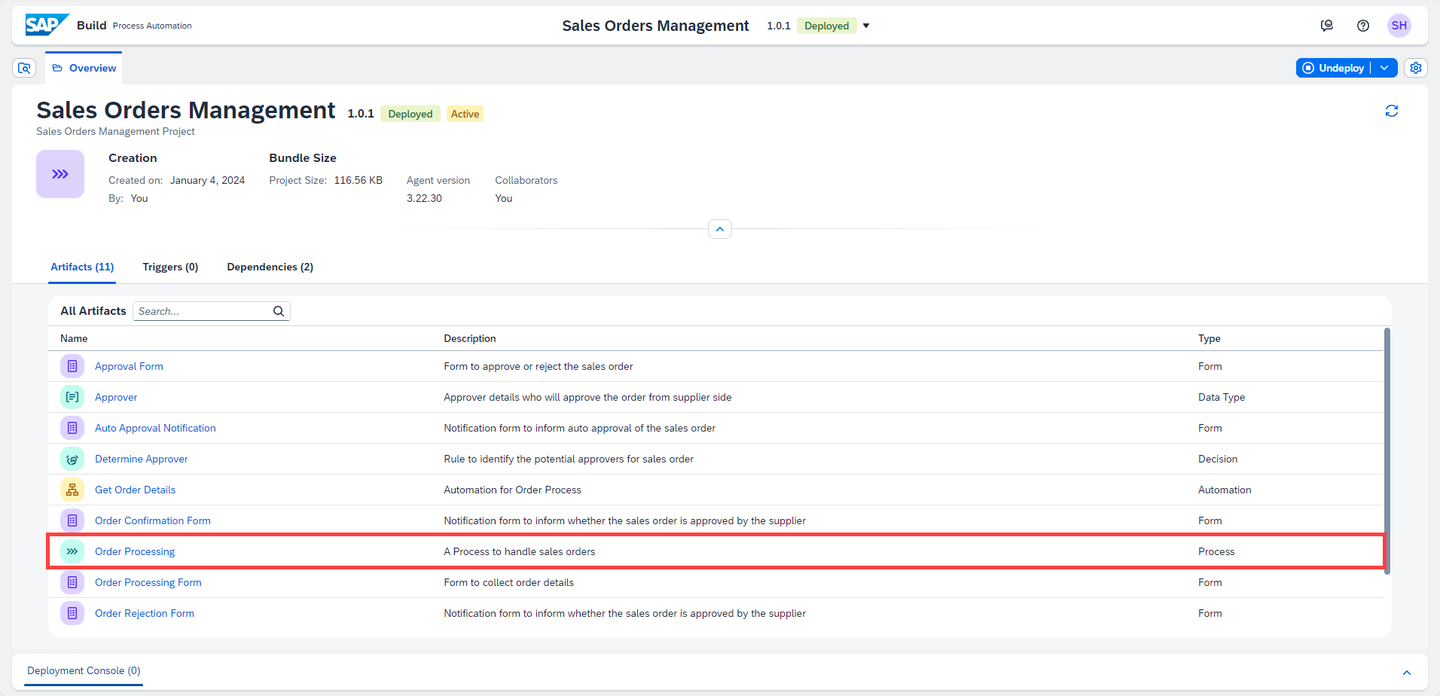
Run Choose Order Processing Form.
Choose the Copy icon aside the Form Link.
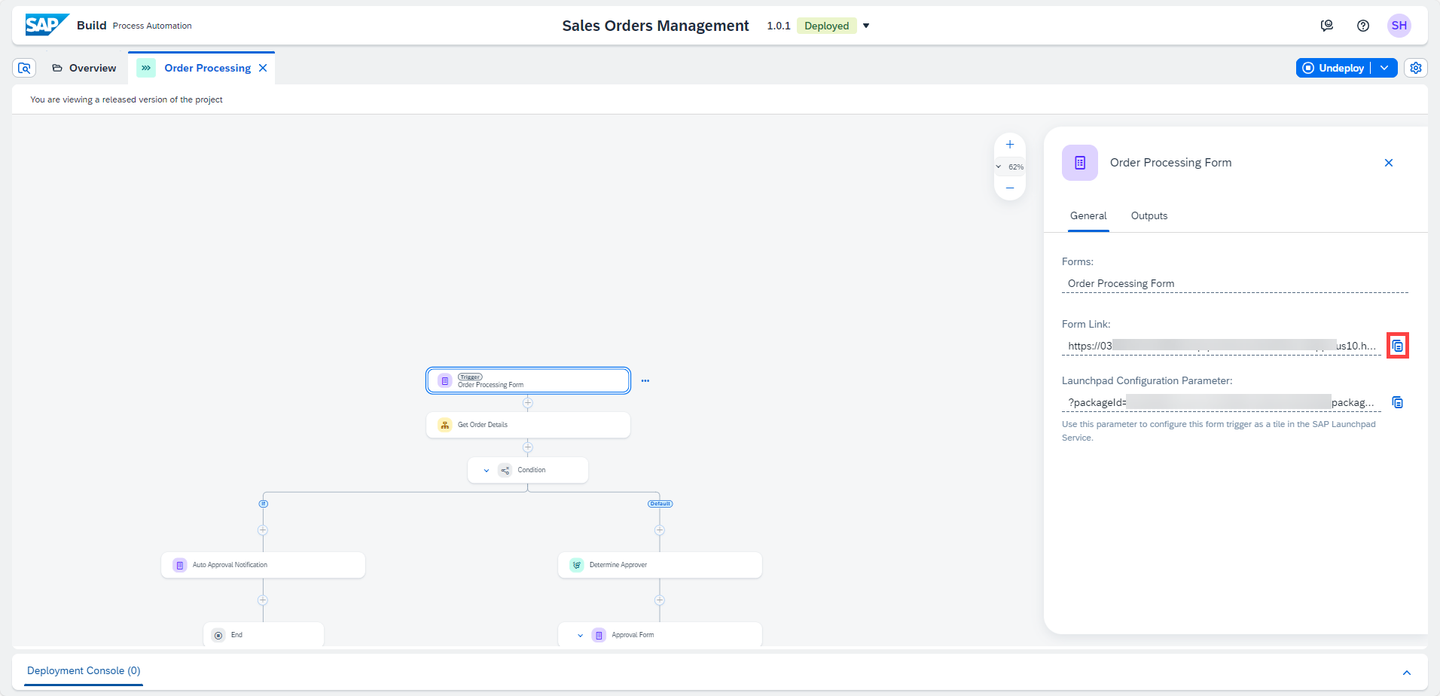
Run copy the form link Open the Form pasting the Form Link in a browser window.
When you open the form in the browser, you will see all the input fields you defined in the process trigger form.
Fill the form with the Customer Name and Order Number values and choose Submit.
You have to enter one of the order numbers from the excel file. Do not enter any random order number or else the automation will not give any results.
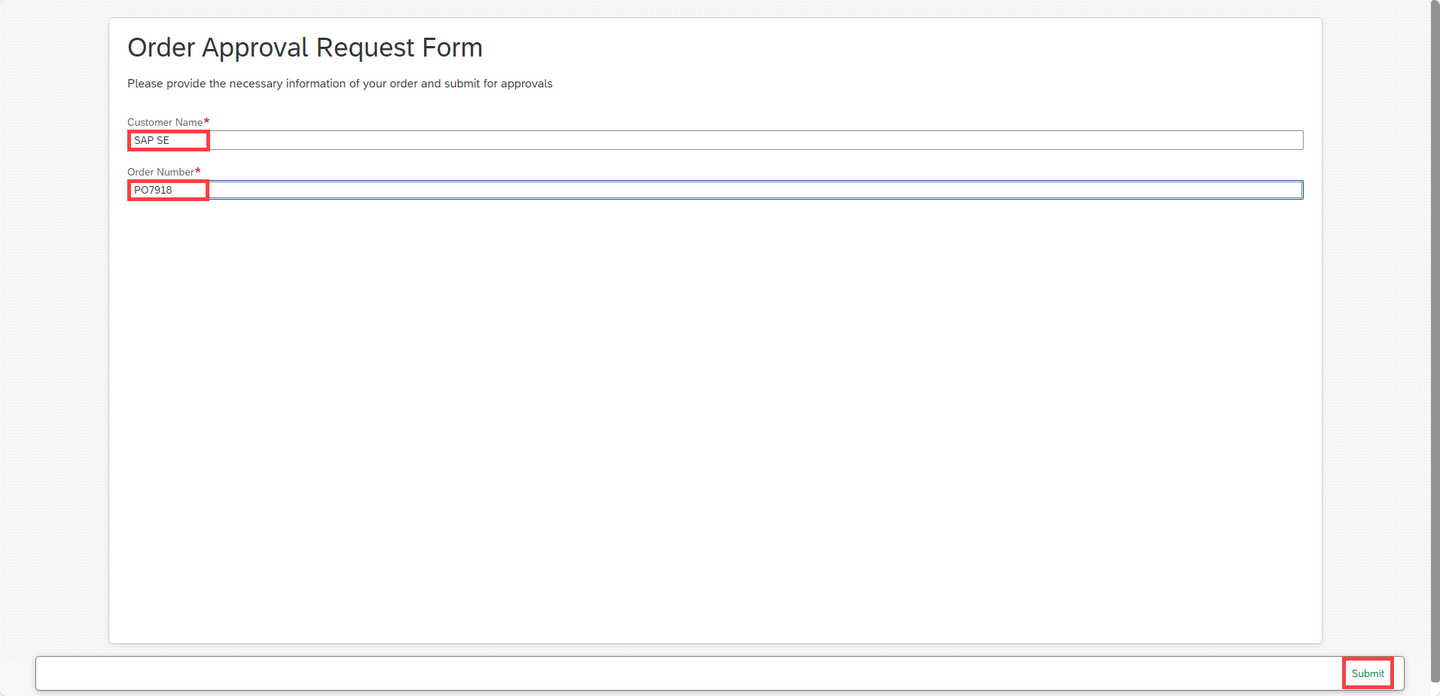
Run open the form After you choose the Submit button, you will be notified that the form has been successfully submitted.
The workflow has been triggered and the approval process has started. You can now work on the tasks, monitor the process and gain insights.
Tasks are requests for users to participate in an approval or review process. These tasks appear in the My Inbox application shipped with SAP Build Process Automation. Users can claim, approve, and/or reject the task from their inbox.
Start in the Lobby and open the My Inbox.
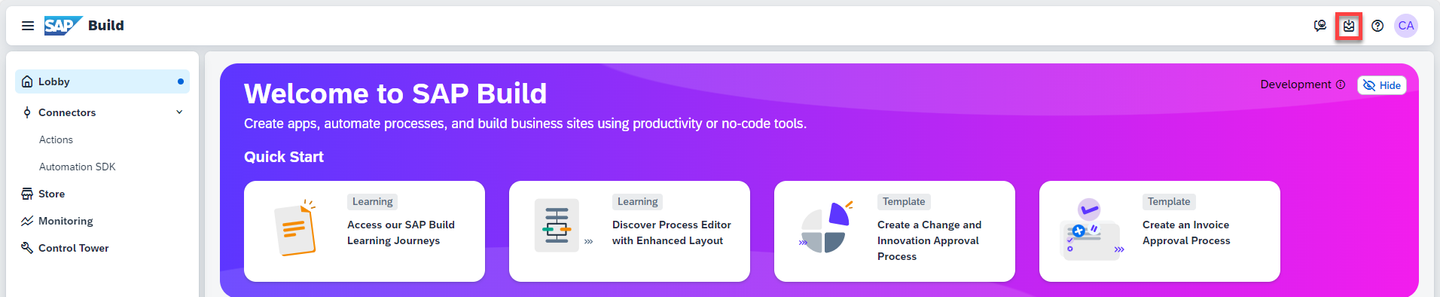
Lobby After opening the My Inbox application, you will see on the left-hand side all the tasks listed. Select the Approval Form, complete it and choose Approve.
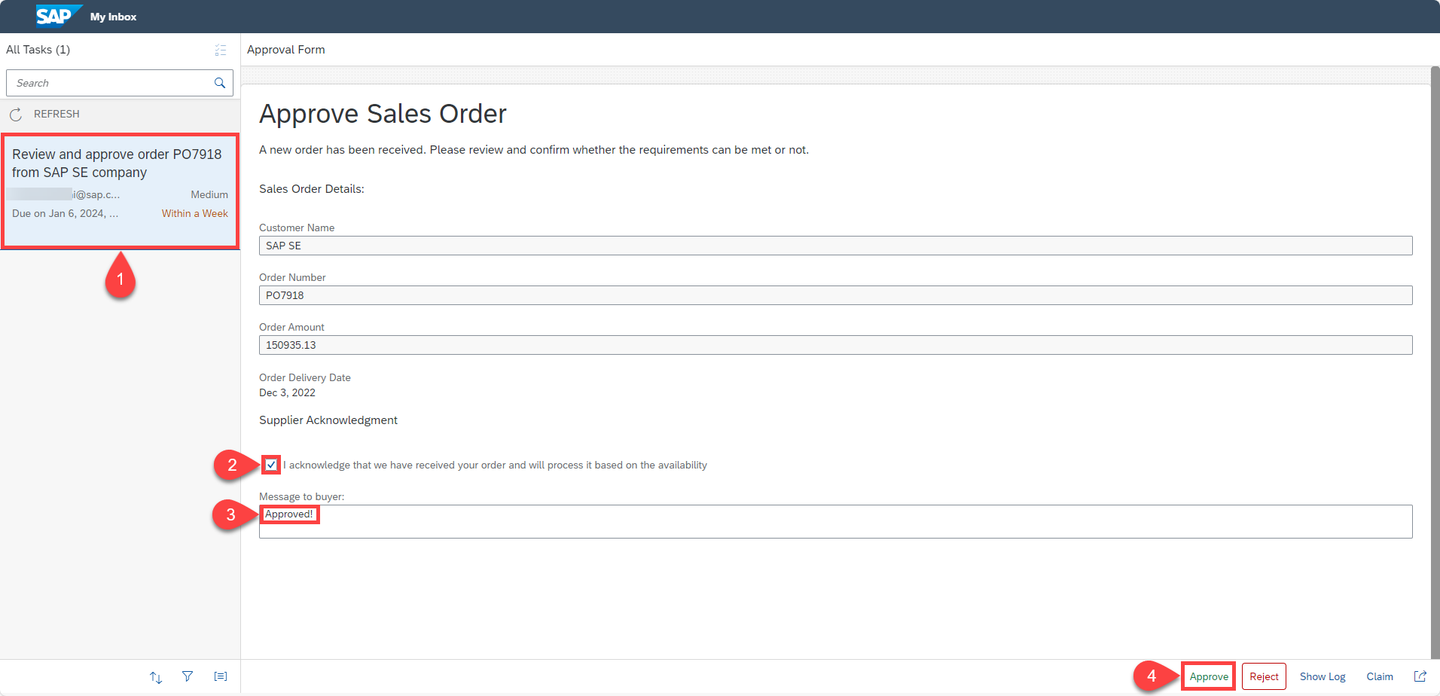
My Inbox Actions The provided tasks and forms might look different than this screenshot, depending on your configurations.
Depending on your selected actions and the information you have provided at the start of the process, the next task could be to confirm the order.
Once you approve or reject the approval task, refresh the inbox again to get the final notification based on the action you took. Once you acknowledge the notification sent via the approval process, the process will be completed.
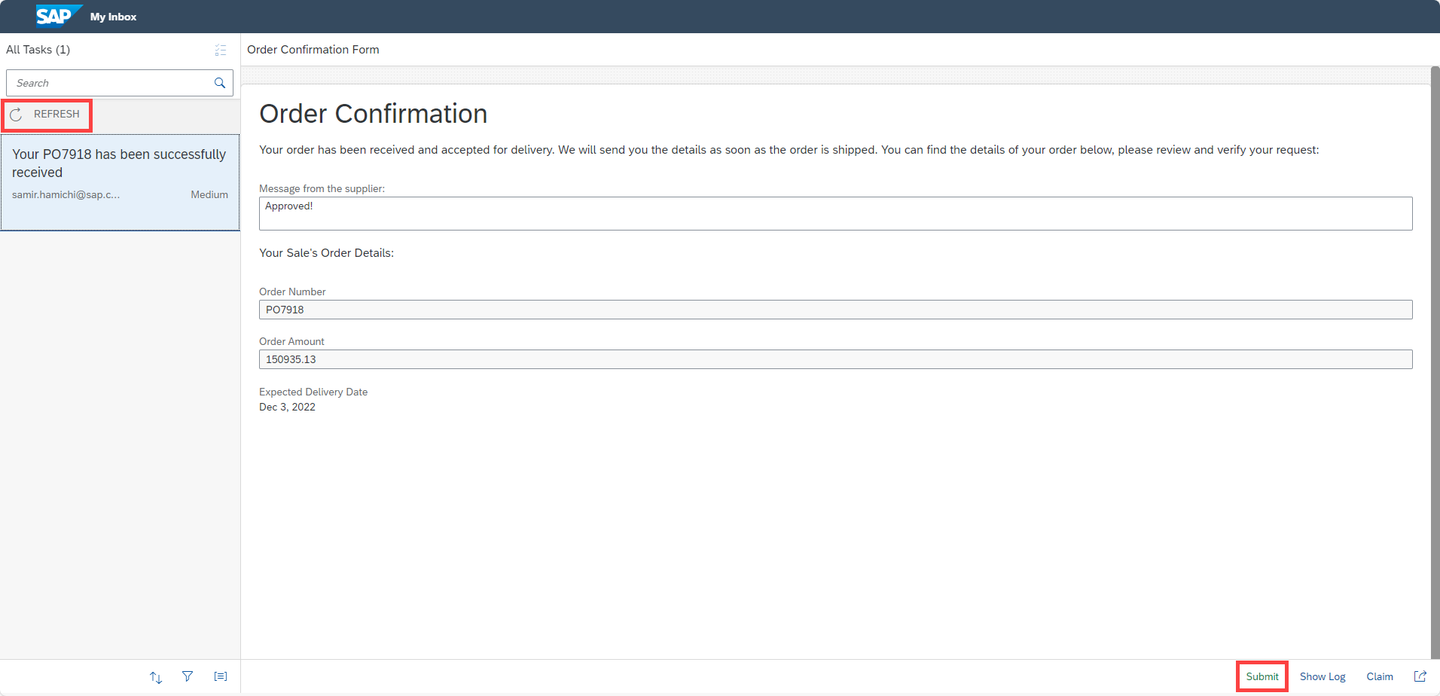
Confirmation Form
Monitoring business processes is one of the key aspects of successful automation. Using monitoring capabilities, you can proactively and consistently monitor process performance, identify any issues in the process and take necessary actions to ensure business process continuity.
SAP Build Process Automation provides different applications for monitoring and managing different process skills. The applications include Process and Workflow Instances, Automation Jobs, Acquired Events etc. These applications are available under the Monitor tab in SAP Build.
All deployed processes can be accessed by following Monitoring > Manage > Processes and Workflows application.
To monitor all the running instances of the process, navigate to Monitoring > Monitor> Process and Workflow Instances.
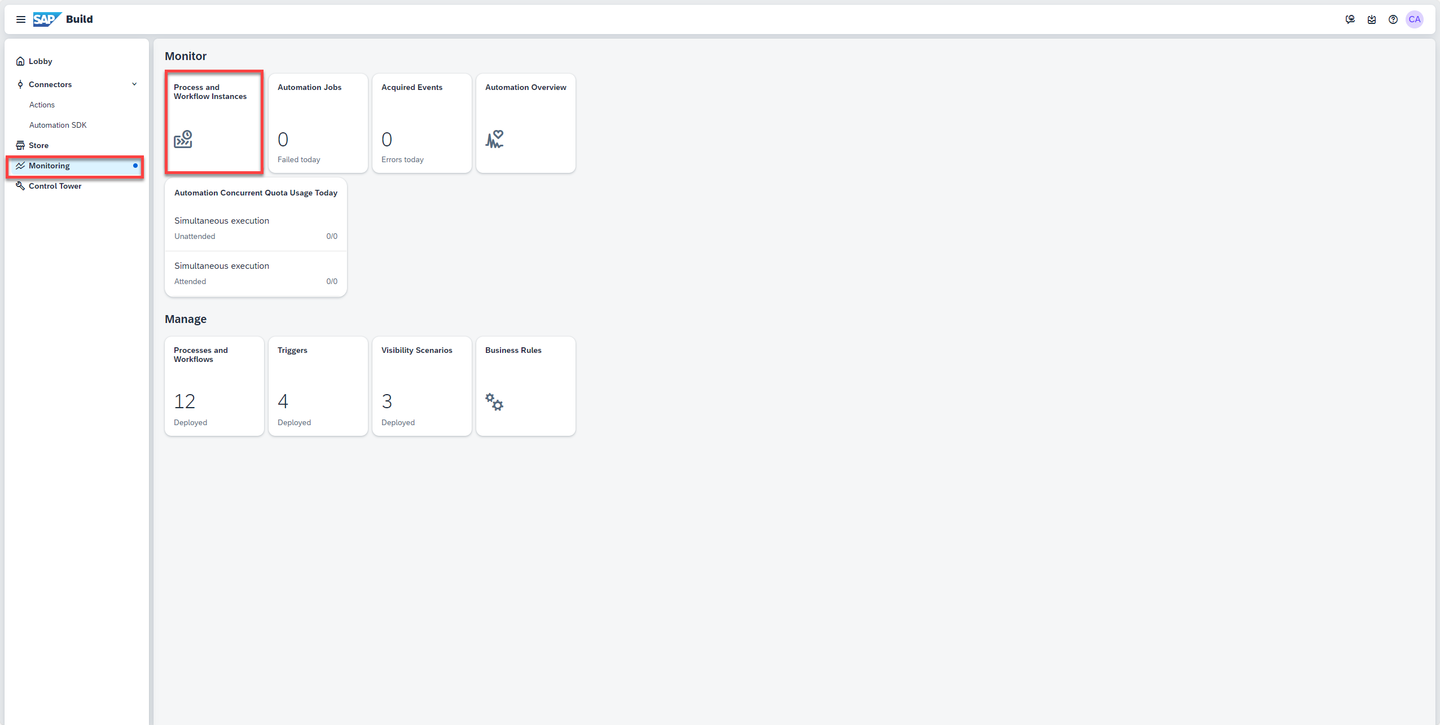
Monitor In there, you will see all the running, erroneous and canceled process instances. Use the filter bar to get a more customized view of the process instances based on different statuses such as running, completed, canceled, etc.
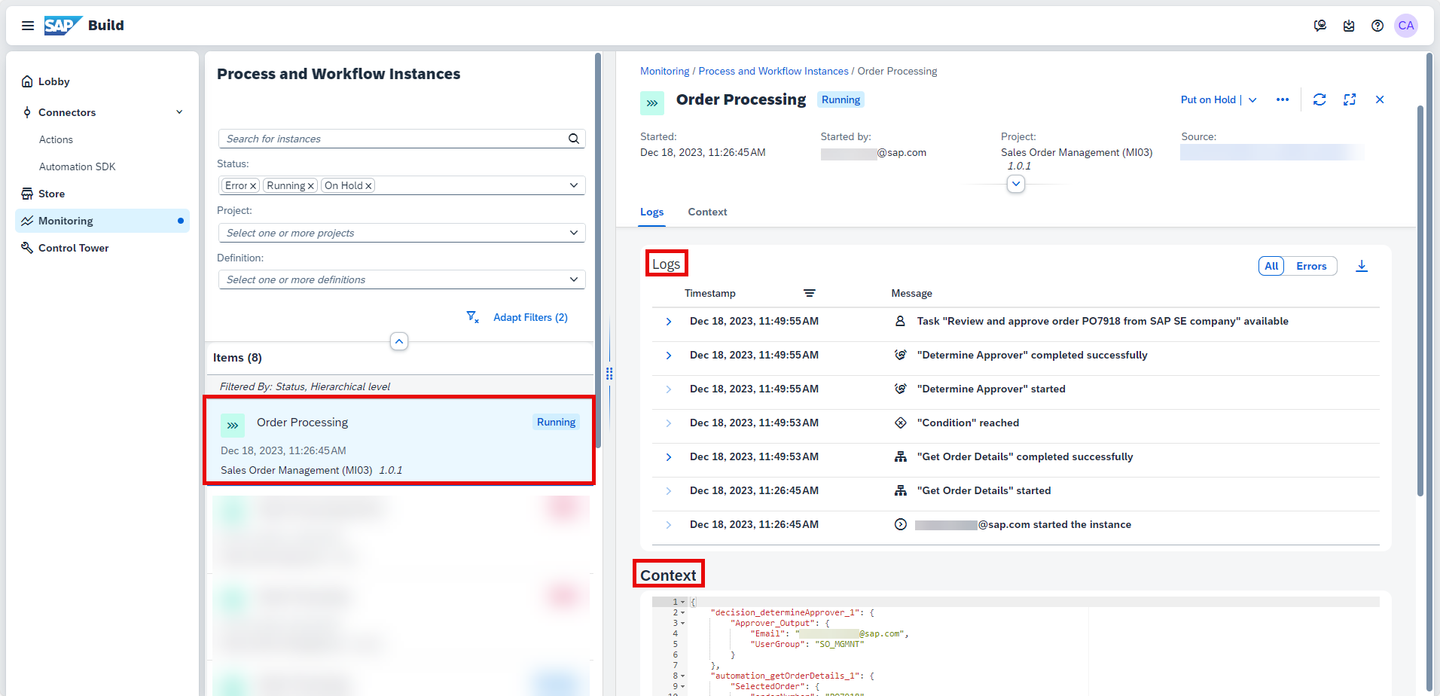
To explore different process monitoring options, go to the Process and Workflow Instances list and choose your new process instance that was just triggered via the start form.
Select your Order Processing instance to check the status of the Logs and Context.
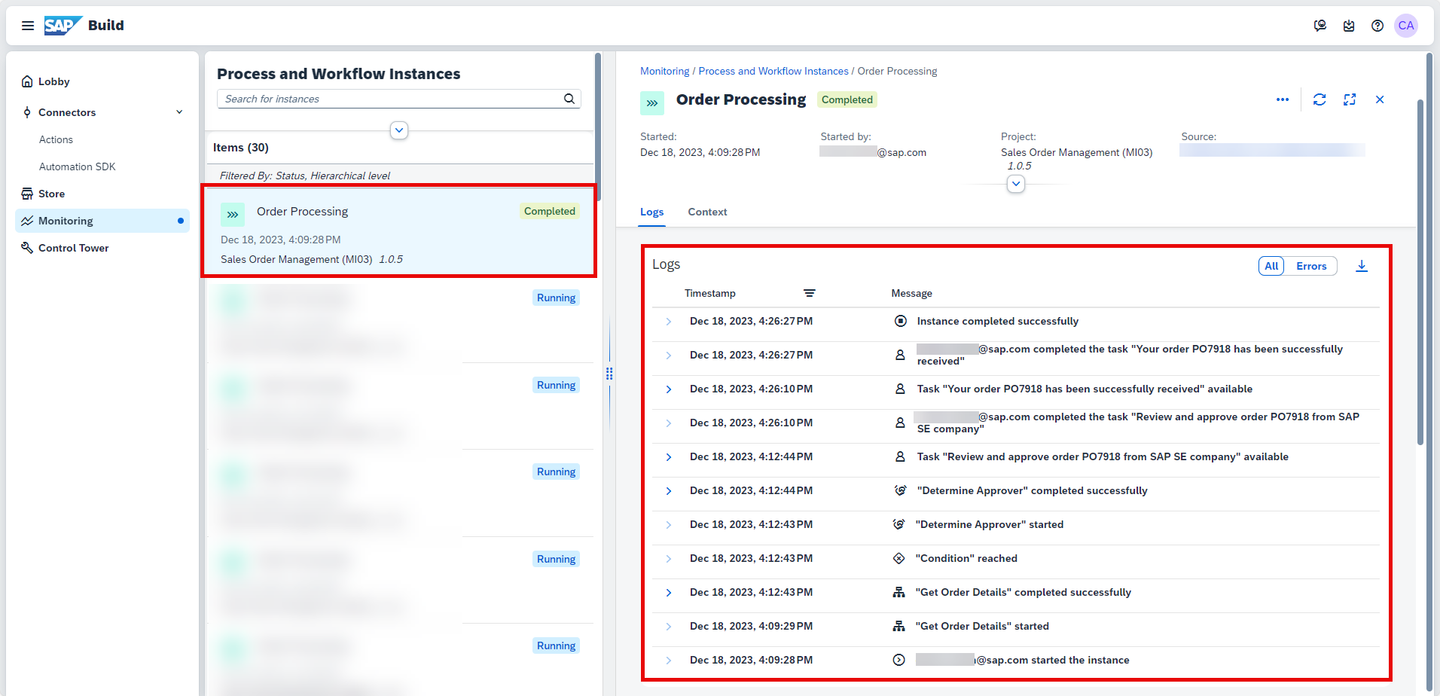
Observe the process instance information, which provides the context for the process. You can see actual process data flowing across different activities in the process, and the logs where you can trace how the entire process has been progressing. You can also see some basic runtime information for each activity such activity name, who started it, when was it completed etc.
Monitor Go to Automation Jobs under Monitoring.
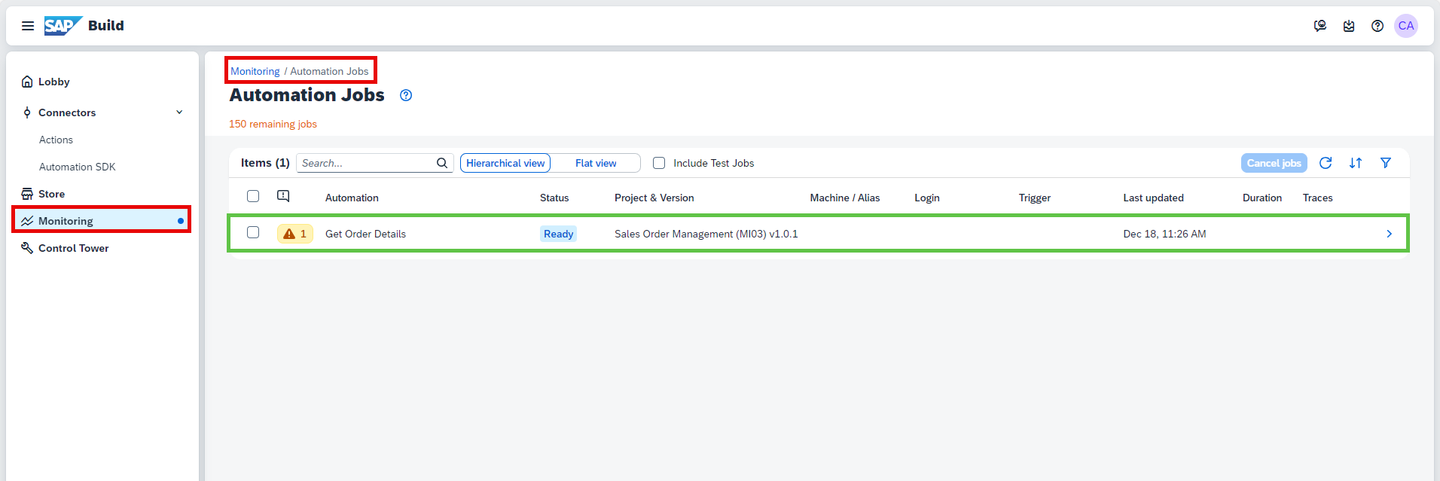
Monitor Choose the Warning icon (if applicable) to learn more about the Automation:
If this is the case, go to the Control Tower section and add your agent in order to run the Automation Job.
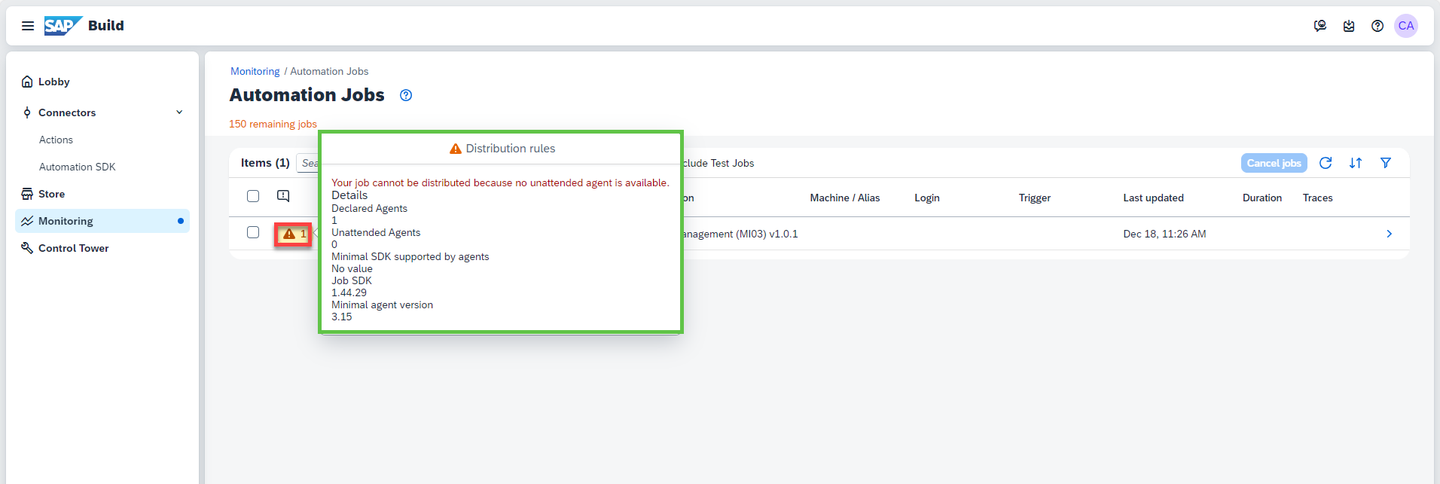
Monitor In the case below, the Desktop agent version installed locally is less than the desktop agent version configured in the project settings.
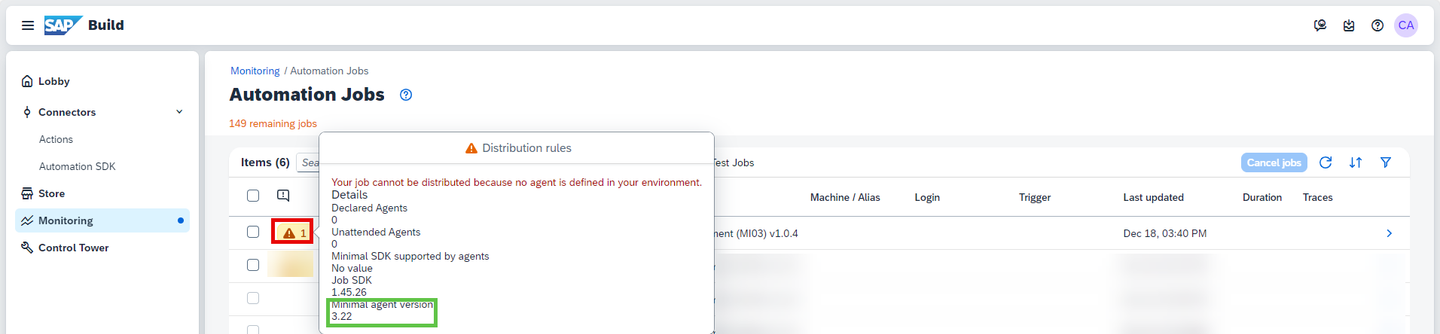
Monitor CAUTION: Desktop agent version installed locally should be greater than or equal to the minimum desktop agent version maintained in the project settings
To fix this, please go the Editable version of your project and select Settings > Agent Version and choose the agent version that is registered on your local machine.
As you can see in the screenshot below, the configured agent version is 3.22 which is greater than the local registered version of 3.19. You will need to choose a version that is less or equal to 3.19
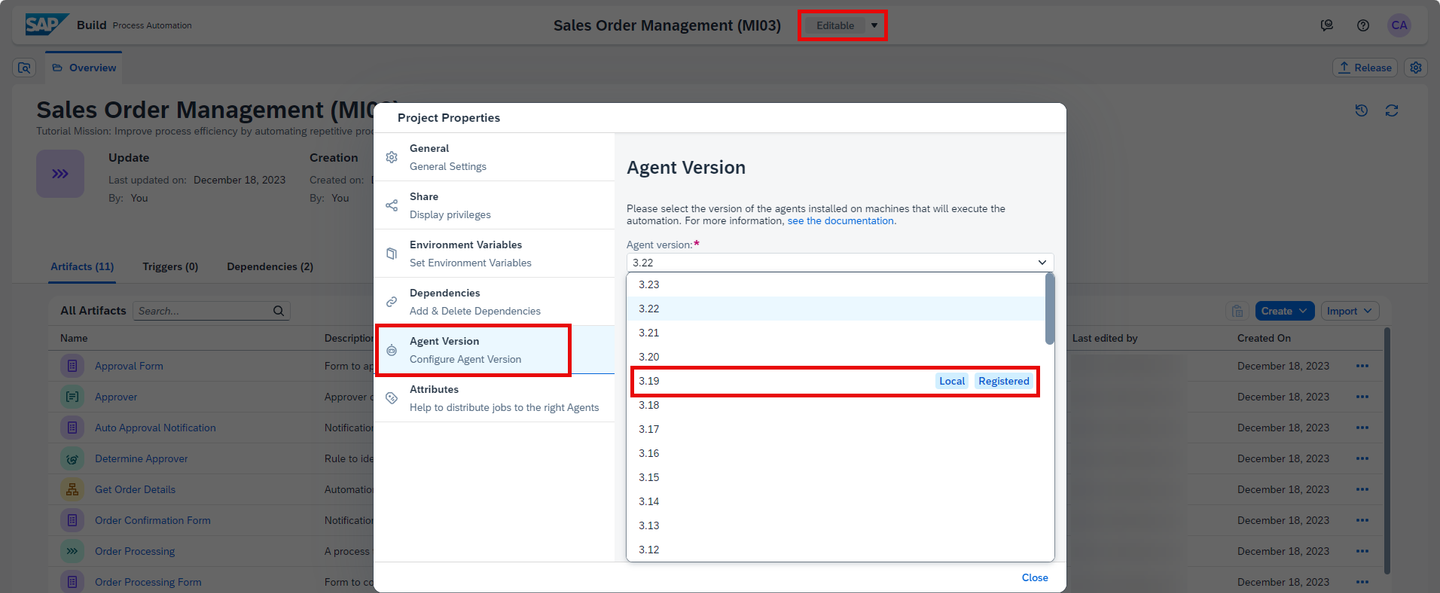
Monitor Once you have configured an agent version that is less or equal to the desktop agent version installed locally, you will then need to release and deploy your project.
You will see the automation ran successfully as below:
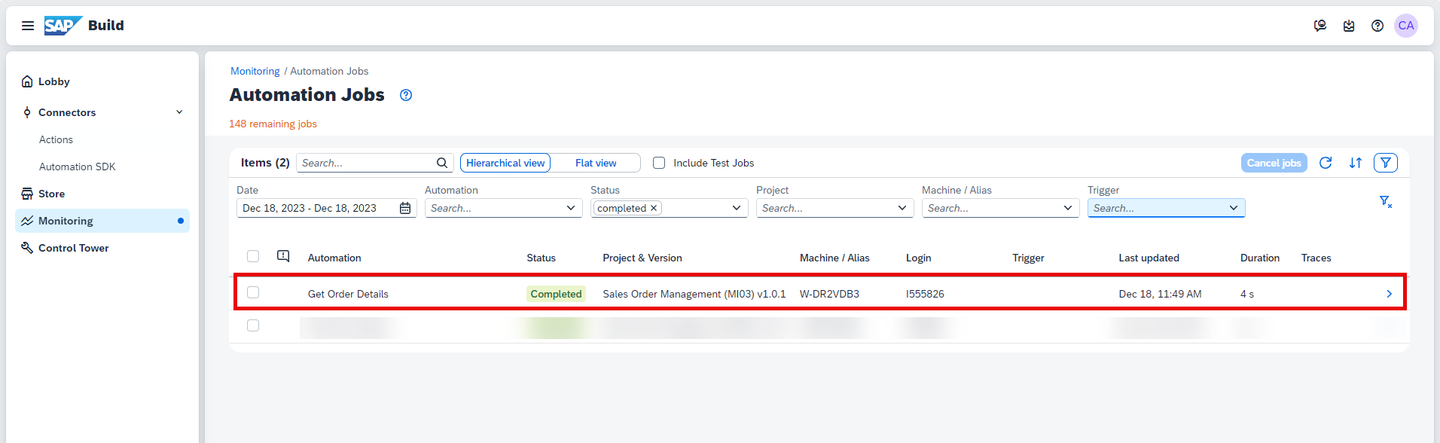
Monitor The process instance progresses further to the approval step in the business process as you complete the tasks. Once the tasks are completed, the instance will be completed successfully.
Go to Monitoring > Monitor > Process and Workflow Instances.
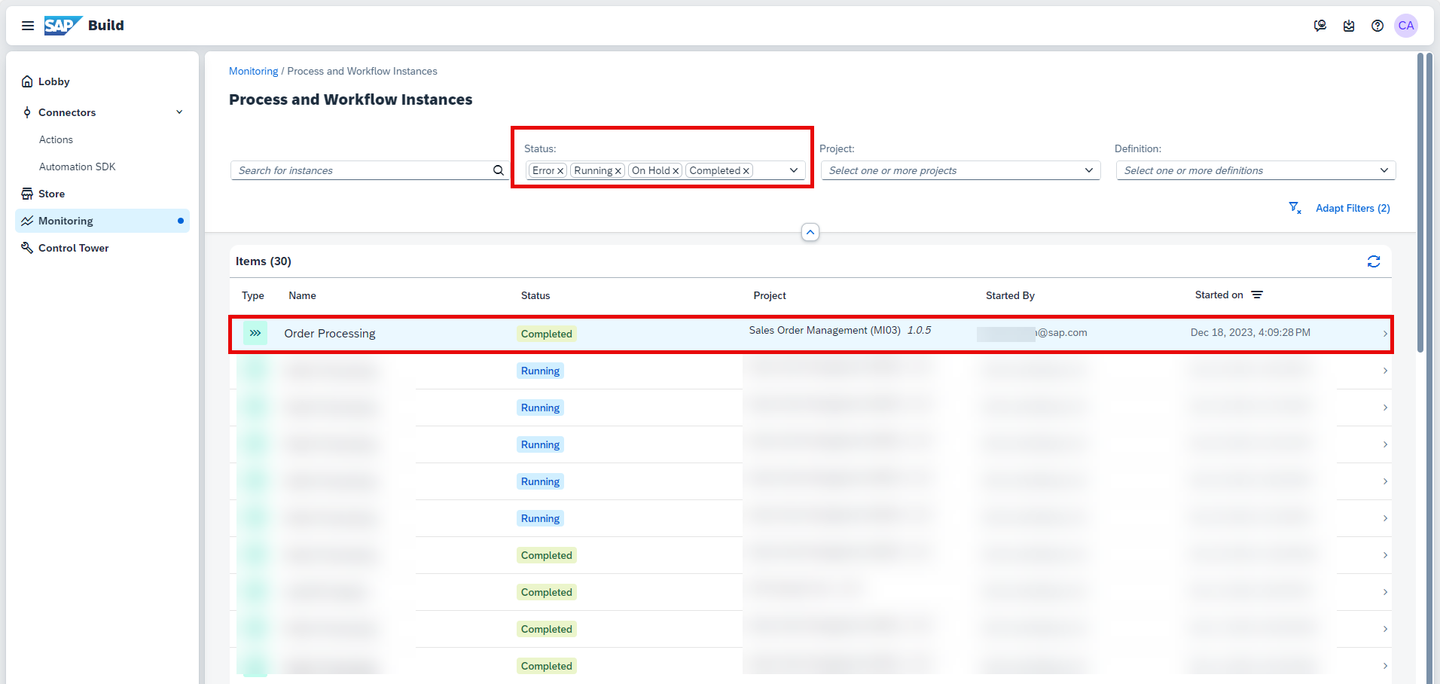
Under Status, select Completed.
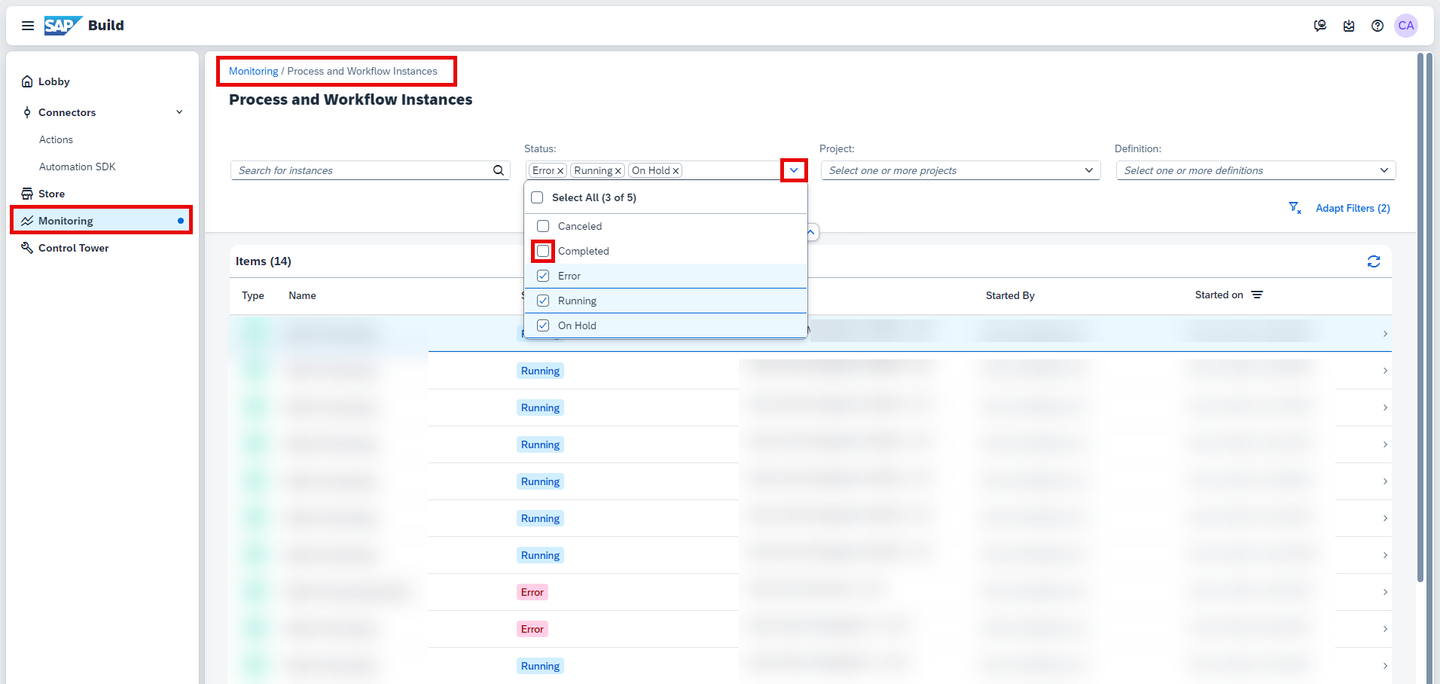
Monitor Select your completed Order Processing instance.
Monitor Again you may check the status of the Logs and Context. The instance has completed successfully.
Monitor
From the Monitoring tab, select Visibility Scenarios tile.
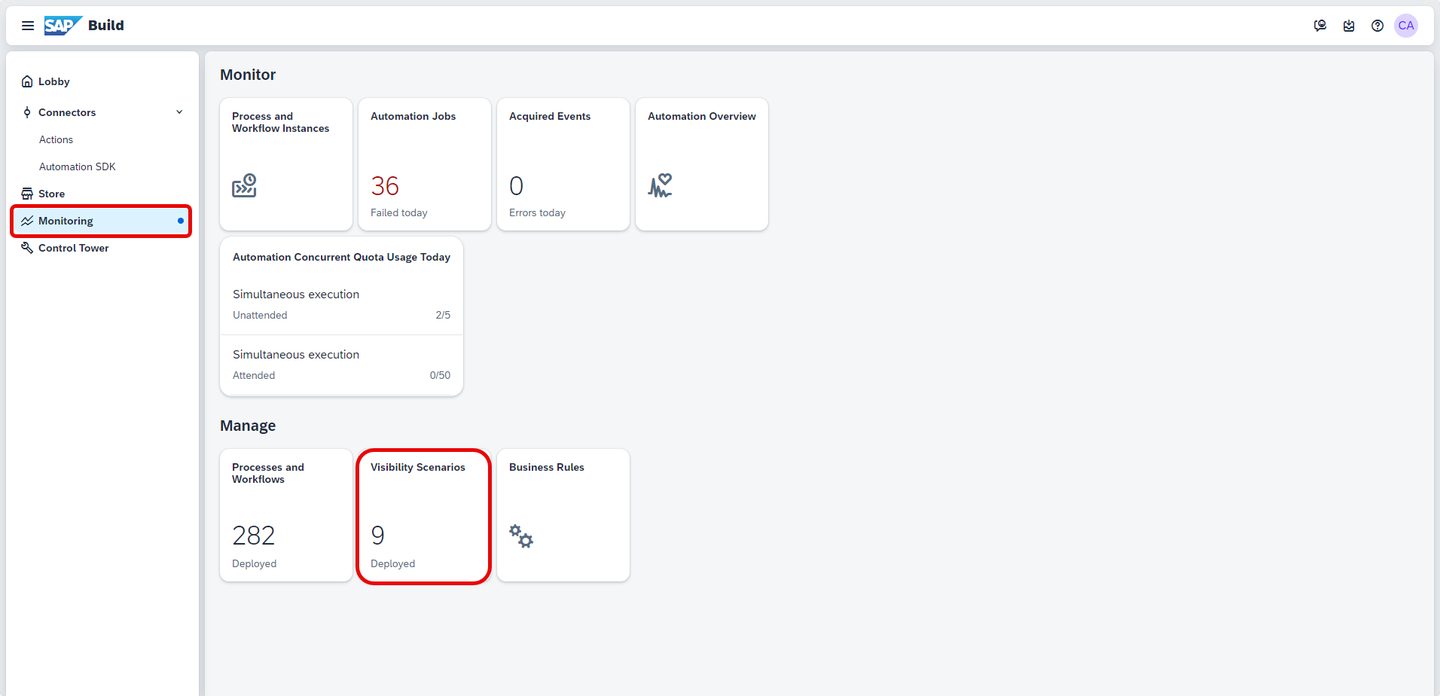
Visibility Scenarios Select the Sales Order Visibility Scenario and click on the icon on the top right corner to navigate to the dashboard.
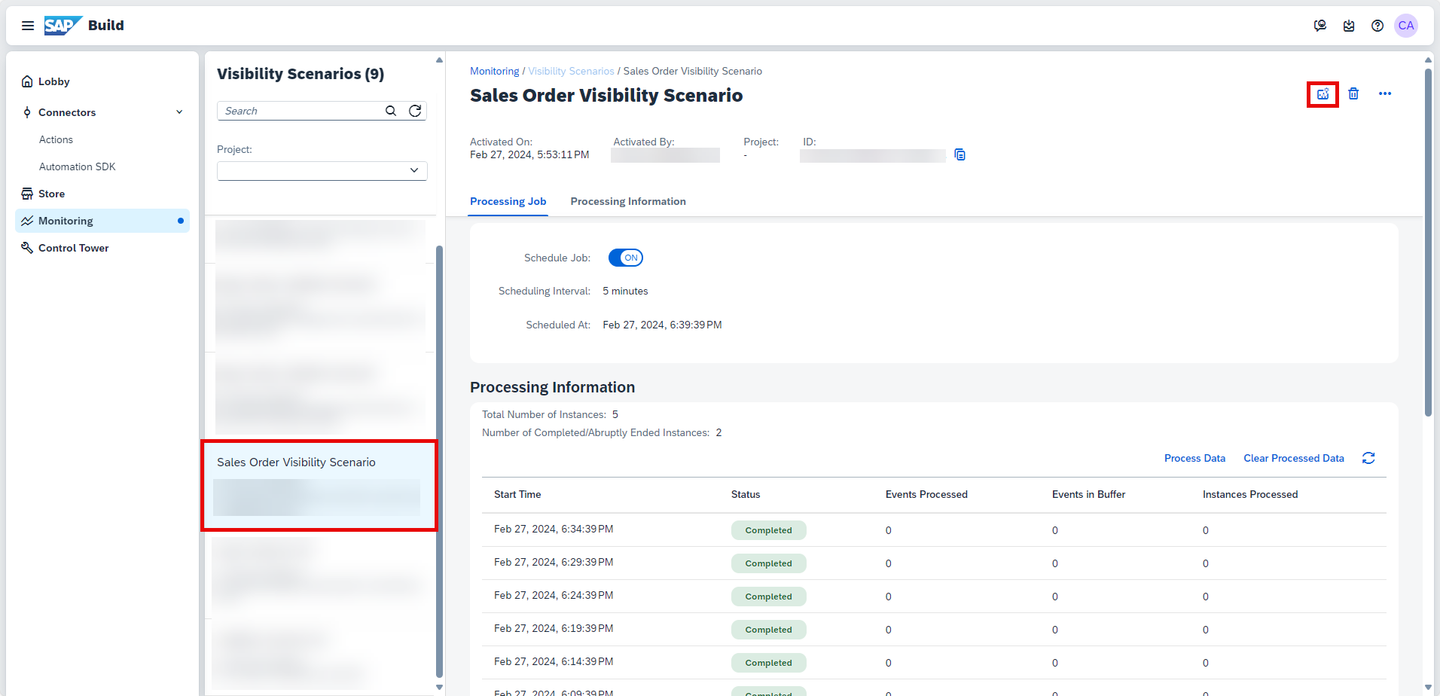
Dashboard link You will be navigated to the Sales Order Visibility Scenario dashboard.
The dashboard is there. The performance indicators are filling up, depending on the time it has taken, there might be different results. Please now feel free to explore the details and discover what is included in each tile. You could even navigate into single instances.
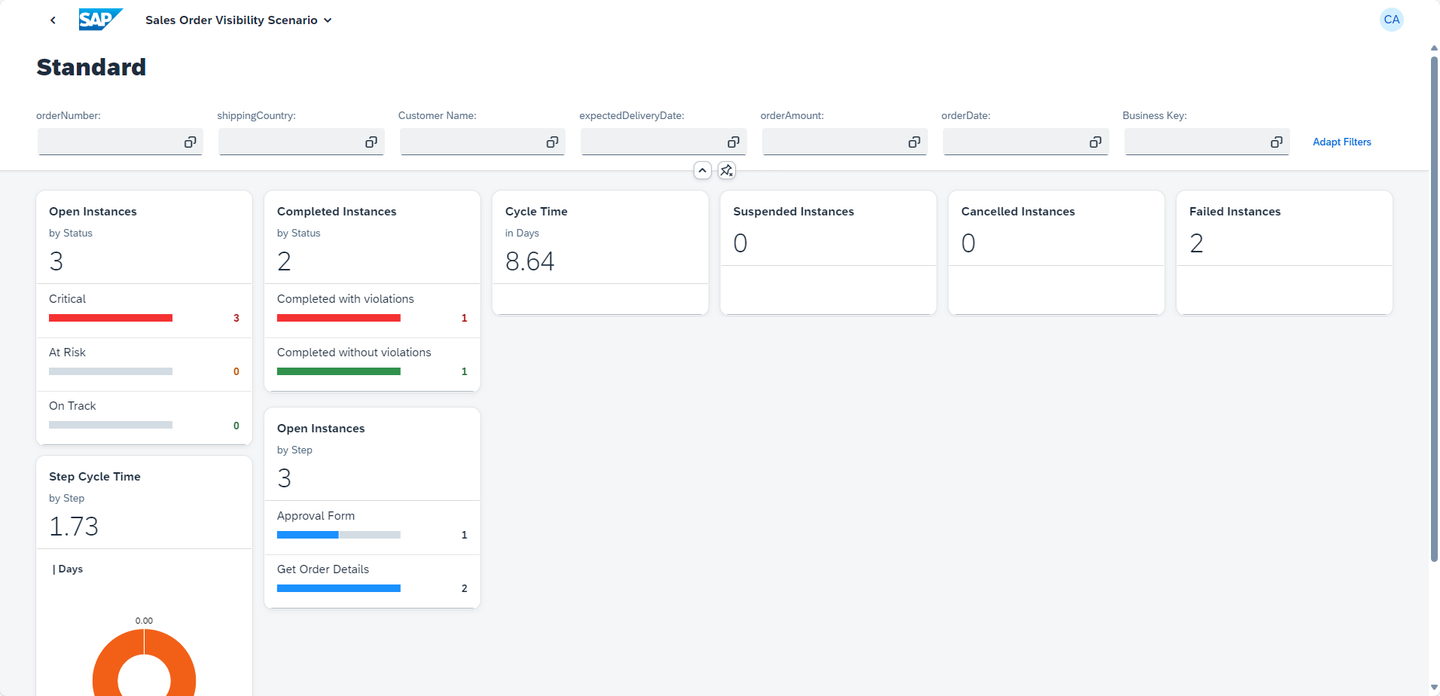
Browse Scenario
The entire project is available in the SAP Build Store as a sample and you can follow the below steps to retrieve the project and use it for reference.
This sample project can be downloaded from the SAP Build Store.
To retrieve this sample, please follow these steps:
From the SAP Build Lobby, navigate to Store.
Search for the sample project: Sales Order Management (MI03).
Choose Create from Template to retrieve the sample and save it as a new project in your lobby.
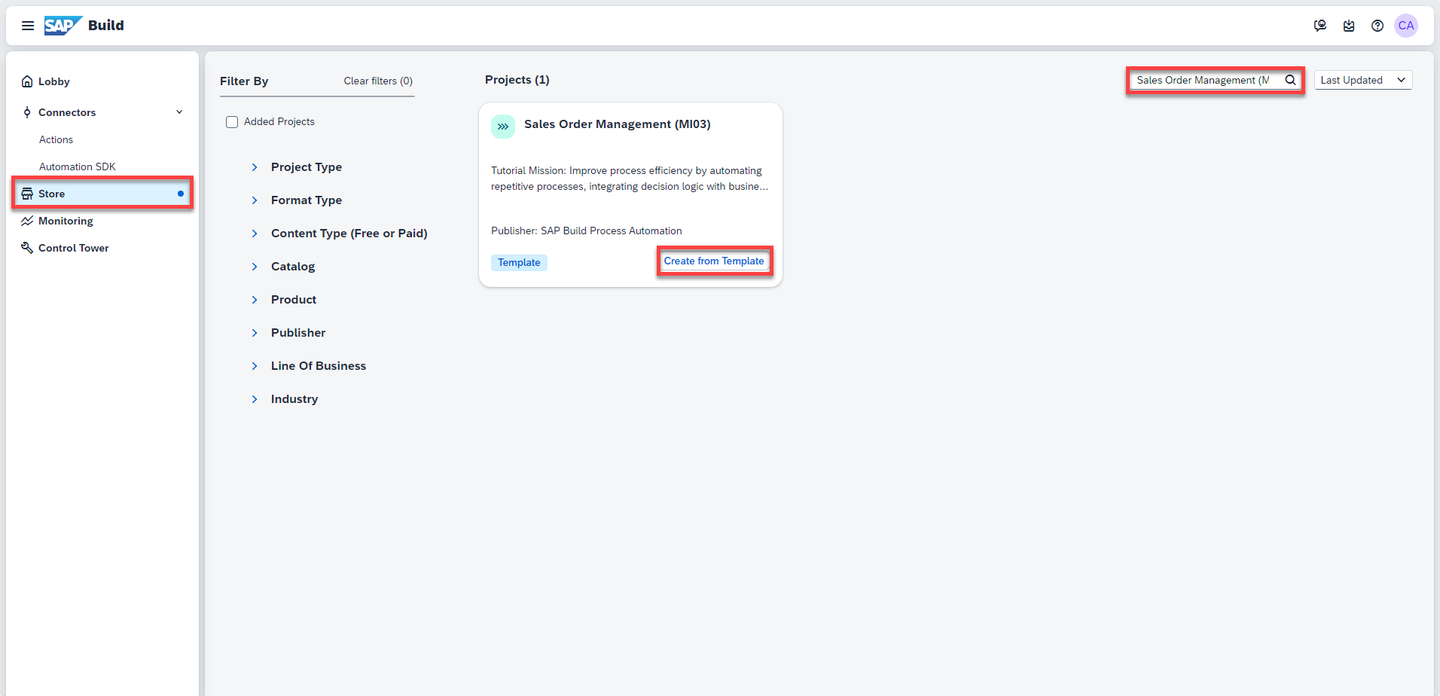
Store Choose Create.

Create Your project gets created in editable version. You may release and deploy it and run the project.
Navigate back to the lobby by clicking on the SAP logo.
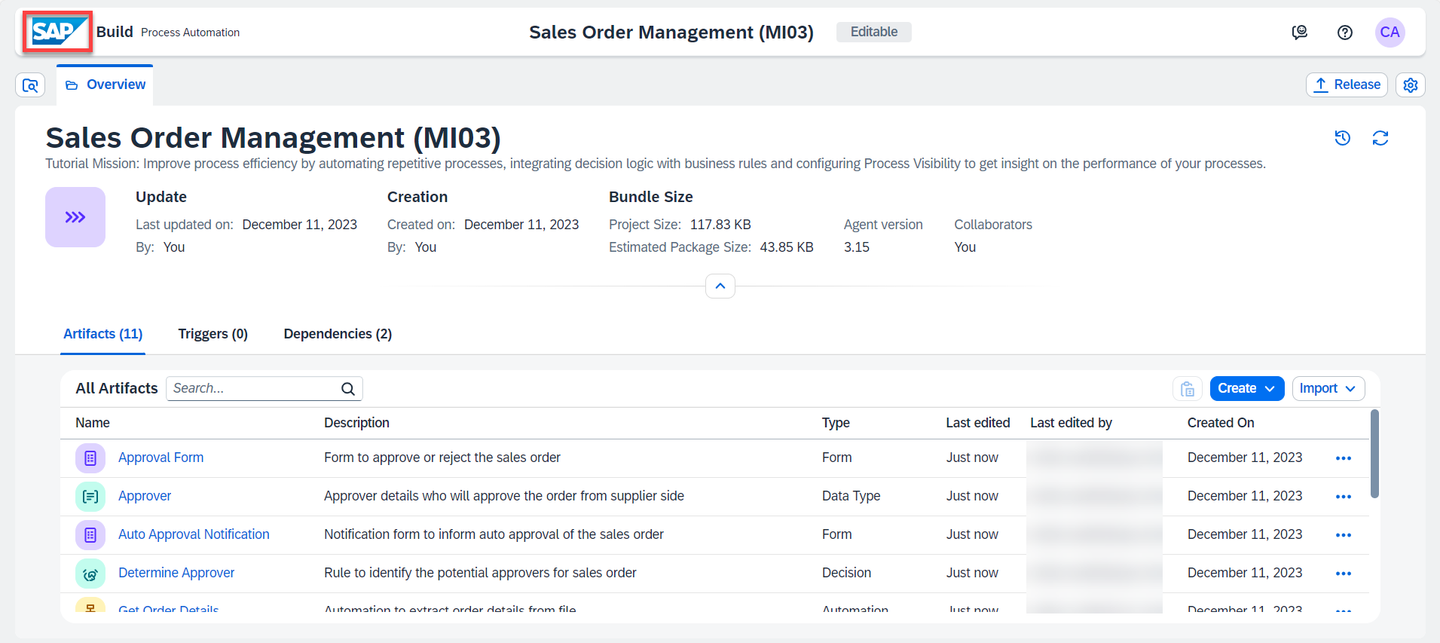
Project You can see your project is available in the lobby.
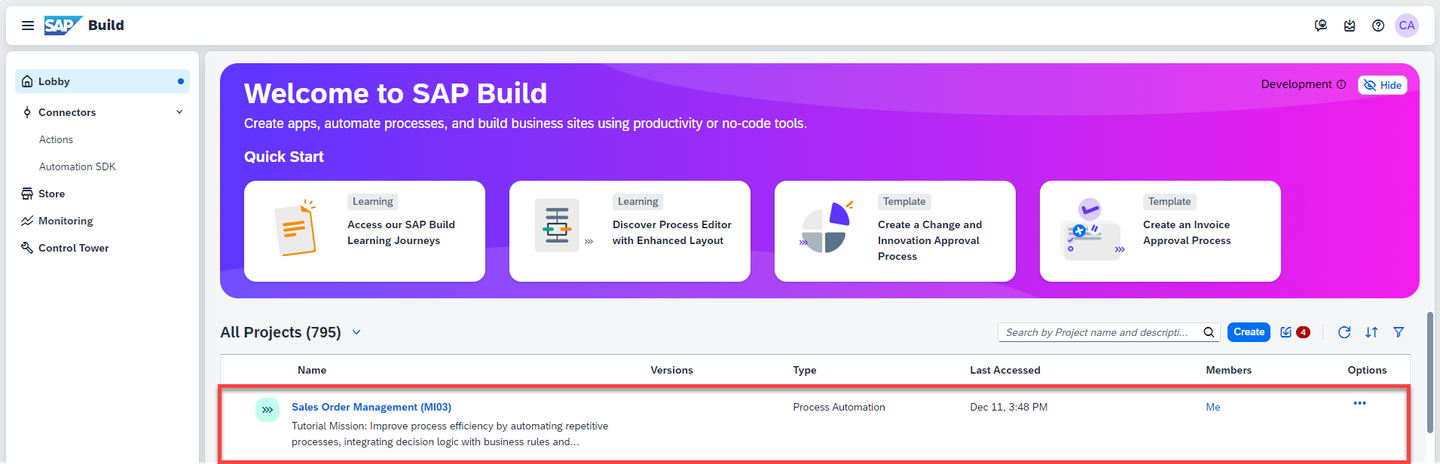
Lobby
Resources
Discussion
Share feedback on this tutorial or join the conversation in SAP Community.