
xP&A Strategic Workforce Planning - Get to know the Strategic Workforce Planning Content part of the xP&A Content Suite
This tutorial will provide you with an overview and run through of the content package in order for you to get familiar with the standard workflow as well as the capabilities of the content.
Overview
You will learn
- all basics of the SAP Strategic Workforce Planning content package for SAP Analytics Cloud
- how to integrate data into your planning data model
- how to prepare your versions for the planning activities
- how to get an understanding of your current workforce composition
- how to plan the workforce supply and make an estimation about the future workforce demand
- how to identify gaps between your planned supply headcount and your estimated demand headcount and how to derive strategies to close the gap
- how to track your performance using the reporting stories


Prerequisites
Prerequisites
- You have an SAP Analytics Cloud tenant. If this is not the case, get started by requesting a free SAP Analytics Cloud trial tenant.
- You have installed the SAP Strategic Workforce Planning content in an SAP Analytics Cloud tenant. Reference: Business Content Installation Guide, Content Package User Guide
- You have optionally installed the SAP Operational Workforce Planning content in an SAP Analytics Cloud tenant. Reference: Content Package User Guide. This is only required if you wish to integrate your final planning results into this content package.
Steps
Intro
In this tutorial you will learn all basics about the Strategic Workforce Planning content package.
A detailed documentation about the Strategic Workforce Planning can be found in our Content Package User Guide.
In case you have any questions or require further support, please use the SAP Question Form.
If you have a specific request to our team in regards to the business content, you may also submit a request using the SAP Influence Platform.
In this step you will learn how to navigate to the folder which contains all SAP Analytic Cloud content packages.
Login to your SAP Analytics Cloud tenant using Google Chrome.
INFORMATION:
In order to get the best experience, it is recommended to use Google Chrome as it offers the best compatibility with SAP Analytics Cloud (SAC).
Other browsers can be used as well but are not supported by SAP.
In the SAP Analytics Cloud Menu, navigate to the Files section.

xp&A Strategic Workforce Planning Access the content package folder.
- You can access the content package folder by either navigating to the
Publicfolder first and looking for a folder namedSAP_CONTENT, or by using the search function in the top-right corner. - In case you want to make use of the search function, simply enter the term
SAP_CONTENTinto the search bar.
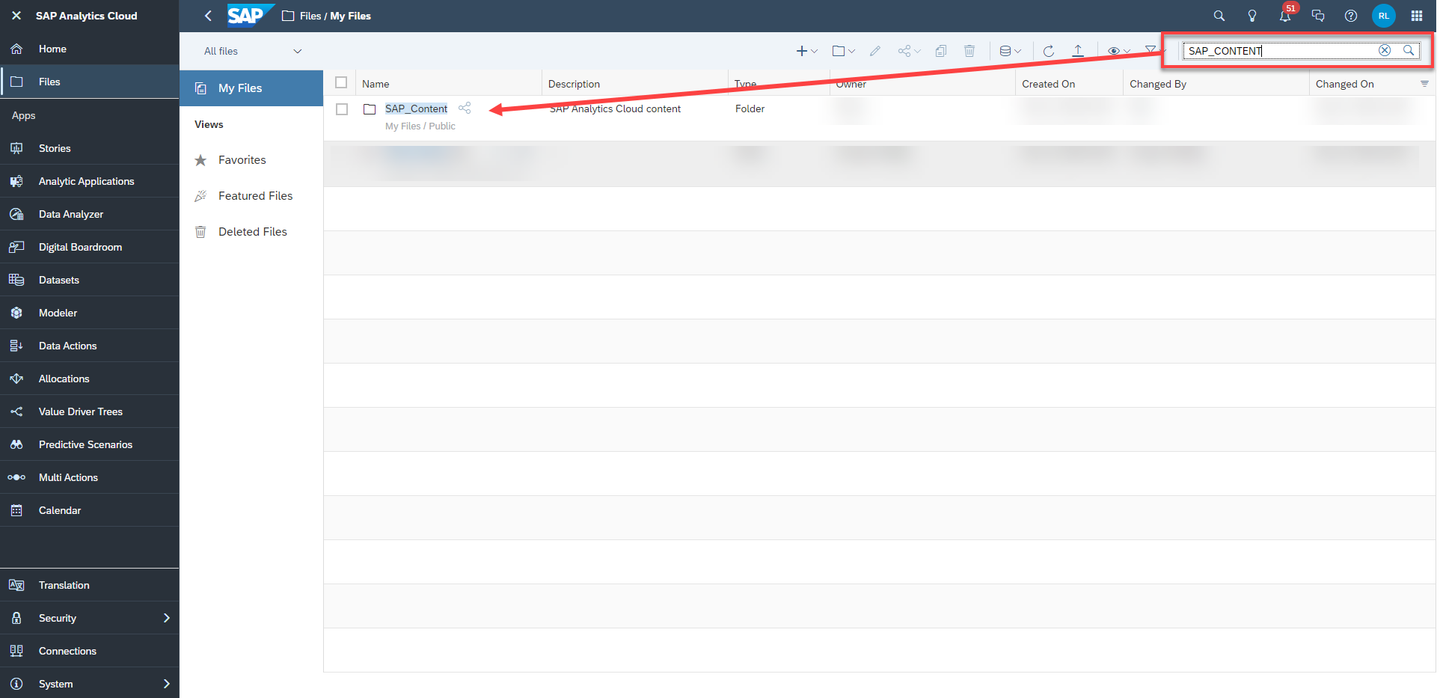
xp&A Strategic Workforce Planning - The folder
SAP_CONTENTcontains all objects required to run SAC content. Here you can find your installed content from the content network provided by SAP.
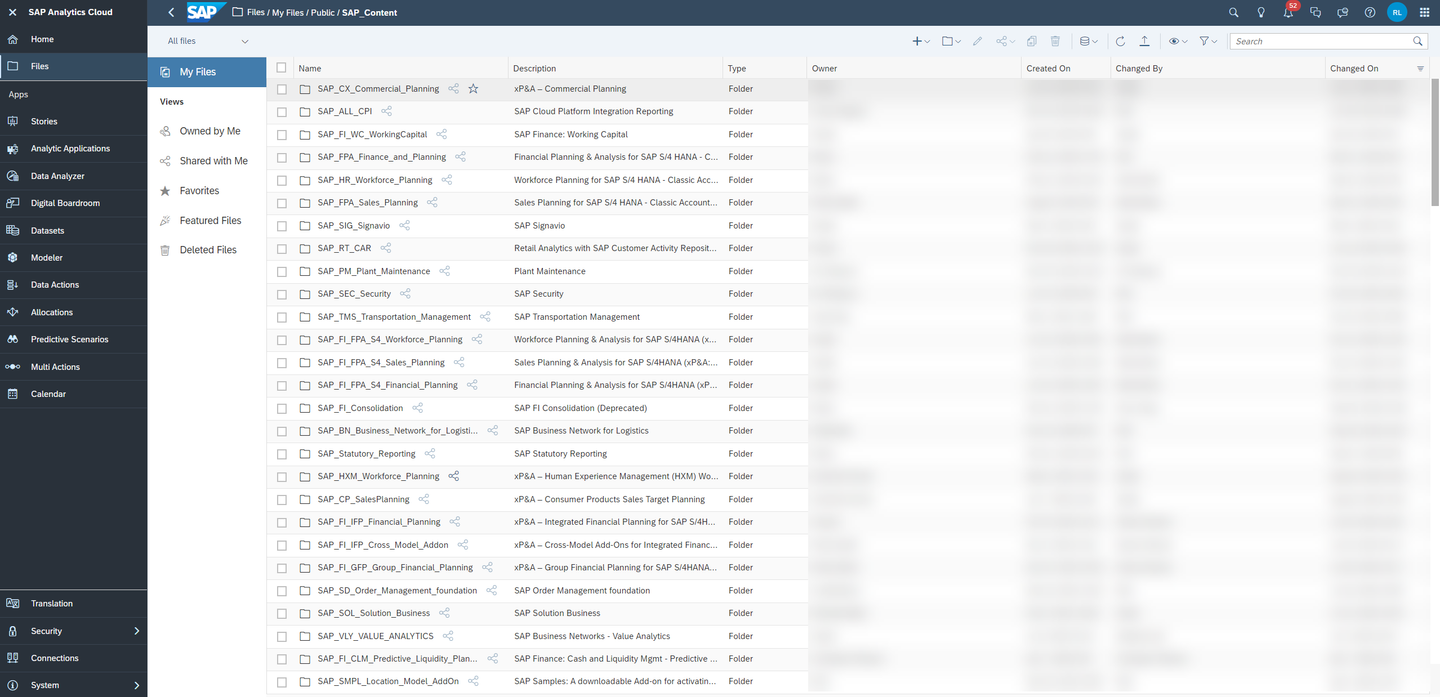
xp&A Strategic Workforce Planning - You can access the content package folder by either navigating to the
Now that you have learned where all the SAP Analytics Cloud content packages are stored, you need to find the SAP Strategic Workforce Planning content.
Look for the SAP Strategic Workforce Planning content package by using the search bar.
- In order to do so, please use the keyword
SWFP - In the result list, click on the folder
SAP_HR_SWFP_Strategic_Workforce_Planningwith the descriptionSAP Human Resources: Strategic Workforce Planning
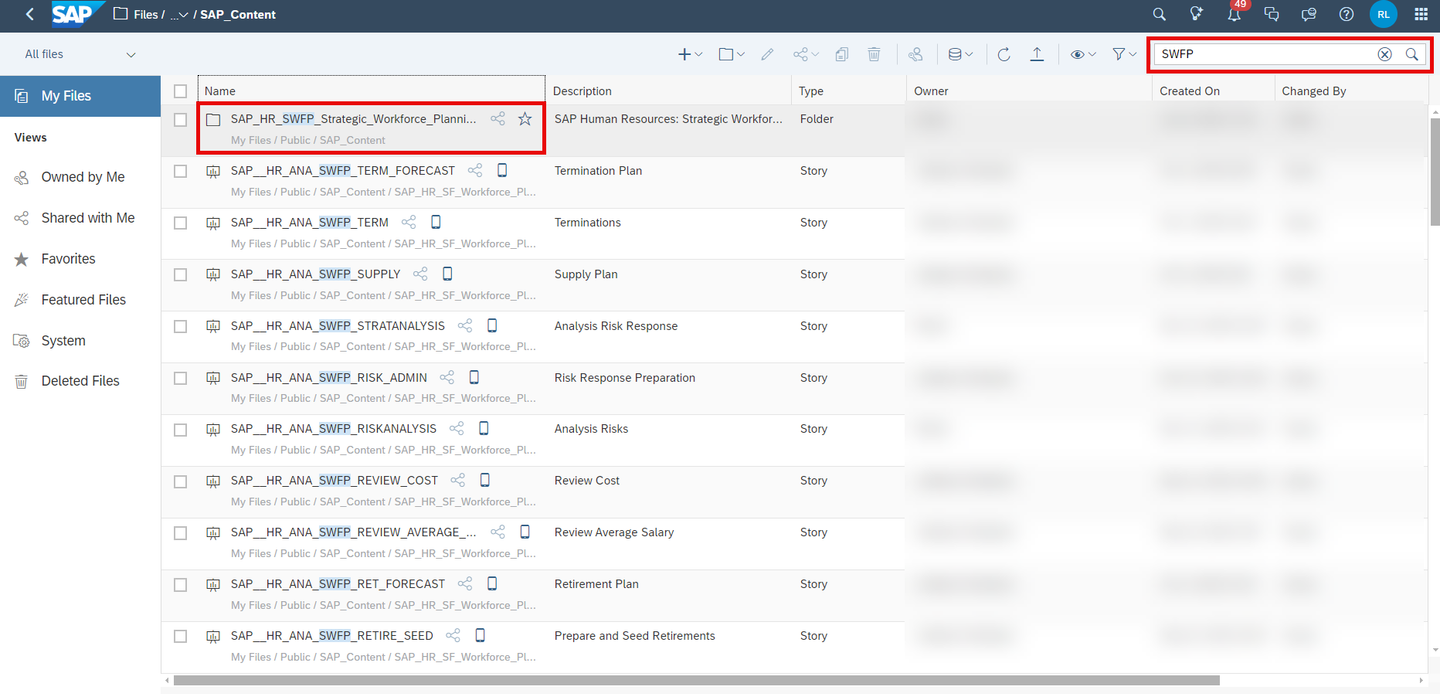
xp&A Strategic Workforce Planning - In order to do so, please use the keyword
Run the Strategic Workforce Planning content package.
- The folder
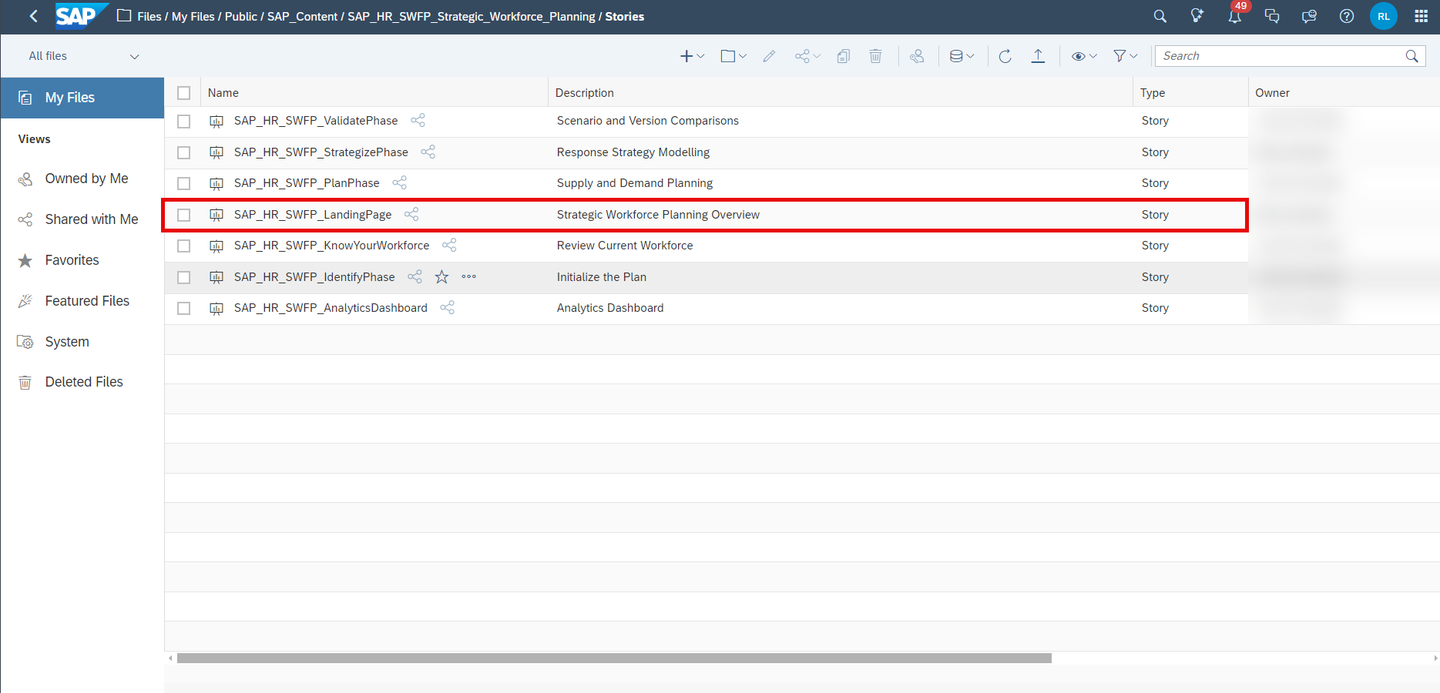
SAP_HR_SWFP_Strategic_Workforce_Planningcontains all stories and objects which are related to the content package. - To run the Strategic Workforce Planning content, please navigate to the folder
Storiesand click on the story called Strategic Workforce Planning Overview (SAP_HR_SWFP_LandingPage).
INFORMATION:
- The story Strategic Workforce Planning Overview (
SAP_HR_SWFP_LandingPage) serves as a starting point and allows you to access all other stories during run time. - In other words, you do not need to access the remaining stories by manually launching them from the Files section. Instead, you can conveniently open them from inside the Strategic Workforce Planning Overview (
SAP_HR_SWFP_LandingPage) story.
xp&A Strategic Workforce Planning - The folder
Before jumping into the individual stories of the Strategic Workforce Planning content package, it is necessary to understand what the stories are for and which use cases they cover.
Strategic Workforce Overview
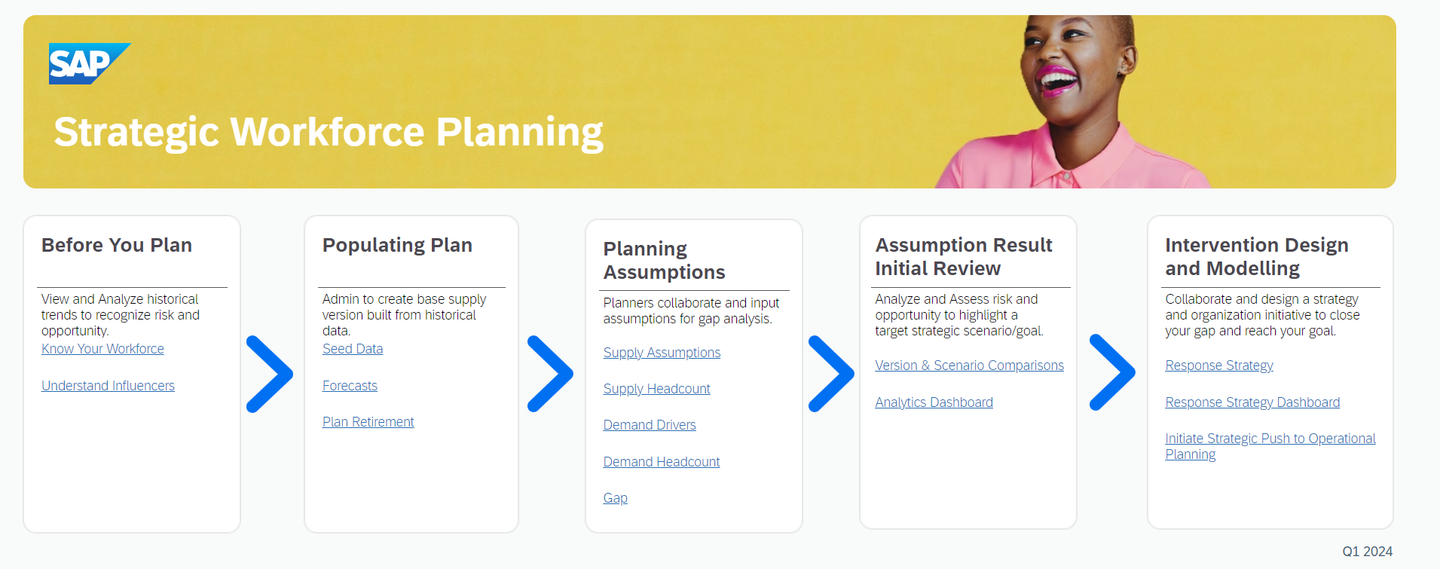
xp&A Strategic Workforce Planning - By having opened the story Strategic Workforce Planning Overview (
SAP_HR_SWFP_LandingPage), you entered the Home Screen of the Strategic Workforce Planning content package. - This overview story serves as the central entry point for all personas and helps you to navigate through the content package.
- In the lower half of the story, you can see five sections which cluster the application into different components or process steps.
- Those sections contain hyperlinks which redirect the responsible persona (e.g. the technical administrator or the headcount planner) to the respective story.
- By having opened the story Strategic Workforce Planning Overview (
Before You Plan
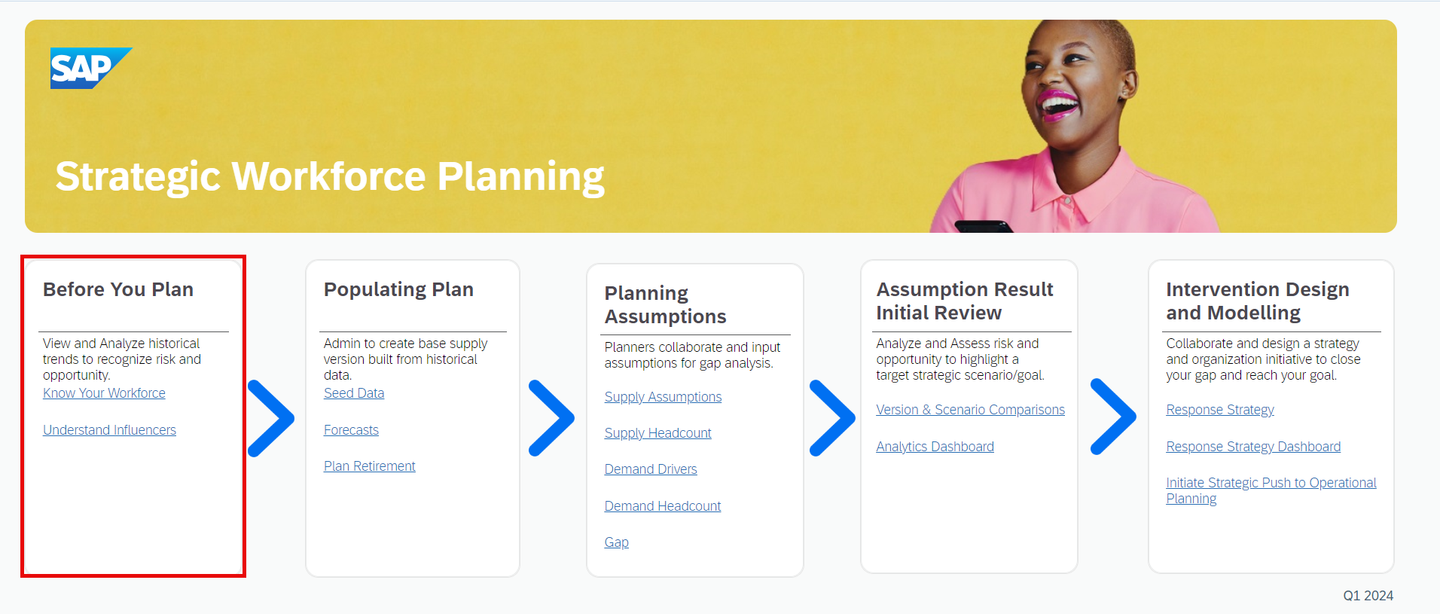
xp&A Strategic Workforce Planning - The section Before You Plan contains two links, both leading to the story Review Current Workforce (
SAP_HR_SWFP_KnowYourWorkforce) while each of the links opens a different page of the two-page story. - The Review Current Workforce (
SAP_HR_SWFP_KnowYourWorkforce) story marks the start of the process and allows you to consume various reports to get an understanding about your current workforce composition. - Among other available things this also includes a deeper analysis of influencers on the retirement by running classification algorithms.
- In this story, the reporting model Analytics Model SWFP (
SAP_HR_SWFP_ANALYTICS) is used as the data source for the reports while the classification algorithms are run on the DatasetSAP_HR_SWFP_TERMINATIONS_DATASET.
INFORMATION:
In order to set up the classification algorithms, please follow the instructions as described in the official documentation.
- The section Before You Plan contains two links, both leading to the story Review Current Workforce (
Populating Plan
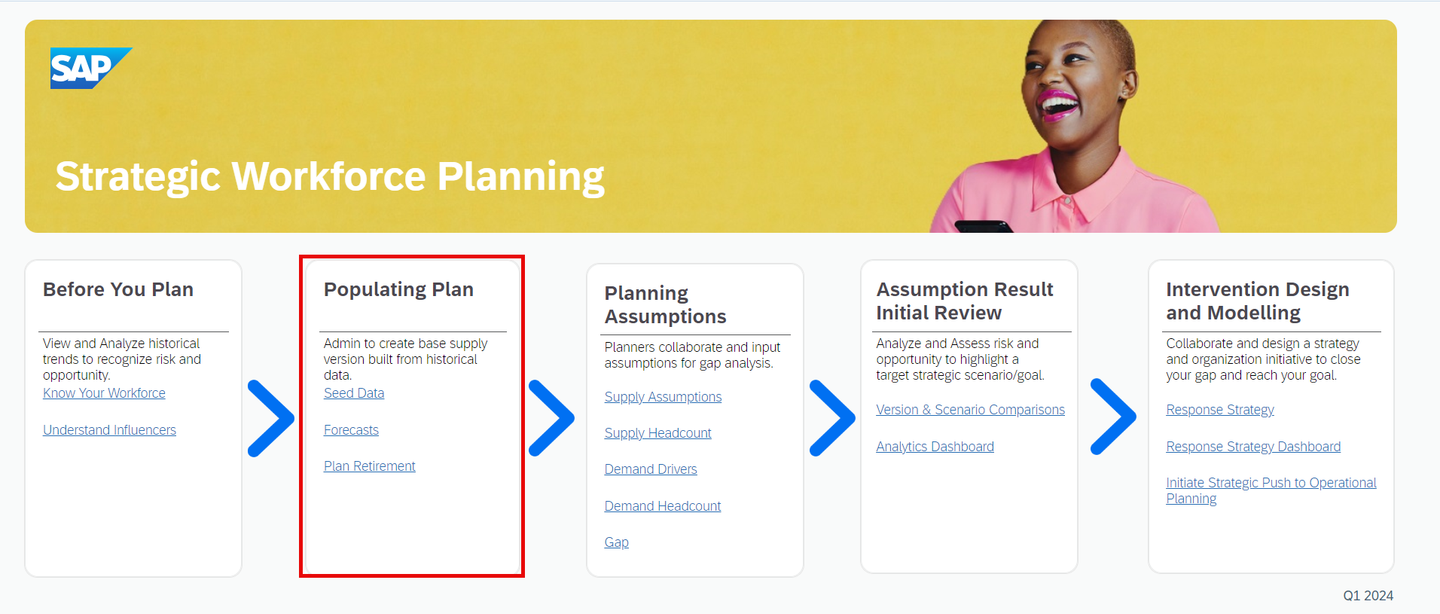
xp&A Strategic Workforce Planning - The section Populating Plan provides access to the story Initialize the Plan (
SAP_HR_SWFP_IdentifyPhase). As the title of the section indicates, this story focusses on populating your plan version with data. - This story consists of three different pages and allows you to upload historical data into your planning model Strategic Workforce Planning Model (
SAP_HR_SWFP_STRATEGIC), seed data into the future periods by using the time series forecast mechanisms of SAC and lastly to modify retirement probabilities by making use of the information provided by the Review Current Workforce (SAP_HR_SWFP_KnowYourWorkforce) story.
- The section Populating Plan provides access to the story Initialize the Plan (
Planning Assumptions
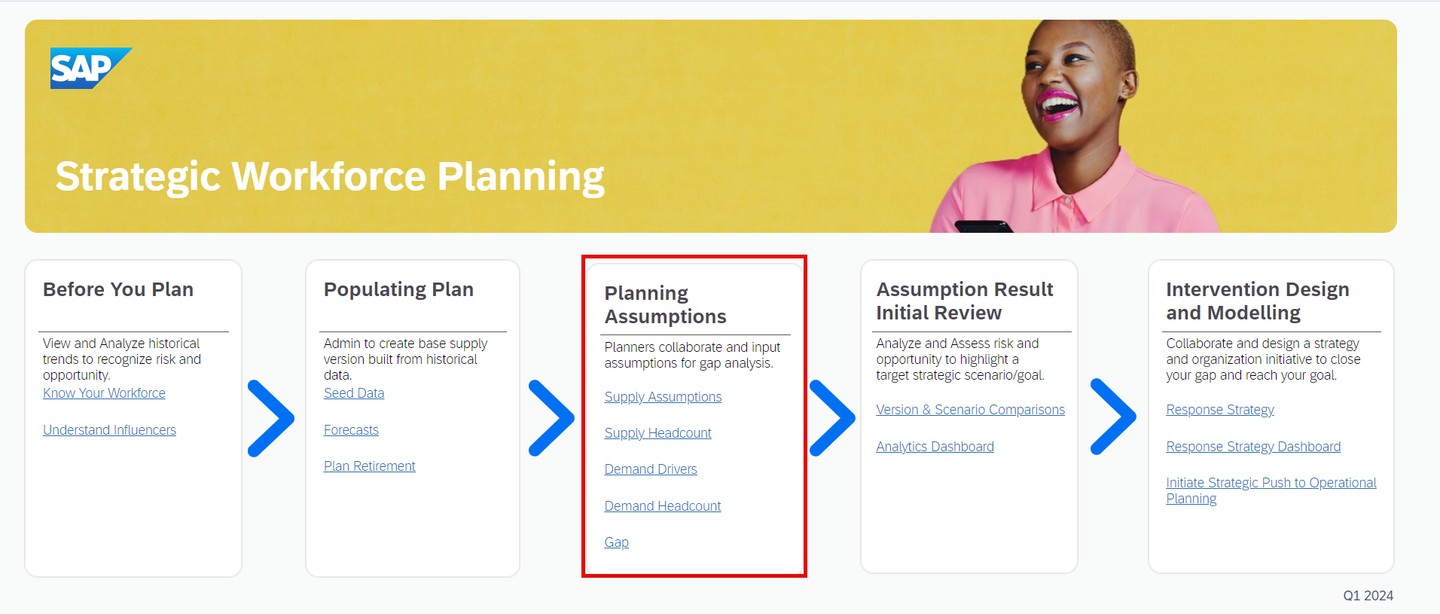
xp&A Strategic Workforce Planning - The section Planning Assumptions provides access the story Supply and Demand Planning (
SAP_HR_SWFP_PlanPhase), which consists of five pages and focusses on the actual planning activities. - In specific, this story allows you to plan your headcount supply and to make an estimation about the future headcount demand
- Lastly this story also provides you with a gap analysis report in order to understand the deviation between the headcount supply and headcount demand.
- The section Planning Assumptions provides access the story Supply and Demand Planning (
Assumption Result Initial Review
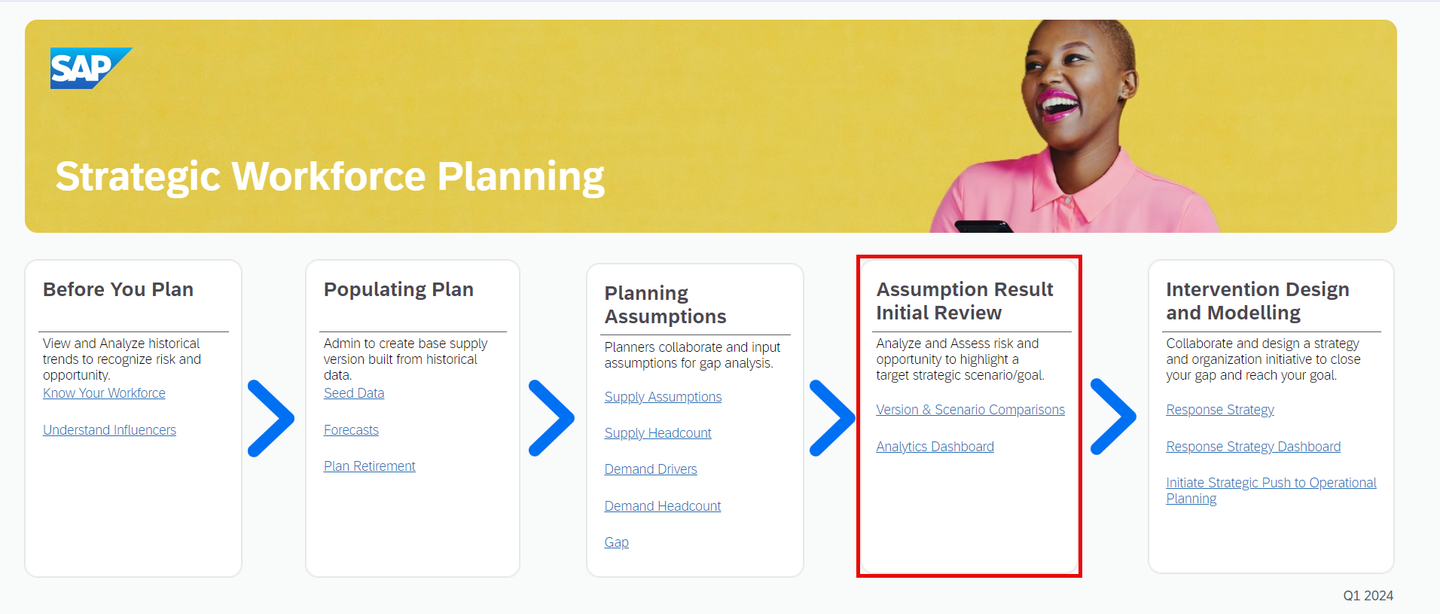
xp&A Strategic Workforce Planning - The section Assumption Result Initial Review provides access the story Scenario and Version Comparisons (
SAP_HR_SWFP_ValidatePhase), which consists of two pages. - This story provides you with various reports which help you to analyze and compare different scenarios and versions.
- The section Assumption Result Initial Review provides access the story Scenario and Version Comparisons (
Intervention Design and Modelling
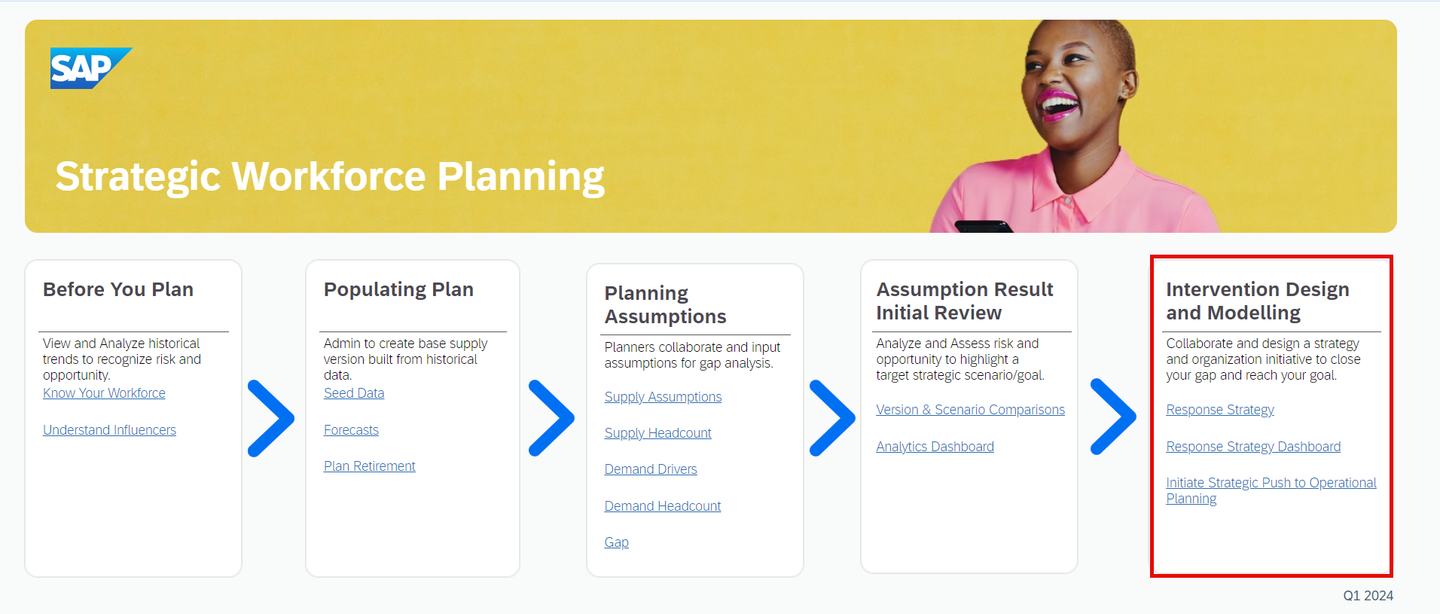
xp&A Strategic Workforce Planning - The section Intervention Design and Modelling provides access the story Response Strategy Modelling (
SAP_HR_SWFP_StrategizePhase), which consists of three pages pages. - This story marks the final step of the planning process and allows you to define a response strategy to close potential headcount gaps and to make cost estimations for the respective strategies.
- Optionally you can also push your final planning results to the planning model of the SAP Operational Workforce Planning content package from this story, where the results are stored on a dedicated version which on the other hand can then be used as a reference for the operational workforce planning activities.
- The section Intervention Design and Modelling provides access the story Response Strategy Modelling (
As a last preparation step, it is required to understand the navigation concept of the content package in order for you to use it properly. In this step, you will learn about the meaning and the functionality of all the buttons as well as other UI elements.
Main Navigation button
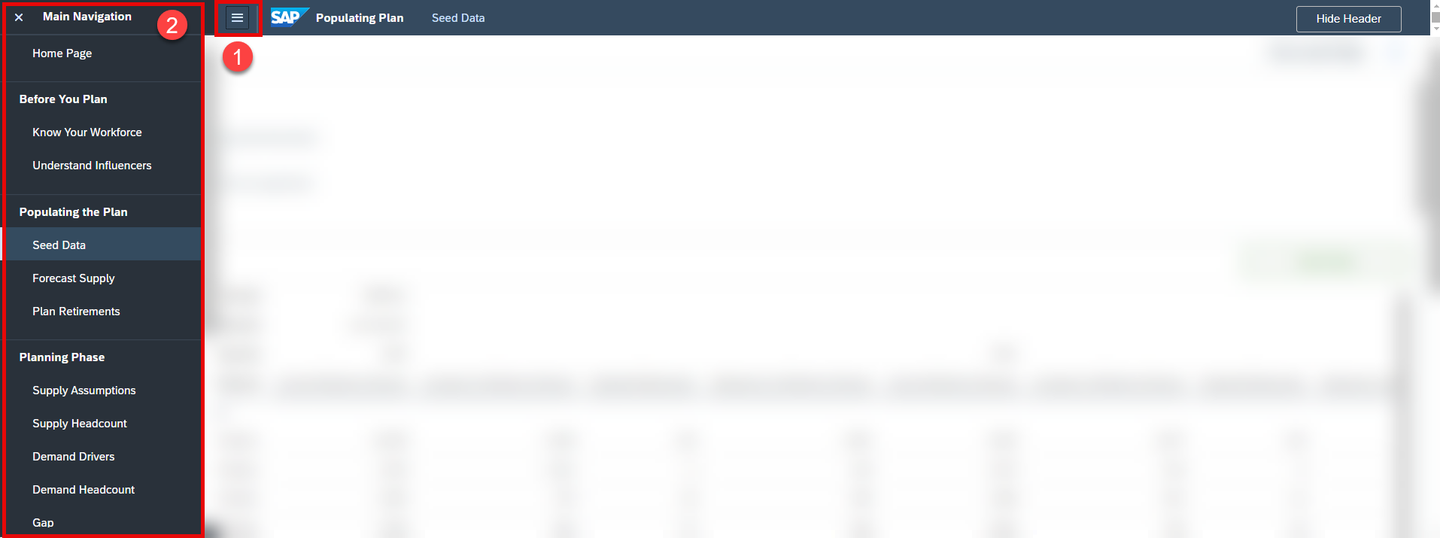
xP&A Workforce Planning - The Main Navigation button can be found in each story apart from the landing page story Strategic Workforce Planning Overview (
SAP_HR_SWFP_LandingPage) and is located at the top left corner. - By clicking on this button, a navigation menu opens with contains various hyperlinks.
- By clicking on the hyperlinks, you can jump to any story and story page of this content package.
- The Main Navigation button can be found in each story apart from the landing page story Strategic Workforce Planning Overview (
Show/Hide Header button
xP&A Workforce Planning 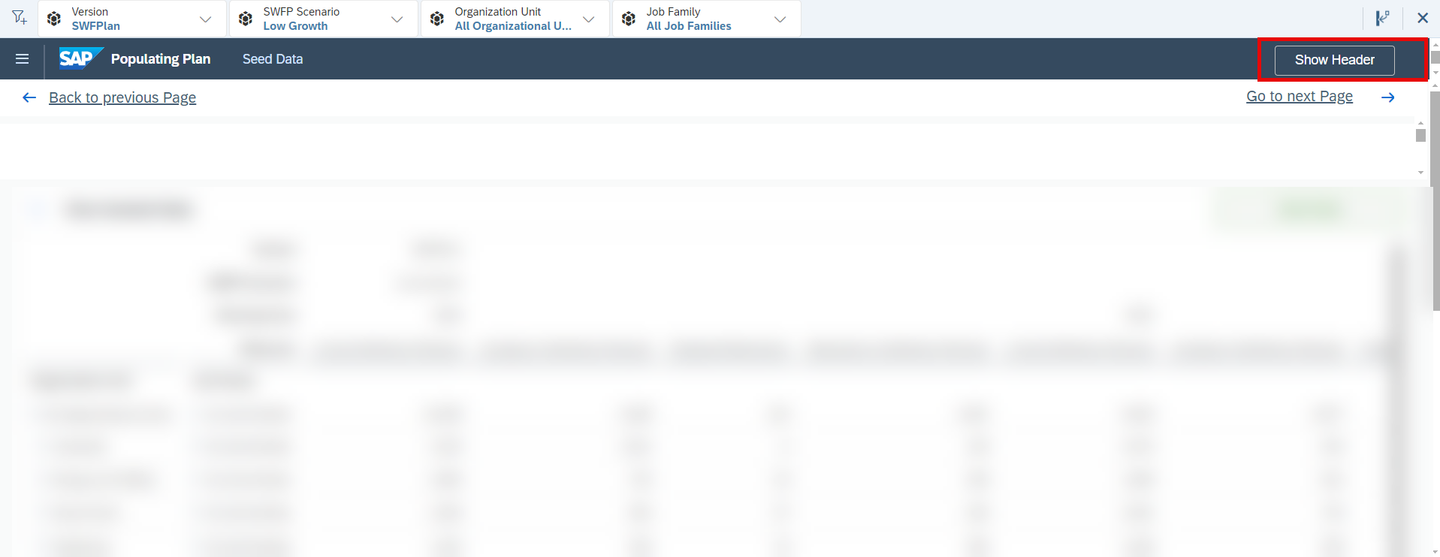
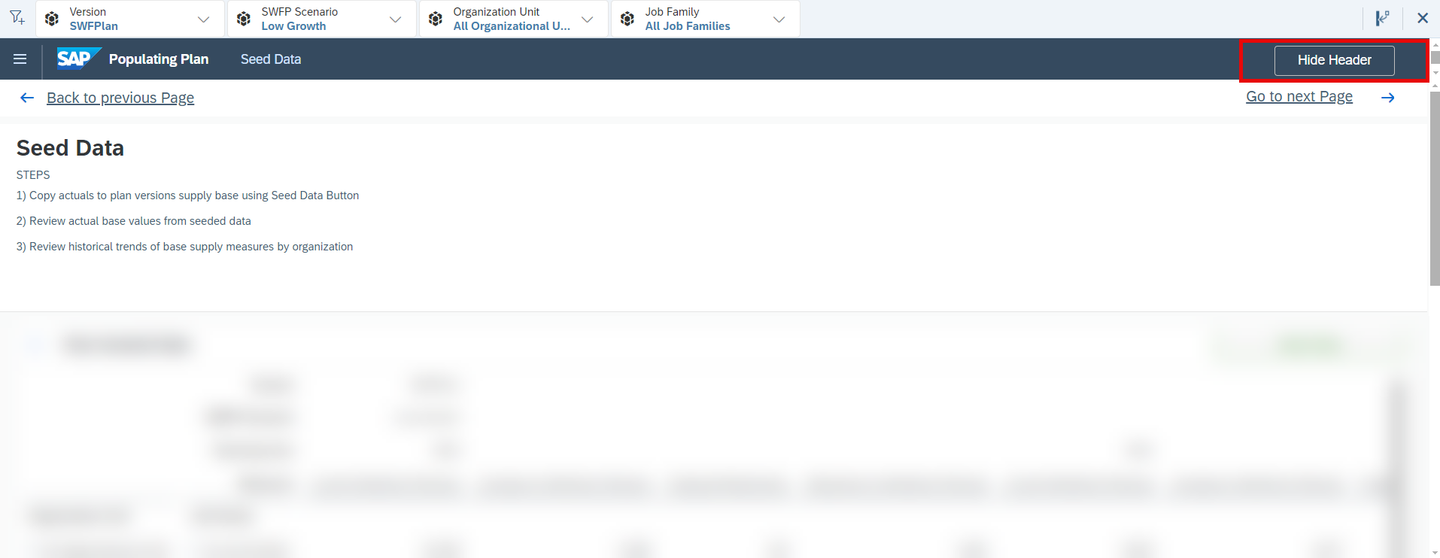
xP&A Workforce Planning - These buttons can be found in each story of this content package (apart from the landing page story Strategic Workforce Planning Overview (
SAP_HR_SWFP_LandingPage)) and are located at the top-right corner. - The Hide Header button hides the complete header section, which is useful in case you require more space for the planning tables.
- The Hide Header button changes to a Show Header button after its activation. By pressing the Show Header button, you can unhide the header section again.
- These buttons can be found in each story of this content package (apart from the landing page story Strategic Workforce Planning Overview (
Back to previous Page and Go to next Page buttons
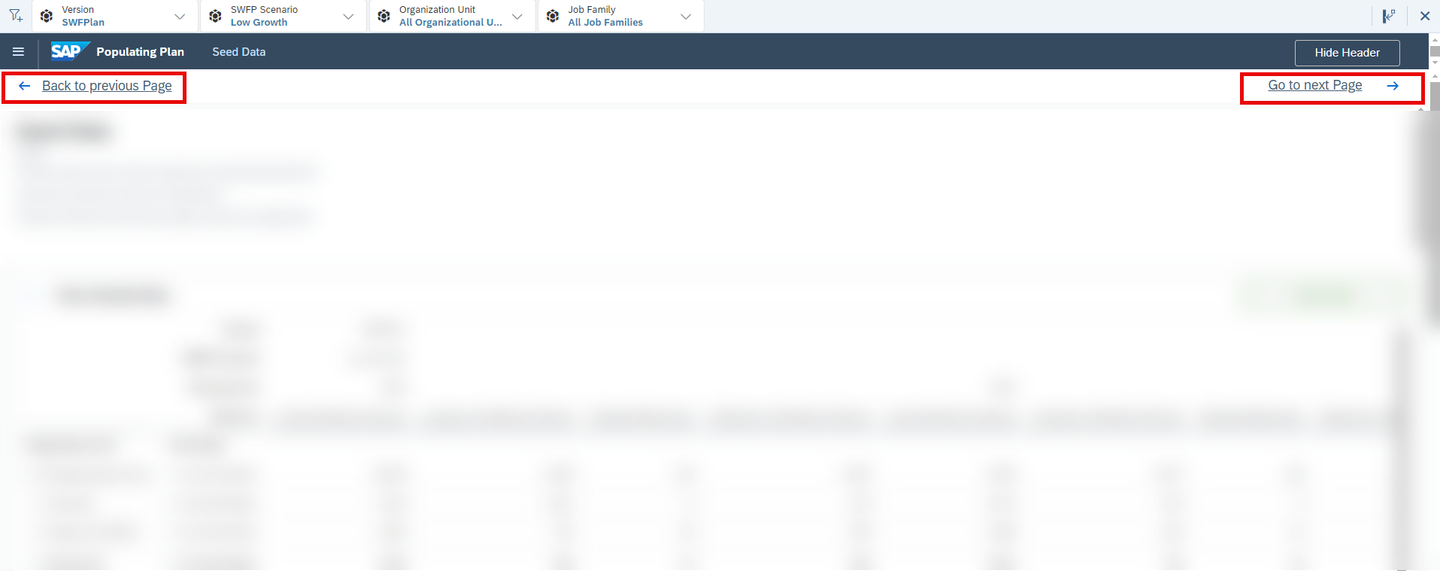
xP&A Workforce Planning - These buttons can be found in each story apart from the landing page story Strategic Workforce Planning Overview (
SAP_HR_SWFP_LandingPage) and are located at the top-left and top-right corners. - By clicking on these buttons, you will be redirected to the previous or respectively to the next story page according to the pre-defined user workflow.
- These buttons can be found in each story apart from the landing page story Strategic Workforce Planning Overview (
Steps description field
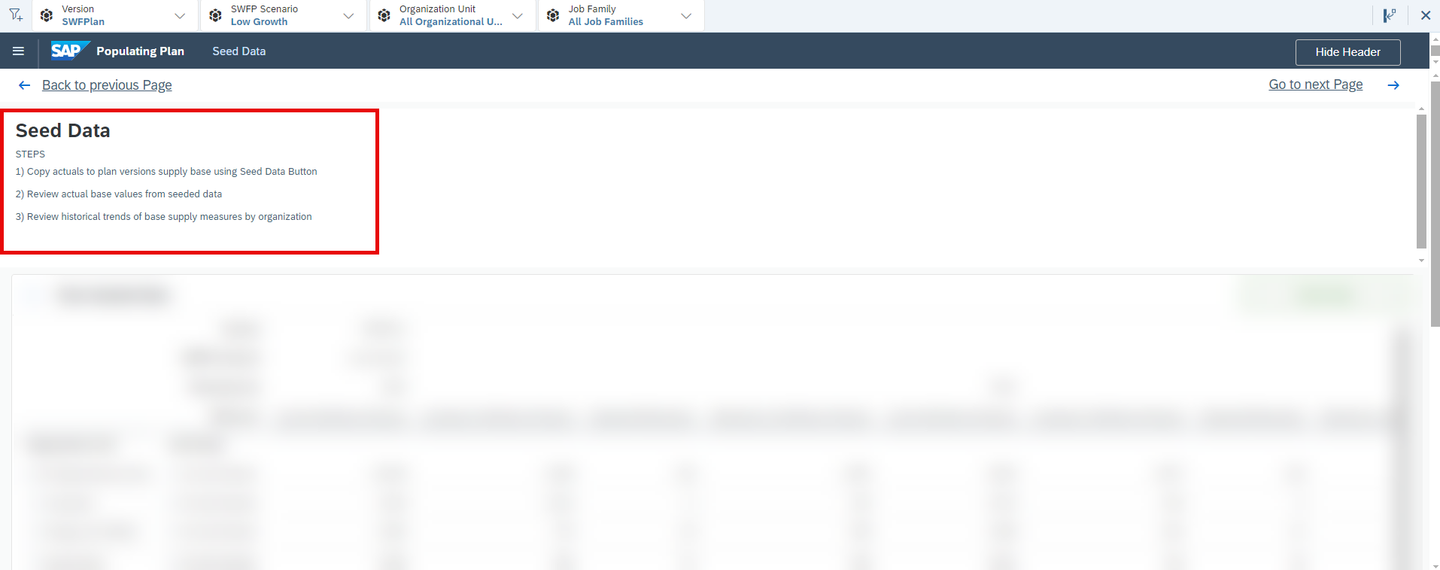
xP&A Workforce Planning - Such a text field can be found in each story of this content package (apart from the landing page story Strategic Workforce Planning Overview (
SAP_HR_SWFP_LandingPage)) and is located at the top-left corner. - This description field serves as a rough guideline and describes the intended workflow within each of the stories.
- Such a text field can be found in each story of this content package (apart from the landing page story Strategic Workforce Planning Overview (
Filter section
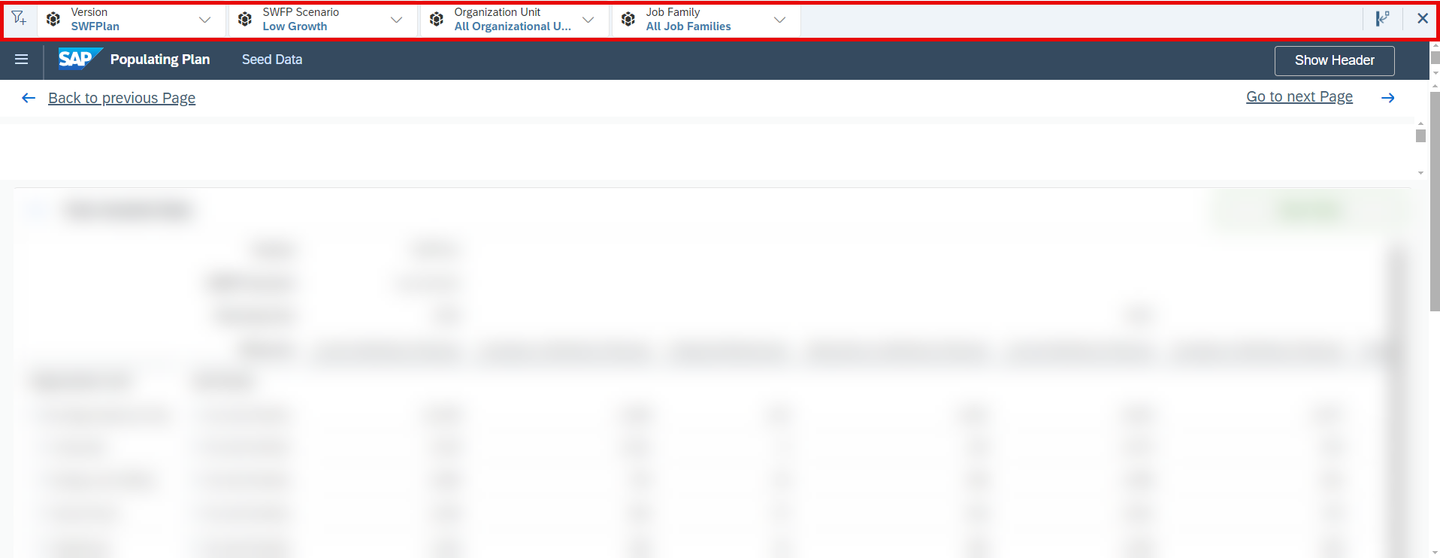
xP&A Workforce Planning - This section can be found in each story of this content package (apart from the landing page story Strategic Workforce Planning Overview (
SAP_HR_SWFP_LandingPage)) and is located in the header above the shell bar. - By using this function, you can filter all tables and charts down to specific members of the given dimensions for an eased data entry and reporting.
- This section can be found in each story of this content package (apart from the landing page story Strategic Workforce Planning Overview (
View Classification Predictions button
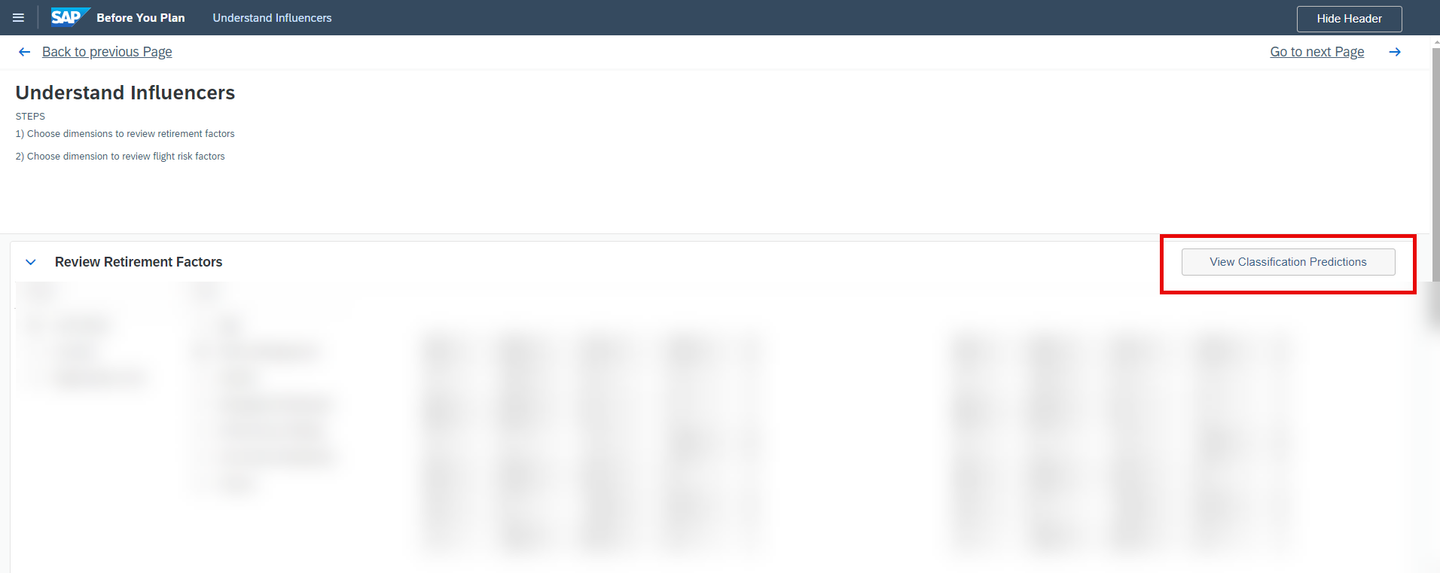
xP&A Workforce Planning - This button can be found on the Understand Influencers page of the Review Current Workforce (
SAP_HR_SWFP_KnowYourWorkforce) story. - By pressing this button, you will be redirected to the predictive scenario where you can view the detailed results from the classification algorithm.
- This button can be found on the Understand Influencers page of the Review Current Workforce (
Seed Data button

xP&A Workforce Planning - This button can be found on the Seed Data page of the Initialize the Plan (
SAP_HR_SWFP_IdentifyPhase) story. - By pressing this button, a pop-up window is opened in which you can select the measures you want to import into your planning data model from the data source SAP SuccessFactors Workforce Analytics.
- This button can be found on the Seed Data page of the Initialize the Plan (
Create Current Workforce Forecast button

xP&A Workforce Planning - This button can be found on the Forecasts page of the Initialize the Plan (
SAP_HR_SWFP_IdentifyPhase) story. - By pressing this button, you will be redirected to the predictive scenario where you can consume your detailed time series forecast report for the end of period headcount measure.
INFORMATION:
- In this content package the end of period headcount is represented by the measure Current Workforce Planned (
Plan_Headcount).
- This button can be found on the Forecasts page of the Initialize the Plan (
Create Increases to Workforce Forecast button

xP&A Workforce Planning - This button can be found on the Forecasts page of the Initialize the Plan (
SAP_HR_SWFP_IdentifyPhase) story. - By pressing this button, you will be redirected to the predictive scenario where you can consume your detailed time series forecast report for the measure representing the increases to your workforce.
INFORMATION:
In this content package the increased headcount is represented by the measure Increases to Workforce Planned (
Plan_Increases).- This button can be found on the Forecasts page of the Initialize the Plan (
Create Reductions to Workforce Forecast button

xP&A Workforce Planning - This button can be found on the Forecasts page of the Initialize the Plan (
SAP_HR_SWFP_IdentifyPhase) story. - By pressing this button, you will be redirected to the predictive scenario where you can consume your detailed time series forecast report for the measure representing the reductions to your workforce.
INFORMATION:
In this content package the reduced headcount is represented by the measure Reductions to Workforce Planned (
Plan_Reductions).- This button can be found on the Forecasts page of the Initialize the Plan (
Run Forecasts and Allocations button

xP&A Workforce Planning - This button can be found on the Forecasts page of the Initialize the Plan (
SAP_HR_SWFP_IdentifyPhase) story. - By pressing this button, a Multi Action is executed which runs all times series predictions for the three measures Current Workforce Planned, Increases to Workforce Planned and Reductions to Workforce Planned.
- This button can be found on the Forecasts page of the Initialize the Plan (
Calculate Future Retirements button

xP&A Workforce Planning - This button can be found on the Retirements page of the Initialize the Plan (
SAP_HR_SWFP_IdentifyPhase) story. - By pressing on this button, a Data Action is executed which calculates the future retirements based on maintained retirement probabilities.
- This button can be found on the Retirements page of the Initialize the Plan (
Calculate Supply button
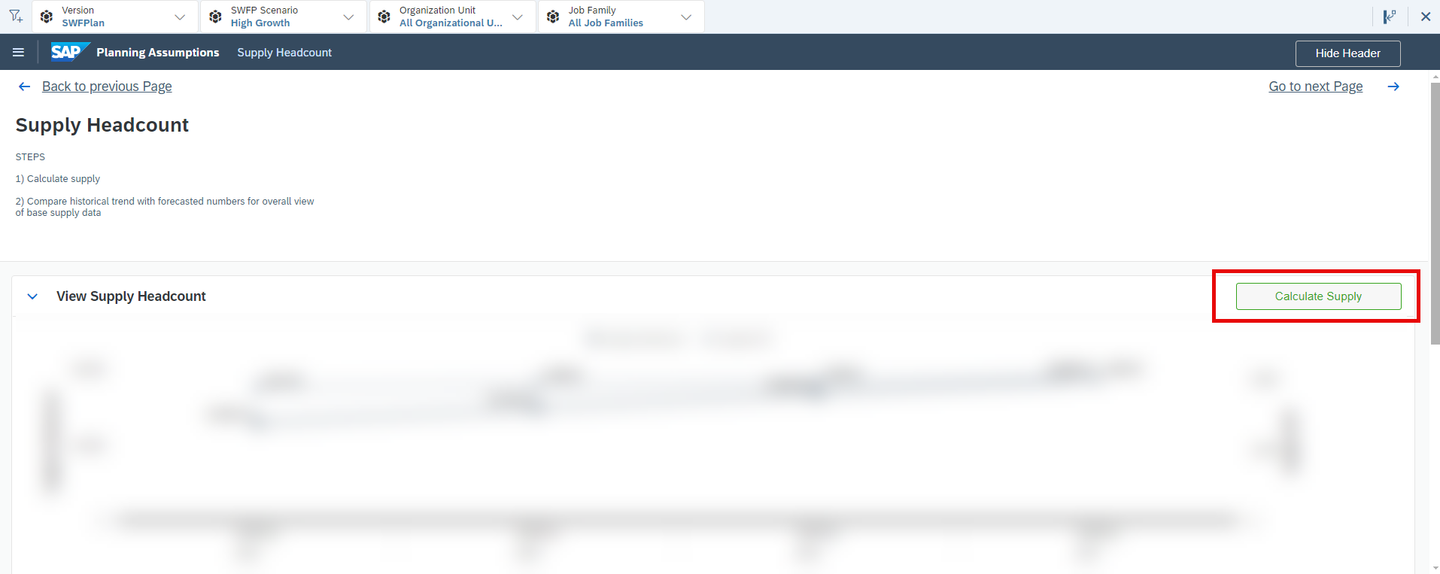
xP&A Workforce Planning - This button can be found on the Supply Headcount page of the Supply and Demand Planning (
SAP_HR_SWFP_PlanPhase) story. - By pressing on this button, a Data Action is executed which recalculates the measure representing the measure Headcount Supply (
Supply_Headcount).
- This button can be found on the Supply Headcount page of the Supply and Demand Planning (
Calculate Year over Year % button

xP&A Workforce Planning - This button can be found on the Demand Drivers page of the Supply and Demand Planning (
SAP_HR_SWFP_PlanPhase) story. - By pressing on this button, a Data Action is executed which recalculates the over year growth for the measure Headcount Demand (
Demand_Headcount).
- This button can be found on the Demand Drivers page of the Supply and Demand Planning (
Calculate Demand Headcount button
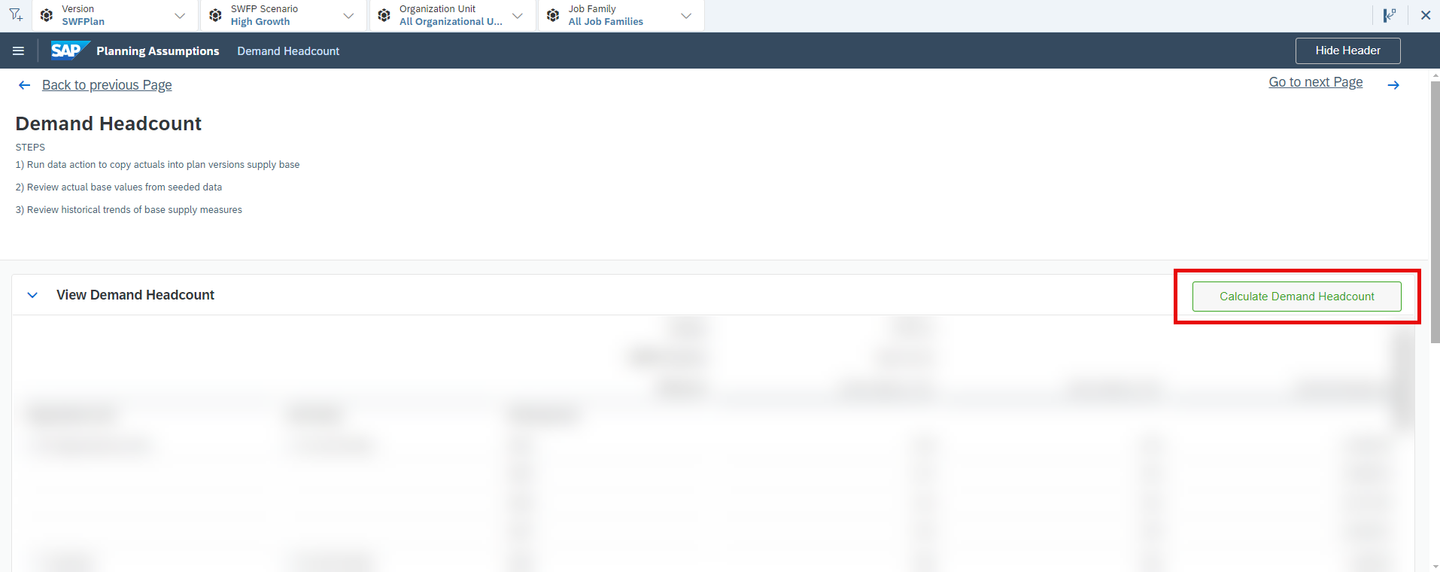
xP&A Workforce Planning - This button can be found on the Demand Headcount page of the Supply and Demand Planning (
SAP_HR_SWFP_PlanPhase) story. - By pressing on this button, a Data Action is executed which recalculates the measure representing the Headcount Demand (
Demand_Headcount)
- This button can be found on the Demand Headcount page of the Supply and Demand Planning (
Calculate Gap button

xP&A Workforce Planning - This button can be found on the Gap page of the Supply and Demand Planning (
SAP_HR_SWFP_StrategizePhase) story. - By pressing on this button, a Data Action is executed which recalculates the deviation between the headcount demand and the headcount supply. The result is persisted on the measure Gap Headcount (
Gap_Headcount).
- This button can be found on the Gap page of the Supply and Demand Planning (
Choose a Strategy button

xP&A Workforce Planning - This button can be found on the Response Strategy page of the Response Strategy Modelling (
SAP_HR_SWFP_PlanPhase) story. - By pressing on this button, a pop-up is opened where you can choose between a variety of pre-defined strategies to close the headcount
- This button can be found on the Response Strategy page of the Response Strategy Modelling (
Carry over Strategy button

xP&A Workforce Planning - This button can be found on the Response Strategy page of the Response Strategy Modelling (
SAP_HR_SWFP_PlanPhase) story. - By pressing on this button, a Data Action is executed which carries over the chosen strategy to the remaining planning years.
- This button can be found on the Response Strategy page of the Response Strategy Modelling (
Initialize Data to Operational Plan button
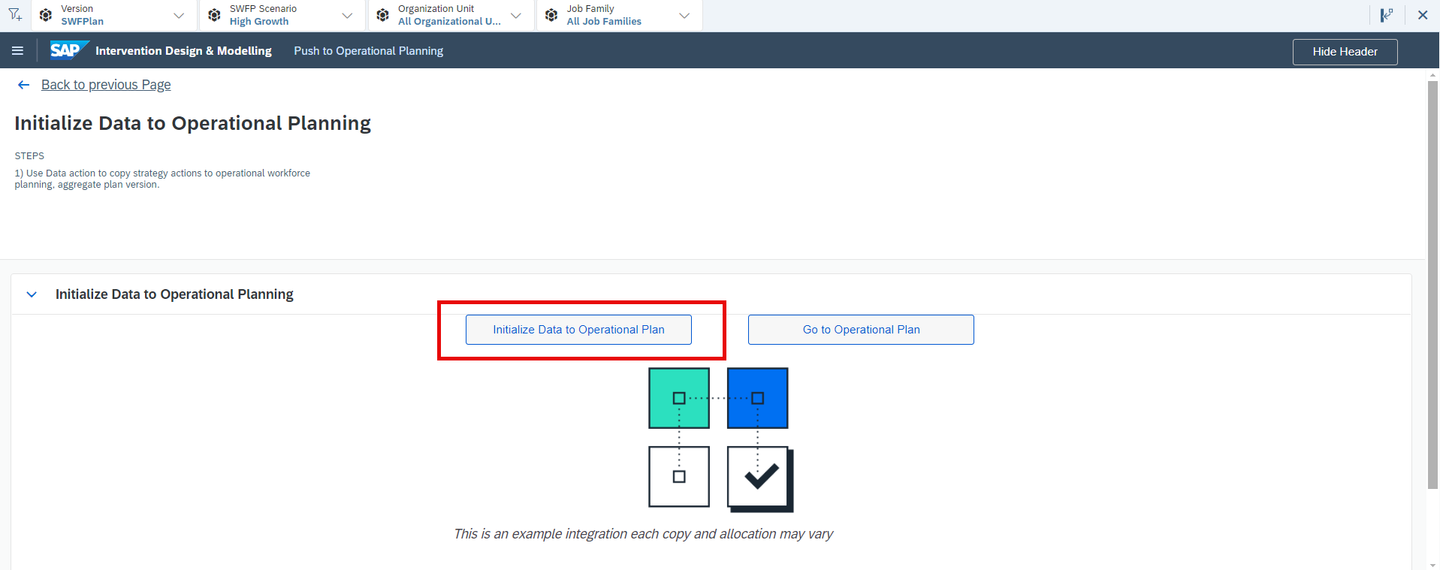
xP&A Workforce Planning - This button can be found on the Push to Operational page of the Response Strategy Modelling (
SAP_HR_SWFP_PlanPhase) story. - This button is without function and serves as a placeholder only.
- This button can be found on the Push to Operational page of the Response Strategy Modelling (
Go to Operational Plan button
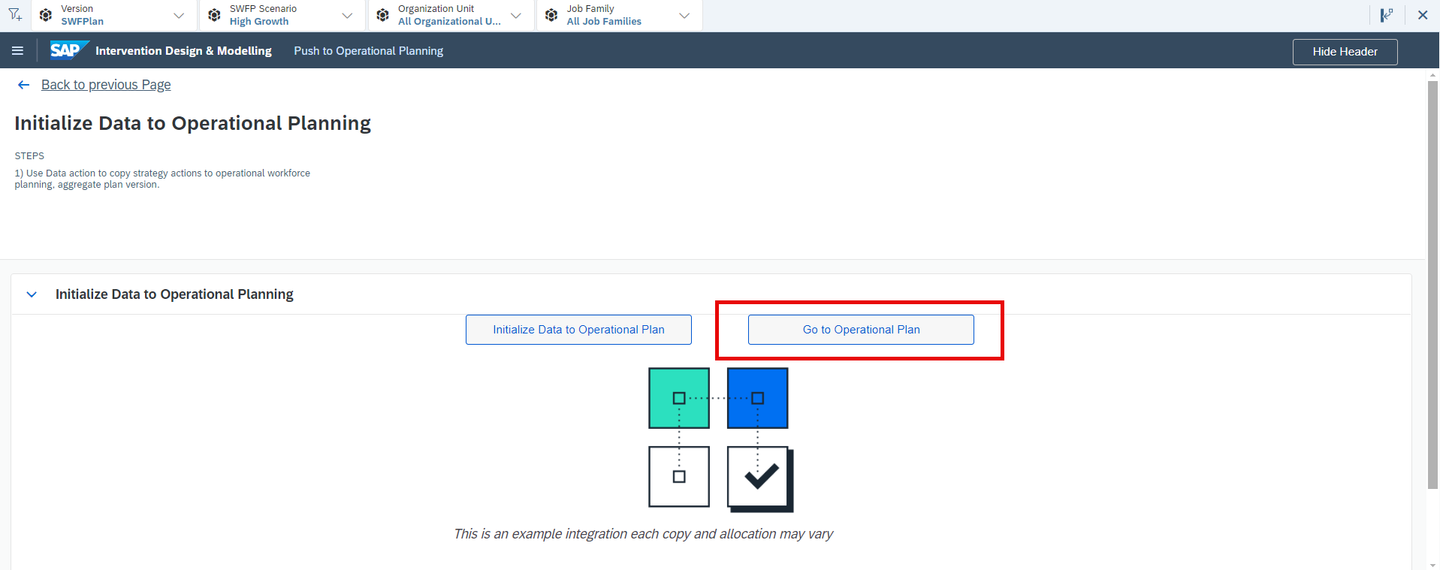
xP&A Workforce Planning - This button can be found on the Push to Operational page of the Response Strategy Modelling (
SAP_HR_SWFP_PlanPhase) story. - This button redirects you to the SAP Operational Workforce Planning content package.
- This button can be found on the Push to Operational page of the Response Strategy Modelling (
Now that you are familiar with the basics and the navigation concept, you will learn in more detail how to use the different stories.
This step focuses on the story Review Current Workforce (SAP_HR_SWFP_KnowYourWorkforce).
You will learn how to open the story (Tab 1), how to consume the different reports (Tab 2) and lastly how to execute the classification algorithm in order to understand the influencers on the retirements (Tab 3).
Currently, you have opened the tab Open Story. This tab provides guidance on how to open the Review Current Workforce (SAP_HR_SWFP_KnowYourWorkforce).
In the Strategic Workforce Planning Overview (
SAP_HR_SWFP_LandingPage) story, click on the Know Your Workforce link.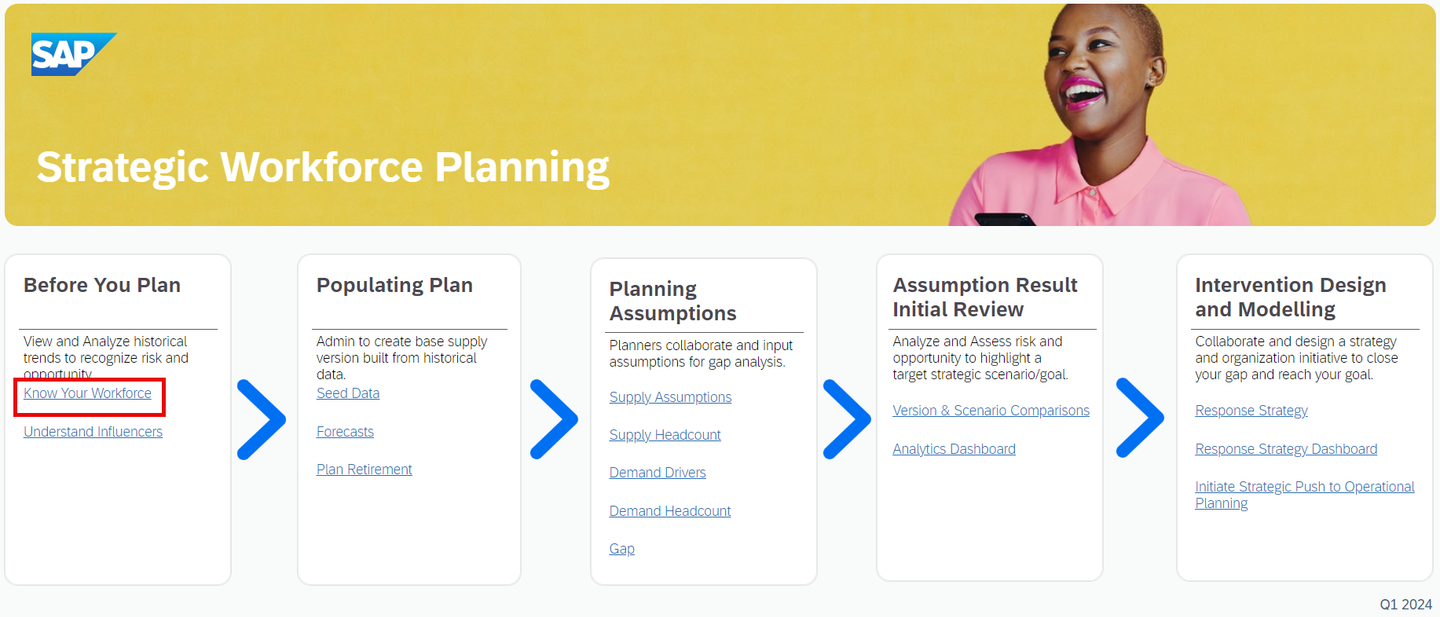
xp&A Strategic Workforce Planning INFORMATION:
- The Review Current Workforce (
SAP_HR_SWFP_KnowYourWorkforce) story serves as the starting point for the planning process. - The story focusses on understanding your current workforce composition and allows you to run classification algorithms to gain deeper insights in regards to terminations and retirements.
- The Review Current Workforce (
Get an overview of the story.
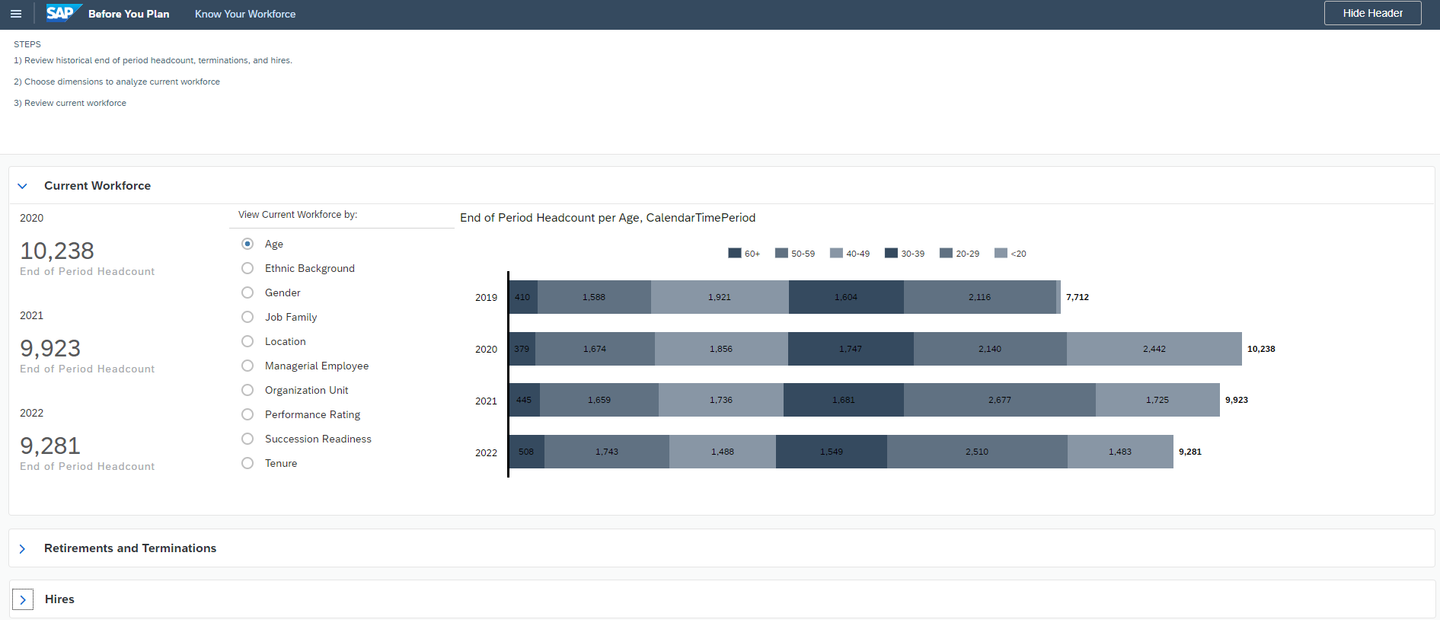
xp&A Strategic Workforce Planning Overview - Make yourself familiar with the story.
- Try to identity the different sections and use cases. Do not execute anything yet, we will go through this step by step.
Check out the Steps section
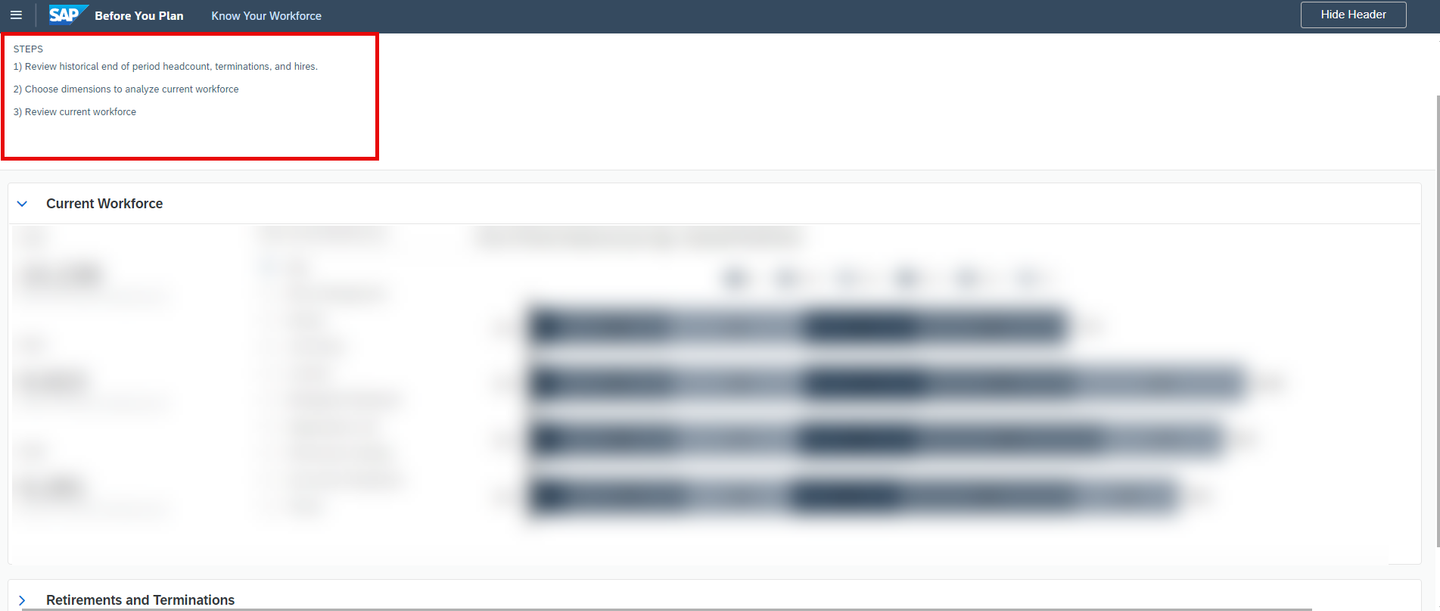
xp&A Strategic Workforce Planning - As mentioned in the previous chapter, all stories provide a short in-built step by step guide which helps you to use the corresponding story correctly.
- Before using the story, make sure to check the instructions to understand the intended user workflow.
You may now switch to the second tab Consume Reports.
Currently, you have opened the tab Consume Reports. This tab provides an overview on available reports of this story.
INFORMATION:
- All reports are based on the reporting data model Analytics Model SWFP (
SAP_HR_SWFP_Analytics) which contains Actual data from the source system SAP SuccessFactors Workforce Analytics.
Inspect your current workforce by year and one dimension of your choice.
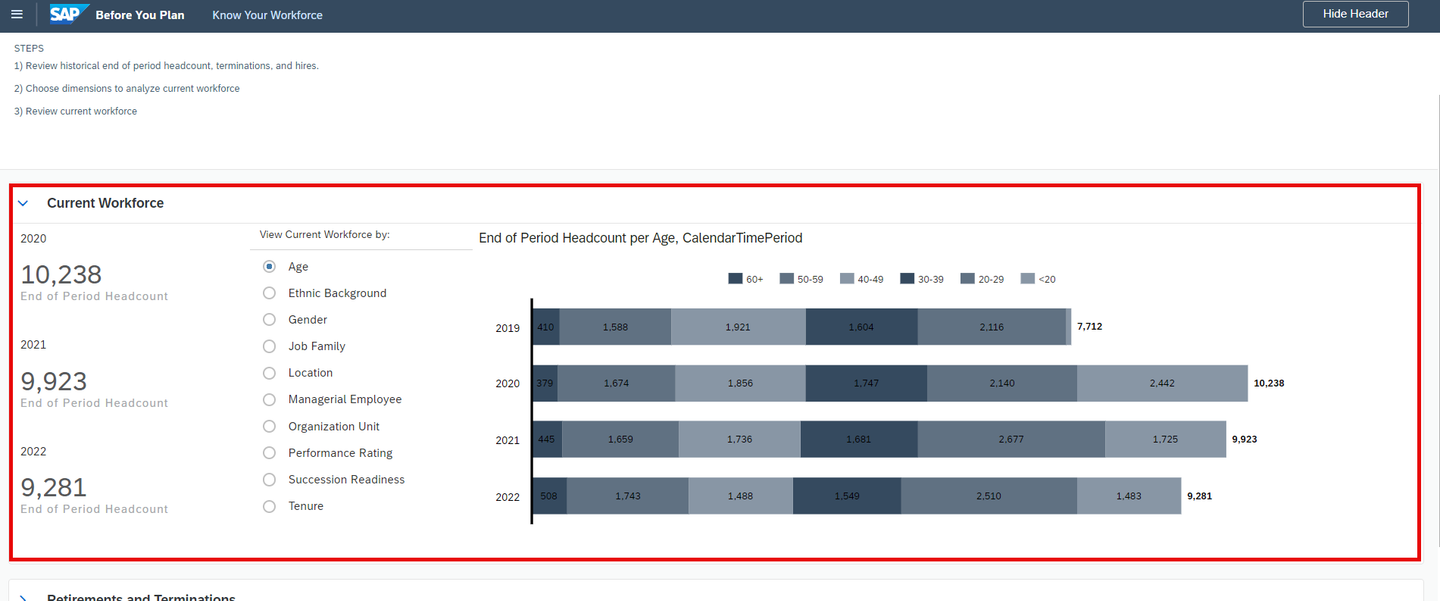
xp&A Strategic Workforce Planning - The section Current Workforce provides you with an overview on your workforce by year and any dimension of your choice.
- The displayed numbers represent the respective headcount value.
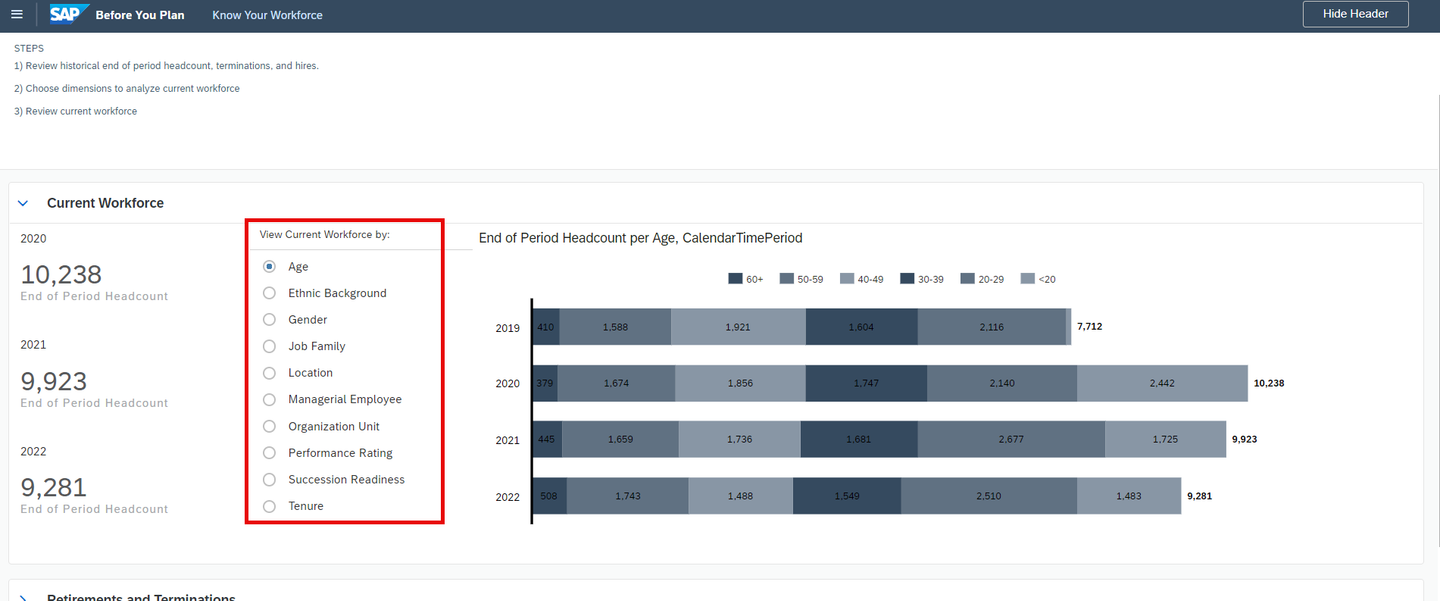
- In order to change the reporting dimension or dimensional breakdown, simply use the radio button section left to the chart.
xp&A Strategic Workforce Planning Get an understanding of the amount of retirements and terminations by year and any dimension of your choice.
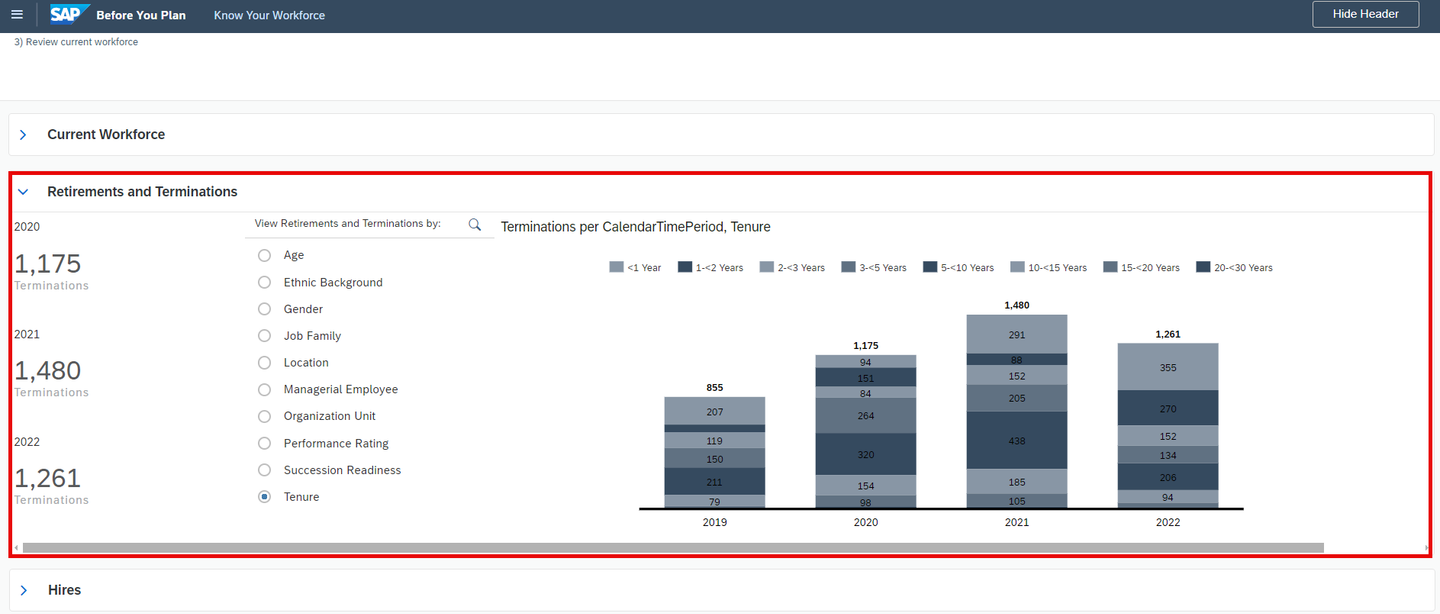
xp&A Strategic Workforce Planning - Scroll down until you find the second section called Retirements and Terminations.
- Expand this section by using the Expand Section button as described in the previous chapter.
- Here you can analyze your retirements per year by any dimension of your choice.
- The displayed numbers represent the amount of occurred terminations.
Get an understanding of the amount of hires by year and any dimension of your choice.
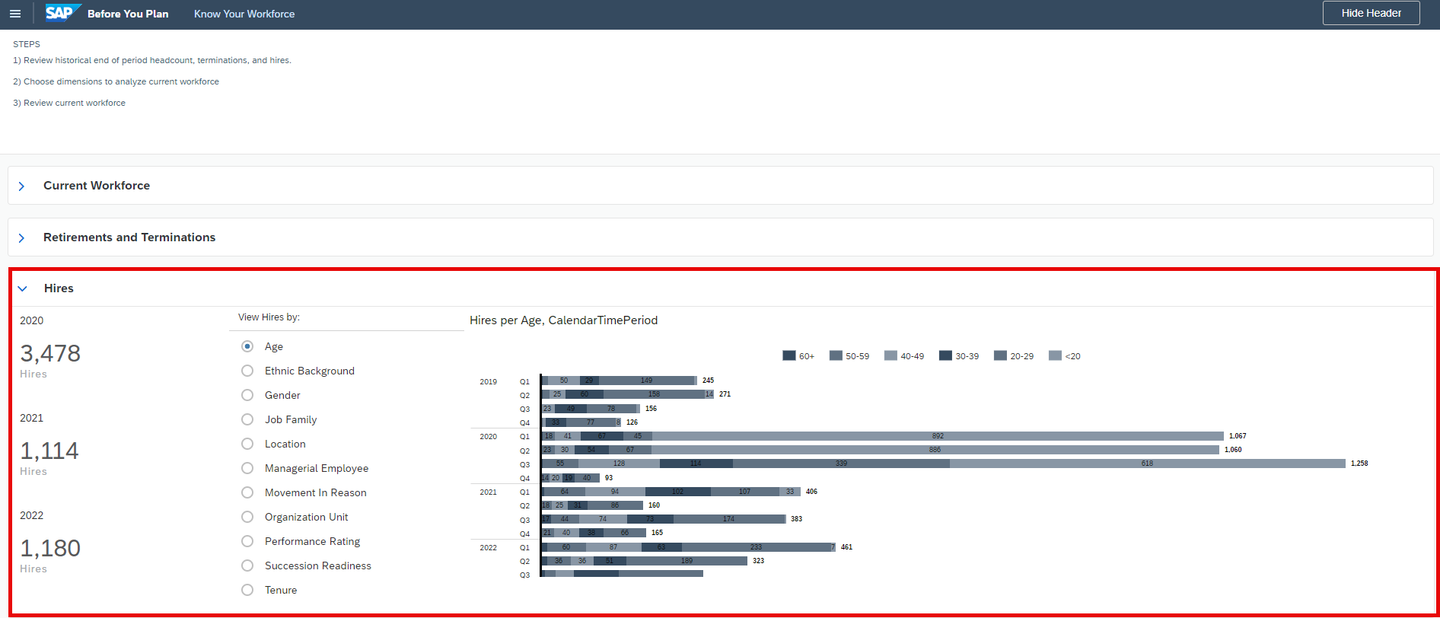
xp&A Strategic Workforce Planning - Scroll down until you find the second section called Hires.
- Expand this section by using the Expand Section button as described in the previous chapter.
- Here you can analyze your hires per year and quarter by any dimension of your choice.
- The displayed numbers represent the amount of occurred hires.
Switch to the next story page Understand Influencers
As mentioned previously, the story Review Current Workforce (
SAP_HR_SWFP_KnowYourWorkforce) consists of two pages.Right now, we only have observed the first page of the story.
In order to navigate to the next page, you can either return to the landing page Strategic Workforce Planning Overview (
SAP_HR_SWFP_LandingPage) and enter the second story page from there, or you can navigate there by using the Main Menu and clicking on Understand Influencers. As a third option, you can also click on the button Go to next Page located on the top right corner of the story to jump to the second page.Option 1: Return to the landing page and enter the story Understand Influencers from there:
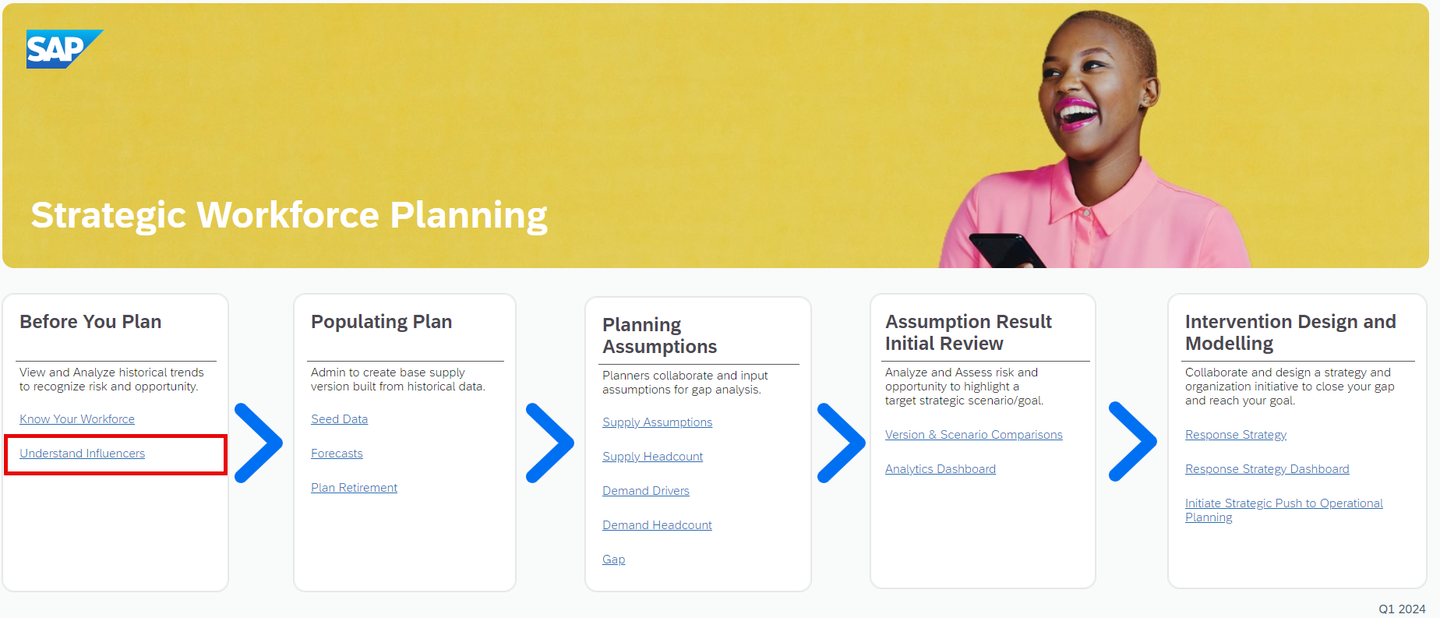
xp&A Strategic Workforce Planning - Option 2: Enter the story from within the Main Menu:
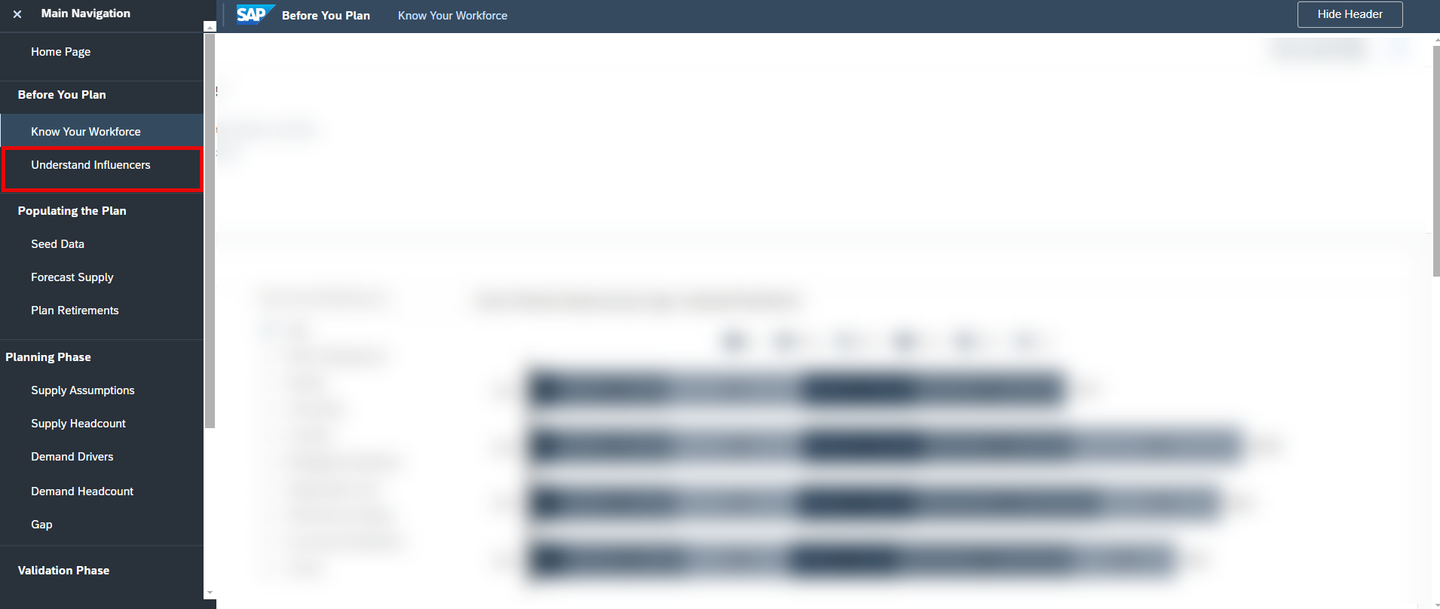
xp&A Strategic Workforce Planning - Option 3: Enter the story by using the Go to next page button:

xp&A Strategic Workforce Planning Analyze the retirement factors by consuming the heat maps.
- In the upper section Review Retirement Factors, you can analyze your workforce (i.e. Headcount) and your terminations by two different dimensions of your choice.
- The displayed numbers represent the amount of headcount or respectively terminations and the color represents the intensity of the relationship between the dimensions.
- To analyze the relationship between different dimensions, simply use the radio button widgets provided on the left side this section.

xp&A Strategic Workforce Planning Get an understanding of the flight risk factors.
- Scroll down until you find the second section of this page called Review Flight Risk Factors

xp&A Strategic Workforce Planning - Similar to the reports of the first page of this story, this section lets you analyze the headcount at risk per year and any dimension of your choice.
- The number represents the amount of headcount which is very likely to leave the company.
You may now switch to the third tab Classification Algorithm.
Currently, you have opened the tab Classification Algorithm. This tab provides guidance on how to set up and run your classification algorithms in order to analyze the top influencers related to retirements in the past.
Create a Predictive Scenario for classifications
Before you can continue your journey in the story, you have to create a predictive scenario first.
In order to create a new predictive scenario for classifications, open the SAC Menu and navigate to the Predictive Scenarios section.

xp&A Strategic Workforce Planning - In the upper menu, click on the button Classification

xp&A Strategic Workforce Planning - Provide a fitting name for the Predictive Scenario and select a suitable location to store it.

xp&A Strategic Workforce Planning Configure the Predictive Scenario
Once created and saved, open the Predictive Scenario if that has not happened automatically already.
In the Predictive Scenario configuration screen, select the Dataset
SAP_HR_SWFP_TERMINATIONS_DATASETas the training data source.

xp&A Strategic Workforce Planning INFORMATION:
Classification algorithms can only be run on data sets, not on data models.
As the Target, select the dimension
RetDimwhich is representative for the retirements.Optionally, you can also select Influencers which you would like to exclude from your algorithm. In this example, we will not exclude any dimensions.
Click on the button Train once you have set everything up.

xp&A Strategic Workforce Planning Check your results.
Once the model has been trained successfully, you can view the results in detail.
Verify your results by using the different sections of the Predictive Scenario located in the upper part of the screen.

xp&A Strategic Workforce Planning Incorporate the Predictive Scenario report into your story.
Now that your Predictive Scenario has run through, you can integrate it into your story.
In order to do so, please copy the hyperlink of your scenario which you can find in your URL bar in your browser.

xp&A Strategic Workforce Planning - Return to the Understand Influencers page of the Review Current Workforce (
SAP_HR_SWFP_KnowYourWorkforce) story and go into edit mode.

xp&A Strategic Workforce Planning - Open the
onClickevent script of the buttonBtn_Classification.

xp&A Strategic Workforce Planning - Modify your the script according to the provided comment. Remove the code in lines 2 and 4, remove the comment indicator (
//) in line 7 and provide as first argument the hyperlink as String.
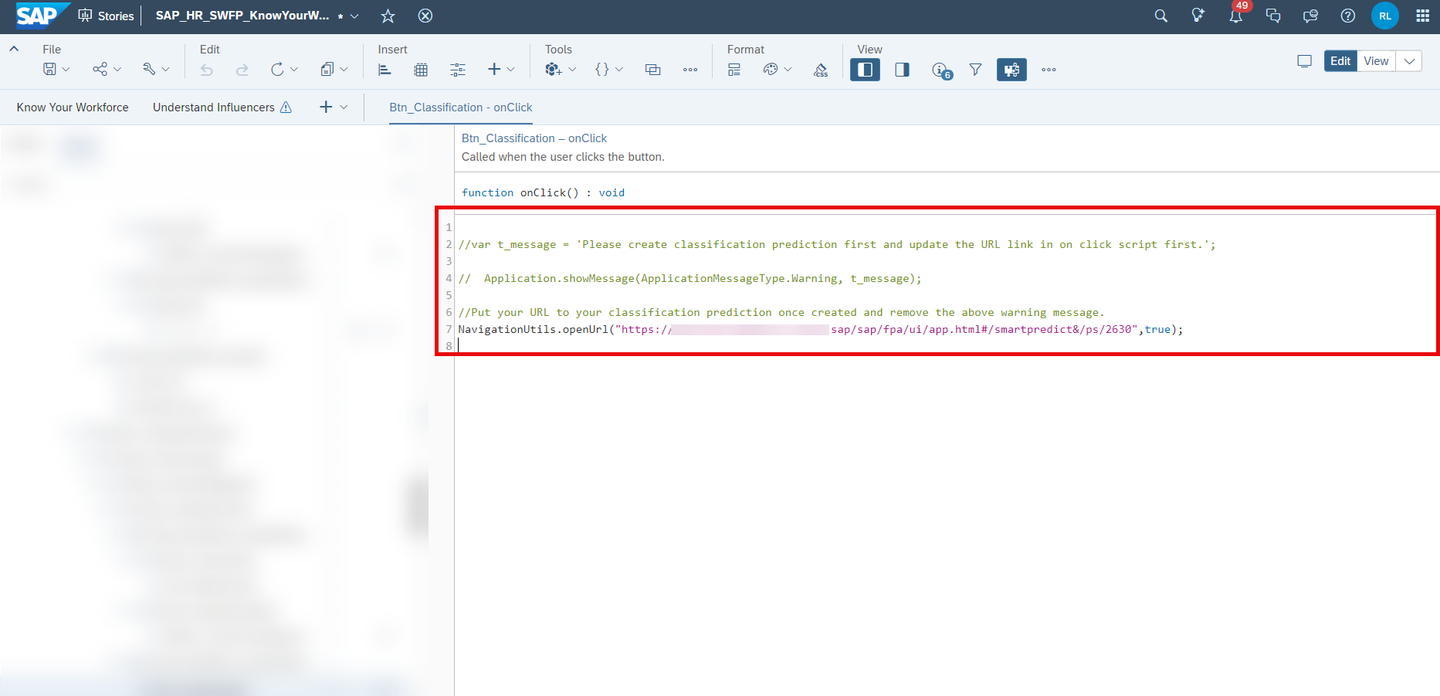
xp&A Strategic Workforce Planning - Save your story and return to view mode.

xp&A Strategic Workforce Planning - You are now able to access the Predictive Scenario report by clicking on the button View Classification Predictions.

xp&A Strategic Workforce Planning
Now that you have acquired a good understanding of your current workforce, you can proceed with the next step which focusses on initializing the plan version by using the story Initialize Plan (SAP_HR_SWFP_IdentifyPhase).
In this step you will learn how to open the story (Tab 1), how to integrate historical data into your planning model (Tab 2), how to configure and run the time series forecasts in order to populate future planning years (Tab 3) and finally how to enter retirement assumptions based on the knowledge you had gained in the previous process step (Tab 4).
Currently, you have opened the tab Open Story. This tab provides guidance on how to open the Revenue Scenario Planning (SAP_X_CNR_RevenueScenarioPlanning) story.
Click on the burger menu located on the top left corner of the Review Current Workforce (
SAP_HR_SWFP_KnowYourWorkforce) from the previous step.Now click on either Home Page to jump back to the Strategic Workforce Planning Overview (
SAP_HR_SWFP_LandingPage) or on Seed Data to directly access the first page of the Initialize Plan (SAP_HR_SWFP_IdentifyPhase) story.
xp&A Strategic Workforce Planning In this particular case, we will go back to the Strategic Workforce Planning Overview (
SAP_HR_SWFP_LandingPage) by clicking on the Home Page button.Click on the link Seed Data to enter the first page of the story.
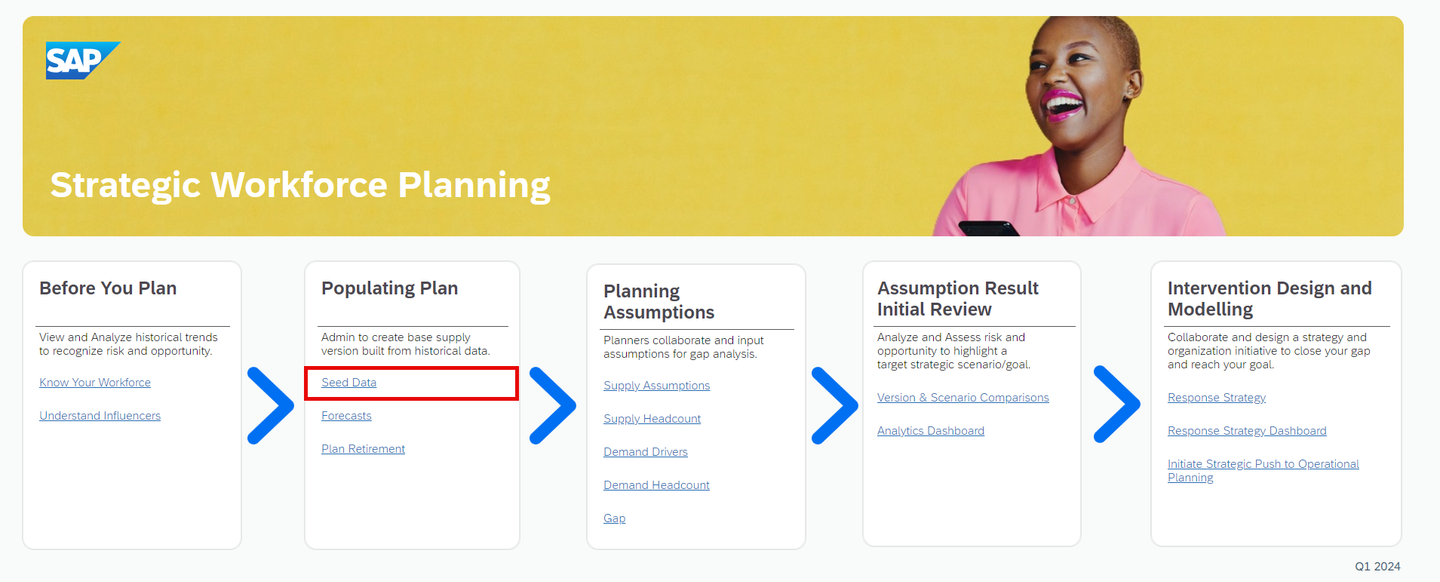
xp&A Strategic Workforce Planning Get an overview of the Seed Data story page.
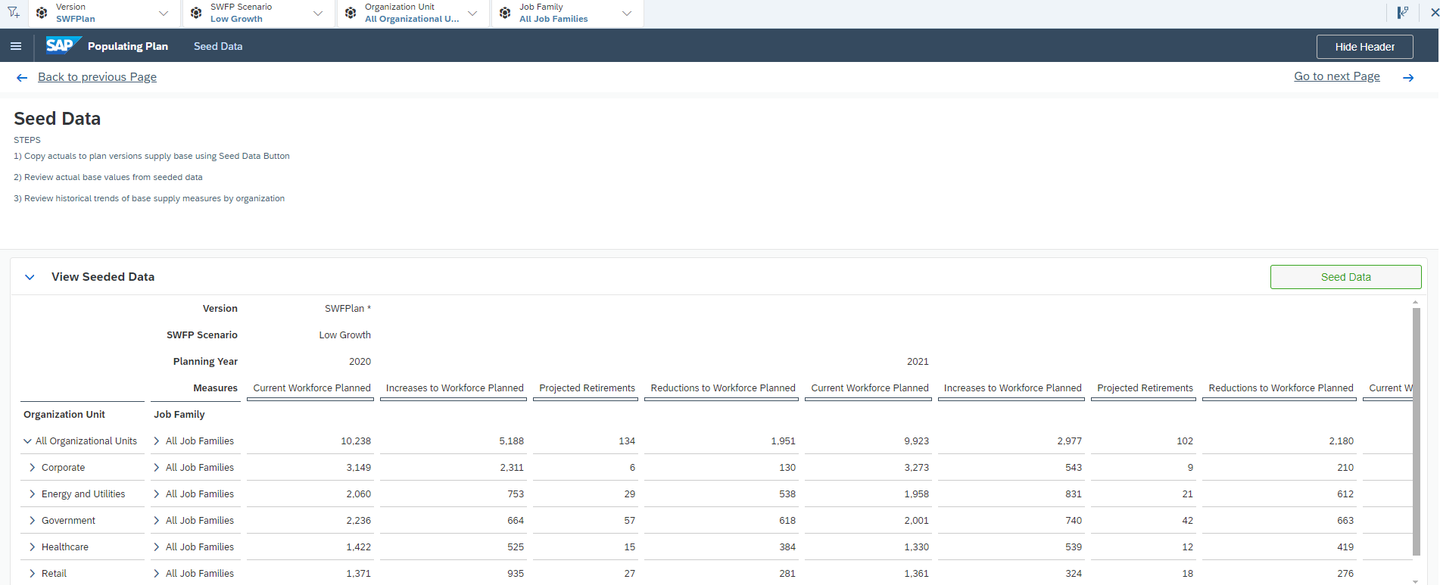
xp&A Strategic Workforce Planning Generally, this story page consists of two sections.
The upper section called View Seeded Data provides you with a tabular overview on the imported historical data.
In addition to that, you can also find the button to start the import job inside this section.
The imported data can be viewed by year, scenario, organizational unit and job family.
INFORMATION:
The different measures in the table represent the absolute amount of headcount.
The measure Current Workforce Planned represents the so called End of Period Headcount.
The measures Increases to Workforce Planned and Reductions to Workforce Planned represents the events known as hires and terminations.
The measure Projected Retirements represents the amount of headcount which is most likely to retire.
In the lower section called View Trends of Seeded Data you can inspect the measures Current Workforce Planned, Increases to Workforce Planned and Reductions to Workforce Planned per organizational unit and year in a graphical fashion.
You may now switch to the second tab Import Data to learn how to integrate historical data into your planning model.
Currently you have opened the tab Import Data. This tab provides guidance on how to import historical data into your planning model Strategic Workforce Planning Model (SAP_HR_SWFP_STRATEGIC).
INFORMATION:
- Please note that you may skip this step in case you want to go with the provided demo data first. This step will only become necessary once you decide to use your own systems as data source.
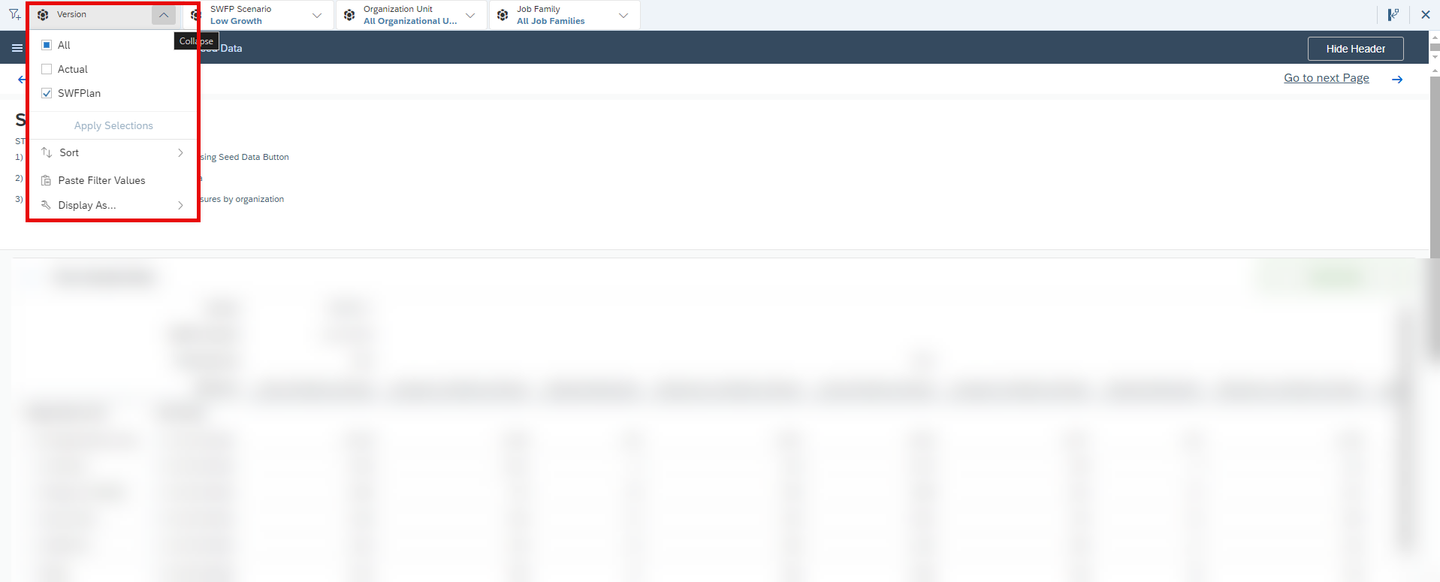
Click on any cell in the table located in the View Seeded Data section so the application can retrieve the context (version) for which the seeding should occur.
- Please note that you can change the context (or to be specific, the version) by using the story filter on the top of the page.
- If you would like to seed data for another planning version, you can configure that by changing the respective filter first and then clicking on any cell in the table.
- As the content only comes with one pre-defined plan version, you would need to create a second version via the version management first.
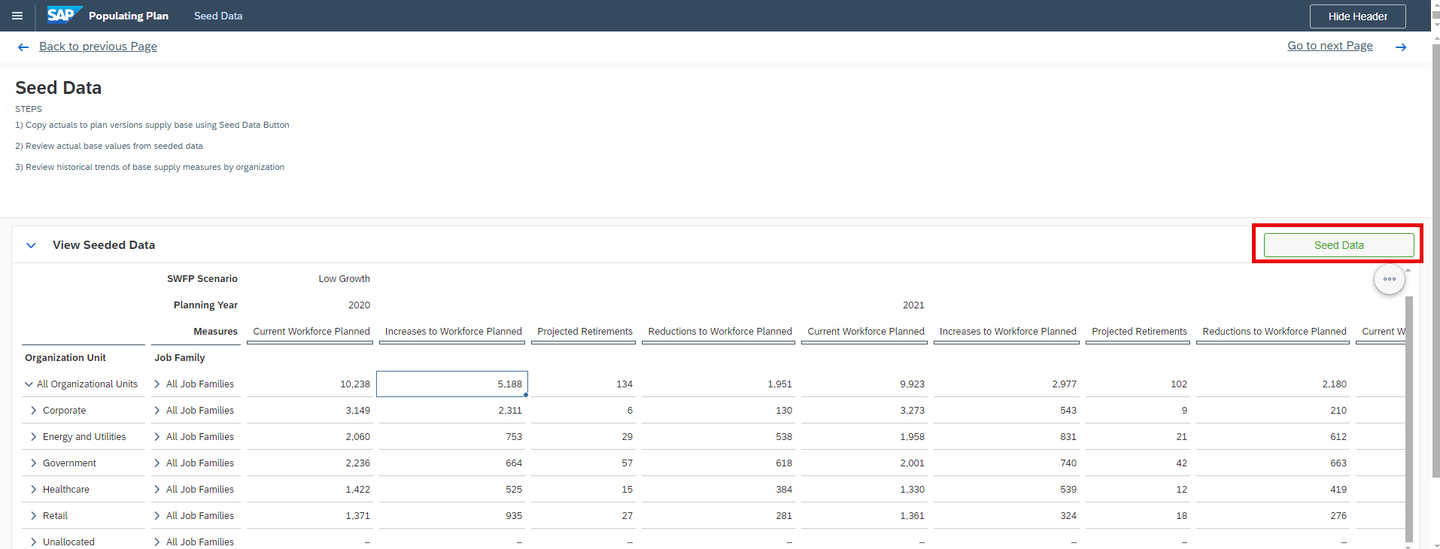
xp&A Strategic Workforce Planning Click on the button Seed Data located in the top right corner of the View Seeded Data section.
xp&A Strategic Workforce Planning In the dialogue, select the measures which you want to import and click on Run Seed Data when done.
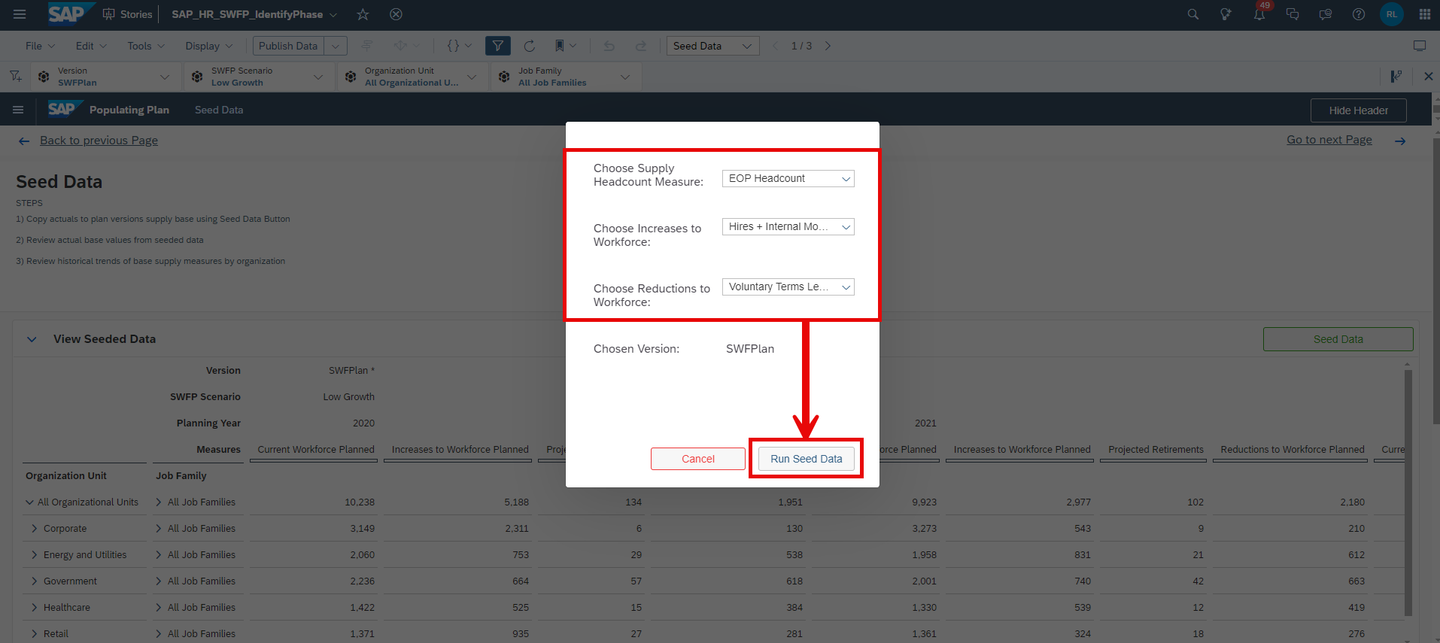
xp&A Strategic Workforce Planning - The first selection Choose Supply Headcount Measure refers to the end of period headcount, where you can choose between the option to only integrate data for employees or employees and contractors.
- The second selection Choose Increases to Workforce lets you decide if you want to integrate only hires, internal movements, or both.
- The third selection Choose Reductions to Workforce lets you decide if you want to integrate only voluntary leaves, internal movements, or both.
- The chosen version at the bottom is retrieved automatically from the application based on your selection in the filter panel of the story.
Congratulations! You have now successfully imported historical data into your planning model. You may now switch to the tab Forecast Data to learn how to execute the time series forecast algorithms in order to populate future years with data.
Currently, you have opened the tab Forecast Data. This tab provides guidance on how to perform a time series forecast in order to pre-populate future planning periods by using the freshly integrated historical data as a baseline.
INFORMATION:
- Please note that you may skip this step in case you want to go with the provided demo data first. This step will only become necessary once you decide to use your own systems as data source.
In the SAC menu, navigate to the Predictive Scenarios section

xp&A Strategic Workforce Planning - Before executing the time series forecast, you must first create a predictive scenario and integrate it into the respective Multi Action, so you can trigger it from within the application.
In the upper menu, click on Time Series Forecast
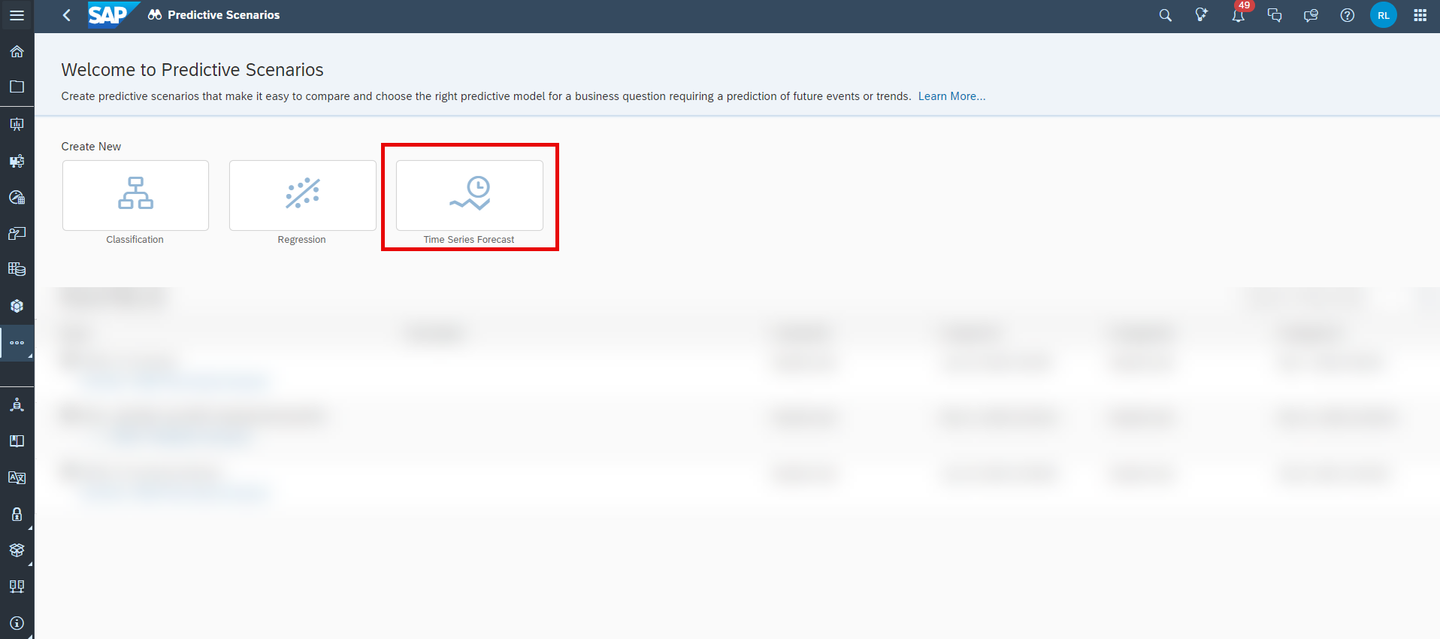
xp&A Strategic Workforce Planning - Provide a proper name for your Predictive Scenario and save it anywhere you like.
Set up your Predictive Scenario for the measure Current Workforce Planned
INFORMATION:
As a Predictive Scenario can only forecast one measure, you must create multiple Predictive Scenarios.
The first scenario is designed to forecast the measure Current Workforce Planned, which represents the end of period headcount
The second scenario is designed to forecast the terminations
The third scenario is designed to forecast the hires
As the Time Series Data Source, specify the planning model
SAP_HR_SWFP_STRATEGICAs the Version, specify the planning version on which you want to perform your forecast. If you go with the default settings of the content package, select the version
SWFP_Plan.

xp&A Strategic Workforce Planning - As the target measure, select the measure Current Workforce Planned
- As the date, select the option Planning Year. Per default, this is the only selection available.
- For the number of periods to forecast, specify any number you like. In this example, we want to create a five-year forecast, thus we specify 5.
- As the forecast entities, select the most relevant dimensions only as time series forecasts can only run on a small set of dimensions. In this example, we will select the entities SWFP Scenario, Job Family and Organization Unit Level 1.

xp&A Strategic Workforce Planning - Perform additional filter settings for your forecast. In this example, we want to exclude the organizational unit Unknown from the forecast.

xp&A Strategic Workforce Planning - As the training data source, specify the time frame which should be used for training the model. In this example, we choose all observations up until the last observation.
- For the conversion of negative forecast values and the influencers, we will go with the default settings.

xp&A Strategic Workforce Planning Save your Predictive Scenario.
Set up your Predictive Scenario for the measure Increases to Workforce Planned
- Repeat all steps from sub-step (3) but as the target measure, select the measure Increases to Workforce Planned instead of Current Workforce Planned to create a Predictive Scenario for hires.

xp&A Strategic Workforce Planning Set up your Predictive Scenario for the measure Reductions to Workforce Planned
- Repeat all steps from sub-step (3) but as the target measure, select the measure Reductions to Workforce Planned instead of Current Workforce Planned to create a predictive scenario for terminations.

xp&A Strategic Workforce Planning Integrate all three Predictive Scenarios into the respective Multi Action responsible for running all time series forecasts
- Navigate to the Data Actions folder of the content package and open the Multi Action Forecast and Allocate Supply (
SAP_HR_SWFP_FORECAST_ALLOCATION).

xp&A Strategic Workforce Planning - Add three Predictive Steps to the Multi Action with each step calling one of the previously created Predictive Scenarios.

xp&A Strategic Workforce Planning Make sure to set Train and Forecast as the predictive action for each of the steps.
Save your changes.
- Navigate to the Data Actions folder of the content package and open the Multi Action Forecast and Allocate Supply (
Enter the Forecasts page of the Initialize Plan (
SAP_HR_SWFP_IdentifyPhase) story.- If you still have the Seed Data page of the Initialize Plan (
SAP_HR_SWFP_IdentifyPhase) story open, click on the button Go to next Page to switch to the Forecasts page.
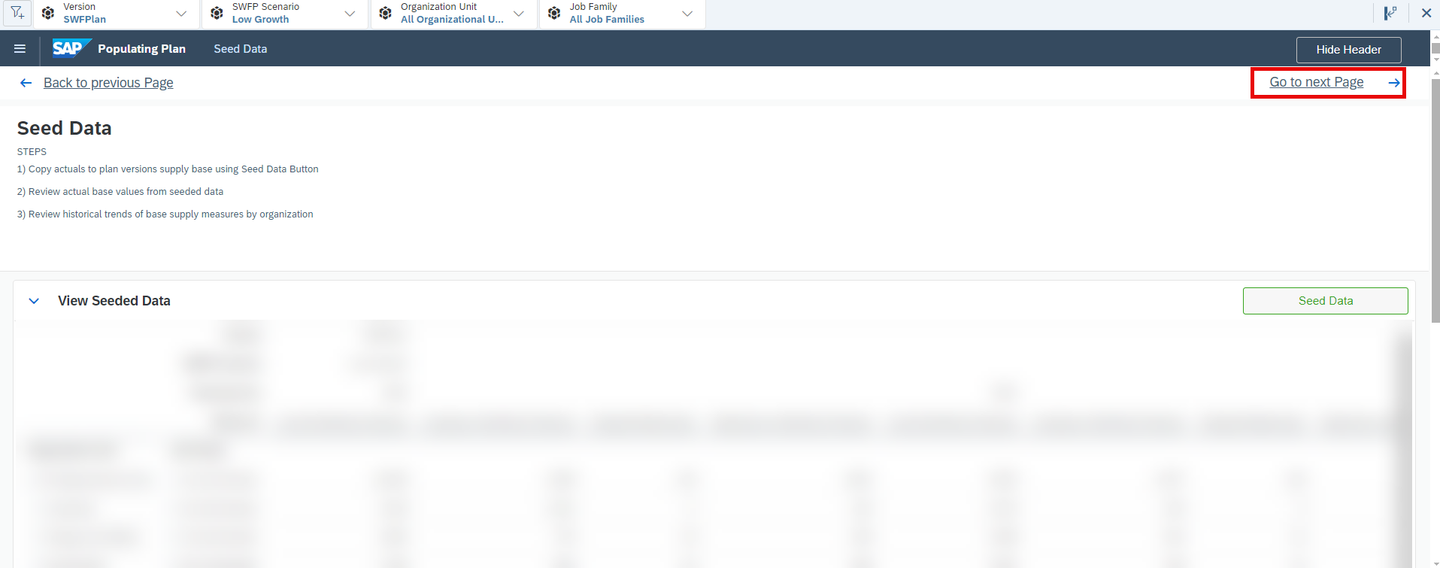
xp&A Strategic Workforce Planning - Alternatively, you can also navigate to the second page of the Initialize Plan (
SAP_HR_SWFP_IdentifyPhase) story by using the Main Menu or by clicking on the Forecasts link in the Strategic Workforce Planning Overview (SAP_HR_SWFP_LandingPage) story.
- If you still have the Seed Data page of the Initialize Plan (
Go into Edit mode of the Forecasts page of the story Initialize Plan (
SAP_HR_SWFP_IdentifyPhase).Open the
onClickevent script of the buttonSection1_ForecastAllocationBtn.
xp&A Strategic Workforce Planning According to the comments provided in the script, deactivate the message in lines 3 to 4 and activate the script from lines 9 to 24

xp&A Strategic Workforce Planning Save your changes.
Go into view mode of the story.

xp&A Strategic Workforce Planning In the Modify and Forecast Future Supply section, click on the button Run Forecast Allocations

xp&A Strategic Workforce Planning - Now that you have configured all Predictive Scenarios and set up you Multi Action, you can execute the Time Series Forecast by clicking on the button Run Forecast Allocations
Integrate your detailed prediction report into the button Create Current Workforce Forecast
- You may have noticed that the section Modify and Forecast Future Supply contains three more buttons as can be seen in the screenshot:

xp&A Strategic Workforce Planning Similar to the classification algorithm, these buttons are designed to redirect the user to the detailed prediction reports which can be accessed once the time series forecasts have run through
Go back to each of your Predictive Scenarios and bookmark the hyperlinks.

xp&A Strategic Workforce Planning Go back to the Forecasts page of the Initialize Plan (
SAP_HR_SWFP_IdentifyPhase) story and enter the edit mode.Open the
onClickevent script of the buttonSection1_ForecastWkfBtnCreate Current Workforce Forecast,Section1_ForecastIncBtnCreate Increases to Workforce Forecast andSection1_ForecastRedBtnCreate Reductions to Workforce ForecastAccording to the comments provided in the respective scripts, edit the scripts as shown exemplary in the following screenshot:

xp&A Strategic Workforce Planning Please ensure to include the hyperlink for the Predictive Scenario with the target measure Current Workforce Planned into the script of the button
Section1_ForecastWkfBtnCreate Current Workforce Forecast, the hyperlink for the Predictive Scenario with the target measure Current Increased Planned into the script of the buttonSection1_ForecastIncBtnCreate Increases to Workforce Forecast and the hyperlink for the Predictive Scenario with the target measure Current Reductions Planned into the script of the buttonSection1_ForecastRedBtnCreate Reductions to Workforce ForecastSave your story
Reopen the story in View Mode
Enter the prediction summaries by clicking on the Create Workforce Forecast, Create Increases to Workforce Forecast or the Create Reductions to Workforce Forecast button located in the Modify and Forecast Future Supply section
Consume your final forecasted results in the View Future Supply Forecast Trend section located on the Forecasts page of the Initialize Plan (
SAP_HR_SWFP_IdentifyPhase) story.- Here you can inspect your imported historical data as well as your predicted values per measure and time in a graphical fashion.

xp&A Strategic Workforce Planning Consume your final forecasted results in the View section of the Forecasts page of the Initialize Plan (
SAP_HR_SWFP_IdentifyPhase) story.- Here you can inspect your imported historical data as well as your predicted values per measure, organizational unit, job family, version and scenario over time in a tabular fashion, allowing you to gain deeper insights into your past and future workforce composition.

xp&A Strategic Workforce Planning
You may now switch to the tab Plan Retirements.
Currently, you have opened the tab Plan Retirements. This tab provides guidance on how to maintain retirement assumptions in your plan after having performed the time series forecast.
If you are still located on the Forecasts page of the Initialize Plan (
SAP_HR_SWFP_IdentifyPhase) story, click on the button Go to next Page on the top right corner of the story.
xp&A Strategic Workforce Planning - Alternatively, you can also navigate to the third page of the Initialize Plan (
SAP_HR_SWFP_IdentifyPhase) story by using the Main Menu and clicking on Plan Retirements or by clicking on the Plan Retirements link in the Strategic Workforce Planning Overview (SAP_HR_SWFP_LandingPage) story.
- Alternatively, you can also navigate to the third page of the Initialize Plan (
According to the Steps description, begin your activities by checking out the section View Retirement Trends
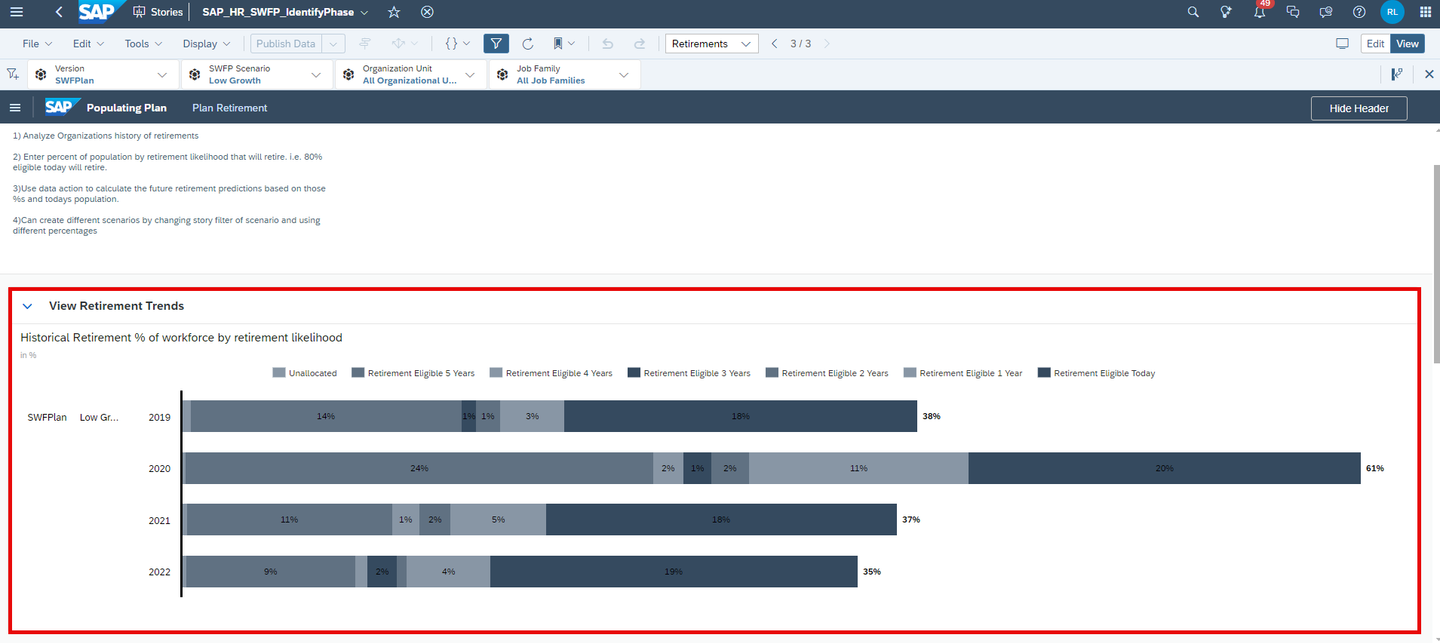
xp&A Strategic Workforce Planning - This section provides an overview about the historical retirement of your workforce, while the numbers represent the retirement likelihood grouped by retirement eligibility.
Scroll down to the next section called View Trends & Modify Retirement Probabilities

xp&A Strategic Workforce Planning - This section consists of two parts.
- In the table on the left-hand side, you can see how many people are eligible for retirement per year, allowing you to derive a rough trend for your retirement planning activities.
- In the table on the right-hand side, you have an input table, where you can enter how many people of those who are eligible for retirement will actually retire.
Maintain your planning assumption for the retirements.

xp&A Strategic Workforce Planning - Maintain your retirement probabilities for the workforce eligible to retire into the right table of the View Trends & Modify Retirement Probabilities section.
- In this example, we assume that
90 %of all people who are eligible for retirement today will actually retire.
Calculate your future retirements.

xp&A Strategic Workforce Planning - Scroll down to the section Review Calculated Retirements and click on the button Calculate Future Retirements located on the top right corner of the section.
Review your calculated retirements

xp&A Strategic Workforce Planning - Once the respective Data Action has run through, you can inspect the calculated retirements for your selected planning context in the table inside the Review Calculated Retirements section
- The measure Current Workforce Planned represents the end of period headcount, while the measure Projected Retirements shows the amount of headcount which is planned to retire.
- The measure Retirement % is a calculated story measure which divides the projected retirement headcount by the end of period headcount and shows how much percent of the workforce is going to retire.
As you have now passed all preparation steps, you can continue with the actual headcount supply and headcount demand planning activities.
In this step, the Supply and Demand Planning (SAP_HR_SWFP_PlanPhase) story of this content package is introduced.
You will learn how to open the story (Tab 1), how to adjust your supply assumptions (Tab 2), how to make an estimation about the demand headcount (Tab 3) and how to consume the gap analysis report (Tab 4).
Currently, you have opened the tab Open Story. This tab provides guidance on how to open the Supply and Demand Planning (SAP_HR_SWFP_PlanPhase) story.
If you are still located on the Retirements page of the Initialize Plan (
SAP_HR_SWFP_IdentifyPhase) story, click on the button Go to next Page on the top right corner of the story.
xp&A Strategic Workforce Planning - Alternatively, you can also navigate to the first page of the Supply and Demand Planning (
SAP_HR_SWFP_PlanPhase) story by using the Main Menu and clicking on Supply Assumptions or by clicking on the Supply Assumptions link in the Strategic Workforce Planning Overview (SAP_HR_SWFP_LandingPage) story.
- Alternatively, you can also navigate to the first page of the Supply and Demand Planning (
Get an overview of the story
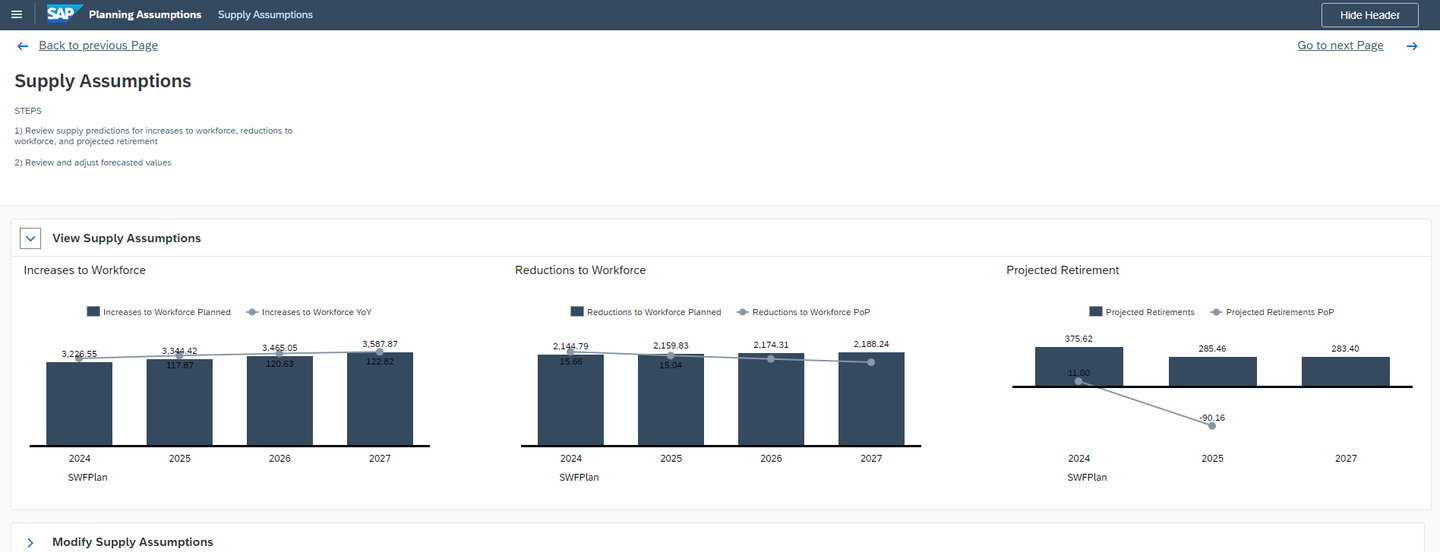
xp&A Strategic Workforce Planning - Generally the story consists of two sections
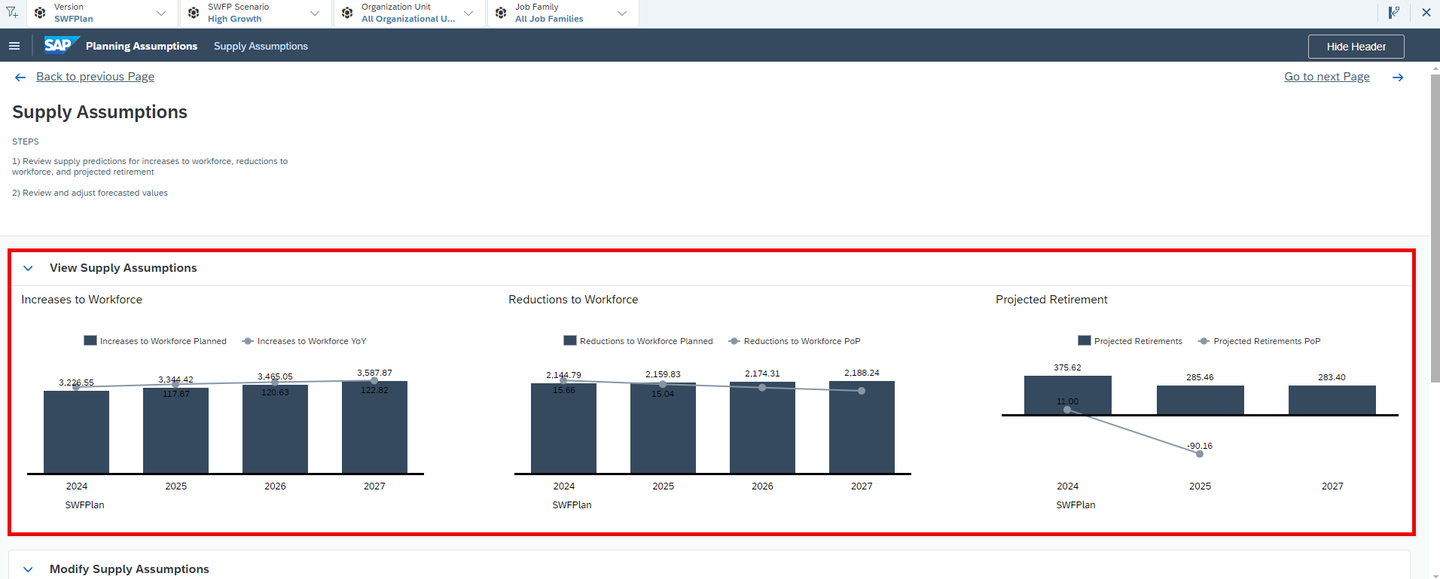
- The upper section View Supply Assumptions functions as a purely informational section and provides you with an overview over your planned end of period headcount, your planned increases and reductions to the workforce
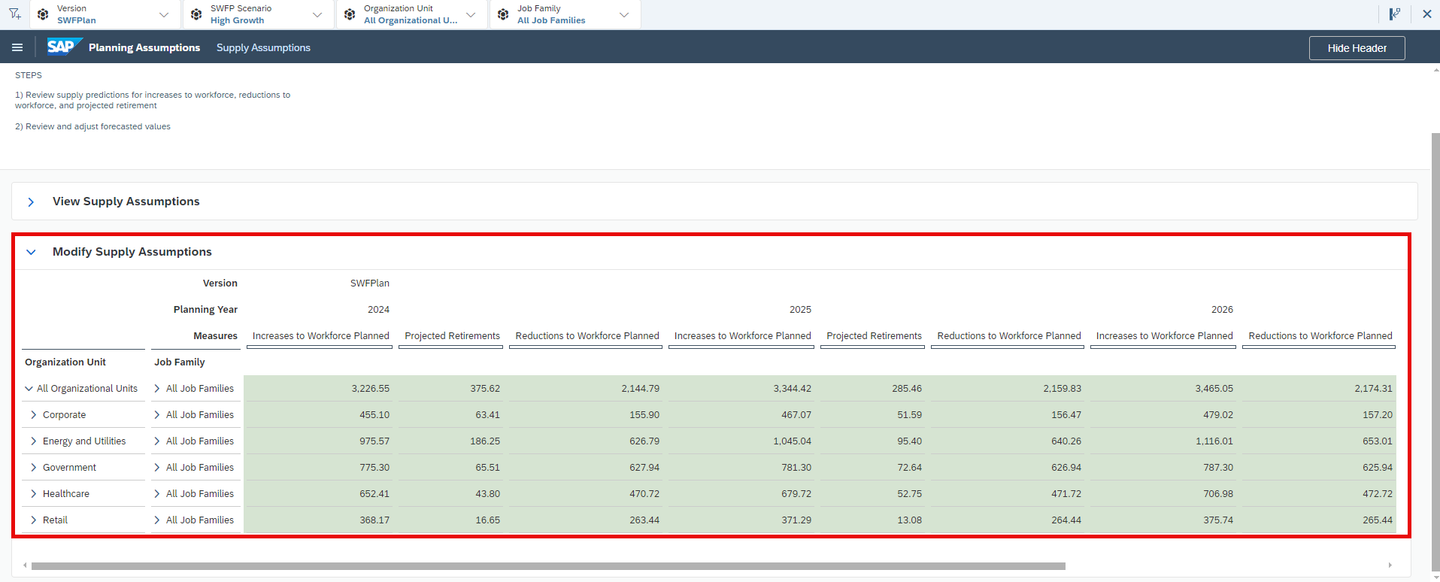
- The lower section Modify Supply Assumptions contains a table where you can manipulate your planning assumptions on a detailed level. In this section, you can modify your planned increases and reductions to your workforce as well as the projected retirements.
- All of the charts take into consideration the filter settings from the story filter panel.
You may now switch to the second tab Enter Supply Assumptions to learn how to enter your planning assumptions for the headcount supply.
Currently, you have opened the tab Enter Supply Assumptions. This tab provides guidance on how to modify the projected headcount supply measures.
Review your supply predictions for the increases and reductions to your workforce as well as the projected retirements.
- According to the Steps instructions field, start your planning activities by first reviewing your projected headcount measures in the View Supply Assumptions section.
- Here you can see your projected increases, reductions and the projected retirements in a graphical fashion by planning year.
- If you wish to change the planning context, make use of the story filters located in the header section of the story.
xp&A Strategic Workforce Planning Adjust your headcount supply measures.
- Scroll down to the section Modify Supply Assumptions and manipulate the forecasted data according to your needs
- To edit values, simply click on any editable cell and change the numbers.
xp&A Strategic Workforce Planning Switch to the next page of the story by clicking on the button Go to next Page
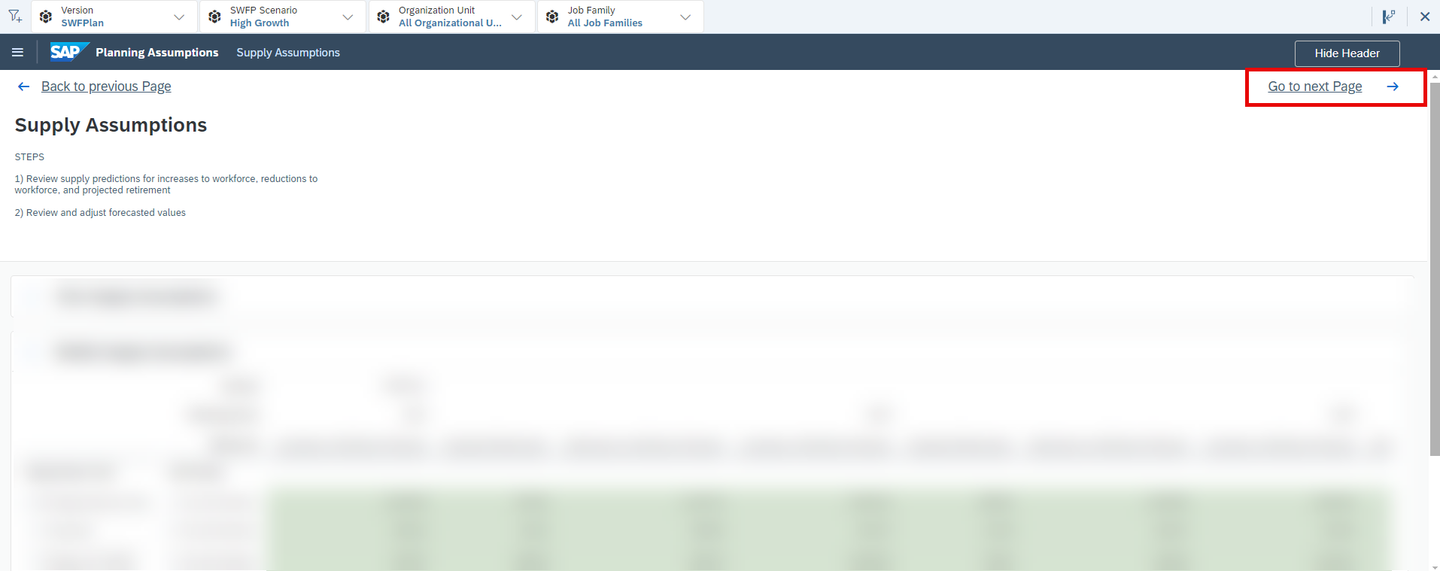
xp&A Strategic Workforce Planning - You will now be redirected to the second page of the story Supply Headcount
Get an overview of the second page of the story.
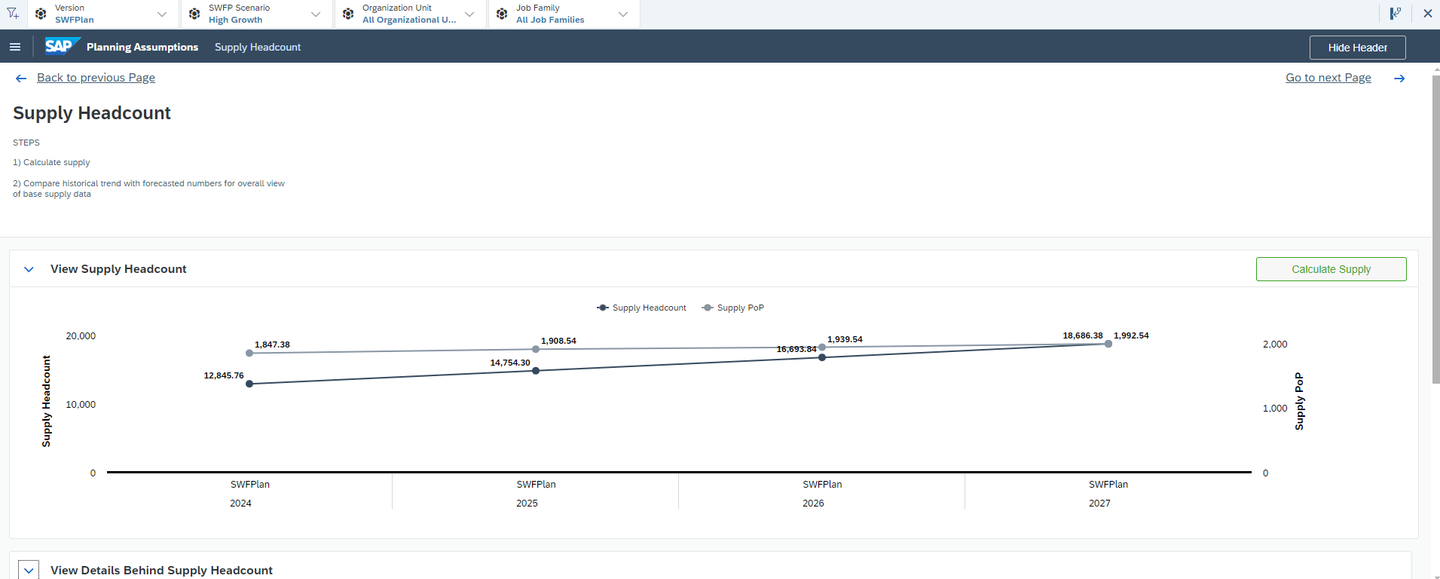
xp&A Strategic Workforce Planning - The Supply Headcount page consists of two sections.
- The upper section View Supply Headcount provides you with a graphical overview on your total headcount per planning year. Additionally, you can recalculate your supply based on the assumptions that you have maintained in the previous page.
- The lower section View Details behind Supply Headcount provides you with a final overview on your headcount planning assumptions. In this place, you can make some final adjustments to your projected increases, reductions, projected retirements and to your total headcount supply.
In the upper section View supply Headcount, click on the button Calculate Supply in order to refresh your projected headcount supply.
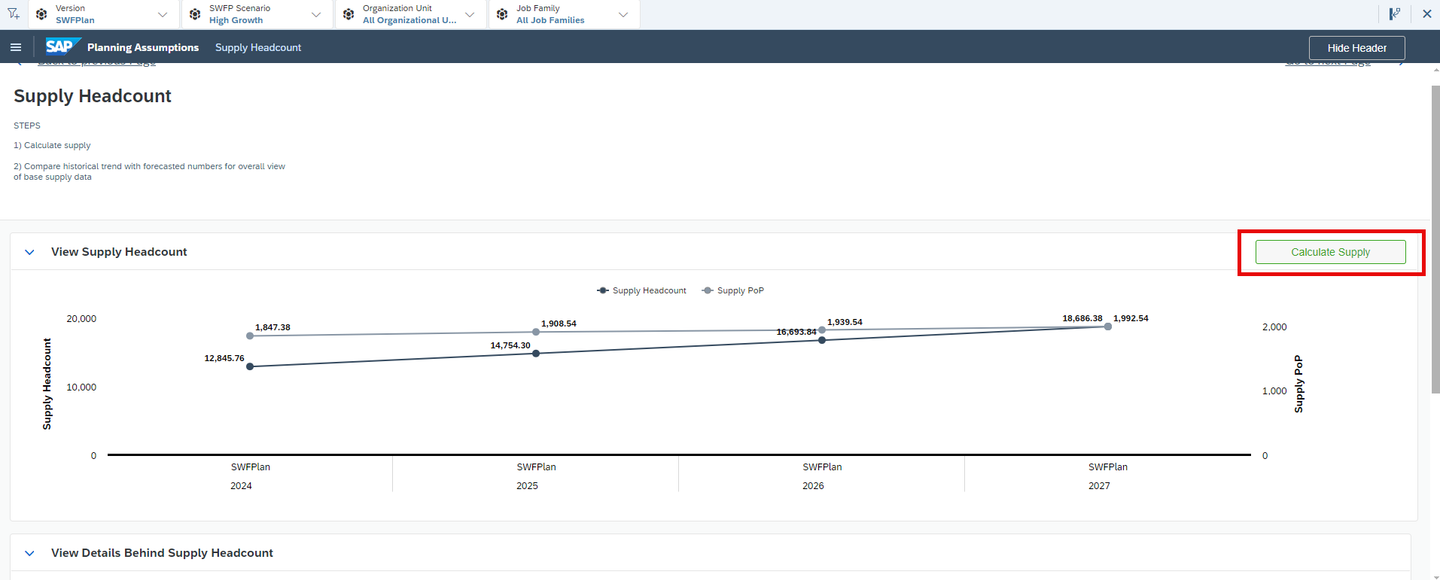
xp&A Strategic Workforce Planning In the lower section View Details Behind Supply Headcount, check your estimated numbers and make some final adjustments if required.

xp&A Strategic Workforce Planning - If you decide to adjust the values, make sure to rerun the supply calculation by clicking on the Calculate Supply button in the section View Supply Headcount
Click on the button Go to next Page in order to proceed with the demand planning activities.

xp&A Strategic Workforce Planning - Alternatively, you can also navigate to the third page of the Supply and Demand Planning (
SAP_HR_SWFP_PlanPhase) story by using the Main Menu and clicking on Demand Drivers or by clicking on the Demand Drivers link in the Strategic Workforce Planning Overview (SAP_HR_SWFP_LandingPage) story.
- Alternatively, you can also navigate to the third page of the Supply and Demand Planning (
You may now switch to the tab Enter Demand Assumptions.
Currently, you have opened the tab Enter Demand Assumptions. This tab provides guidance on how to create your headcount demand estimation.
Get an overview of the page Demand Drivers

xp&A Strategic Workforce Planning - This story page contains only one major section which is the Modify Demand Drivers section.
- The table located inside this section takes into consideration the filter settings from the story filter panel.
- Both tables inside the section are identical apart from the measures used. While the left table is designed to focus on the input for the measure called
Driver A, the second table focusses onDriver B.
Modify the demand drivers in the Modify Demand Drivers section
- You can either adjust the drivers by manipulating the absolute numbers or you can directly change the year over year value in the table.
- If you decide to adjust your drivers by changing the absolute values, make sure to click on the Calculate Year over Year % button located on the top-right corner of the section to calculate the year over year change percentage required for the headcount demand calculation.

xp&A Strategic Workforce Planning Click on the button Go to next Page in order to jump to the next page of the story.

xp&A Strategic Workforce Planning - Alternatively, you can also navigate to the fourth page of the Supply and Demand Planning (
SAP_HR_SWFP_PlanPhase) story by using the Main Menu and clicking on Demand Headcount or by clicking on the Demand Headcount link in the Strategic Workforce Planning Overview (SAP_HR_SWFP_LandingPage) story.
- Alternatively, you can also navigate to the fourth page of the Supply and Demand Planning (
Get an overview of the page Demand Headcount

xp&A Strategic Workforce Planning - This page consists of two sections.
- The upper section View Demand Headcount provides a button to calculate the demand headcount based on the drivers maintained in the previous page. In addition, you can inspect the drivers as well as the estimated demand headcount in the table of this section.
- The lower section View Demand Headcount compared to Forecasted Supply Headcount provides a graphical comparison between the estimated demand headcount and the planned supply headcount per planning year.
Calculate your demand headcount
- In the View Demand Headcount section, click on the button Calculate Demand Headcount in order to create an estimation for the headcount demand.

xp&A Strategic Workforce Planning Readjust your drivers if required and recalculate the headcount demand
- In case you want to readjust the demand headcount, you can adjust the respective drivers directly in the table and recalculate the demand by pressing on the Calculate Demand Headcount button again

xp&A Strategic Workforce Planning Review your final results in the View Demand Headcount compared to Forecasted Supply Headcount section

xp&A Strategic Workforce Planning Click on the button Go to next Page in order to jump to the next page of the story.

xp&A Strategic Workforce Planning - Alternatively, you can also navigate to the last page of the Supply and Demand Planning (
SAP_HR_SWFP_PlanPhase) story by using the Main Menu and clicking on Gap or by clicking on the Gap link in the Strategic Workforce Planning Overview (SAP_HR_SWFP_LandingPage) story.
- Alternatively, you can also navigate to the last page of the Supply and Demand Planning (
You may now switch to the tab Gap Analysis to learn how to analyze your gap between projected headcount demand and planned headcount supply.
Currently, you have opened the tab Gap Analysis. In this section you will learn how to calculate and review the gap between supply and demand headcount.
Get an overview of the page Gap

xp&A Strategic Workforce Planning - This story page consists of two sections.
- The upper section View Gap provides graphical insights on your gap between your projected headcount demand and your planned headcount supply. In addition to that it provides a button to calculate the deviation between those two measures.
- The lower section View Gap Details shows the supply headcount, the demand headcount a well as the calculated gap in a tabular fashion.
- Both sections take into account the filter settings from the story filter panel.
Click on the Calculate Gap button located in the View Gap section in order to derive the gap between the headcount demand and the headcount supply.

xp&A Strategic Workforce Planning Review the demand headcount, the supply headcount as well as the deviation in the chart inside the View Gap section.

xp&A Strategic Workforce Planning - You can see the headcount demand and the headcount supply depicted as a bar chart in the lower half of the chart.
- In the upper half of the chart you can see the deviation between these two measures.
Review the demand headcount, the supply headcount as well as the deviation in the table inside the View Gap Details section.

xp&A Strategic Workforce Planning - This table provides identical information in a tabular fashion.
INFORMATION:
- Please do not make any adjustments in this table.
- If you want to adjust your headcount supply or demand, return to the previous stories and after that, come back to the Gap page and click on the button Calculate Gap to rerun the gap calculation.
In this step the Scenario and Version Comparisons (SAP_HR_SWFP_ValidatePhase) story of this content package is introduced.
Here you will learn how to open the story (Tab 1) and how to consume the different reports to get an overview on planning assumptions (Tab 2).
Currently, you have opened the tab Open Story. This tab provides guidance on how to open the Scenario and Version Comparisons (SAP_HR_SWFP_ValidatePhase) story.
If you still have the Supply and Demand Planning (
SAP_HR_SWFP_PlanPhase) story opened from the previous step, click on the burger menu located on the top left corner to open the navigation panel.Now click on either Home Page to jump back to the Strategic Workforce Planning Overview (
SAP_HR_SWFP_LandingPage) or on Validation Phase to directly access the Scenario and Version Comparisons (SAP_HR_SWFP_ValidatePhase) story or use the button Go to next Page in order to jump to the next story.
xp&A Strategic Workforce Planning In this particular case, we will go back to the Strategic Workforce Planning Overview (
SAP_HR_SWFP_LandingPage) by clicking on the Home Page button.Click on the link Version and Scenario Comparisons to enter the Scenario and Version Comparisons (
SAP_HR_SWFP_ValidatePhase) story.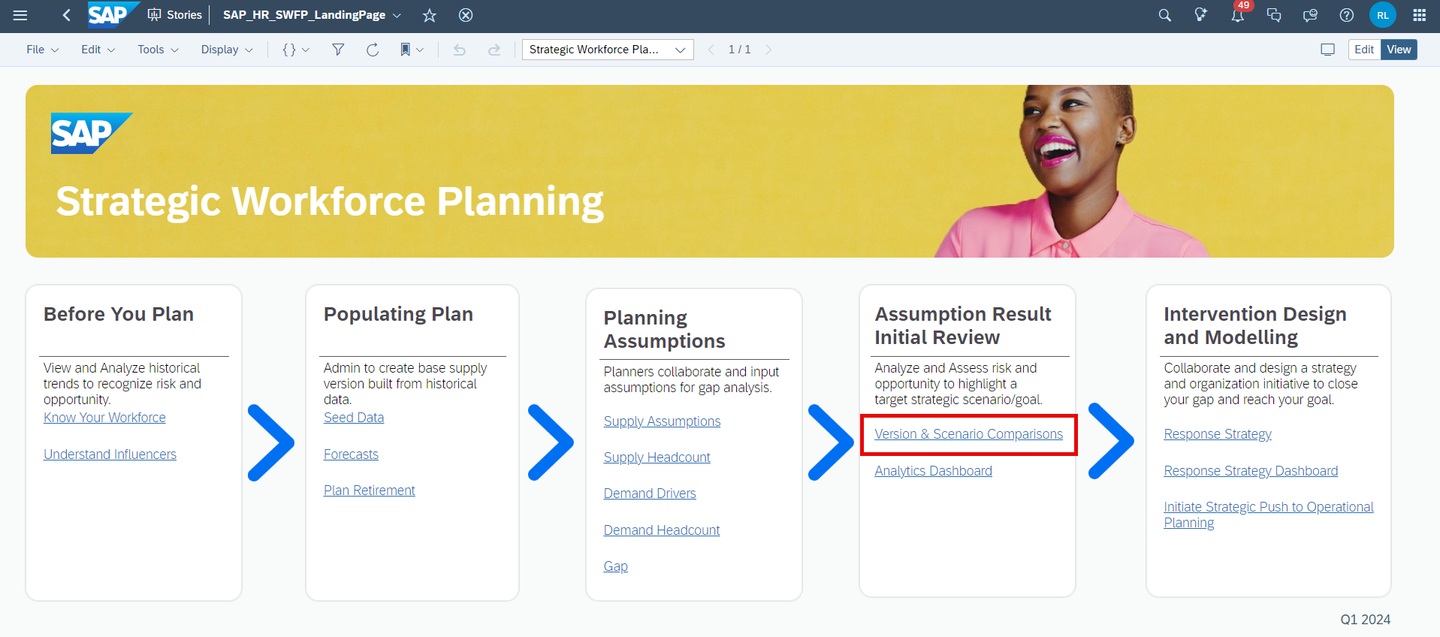
xp&A Strategic Workforce Planning INFORMATION:
- Please note that the Scenario and Version Comparisons (
SAP_HR_SWFP_ValidatePhase) story consists of two story pages. - While you can enter the individual stories from within the main menu of the other applications, the landing page does not provide separate access to the pages but only one hyperlink redirecting you to the first page of the story.
- Please note that the Scenario and Version Comparisons (
You may now switch to the tab Reporting in order to learn more about the available reports.
Currently, you have opened the tab Reporting. This tab provides information about the available reports of this story.
Get an overview of the page Version Comparison
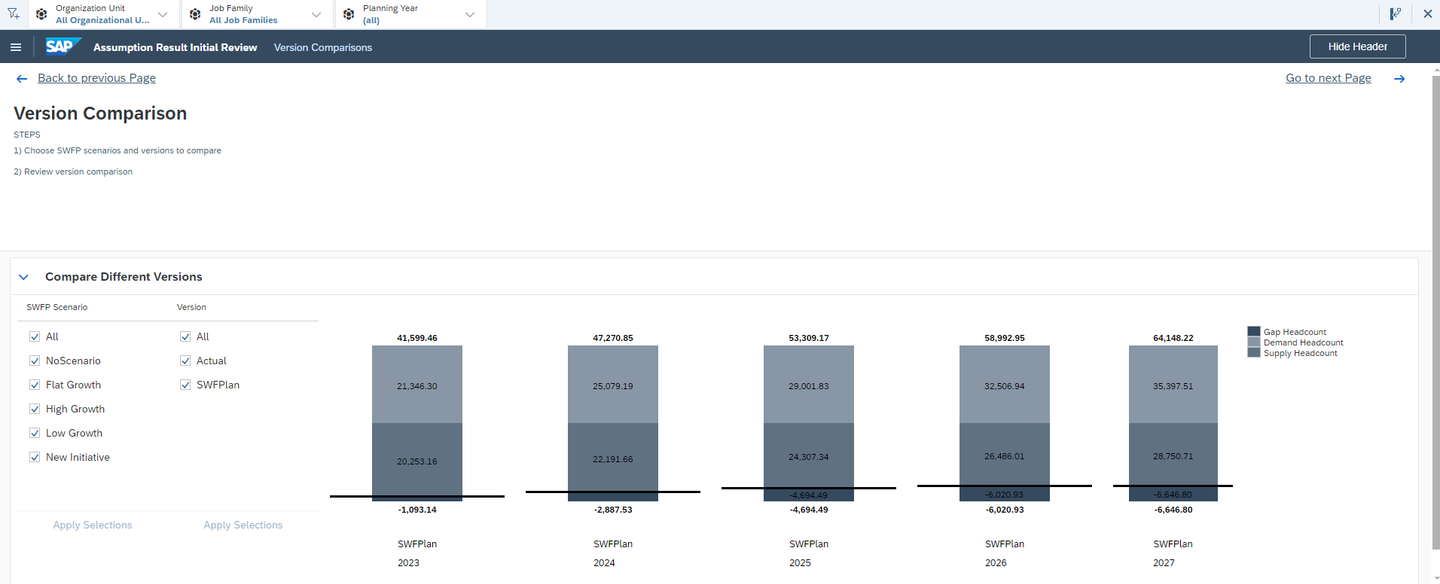
xp&A Strategic Workforce Planning - This story consists of only one major section, which is the Compare Different Versions section.
- Here you can view in a graphical fashion your demand headcount, your supply headcount as well as the gap per planning year, scenario and version.
- In order to change the reporting context, please use the check box widget on the left-hand side of the section.
INFORMATION:
- This report is only relevant if you have more than one planning version as the chart is designed to compare versions only.
Click on the button Go to Next Page in order to enter the second page Scenario Comparison of this story.
xp&A Strategic Workforce Planning Get an overview of the page Scenario Comparison
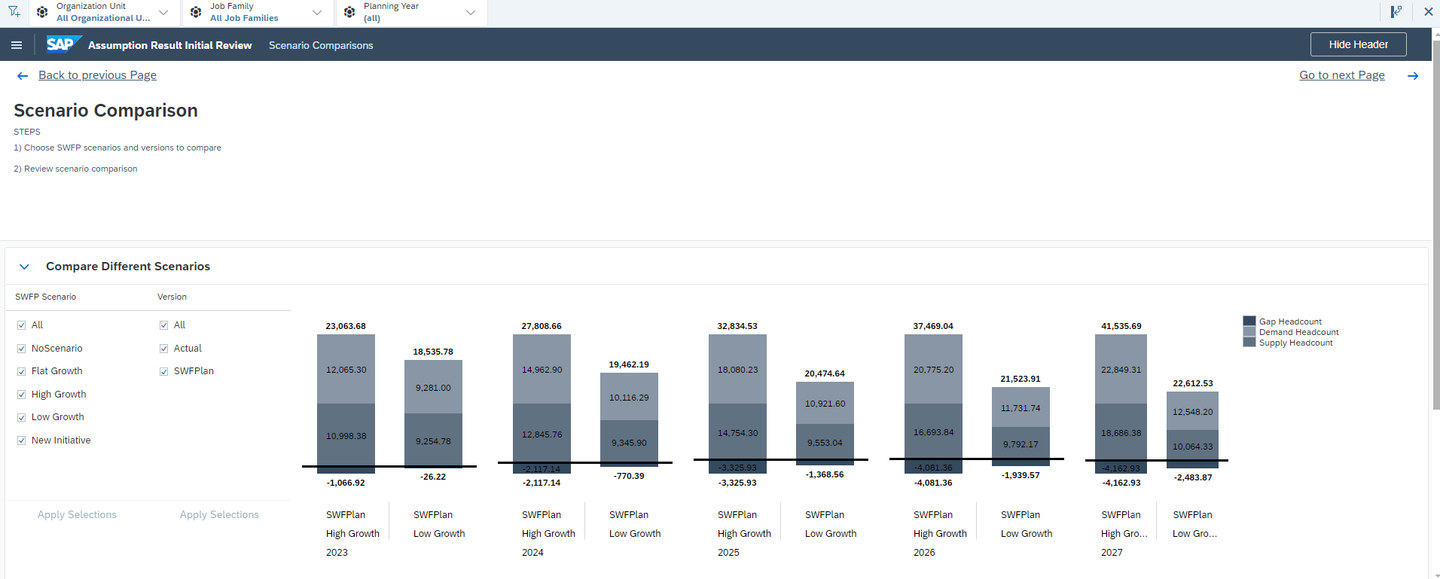
xp&A Strategic Workforce Planning - This report is identical to the report located in the Version Comparison page.
- The major difference is that the bar chart also breaks down the inspected versions by scenario, allowing you to identify the best possible scenario more easily.
In this step the Analytics Dashboard (SAP_HR_SWFP_AnalyticsDashboard) story of this content package is introduced.
Here you will learn how to open the story (Tab 1) and how to consume the different reports which will help you to derive actions in order to close the headcount gaps (Tab 2).
Currently, you have opened the tab Open Story. This tab provides guidance on how to open the Analytics Dashboard (SAP_HR_SWFP_AnalyticsDashboard) story.
If you still have the Scenario and Version Comparisons (
SAP_HR_SWFP_ValidatePhase) story opened from the previous step, click on the burger menu located on the top left corner to open the navigation panel.Now click on either Home Page to jump back to the Strategic Workforce Planning Overview (
SAP_HR_SWFP_LandingPage) or on Analytics Dashboard to directly access the Analytics Dashboard (SAP_HR_SWFP_AnalyticsDashboard) story or use the button Go to next Page in order to jump to the next story.
xp&A Strategic Workforce Planning In this particular case, we will use the Go to next Page button to jump to the Analytics Dashboard (
SAP_HR_SWFP_AnalyticsDashboard) story.
You may now switch to the tab Reporting in order to learn more about the available reports.
Currently, you have opened the tab Reporting. This tab provides information about the available reports of this story.
Get an overview of story
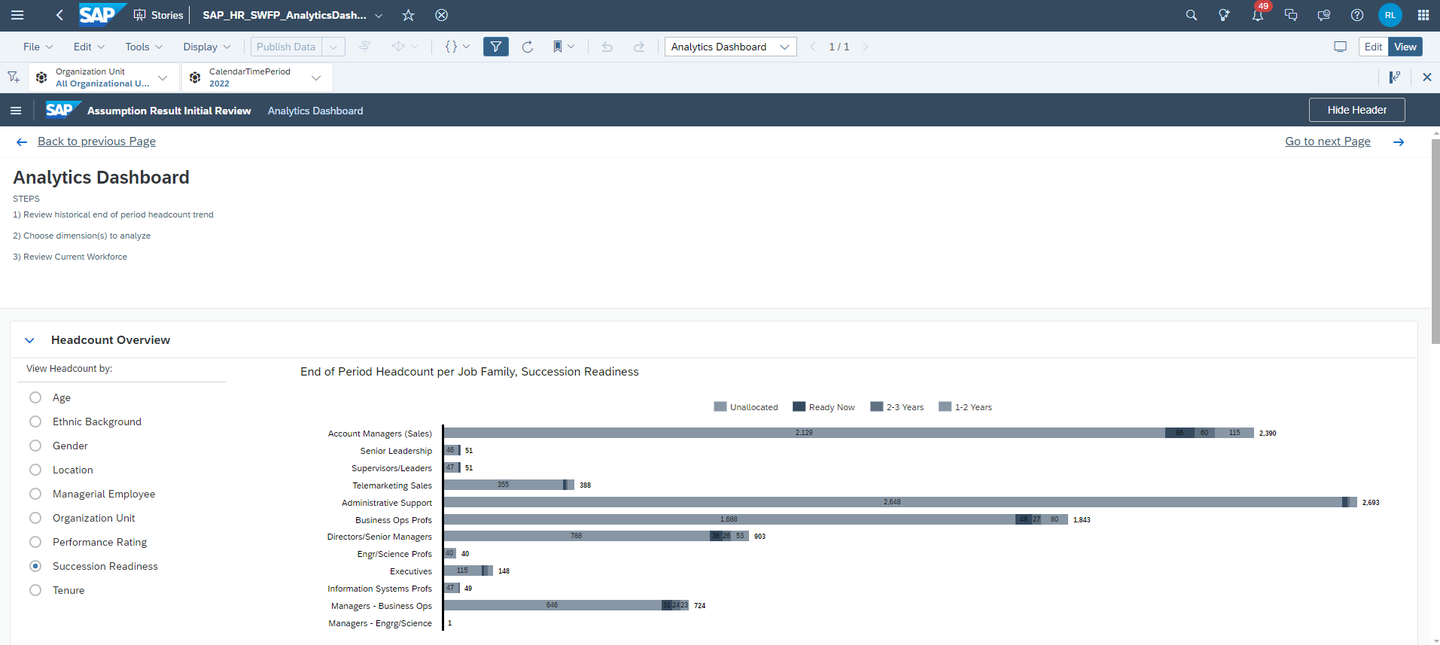
xp&A Strategic Workforce Planning - This story consists of three sections.
- The Headcount Overview section provides an overview on the total headcount by dimension of your choice.
- The Turnover Overview provides an overview on the amount of terminations by dimension of your choice.
- The Staffing Overview provides information on measures such as the average time to fill a position and the net hire ratio per organizational unit.
INFORMATION:
- The Analytics Dashboard does not focus on your planning, but is completely based on the reporting model, thus focussing on historical data.
Scroll down to the section Headcount Overview
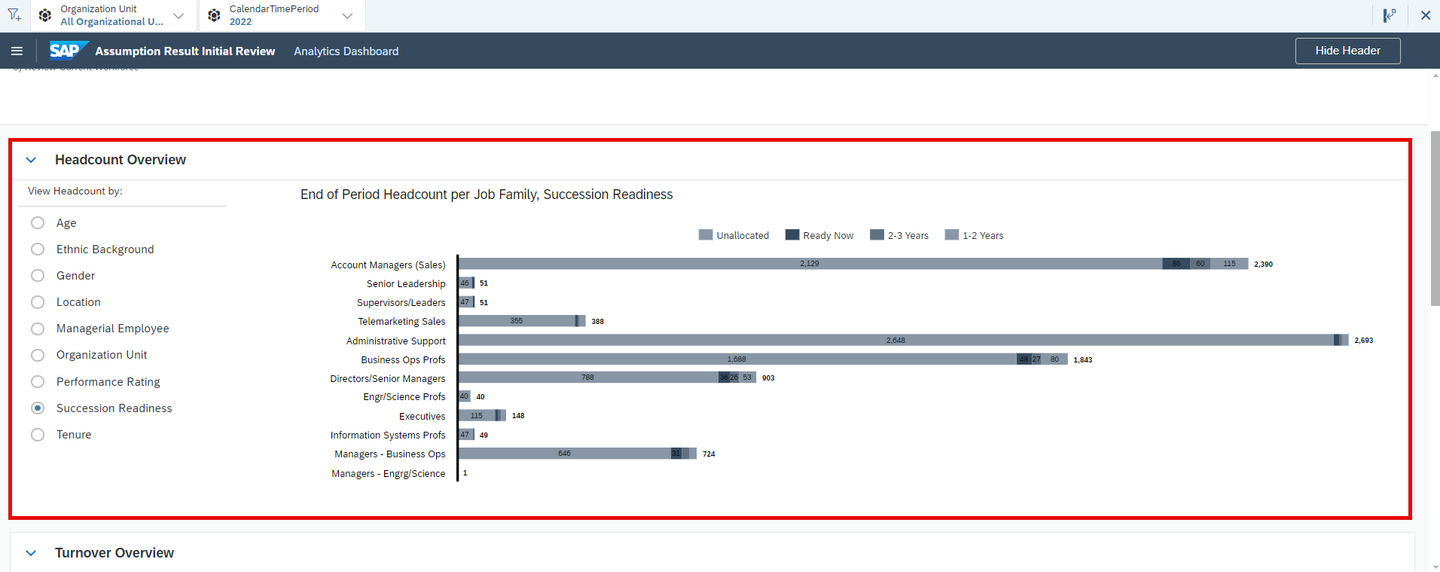
xp&A Strategic Workforce Planning - This report provides you with an overview on your end of period headcount by selected dimension and job family.
- In order to change the dimensional breakdown, use the radio button widget located on the left-hand side of the section.
- In order to change the reporting context in regards to organizational unit and reporting year, use the story filter panel at the top of the story.
Scroll down to the section Turnover Overview
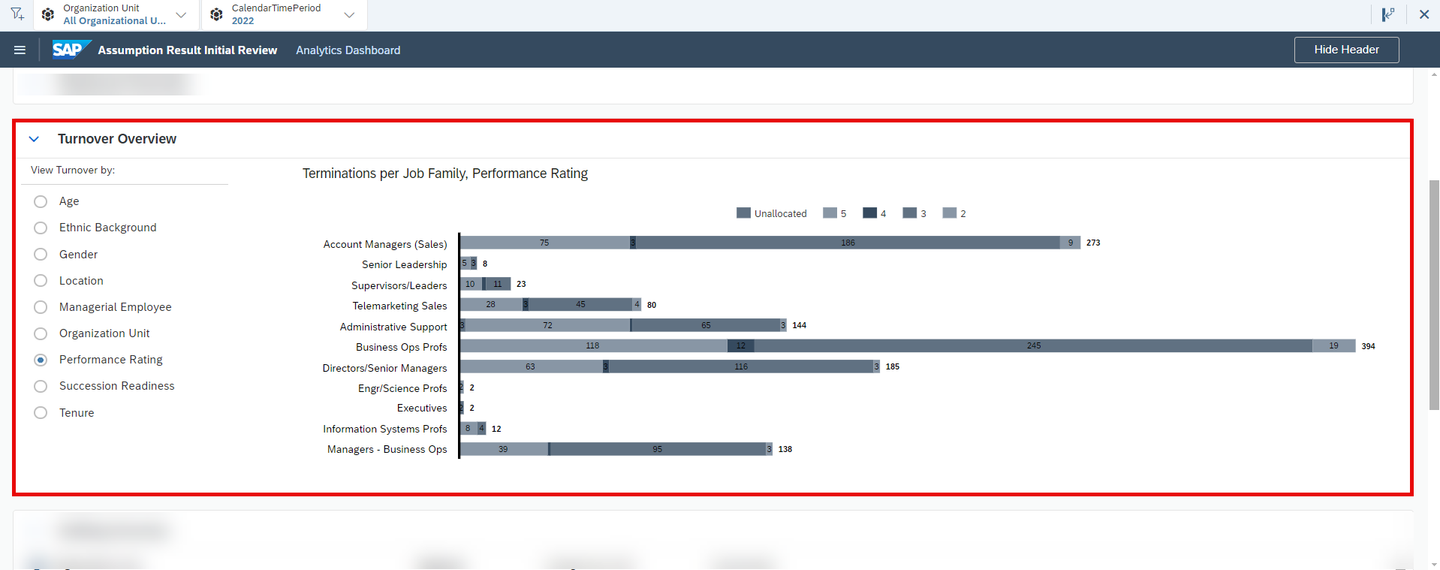
xp&A Strategic Workforce Planning - This report shows the amount of terminations by selected dimension and job family.
- In order to change the dimensional breakdown, use the radio button widget located on the left-hand side of the section.
- In order to change the reporting context in regards to organizational unit and reporting year, use the story filter panel at the top of the story.
Scroll down to the section Staffing Overview
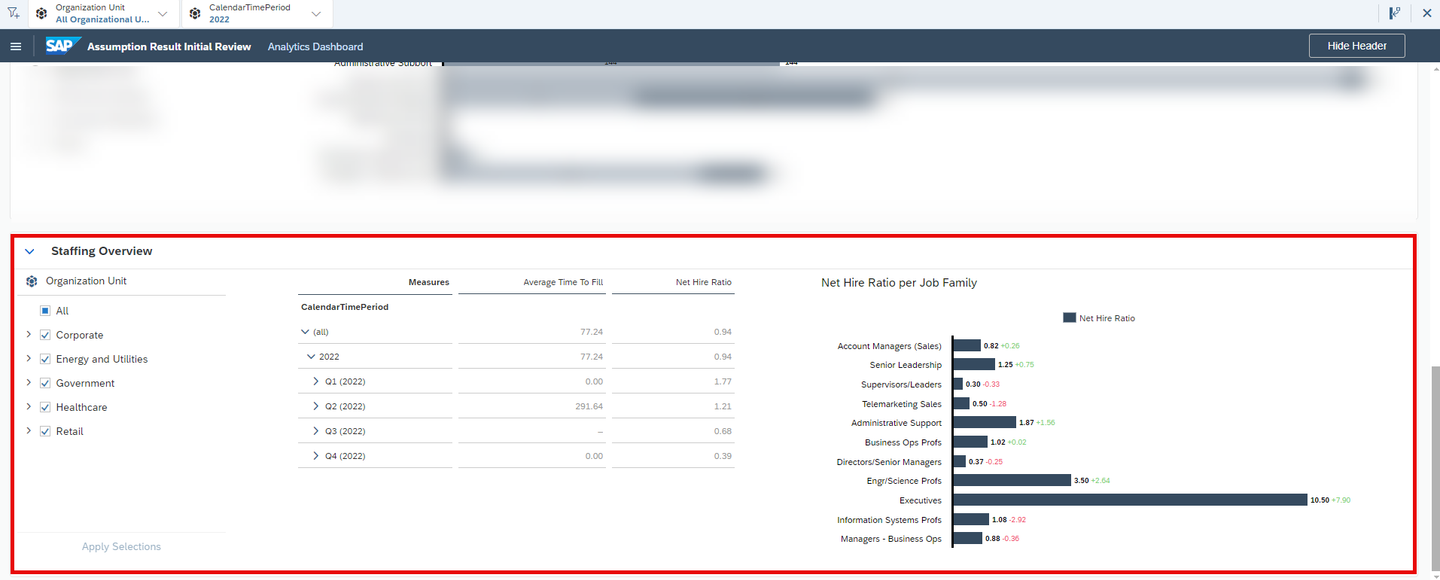
xp&A Strategic Workforce Planning - This report contains two graphs.
- On the left-hand side, you can see a table with the average time to fill and the net hire ratio per year.
- On the right-hand side, you can see the net hire ratio per job family. The colored numbers next to the net hire ratio measure represent the year over year change of the particular measure.
- In order to change the reporting context in regards to organizational unit and reporting year, use the story filter panel at the top of the story.
- Alternatively, you can modify the organizational unit break down by using the checkbox widget on the left-hand side of the section.
INFORMATION:
- The average time to fill is a measure which tells how many days it takes to fill a position on average.
- The net hire ratio is a measure which represents the number of new hires for every termination in the reporting period. An exemplary value of
0.8would mean that 80 % of all positions with a termination are refilled by new hires.
In this step the Response Strategy Modelling (SAP_HR_SWFP_StrategizePhase) story of this content package is introduced.
Here you will learn how to open the story (Tab 1), how to come up with a headcount strategy and close the headcount gap (Tab 2) and lastly how to prepare and integrate your final planning results into the SAP Operational Workforce Planning content package (Tab 3).
Currently, you have opened the tab Open Story. This tab provides guidance on how to open the Response Strategy Modelling (SAP_HR_SWFP_StrategizePhase) story.
If you still have the Analytics Dashboard (
SAP_HR_SWFP_AnalyticsDashboard) story opened from the previous step, click on the burger menu located on the top left corner to open the navigation panel.Now click on either Home Page to jump back to the Strategic Workforce Planning Overview (
SAP_HR_SWFP_LandingPage) or on Response Strategy to directly access the Response Strategy Modelling (SAP_HR_SWFP_StrategizePhase) story or use the button Go to next Page in order to jump to the next story.
xp&A Strategic Workforce Planning In this particular case, we will click on the Analytics Dashboard button in the main menu to jump to the Response Strategy Modelling (
SAP_HR_SWFP_StrategizePhase) story.
You may now switch to the tab Derive Strategy in order to learn more about the available reports.
Currently, you have opened the tab Derive Strategy. In this tab you will learn how to define a headcount strategy.
Get an overview of the page Response Strategy
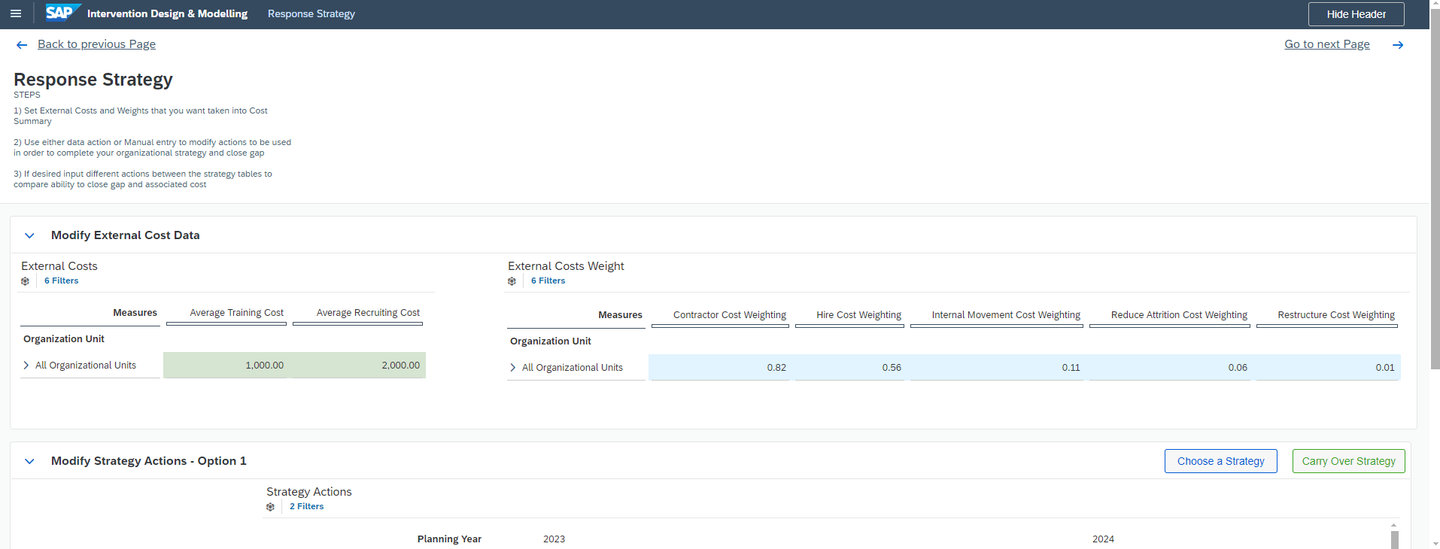
xp&A Strategic Workforce Planning - This story consists of three sections.
- The Modify External Cost section provides input tables where you can maintain different cost rates in order to come up with a cost estimation once you derived a headcount strategy.
- The Modify Strategy Actions - Option 1 section provides an input table where you can enter headcount values to close the headcount gap. In addition to that you can see the respective costs based on your input on the left-hand side of the section.
- The Modify Strategy Actions - Option 2 section is identical to the Modify Strategy Actions - Option 1 section and allows you to define an alternative strategy.
Maintain your cost parameters
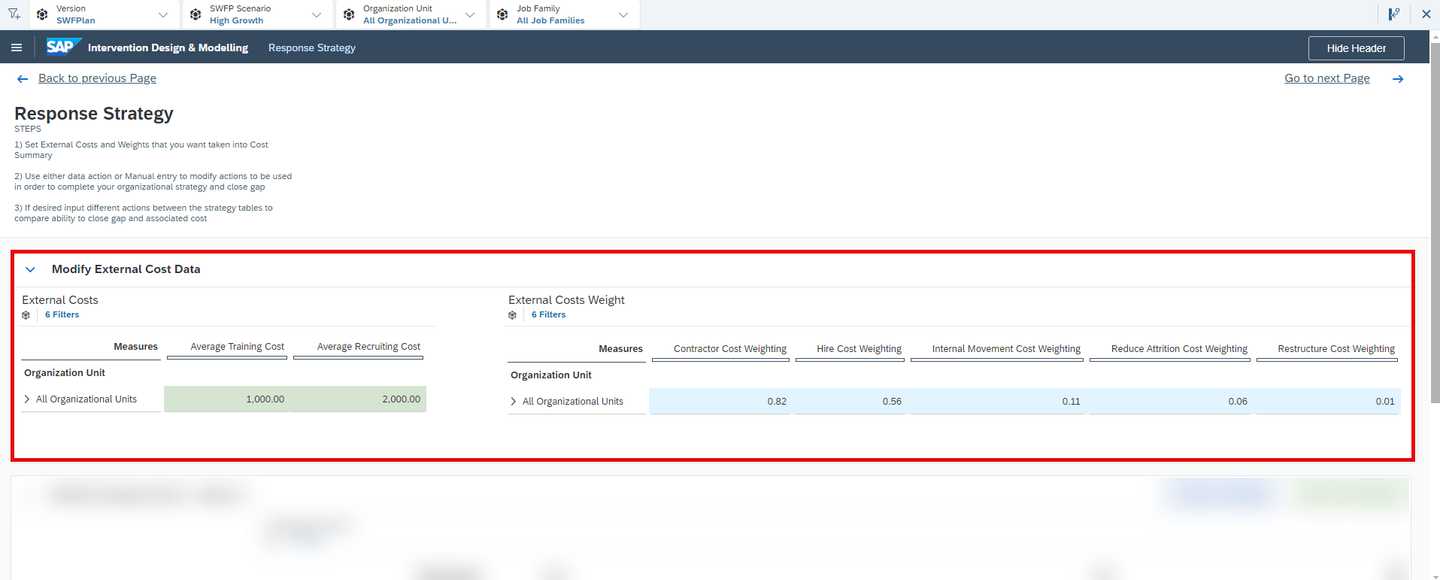
xp&A Strategic Workforce Planning - In the Modify External Cost section you can maintain different cost parameters and weights in order to provide a foundation for the cost calculation for your strategy.
- The table on the left-hand side lets you define the average training and recruiting costs per organizational unit.
- The table on the right-hand side lets you define cost weightings while the numbers represent percentage values.
Define a headcount strategy

xp&A Strategic Workforce Planning - In the table inside this section, you can see the gap headcount as well as the adjusted gap per planning year.
- The green cells represent input cells. This is the place where you want to enter your headcount deltas in order to close the gap. Every entry is reflected in the adjusted gap measure in real time.
- You can either enter the values manually into the cells or use the Choose a Strategy button in order to let a pre-defined algorithm close the calculated gap.
- In order to automatically close the gap, click on any cell in the table and hit the Choose a Strategy button.

xp&A Strategic Workforce Planning In the dropdown selection, you can now choose between different strategies.
The Attract - Buy strategy fills the gap by allocating 10 % of the gap headcount to contractors and 80 % to external hires.
The Attract - Borrow strategy fills the gap by allocating 70 % of the gap headcount to contractors and 10 % to external hires.
The Develop strategy fills the gap by allocating 70 % of the gap headcount to internal movements.
The Retrain strategy fills the gap by allocating 65 % of the gap headcount to attrition reductions and 10 % to restructuring activities.
The Redesign strategy fills the gap by allocating 30 % of the gap headcount to internal movements and 45 % to restructuring activities.
If you want to change the weights or if you want to define your own strategies, you can do so by entering the planning data model
SAP_HR_STRATEGIC_WFPand going into the dimensionSAP_SWFP_STRATEGY_OPT.Here you can change the respective attributes to modify the weights per strategy.

xp&A Strategic Workforce Planning - Once you completed planning the first year, you can make use of the carry forward function to carry over the strategy to the remaining planning periods by clicking on the Carry Over Strategy button.

xp&A Strategic Workforce Planning - In parallel you can always track your estimated strategy costs in the table on left-hand side of the section.
Create an alternative strategy

xp&A Strategic Workforce Planning - Create an alternative strategy if desired to compare multiple strategy opportunities and the associated costs.
- To do so, repeat the exercise from the previous sub-step in the section Modify Strategy Actions - Option 2.
Click on the button Go to next Page in order to jump to the next page of the story.

xp&A Strategic Workforce Planning - Alternatively, you can also navigate to the second page of the Response Strategy Modelling (
SAP_HR_SWFP_StrategizePhase) story by using the Main Menu and clicking on Response Dashboard or by clicking on the Response Dashboard link in the Strategic Workforce Planning Overview (SAP_HR_SWFP_LandingPage) story.
- Alternatively, you can also navigate to the second page of the Response Strategy Modelling (
You may now switch to the tab Dashboard Summary.
Currently, you have opened the tab Dashboard Summary. In this section you will learn how to consume the summary report.
Get an overview of the page Response Dashboard

xp&A Strategic Workforce Planning - This story page consists of three sections.
- The upper section View Do Nothing Scenario Compared to Response Strategy compares the headcount of your selected strategy with the initially planned headcount supply measures.
- The middle section View Strategy Action Plan shows your workforce composition for your selected strategy per year.
- The lower section View Strategy Costs depicts the associated costs that come with your strategy based on the cost parameters maintained in the previous story.
- All sections take into account the filter settings from the story filter panel.
Scroll down to the View Do Nothing Scenario Compared to Response Strategy section.

xp&A Strategic Workforce Planning - In this section you can see your initially planned headcount compared to your final headcount per planning year and version.
- In the upper half of the chart you can see the deviation between these two headcount values. A negative value indicates that the initially planned headcount is lower than the newly planned headcount.
Scroll down to the View Strategy Action Plan section.

xp&A Strategic Workforce Planning - In this section you can analyze your workforce composition in more detail.
- Here you can see per planning year how many contractors, external hires, internal movements, attrition reductions and restructuring headcount you have planned to close the gap.
- On the right-hand side of the story, you can see the headcount supply and demand, together with the initial gap and the adjusted gap as well as the other components contributing to closing the gap.
Scroll down to the View Strategy Cost section.

xp&A Strategic Workforce Planning - In this section you can see the associated costs that come with the individual actions.
- On the right-hand side of the section, you can also see the average costs per action.
Click on the button Go to next Page in order to jump to the next page of the story.

xp&A Strategic Workforce Planning - Alternatively, you can also navigate to the second page of the Response Strategy Modelling (
SAP_HR_SWFP_StrategizePhase) story by using the Main Menu and clicking on Response Dashboard or by clicking on the Response Dashboard link in the Strategic Workforce Planning Overview (SAP_HR_SWFP_LandingPage) story.
- Alternatively, you can also navigate to the second page of the Response Strategy Modelling (
You may now switch to the tab Integrate Results.
Currently, you have opened the tab Integrate Results. In this section you will learn how to prepare and integrate your results into the SAP Operational Workforce Planning content package.
This story page consists of only one section Initialize Data to Operational Planning

xp&A Strategic Workforce Planning The button Initialize Data to Operational Plan is a placeholder with no function provided by the content package.
As the logic may vary significantly per customer, it is required to first create a data action in order to prepare your data for the integration into the SAP Operational Workforce Planning content package as the data structures in this content are different from the ones in this content package.
Once this data action is created, it can be integrated into this button.
The button Go to Operational Plan redirects the user to the respective content package.
Congratulations! You have finished the introduction tutorial and are now able to use the Strategic Workforce Planning content like an expert.
Interested in more xP&A topics and related business content packages? Visit our community page Extended Planning & Analysis Business Content.
Resources
Discussion
Share feedback on this tutorial or join the conversation in SAP Community.